
When you are unable to remind the password of SmarterMail admin user, you can follow these steps to reset it.
Step:1 Stop SmarterMail Service
- Login to your Windows server via Remote Desktop.
- Go to Start >> Administrative Tools >> Services.
- Locate SmarterMail service and click on Stop button to stop the service.

Step:2 Modify Mailconfig.xml File
- Open My Computer.
- Go to C:\Program Files(X86)\SmarterTools\SmarterMail\Service.
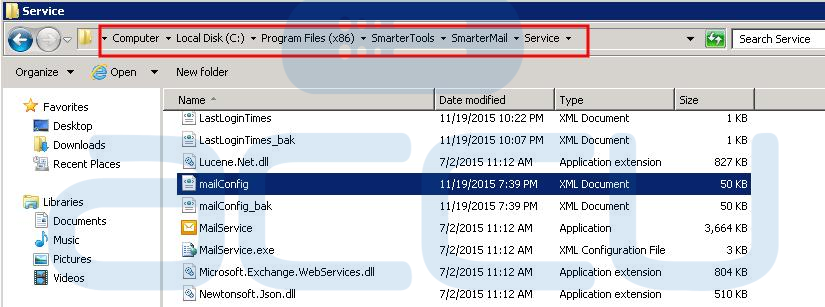
- Take backup copy of the file MailConfig.xml.
- Open MailConfig.xml file in Notepad++ editor to edit.
- Find the below section in the file.
 <!-- ***************************************** -->
 <sysAdminUsername> ... </sysAdminUsername>
 <sysAdminPasswordHash> ... </sysAdminPasswordHash>
 <!-- ***************************************** -->
- Remove above entries from MailConfig.xml file and save it.
Step 3: Start SmarterMail Service
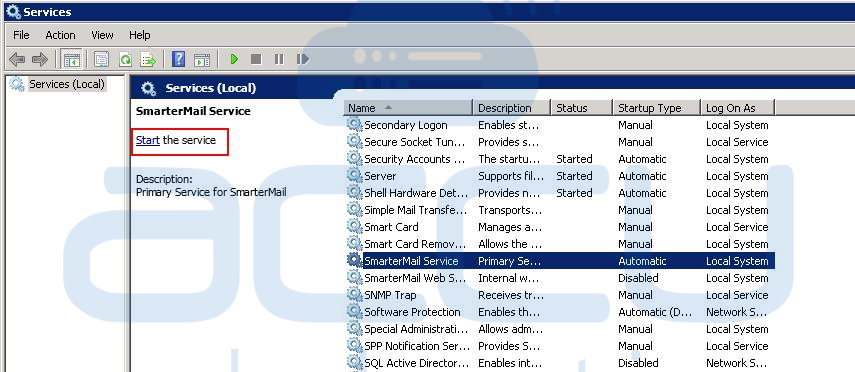
- Go to Start >> Administrative Tools >> Services.
- Locate SmarterMail service and click on Start button to start the service.
Step 4: Reset SmarterMail Admin User Password
- Browse SmarterMail webmail interface (http://server-IP-address:9998).
- Enter default username as admin and password as admin. SmarterMail will let you login with default credentials.
- Once you login to SmarterMail, reset the admin user password.