
Managing Windows hosting environments through SolidCP is generally straightforward. However, administrators may occasionally encounter issues when attempting to view or modify NTFS permissions for website files and folders. One common error appears when accessing the File Manager or NTFS Permissions section within the SolidCP control panel.
Error Message
When attempting to view folder permissions, you may receive the following error:
Error reading file/folder NTFS permissions
System.Web.Services.Protocols.SoapException: Server was unable to process request. ---> System.Exception: Error executing task ---> System.IndexOutOfRangeException: Index was outside the bounds of the array. at SolidCP.EnterpriseServer.FilesController.GetAvailableSecurityAccounts(Int32 packageId) at SolidCP.EnterpriseServer.FilesController.GetFilePermissions(Int32 packageId, String path)
--- End of inner exception stack trace — at SolidCP.EnterpriseServer.FilesController.GetFilePermissions(Int32 packageId, String path) at SolidCP.EnterpriseServer.esFiles.GetFilePermissions(Int32 packageId, String path) --- End of inner exception stack trace ---
This error typically indicates that SolidCP is unable to retrieve or process NTFS security accounts associated with the selected hosting space or website. In many cases, the issue is caused by inconsistencies between the SolidCP database and IIS configuration.
Understanding the Root Cause
Before troubleshooting, it is important to understand how SolidCP manages website permissions. When an administrator opens the NTFS Permissions page, SolidCP performs the following actions:
-
Retrieves website information from the SolidCP database.
-
Queries IIS for websites associated with the hosting space.
-
Retrieves application pool identities and security identifiers (SIDs).
-
Maps those identities to NTFS permissions.
-
Displays available security accounts within the control panel.
If any website record exists in SolidCP but does not exist in IIS, SolidCP may fail while collecting security account information. This mismatch can trigger an exception and cause the permissions page to stop loading.
The most common reason for this mismatch is manual deletion of websites directly from IIS Manager instead of deleting them through SolidCP.
Common Scenarios That Cause This Error
Administrators often encounter this issue in the following situations:
Scenario 1: Website Deleted from IIS Manually: A domain exists in SolidCP but was removed directly from IIS Manager.
Result:
-
SolidCP still believes the website exists.
-
IIS cannot locate the website.
-
Security account lookup fails.
-
The NTFS permission page throws an exception.
Scenario 2: Outdated SolidCP Version: Older versions of SolidCP contain bugs related to permission mapping and security account enumeration.
Result:
-
The permission retrieval process may fail unexpectedly.
-
Array handling issues can generate IndexOutOfRangeException errors.
Scenario 3: Corrupted Hosting Records: Database records may become inconsistent due to Failed migrations, Interrupted upgrades, Manual database changes, or Hosting synchronization failures.
Result:
-
IIS and SolidCP contain different information.
-
Permission queries fail.
Scenario 4: Missing IIS Configuration: Websites may have been removed accidentally from IIS Sites, Application Pools or Configuration files.
Result:
-
SolidCP cannot locate required IIS objects.
-
Permission lookup process crashes.
Step 1: Check SolidCP Logs from Event Viewer
The first troubleshooting step is reviewing the logs.
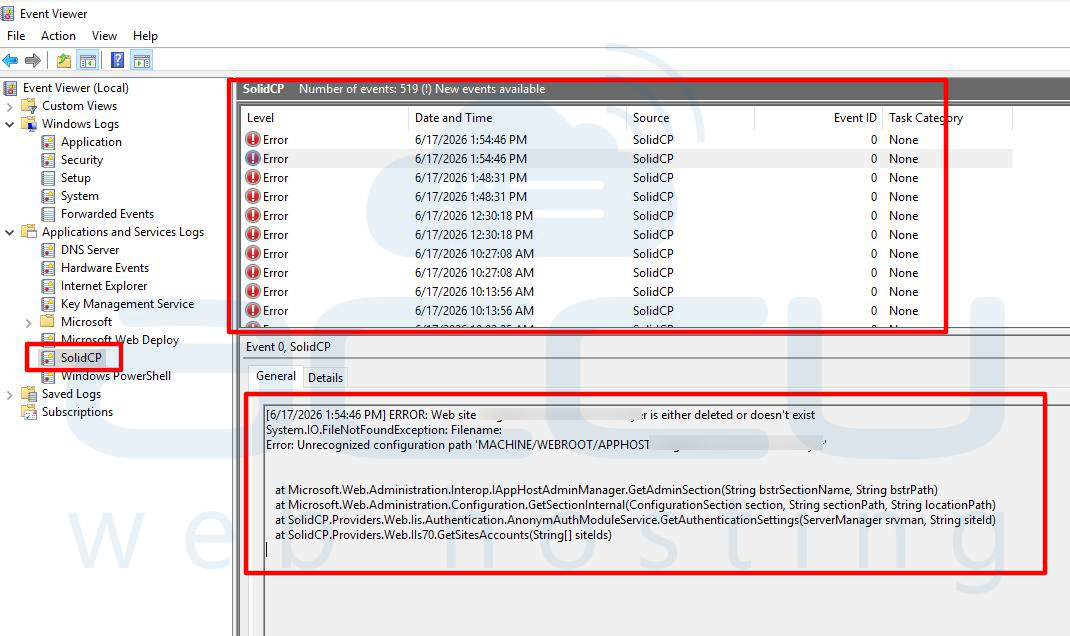
SolidCP writes detailed errors to the Windows Event Viewer, which often provides additional information not visible in the browser.
Open Event Viewer: Log in to the server, Press Windows + R and type: eventvwr.msc. Click OK.
Navigate to Application Logs:
Browse to: Windows Logs-> Application and Service Logs -> SolidCP
Review Error Details
Search for errors occurring at the same time as the NTFS permission failure.
Common errors include: FileNotFoundException, IndexOutOfRangeException, Object reference not set to an instance of an object or Unrecognized configuration path.
Identify Missing Websites:
Often the log reveals a missing IIS site similar to: The configuration path MACHINE/WEBROOT/APPHOST/example.com could not be found. This confirms that SolidCP is trying to access a website that no longer exists in IIS.
Why Does This Step Matters?
Event Viewer provides the exact object causing the issue and helps determine whether the problem is IIS-related, Database-related, Permission-related or Software bug-related. Always collect logs before making changes.
Step 2: Upgrade SolidCP to the Latest Version
Running an outdated version can cause permission enumeration issues. The SolidCP development team regularly fixes bugs related to IIS integration, Security account lookup, NTFS permissions and Website synchronization
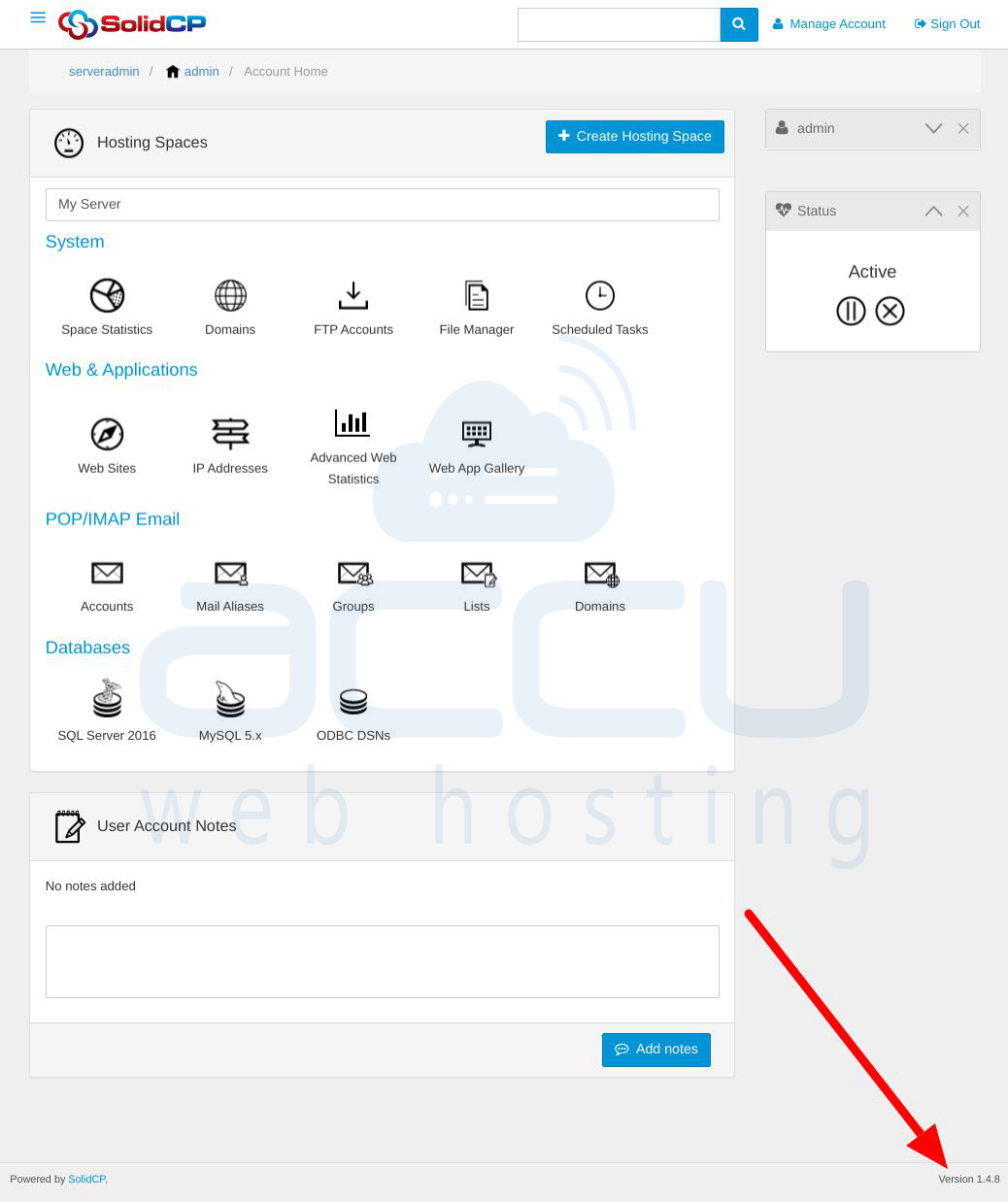
Check Current Version
In the SolidCP portal: Configuration -> About or Portal Footer: Review the installed version.
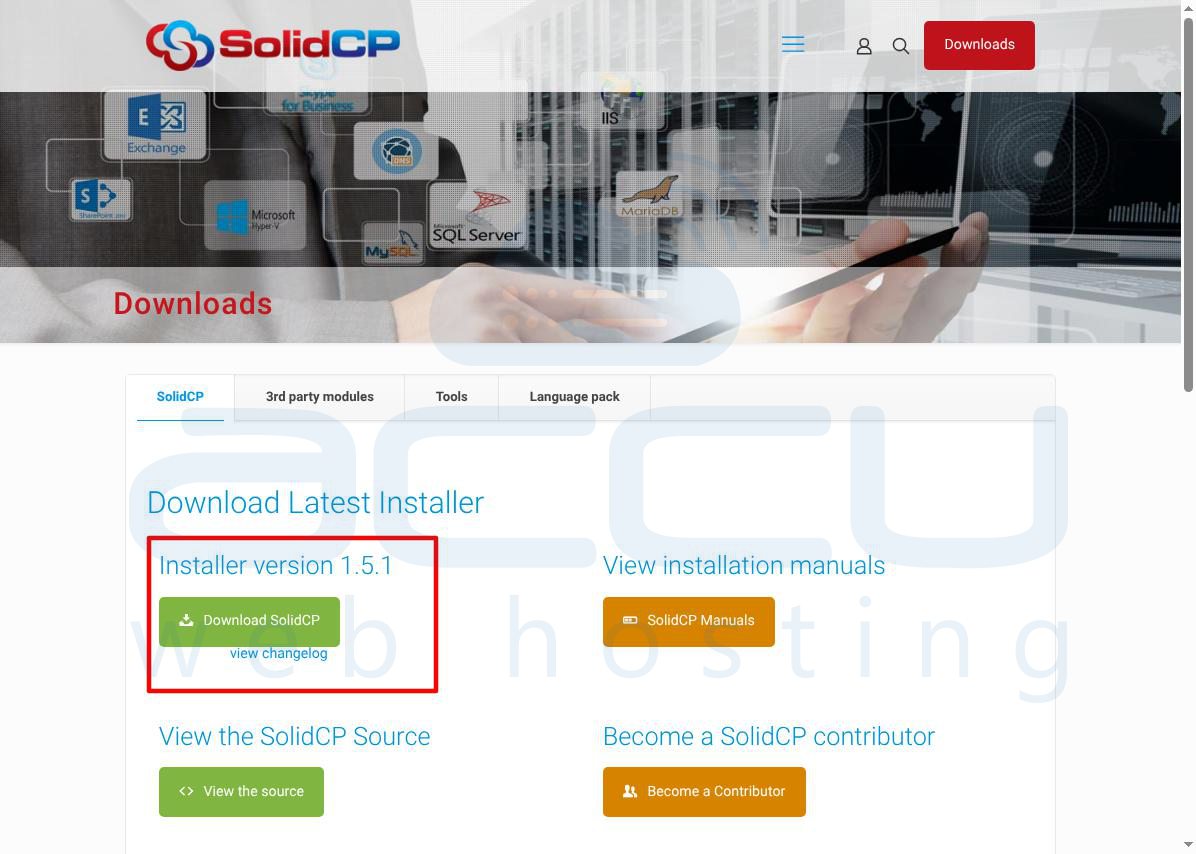
Download Latest Release:
SolidCP Official Website: https://solidcp.com/
Download the latest stable release: https://solidcp.com/downloads/
Perform Upgrade
Follow SolidCP upgrade documentation carefully.
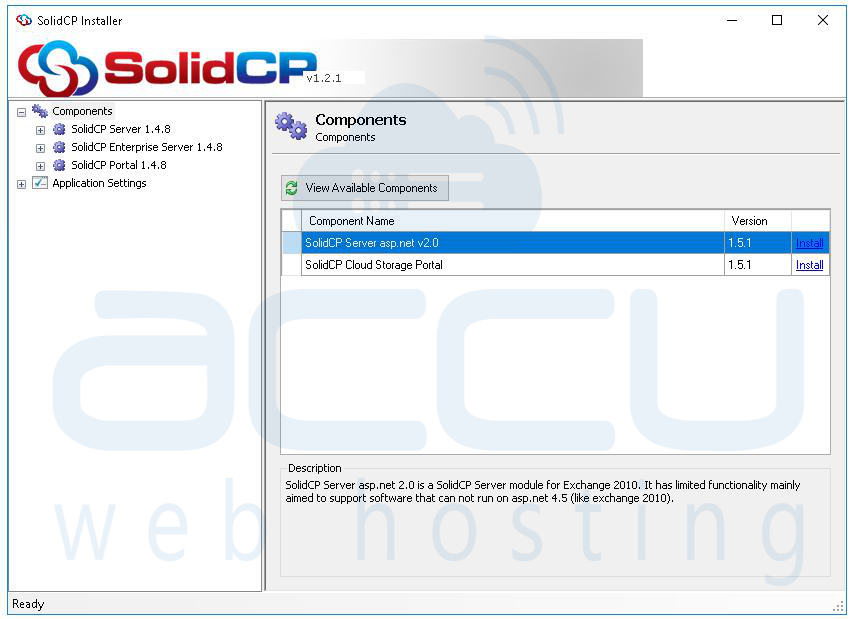
After upgrading restart IIS: iisreset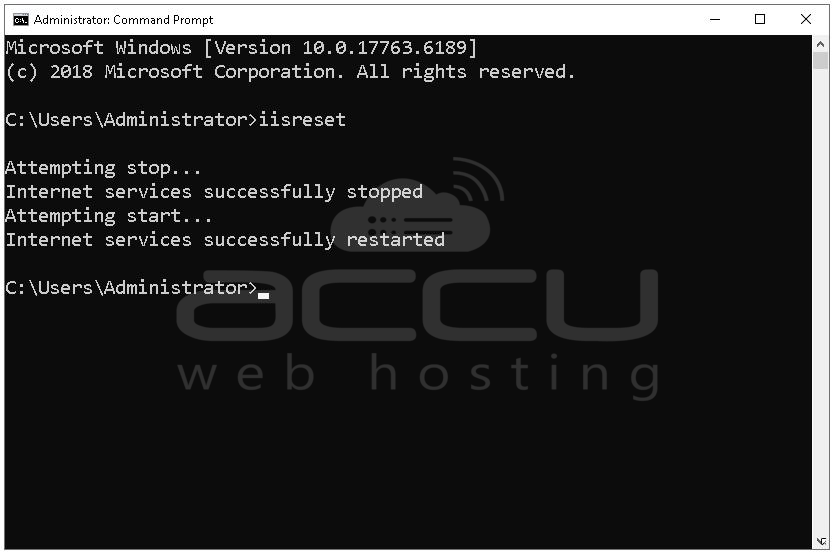
Restart SolidCP services and test NTFS permissions again.
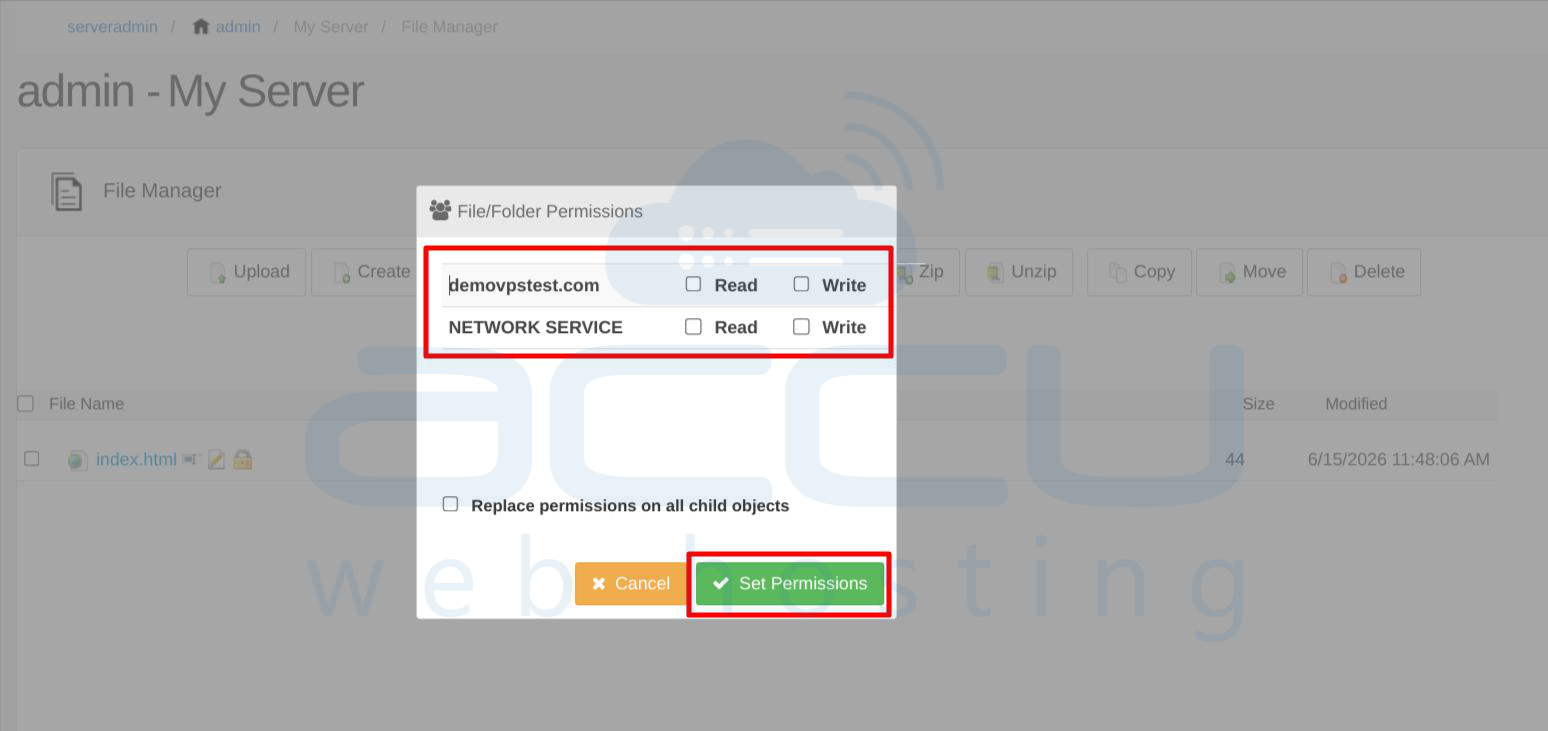
Benefits of Upgrading
Newer versions may include Improved error handling, Better IIS synchronization, Enhanced security account discovery and Fixed array boundary validation. If the issue was caused by a software defect, upgrading may resolve it immediately.
Step 3: Verify Domains Exist in Both IIS and SolidCP
This is the most critical verification step. SolidCP expects every hosted website in its database to exist within IIS.
Check Domains in SolidCP
Open: Hosting Space -> Websites
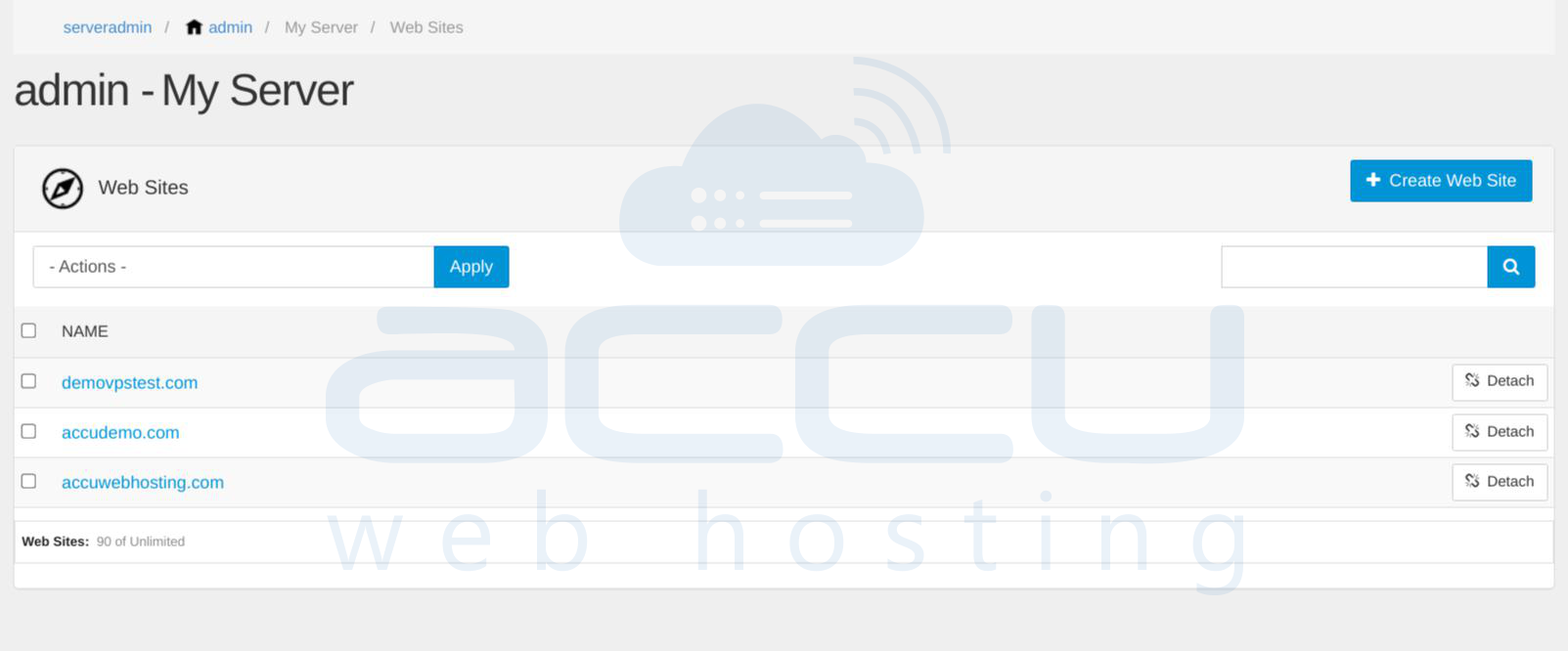
Review all active domains.
Example: example.com, testsite.com, demo.net
Check Domains in IIS
Open Internet Information Services (IIS) Manager and navigate to Sites. Review all configured websites.
Compare Both Lists: Ensure every website shown in SolidCP also exists in IIS. This discrepancy can trigger the NTFS permissions error.
Important Warning
Do not manually remove websites from IIS Manager if they are managed by SolidCP.
Incorrect procedure: Open IIS -> Delete website
Correct procedure: Open SolidCP -> Delete website
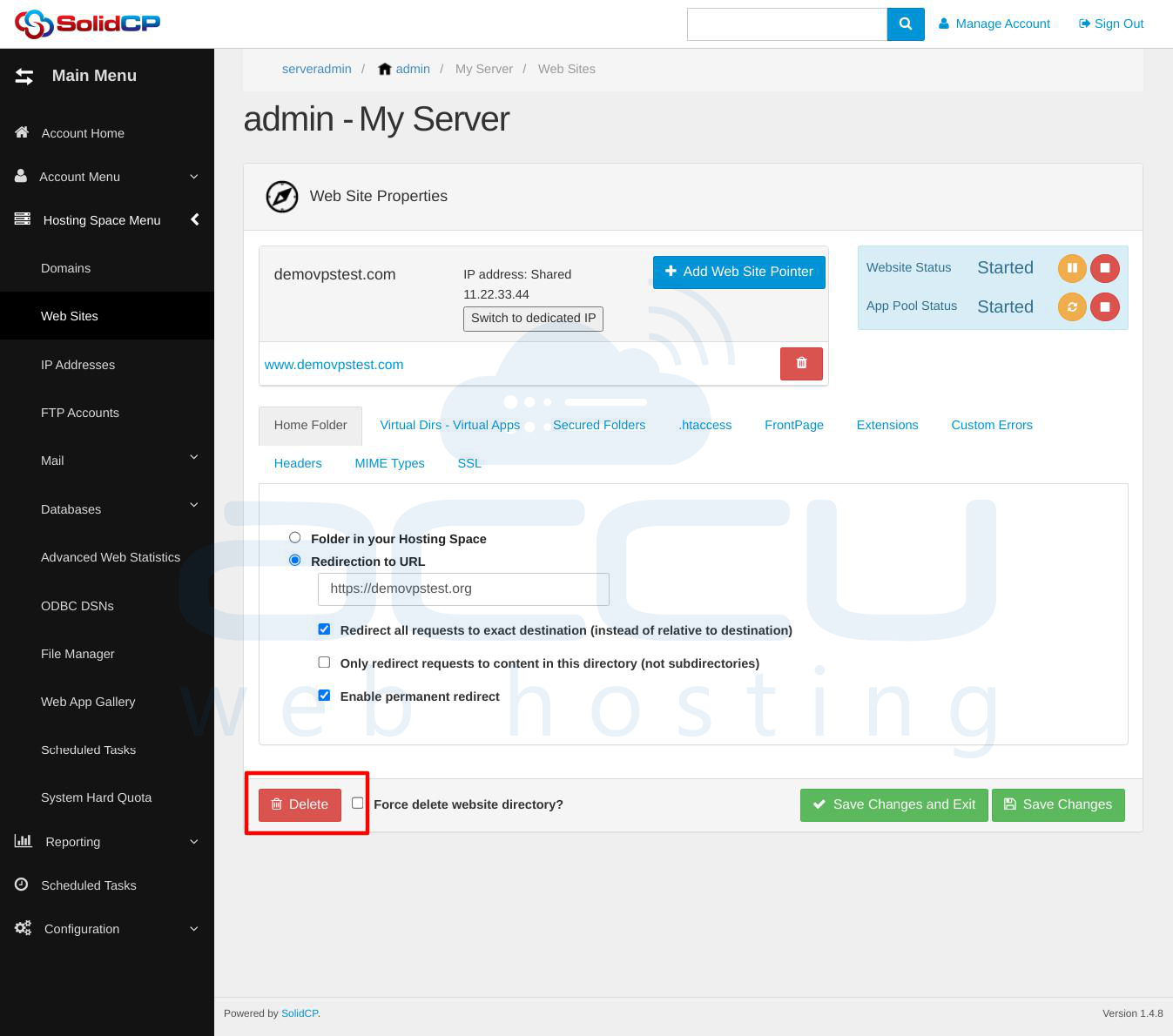
SolidCP automatically removes IIS entries, removes application pools, updates databases and cleans hosting records. Deleting directly from IIS bypasses these operations.
Understanding the Orphaned Website Problem
One of the most common causes of this error is orphaned website records. An orphaned website occurs when a Website exists in SolidCP but Website does not exist in IIS or Website exists in IIS but Website does not exist in SolidCP. The first scenario is usually responsible for the NTFS permission error.
How the Error Occurs Internally?
During troubleshooting, SolidCP internal logs may reveal something similar to Legacy sites identified as active assets.within the SolidCP database but missing from IIS.
When SolidCP attempts to retrieve security identifiers (SIDs), IIS returns an exception:
FileNotFoundException
or
Unrecognized configuration path
The security account enumeration process then fails. Because the application expects valid results, an array lookup operation may exceed its boundaries, resulting in: IndexOutOfRangeException. This eventually surfaces in the user interface as Error reading file/folder NTFS permissions.
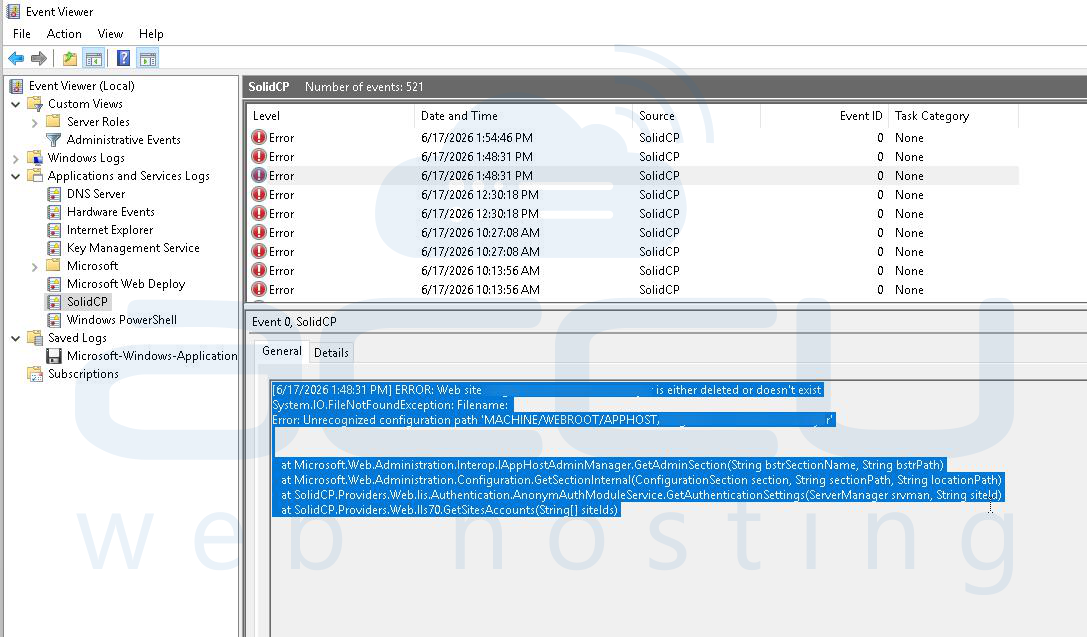
Step 4: Identify Missing IIS Websites
After locating the affected website, verify whether it exists in IIS.
Open IIS Manager navigate to Sites. Search for the missing site. If it does not exist, SolidCP cannot retrieve security account information.
Step 5: Create Temporary Dummy Websites
If a website record still exists in SolidCP but has already been removed from IIS, you can temporarily recreate it. This allows SolidCP to complete its validation and cleanup process.
Create the Missing Website
In IIS Manager: Sites -> Add Website
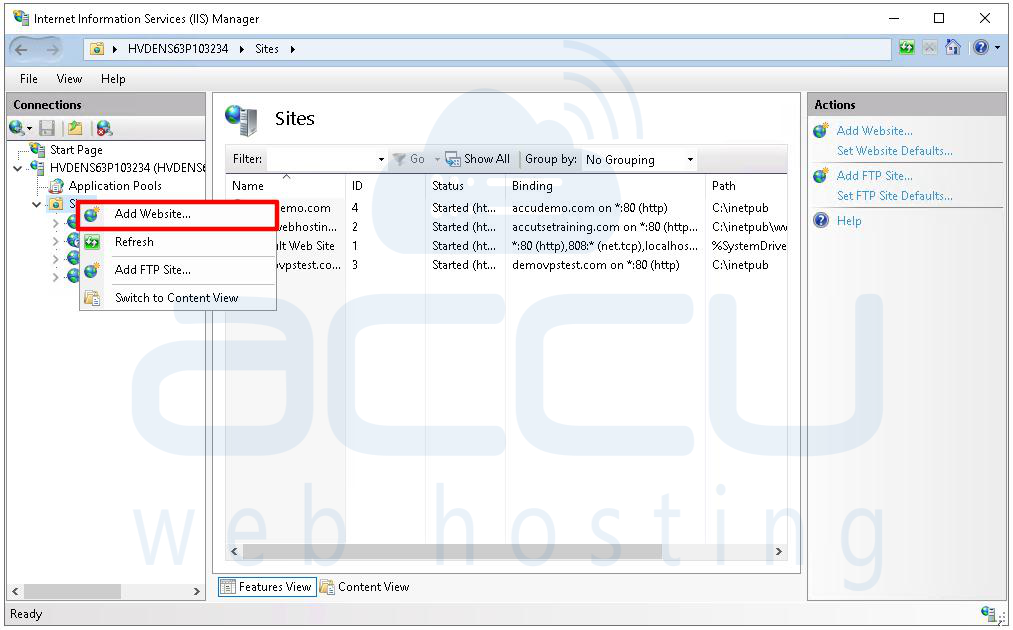
Use: Same website name, Same hostname, Any valid folder path
Example:
Website Name: example.com
Physical Path: D:\Websites\example.com
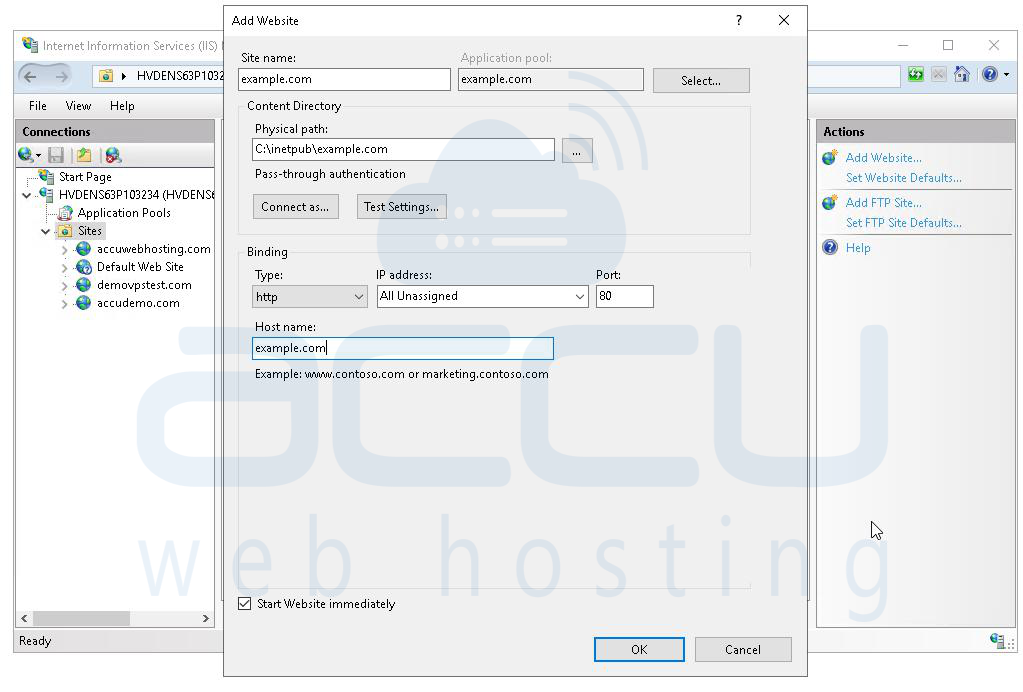
The website does not need to be fully functional. Its purpose is only to satisfy SolidCP's lookup requirements.
Create Application Pool
If necessary, create a matching application pool.
Example: example.com or example.com_AppPool depending on the original configuration.
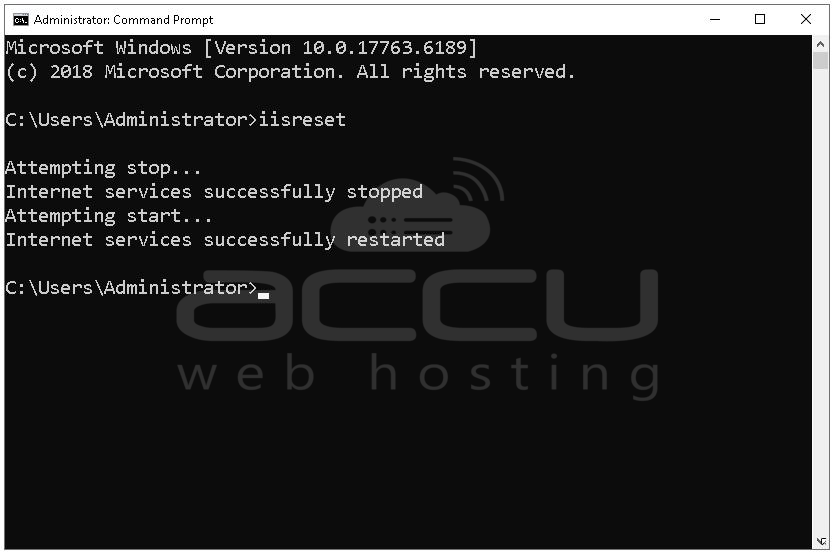
Restart IIS Run: iisreset or recycle the application pool.
Step 6: Reload SolidCP
After recreating the missing IIS site:
-
Log in to SolidCP.
-
Open the affected hosting space.
-
Navigate to File Manager.
-
Open NTFS Permissions.
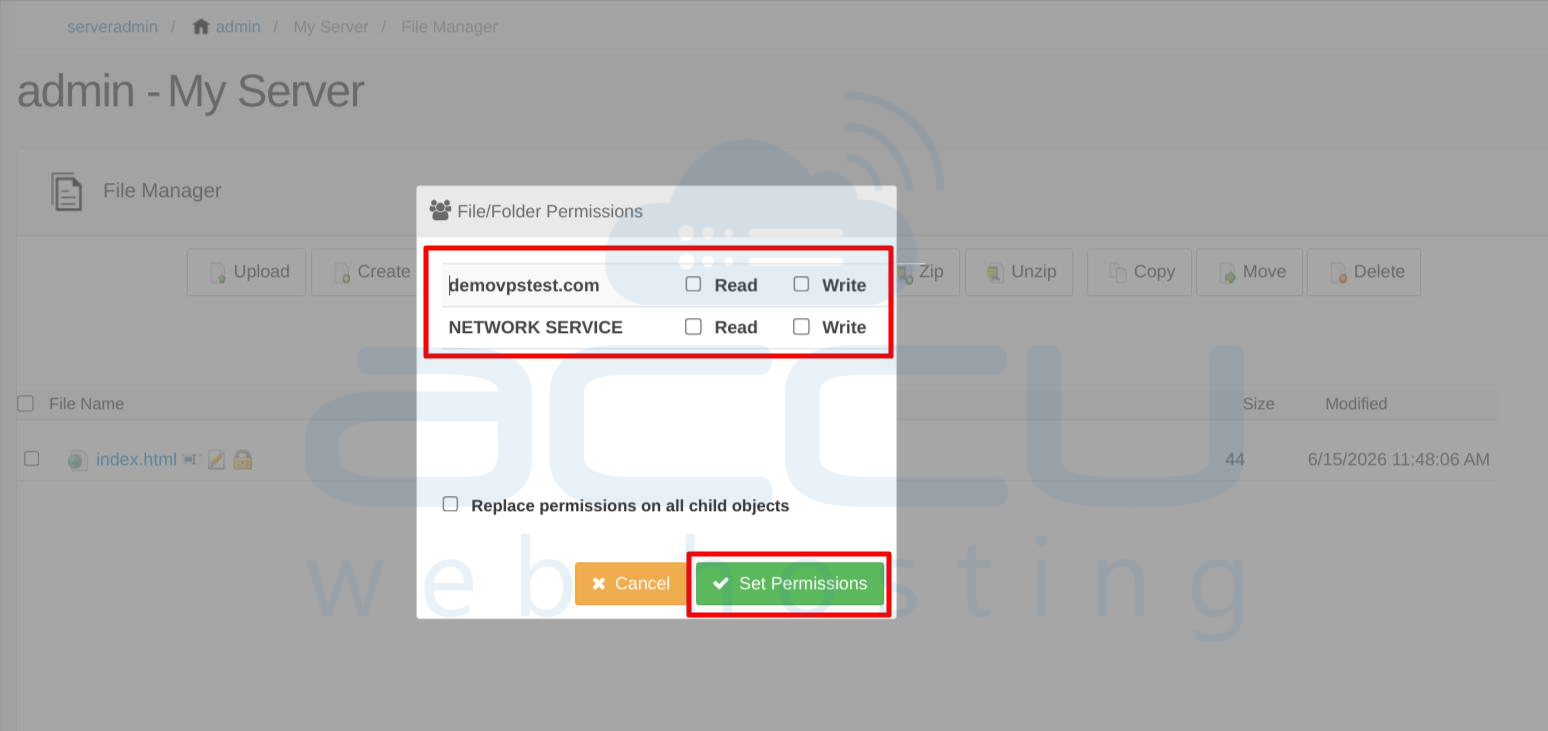
In many cases, the page now loads successfully because the expected IIS object exists again.
Step 7: Delete the Website Properly Through SolidCP
Once access is restored, perform a clean deletion from within SolidCP.
Navigate to: Hosting Space -> Websites.
Select the problematic website. Choose Delete.
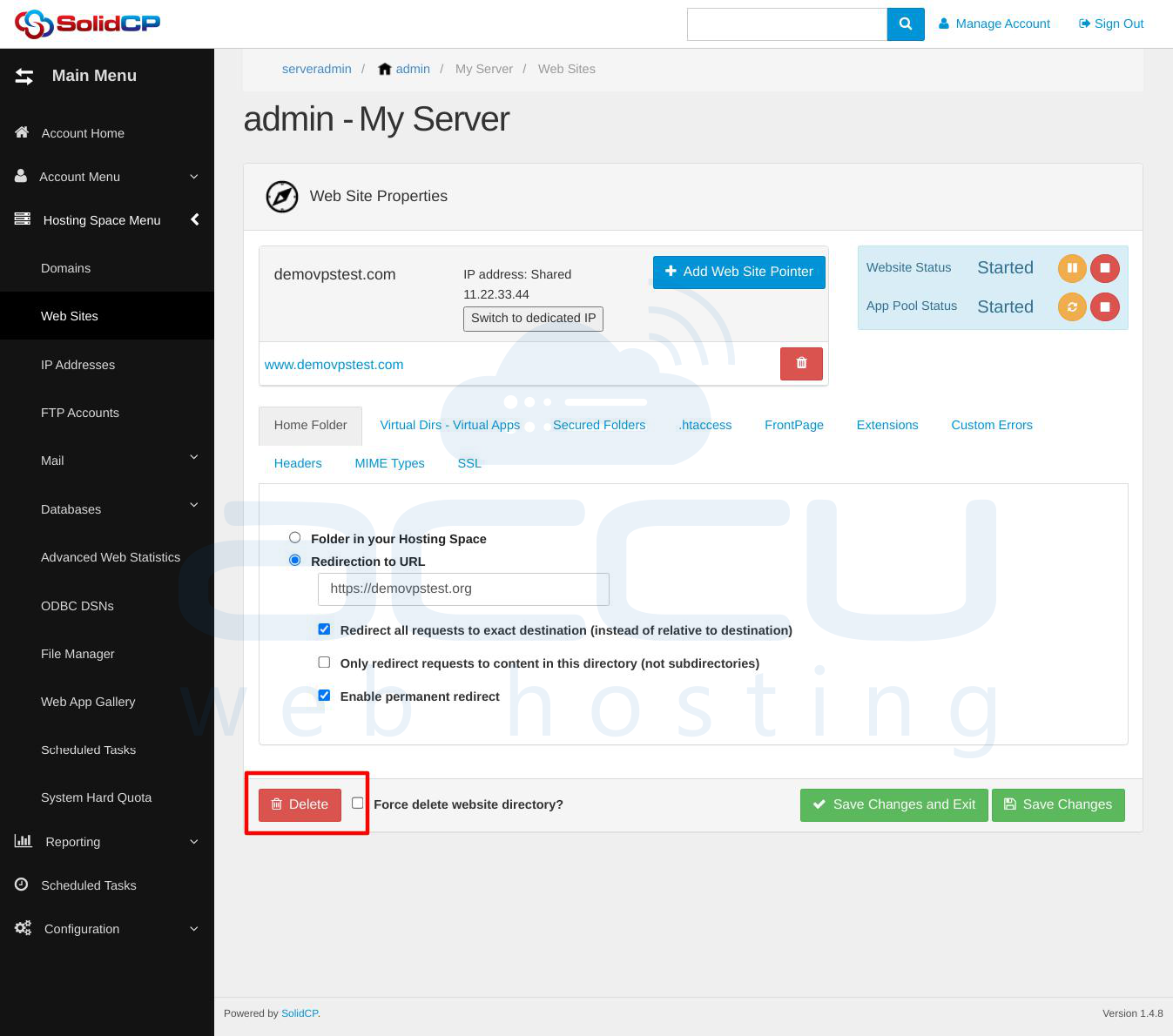
SolidCP will now remove IIS configuration, remove application pool, delete hosting records, update database references and remove orphaned assets. This is the preferred cleanup method.
Why Does This Fix Work?
Creating the temporary site satisfies SolidCP's validation logic. The application can then successfully retrieve IIS information, complete security account enumeration, Load the website object and execute the proper deletion workflow. Once deleted through SolidCP, the orphaned database record is removed and synchronization is restored.
Step 8: Verify Synchronization
After deletion, verify that the website no longer exists.
Check SolidCP: Confirm the site no longer appears under:
Hosting Space-> Websites.
Check IIS: Confirm the site no longer appears under Sites.
Check Application Pools: Confirm the related application pool has been removed.
Test NTFS Permissions Again
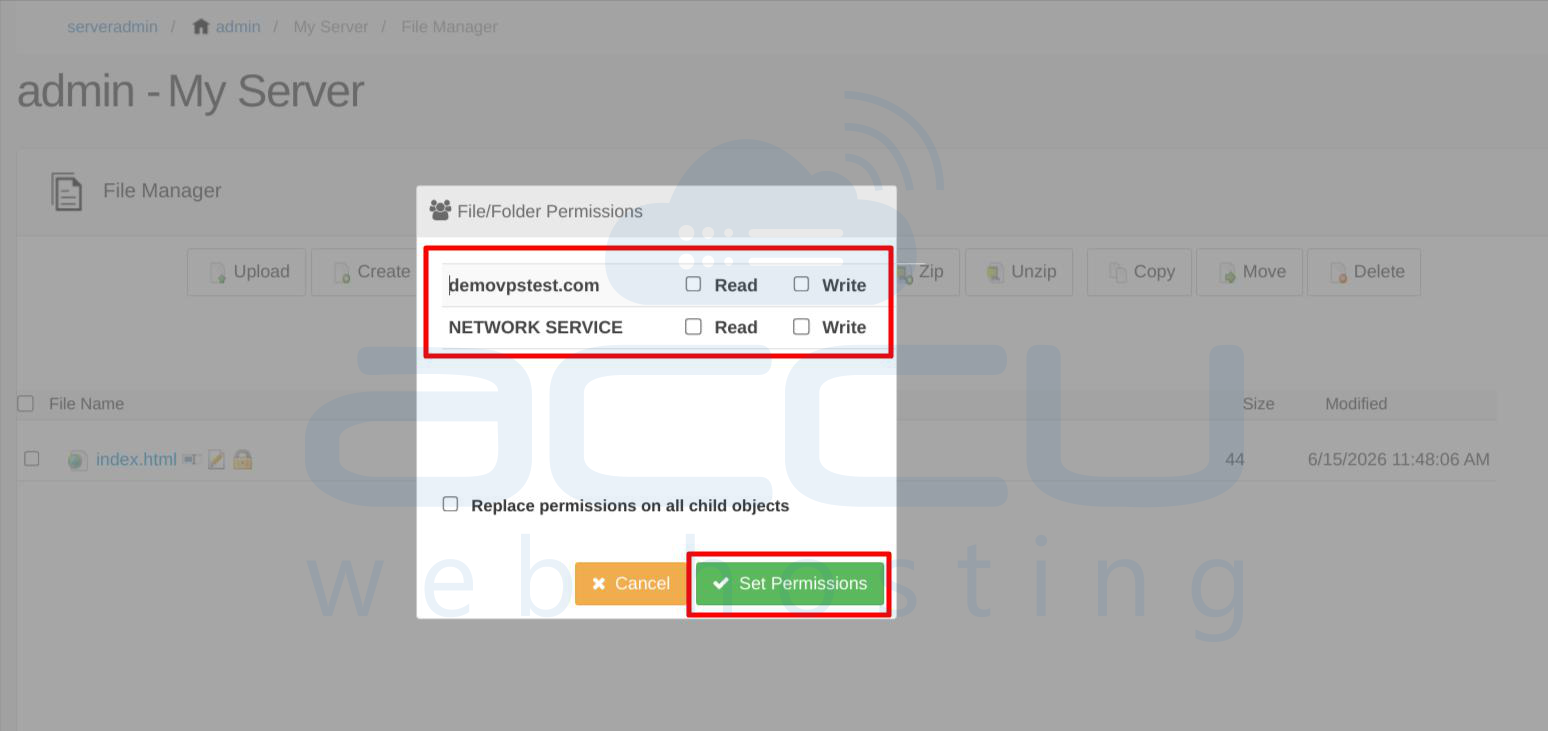
Navigate to: File Manager -> NTFS Permissions
The page should load normally without generating errors.
Additional Preventive Measures
To avoid future permission mapping issues, follow these best practices.
Always Use SolidCP for Website Management: To avoid future permission mapping issues, follow these best practices. Always use SolidCP for website management by creating and deleting websites through SolidCP rather than making manual IIS modifications.
Regularly Review Event Logs: Regularly review the Application Event Logs to monitor IIS errors, SolidCP warnings, and ASP.NET exceptions, as early detection can prevent larger synchronization issues.
Maintain Current SolidCP Versions: Maintain the latest SolidCP version to benefit from bug fixes, security enhancements, improved IIS compatibility, and overall platform stability. If emergency changes must be made directly in IIS, document all modifications, update the corresponding settings in SolidCP, and verify that synchronization remains intact afterward.
Backup Before Major Changes: Before performing any major maintenance or configuration changes, back up the IIS configuration, SQL databases, and SolidCP files to ensure a reliable recovery option if issues occur.
Conclusion
The "Error Reading File/Folder NTFS Permissions" issue in SolidCP is usually caused by a synchronization problem between the SolidCP database and IIS configuration. The most common root cause is the manual deletion of websites directly from IIS Manager.
In environments where internal logs show legacy site records remaining in the SolidCP database while corresponding IIS sites have been manually removed, recreating temporary IIS sites and then performing a clean deletion through SolidCP is often the most effective solution. This removes orphaned asset records, restores IIS synchronization, and resolves NTFS permission lookup failures permanently.