
cPanel provides a Free SSL Certificate called the AutoSSL Certificate. AutoSSL provides an SSL Certificate for your Domains hosted in WHM/cPanel free of cost. Once you enable the AutoSSL for any of the Domains, it will create an automatic request to auto-install and renew the SSL Certificate.
There are 2 types of SSL Certificate providers.
- cPanel (powered by Sectigo)
- Let’s Encrypt
We already prepared an article to install a default SSL Certificate (cPanel -powered by Sectigo) for your Domain. You can click on this link How to activate and manage Auto SSL certificate in WHM/cPanel? to get the same article.
By default, the Let’s Encrypt SSL Certificate Plugin will be added automatically on cPanel & WHM version 58.0.17 & above. In case you are not able to view the Let’s Encrypt option for AutoSSL, you can run the command below from SSH.
/scripts/install_lets_encrypt_autossl_provider
Step 1: Open your WHM Panel.
Step 2: Search for AutoSSL inside SSL/TLS and click on Manage AutoSSL.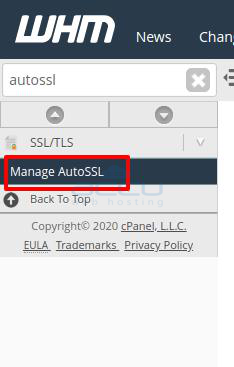
Step 3: At the Providers tab, tick the Let's Encrypt Radio Button and click on the Save button.
Step 4: Go to the Manage Users and click on the check cPanel user name button. 
Step 5: Now, the Let’s Encrypt SSL Certificate will be installed on your selected Domain. You will verify it from the View Log Button inside Log. 
