
When you want to transmit sensitive information over the Internet, you should use HTTPS instead of HTTP (plain-text protocol). For secure data transfer between the user and to web server, SSL (Secure Socket Layer) is used. SSL verifies the credentials of the user and the web server, and then it redirects verified users to a secure connection (i.e. HTTPS).
Types of SSL Certificates:
You can use either a self-signed certificate or a certificate issued by a Certificate Authority (CA).
- CA-Signed Certificates:
These are trusted certificates issued by a recognized certificate authority. They are widely accepted and do not generate browser warnings. However, they come at a cost. - Self-Signed Certificates:
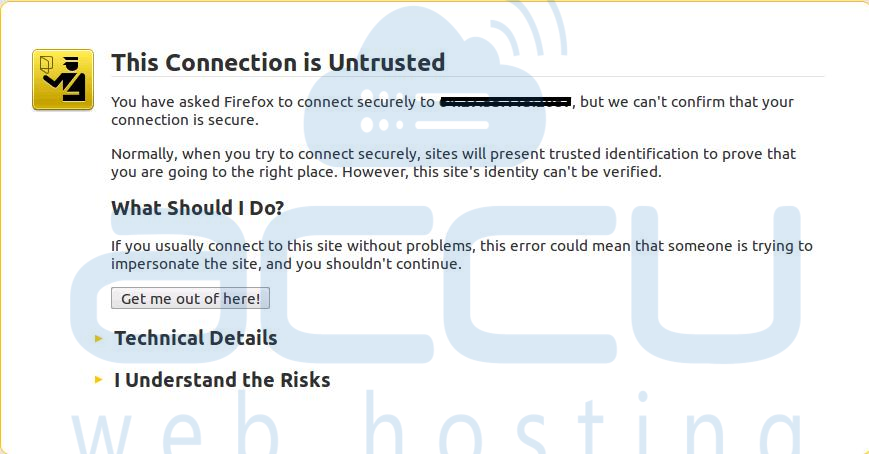
These are free alternatives created by the server itself. They provide the same level of encryption but are not verified by a CA. As a result, browsers display a warning message when accessing a site with a self-signed certificate.
Steps to Redirect cPanel/WHM or Webmail to HTTPS Using a Self-Signed Certificate:
Follow the steps below to force secure redirection to HTTPS for all cPanel/WHM or Webmail logins.
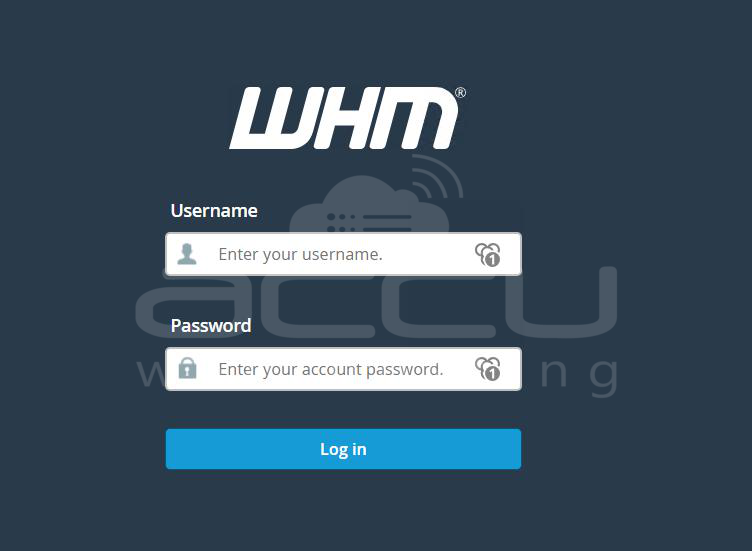
Step 1: Log in to WHM
- Access WHM using your server’s IP address or hostname followed by port:2087.
Example: https://your-server-ip:2087 - Enter your root username and password to log in.
Step 2: Go to “Server Configuration”
- In the WHM sidebar, navigate to Server Configuration.
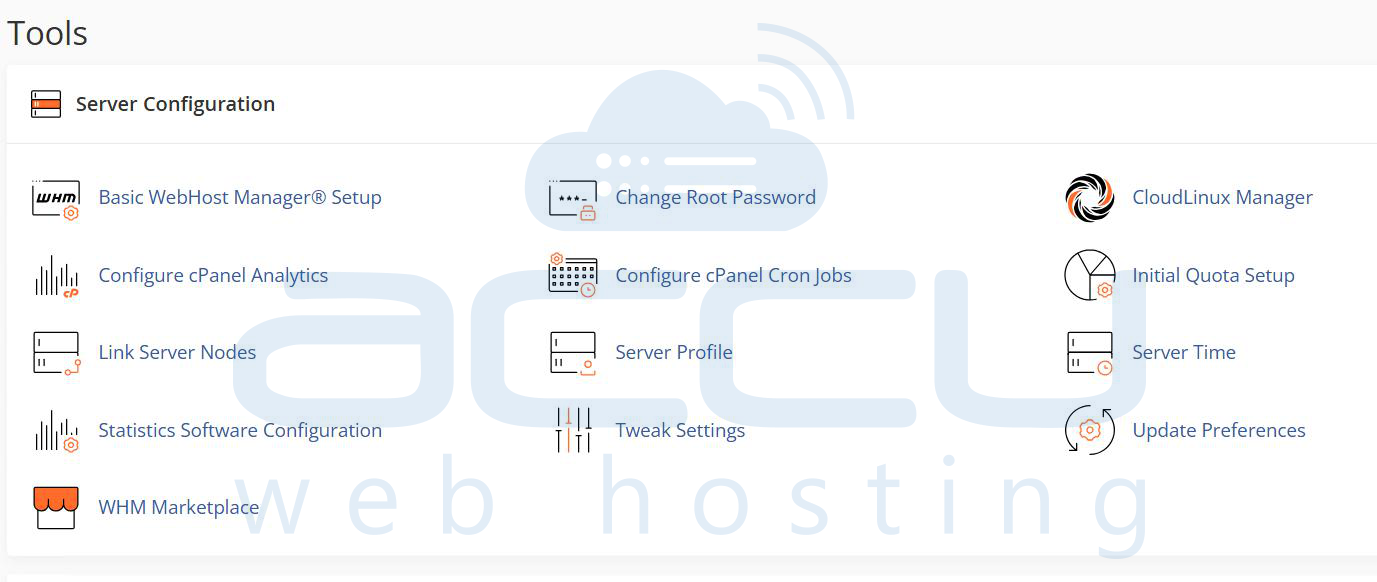
Step 3: Select “Tweak Settings”
- Under Server Configuration, click on Tweak Settings.
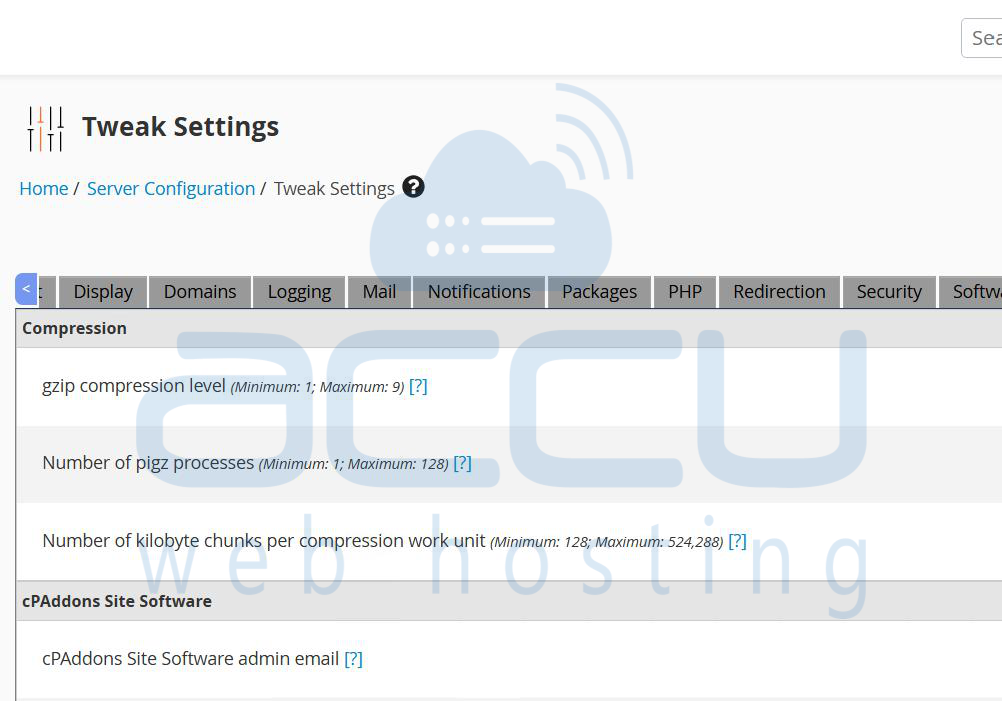
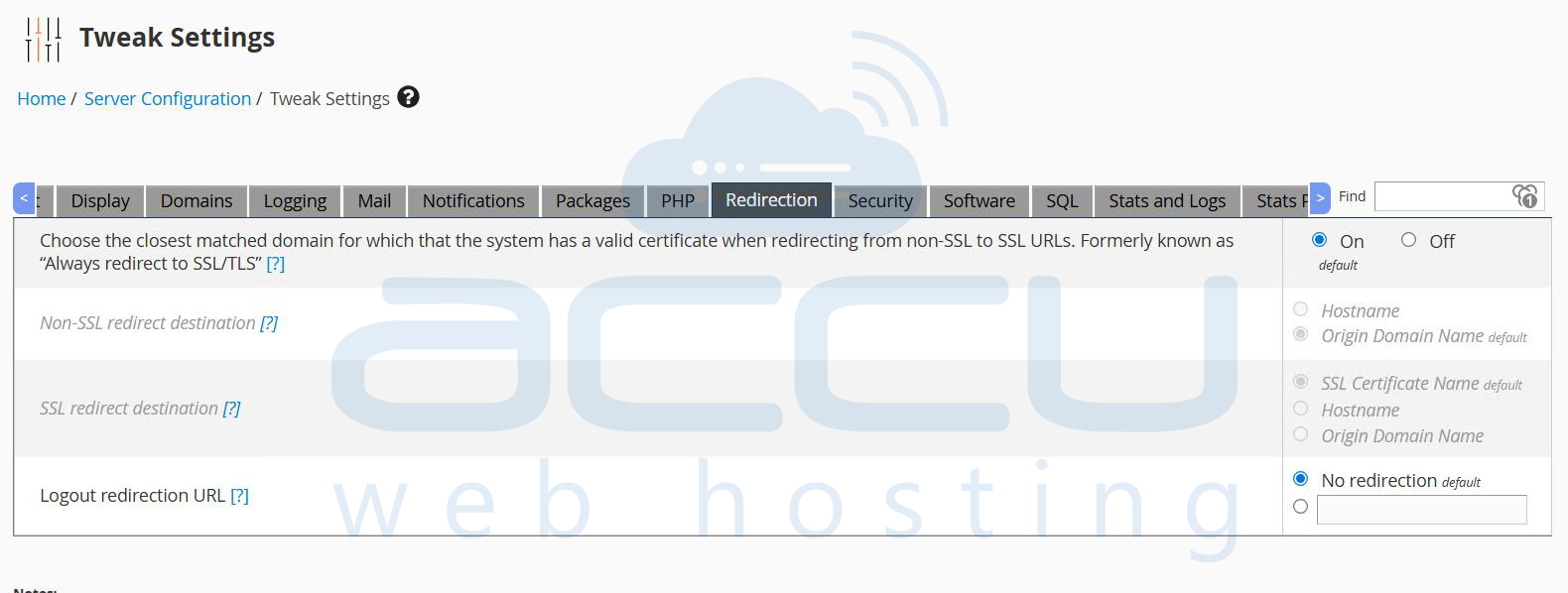
Step 4: Open the “Redirection” Tab
- Once the Tweak Settings interface opens, navigate to the Redirection tab.
Step 5: Enable SSL Redirection
- Find the option “Choose the closest matched domain for which the system has a valid certificate when redirecting from non-SSL to SSL URLs. Formerly known as “Always redirect to SSL/TLS” [?]” under the “Redirection” sub-option.
- Click on the “On” button.
Step 6: Save Changes
- Scroll down and click on the Save button to apply the settings.
Optional: Enable AutoSSL for Automatic Certificate Management
- If you want cPanel to automatically install and renew SSL certificates, you can enable AutoSSL.
- For detailed steps, refer to: Enable cPanel AutoSSL
Conclusion:
By following these steps, your cPanel/WHM or Webmail interfaces will automatically redirect to HTTPS, ensuring that all logins and communications are encrypted and secure.
If you’re looking for a powerful and secure hosting environment, consider upgrading to a Linux VPS Hosting plan for greater control and performance.
