
Introduction:
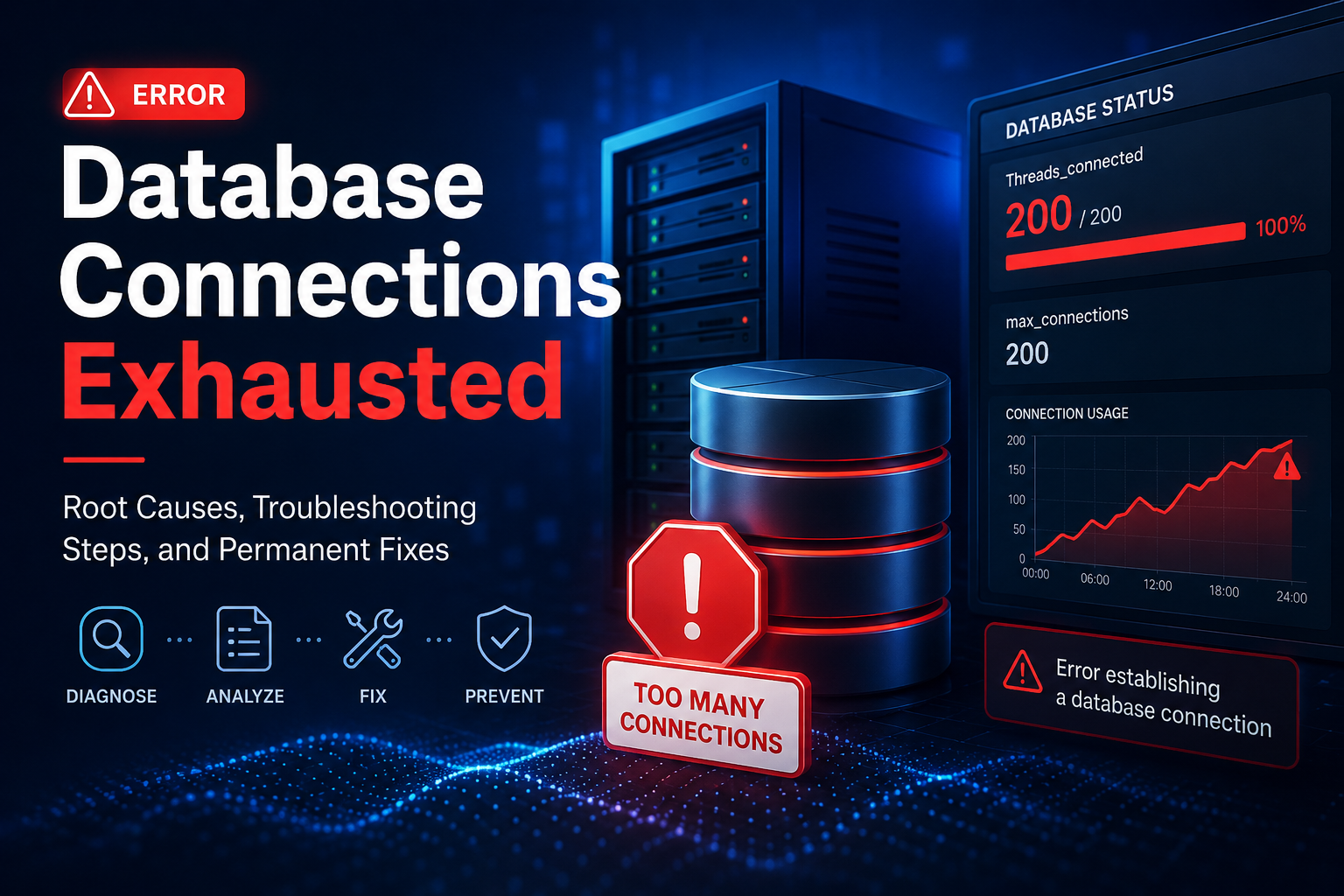
The website became inaccessible and displayed database connection errors due to exhaustion of available database connections. When the maximum number of allowed database connections was reached, the application could not establish new connections to the database server, resulting in service disruption.
This article explains what database connection exhaustion is, how to identify it, practical troubleshooting steps, and permanent solutions to prevent future occurrences.
Symptoms:
Users may experience one or more of the following symptoms:
-
Website displays database connection errors.
-
Slow page loading times.
-
HTTP 500 Internal Server Errors.
-
Intermittent website outages.
-
Application logs showing connection timeout messages.
-
Increased server resource utilization.
-
Monitoring alerts indicating maximum database connections reached.
Root Cause:
1. A sudden increase in website traffic generated a high number of simultaneous database requests.
2. Long-running or unoptimized database queries held connections open for extended periods.
3. Application processes failed to properly close database connections after completing requests.
4. Background tasks, scheduled jobs, or plugins created excessive concurrent database connections.
5. Database connection pool settings were not optimized for the current workload.
As a result, all available database connections were consumed, preventing new connections from being established.
Impact:
-
Website visitors experienced database connection errors.
-
Web pages failed to load or loaded intermittently.
-
Administrative areas and application functions dependent on the database became unavailable.
-
Overall website performance degraded before the outage occurred.
1. Traffic Spikes
A sudden increase in visitors can generate hundreds or thousands of simultaneous database requests.
Examples:
-
Marketing campaigns
-
Viral social media posts
-
Bot traffic
-
DDoS attacks
2. Slow or Unoptimized Queries
Queries that take several seconds to complete hold database connections open longer than necessary.
Example:
SELECT *
FROM orders
WHERE order_status = 'completed';
Without proper indexing, queries like this may scan large tables and consume resources.
3. Database Connection Leaks
Some applications fail to close connections after completing operations.
Over time, unused connections accumulate until the maximum limit is reached.
Common causes:
-
Poorly written custom code
-
Plugin issues
-
Third-party integrations
-
Application bugs
4. Excessive Background Jobs
Cron jobs, scheduled tasks, queue workers, or backup processes may create numerous simultaneous database connections.
Examples:
-
WordPress Action Scheduler
-
WooCommerce background processing
-
Laravel queue workers
-
Magento cron jobs
5. Insufficient Database Limits
The configured maximum connection limit may be too low for the workload.
For MySQL/MariaDB:
max_connections=151
A busy application may require higher limits depending on available server resources.
Troubleshooting Steps:
Step 1: Check Current Database Connections
MySQL / MariaDB
Connect to MySQL:
mysql -u root -p
Check active connections:
SHOW STATUS LIKE 'Threads_connected';
Check maximum allowed connections:
SHOW VARIABLES LIKE 'max_connections';
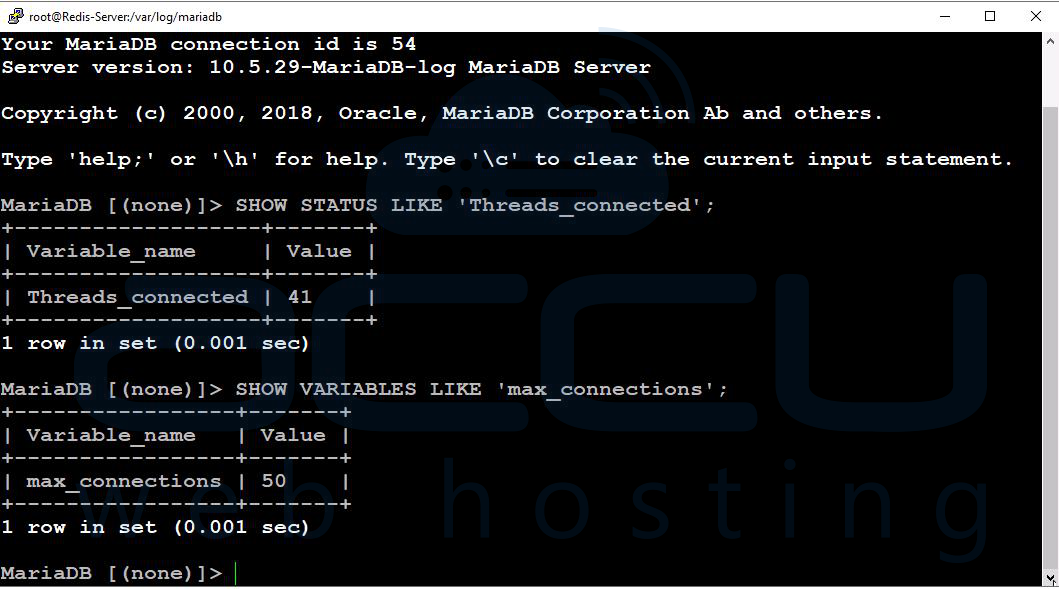
If current connections are approaching the maximum value, connection exhaustion is likely occurring.
Step 2: Identify Running Queries
View active sessions:
SHOW FULL PROCESSLIST;
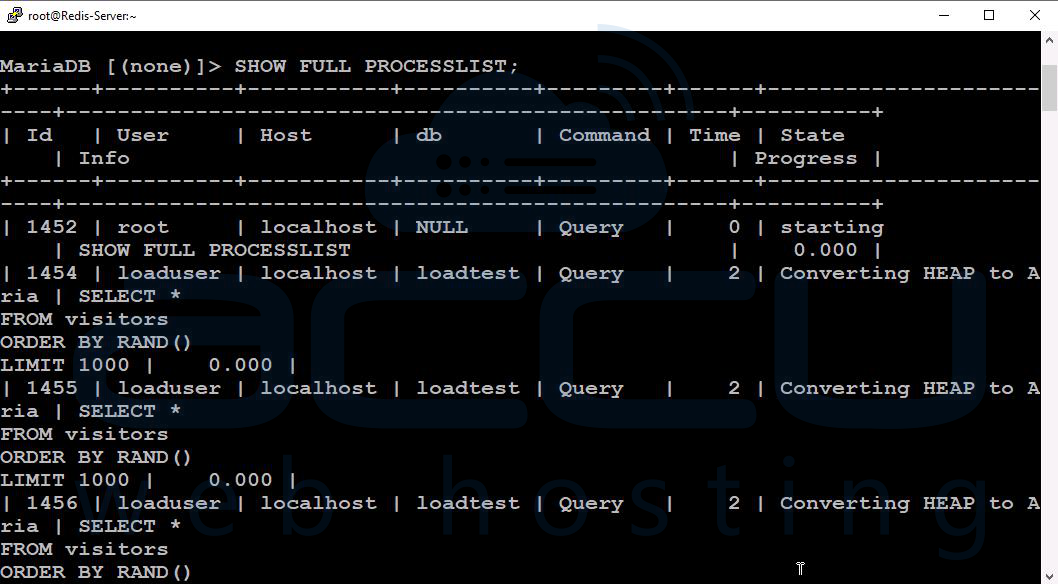
Look for:
-
Long-running queries
-
Sleeping connections
-
Repeated identical queries
-
Locked transactions
Example:
Time: 1200
Command: Query
State: Sending data
A query running for 1200 seconds deserves investigation.
Step 3: Check for Excessive Sleeping Connections
Execute:
SHOW FULL PROCESSLIST;
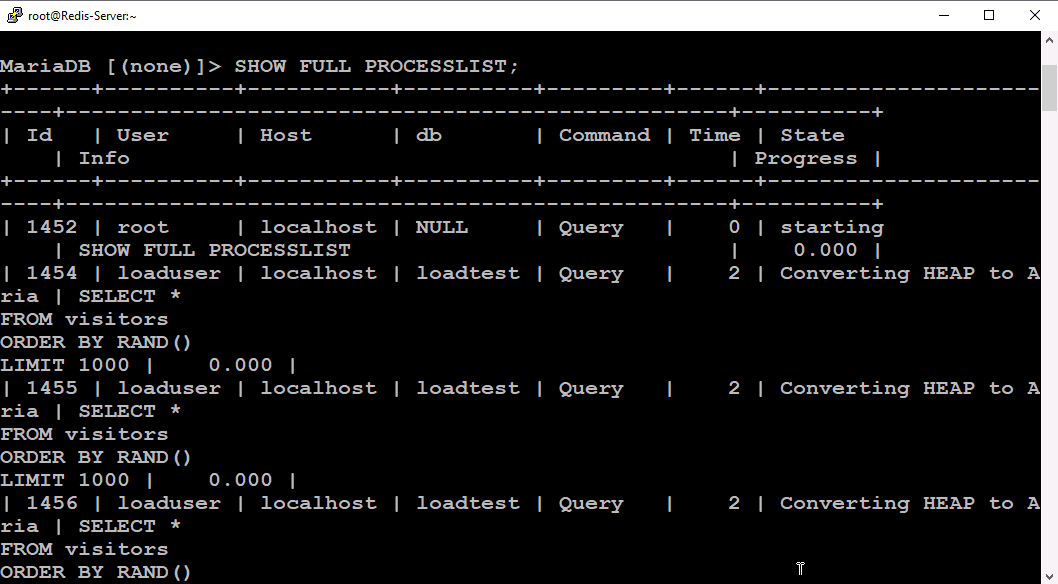
Look for:
Command: Sleep
Time: 500
Large numbers of sleeping connections often indicate:
-
Connection leaks
-
Improper connection pooling
-
Application bugs
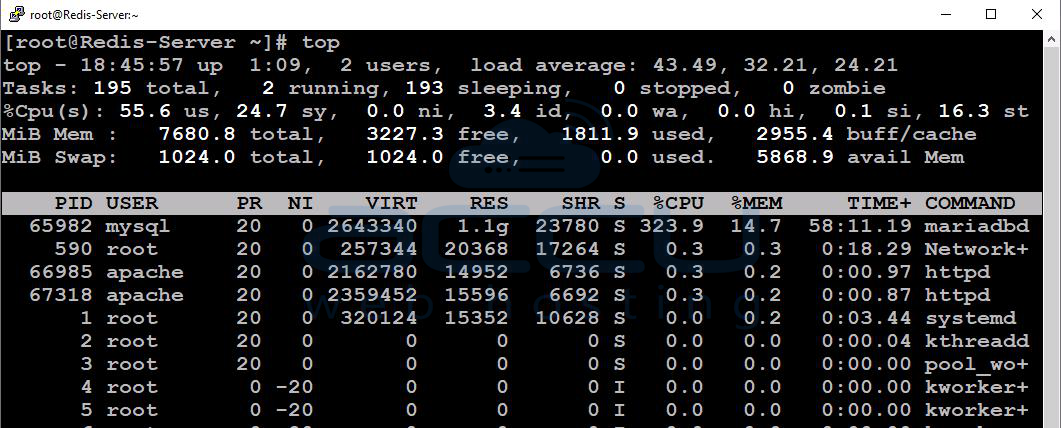
Step 4: Monitor Database Server Resources
Linux
Check CPU and memory:
top
or
htop
Check memory usage:
free -m
Check disk I/O:
iostat -x 1
Resource bottlenecks often contribute to connection buildup.
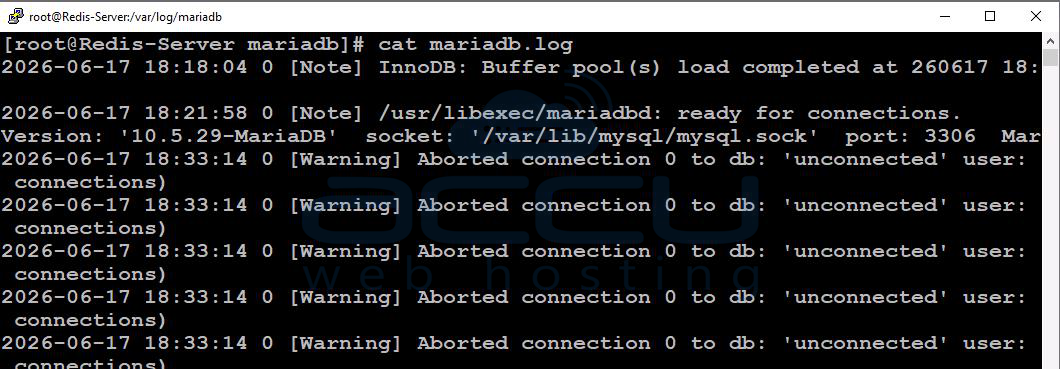
Step 5: Review Web Server Logs
Apache
tail -f /usr/local/apache/logs/error_log
Nginx
tail -f /var/log/nginx/error.log
Look for:
-
Database timeout errors
-
PHP-FPM worker exhaustion
-
Backend communication failures
Increase Database Connection Limits Carefully:
Current value:
SHOW VARIABLES LIKE 'max_connections';
Increase if resources permit:
max_connections = 300
Restart MySQL:
systemctl restart mysqld
Important: Increasing limits without resolving underlying issues often only delays future outages.
Block Malicious Traffic:
Implement:
-
Web Application Firewall (WAF)
-
Rate limiting
-
Bot protection
-
Fail2Ban
This prevents unnecessary database load caused by abusive traffic.
Emergency Recovery Steps
If the website is currently down:
Kill Long-Running Queries
SHOW FULL PROCESSLIST;
Terminate problematic sessions:
KILL 12345;
Replace 12345 with the process ID.
Restart Database Service
MySQL:
systemctl restart mysqld
MariaDB:
systemctl restart mariadb
Note: This disconnects all active users and should be performed during maintenance windows whenever possible.
Conclusion:
Database connection exhaustion can quickly impact website availability and performance, but it is often preventable with proper monitoring and optimization. By understanding how database connections are used, regularly reviewing connection counts, identifying slow or inefficient queries, and ensuring applications properly release database resources, administrators can significantly reduce the risk of service interruptions.
While increasing the database connection limit may provide temporary relief, the most effective long-term solution is to address the underlying causes, such as unoptimized queries, excessive background tasks, connection leaks, or insufficient server resources.
