
Introduction

cPanel is the most widely used control panel in shared hosting environments, offering easy access to disk usage statistics, database counts, and resource monitoring. However, sometimes users face a frustrating issue: the sidebar or dashboard does not reflect the correct number of databases, or disk usage figures are stuck, missing, or outdated.
This issue can be confusing, especially when managing website space, email storage, or database-intensive applications. Fortunately, while shared hosting users have limited system access, there are effective steps you can take to troubleshoot and resolve the problem.
Common Causes
Before diving into the solutions, it's helpful to understand why this issue occurs. Some typical causes include:
-
Cached or stale data is stored.
-
Incorrect file or database ownership/permissions.
-
Quota calculation issues.
-
cPanel scripts are not updating stats as expected.
-
Incomplete or failed updates in cPanel.
Practical Solutions to Refresh Disk Usage & Database Statistics:
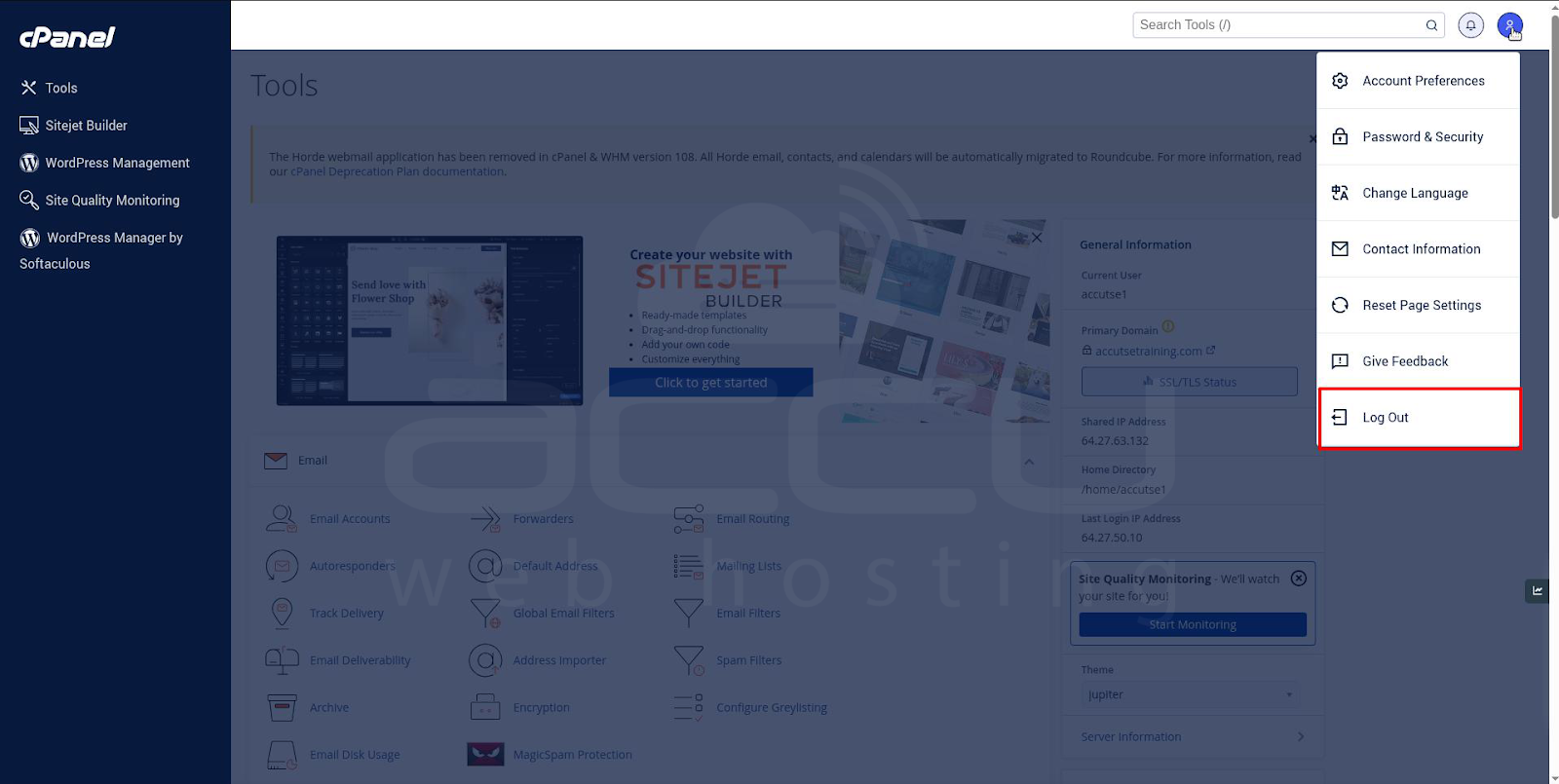
1. Log Out and Log Back In
-
Sometimes, cPanel sessions prevent stats from updating.
-
Fully log out of your cPanel and log back in.
2. Clear cPanel Cache
While you can’t clear the server’s internal cache directly, you can try:
-
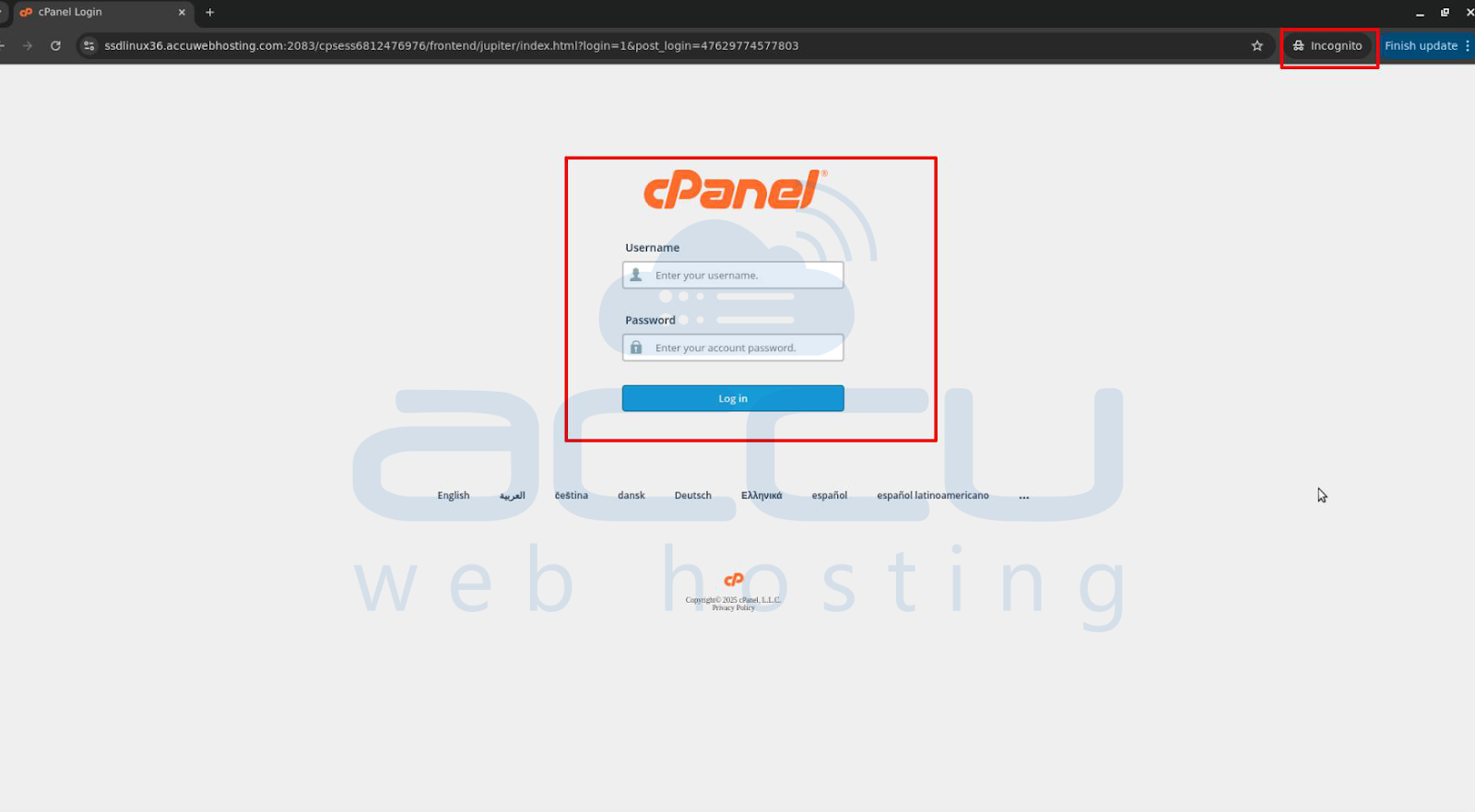
Opening cPanel in a private/incognito browser window
-
Clearing your browser’s cache and cookies, then logging back in
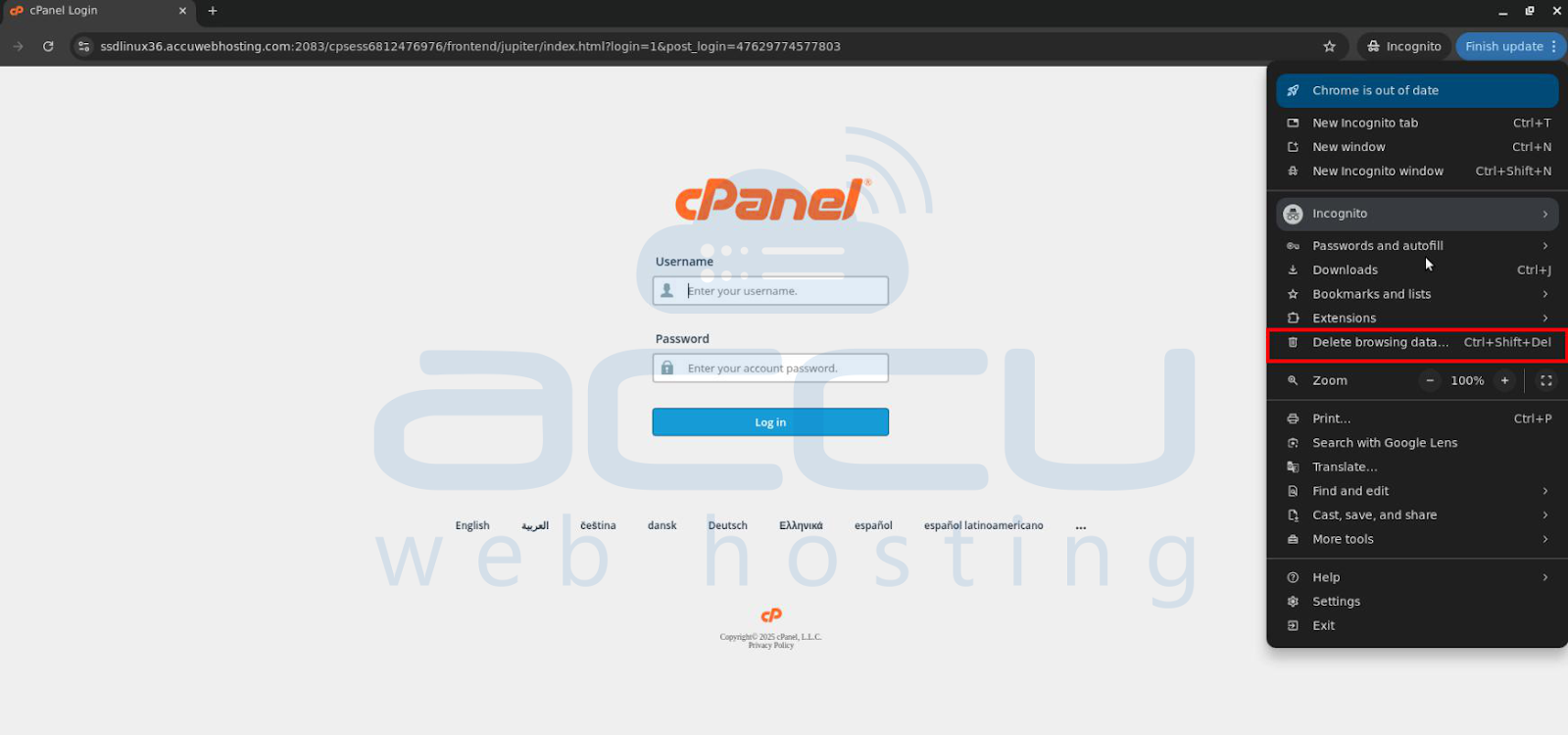
This can refresh cached interface elements that might be showing old data.
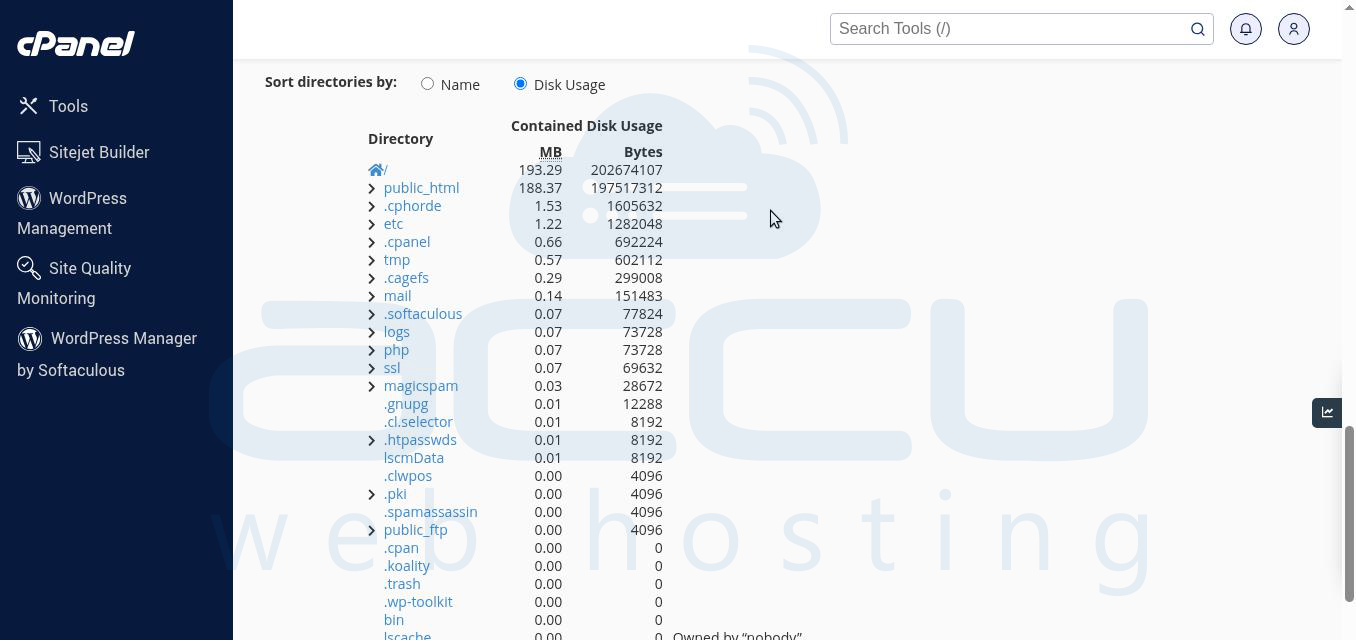
3. Use the "Disk Usage" Tool Manually
-
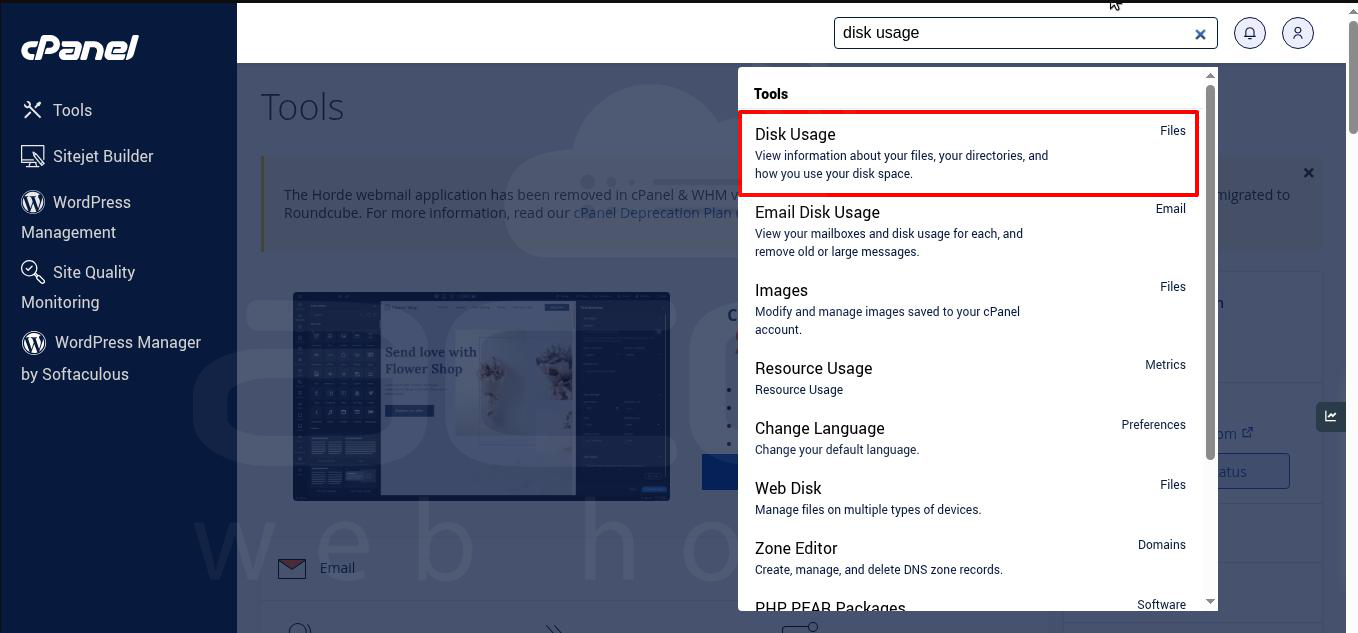
Go to cPanel > Disk Usage.
-
This forces cPanel to recalculate usage across files, emails, and MySQL databases.
-
Wait for the scan to complete — this often triggers a sidebar refresh too.
4. Use “MySQL Databases” Tool
-
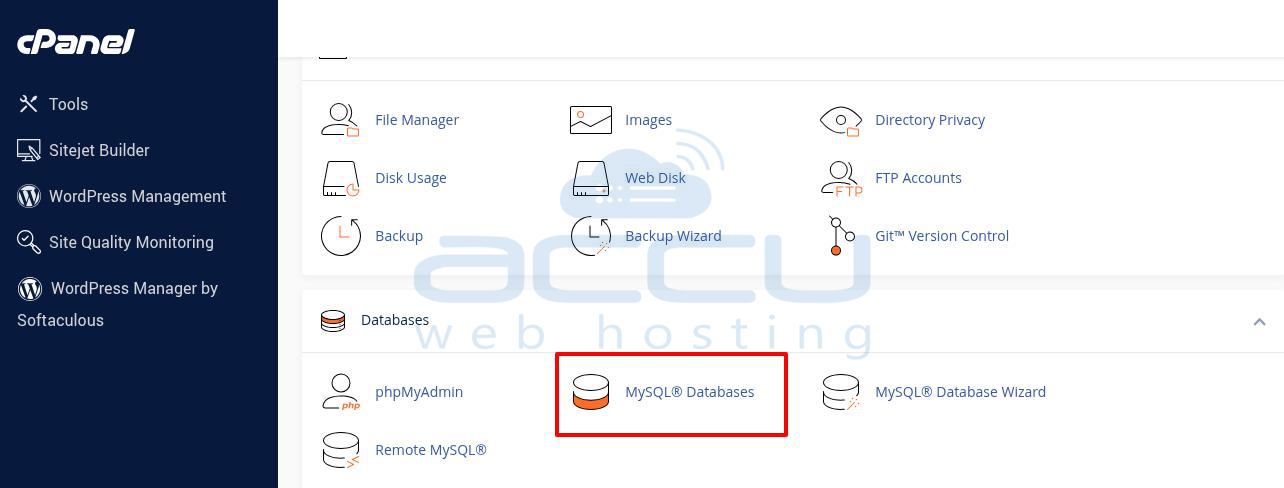
Go to cPanel > MySQL Databases.
-
Look at the list of databases — verify that all are listed.
-
If some databases are missing, it may indicate a permissions or syncing issue.
5. Check for Hidden or Old Databases
-
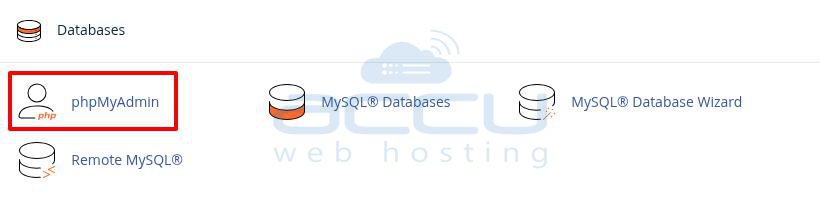
Use phpMyAdmin to confirm your databases are intact.
-
Sometimes, cPanel doesn’t recognize older databases due to missing ownership links.
-
Check that your databases are named with the proper prefix (e.g., username_dbname).
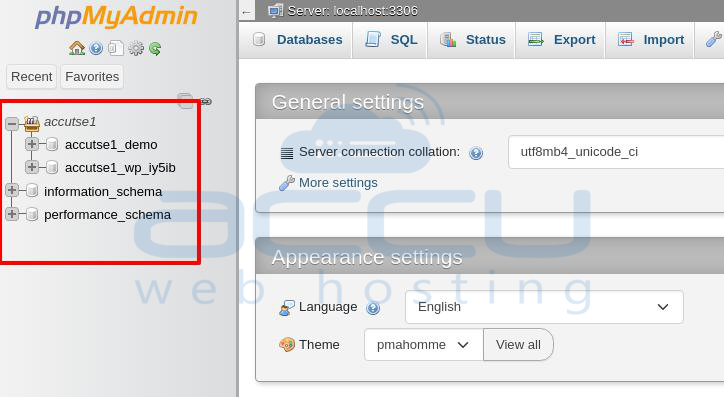
If a database doesn’t include the correct prefix, cPanel may not associate it with your account.
6. Incomplete or Failed Updates in cPanel
Explanation:
If the cPanel system didn’t update correctly, some stats may break or fail to display.
-
Ask your hosting provider to: Force a cPanel update.
7. Restart cPanel Services (Admin-Level)
Sometimes, changes don’t reflect until services are restarted: Ask your hosting provider to restart the cPanel services.
Conclusion
Missing or outdated database counts and disk usage statistics in cPanel can be annoying, but in most cases, they're caused by temporary cache issues or minor inconsistencies in account data. By logging out, clearing your browser cache, and using built-in cPanel tools like Disk Usage and MySQL Databases, you can usually trigger a refresh and restore accurate stats.
Whether you're a user or a server administrator, the steps outlined above will help you quickly diagnose and resolve the problem, ensuring your cPanel interface reflects up-to-date and accurate information.
