
This article explains how to securely grant limited access to your cPanel account to a third party, such as a developer or website administrator. Rather than sharing your full cPanel credentials, which could give them full access to your account, you can provide controlled access to specific areas needed for tasks like website maintenance.
The following steps will guide you through providing access to individual sections, such as a file directory via FTP or a specific MySQL database using remote access, ensuring the third party can make the necessary changes without impacting other sites on your hosting account.
Method 1: FTP Account Method
1. Login into your cPanel account.
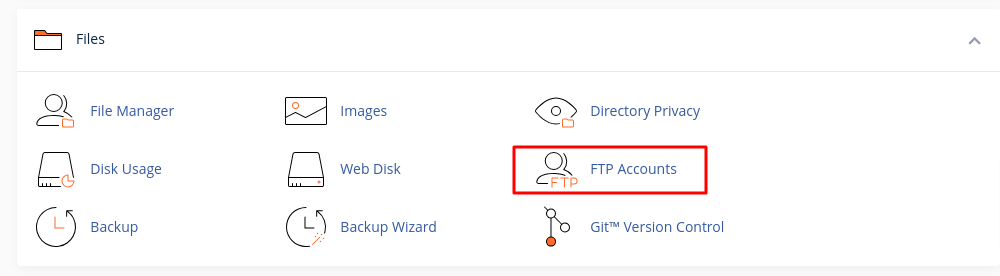
2. Go to the Files section and then click on FTP Accounts.
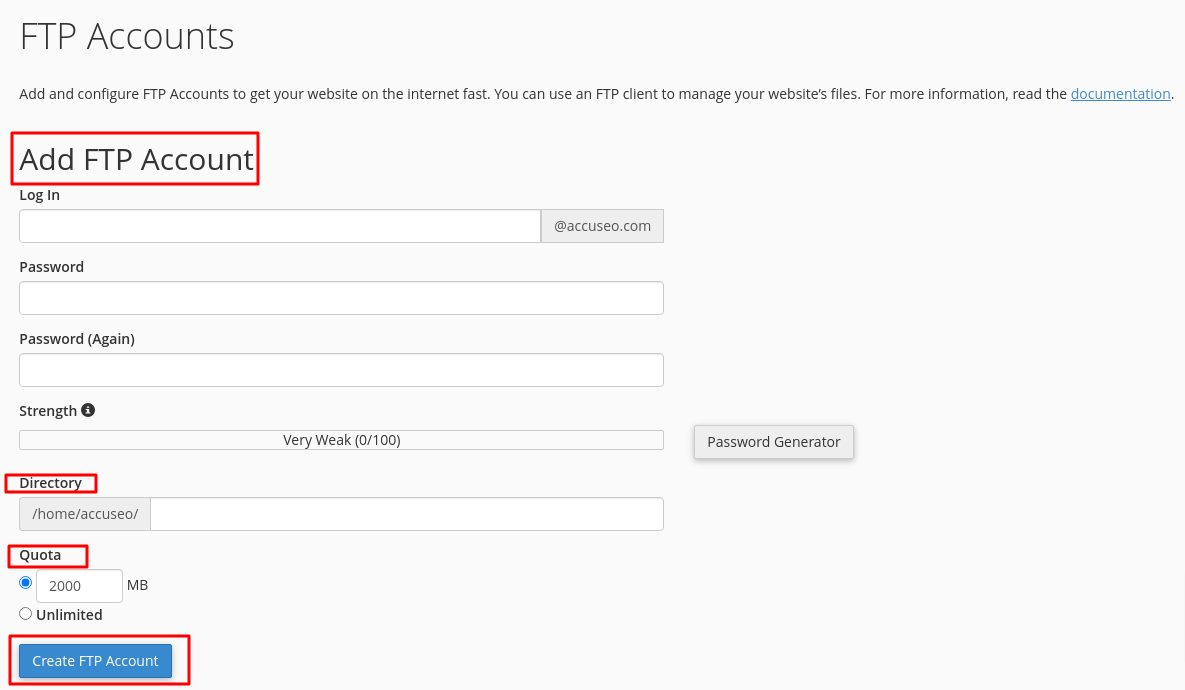
3. Create an FTP account by entering the username and setting a password.
4. For directory access, leave the field empty for Full access or specify a directory for Limited access.
5. Set the disk space Quota for the user, or leave it Unlimited if no limit is required.
6. Click Create FTP account to complete.
Method 2: User Manager Method
1. Login into your cPanel account.
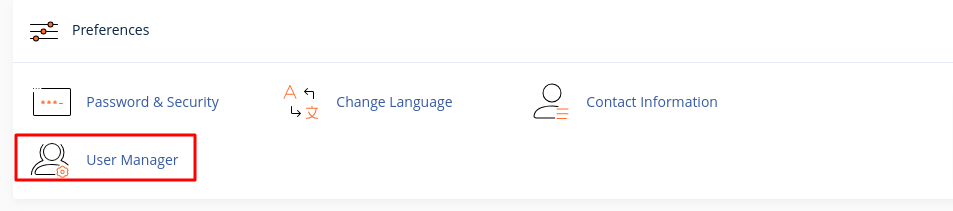
2. Go to the Preferences section and select User Manager.
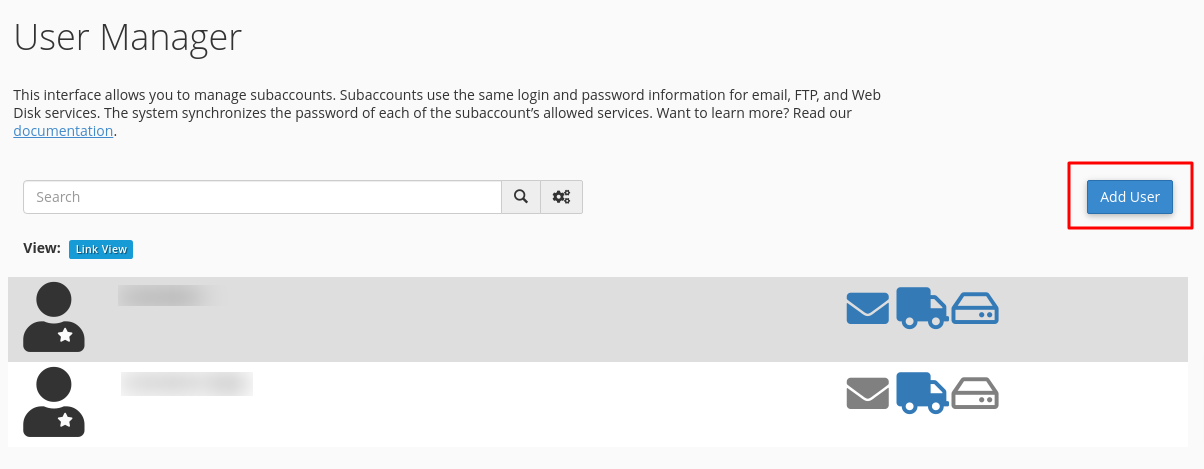
3. Click on the Add User to create a new user account.
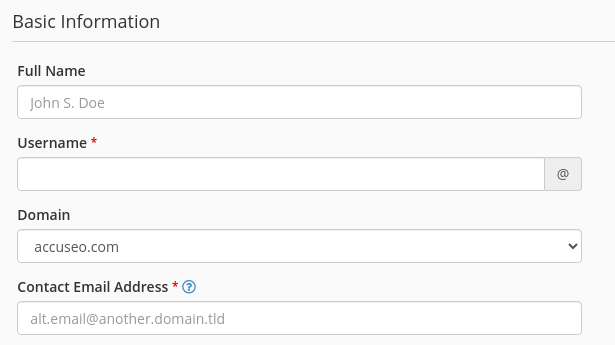
4. Enter the new user’s full name, username, and email address, and select the relevant website domain.
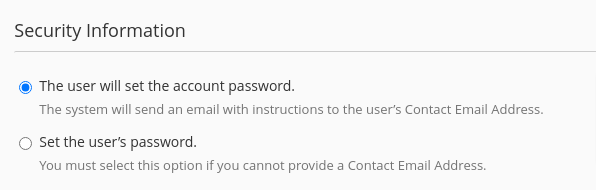
5. Choose whether to allow the user to set the account password or the user’s password.
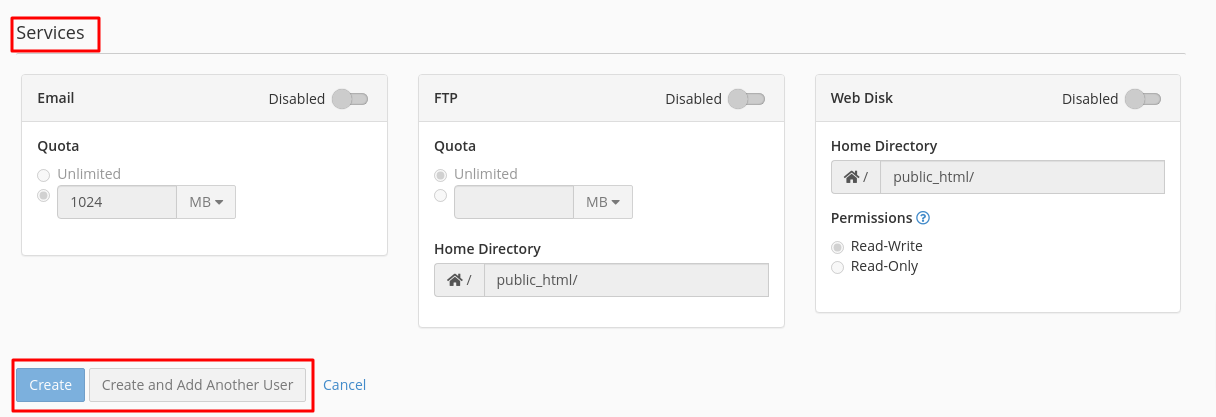
6. In the Services section, enable or disable permissions for Email Access, FTP Access, and Web Disk Direct Access based on the user's needs.
7. Click Create, Create, and Add another user to finalize the process.
Method 3: Database Access Method
1. Login into your cPanel account.
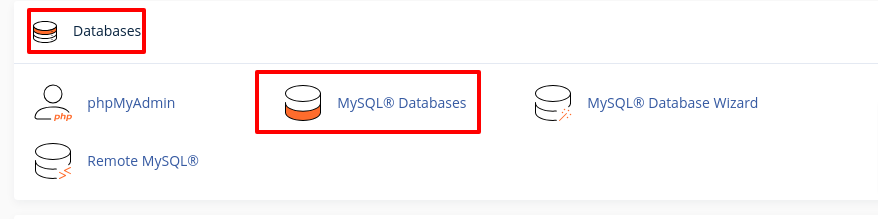
2. Go to the Databases section and select MySQL Databases.
3. Under the Create New Database section, enter a name for your database and create it.
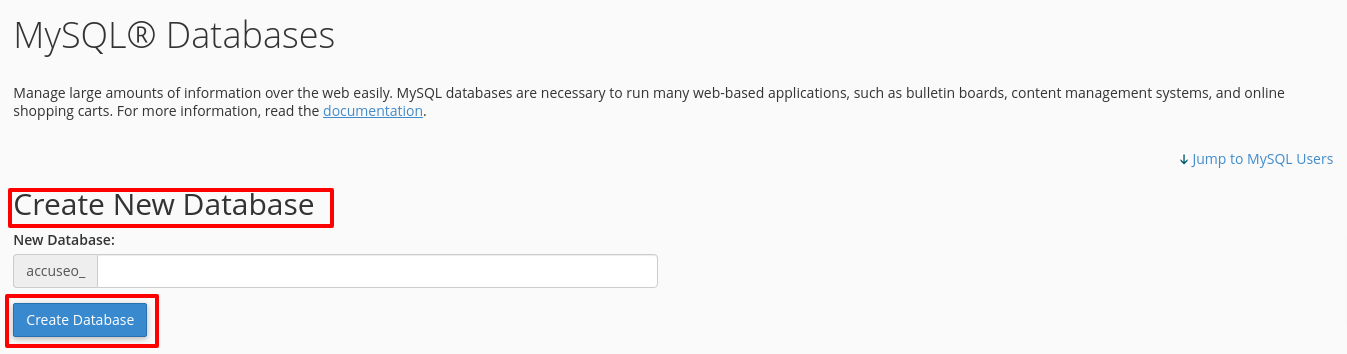
(If you already have a database, skip the above steps.)
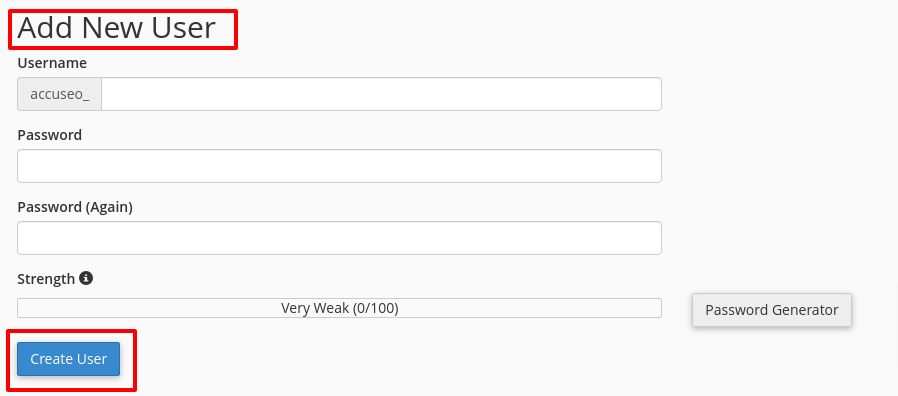
4. Create a new user account in the MySQL Users section.
5. Enter a username and password (manually or using the auto-generate option), then click Create User. A confirmation page will appear, indicating the new user account has been created successfully.
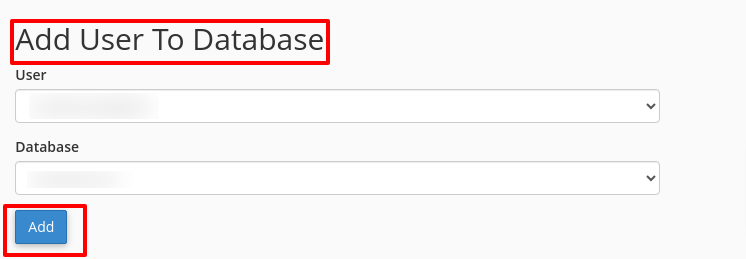
6. Select the newly created user from the user list box in the Add User to Database section.
7. Choose the appropriate database name from the database list box
8. Click on Add.
Enabling remote MySQL access
After creating a database user, you must enable remote MySQL access for the third-party contact's IP address
Adding host access
To add remote host access for MySQL, follow these steps:
1. On the Tools page, in the Databases section, click Remote Database Access:

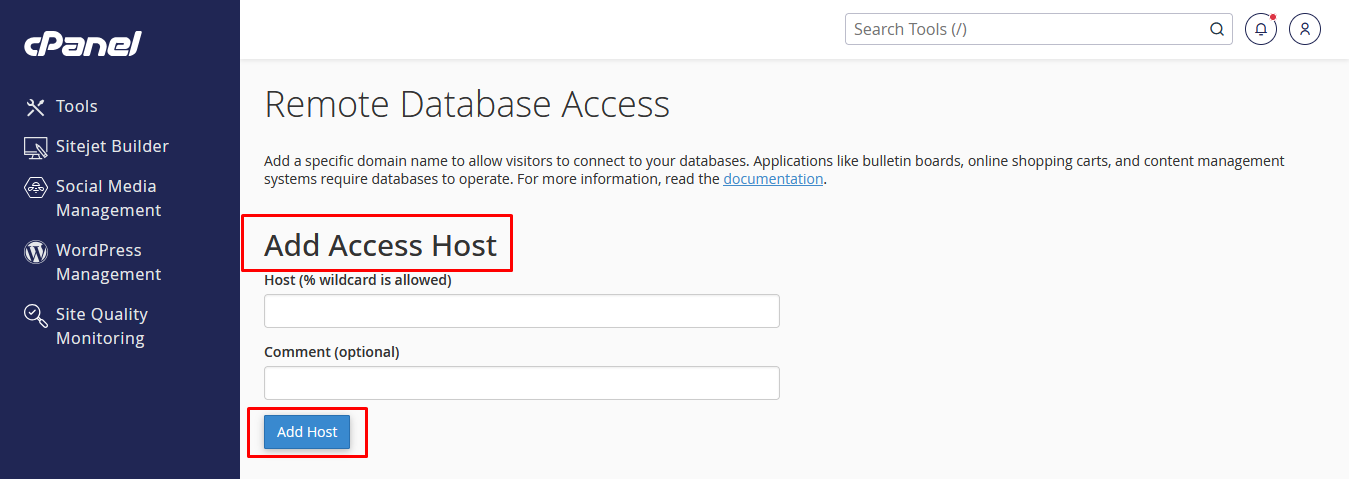
2. Under Add Access Host, in the Host text box, type the domain name or IP address of the host that you want to add.
3. In the Comment text box, you can add an optional comment to describe the remote host.
4. Click Add Host
By using FTP, User Manager, or Database Access methods, you can securely grant third-party access to specific cPanel areas. This ensures efficient collaboration while keeping your account safe.
