
What is Digest Authentication for Web Disk?
Digest Authentication is a method for securely transmitting usernames and passwords over a network, particularly relevant when accessing web applications or file servers. Here's a breakdown of how it works:
1. Avoiding Plain Text: Unlike Basic Authentication, which sends the username and password in plain text, Digest Authentication uses a hashing function to protect this information.
2. Client-Side Hashing: Your web browser receives the challenge and combines it with your username, password (stored securely on your device), and other relevant information. It then applies a hashing function (like MD5) to this combination, creating a hashed response.
3. Sending the Response: The web browser sends the hashed response back to the server instead of your actual username and password.
4. Server-Side Verification: The server receives the hashed response and performs the same hashing process on your username (stored in its database), and other relevant information. It then compares its generated hash with the one you sent.
5. Granting Access: If the hashes match, it confirms your identity and grants access to the requested resource. Otherwise, it denies access, often indicating an invalid username or password.
Why it's required to enable Digest Authentication for an account?
It's required for Improved Security. Digest Authentication helps prevent attackers from eavesdropping and stealing your login credentials as they are not transmitted in plain text.
Replay Attack Protection: The use of a unique nonce in each challenge prevents attackers from reusing captured authentication attempts.
Important Reminder:
If your server has a recognized SSL certificate and can connect securely over port 2078, Digest Authentication might not be necessary.
Changing the domain linked to a Web Disk account will also change the username and turn off Digest Authentication.
Steps to Enable Digest Authentication for Web Disk in cPanel
Step 1. Login to your cPanel account and navigate to the Files sections. Under Files, navigate to "Web Disk" and click on it.

Step 2. Now select the site for which you want to enable the authentication and click on "Enable Digest Authentication"

Step 3. If it asks you for the password, then enter the cPanel password again and then click on the OK button.
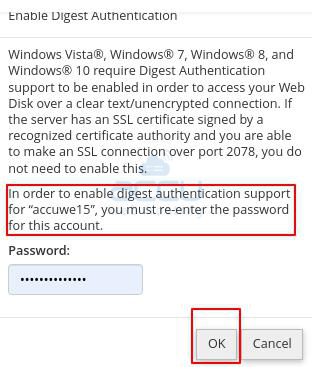
Step 4. This will enable the Digest Authentication for Web disk.
Steps to Disable Digest Authentication for Web Disk in cPanel

Navigate to Web Disk, and then click on the Disable Digest authentication link to disable the authentication.
Conclusion
Enabling Digest Authentication for Web Disk in cPanel is a straightforward process that enhances file management security. By creating a Web Disk account and selecting Digest Authentication in the cPanel interface, users can ensure secure access to their files. Remember to follow the specific steps provided by your hosting provider or cPanel documentation for the most accurate and up-to-date instructions.
