
Email forwarding is a process that involves redirecting an email message from its original recipient's address to another potentially distinct address. By forwarding an email, a new recipient gains access to the message, even if they were not initially included in the email conversation. Moreover, when forwarding an email, the entire content, text formatting, and attachments of the original message are transmitted to another individual or group.
To configure email forwarding in your Webuzo control panel, kindly adhere to the following instructions:
Step 1: Log in to your Webuzo control panel.
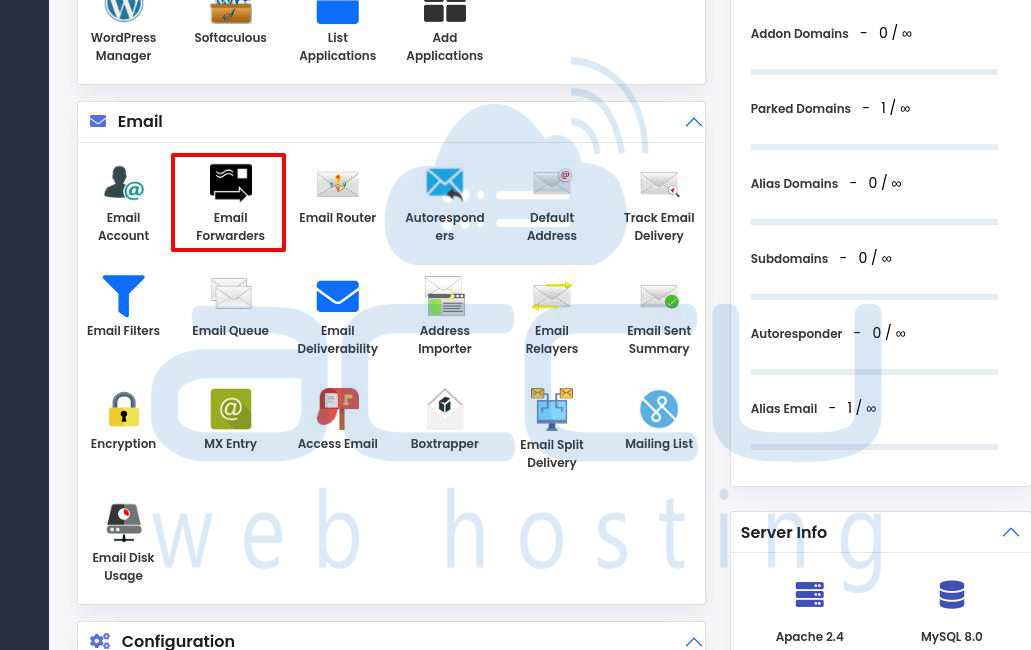
Step 2: Scroll down and locate the Email section. Click on "Email Forwarders."
Step 3: Click on the "Create Forwarder" button.

Step 4: Choose the domain name from the drop-down list in the "Select email account" section. Then, specify the email address from which you want to forward the emails.
In the "To Email address" section, enter the email address to which you want to forward the emails. For example, we are forwarding all emails from [email protected] to [email protected].

Step 5: Click on the "Create Forwarder" button to create the email forwarder.
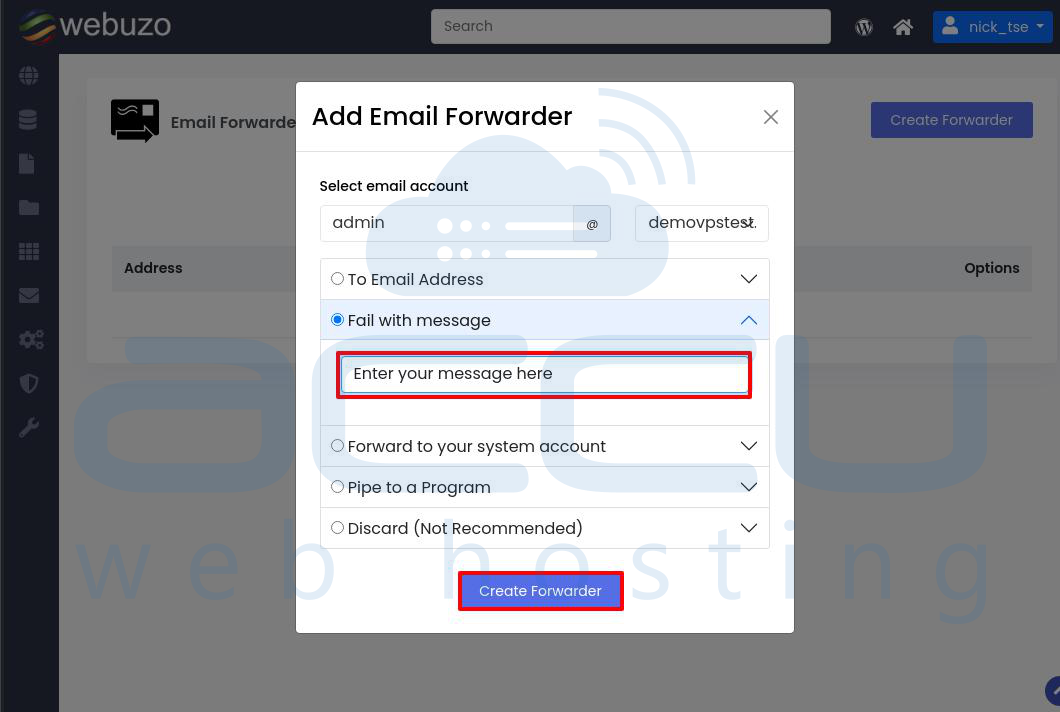
To forward emails with a failure message, choose the "Fail with message" option and enter the desired failure message.
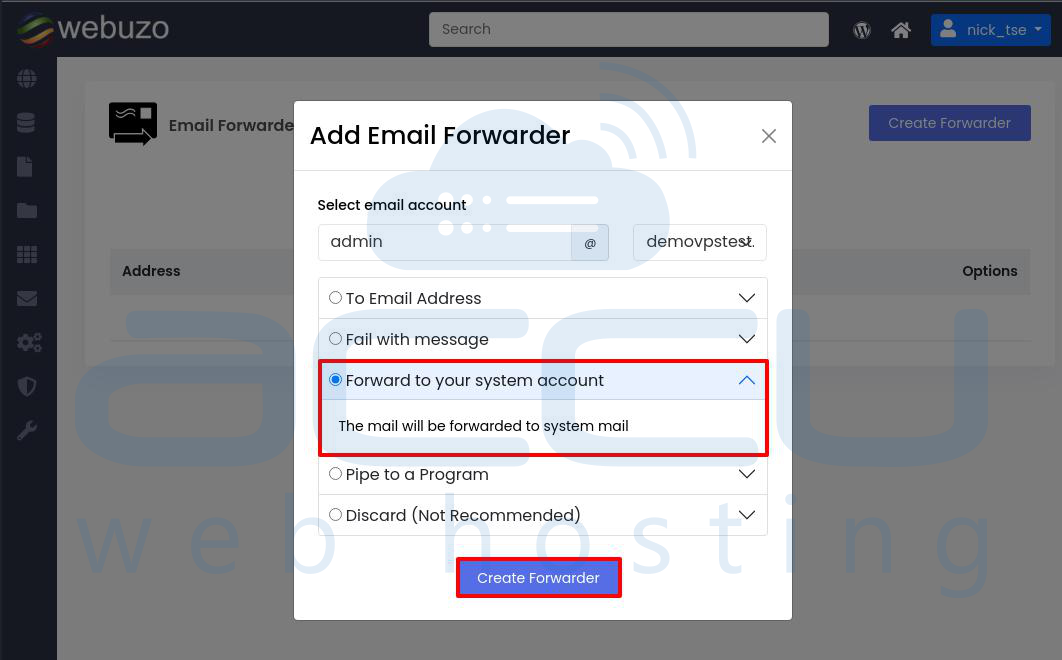
If you want to forward the emails to your system account, select the "Forward to your system account" option.
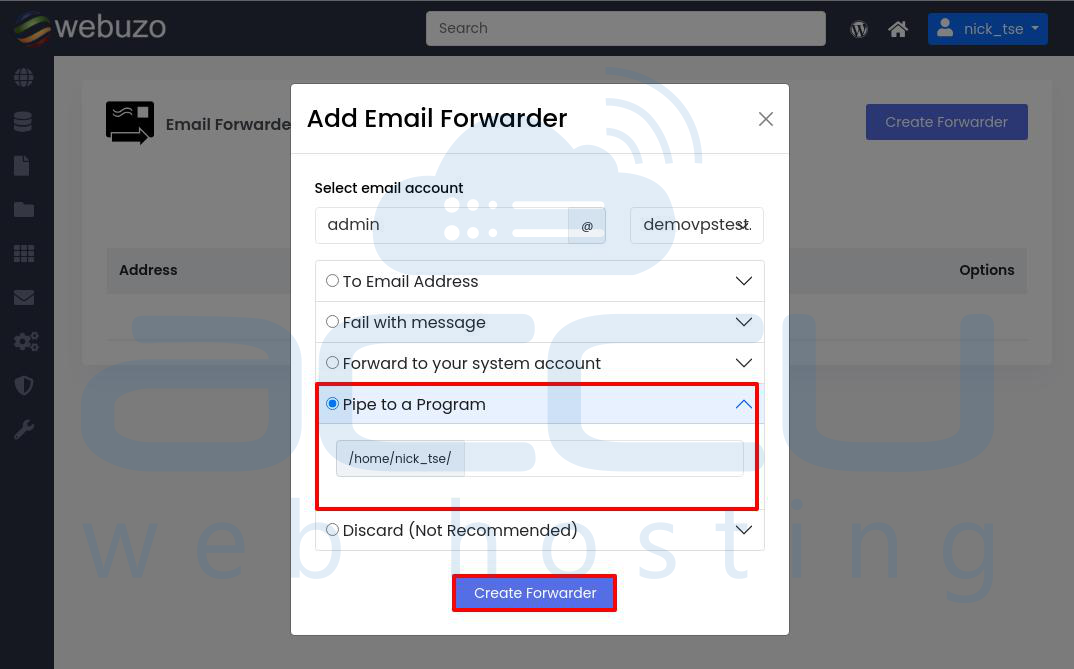
Webuzo also supports Email Pipe, which allows you to automate your scripts by sending email messages as input to a program instead of appending them to the mailbox file. To create an Email Pipe, enter the relevant details in the designated field and click "Create Forwarder."
Step 6: You will see a success message confirming the creation of the forwarder.

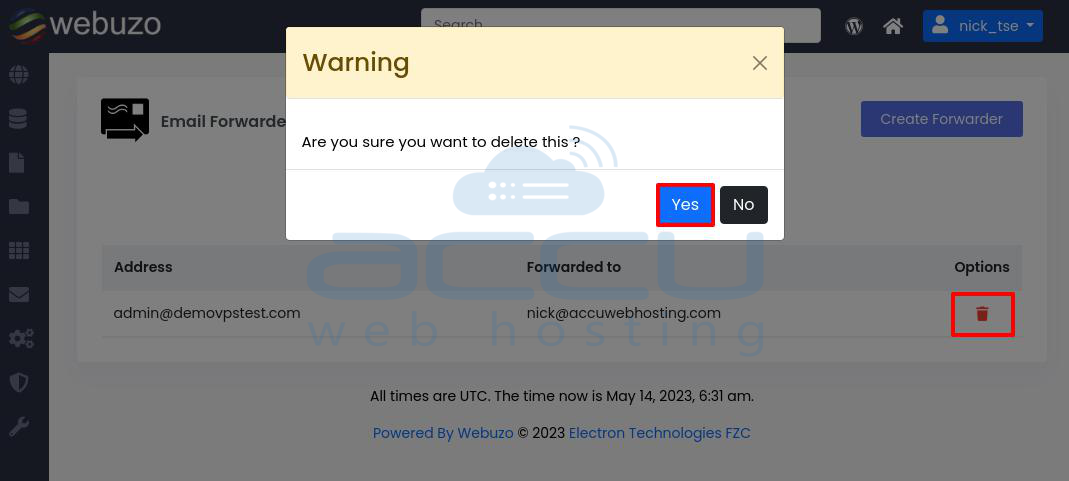
Step 7: If you wish to delete the forwarder, you can use the "Delete" option in the "Options" field. When clicked, a warning message will appear, and selecting "YES" will delete the record.
That's all.


