
Introduction:
- IMAP logs should be checked for email deletion via POP3/IMAP in SmarterMail.
- maillog should be checked for email deletion via POP3/IMAP in Exim.
- IMAP logs should be checked for email deletion via POP3/IMAP in MailEnable.
1. How to check mail deletion via POP3/IMAP in SmarterMail logs:
IMAP logs
- Log in to SmarterMail.
- Go to the Manage section.
- Click the Troubleshooting option.
- Now, click on View Logs.
- Select logs type as IMAP.

- Add the required email address in the Search box and set date&time accordingly.
- Click on the Search button to load mail deletion logs of IMAP.
POP3 logs:
- Log in to SmarterMail.
- Go to the Manage section.
- Click the Troubleshooting option.
- Now, click on View Logs.
- Select logs type as POP.
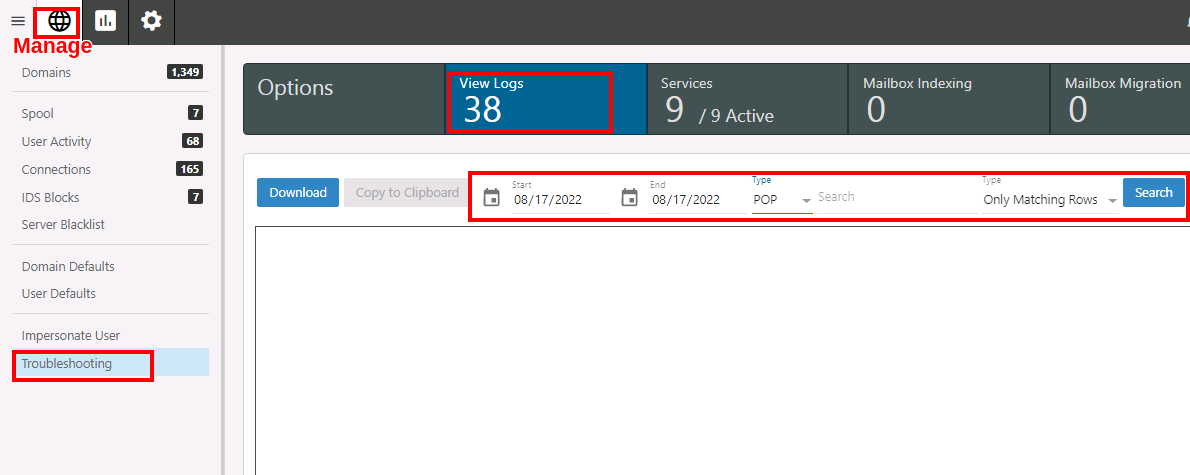
- Add the required email address in the Search box and set date&time accordingly.
- Click on the Search button to load mail deletion logs of POP.
Example,
[2021.12.14] 23:00:34 [43.224.220.206][31123592] command: 109 uid store 2 +FLAGS (\Deleted \Seen)
2. How to check mail deletion via POP3/IMAP in Exim logs:
- From WHM Panel, login to the WHM panel.
- Go to Home and search ConfigServer Security & Firewall option.
- Click on Search System Logs.
- HOME -> ConfigServer Security & Firewall -> Search System Logs
- Set logs type as maillog.
/var/log/maillog
- Add the required email address in the Text area.

- Now, click on the Search button to load mail deletion logs of IMAP/POP.
From SSH
- Login to your server through SSH.
- Go to /var/log/maillog directory path with the cd command.
- At the maillog section, grep the required email address, date & time accordingly.
Example,
#grep [email protected] /var/log/maillog
3. How to check mail deletion via POP3/IMAP in MailEnable logs:
IMAP logs
- Login to MailEnable.
- Go to the Servers menu under MailEnable.
- Expand the local host.
- Expand the Services and Connectors option.
- Expand the IMAP option.
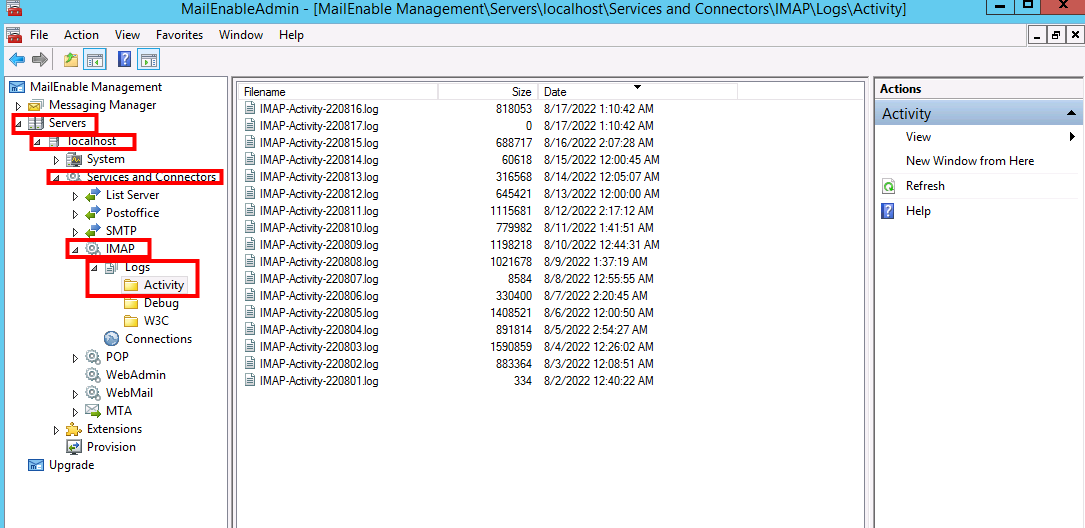
- Click on Logs -> Activity.
POP3 logs
- Login to MailEnable.
- Go to the Servers menu under MailEnable.
- Expand the local host.
- Expand the Services and Connectors option.
- Expand the POP option.
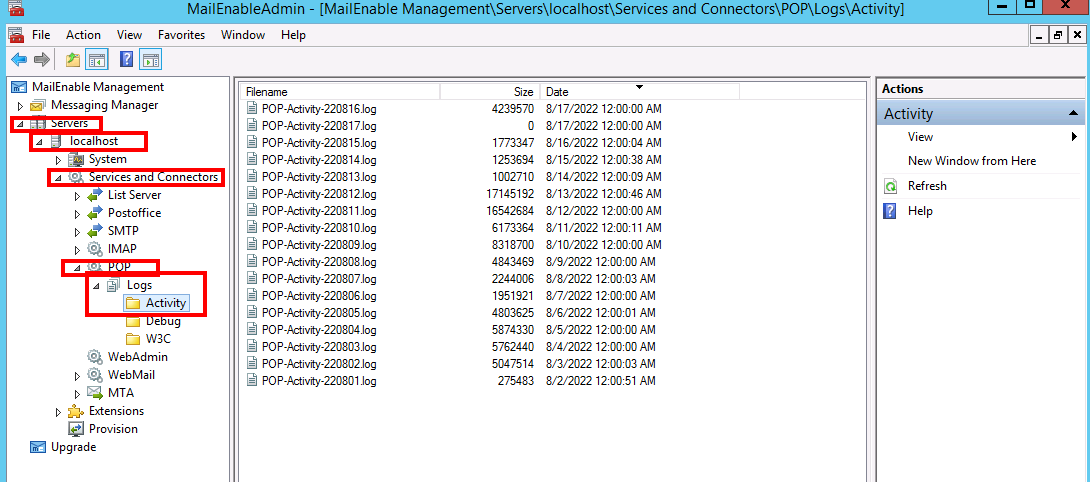
- Click on Logs -> Activity.
