
Note: These steps will work only with the cPanel version 88 and later. Please refer to the steps below at your own risk. We strongly recommend you take a full backup of your entire server as well as MySQL/MariaDB databases before performing the steps. These steps will not work for CloudLinux OS.
You cannot downgrade your DB version once you are done with these steps. Also, you will need to make sure all of your databases are compatible with your new version of MySQL/MariaDB.
cPanel system will upgrade MySQL to MariaDB. In case you change the DB engine to MariaDB, it can’t be changed to MySQL again.
In this tutorial, we will upgrade MySQL from 5.6 to 5.7 on CentOS. Once you select the required version of MySQL/MariaDB, WHM will automatically keep the DB engine up to date. So the new patches released by the vendor will automatically be applied by WHM.
Step 1: Log in to your WHM Panel.
Step 2: Go to Database Services and click on Upgrade Database Version.
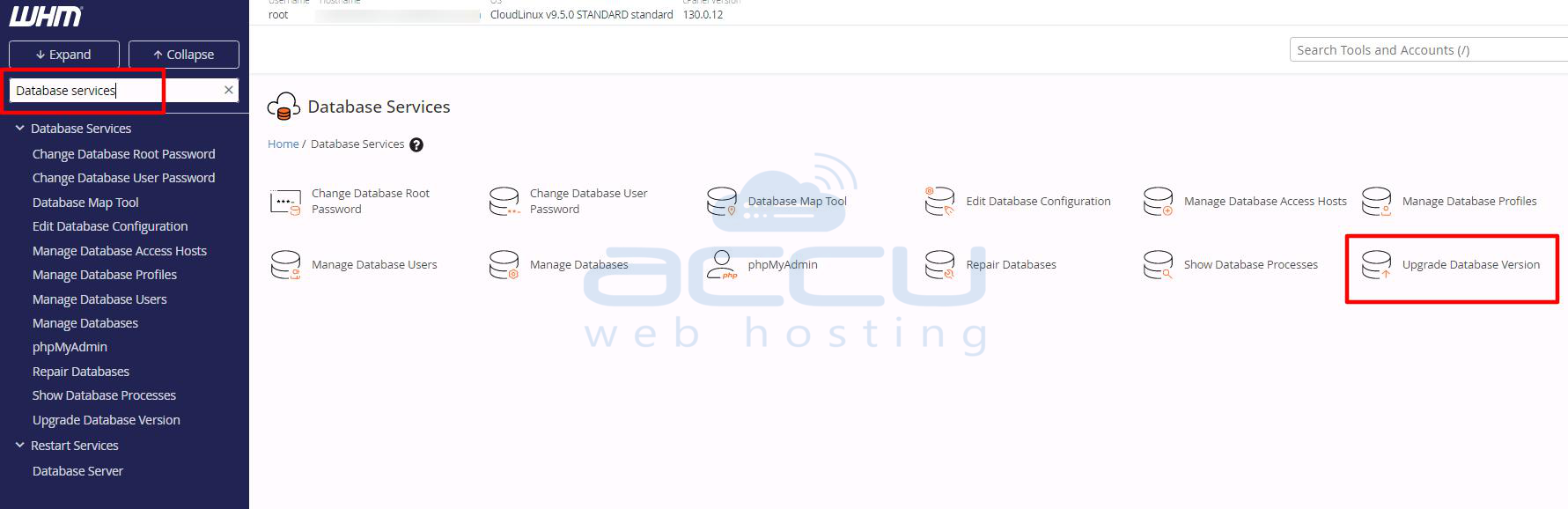
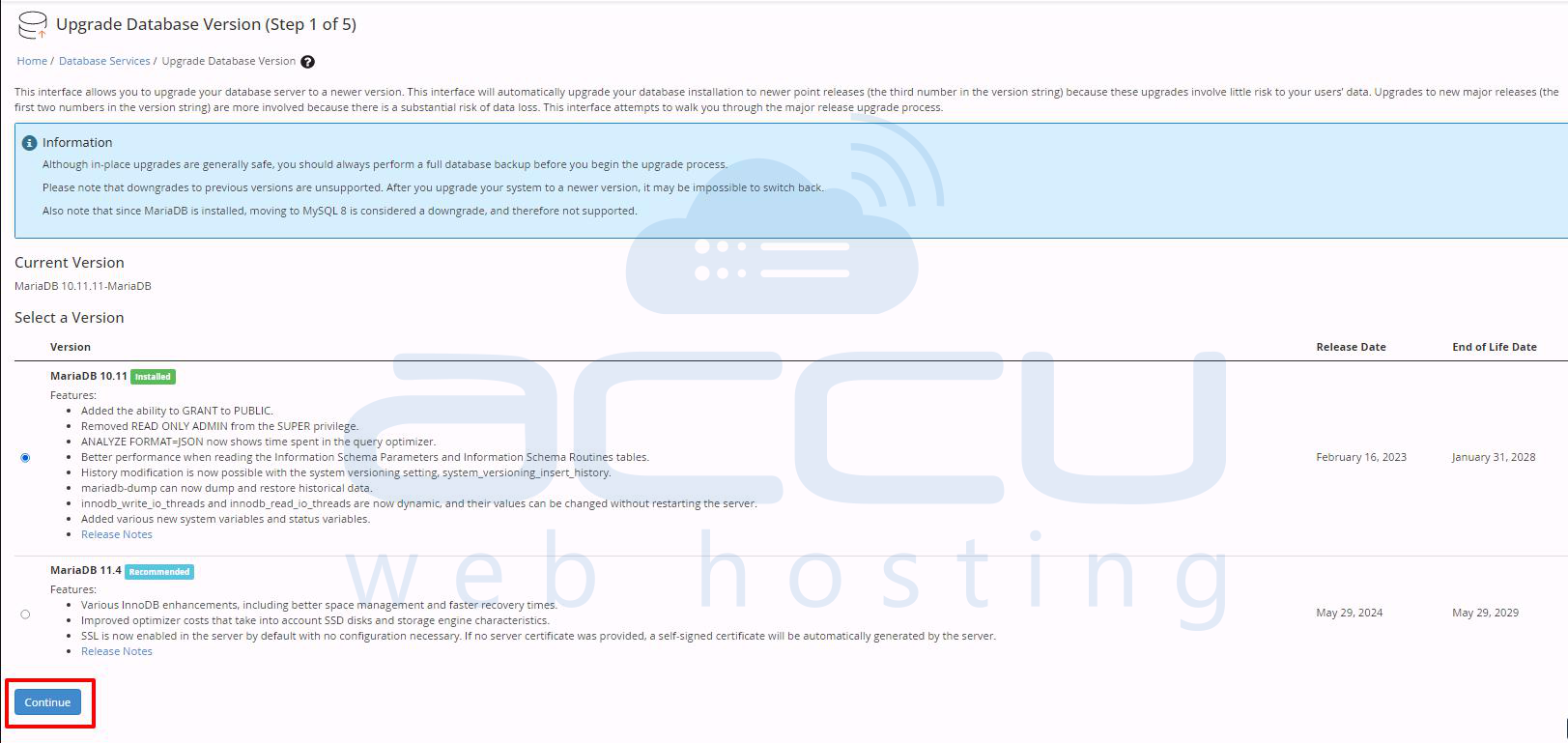
Step 3: Select the required MySQL version on which you want to upgrade and click on the continue button.
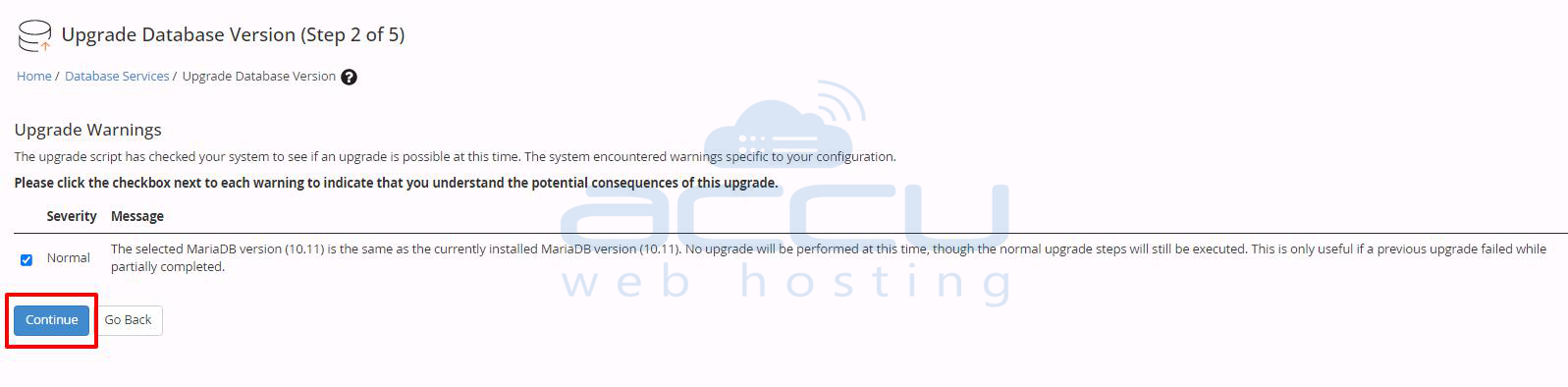
Step 4: Select the checkbox of each warning and click on the continue button.
Step 5: Next, select the type of upgrade you want to perform.
- Unattended-Upgrade — In this option, Apache and PHP will be automatically rebuilt with the last saved defaults. Also, updates Ruby Gems and rebuilds automatically.
- Interactive Upgrade — This option steps you through the upgrade process. It includes MySQL or MariaDB upgrade, Ruby Gems update, Apache, and PHP rebuild.
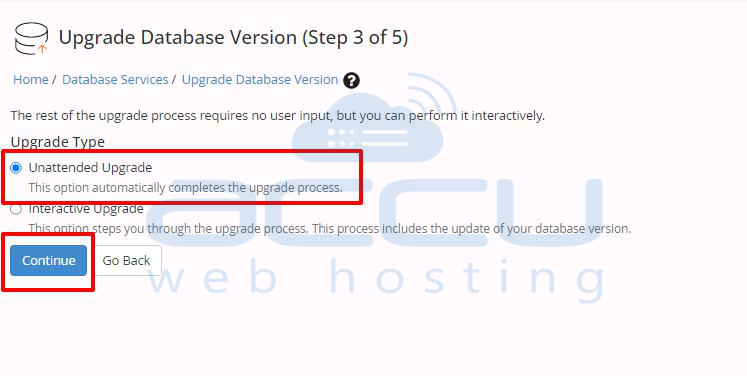
We selected the unattended upgrade for our steps and clicked the continue button. The upgrade will be in progress at the moment.
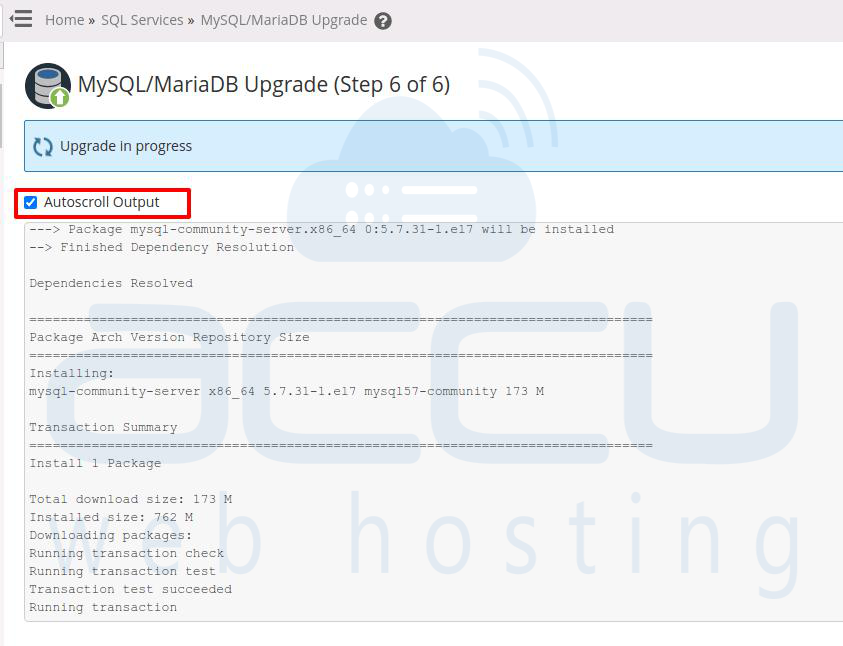
Step 6: You will see the screen below once the upgrade is completed. The upgrade process was completed successfully.

