
How to Fix the “550 Sender Verify Failed” Email Error
If you’ve ever tried sending an email and encountered the error message “550 Sender verify failed,” it can feel frustrating. This error is common in cPanel-based hosting environments and usually occurs because of misconfigured email settings or missing accounts.
What Does “550 Sender Verify Failed” Mean?
This error occurs when a receiving mail server cannot confirm that the sender’s email address exists. In other words, the server attempts to verify the legitimacy of the sender’s address but fails, resulting in the email being rejected.
Common Causes of the Error
Nonexistent Email Account
The sender email address does not exist in cPanel or on the server.
Incorrect MX Records
MX records for the domain are pointing to an external email provider (e.g., Google Workspace, Microsoft 365, Zoho), but the local server still tries to route mail.
Wrong Email Routing Settings in cPanel
The domain is set to use “Local Mail Exchanger” instead of “Remote Mail Exchanger,” causing the server to check for the account locally and fail.
DNS Propagation Issues
Recent DNS or MX record changes have not yet propagated across the internet, leading to temporary failures.
How to Fix the “550 Sender Verify Failed” Error
Method 1: Verify the Email Account Exists
Log in to cPanel.
Go to Email Accounts under the Email section.
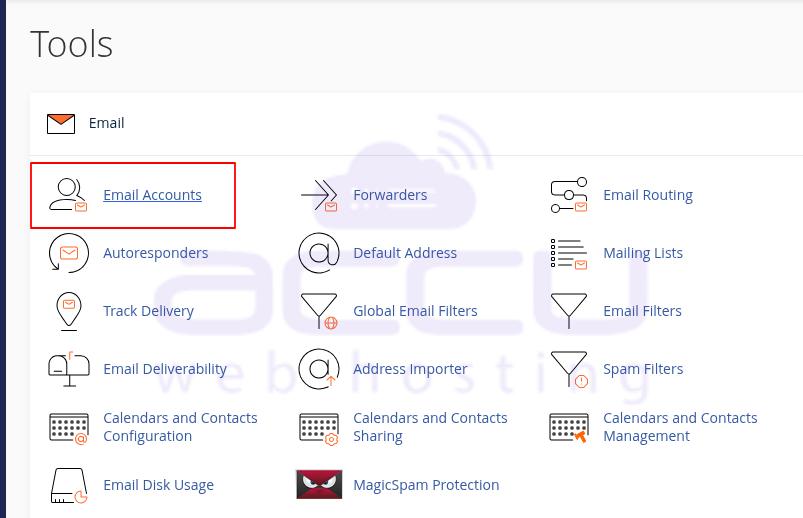
Check if the sender email address exists.
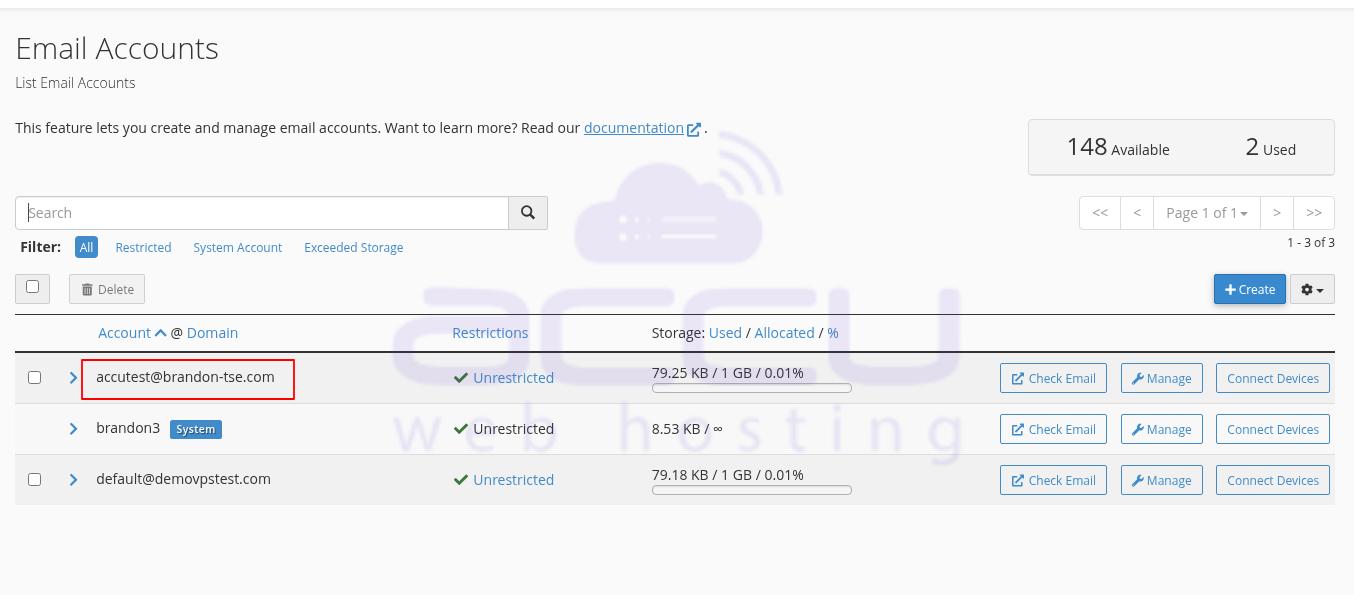
If it does not, create the account and retry sending.
Method 2: Check MX Records
Log in to your domain registrar or DNS management panel.>
Confirm that MX records are pointing to the correct mail server.
Example: If you use Google Workspace, the MX records must point to Google’s mail servers, not your hosting server.
Method 3: Update Email Routing in cPanel
If you are using a third-party mail service, update the routing:
Log in to cPanel.
Go to Email Routing under the Email section.
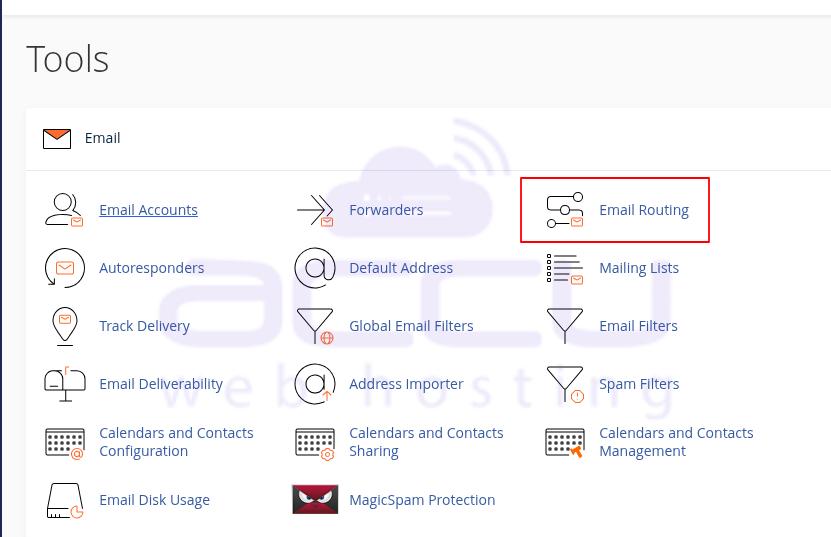
Select Remote Mail Exchanger.
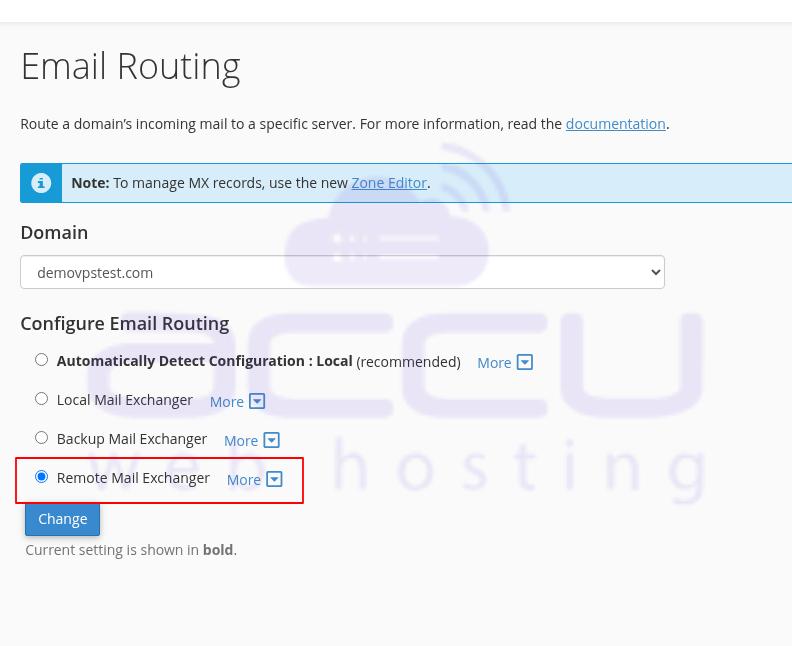
Save the changes.
This ensures that cPanel routes emails through your remote mail provider instead of expecting them to exist locally.
Method 4: Allow for DNS Propagation
After updating DNS or MX records, wait up to 24–48 hours for changes to propagate globally.
During this period, some mail failures may still occur until the update is fully recognized.
Conclusion:
The “550 Sender verify failed” error happens when the mail server cannot verify that the sender address exists. In most cases, the fix involves creating the email account, correcting MX records, and setting the right routing option in cPanel.
Once these adjustments are in place, the error should be resolved. If problems persist, contact your hosting provider or email service provider for further support.


