
FTP is defined as the File Transfer Protocol. You can transfer files between two remote servers/computers using FTP. An FTP client is used to connect and download files from the remote server. However, FTP is less secure compared to SFTP.
SFTP, called SSH File Transfer Protocol, is used to transfer files over a secure connection. SFTP will work only with the default cPanel account.
You need to have Secure Shell access to connect to SFTP. You can get the secure shell keys from the cPanel.
Obtaining SSH Keys from cPanel:
The following are the steps to generate SSH Keys from your cPanel account.
Step 1: Log in to the cPanel account.
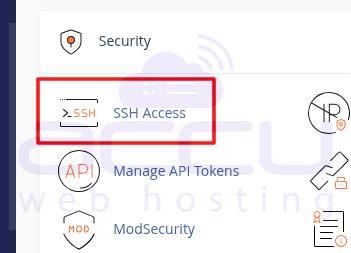
Step 2: Click on the SSH Icon inside the Security section.
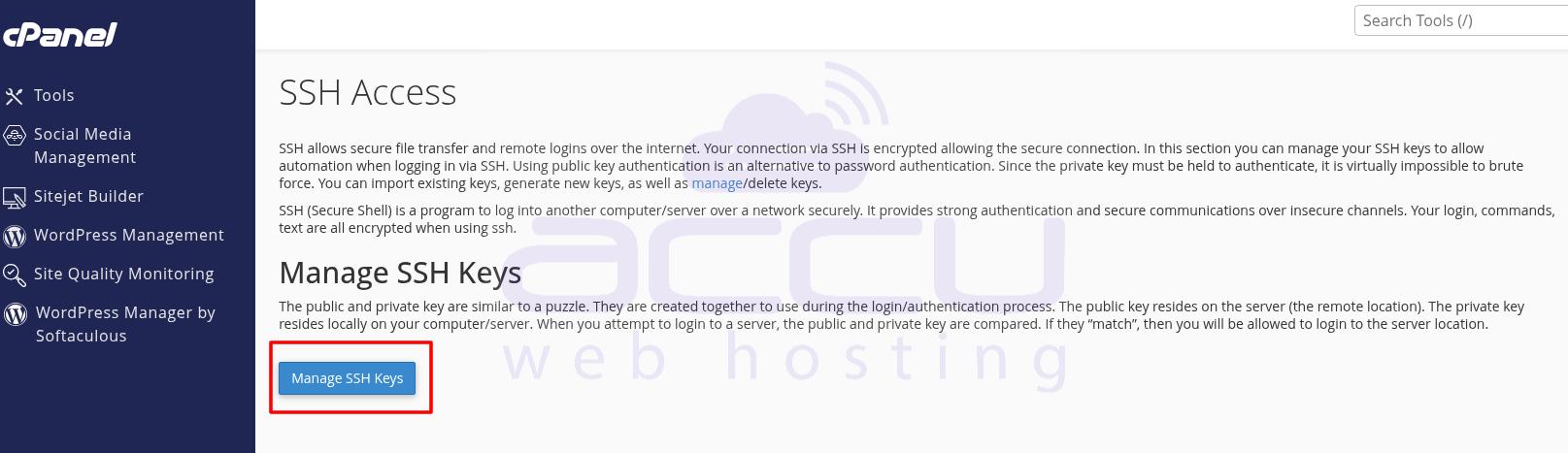
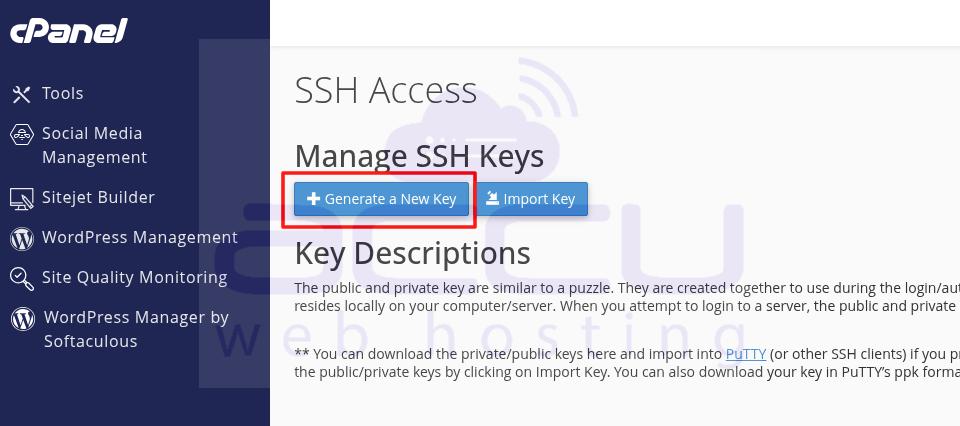
Step 3: Click on Manage SSH Keys >> Generate a New Key.
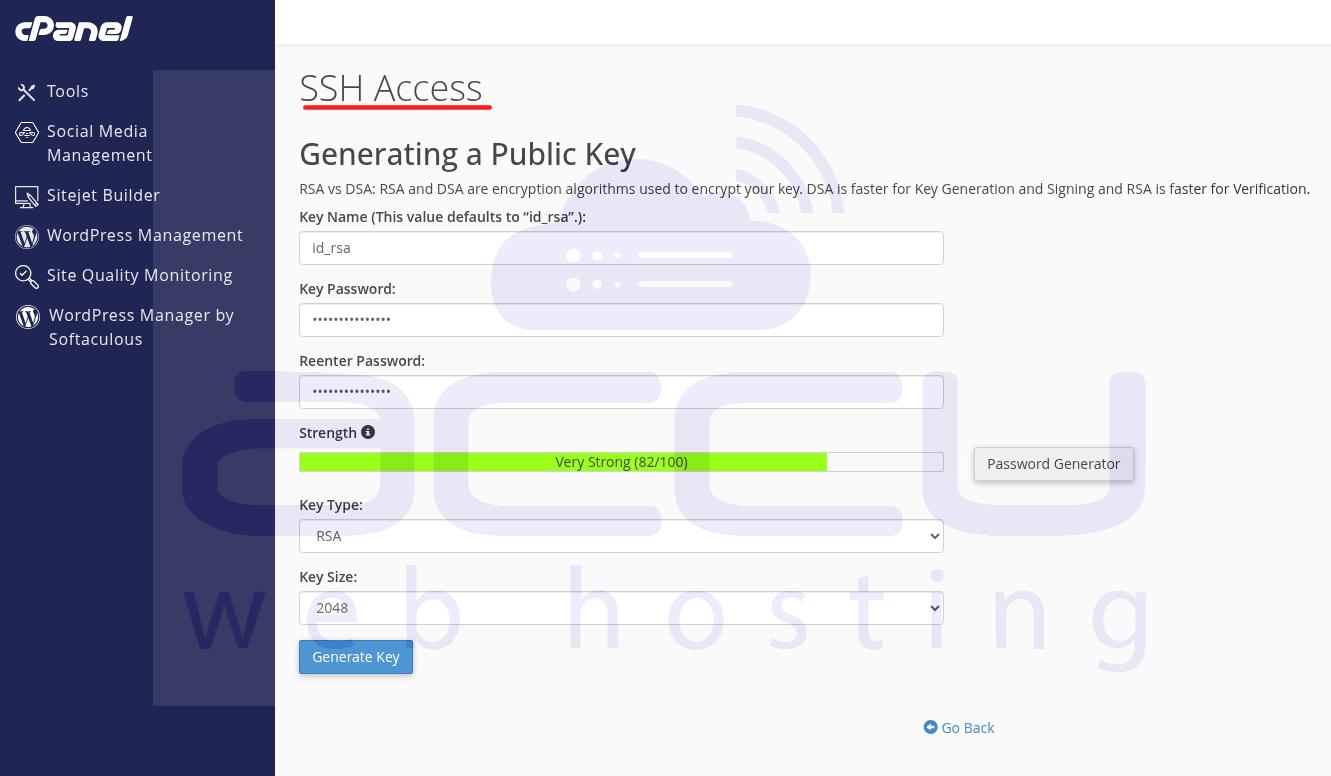
Step 4: Keep the default key name as it is. Provide the password and click on the Generate key button.
Step 5: Now, we will authorize this key to use for your cPanel account. Click on the Manage Button and hit the Authorize button.
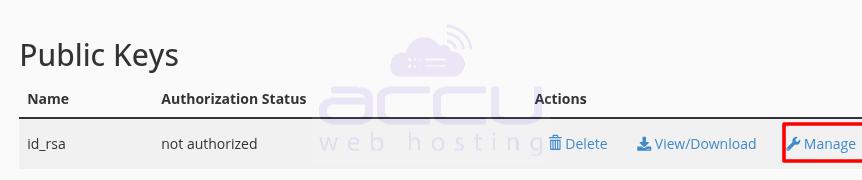
Step 6: Download the private key by clicking on the View/Download button. You can also download it from home/.ssh folder.
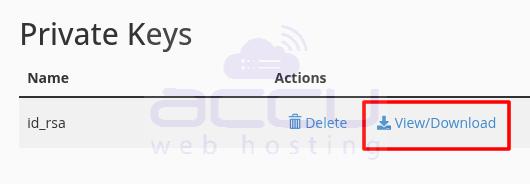
Note: You need to download this file to a safe place. Please make sure nobody has access to this file.
Configuring FTP Client:
FileZilla is one of the widely used FTP clients. We always recommend our customers use FileZilla as their FTP Client. The following are the steps to configure FileZilla for SFTP.
Step 1: Open Filezilla.
Step 2: Go to Edit >> Settings.
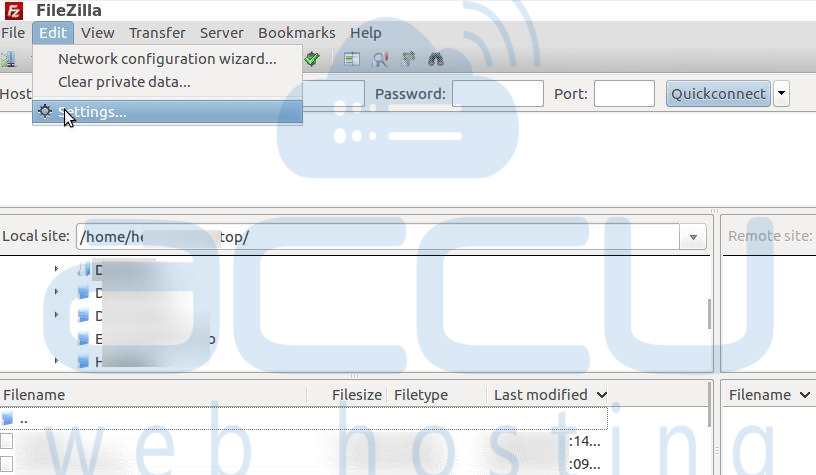
Step 3: Select SFTP and click on Add Key File and import the .ppk file. You can rename the file to .ppk if you face any issues while importing.

Step 4: You can view the imported file in Filezilla as per the below screen capture.

Step 5: Now, connect your FTP account on the server with the SFTP.
Step 6: Accept the Certificate, and you should be able to connect using the SFTP.


