
Backup is one of the crucial steps in the website configuration. Maintaining the website backup regularly is a good practice. Backup can be very useful to restore the website files/folders if it is modified, deleted, or due to hardware crashes.
cPanel provides the options to back up your websites with simple steps. It manages the backup from the Backup configuration option. Taking a Backup on the Amazon S3 is a handy option in the WHM Backup configuration.
The following are the steps to set up the backups with Amazon S3
Step 1: Log in to the WHM.
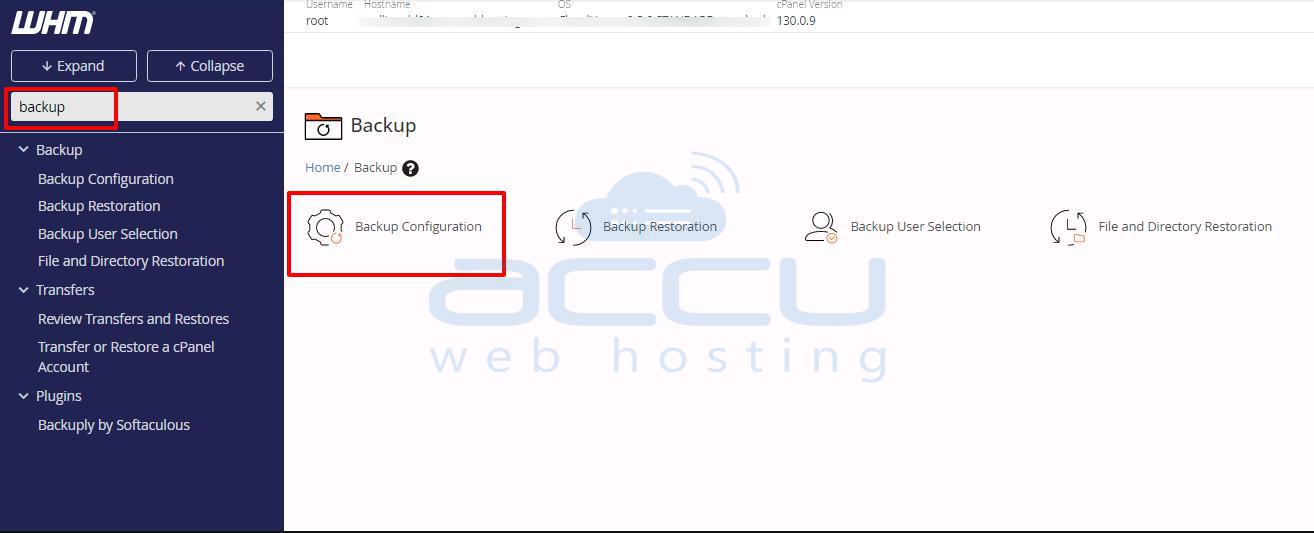
Step 2: Select Backup ==> Backup Configuration.
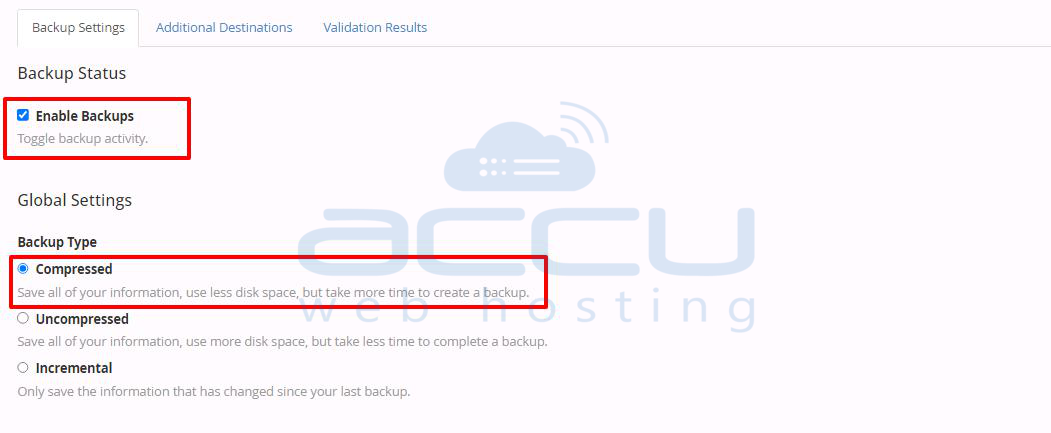
Step 3: Enable the Backup Status and select the backup type ==> compressed.
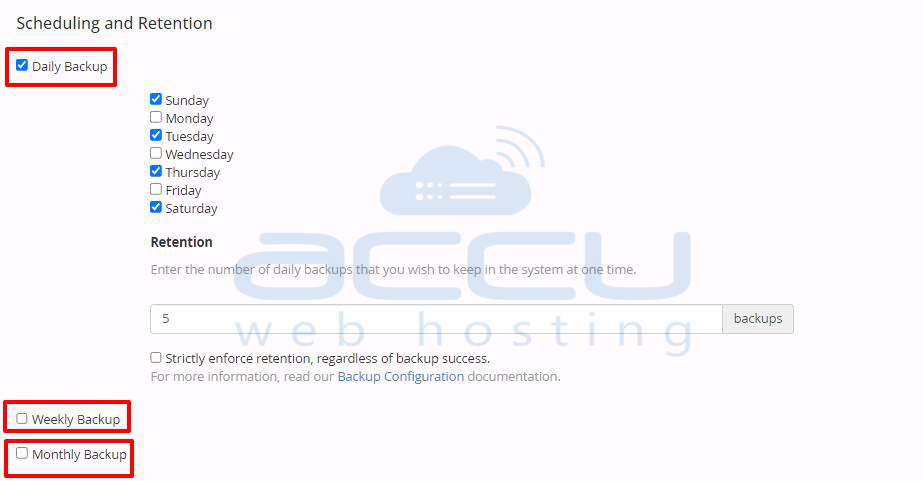
Step 4: Select the suitable options for website backup in the scheduling and retention options. Choose the Daily, Weekly, and Monthly backup as per your backup requirement. Make sure your backup doesn't consume the entire disk on the server.
Weekly or Monthly backup is a vital option for websites with less number of updates.
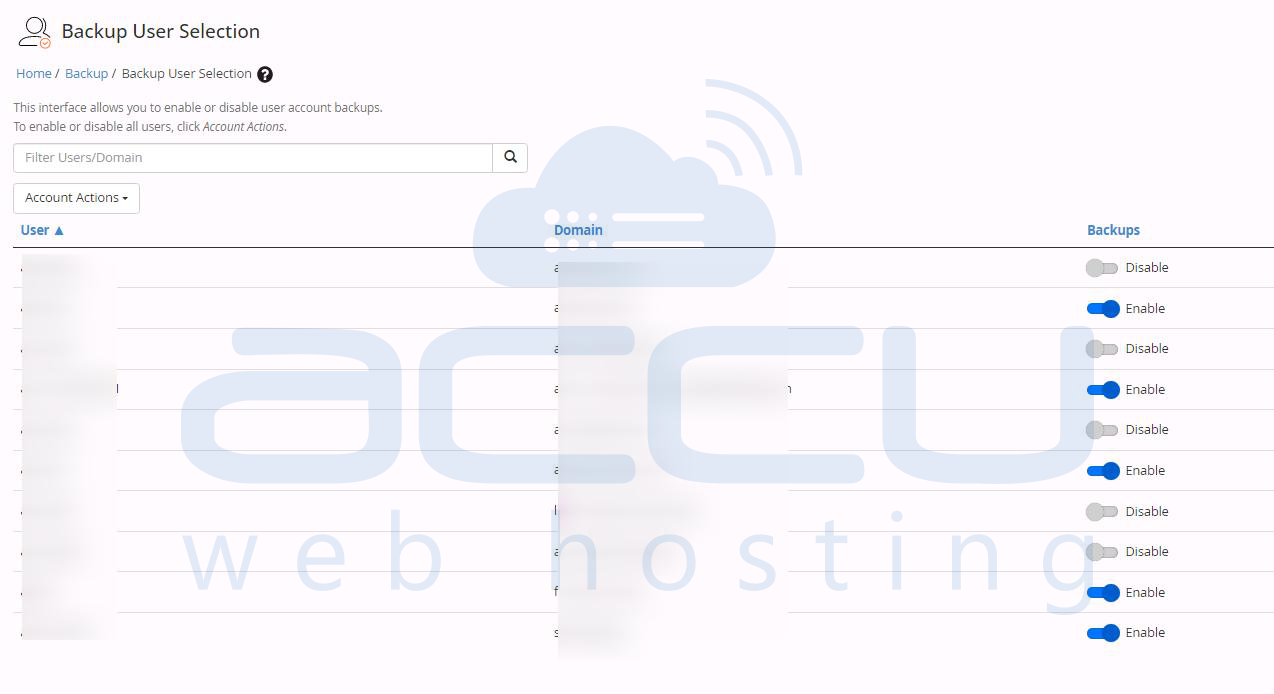
Step 5: Click on Backup Accounts and select the users, and enable the Backup system files if it is required.
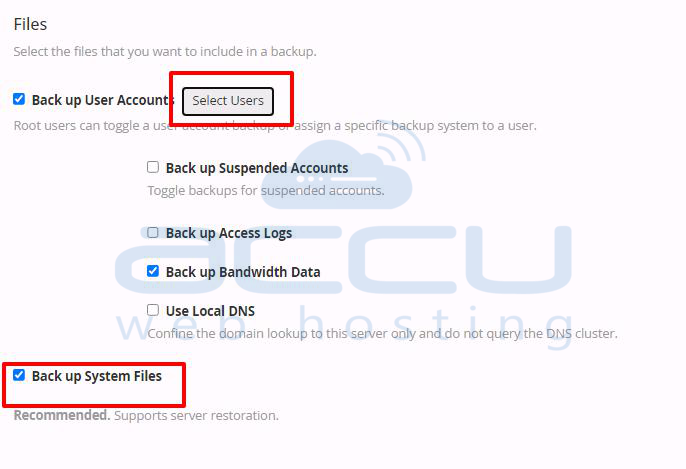
Step 6: Select the users for whom you require to enable the backup.
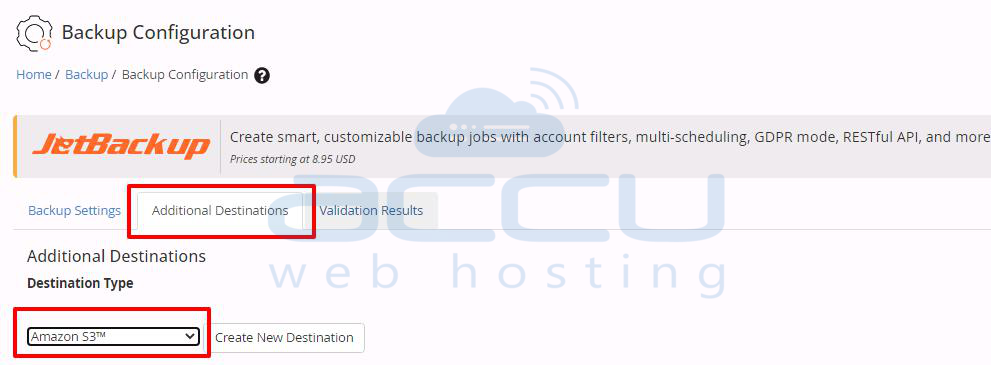
Step 7: In Additional Destinations ==> Destination type ==> Select Amazon S3 and click on Create new destination.
Step 8: Enter the details of the Destination name, the Amazon S3 Bucket name, the Amazon Access Key ID, and your secret key.

Step 9: Click on Save and Validate Destination to complete the backup configuration.

After completion of these steps, you will receive a message that WHM can connect with Amazon S3. From now on, Backups will be saved to Amazon S3. You can check this from your Amazon S3 module.
