
We have integrated the latest ClamAV Anti-Virus plugin into our Shared Web Hosting servers to help protect your websites and emails from malicious files, trojans, and malware.
Each cPanel user is allowed to scan the Entire Home Directory, Mail, Public FTP Space, and Public Web Space from cPanel.
What’s New in the Latest ClamAV Version:
- Enhanced scanning engine with improved malware signature database.
- Real-time progress bar and scan summary.
- Smart quarantine. Automatically isolates infected files outside /public_html.
- Detailed log viewer for reviewing scan history and previous actions.
Step-by-Step Guide to Run a ClamAV Scan from cPanel
- Log in to your cPanel account.
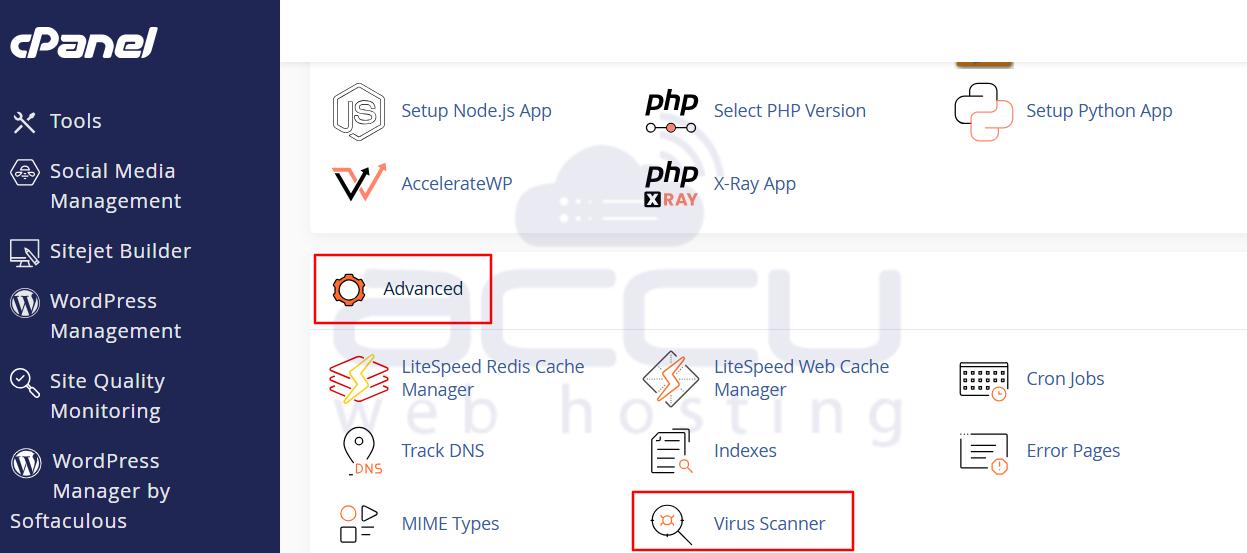
- Under the Advanced section, click on the Virus Scanner option.
- You will get four options to scan your web hosting space on the next screen.
- Scan Mail – Scans all incoming and outgoing emails in your mailboxes.
- Scan Entire Home Directory – Scans all files in your account (recommended).
- Scan Public Web Space – Scans your website files located in /public_html.
- Scan Public FTP Space – Scans files uploaded via FTP.
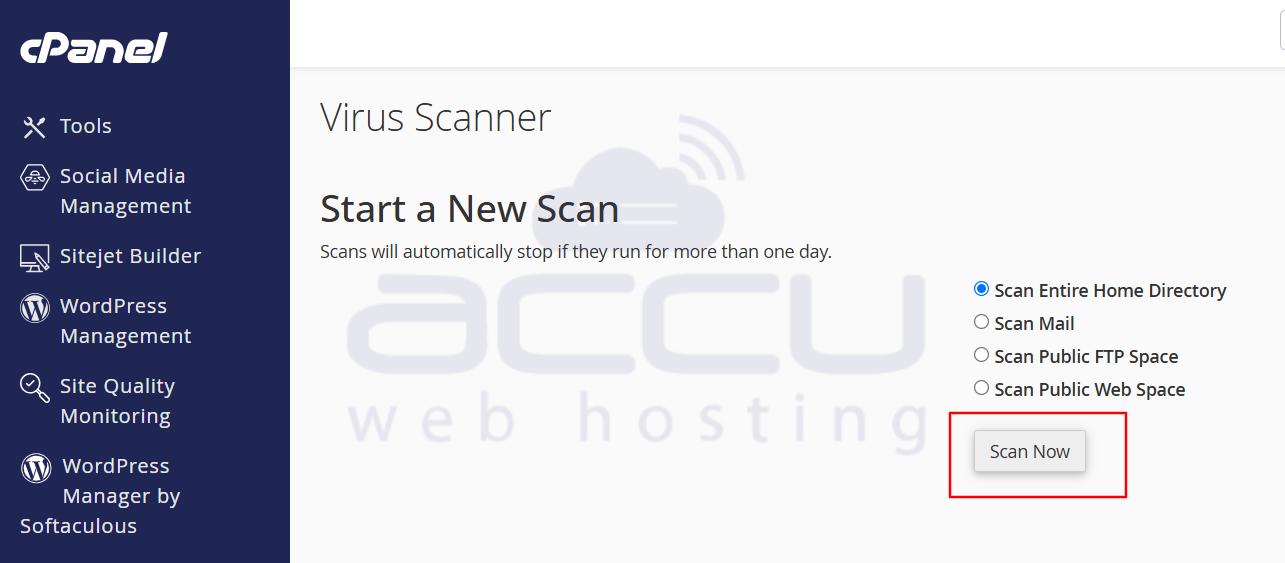
Select the appropriate radio button and click the Scan Now button to start a new scan. For this example, we are scanning the Entire Home Directory.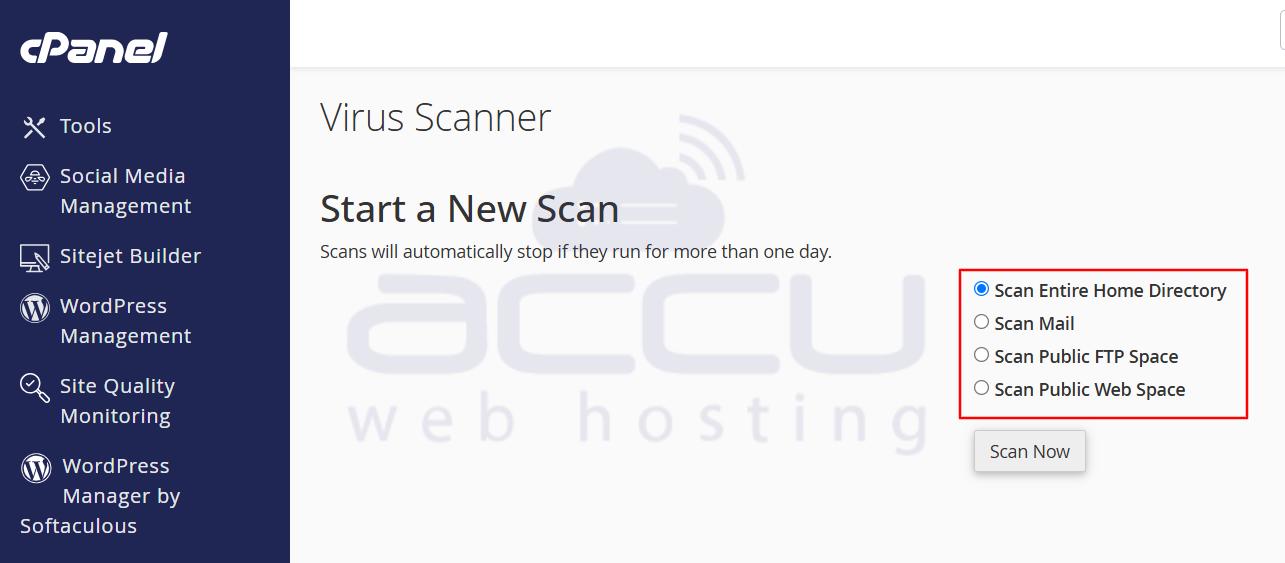
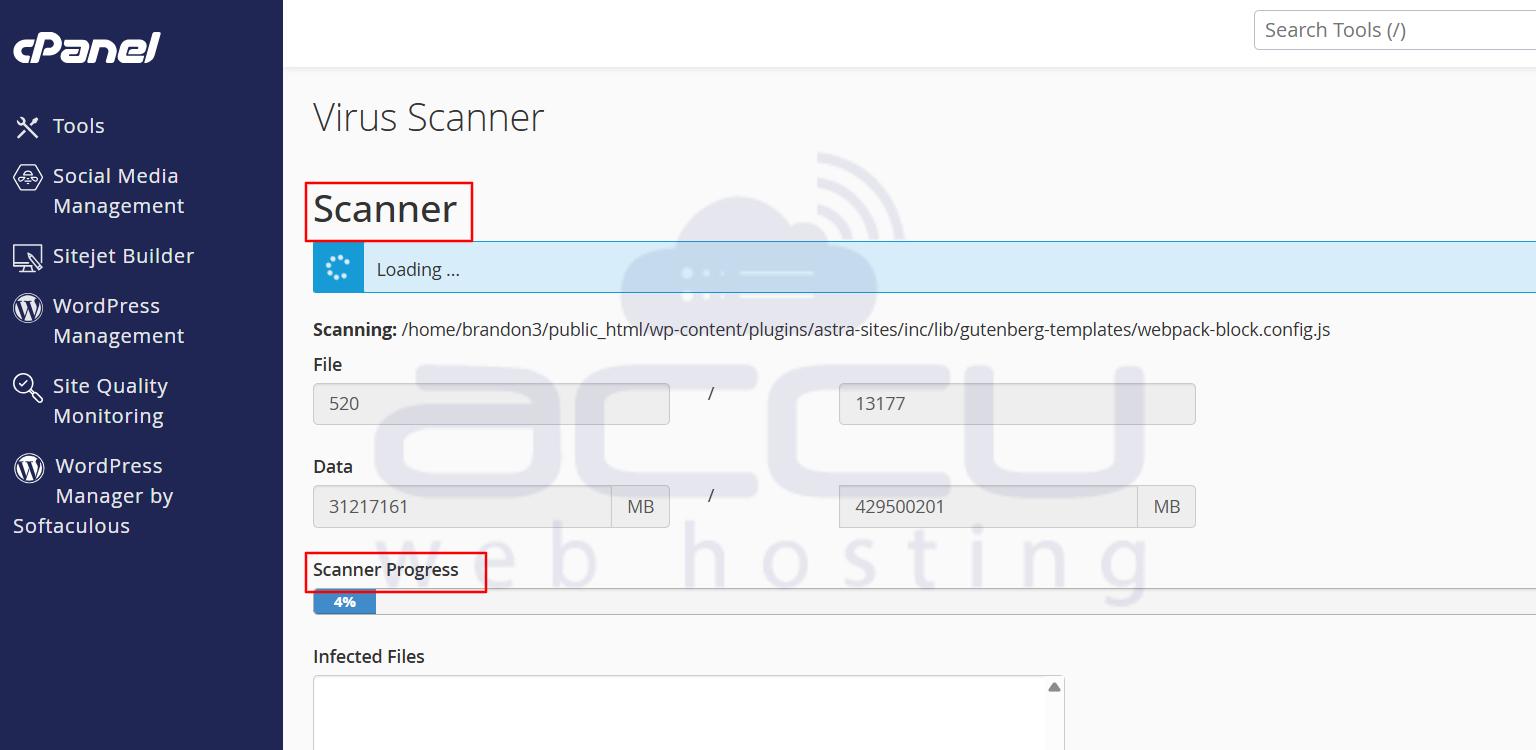
- Monitor Scan Progress - The system will display a real-time progress bar showing the current status and number of files scanned.
Once completed, a summary report will appear showing:
- Total files scanned
- Infected files (if any)
- Scan duration and completion time.
- Review and Manage Infected Files
- If infected files are detected, they will be listed in the Infected Files box with their full path.
- Click OK to proceed to the Cleanup Process window.
- Choose an Action for Each File
You can take one of the following actions for every infected file:
- Quarantine – Safely isolates infected files outside /public_html so they can’t be accessed publicly. (Recommended)
- Destroy – Permanently deletes the infected files.
- Ignore – Leaves the files as-is (use with caution).
Select the preferred actions, then click Process Cleanup.
- Completion Message
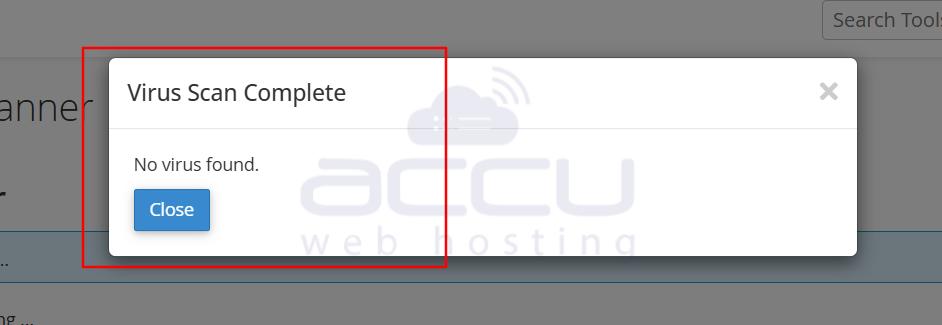
- If no virus is detected, you’ll see a message: “Virus Scan Complete. No Virus Found.”
- Otherwise, you’ll receive a confirmation once the cleanup actions are successfully executed.
Tips:
- Run a full Home Directory scan at least once a week for optimal safety.
- Always quarantine first before deleting to avoid accidental data loss.
- Check the Virus Scanner Logs in cPanel (Advanced → Virus Scanner Logs) to review your past scans and actions.
Keep your CMS (e.g., WordPress, Joomla) and plugins updated. ClamAV can detect threats, but prevention starts with secure software.
Summary:
Running a ClamAV virus scan in cPanel is a simple yet powerful way to keep your hosting account safe from malware and infected files.
By following the steps above, you can detect, isolate, and clean threats in just a few clicks — ensuring a secure and healthy hosting environment.
