
If your website is showing “database connection errors” or pages aren’t loading correctly, it could indicate corruption or inconsistency in your MySQL database tables.
The good news? You don’t need to be a database expert to fix it.
In this guide, we’ll walk you through three easy ways to repair a MySQL database using:
cPanel – a quick, user-friendly repair tool for individual accounts
WHM – admin-level repair for all hosted databases
phpMyAdmin – advanced browser-based repair option
Whether you’re managing a single WordPress site or multiple client databases, these methods help restore performance and stability in just a few clicks; no downtime, no command-line stress.
Repair the MySQL database through cPanel
1. Log in to cPanel.
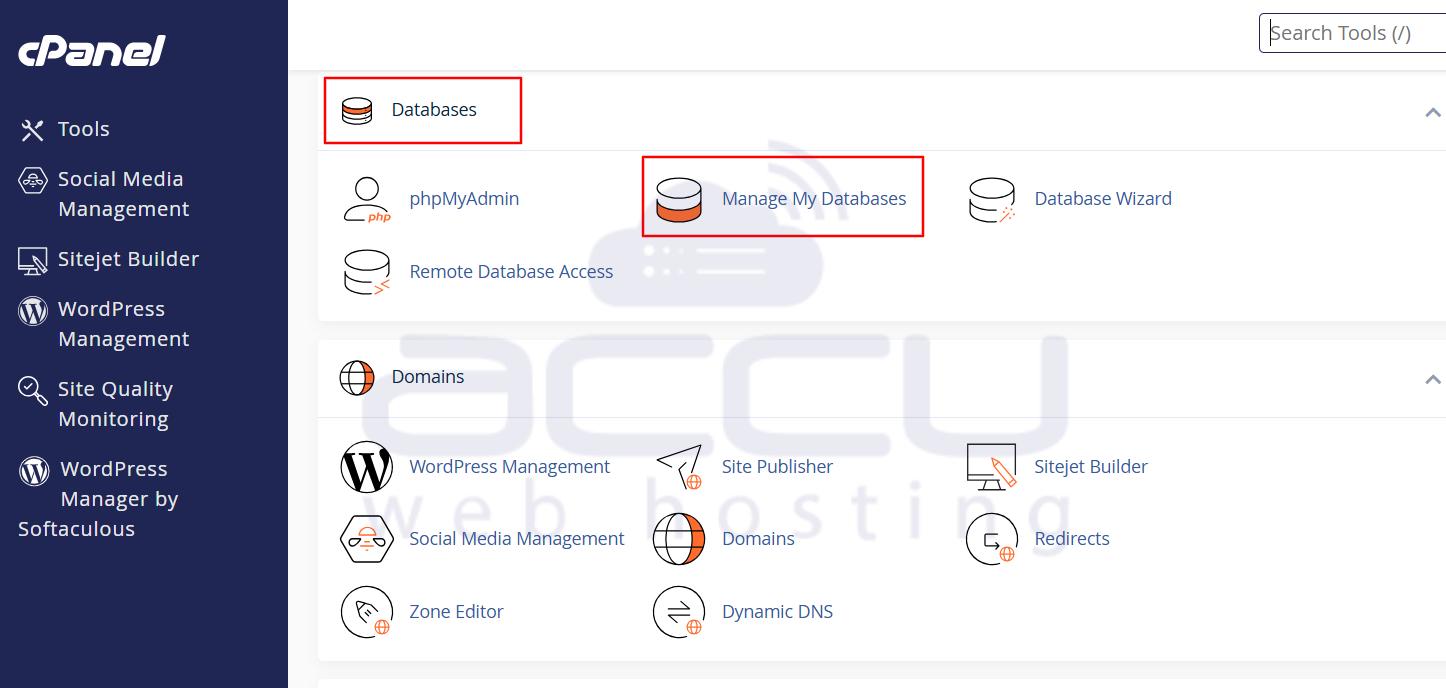
2. Under the Databases section of cPanel, click on Manage My Databases.
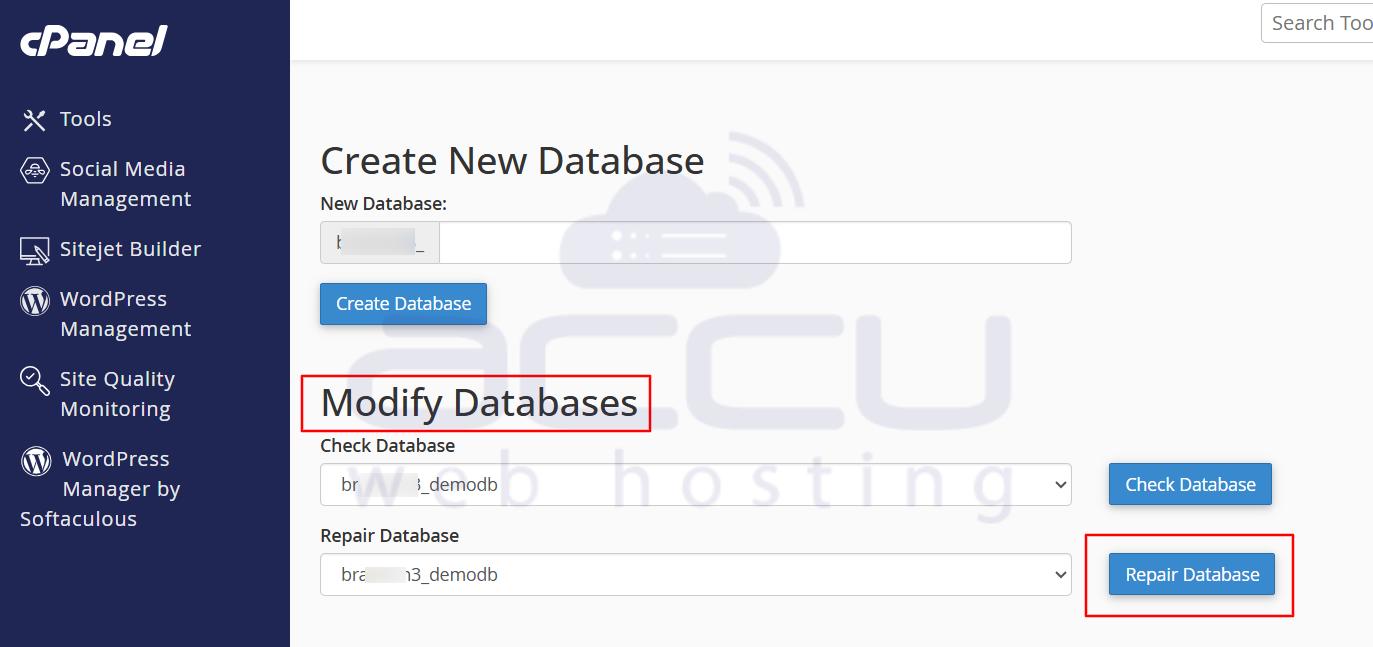
3. Under the Modify Databases section, select the database from the Repair a Database drop-down and click the Repair the Database button.
Repair the MySQL database through WHM
1. Log in to WHM.
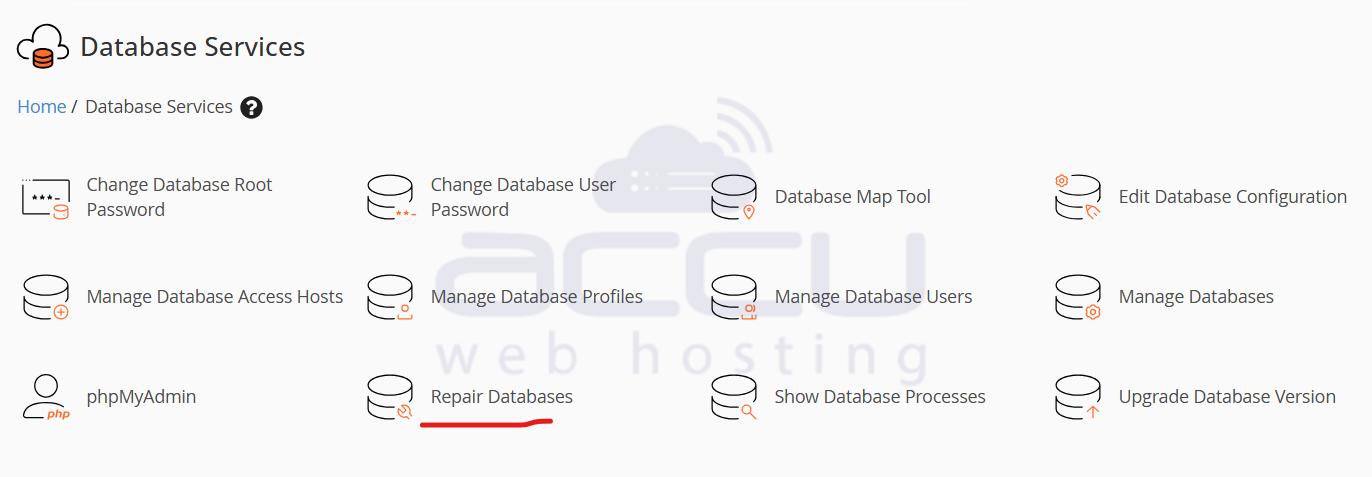
2. Under the SQL Services section, select the Repair a MySQL database option.
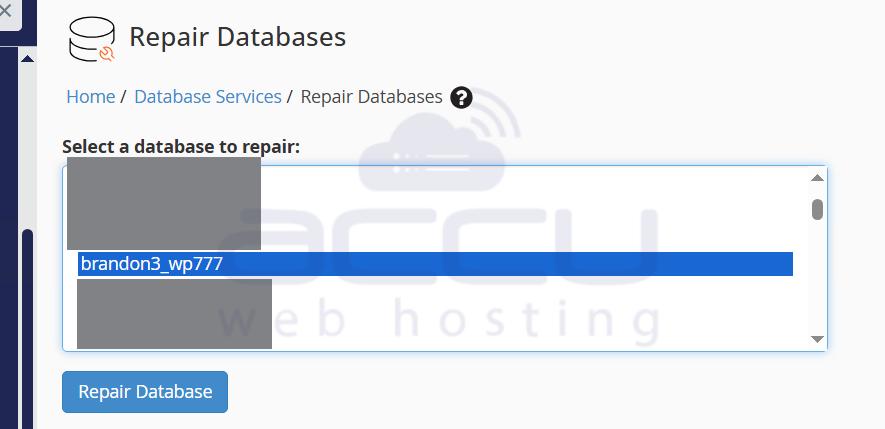
3. Select the database you wish to repair from the list of all databases and click on the Repair Database button.
Repair the MySQL database through phpMyAdmin
If you can access cPanel, follow the steps below to repair the MySQL database.
1. Log in to cPanel.
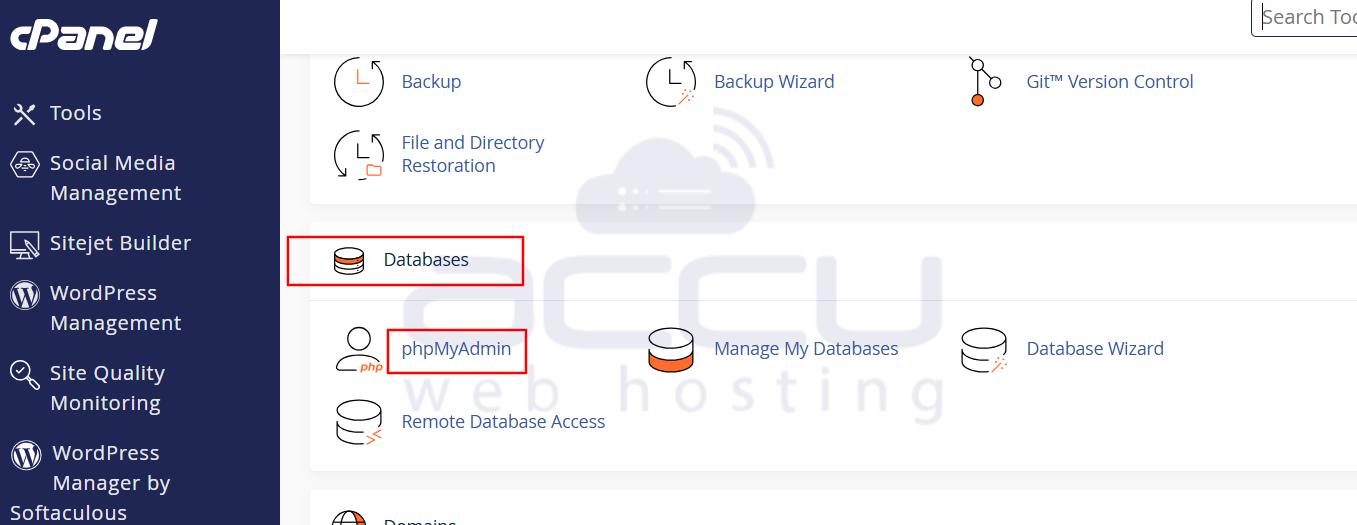
2. Under the Databases section of the cPanel, click on phpMyAdmin. This will open the phpMyAdmin administration page in a new window
3. Click on the database you wish to repair in the left panel.
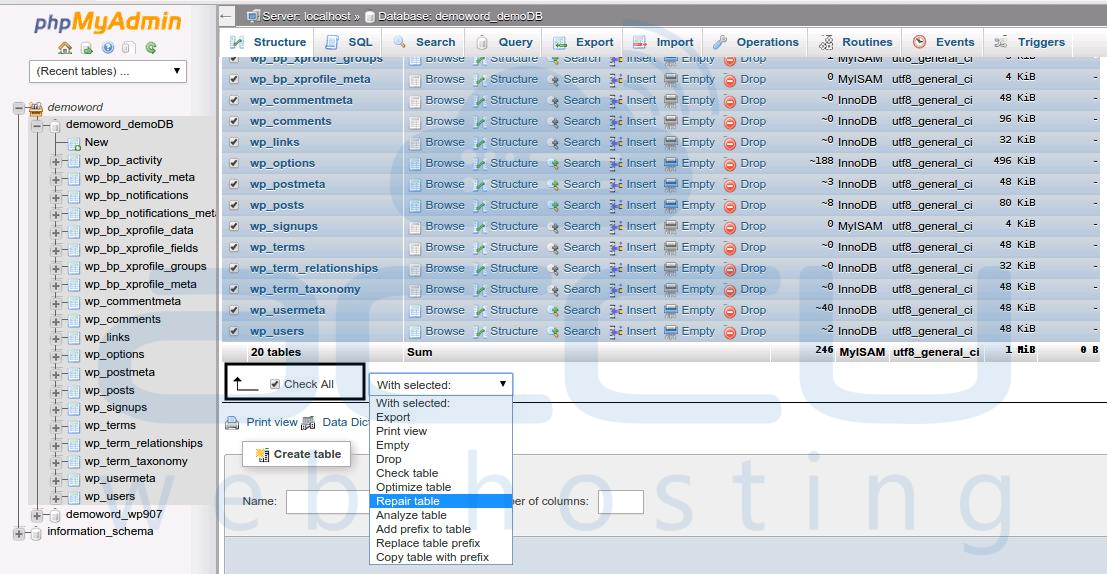
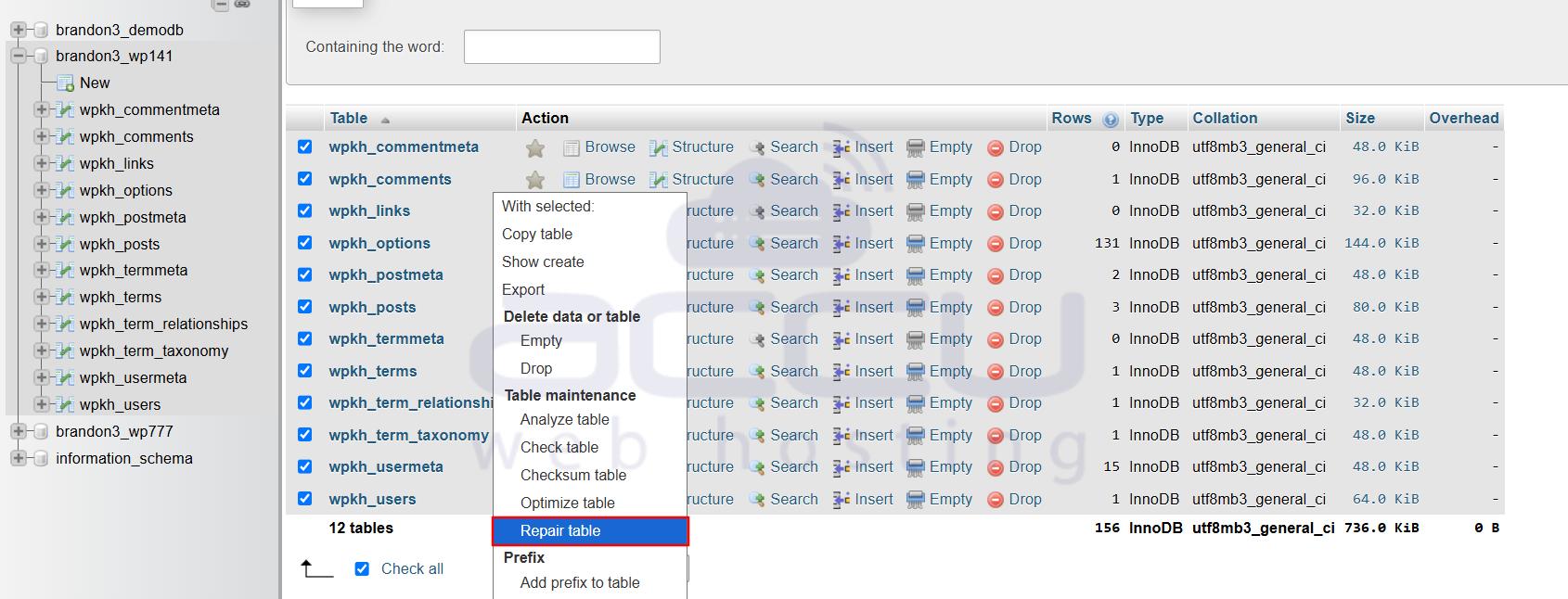
4. In the right panel, select the check boxes of the database table. If you want to repair all tables, select the "check all" option.
5. In the With selected list box, select "Repair table."

If you have access to WHM, follow the below-mentioned steps to repair the MySQL database.
1. Log in to WHM.
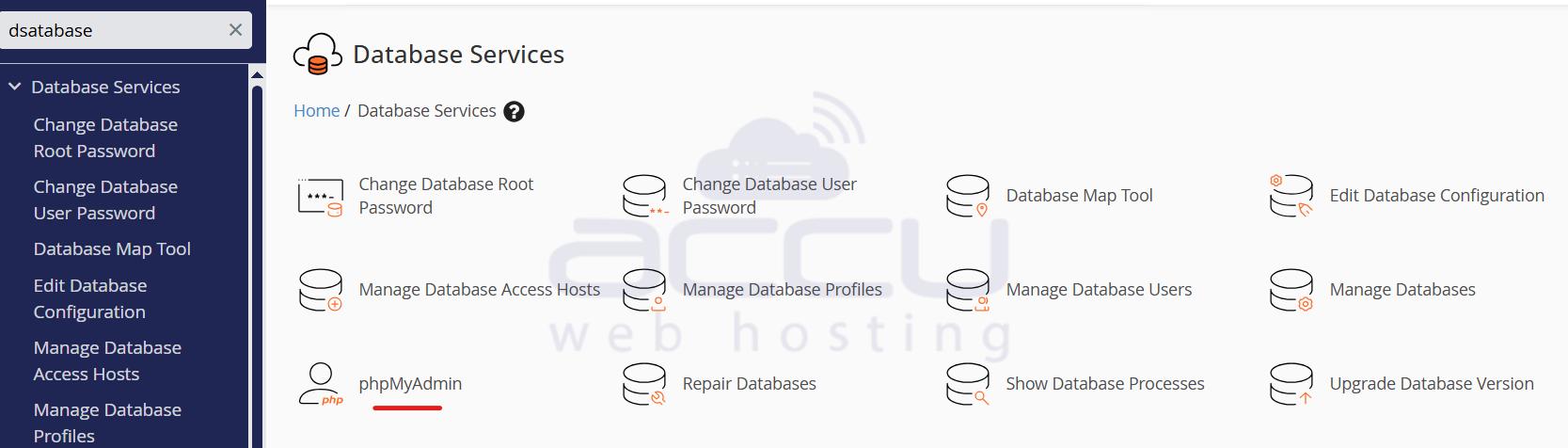
2. Under the SQL Services section of the WHM, click on phpMyAdmin. This will open the phpMyAdmin administration page in a new window.
3. On the left panel, select and click on the database you wish to repair.
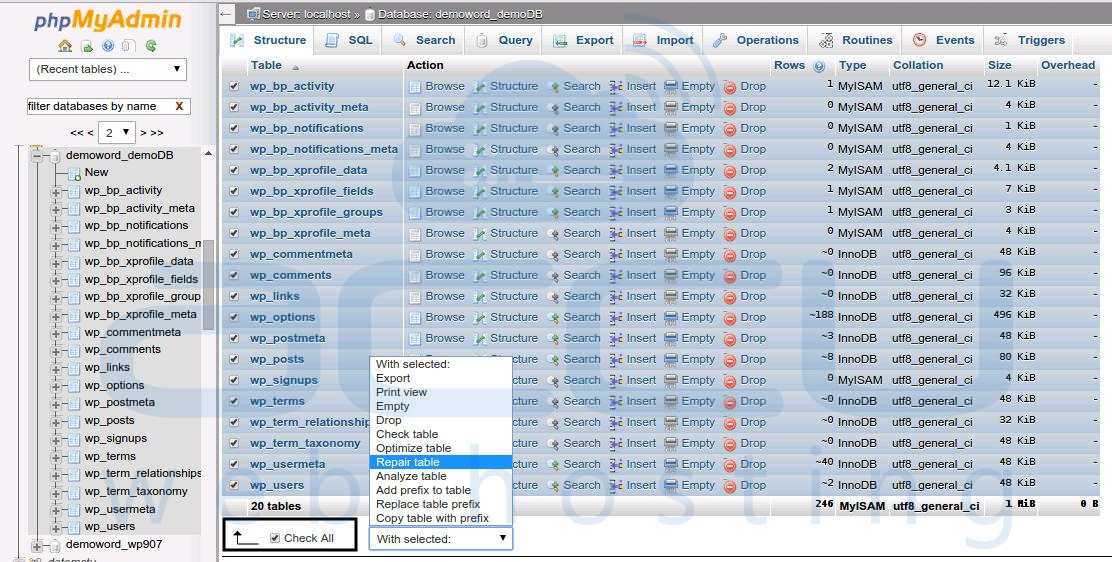
4. On the right panel, select the check boxes of the database table. If you want to repair all tables, choose the check all option.
5. In the With selected list box, select Repair table.
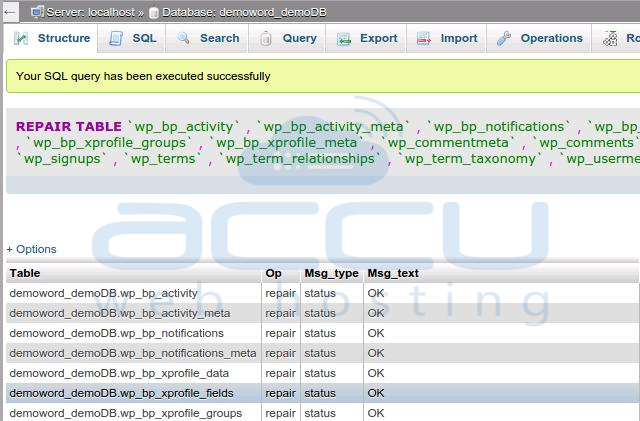
→ Looking to repair a MySQL Database through Linux and Windows command line?
Please refer to Repair MySQL Database for more details.
→ Looking to administrate MySQL server through MySQLAdmin commands?
Please refer to Fix Administrate MySQL Using Commands for more details.
→ Want to take MySQL Database backup using the command line?
Please refer to Take MySQL Database Backup for more details.
→ Looking to increase Max_User_connection for MySQL in Linux?
Please refer to Increase max_user_connection for more details.
Conclusion:
Repairing a MySQL database from cPanel, WHM, or phpMyAdmin is one of the fastest ways to fix site errors and restore normal operation without needing SSH or root access.
Use cPanel for quick individual fixes, WHM for bulk or server-level repairs, and phpMyAdmin if you want detailed control.
If you’re still seeing database connection errors after repair, your hosting provider can help you review logs or optimize your database performance further.
Need professional help? Our technical team is available 24/7 to assist you with full MySQL repair and optimization support.
Get Linux VPS Hosting »