
Do you have the Credit balance in your Accuwebhosting account? Please refer to pay via credit balance for more details. Please refer to the Acceptable Credit/Debit Card to get the details of the acceptable Credit/Debit card.
From the client area, you can pay for a hosting account, domain services, and any other services that you have purchased from AccuWebHosting.com. For that, you will have to log in to the client area. If you do not know how to log in, then follow these instructions.
Step 1: On the menu bar, click on Billing and select the My Invoices option
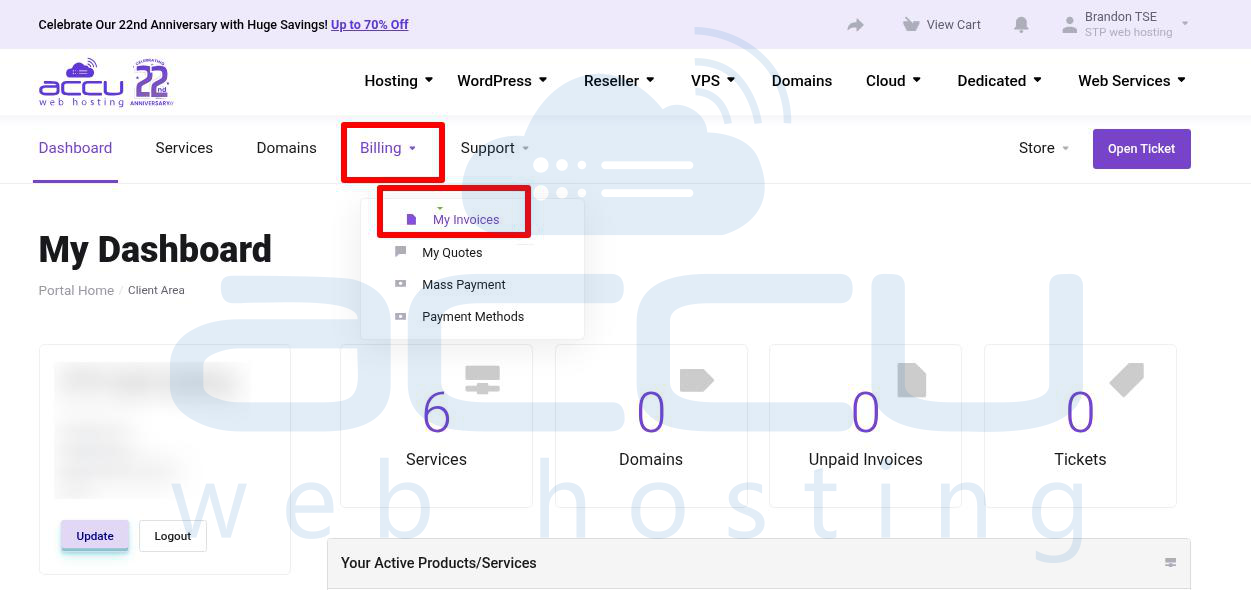
Step 2: You will see the My Invoices page, from where you can view all your invoices
Step 3: This list includes Invoice Number, Invoice Date, Due Date, Total amount of invoice, and Status (i.e., Unpaid, Paid, Cancelled, Refunded) of an invoice, and in the last column, you can see the View Invoice button.
Step 4: To view any particular invoice or pay for an unpaid invoice, click on the View Invoice button.
Step 5: You have two options to pay for your unpaid invoices:
- Pay using available Credit and
- Direct Payment
Looking to pay multiple invoices. Please refer to Pay > Multiple Invoices for more details.
Pay the Invoice using available Credit
If you have any credit balance available in your account, then you will see your available credit balance. You can use this credit to pay your unpaid invoices. To pay from your credit balance, click on the Apply Credit button.

Pay Invoice using Direct Payment
In the upper right corner of the View Invoice page, there is a drop-down list from which you can choose your payment method. Choose the appropriate payment method.
PayPal:
- To pay your unpaid invoice using PayPal, choose the PayPal payment method from the drop-down list and click on the PayPal Checkout button. You will be redirected to the PayPal payment gateway.
- If you wish to subscribe to a PayPal subscription, click here to view how to avail automated billing through PayPal.
Credit Card:
- To pay your unpaid invoice using a Credit Card, choose the Credit Card payment method from the drop-down list and click on the Make One Off Payment button.
- You will be redirected to the 2Checkout payment gateway. Review your cart, check the billing information, and fill in your Credit Card details.
Note: We use 2Checkout as a payment gateway. We do not store your Credit/Debit Card details on file. - After completion of the payment process, your invoice will be marked as paid.
- If you wish to create automated billing through Credit Card via the 2CheckOut payment gateway, click here to view how to avail automated billing through Credit Card.
Looking to know the accepted payment method by Accuwebhosting? Please refer to the Accepted Payment Method for more details.
Looking to make the payment using a check? Please click on the check payment for details.
Looking to cancel the service? Please refer to cancel your service for more details.


