
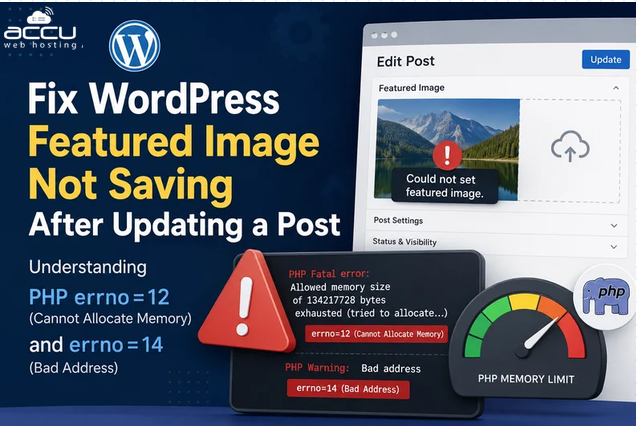
WordPress users often face a frustrating issue where a featured image appears to upload successfully but disappears after updating a post, or the featured image fails to save entirely. In many cases, the WordPress dashboard does not show an obvious error, making the problem difficult to diagnose.
One common cause behind this issue is a server-side PHP memory or file handling error. Errors such as:
-
PHP errno=12: Cannot Allocate Memory
-
PHP errno=14: Bad Address
can prevent WordPress from processing images correctly during post updates. This guide explains what these errors mean, why they occur, and how to fix the WordPress featured image not saving issue.
Why Is the WordPress Featured Image Not Saving?
When you set or update a featured image in WordPress, several processes happen in the background:
-
WordPress uploads the image file.
-
PHP processes the uploaded image.
-
WordPress creates image thumbnails and different image sizes.
-
Metadata is generated and stored in the database.
-
The image attachment is linked to the post.
If PHP does not have enough resources or encounters a file system issue during these steps, WordPress may fail to complete the process.
Common symptoms include:
-
The featured image disappears after clicking Update.
-
Image upload completes, but the image is not assigned to the post.
-
The media library shows the image, but the post does not save it.
-
Post updates fail intermittently.
-
WordPress displays a generic "Updating failed" or "Publishing failed" message.
-
PHP error logs show memory allocation or address-related errors.
Understanding PHP errno=12: Cannot Allocate Memory
What Does errno=12 Mean?
The error: PHP errno=12: Cannot Allocate Memory means the operating system could not provide enough available memory for PHP to complete the requested operation. When WordPress processes an image, PHP requires memory for:
-
Loading the original image into memory.
-
Generating thumbnails.
-
Compressing or resizing images.
-
Creating image metadata.
Large images require significantly more memory than smaller files.
For example:
-
A 500 KB JPEG may require several MB of RAM during processing.
-
A 10 MB high-resolution image may require hundreds of MB while generating thumbnails.
If the server has limited RAM or PHP memory limits are too low, the image processing operation fails.
Common Causes of errno=12
1. Low PHP Memory Limit: The PHP memory limit controls how much RAM a PHP script can use.
Check your current value: Log in to WordPress Admin. Go to: Tools → Site Health → Info → Server. Check: PHP memory limit
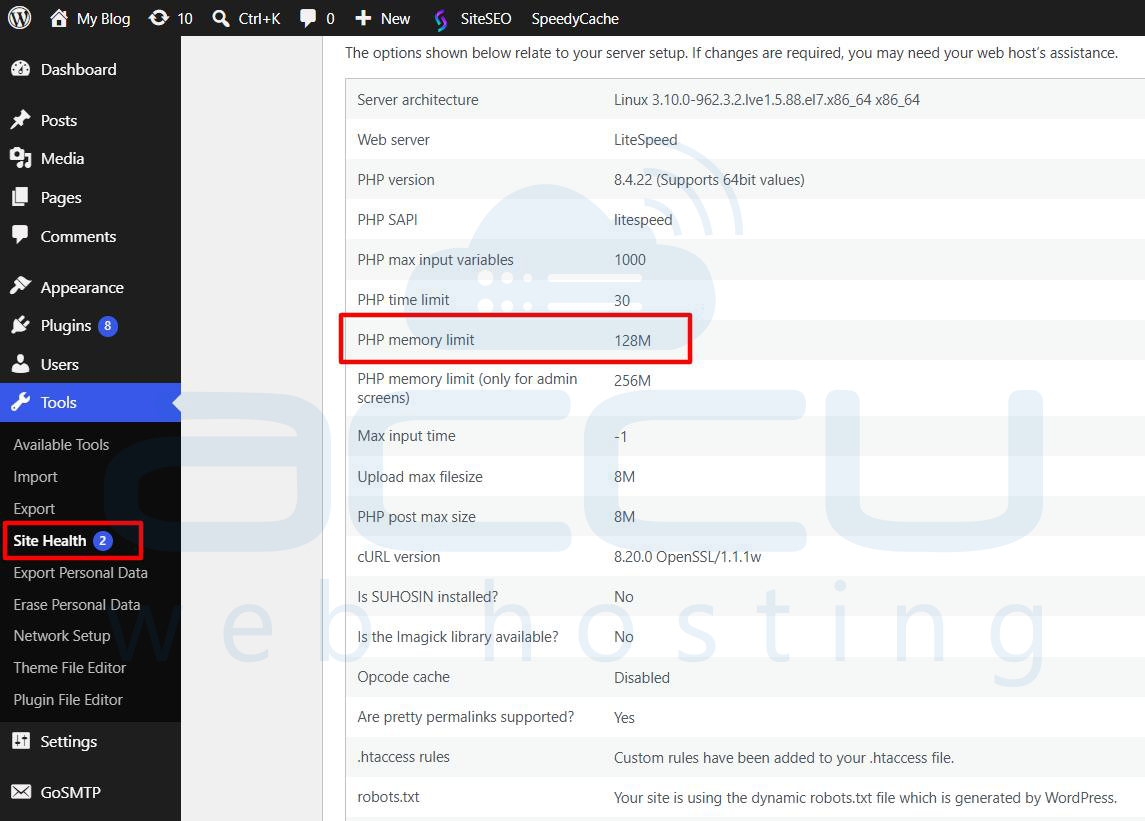
A low value such as 32M, 64M, 128M may not be sufficient for image-heavy WordPress websites.
2. Large Image Uploads: Uploading images directly from cameras or design software can create very large files.
Examples: DSLR images, PNG screenshots, High-resolution banners, Photoshop exports. A single large image can consume excessive PHP memory while WordPress generates thumbnails.
3. Too Many Plugins Running: Plugins increase PHP memory usage. Common resource-heavy plugins include Security plugins, Backup plugins, Page builders, Image optimization plugins, and WooCommerce extensions. If available memory is already low, image processing may fail.
4. Server Resource Limits: On shared hosting environments, PHP processes may be restricted by CloudLinux memory limits, Container limits, Hosting account resource restrictions, and Server-level PHP limits. Even if WordPress requests more memory, the operating system may deny the allocation.
Understanding PHP errno=14: Bad Address
What Does errno=14 Mean?
The error: PHP errno=14: Bad Address indicates that a process attempted to access an invalid memory address or invalid system resource location.
In WordPress environments, this usually points to Memory corruption, A PHP extension issue, A problem with the image processing library, or Server-level instability. Unlike errno=12, this is not simply caused by a low memory limit.
Common Causes of errno=14
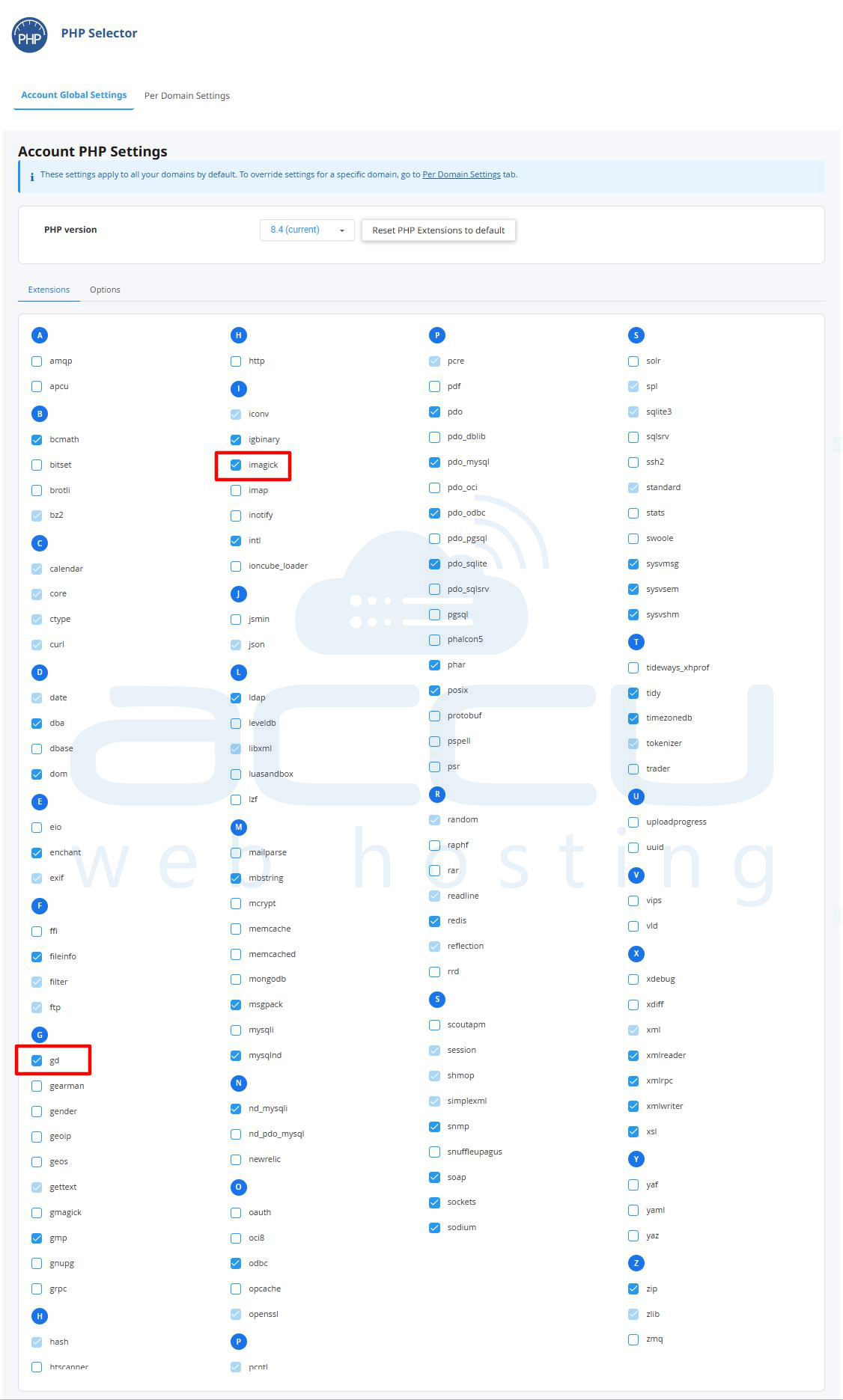
- GD Library or Imagick Issues: WordPress uses PHP image libraries to process images GD Library and ImageMagick (Imagick). A corrupted or misconfigured image extension can cause memory access problems. Check and enable PHP modules:
2. Incorrect Image File: A damaged image file can trigger processing failures.
Possible causes: corrupted JPEG headers, Invalid PNG structure, Incomplete upload. or unsupported image format.
Try opening the image locally, saving it again using an image editor, and uploading the new copy.
3. PHP Version Compatibility Issues: Older PHP versions or outdated image libraries may have compatibility problems with newer WordPress releases.
Recommended approach: use a currently supported PHP version and keep WordPress and PHP extensions updated.
How to Fix WordPress Featured Image Not Saving
Solution 1: Increase PHP Memory Limit
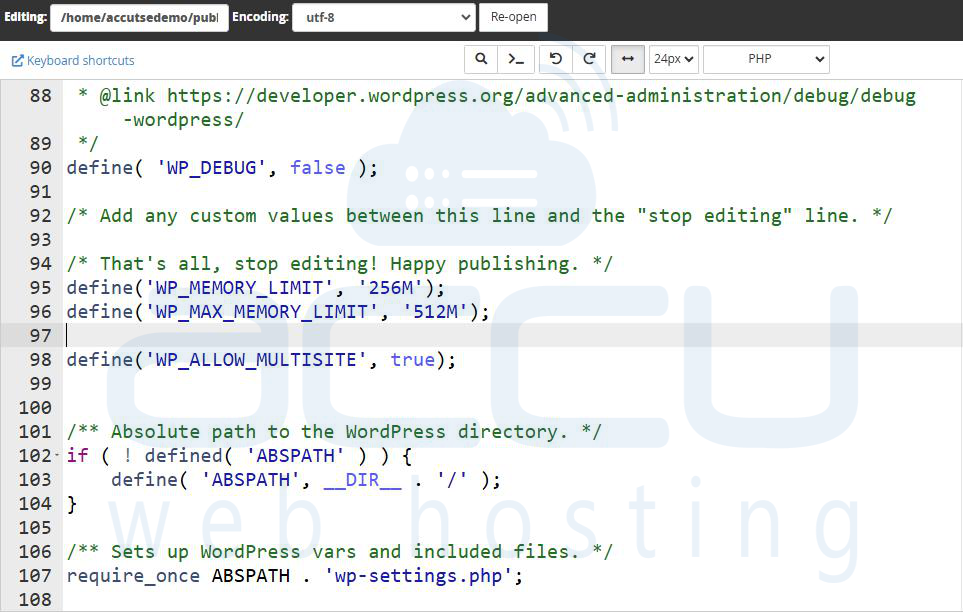
Increase the WordPress memory limit in:
wp-config.php
Add these lines before:
/* That's all, stop editing! Happy publishing. */
Add:
define('WP_MEMORY_LIMIT', '256M');
define('WP_MAX_MEMORY_LIMIT', '512M');
Save the file and test updating the post again.
Solution 2: Increase PHP Memory Limit from Hosting Panel
-
Log in to your cPanel account.
-
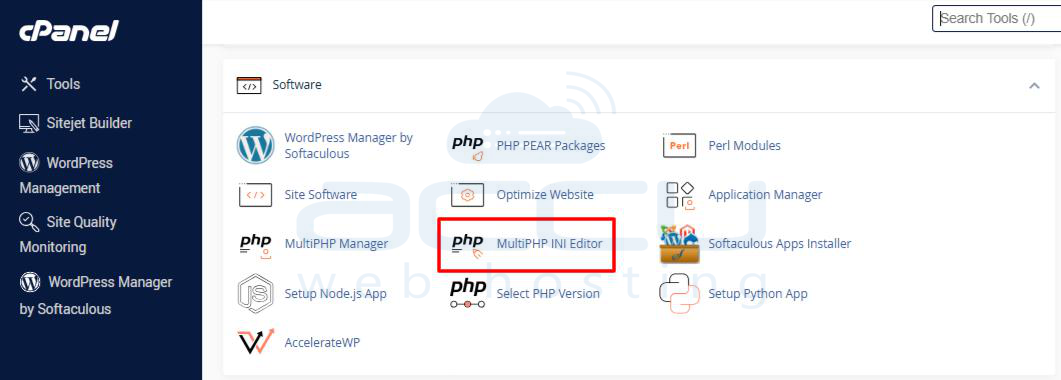
In the Software section, click MultiPHP INI Editor.
-
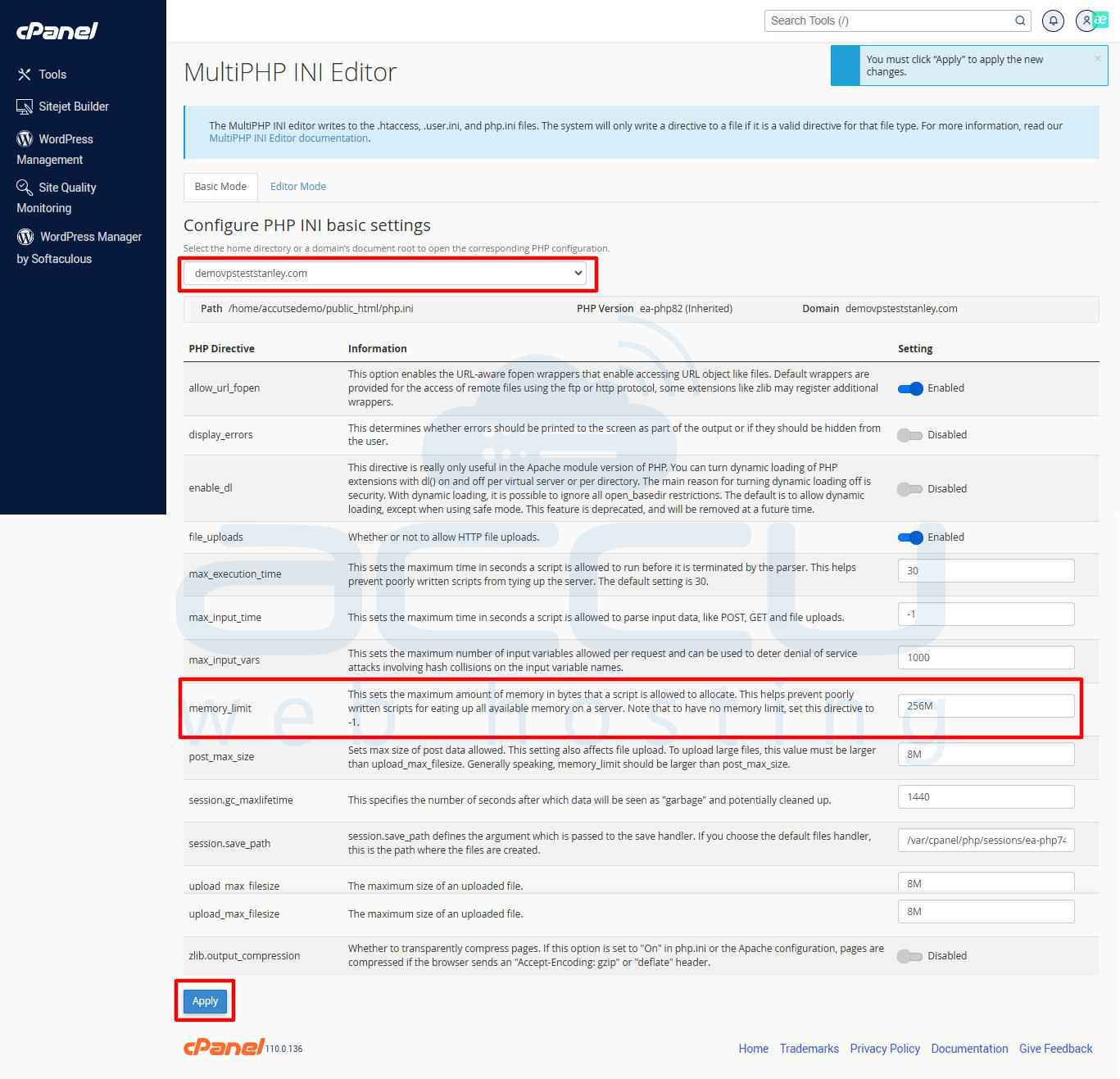
From the Configure PHP INI basic settings drop-down menu, select the domain for which you want to increase the memory limit.
-
Locate the memory_limit directive.
-
Change its value to a higher limit, for example:
memory_limit = 256M
If your application requires more memory, you can set a higher value such as 512M, provided your hosting plan allows it. -
Click Apply or Save to save the changes.
-
Clear your website cache (if applicable) and test the website to confirm that the issue has been resolved.
Solution 3: Optimize Images Before Uploading
Before uploading:
-
Resize images to the required dimensions.
-
Convert unnecessary PNG files to JPEG.
-
Compress large images.
Recommended WordPress image sizes:
-
Blog featured image: 1200 × 628 pixels
-
Website banners: optimized based on theme requirements
Avoid uploading 6000+ pixel images directly.
Solution 4: Disable Plugins Temporarily
A plugin conflict can increase memory usage.
Test:
-
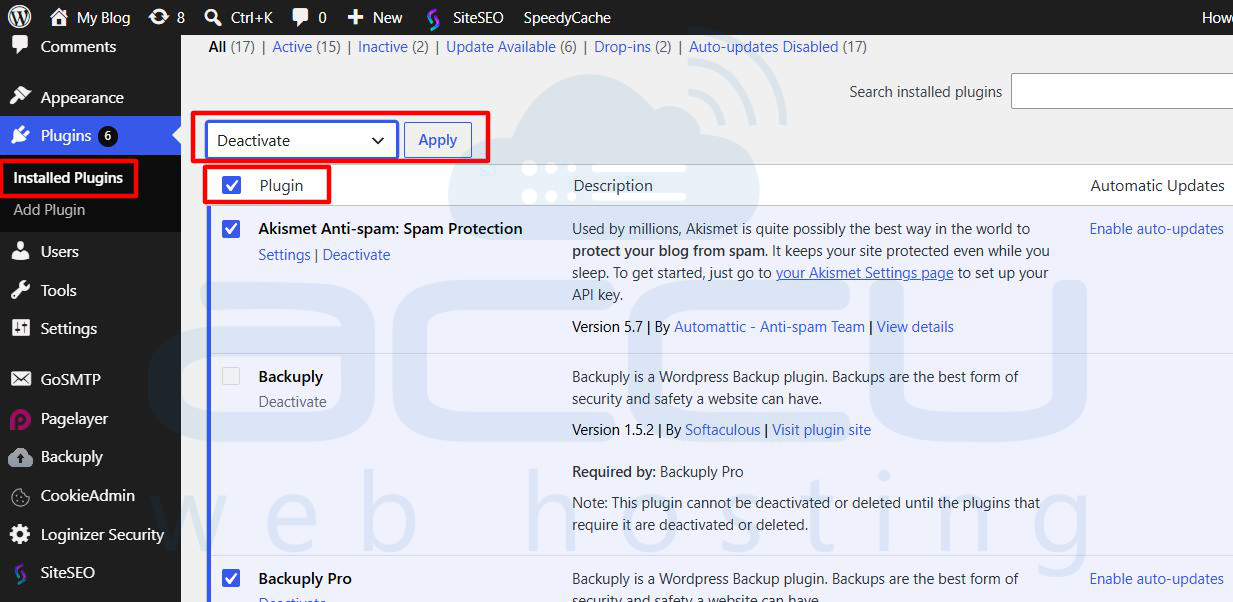
Disable all plugins.
-
Upload and save the featured image.
-
If the issue is resolved, enable plugins one by one.
-
Identify the plugin causing the problem.
Solution 5: Switch Image Processing Library
WordPress can use either GD or Imagick.
If Imagick causes errors:
Add this to your theme's functions.php file:
function use_gd_library($editor) {
return 'WP_Image_Editor_GD';
}
add_filter('wp_image_editors', 'use_gd_library');
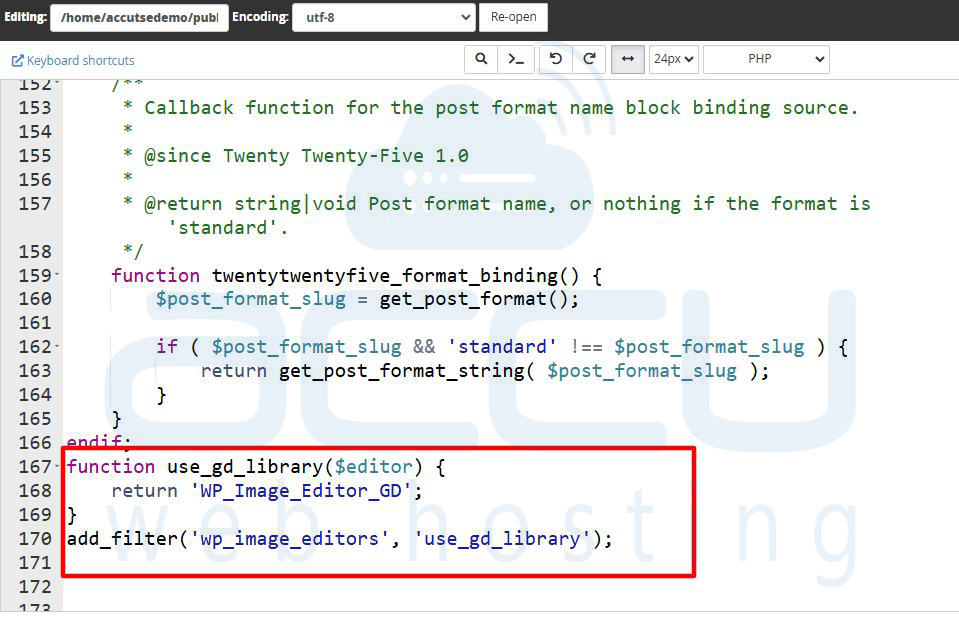 This forces WordPress to use GD instead of Imagick.
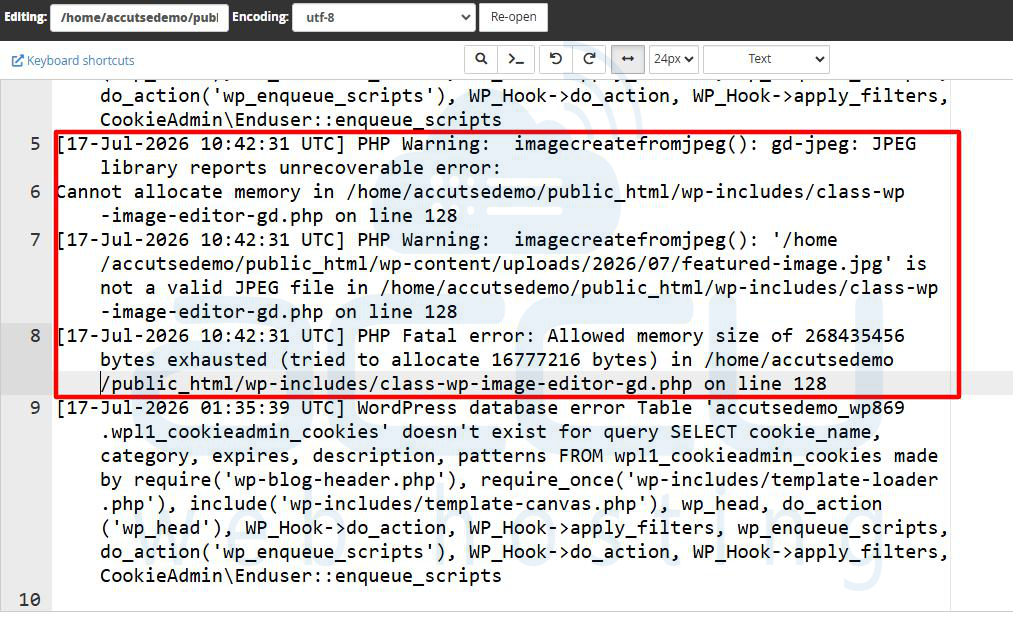
Solution 6: Check PHP Error Logs
Review server logs for detailed information.
Common locations:
/wp-content/debug.log
or:
PHP error logs
Apache error logs
Nginx error logs
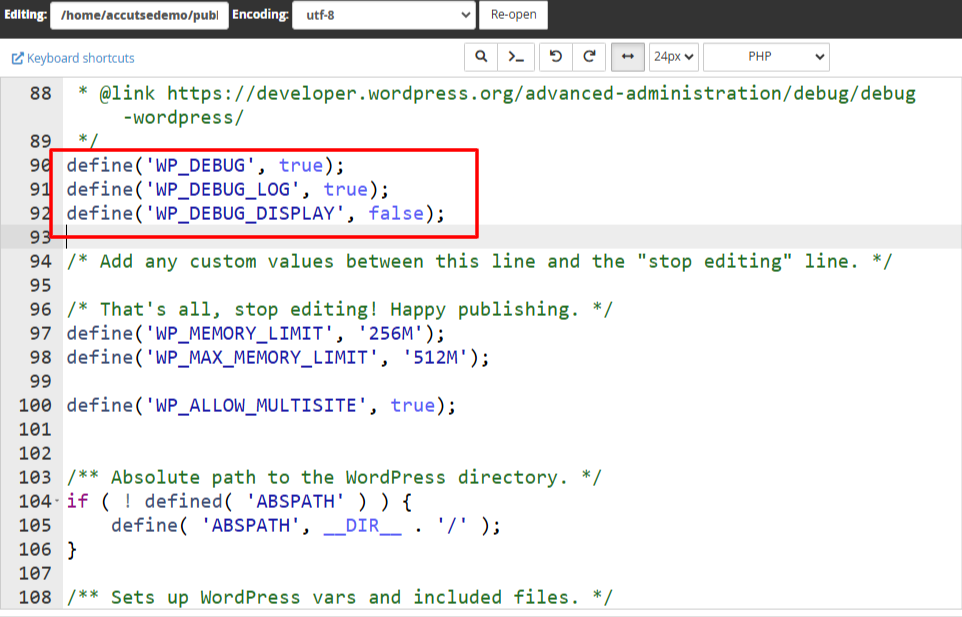
 Enable WordPress debugging:
define('WP_DEBUG', true);
define('WP_DEBUG_LOG', true);
define('WP_DEBUG_DISPLAY', false);
Solution 7: Repair or Replace the Image File
If only one image fails:
- Delete the image from the Media Library.
- Re-save the image using an editor.
- Export it as a standard JPEG or PNG.
- Upload it again.
This resolves issues caused by corrupted metadata.
Preventing Future Featured Image Saving Problems
Follow these best practices:
- Keep WordPress updated.
- Use supported PHP versions.
- Maintain sufficient PHP memory limits.
- Optimize images before uploading.
- Remove unused plugins.
- Monitor hosting resource usage.
- Keep PHP extensions updated.
- Regularly review error logs.
Conclusion
A WordPress featured image that does not save is often not a WordPress database issue. In many cases, the root cause is related to PHP resource limitations or image processing failures. The error errno=12 (Cannot Allocate Memory) usually indicates insufficient memory available for PHP, while errno=14 (Bad Address) points toward deeper issues such as corrupted image processing libraries, PHP extensions, or system-level memory problems.
By increasing PHP memory limits, optimizing images, checking server resources, and reviewing PHP logs, you can quickly resolve featured image update failures and maintain a stable WordPress environment.