
Nginx is one of the most popular web servers and reverse proxies used by organizations ranging from small businesses to large enterprises. It is known for its performance, scalability, and ability to handle thousands of concurrent connections efficiently. However, even highly optimized Nginx deployments can experience issues during periods of heavy traffic.
One of the most common problems administrators encounter is the 502 Bad Gateway error. A 502 error occurs when Nginx acts as a reverse proxy and receives an invalid response, or no response at all, from the upstream server. The upstream server may be PHP-FPM, Apache, Node.js, Python applications, Java services, APIs, or any backend service responsible for processing requests.
This article explores ten practical methods for investigating and resolving Nginx 502 errors that occur specifically during peak traffic conditions.
Understanding the 502 Bad Gateway Error
Before troubleshooting, it is important to understand what Nginx is reporting.
A typical request flow looks like this:
Visitor -> Nginx-? -> Application Server -> Database
When Nginx receives a request, it forwards it to the backend application. If the application Crashes, Stops responding, Rejects connections, Takes too long to reply or Exhausts resources. Nginx may generate a 502 Bad Gateway response.
Common Nginx log messages include connect() failed (111: Connection refused), upstream timed out, recv() failed and no live upstreams. The key to resolving the issue is identifying which layer fails under load.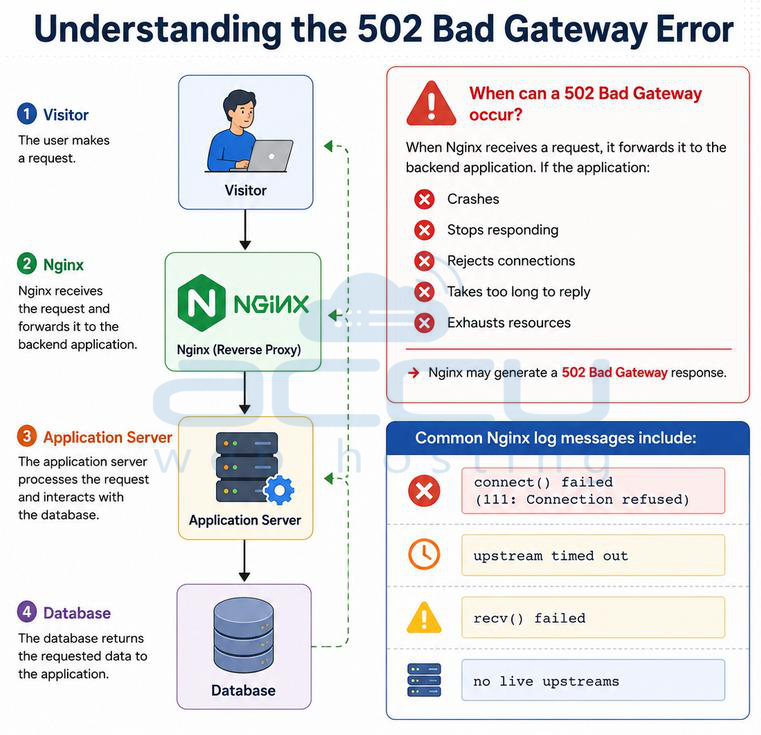
Solution 1: Examine Nginx Error Logs First
The Nginx error log is the most valuable source of information during troubleshooting. Many administrators immediately begin changing configuration settings without reviewing logs. This often leads to unnecessary modifications that do not solve the root cause.
Check Error Logs
Run: tail -f /var/log/nginx/error.log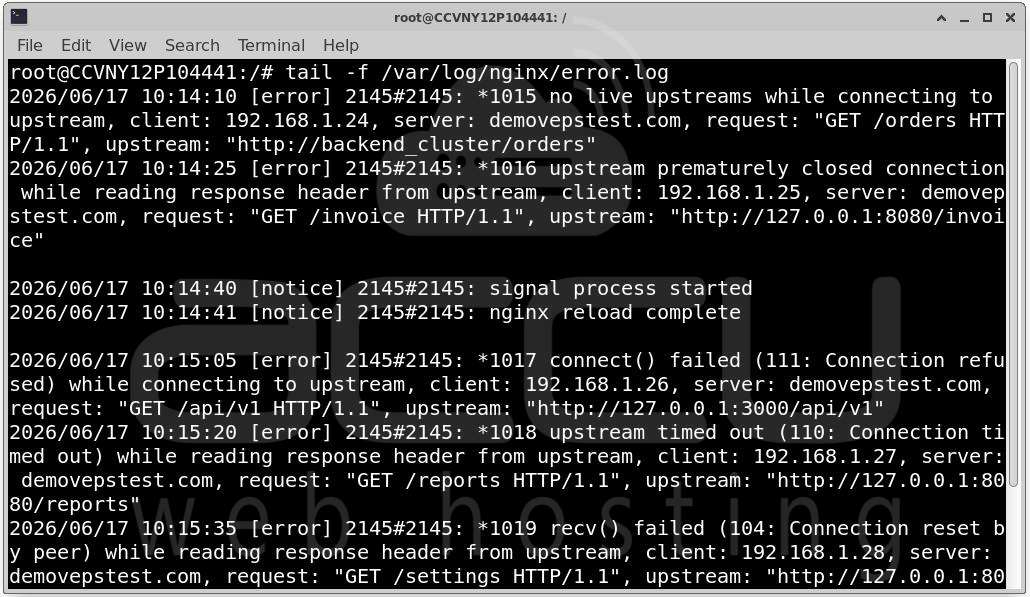
Or:
grep "502" /var/log/nginx/error.log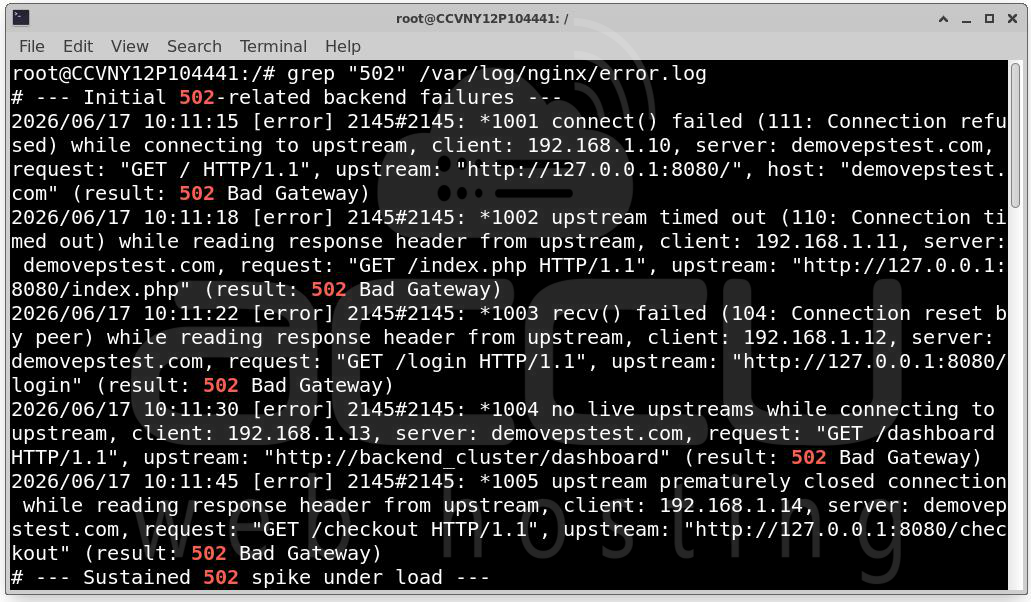
Look for messages such as:
upstream timed out
connect() failed
Connection reset by peer
no live upstreams
Each message points toward a different issue.
Example Analysis
If logs show: connect() failed (111: Connection refused) the backend service may have crashed or stopped listening.
If logs show: upstream timed out the backend is responding too slowly.
Resolution: Document Error timestamps, Affected URLs, Traffic patterns and Frequency of failures. This information helps correlate failures with resource spikes and backend issues.
Solution 2: Verify Backend Application Stability
Many administrators assume Nginx is causing the problem when the real issue lies in the backend application.
During traffic spikes, applications may crash unexpectedly. Run out of memory, Become CPU bound, Hit connection limits, Stop accepting new requests
Check Service Status
PHP-FPM: systemctl status php-fpm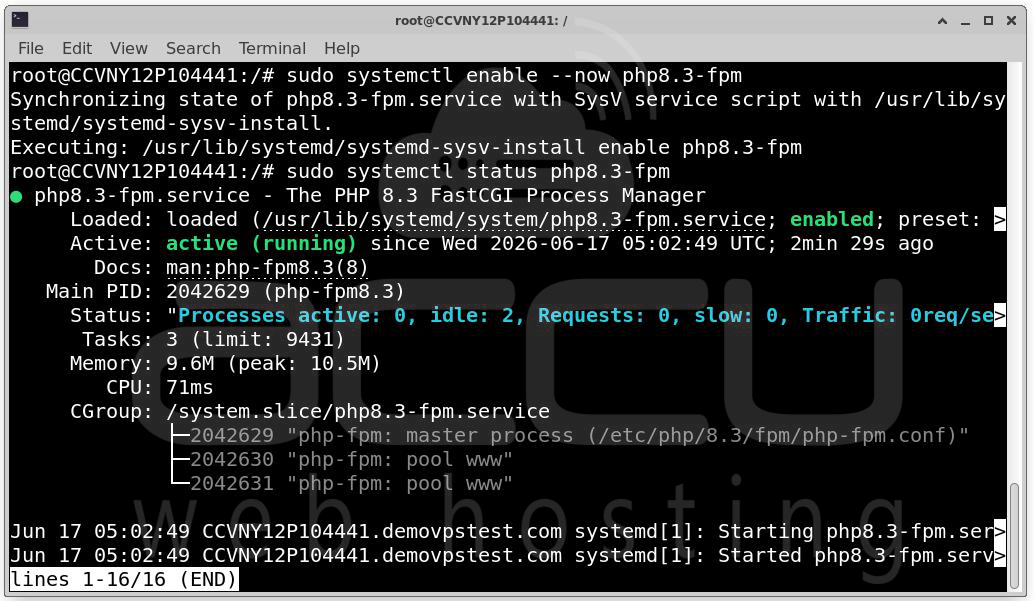
Node.js: systemctl status nodeapp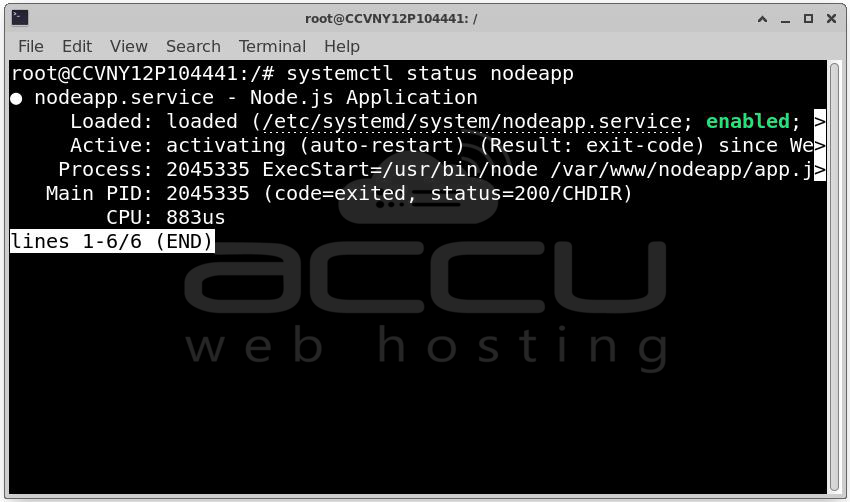
Apache: systemctl status apache2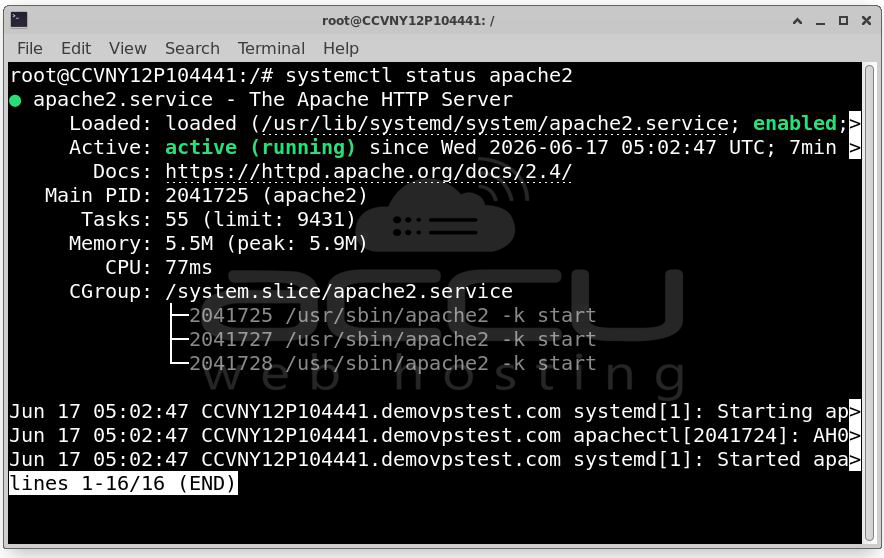
Review Application Logs
Check logs for: tail -f application.log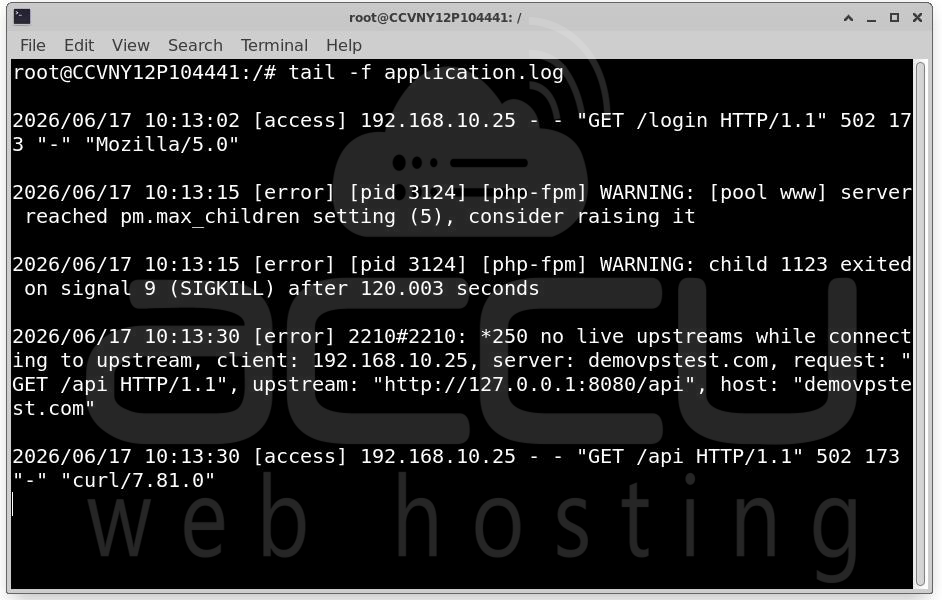
Look for Fatal errors, Out-of-memory events, Unhandled exceptions or Database connection failures.
Resolution: Implement automatic service recovery
Example: Restart=always and RestartSec=5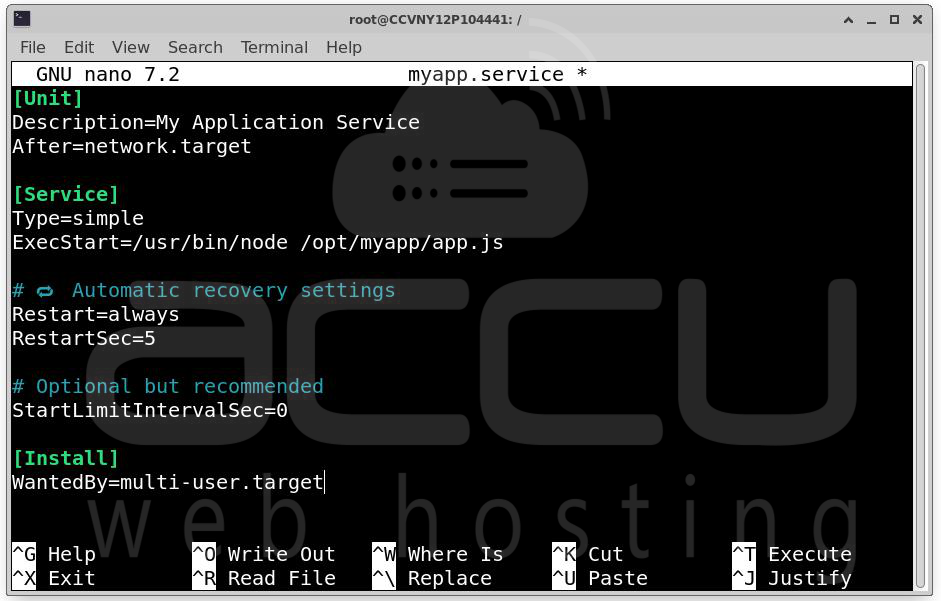
within systemd service definitions. This ensures applications recover automatically if they fail under load.
Solution 3: Investigate PHP-FPM Worker Exhaustion
For WordPress, Laravel, Magento, Drupal, and other PHP applications, PHP-FPM is often the bottleneck. Each request requires a PHP worker. During traffic spikes, all workers may become occupied.
When this happens new requests wait in a queue, response times increase, nginx eventually receives no response or users receive 502 errors.
Identify Worker Exhaustion
Check logs: grep max_children /var/log/php-fpm/error.log
Typical message:
server reached pm.max_children setting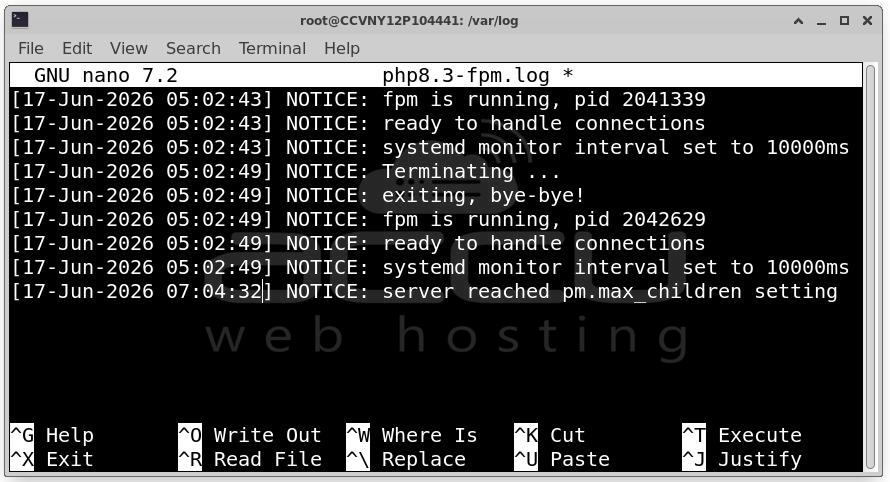
This means PHP cannot process additional requests.
Current Configuration: pm.max_children = 20
For busy websites, this may be insufficient.
Resolution
Increase worker limits:
pm.max_children = 100
pm.start_servers = 20
pm.min_spare_servers = 10
pm.max_spare_servers = 30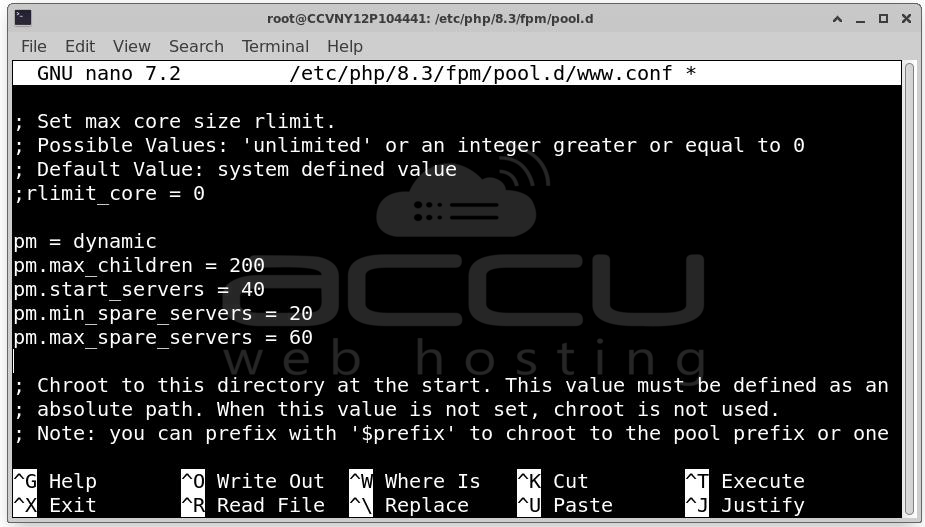
Restart PHP-FPM: systemctl restart php-fpm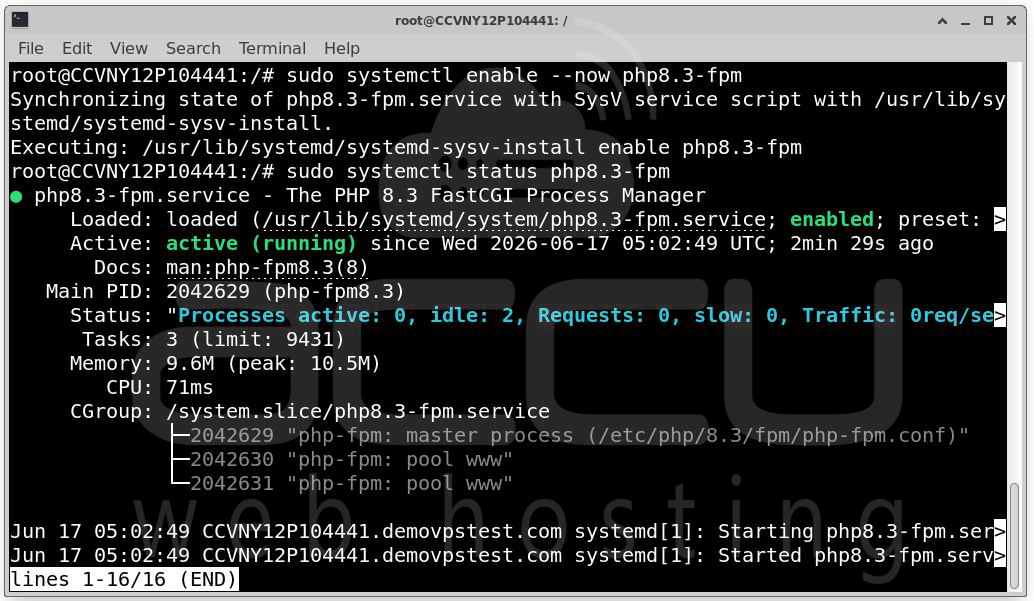
Always monitor memory usage after increasing worker counts. Each worker consumes RAM. Improper sizing can lead to memory exhaustion.
Solution 4: Analyze CPU Utilization
CPU saturation is another common cause of intermittent 502 errors. When processors remain near 100% utilization applications process requests more slowly, Request queues grow, Timeouts increase and Nginx begins returning 502 responses.
Monitor CPU Usage
Use: top or htop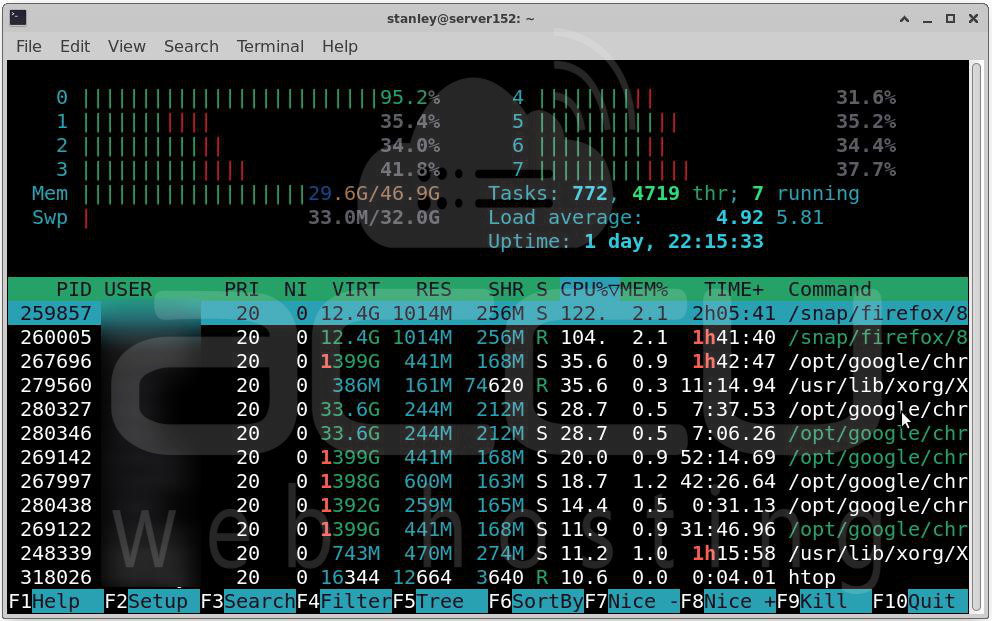
Look for: CPU Usage > 90%
particularly during traffic spikes. Identify Resource-Intensive Processes
Examples include PHP workers, Node.js processes, Java services or Database engines.
Resolution: Optimize application code, database queries, background jobs and cron tasks. If optimization is insufficient, upgrade server resources or scale horizontally.
Solution 5: Investigate Memory Exhaustion
Insufficient memory often causes hidden instability. When RAM becomes exhausted Processes crash, Applications restart, Kernel invokes OOM Killer or Nginx loses backend connectivity. Resulting in 502 errors.
Check Memory Usage: free -m or vmstat 1
Search for OOM Events: grep -i oom /root/oom.log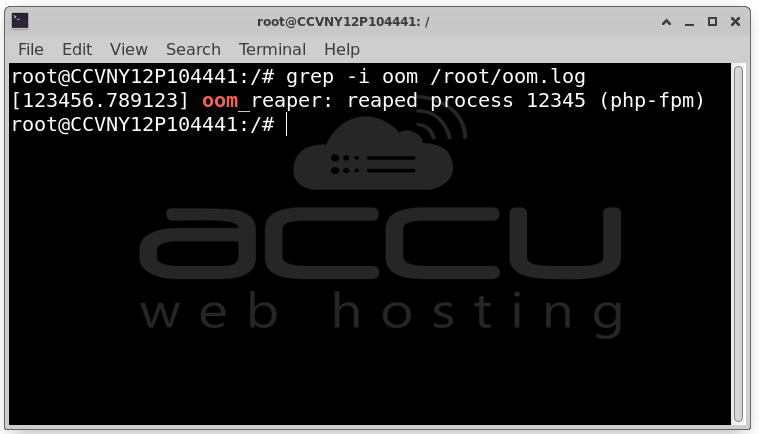
Example: Out of memory: Kill process 1234 (php-fpm)
This confirms memory exhaustion.
Resolution: Options include increasing RAM, Upgrade server memory if utilization consistently exceeds 80%, Reduce Worker Counts. Excessive PHP-FPM workers can consume large amounts of RAM.
Implement Caching: Caching reduces application execution and memory consumption.
Solution 6: Increase Nginx and Upstream Timeout Values
Sometimes applications continue processing requests but require more time than Nginx allows. Under heavy load Database queries slow down, API calls take longer, Backend responses exceed timeout settings and Nginx terminates the connection.
Common Log Entry
upstream timed out (110: Connection timed out)
Review Current Settings
proxy_connect_timeout
proxy_read_timeout
proxy_send_timeout
Recommended Configuration
proxy_connect_timeout 60s;
proxy_send_timeout 60s;
proxy_read_timeout 60s;
send_timeout 60s;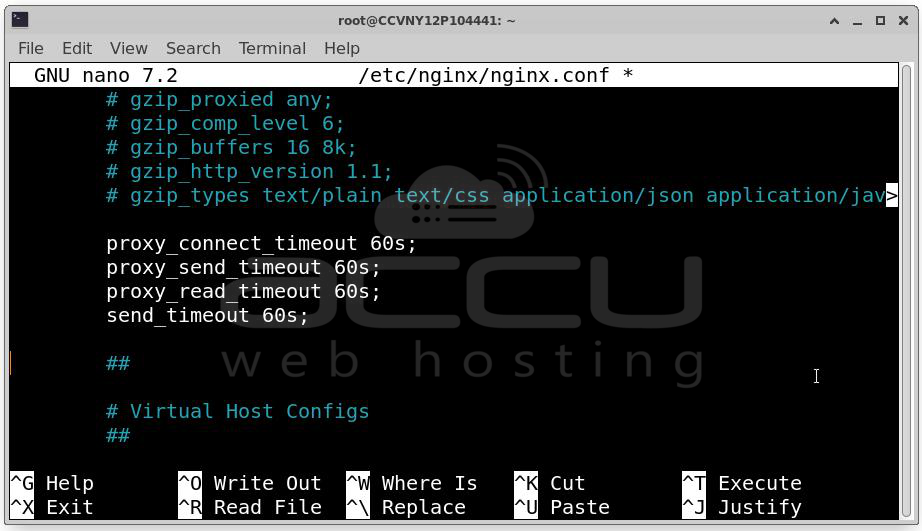
For PHP: fastcgi_read_timeout 300;
Resolution: Increase timeouts cautiously. Excessively large values may hide underlying performance issues. The goal is balancing responsiveness with backend processing requirements.
Solution 7: Review Database Performance Bottlenecks
A slow database often causes application slowdowns that appear as Nginx issues. The application waits for the database. Nginx waits for the application. Eventually timeouts occur.
Check Active Queries
For MySQL: SHOW PROCESSLIST;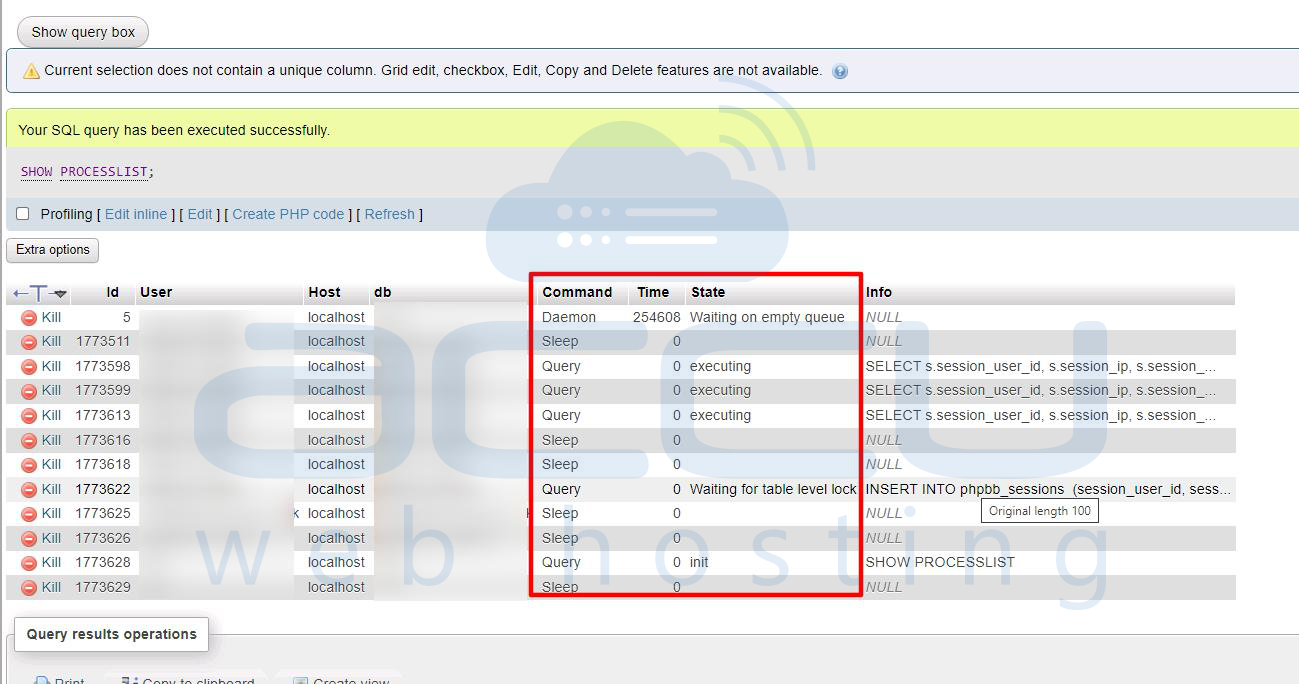
Look for: Locked, Copying to tmp table, Sending data
Long-running queries indicate optimization opportunities.
Enable Slow Query Logging
slow_query_log = ON
long_query_time = 2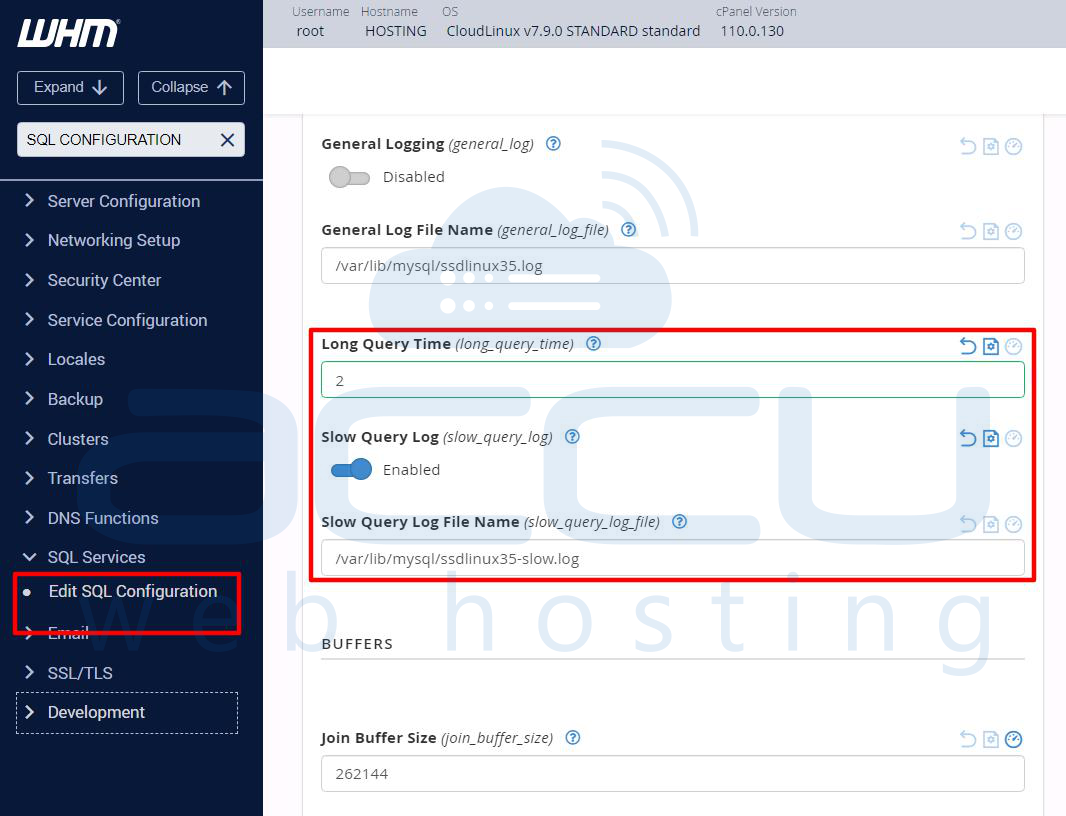
Resolution: Optimize Database Indexes, Missing indexes force full table scans, Query Structure, Rewrite inefficient SQL queries, Connection Pooling, Reduce connection creation overhead and Hardware Resources. Upgrade CPU, RAM and Storage. Database optimization frequently eliminates peak-time 502 errors.
Solution 8: Review Connection Limits and File Descriptors
Every connection consumes system resources.When connection limits are reached New requests fail, Upstream communication breaks and Nginx returns 502 responses
Check Open Files: ulimit -n
Many systems default to: 1024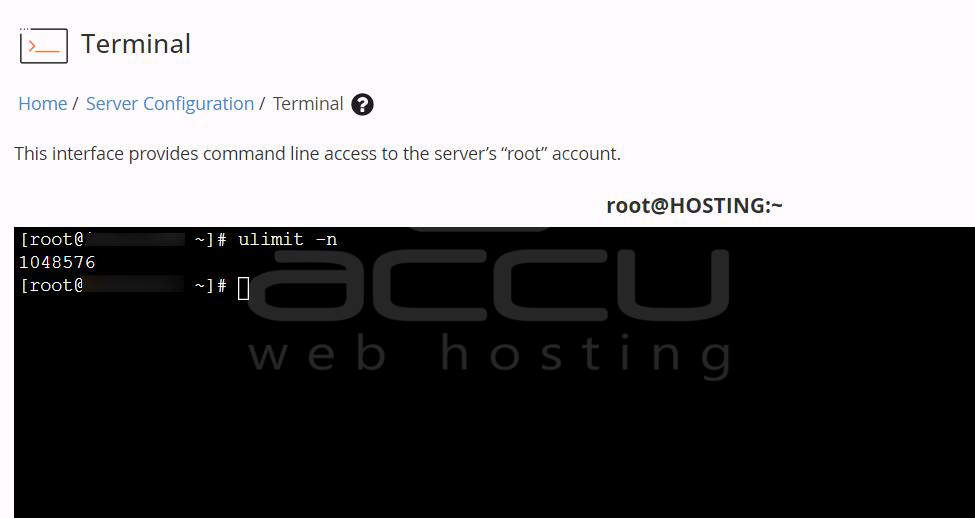
which is insufficient for high-traffic environments.
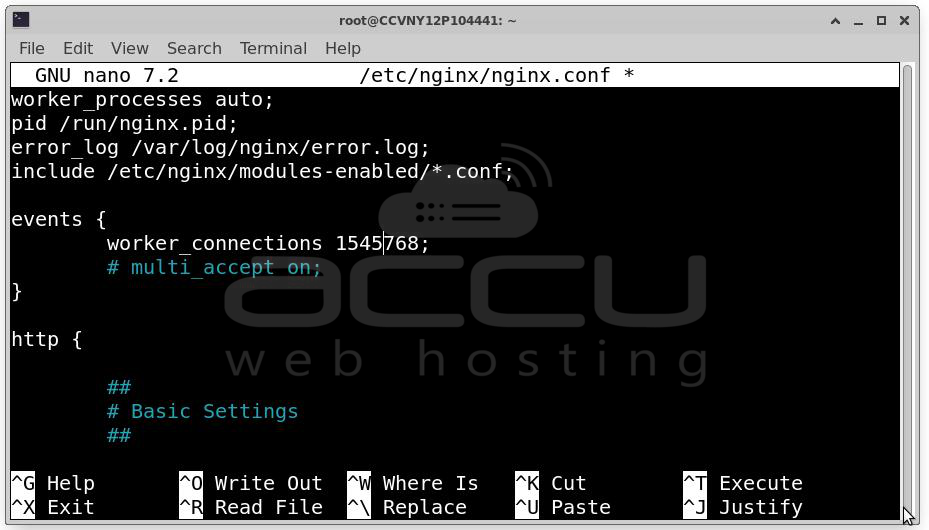
Review Nginx Configuration:
worker_processes auto;
events {
worker_connections 8192;
}
Increase System Limits
Edit: /etc/security/limits.conf
Example:
* soft nofile 65535
* hard nofile 65535
Systemd:
LimitNOFILE=65535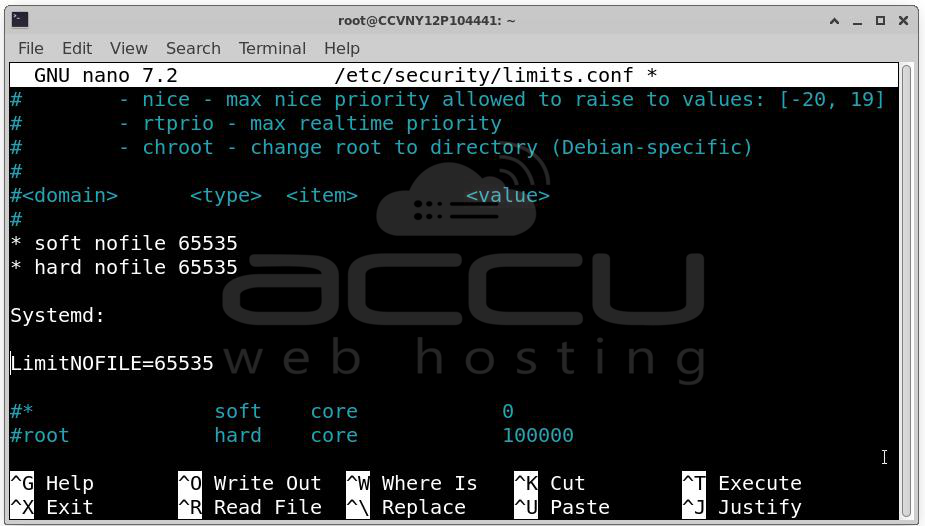
Resolution: Restart services and verify limits:
cat /proc/<pid>/limits
Higher connection capacity reduces failures during traffic surges.
Solution 9: Implement Caching to Reduce Backend Load
Caching is one of the most effective methods for preventing 502 errors. Without caching every request reaches PHP, Node.js, Database and APIs. Under heavy traffic this becomes unsustainable.
Types of Caching:
Nginx FastCGI Cache: Ideal for PHP applications.
fastcgi_cache_path /var/cache/nginx
levels=1:2
keys_zone=PHP:100m
inactive=60m;
Reverse Proxy Cache:
proxy_cache_path /var/cache/nginx
levels=1:2
keys_zone=STATIC:100m;
Redis Cache: Stores Sessions, Objects and .Query results
CDN Caching: Offloads static content delivery. Examples include Images, CSS and JavaScript.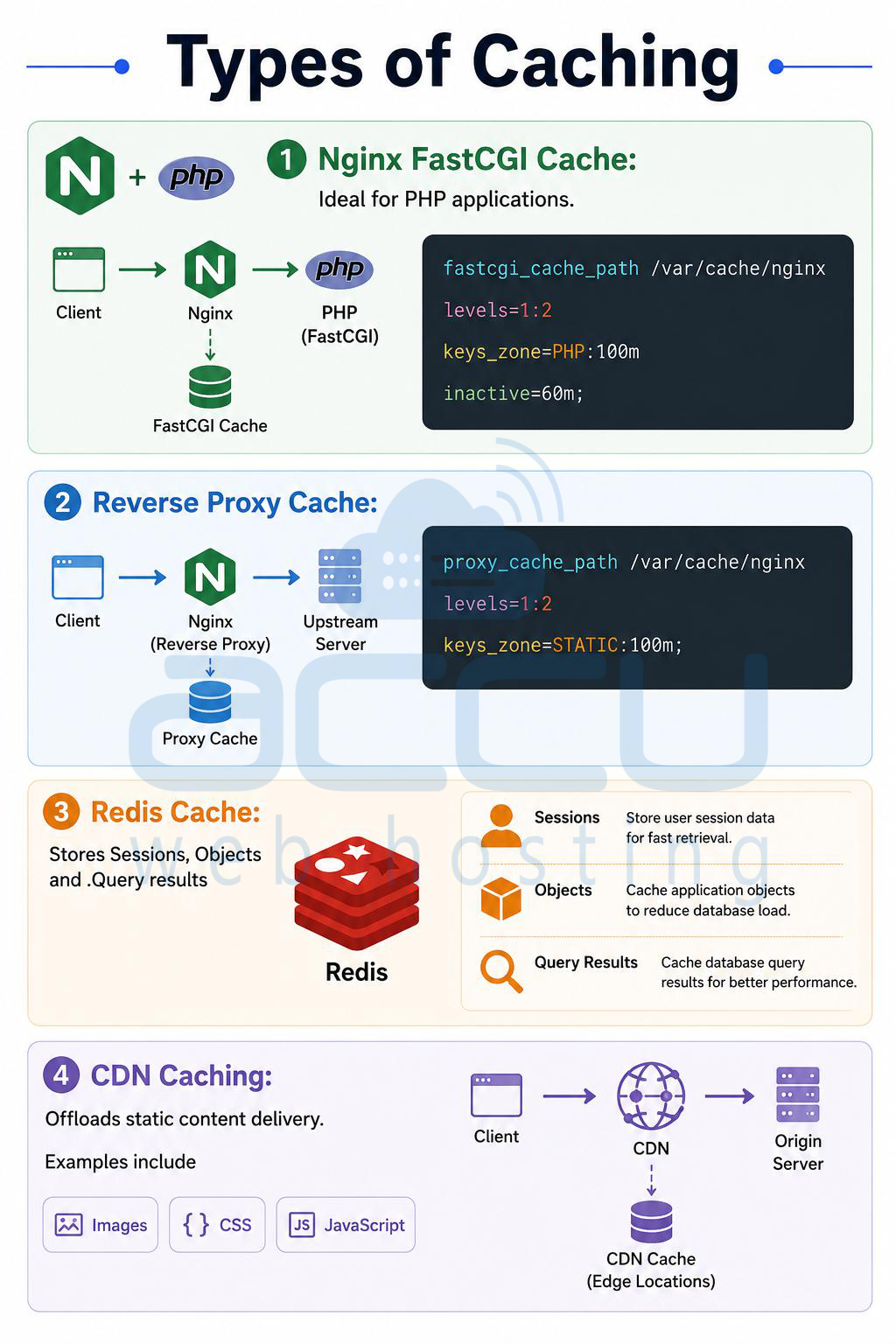
Benefits: Caching can reduce backend requests by 70% to 95%. This dramatically lowers the likelihood of 502 errors during peak traffic.
Solution 10: Perform Load Testing and Scale Infrastructure
Many organizations never test their systems before traffic spikes occur. As a result, bottlenecks remain hidden until production failures appear.
Load Testing Tools
ApacheBench: ab -n 10000 -c 500 https://example.com/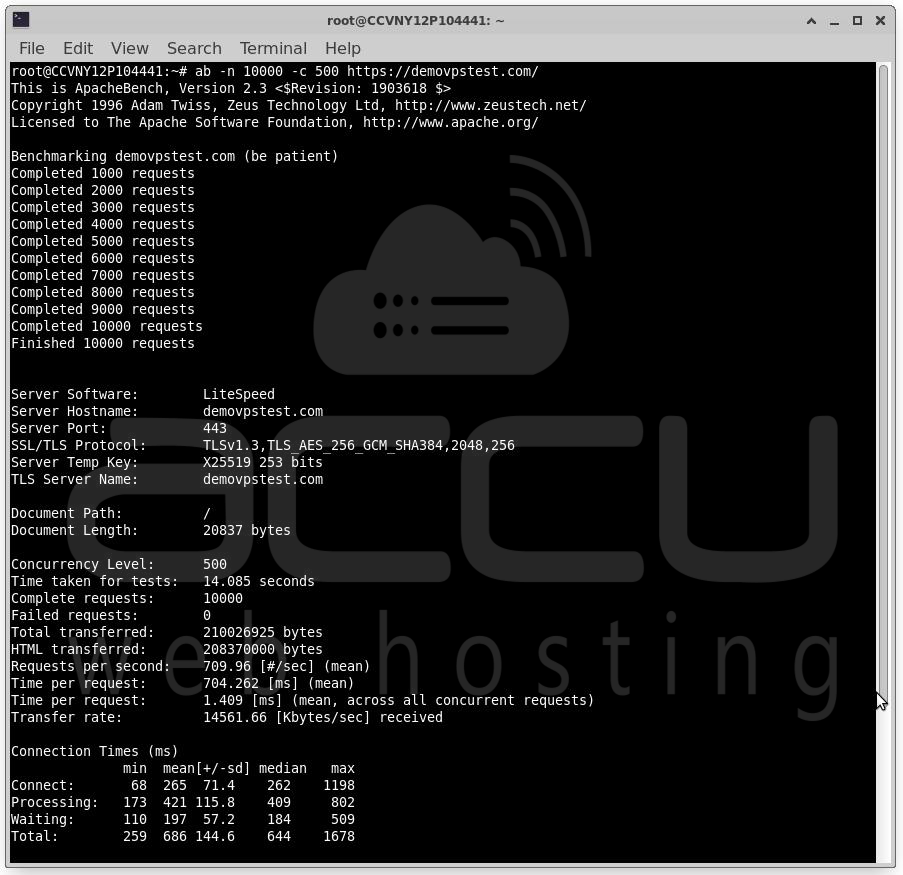
WRK: wrk -t12 -c500 -d60s https://example.com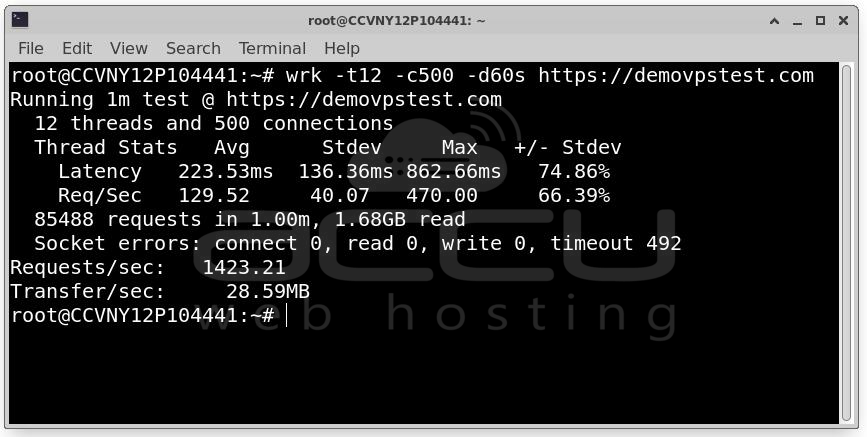
JMeter: Useful for complex scenarios involving multiple workflows. Metrics to Monitor. Track CPU, RAM, Disk I/O, Network utilization, Database performance and PHP-FPM workers.
Identify which resource reaches saturation first.
Horizontal Scaling, Single-server architectures eventually hit limits.
Deploy:
Load Balancer
↓
App Server 1
App Server 2
App Server 3
Nginx Upstream Example:
upstream backend {
server 10.0.0.11;
server 10.0.0.12;
server 10.0.0.13;
}
Benefits include Better fault tolerance, Higher throughput,Reduced downtime and Improved user experience.
Best Practices to Prevent Future 502 Errors
Instead of reacting to outages, implement proactive monitoring. Recommended tools Prometheus, Grafana, Zabbix, Datadog, New Relic. Monitor response times, CPU usage, Memory utilization, PHP-FPM workers, Database latency and Active connections. Set alerts before resources become exhausted.
For example:
-
CPU > 85%
-
RAM > 80%
-
Disk usage > 80%
-
Worker utilization > 90%
Early detection prevents customer-facing outages.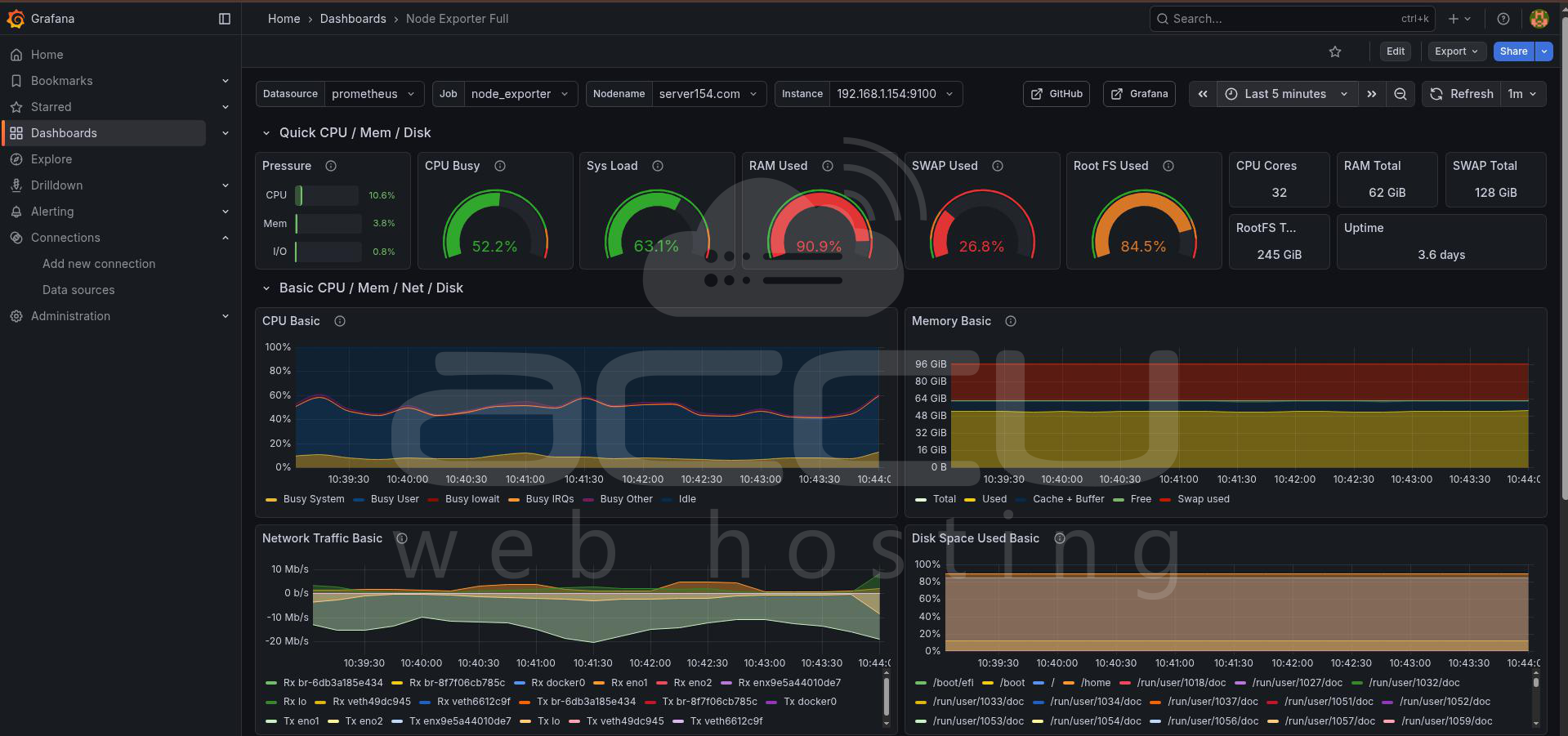
Conclusion
Nginx 502 errors that occur only during peak traffic are almost never caused by Nginx alone. They are typically symptoms of backend resource exhaustion, application bottlenecks, database delays, connection limitations, or infrastructure capacity constraints. A structured troubleshooting process should begin with Nginx error logs and then move through each layer of the stack, including application services, PHP-FPM workers, CPU resources, memory utilization, database performance, timeout settings, connection limits, caching strategies, and scalability planning.
By following these practices, administrators can identify the true root cause of intermittent 502 errors and build a highly resilient environment capable of handling significant traffic spikes without service disruption.
