
Overview
Sometimes cPanel may display disk usage values that do not match the actual disk space consumed by your account. For example, you may delete files but the disk usage remains unchanged, or cPanel may report significantly higher or lower usage than expected. This issue can occur due to outdated disk usage statistics, hidden files, email storage, backups, cache files, or filesystem quota inconsistencies. This article explains the common causes of incorrect disk usage reporting in cPanel and provides various methods to resolve the issue.
Common Symptoms
You may notice one or more of the following:
-
cPanel reports that your account is using more disk space than expected.
-
Deleted files do not reduce the reported disk usage.
-
Disk Usage and File Manager show different values.
-
Email storage appears larger than expected.
-
Your hosting account shows "Disk Quota Exceeded" even after deleting files.
-
cPanel statistics have not updated after recent changes.
Cause 1: Disk Usage Statistics Have Not Been Updated
cPanel periodically updates account statistics. After deleting or uploading files, the displayed disk usage may not change immediately.
Solution:
Wait for the system statistics to refresh automatically. Depending on the server configuration, this may take several minutes to several hours.
You can also log out and log back into cPanel to verify whether the usage statistics have been updated.
Cause 2: Files Are Stored in the Trash Folder
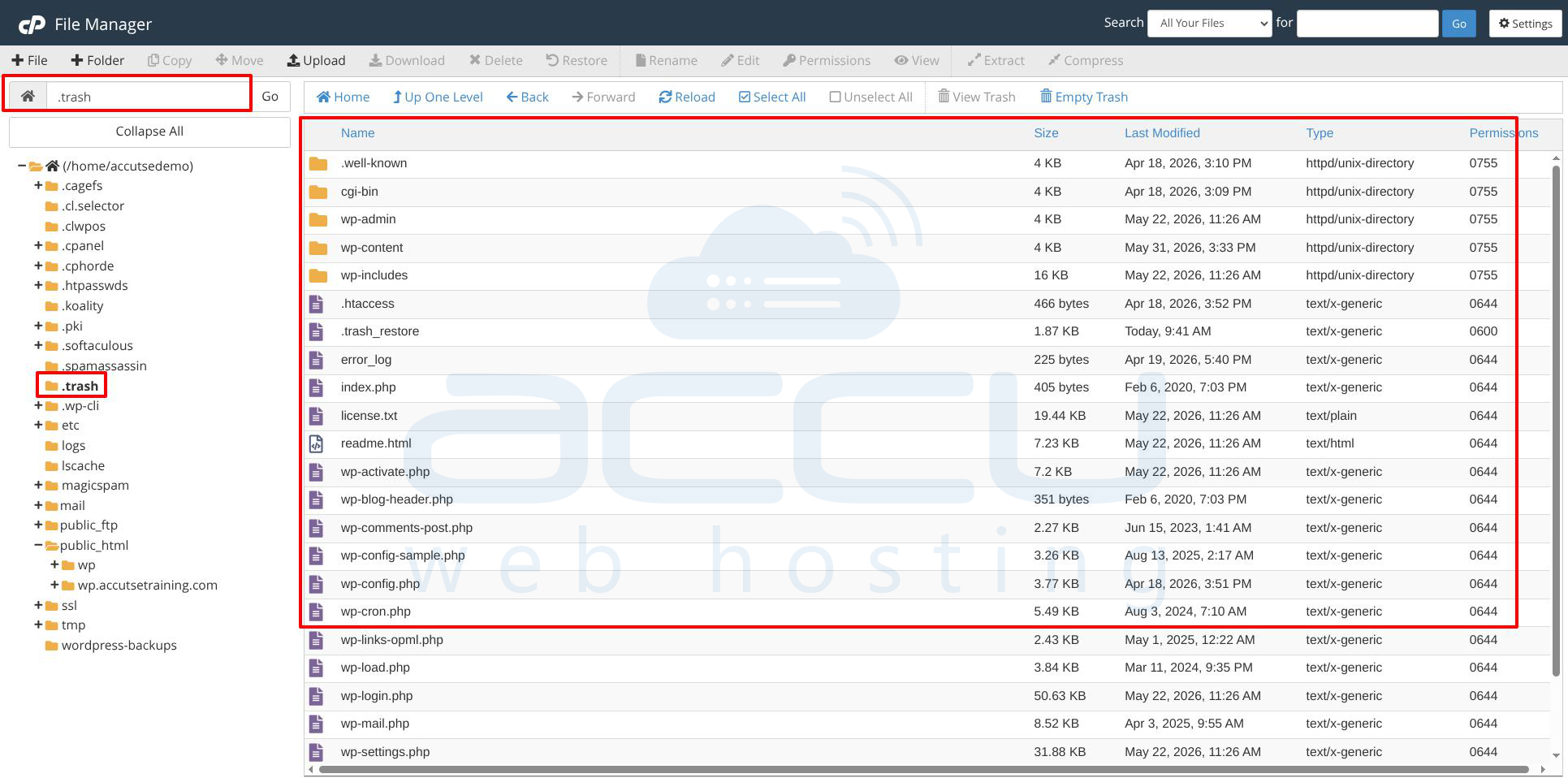
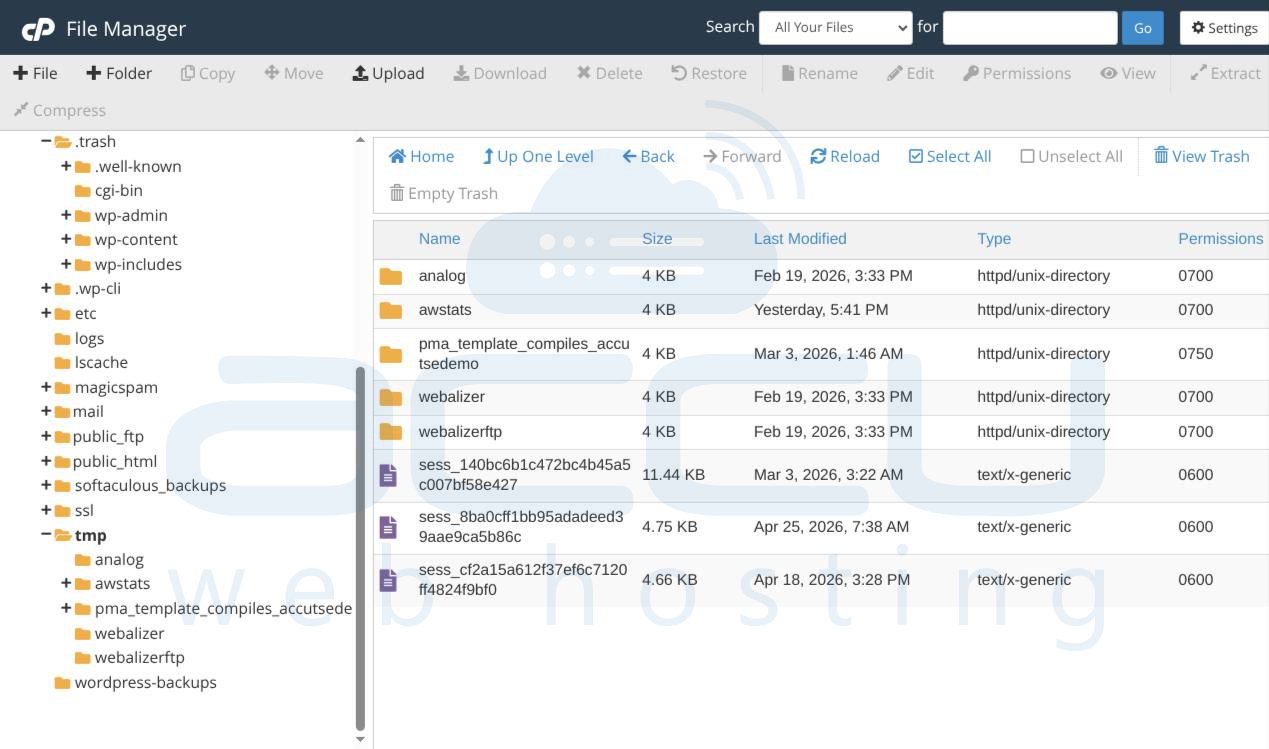
When files are deleted through File Manager, they may be moved to the Trash folder rather than permanently removed.
Solution
-
Log in to cPanel.
-
Open File Manager.
-
Click View Trash.
-
Permanently delete the files.
-
Empty the Trash folder.
Disk space will not be released until the files are permanently removed.
Cause 3: Hidden Files Consuming Disk Space
Hidden files (dot files) such as:
-
.htaccess
-
.cache
-
.trash
-
.logs
-
.cpanel
-
Check files outside the /home also.
may consume significant disk space without being visible by default.
Solution
-
Open File Manager.
-
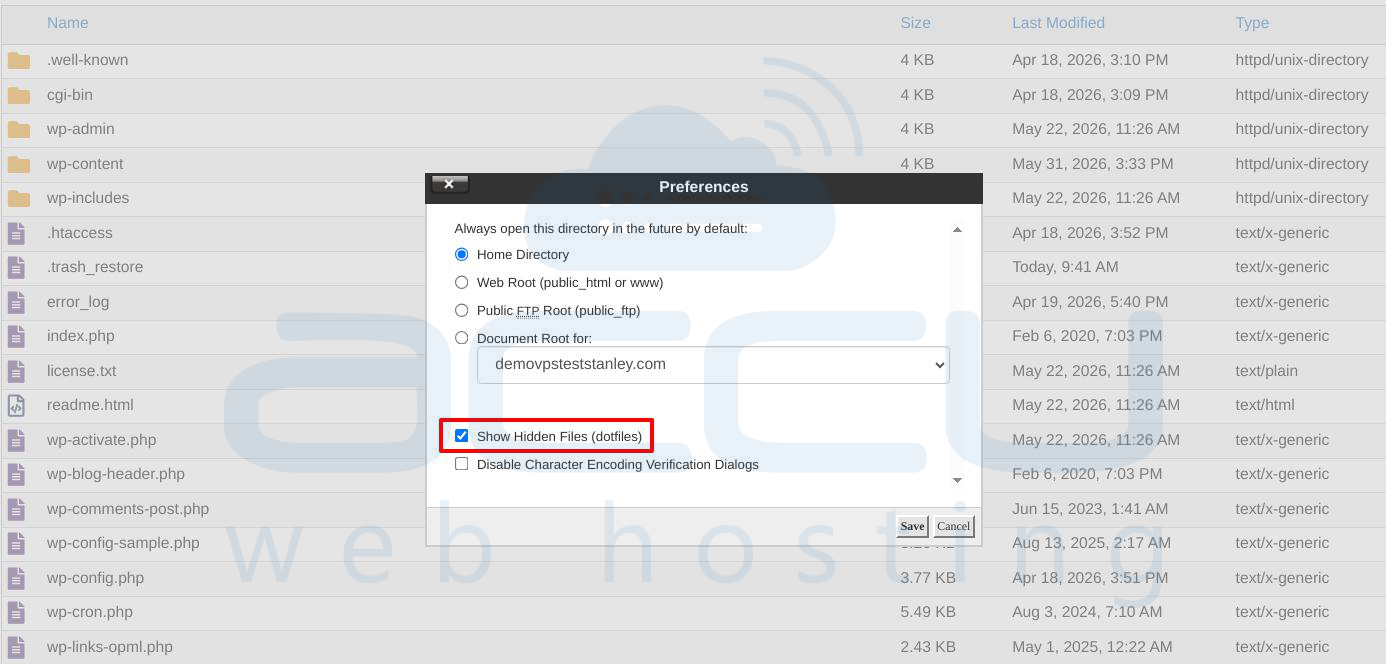
Click Settings.
-
Enable Show Hidden Files (dotfiles).
-
Review hidden directories for unnecessary files.
Remove only files that are no longer required.
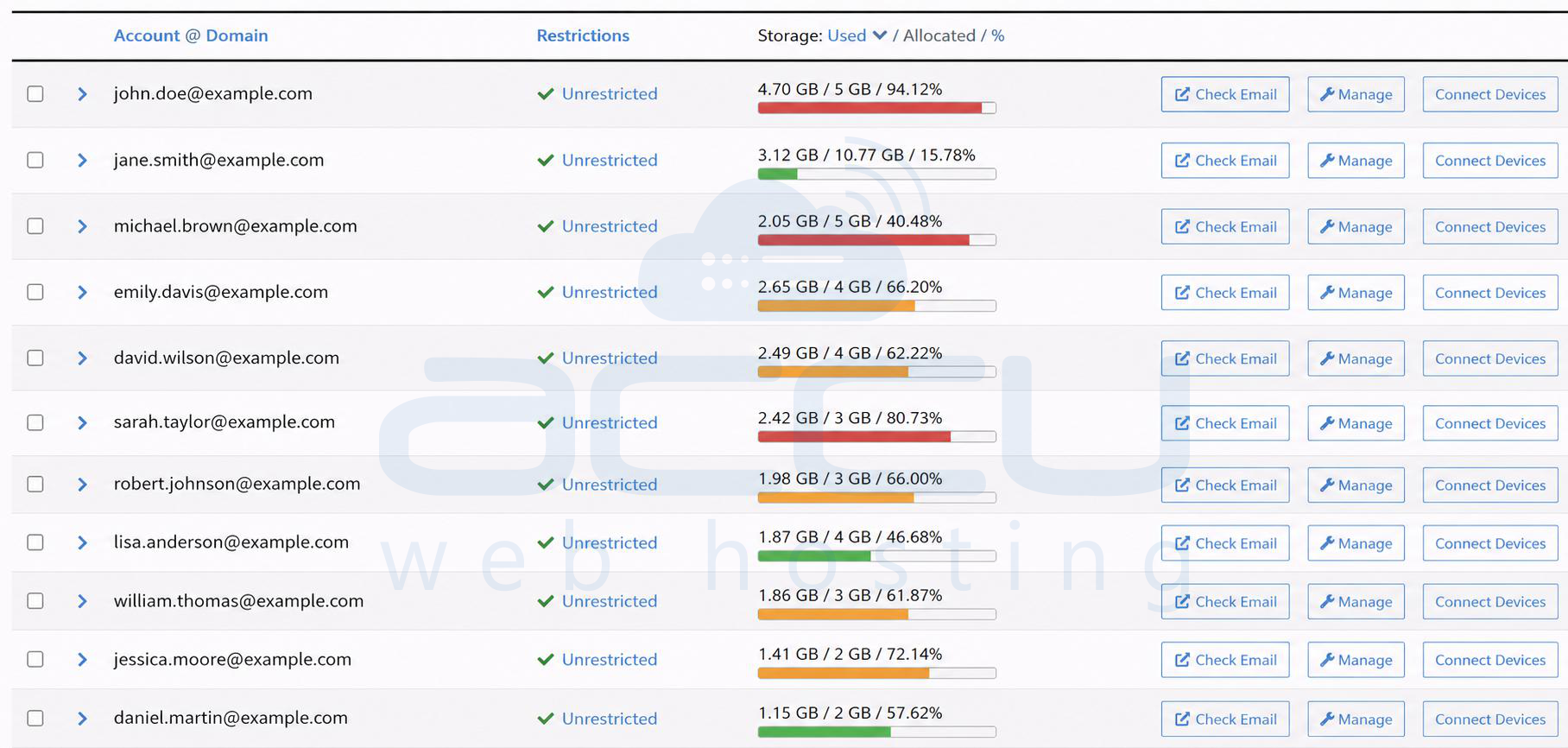
Cause 4: Email Accounts Are Using Most of the Disk Space
Email messages often consume more disk space than website files.
Common email storage locations include:
-
Inbox
-
Sent
-
Junk
-
Trash
-
Archive folders
Solution
-
Log in to cPanel.
-
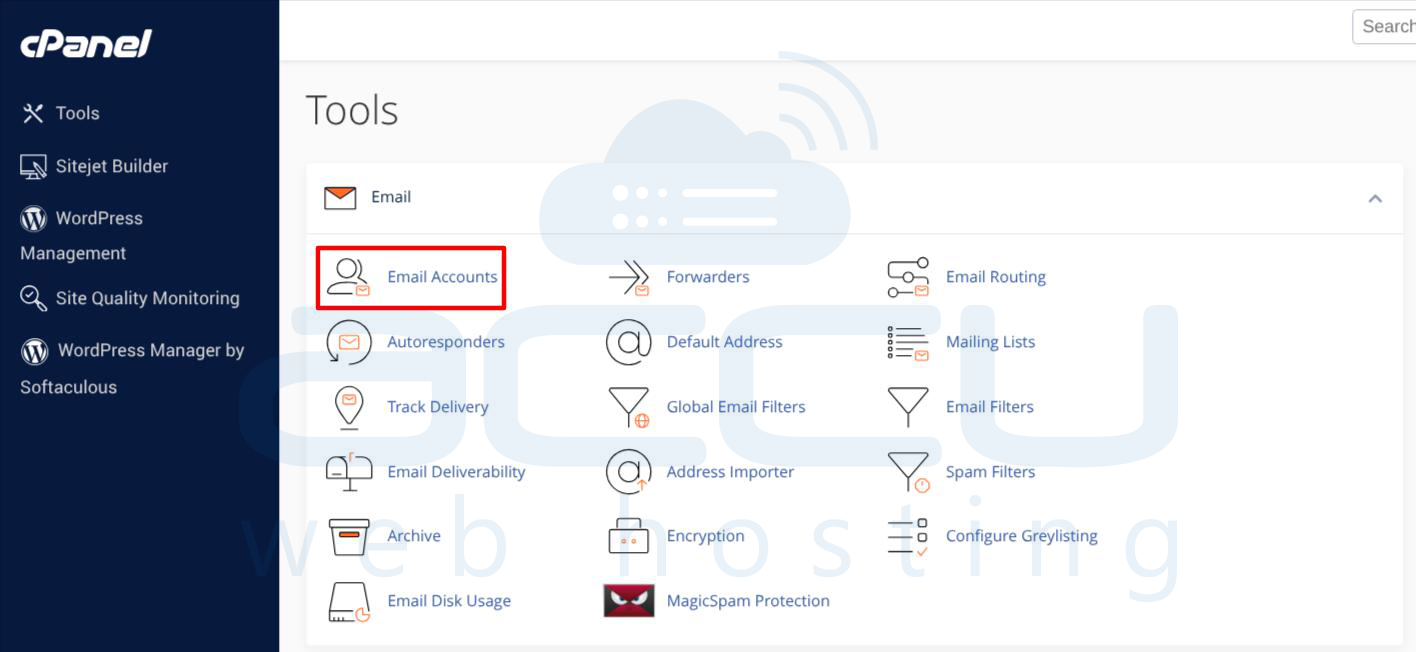
Open Email Accounts
-
Select the email account.
-
Review mailbox usage.
-
Delete unnecessary emails.
-
Empty Trash and Spam folders.
You may also download old emails to a local email client before deleting them from the server.
Cause 5: Backup Files Stored in the Account
Many users create manual backups and store them inside the hosting account.
Examples:
-
backup.zip
-
website-backup.tar.gz
-
cpmove backups
-
Softaculous backups
These files can consume several gigabytes of disk space.
Solution
Review your home directory and remove old backup files that are no longer needed.
Common locations:
-
/home/username/
-
public_html/
-
softaculous_backups/
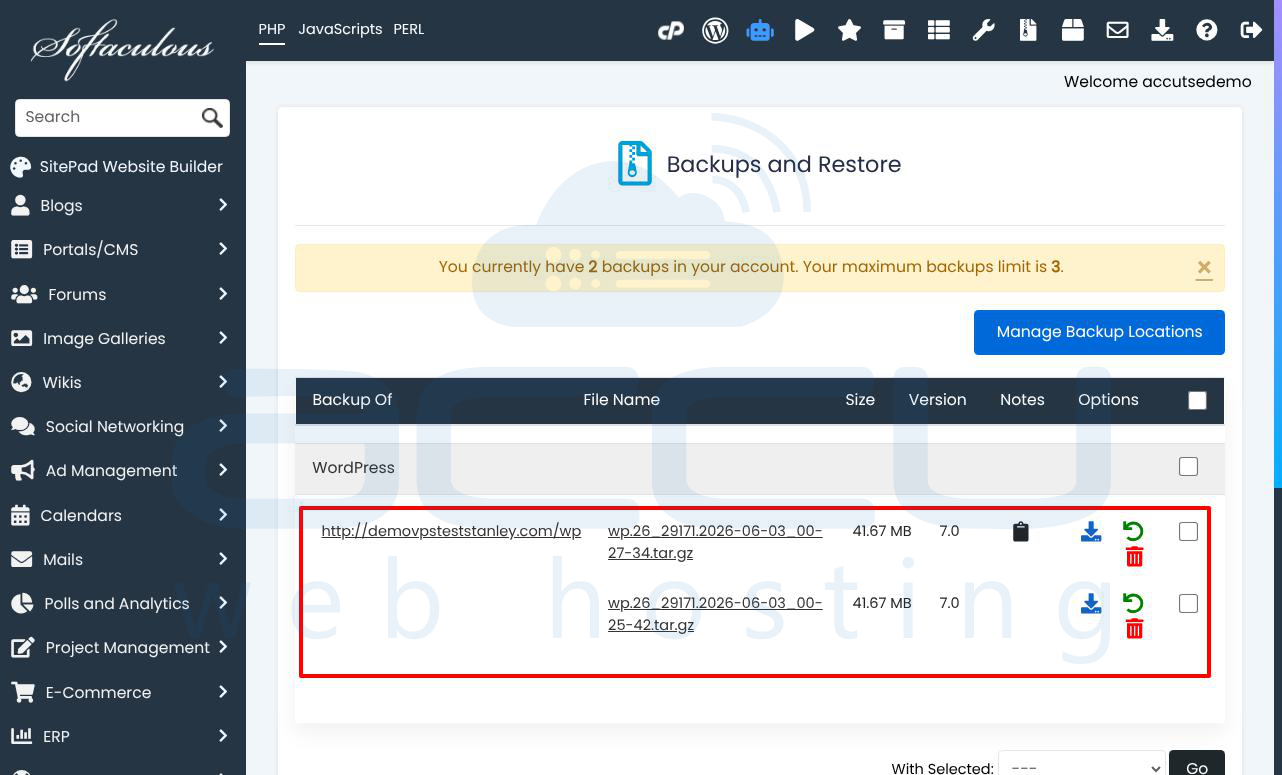
Always download a copy before deleting important backups.
Cause 6: Cache Files Generated by Applications
Applications such as WordPress, Joomla, Magento, and Laravel generate cache files.
Over time, cache directories may grow significantly.
Solution
Clear application cache through the application dashboard.
Examples:
-
WordPress cache plugins
-
LiteSpeed Cache
-
WP Rocket
-
W3 Total Cache
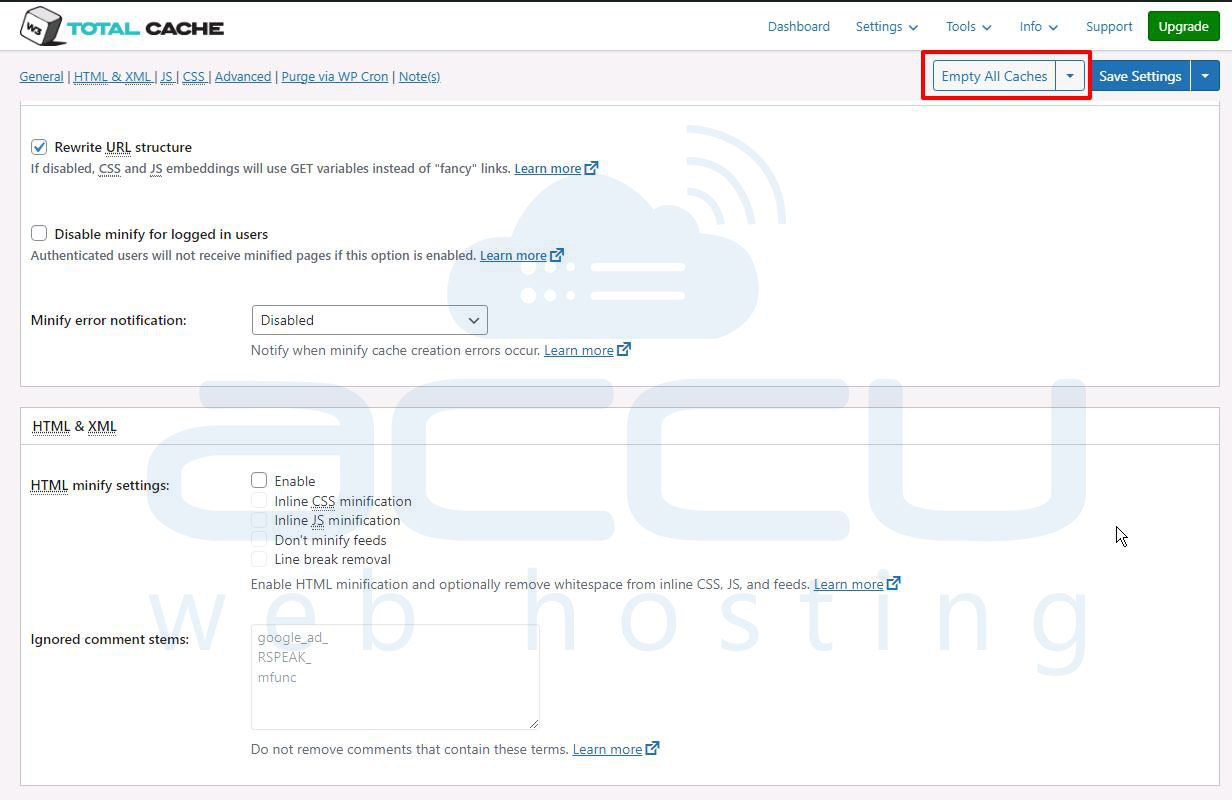
You may also manually remove cache files if appropriate.
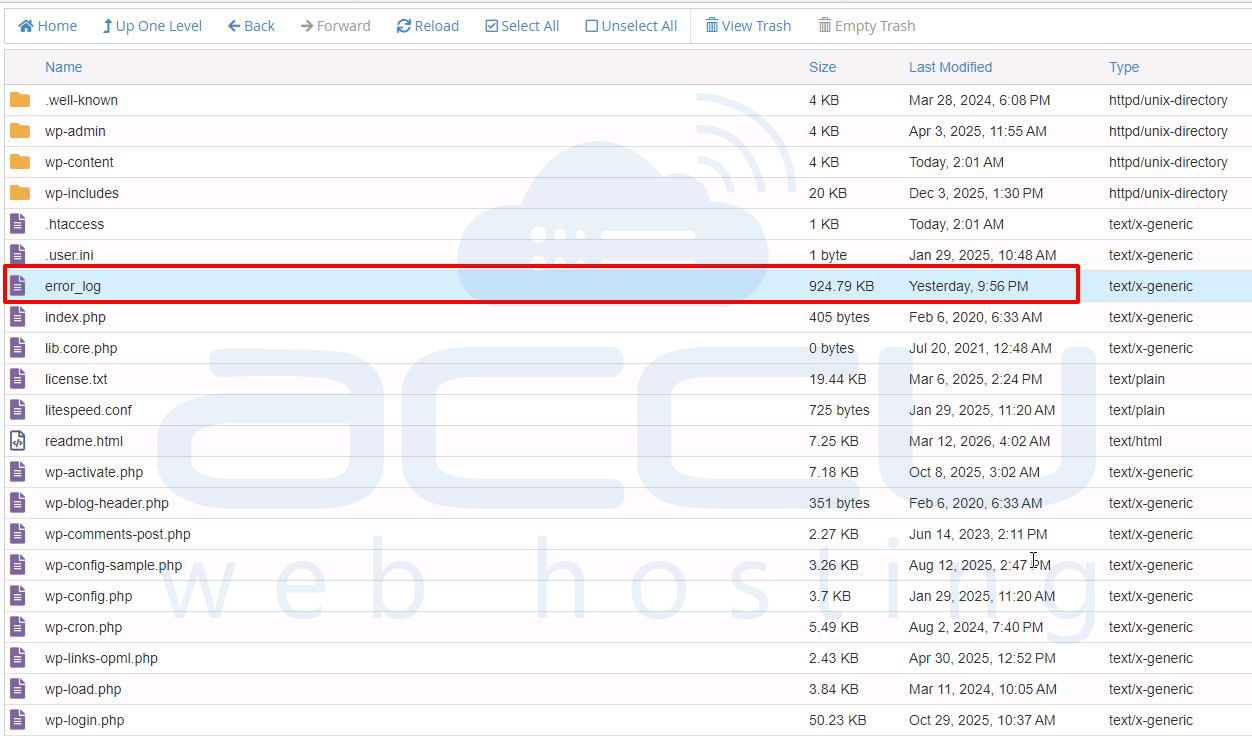
Cause 7: Log Files Have Grown Too Large
Website and application logs can become very large.
Common examples:
-
error_log
-
debug.log
-
access logs
-
application logs
Solution
Check your account for large log files.
Common locations:
-
public_html/error_log
-
wp-content/debug.log
-
storage/logs/
Archive or delete unnecessary logs after reviewing them.
Cause 8: File System Quota Is Out of Sync
In some cases, the filesystem quota becomes inconsistent with actual disk usage.
This typically occurs after:
-
Large file transfers
-
Account migrations
-
Backup restorations
-
Filesystem maintenance
Solution
Contact your hosting provider and request a quota refresh or quota rebuild. Server administrators may need to recalculate the account's disk quota from the server side.
Cause 9: Inode Usage Is Being Confused With Disk Usage
Disk usage and inode usage are different metrics.
-
Disk Usage = Amount of storage consumed.
-
Inodes = Number of files and directories.
A hosting account may have low disk usage but a very high inode count.
Solution
Review both disk usage and inode usage separately.
Reduce the number of:
-
Cache files
-
Session files
-
Temporary files
-
Old emails
if inode limits are being reached.
How to Identify Large Files and Directories
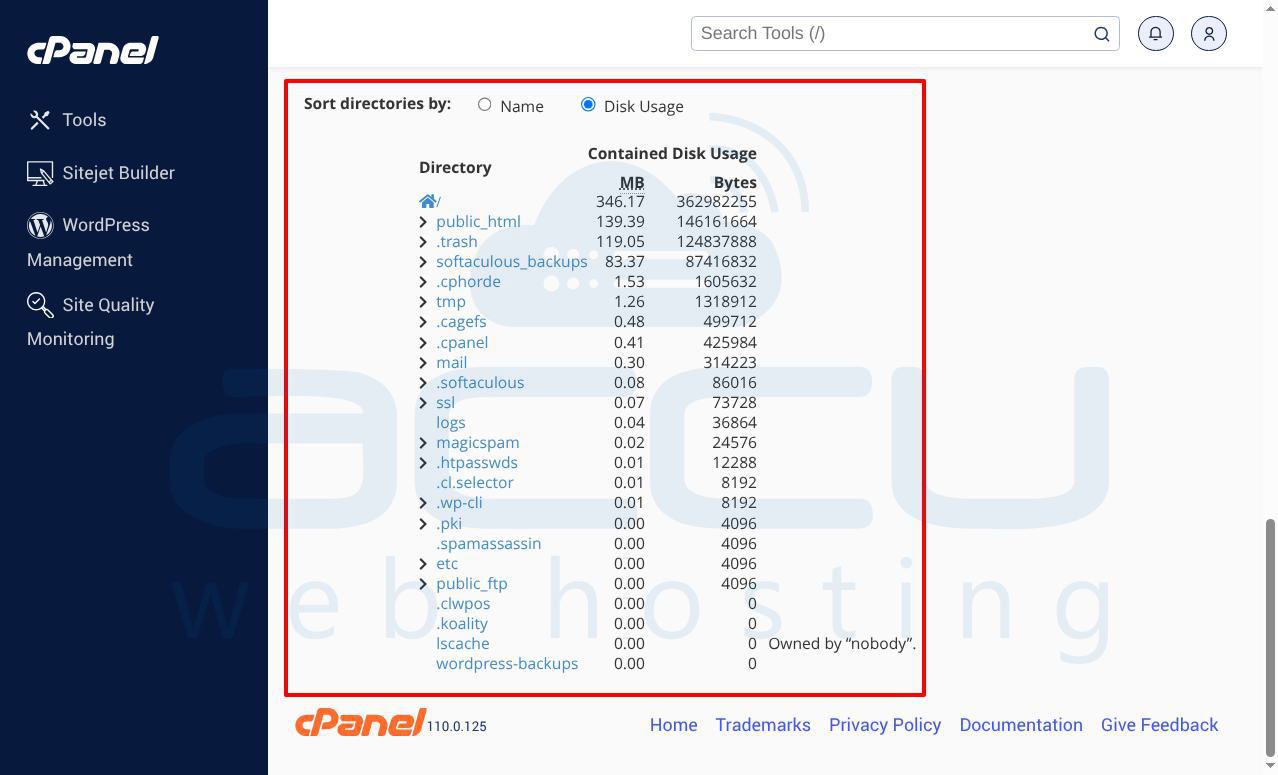
Use cPanel's Disk Usage tool:
-
Log in to cPanel.
-
Click Disk Usage.
-
Review directory sizes.
-
Expand folders consuming the most space.
-
Remove unnecessary files.
This tool helps identify exactly where disk space is being used.
Conclusion
Incorrect disk usage reporting in cPanel is usually caused by delayed statistics updates, hidden files, email storage, backups, cache files, large logs, or quota synchronization issues. Reviewing the Disk Usage tool, cleaning unnecessary data, and ensuring quotas are properly synchronized can typically resolve the problem. If the issue persists after performing these checks, contact your hosting provider for further investigation and quota verification.


