
Introduction:
In a shared Linux hosting environment, one poorly optimized or compromised cPanel account can consume excessive server resources and affect every other website on the server. The issue may come from high CPU usage, excessive MySQL queries, spam scripts, malware, backup processes, or abusive traffic.
The key is to quickly identify the offending account and isolate the resource abuse before the entire server becomes unstable.

Common Symptoms:
You may notice:
- High server load average
- Slow website response for all users
- Delayed SSH login
- Apache/LiteSpeed becoming unresponsive
- MySQL or MariaDB overload
- High disk I/O wait
- Excessive memory or swap usage
- Spike in PHP processes
- cPanel/WHM loading slowly
Step 1: Check Overall Server Load
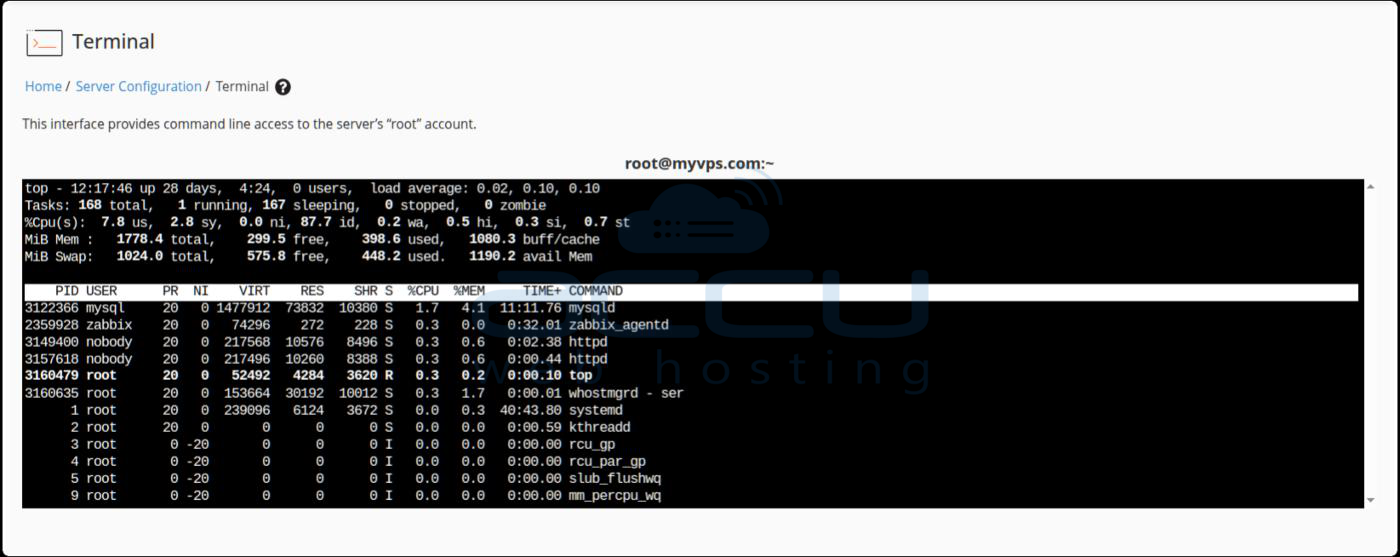
Start by checking server resource usage.
uptime
top
htop
Look for:
- High load average
- CPU saturation
- High %wa (I/O wait)
- Excessive memory usage
- Large number of PHP or MySQL processes
Example:
top
Important columns:
- %CPU
- %MEM
- TIME+
- COMMAND
Step 2: Identify the User Consuming Resources
Find Heavy CPU Usage by User
ps -eo user,pid,ppid,cmd,%mem,%cpu --sort=-%cpu | head -20
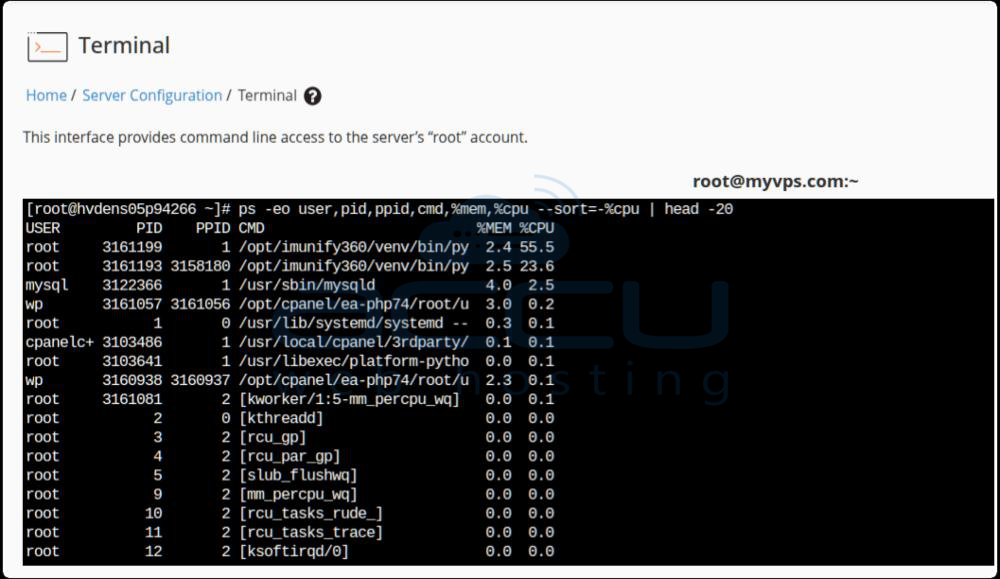
This quickly shows which cPanel user is consuming the most CPU.
Example:
username 24561 ... php 95.2
Check Running Processes for Specific User
ps -u username
or:
top -u username
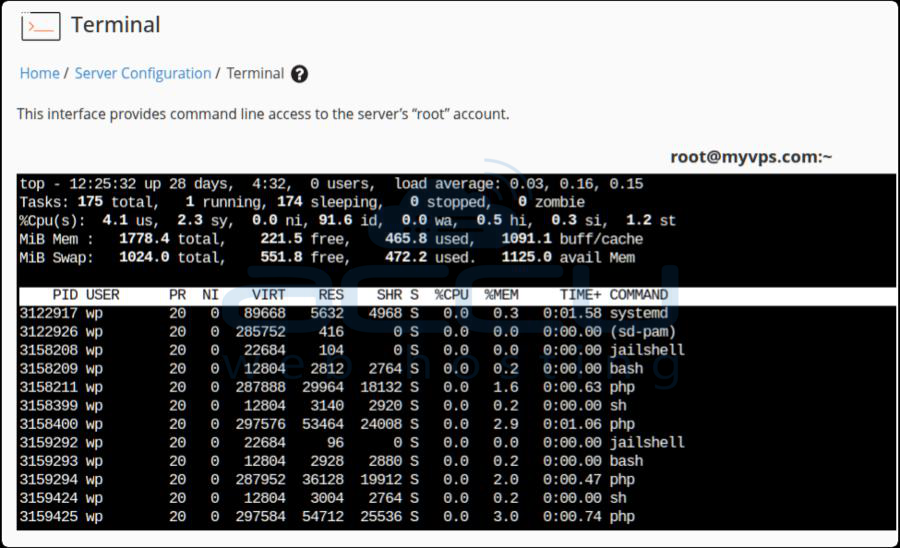
Look for:
-
Stuck PHP scripts
-
Long-running cron jobs
-
Backup scripts
-
Malware/spam scripts
-
Excessive Python/Node processes
Step 3: Check Apache or LiteSpeed Activity
Apache
netstat -plant | grep :80
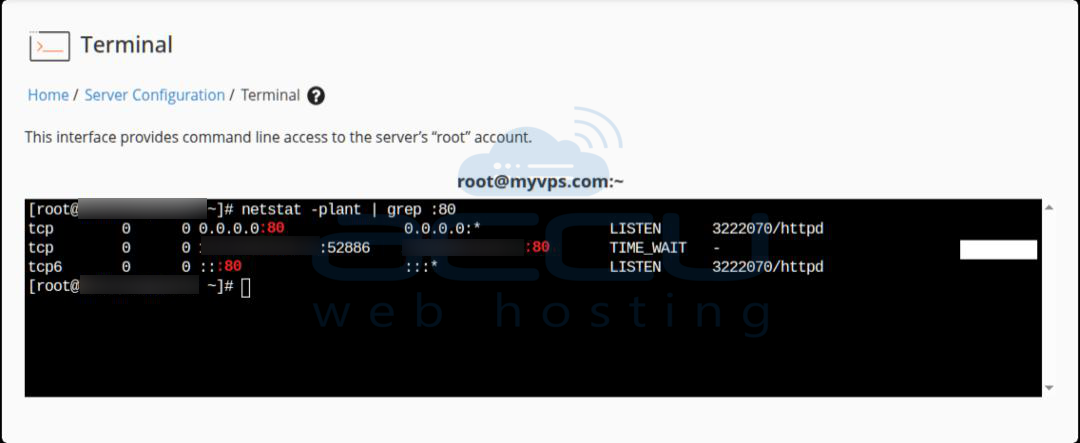
Look for:
-
Hundreds of connections from one domain
-
Slow PHP requests
-
DDoS-like traffic patterns
Step 4: Investigate MySQL Usage
A badly optimized WordPress plugin or compromised script can overload MySQL.
Check active queries:
mysqladmin proc status

or:
show processlist;
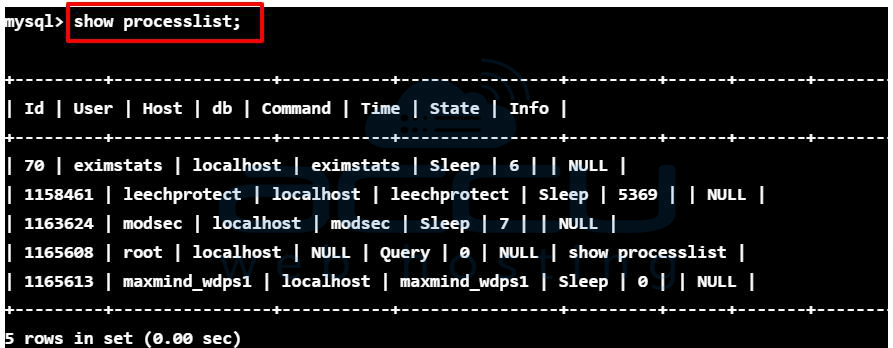
Look for:
-
Long-running queries
-
Repeated identical queries
-
Locked tables
-
Excessive connections from one database user
Map the database user back to the cPanel account.
Step 5: Check Disk I/O Usage
High disk activity can slow the entire server.
Use:
iotop
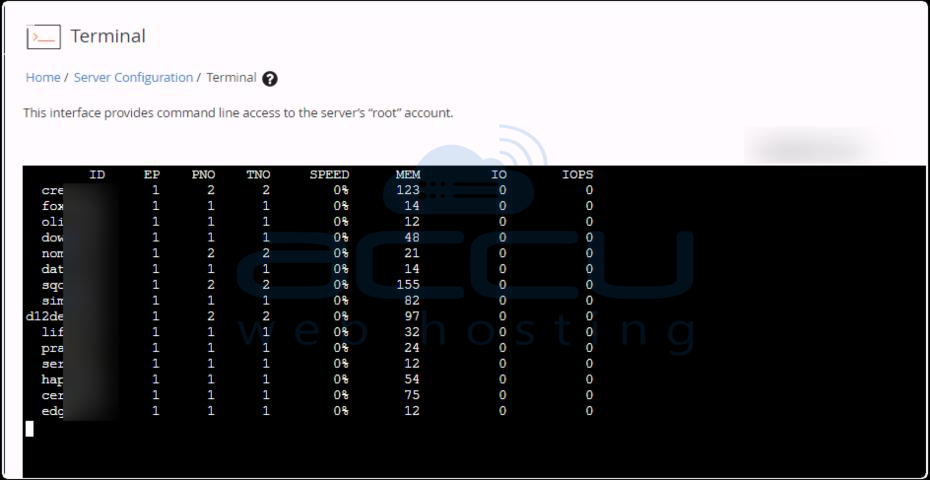
or:
iostat -xz 1
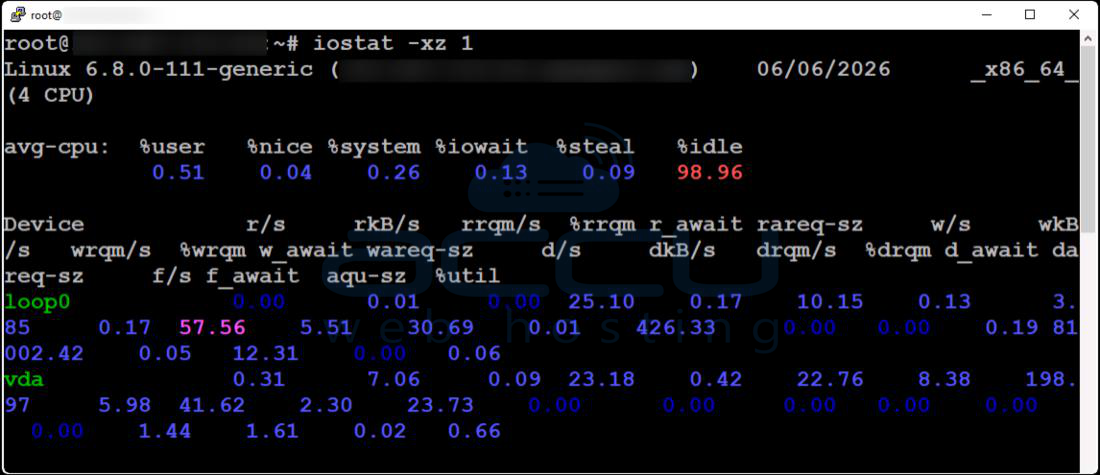
Look for:
-
Backup processes
-
Malware scans
-
Huge log writes
-
Excessive cache generation
Step 6: Check CloudLinux Resource Usage (If Installed)
If the server uses CloudLinux, it becomes much easier to isolate abusive accounts.
Useful commands:
lveinfo --by-fault any
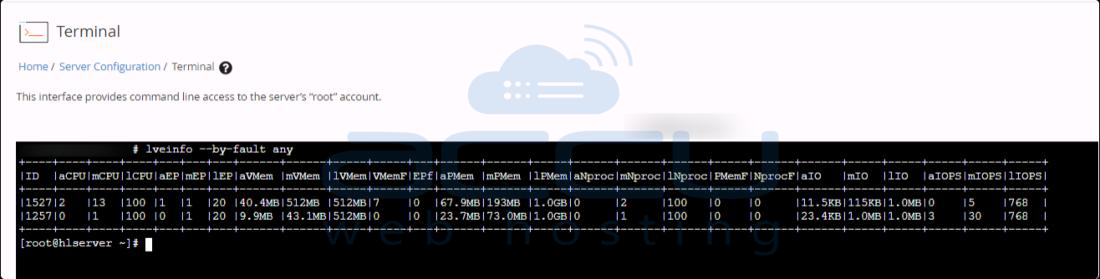
lvetop
This shows:
-
CPU faults
-
Memory faults
-
Entry process limits
-
I/O throttling
-
Per-account resource usage
CloudLinux can automatically contain abusive accounts without affecting others.
Step 7: Check for Spam or Malware
Compromised accounts often generate server load.
Look for:
-
Mass mail sending
-
PHP shells
-
Cryptocurrency miners
-
Spam scripts
-
Bot traffic
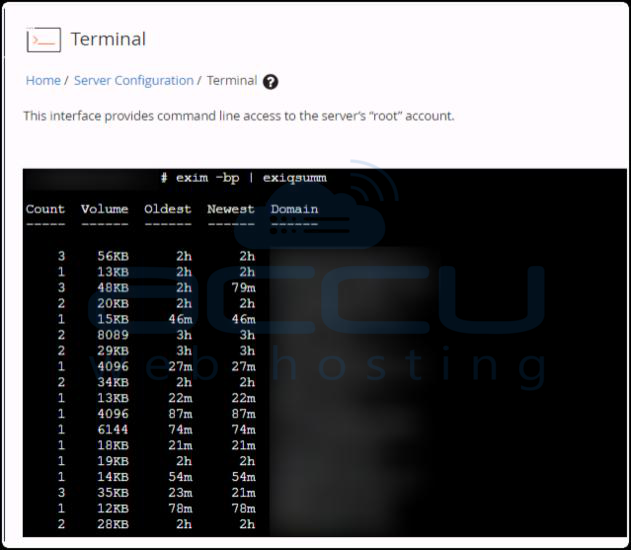
Check mail queue:
exim -bp | exiqsumm
Search for suspicious files:
find /home/username/public_html -type f -mtime -1
Run malware scans:
clamscan -r /home/username
or with ImunifyAV/Imunify360 if installed.
Step 8: Review Cron Jobs
Bad cron jobs are a common cause of periodic load spikes.
Check:
crontab -u username -l
Look for:
-
Jobs running every minute
-
Backup scripts
-
Broken loops
-
Heavy database operations
Step 9: Temporarily Mitigate the Problem
Once the abusive account is identified, take immediate action.
Option 1: Kill Problematic Processes
pkill -u username
or specific PID:
kill -9 PID
Option 2: Suspend the cPanel Account
From WHM:
-
WHM → Account Functions → Suspend an Account
Or CLI:
/scripts/suspendacct username
This immediately protects the rest of the server.
Option 3: Limit Resources
If using CloudLinux:
-
Reduce:
-
CPU limits
-
Memory limits
-
Entry processes
-
I/O limits
-
This prevents one account from overwhelming the server.
Conclusion:
A single shared hosting account consuming excessive server resources can quickly impact the performance and stability of every website on the server. Identifying the issue early and taking immediate action is essential to maintain a reliable hosting environment.
By monitoring CPU, memory, disk I/O, MySQL activity, and running processes, administrators can trace the source of abnormal server load and isolate the affected account before the problem spreads further.
In many cases, the root cause may be an inefficient application, a poorly optimized website, excessive cron jobs, spam activity, or even a compromised account. Once identified, temporary measures such as killing processes, limiting resources, or suspending the account can help restore overall server performance while a permanent solution is implemented.


