
Email remains one of the most important communication tools for businesses, website owners, and hosting providers. Unfortunately, it is also one of the most abused technologies on the internet. Every day, billions of spam messages are sent worldwide, ranging from harmless marketing emails to sophisticated phishing attacks designed to steal credentials, financial information, and sensitive business data.
This guide walks through ten detailed troubleshooting steps that will help you verify whether incoming spam filtering is functioning correctly and identify the most common causes of excessive spam on cPanel servers.
For cPanel server administrators and website owners, one of the most common support complaints is:
"Why am I still receiving so much spam even though SpamAssassin is enabled?"
The answer is rarely simple. Spam filtering in cPanel is not controlled by a single switch. Instead, it relies on multiple technologies working together Apache SpamAssassin, Exim Mail Transfer Agent, BoxTrapper, SPF authentication, DKIM signing, DMARC policies, Custom email filters and Proper DNS and MX routing,
If even one of these components is misconfigured, disabled, or bypassed, spam can reach your inbox despite having spam protection tools installed.
Understanding How Spam Filtering Works in cPanel
Before troubleshooting, it's important to understand the path an email takes before it reaches a mailbox.
When someone sends an email to your domain:
-
The sender's mail server looks up your MX records.
-
The email is delivered to your mail server.
-
Exim receives the message.
-
SpamAssassin analyzes the content.
-
SPF, DKIM, and DMARC authentication checks occur.
-
Custom email filters are applied.
-
The email is delivered to the mailbox, spam folder, or discarded.
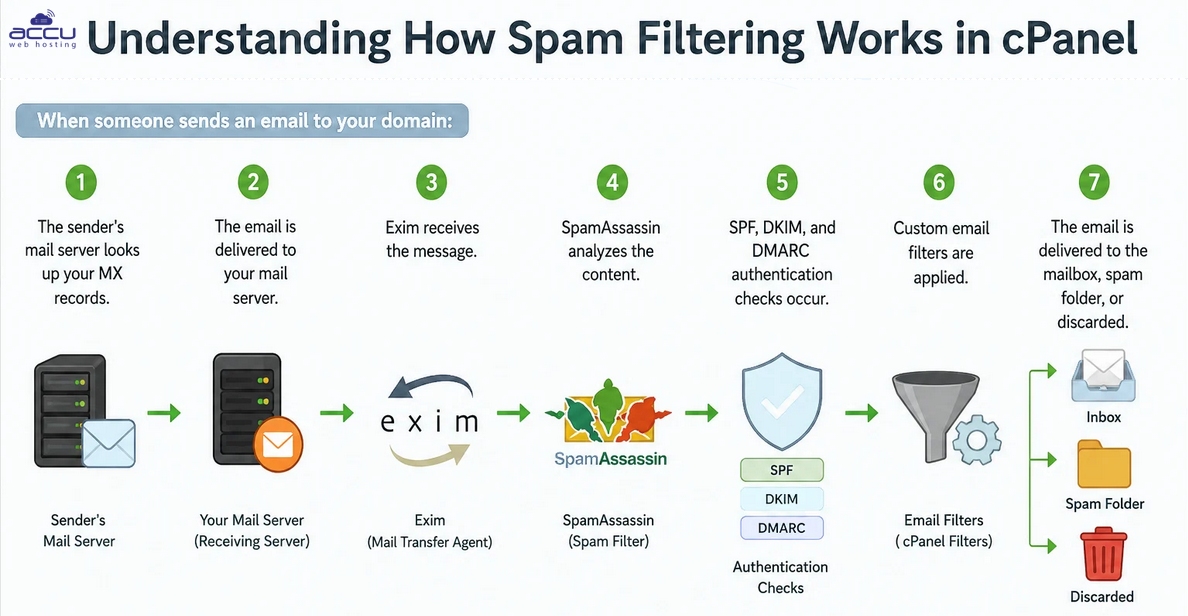
Any failure along this chain can reduce filtering effectiveness.
For this reason, troubleshooting spam issues requires examining every layer of the email delivery process.
Solution 1: Verify That SpamAssassin Is Enabled
The most obvious place to begin is ensuring that SpamAssassin is actually active.
Many users assume SpamAssassin is enabled automatically on all hosting accounts. While many hosting providers do enable it by default, this is not universally true. Some servers require manual activation, and in some cases SpamAssassin may have been disabled to reduce resource usage.
Why SpamAssassin Matters
SpamAssassin is cPanel's primary spam detection engine. It evaluates emails using hundreds of tests, including Spam keywords, Message formatting, DNS blocklists, URL reputation, Header anomalies and Authentication failures. Each test contributes to a numerical spam score. The higher the score, the more likely the message is spam.
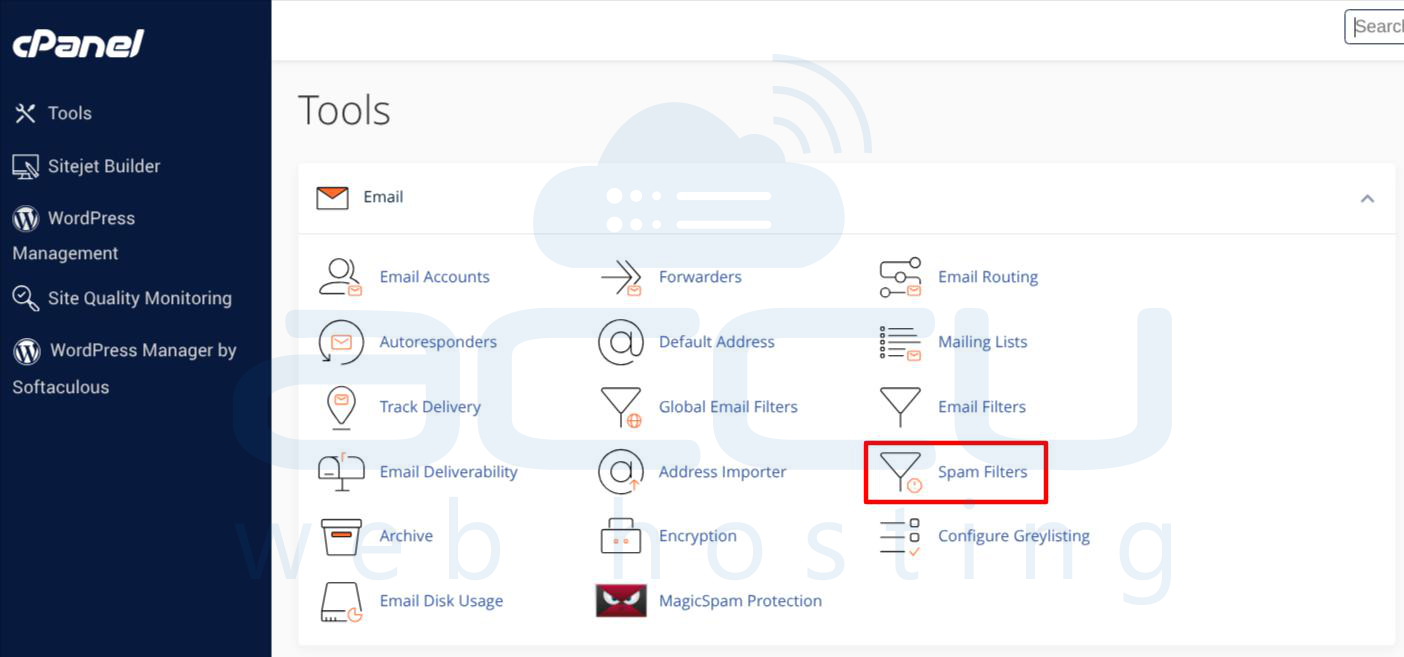
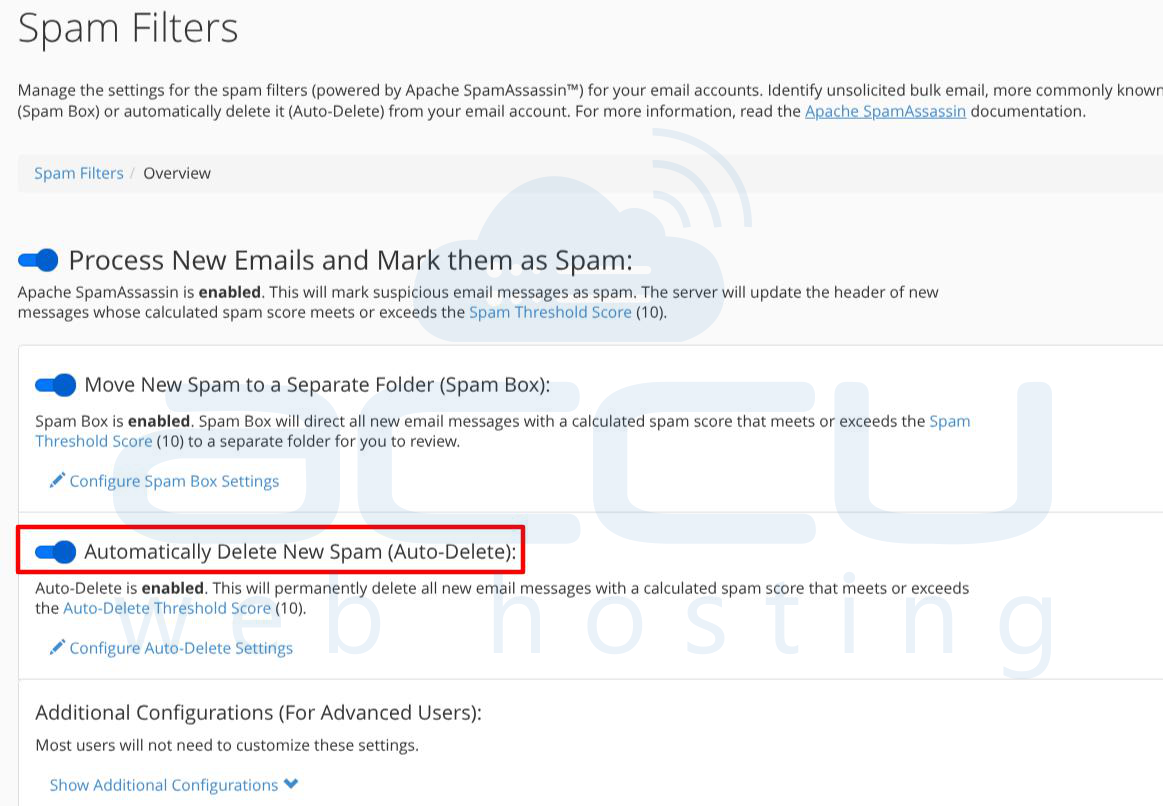
Checking Through cPanel
Log in to cPanel and navigate to: Email → Spam Filters.
Verify the system displays:
Spam Filters are Enabled
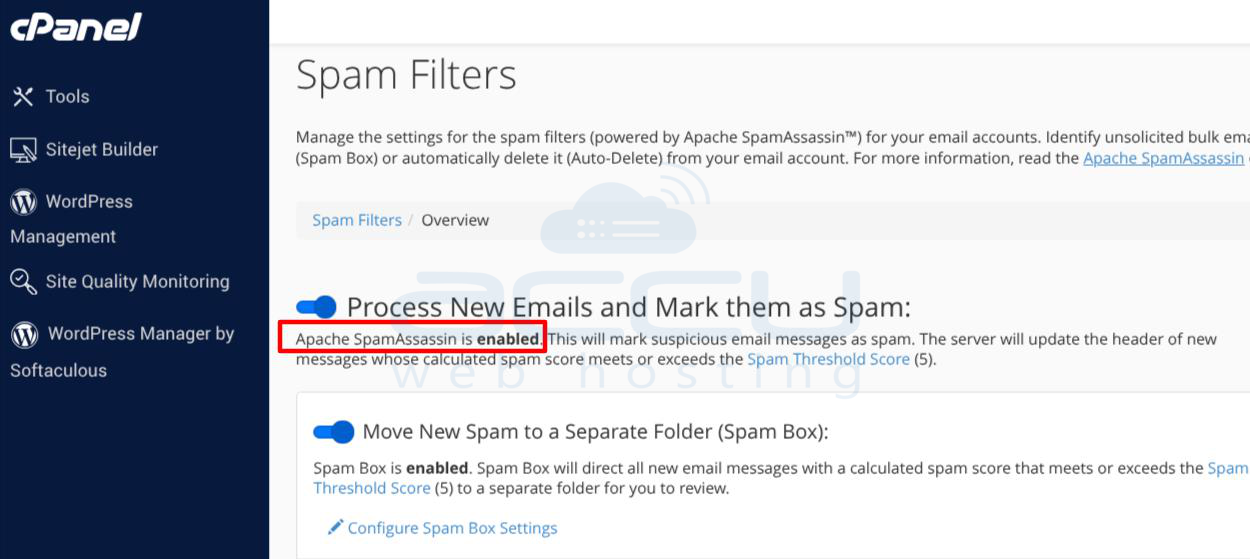
If disabled:
-
Click Enable Apache SpamAssassin™
-
Save the settings
-
Send a test email
Checking Through WHM
Server administrators should also verify integration at the server level.
Navigate to:
WHM » Home » Server Configuration » Tweak Settings.
Confirm that SpamAssassin integration is enabled.
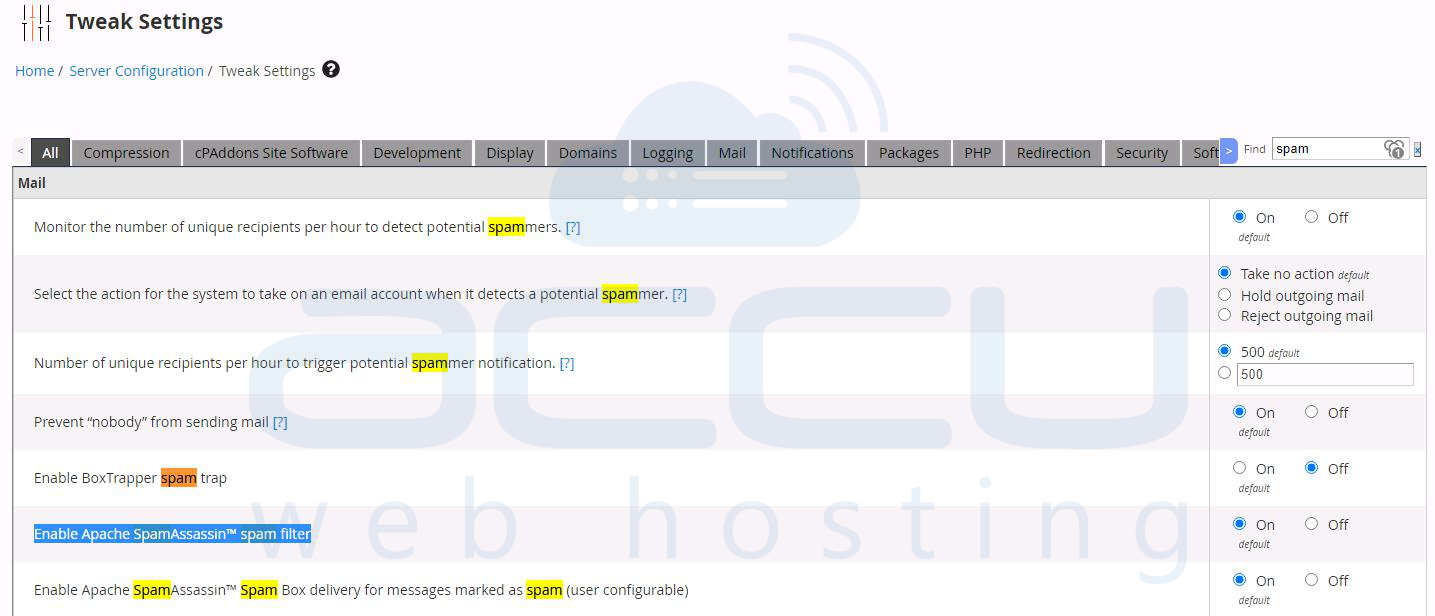
Without server-level support, mailbox settings become ineffective because incoming messages never pass through the filtering engine.
Auto Delete Spam
For mailboxes receiving large amounts of junk mail, consider enabling:
Automatically Delete New Spam
A threshold of 10 points is generally considered safe.
Using lower deletion thresholds increases the risk of removing legitimate messages.
Solution 2: Perform the GTUBE Spam Test
One of the quickest ways to determine whether SpamAssassin is functioning is to use the GTUBE test.
GTUBE stands for:
Generic Test for Unsolicited Bulk Email
Think of GTUBE as the spam-filter equivalent of the EICAR antivirus test file.
It is specifically designed to trigger spam detection systems without being an actual spam message.
How to Run the Test
Send an email to your domain from an external address.
Place the following string in the message body:
XJSC4JDBQADN1.NSBN32IDNENGTUBE-STANDARD-ANTI-UBE-TEST-EMAILC.34X
The string must appear on a single line.
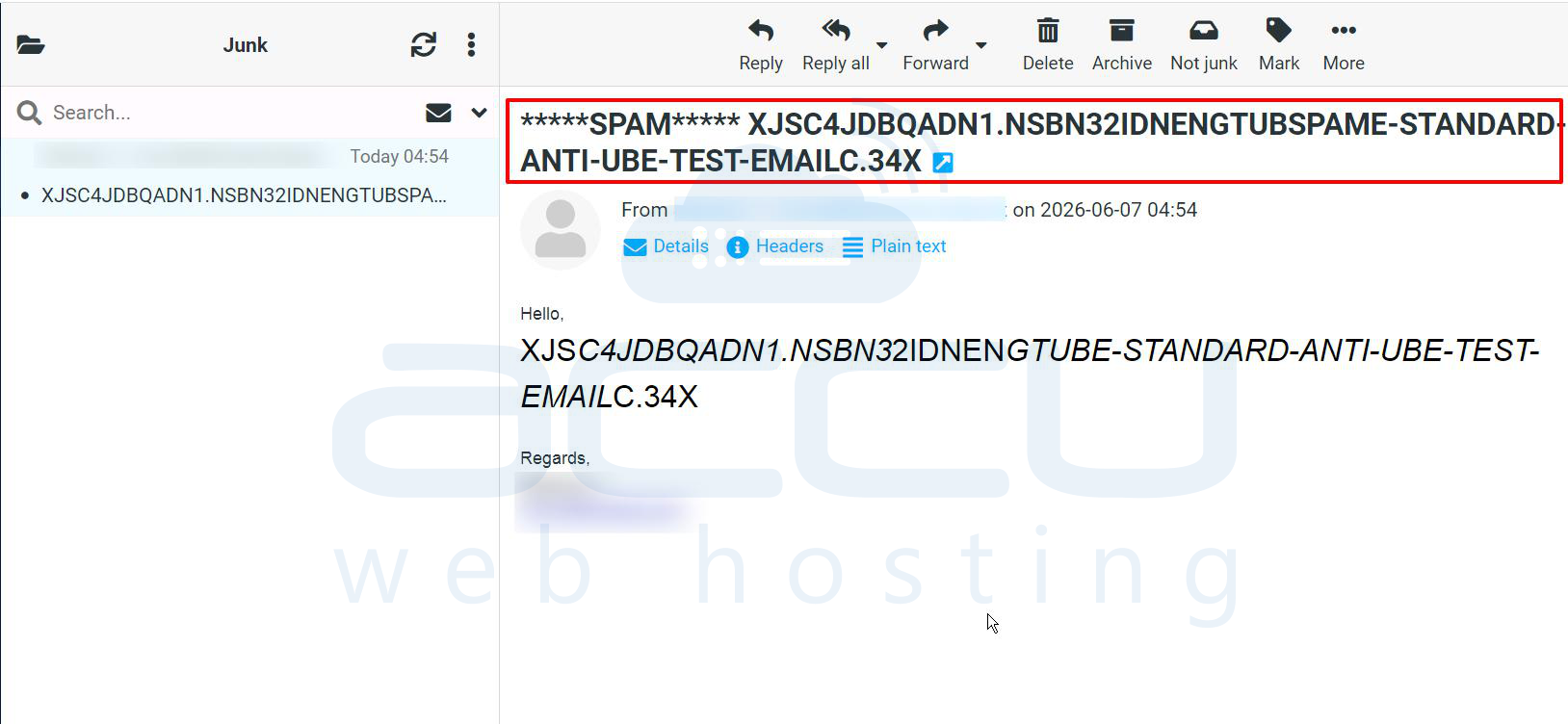
Expected Result
If SpamAssassin is functioning correctly, the email should:
-
Be marked as spam
-
Receive an extremely high score
-
Be delivered to the spam folder
-
Or be automatically deleted
Interpreting Results: GTUBE Is Flagged. SpamAssassin is scanning incoming mail. Move to later troubleshooting steps.
Solution 3: Adjust the Spam Threshold Score
SpamAssassin uses a scoring system. Every email receives points based on suspicious characteristics. The threshold determines when a message becomes classified as spam.
Default Threshold Most installations use: 5.0
However, many modern spam campaigns are intentionally crafted to remain below this level. A spam message may score: 3.5, 4.2, 4.8 and still arrive in the inbox.
Recommended Thresholds
For most business environments:
|
Threshold |
Effect |
|
5 |
Moderate filtering |
|
4 |
Strong filtering |
|
3 |
Aggressive filtering |
Lowering the Score Navigate to: cPanel → Spam Filters and locate: Required Score
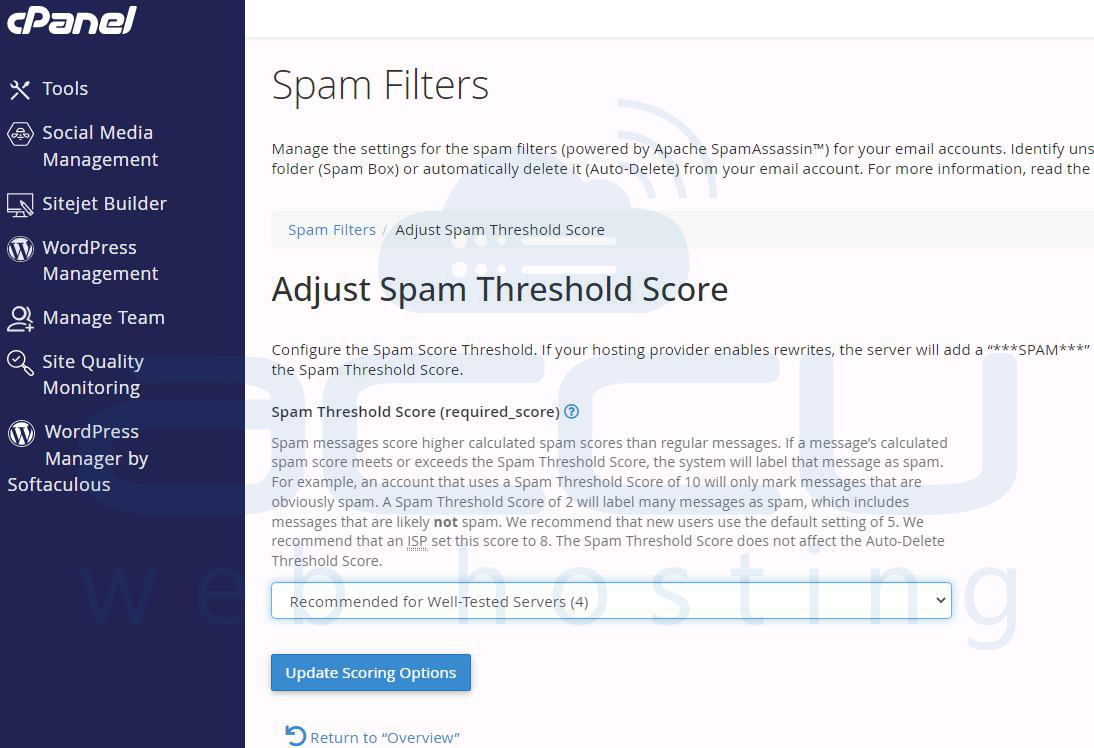
Reduce the threshold gradually. Avoid lowering it too aggressively initially.
Monitor for False Positives: Before enabling automatic deletion Activate Spam Box delivery, review flagged emails weekly, identify legitimate messages caught by mistake and adjust accordingly. Fine-tuning thresholds often produces immediate improvements.
Solution 4: Analyze Email Headers
When diagnosing spam filtering issues, email headers are one of the most valuable sources of information. Every email processed by SpamAssassin receives additional metadata.
These headers reveal Whether scanning occurred, What score was assigned and Which rules triggered.
Important Headers
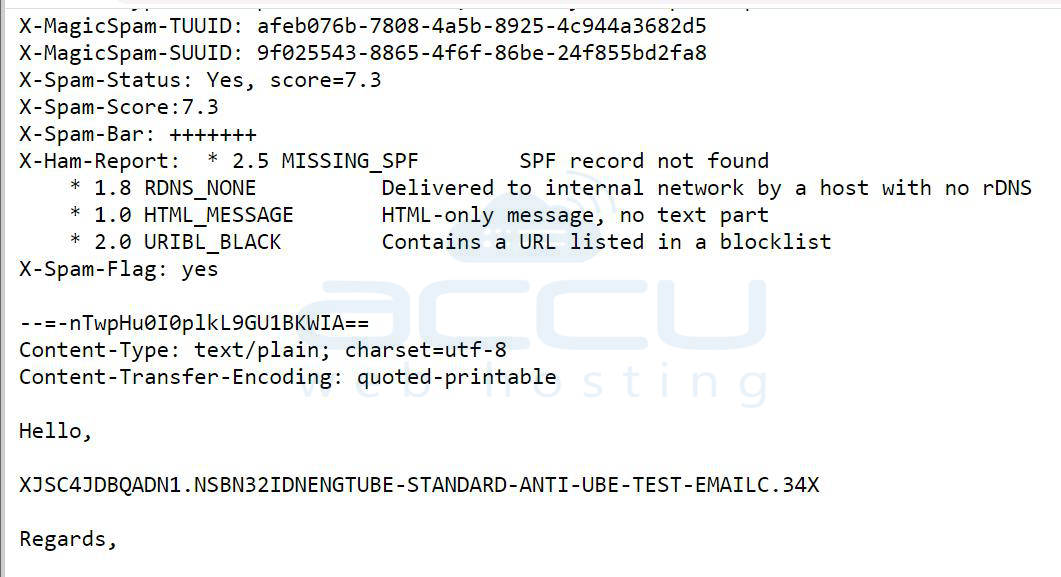
X-Spam-Status
Example:
X-Spam-Status: Yes, score=7.3
Indicates whether the email was classified as spam.
X-Spam-Score: Displays the exact numerical score.
X-Spam-Bar: A visual representation of the score.
X-Spam-Report: Provides a detailed breakdown of triggered tests.
X-Spam-Checker-Version: Confirms SpamAssassin processed the email.
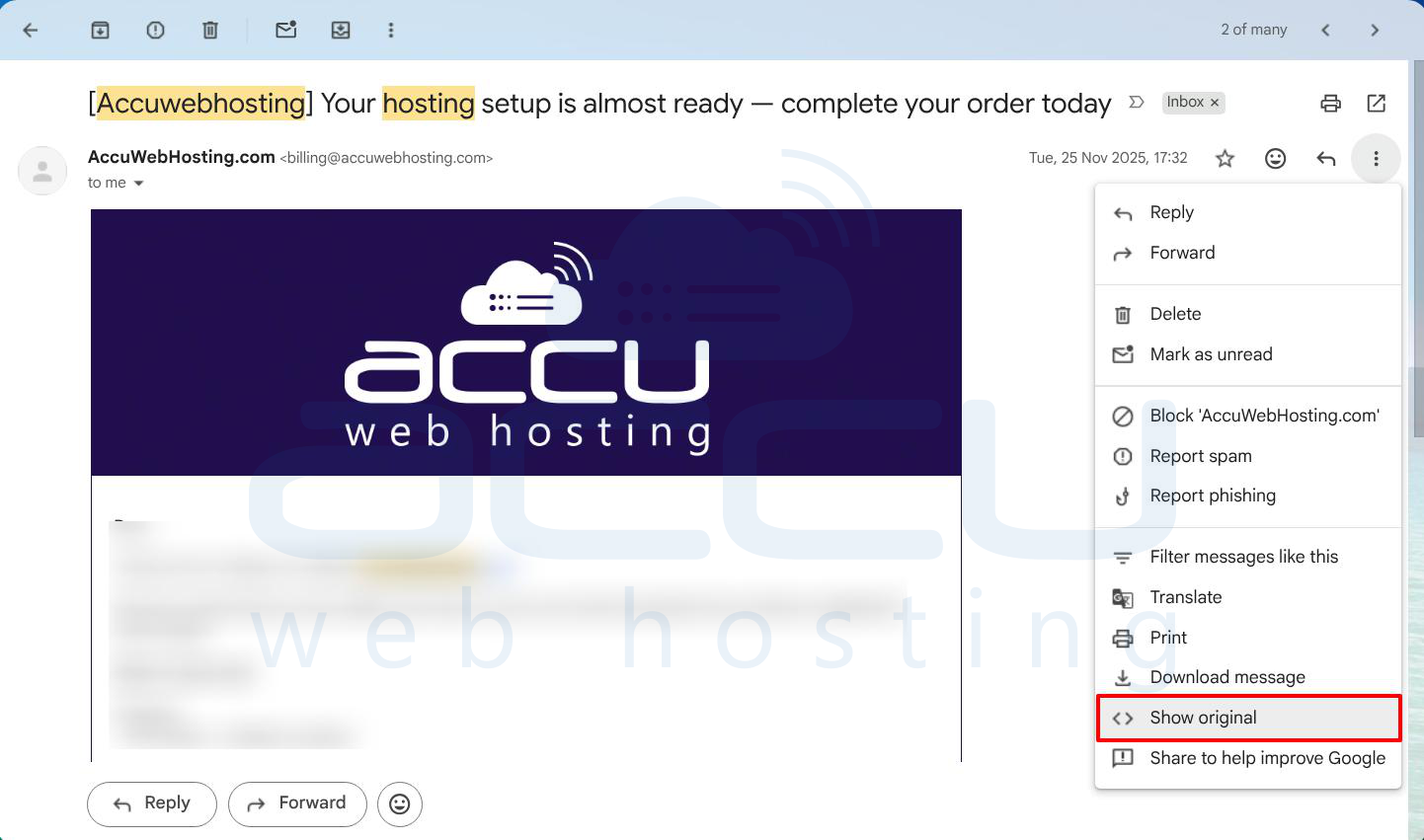
Viewing Headers
Gmail: Open message → More → Show Original
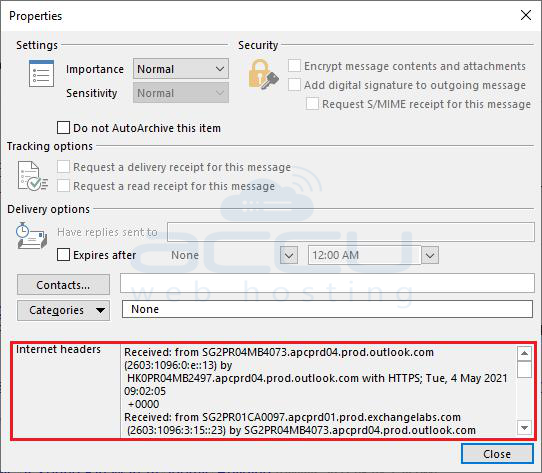
Outlook: File → Properties → Internet Headers
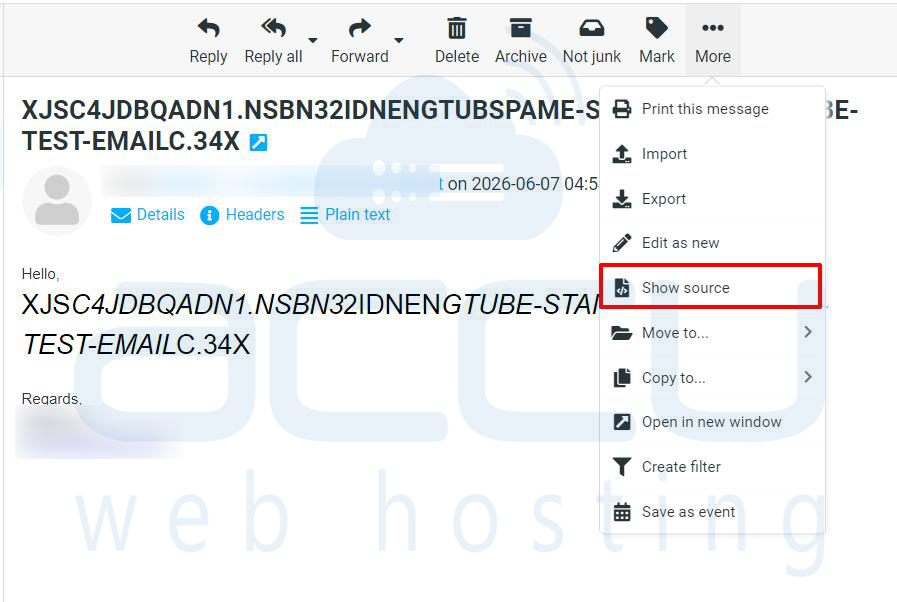
Roundcube: More → Show Source
What If Headers Are Missing?
Missing SpamAssassin headers usually indicate Mail bypassed scanning, Exim configuration issues, Routing problems or Spamd service failures. This information helps pinpoint where the filtering chain is breaking down.
Solution 5: Evaluate BoxTrapper Configuration
BoxTrapper is often overlooked because it operates differently from traditional spam filters. Rather than analyzing content, it uses challenge-response verification.
How BoxTrapper Works
When an unknown sender contacts you:
-
BoxTrapper intercepts the email.
-
A verification request is sent.
-
The sender must respond.
-
Once verified, they are added to the whitelist.
Most spambots never complete verification. BoxTrapper can dramatically reduce Automated spam, Bot-generated messages, and Bulk email attacks.
Configuration Steps: Navigate to: cPanel → Email → BoxTrapper
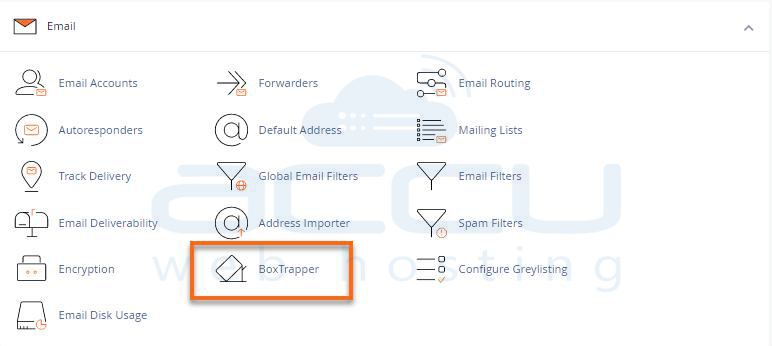
Select the mailbox and enable the feature. Configure: Whitelist, Blacklist and Ignore list.
Review Logs: Regularly inspect: BoxTrapper → Manage Logs
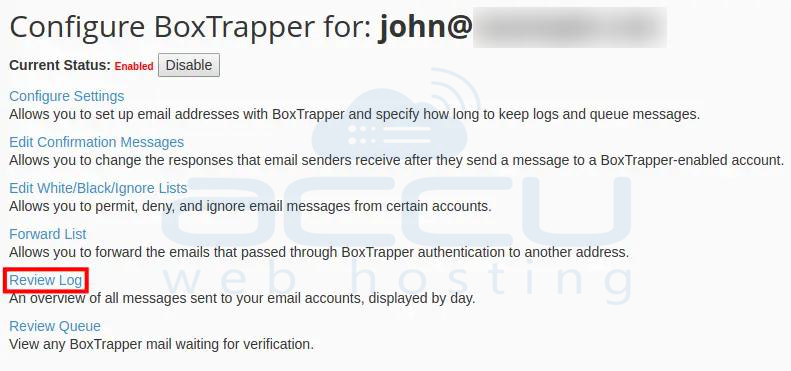
This helps identify legitimate senders being delayed.
Important Limitation
Business environments should use BoxTrapper cautiously. Potential customers may ignore verification requests or mistake them for spam. For this reason, BoxTrapper is generally better suited to personal accounts than customer-facing business addresses.
Solution 6: Verify MX Records and Email Routing
A surprisingly common issue involves mail routing. Many administrators spend hours adjusting SpamAssassin settings only to discover that email never reaches their cPanel server in the first place.
Why MX Records Matter: MX records determine where incoming email is delivered. If your MX records point elsewhere, SpamAssassin cannot process incoming messages.
Common Scenarios
Local Mail Hosting: MX records point to: mail.yourdomain.com. SpamAssassin can filter messages.
External Mail Hosting: MX records point to Google Workspace, Microsoft 365, Proofpoint or Mimecast. SpamAssassin on your cPanel server is bypassed entirely.
Verify Using MXToolbox: Run an MX lookup. Confirm your MX records match your intended mail server.
Check Email Routing: Inside cPanel: Email → Email Routing
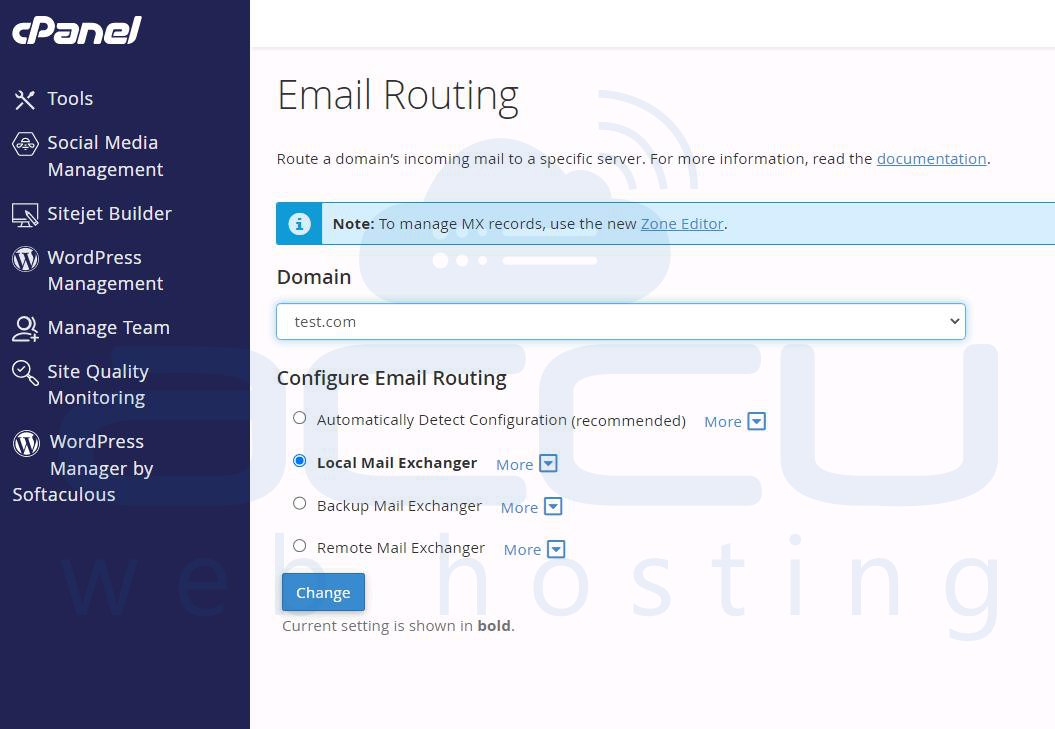
Verify: Local Mail Exchanger is selected.
Command-Line Check: dig MX yourdomain.com +short
Compare results against your hosting configuration.
Incorrect routing is one of the leading causes of spam filtering failures.
Solution 7: Test Server Reputation and External Security Signals
Spam protection involves more than content analysis. Your server's reputation also matters. Many spam campaigns exploit compromised servers, and reputation databases track these activities.
Essential Diagnostic Tools
MXToolbox provides Blacklist monitoring, MX validation and SMTP diagnostics.
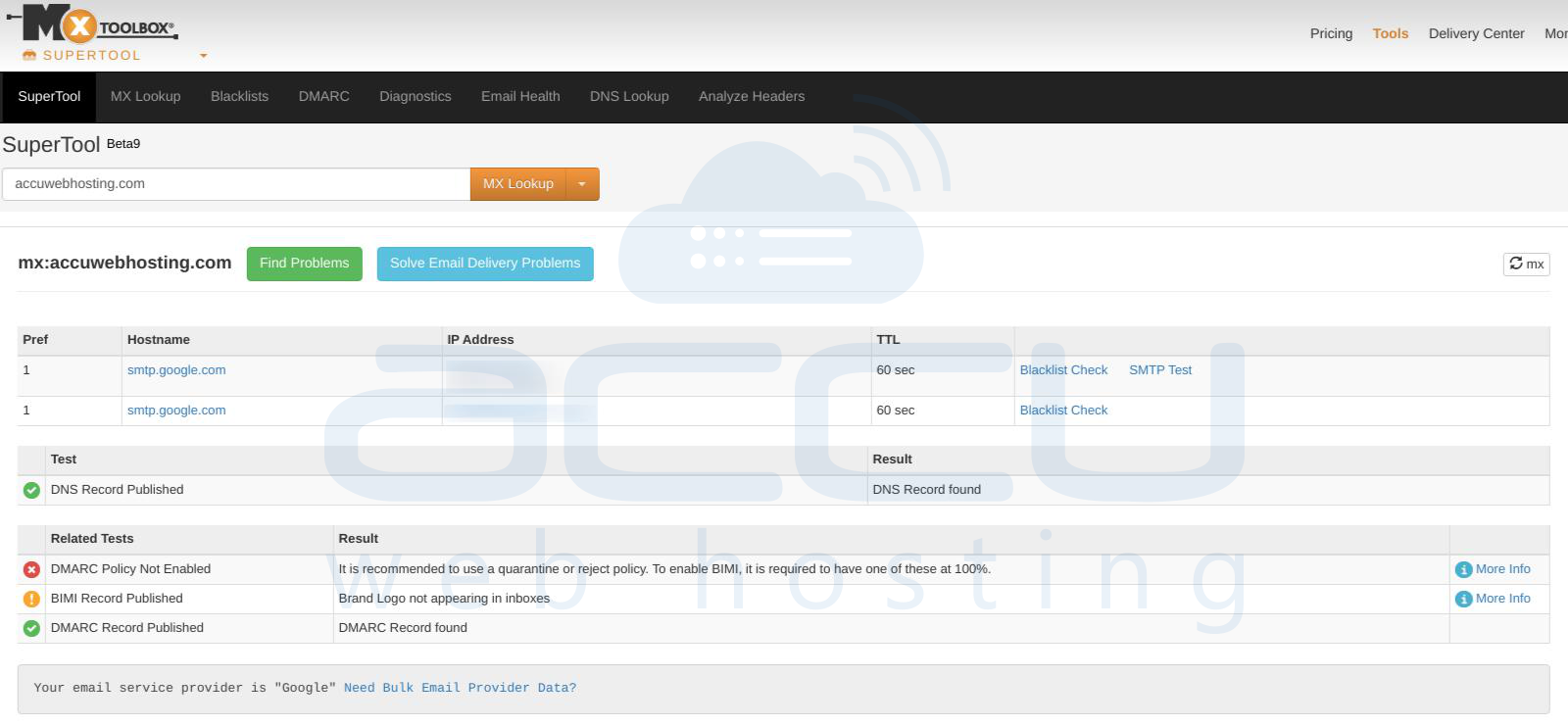
Mail-Tester provides a detailed spam score.
Solution 8: Audit Custom Email Filters
Custom filters can either strengthen or weaken spam protection. Over time, administrators often forget rules that were created months or years earlier. These forgotten filters may accidentally bypass spam controls.
Review Account Filters
Navigate to:
Email → Email Filters
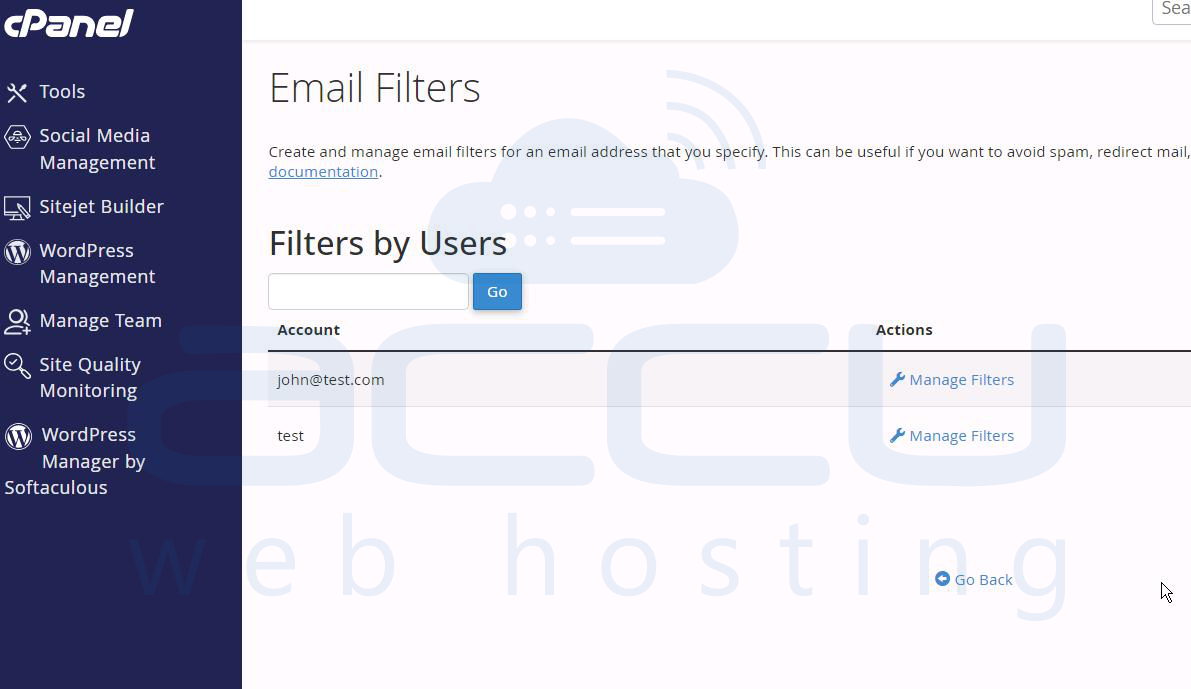
Inspect every rule carefully.
Review Global Filters
Navigate to:
Email → Global Email Filters
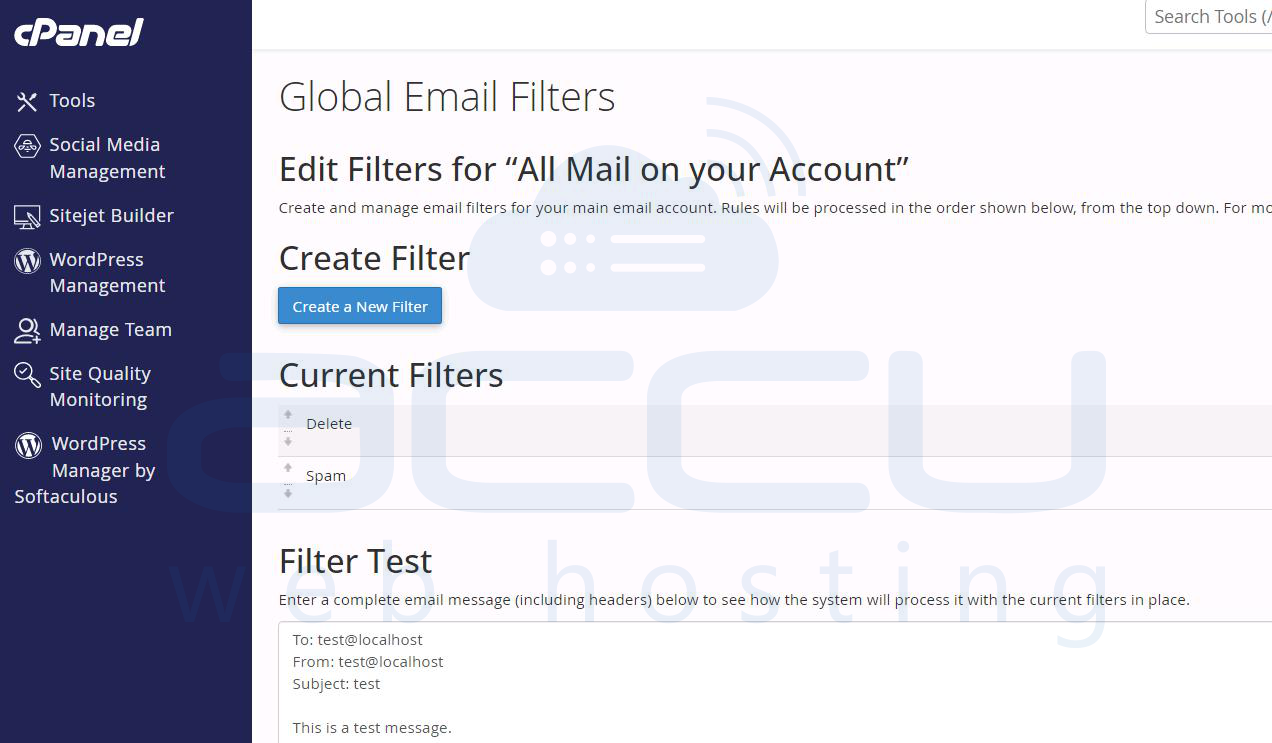
Look for Broad whitelisting, Redirect rules, Delete actions and Subject-based exceptions.
Effective Filter Examples
-
Delete email when: X-Spam-Score > 4
-
Redirect messages containing specific keywords.
-
Move suspicious messages into dedicated folders.
Review Forwarders
Navigate to: Email → Forwarders
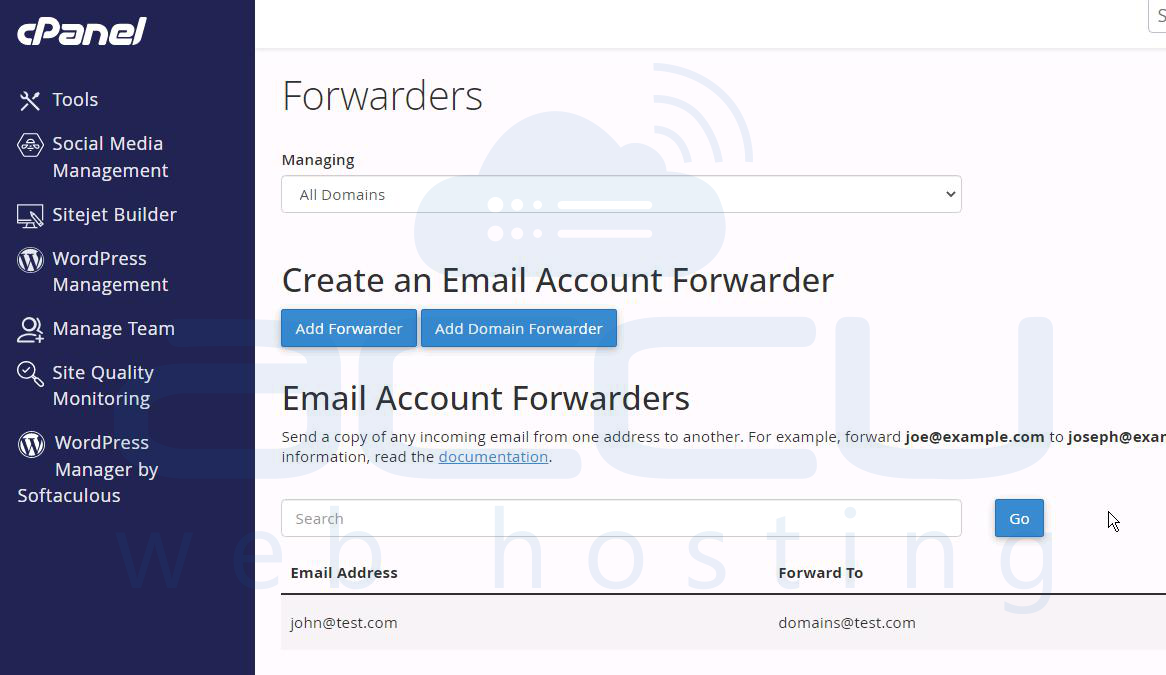
Forwarding can sometimes bypass expected filtering behavior. Verify that spam isn't being reintroduced through forwarding loops or external routing.
Solution 9: Inspect Exim Configuration and Logs
Exim serves as the backbone of cPanel's email infrastructure. Even if SpamAssassin is installed, Exim controls whether messages actually pass through the spam scanner.
Verify spamd Service
Run: /usr/local/cpanel/scripts/restartsrv_spamd
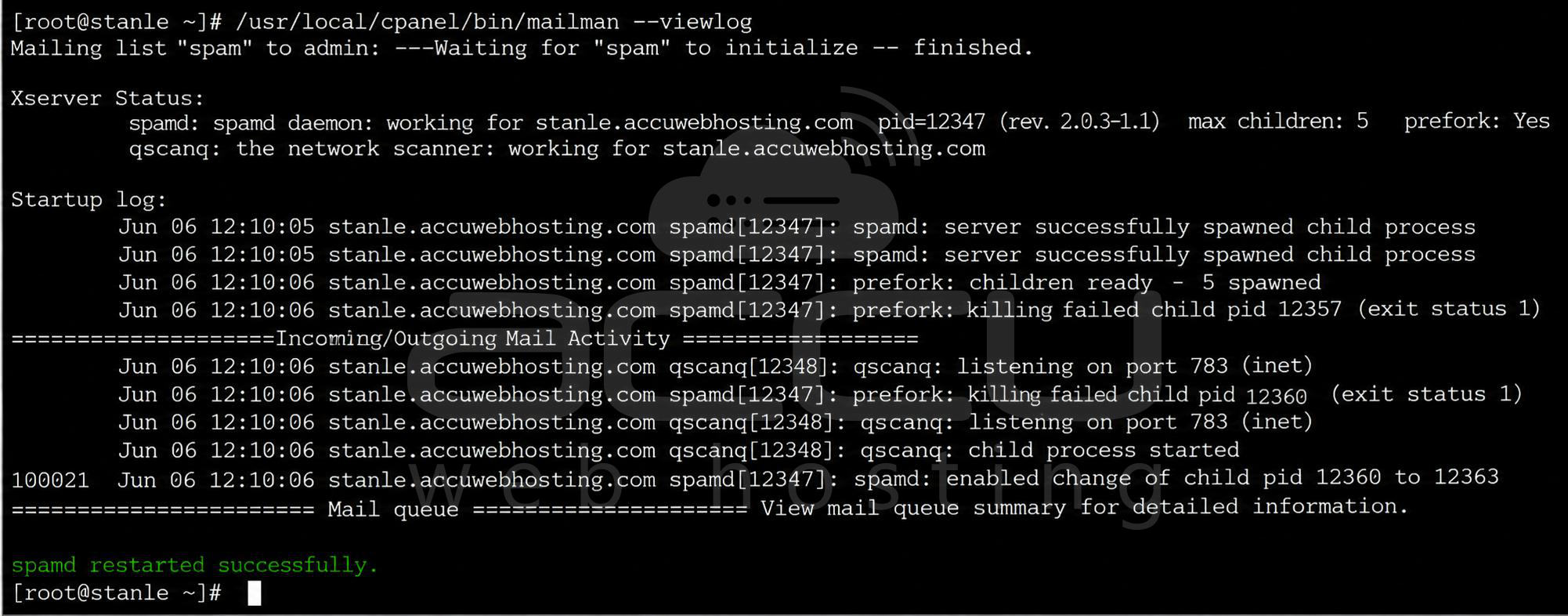
Or:
service spamd status
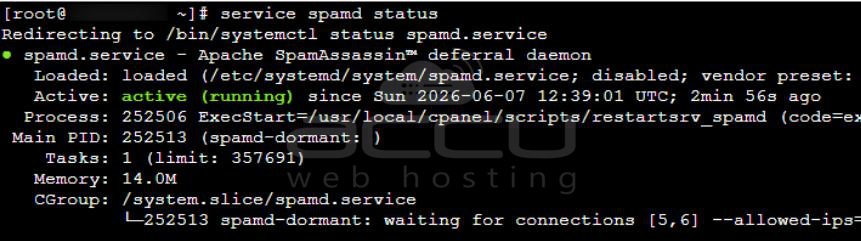
Ensure the daemon is active.
Check Exim Configuration
Run: grep -i spam /etc/exim.conf
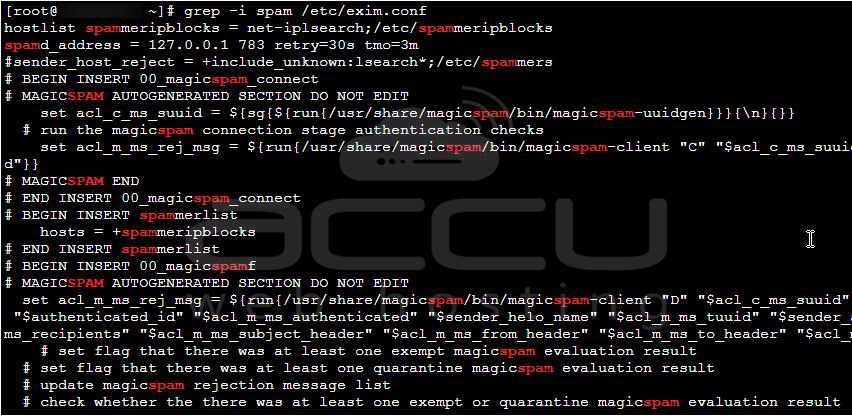
Look for SpamAssassin references.
Examine Mail Logs
Useful log location: /var/log/exim_mainlog
Search for: SpamAssassin
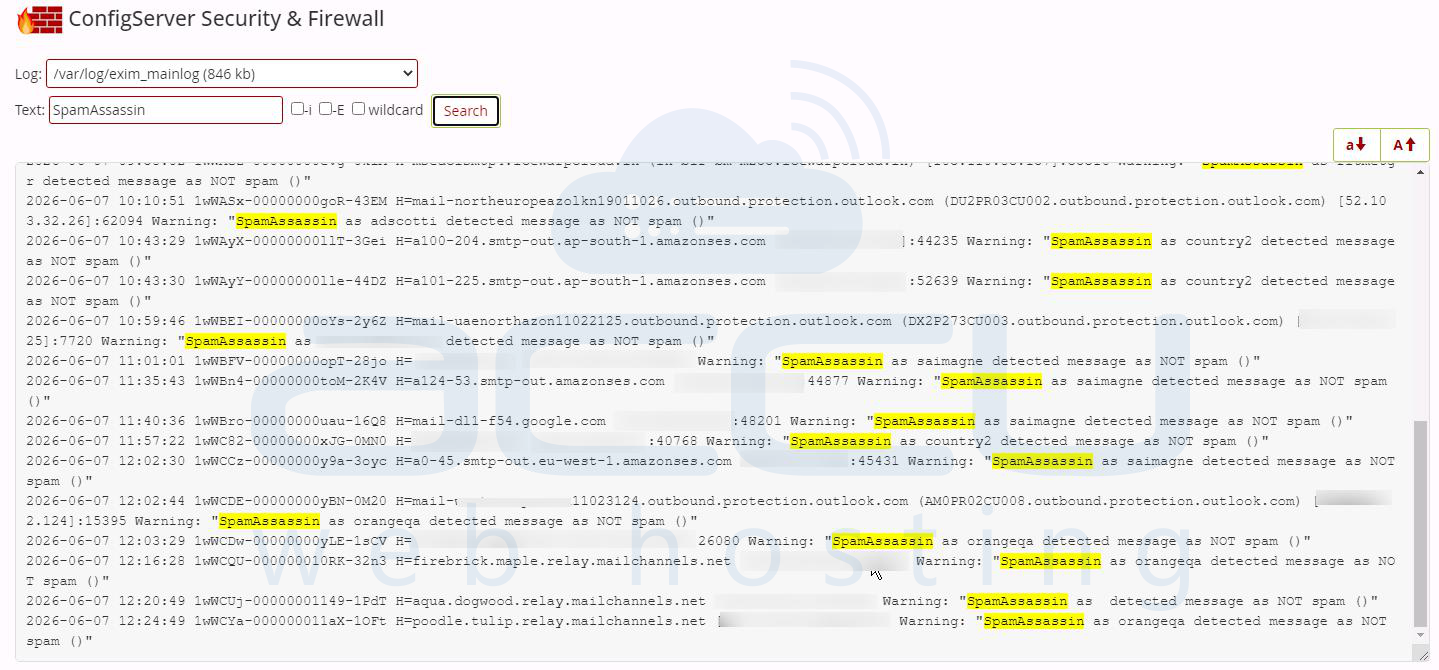
Look for evidence of message scanning. If scanning entries are missing, Exim may not be passing messages to SpamAssassin.
Conclusion
Effective spam protection in cPanel requires a layered security strategy rather than a single solution. SpamAssassin remains the core filtering engine, but it relies on Exim, DNS authentication, routing configuration, and custom filtering rules to function at maximum effectiveness.
By systematically working through all steps outlined in this guide, administrators can identify weaknesses in their email infrastructure, significantly reduce spam volume, and improve overall email security for every mailbox hosted on their cPanel server.


