

1. Access the web interface as an administrator via the URL: [mail.yourdomainname.com] and use the administrator username and password
Note: The email account must possess administrator privileges to create an email account using SmarterMail
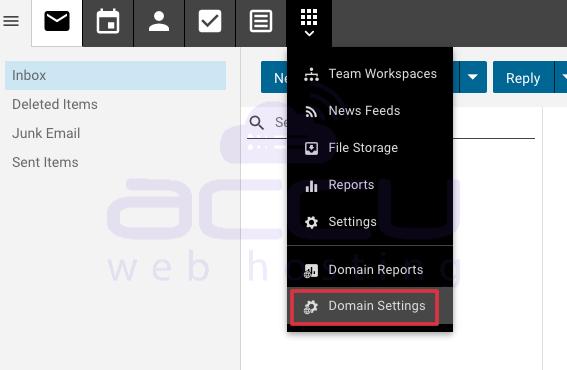
2. Navigate to the last button on the top panel -> Domain Settings.
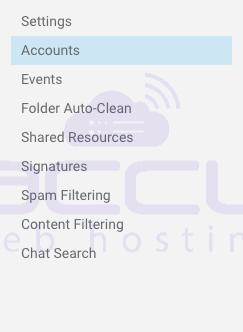
3. Select the Accounts option from the left panel
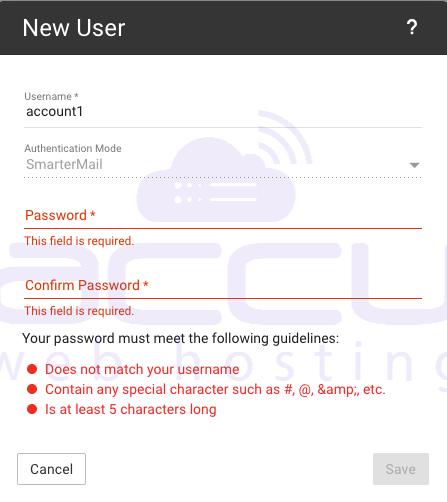
4. A message box will appear; please enter the required details. Once completed, save the information.
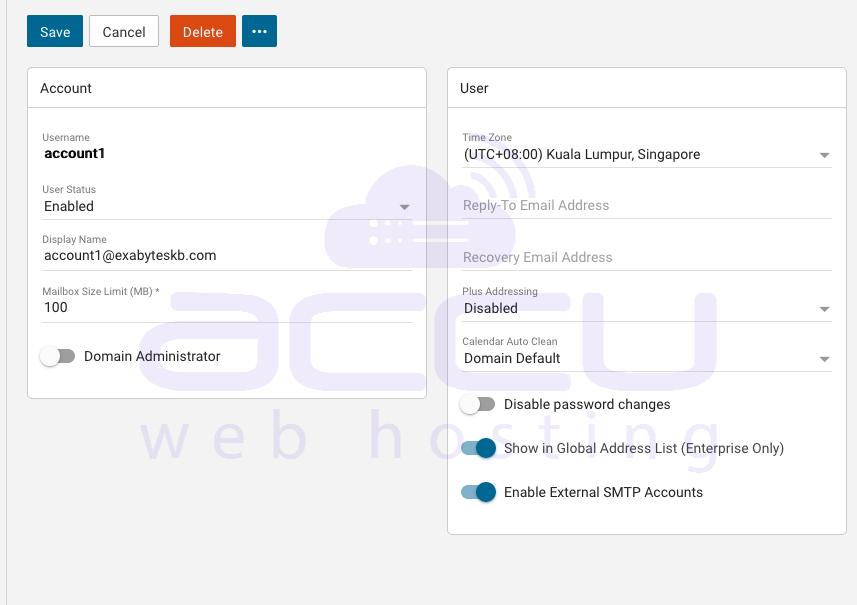
5. You will be redirected to the account summary page; please save it again. The email account has been successfully created.
Conclusion
Creating a new email account in SmarterMail 16 is a quick and efficient process that allows administrators to easily manage users and expand their organization’s email infrastructure. By accessing the SmarterMail web interface with administrator privileges and navigating through Domain Settings → Accounts, new mailboxes can be created in just a few simple steps.
This streamlined account creation process helps businesses maintain organized communication, onboard new employees faster, and ensure that every team member has a secure and reliable email address. With SmarterMail’s intuitive management interface, administrators can quickly configure user details, manage permissions, and maintain full control over their domain’s email accounts.
Once the account is created and saved, it becomes immediately available for use, allowing users to send and receive emails without delay. Whether you’re managing a small team or a large organization, SmarterMail 16 makes email administration simple, scalable, and efficient.
By following these steps, you can confidently create and manage email accounts in SmarterMail while ensuring smooth communication and improved productivity across your organization.


