
Browser Scan
A browser scan refers to the process of checking a user's web browser for security vulnerabilities, malicious activities, and potential threats. It can be performed by security tools or browser extensions to monitor for harmful code, phishing attempts, malware, and unsafe browsing habits. Essentially, a browser scan analyzes the behavior of your browser, the websites you visit, and any data you may be exposing during your browsing sessions to ensure that your system remains secure.
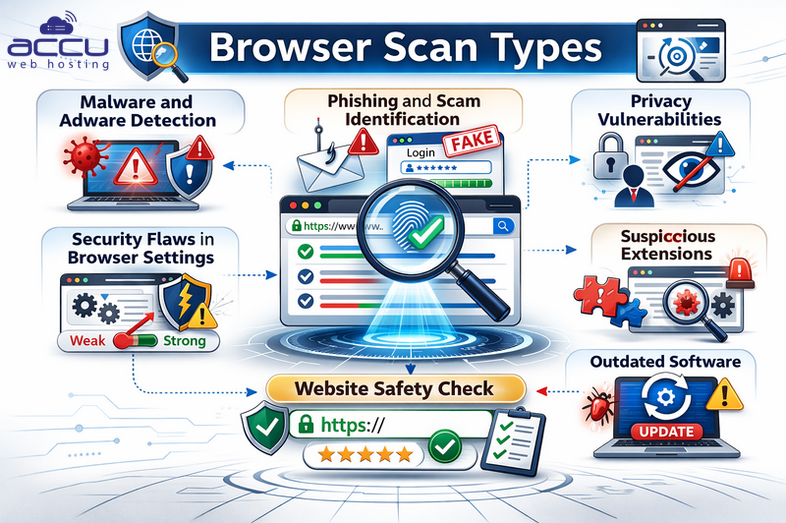
Types of Browser Scans
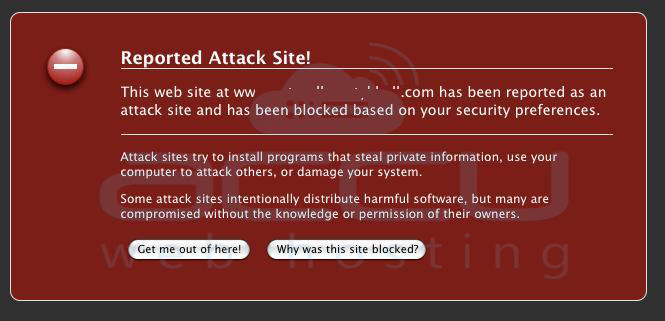
1. Malware and Adware Detection:
identifies malware, spyware, and other malicious software that may have infiltrated your browser or system through harmful downloads or compromised websites.
2. Phishing and Scam Identification:
Detects phishing websites that attempt to steal sensitive information like login credentials, banking details, or personal identification.
3. Privacy Vulnerabilities:
Scans for privacy risks like tracking cookies, third-party data collection, or any compromised personal information that might be exposed while browsing.

4. Security Flaws in Browser Settings:
Identifies and alerts you to insecure browser configurations or outdated plugins that could leave your system vulnerable to attacks.
5. Website Safety Check:
Verifies whether the websites you're visiting are secure and free of malicious content, ensuring your data is not at risk.
Role of Browser Scan in Cyber Security
1. Protection Against Malware and Ransomware:
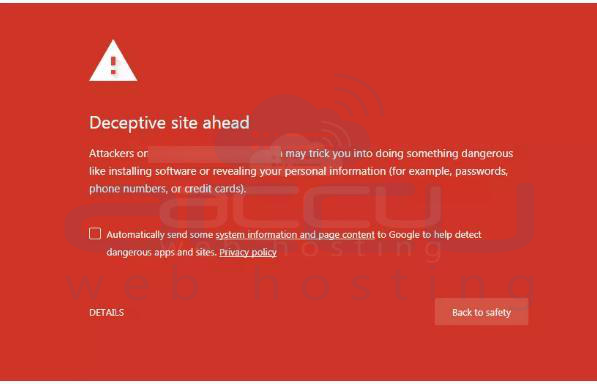
Browser scans help detect malware, ransomware, and other harmful software that can be injected into your system through malicious websites or infected downloads. They ensure that users aren't unknowingly exposing themselves to these threats while surfing the internet.
2. Preventing Phishing Attacks:
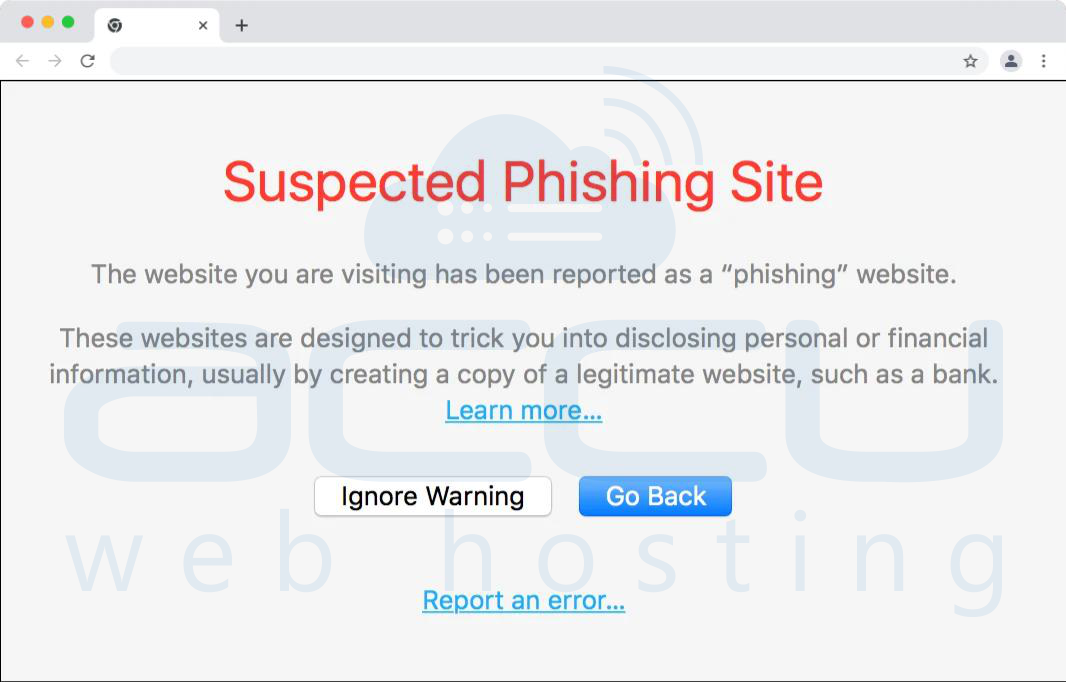
Phishing is one of the most common methods hackers use to trick users into revealing their sensitive information. A browser scan checks for suspicious websites that may attempt to steal credentials, banking details, or any personal data. It alerts the user if they’re about to access a fake website, often imitating trusted platforms like banks, social media, or email services.
3. Securing Sensitive Data:
Many browsers collect and store sensitive data, such as passwords, form data, and payment information. A browser scan can ensure this data isn't being exposed to unauthorized third parties or being leaked to malicious websites. It scans for browser extensions or settings that could compromise user privacy.
4. Detecting and Blocking Harmful Extensions:
Malicious browser extensions or plugins can compromise your browsing experience. These extensions can often steal information, inject ads, or track your activity. A browser scan helps identify any potentially harmful extensions and removes them from the system.
5. Monitoring for Insecure Connections:
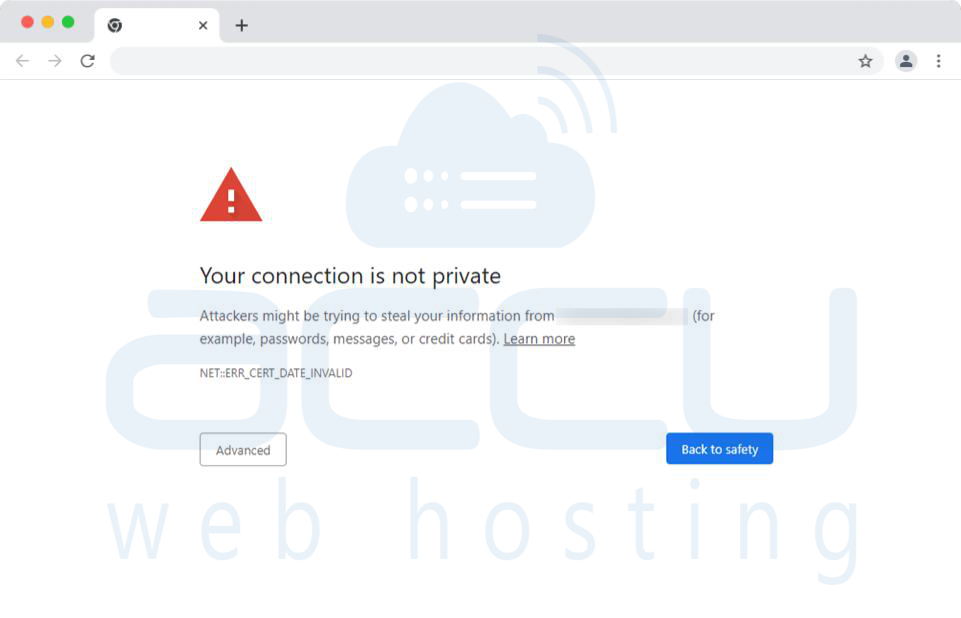
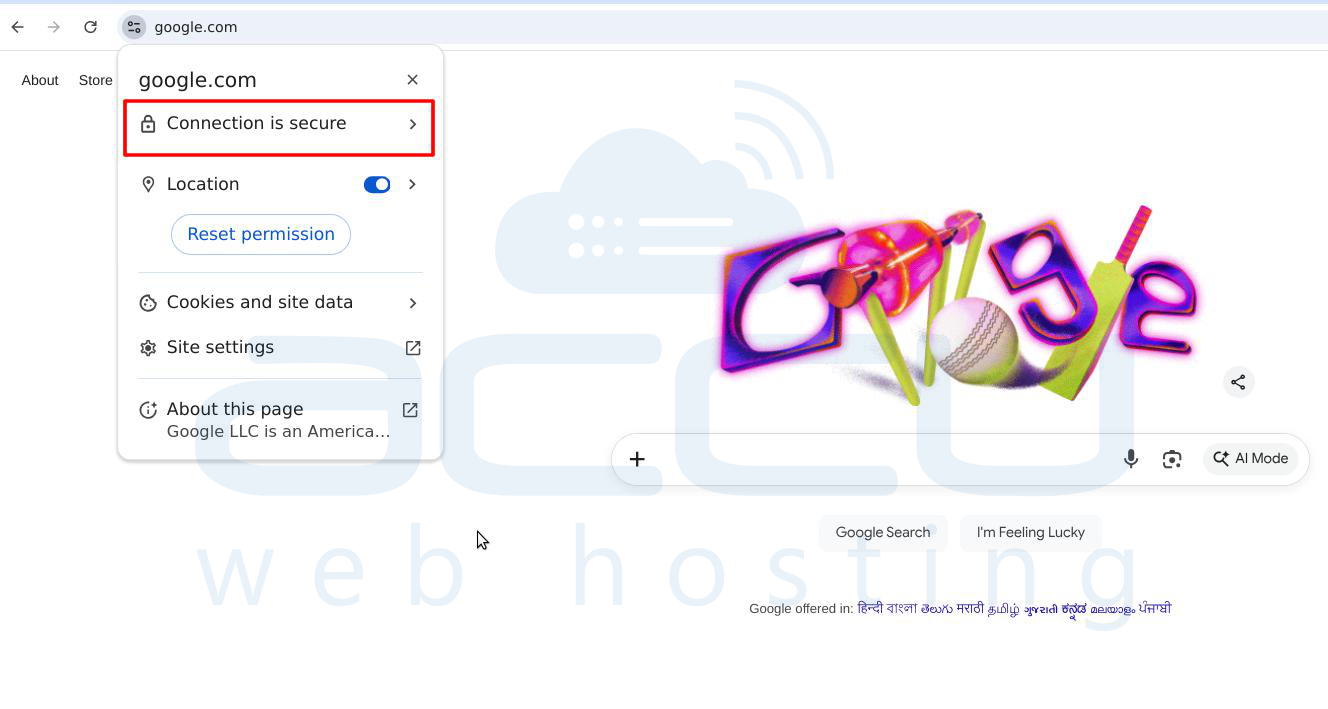
Browser scans also check if websites are using HTTPS (secure) connections. Websites that use HTTP (non-secure) connections can expose users to data theft and man-in-the-middle attacks. Browser scans ensure you’re only visiting sites that offer encrypted connections.
6. Privacy Protection:
Browser scans help detect and block tracking cookies and other privacy violations that can compromise a user’s personal data. They can help ensure that users are not being followed or profiled by third parties while browsing the web.
7. Blocking Dangerous Advertisements (Malvertising):
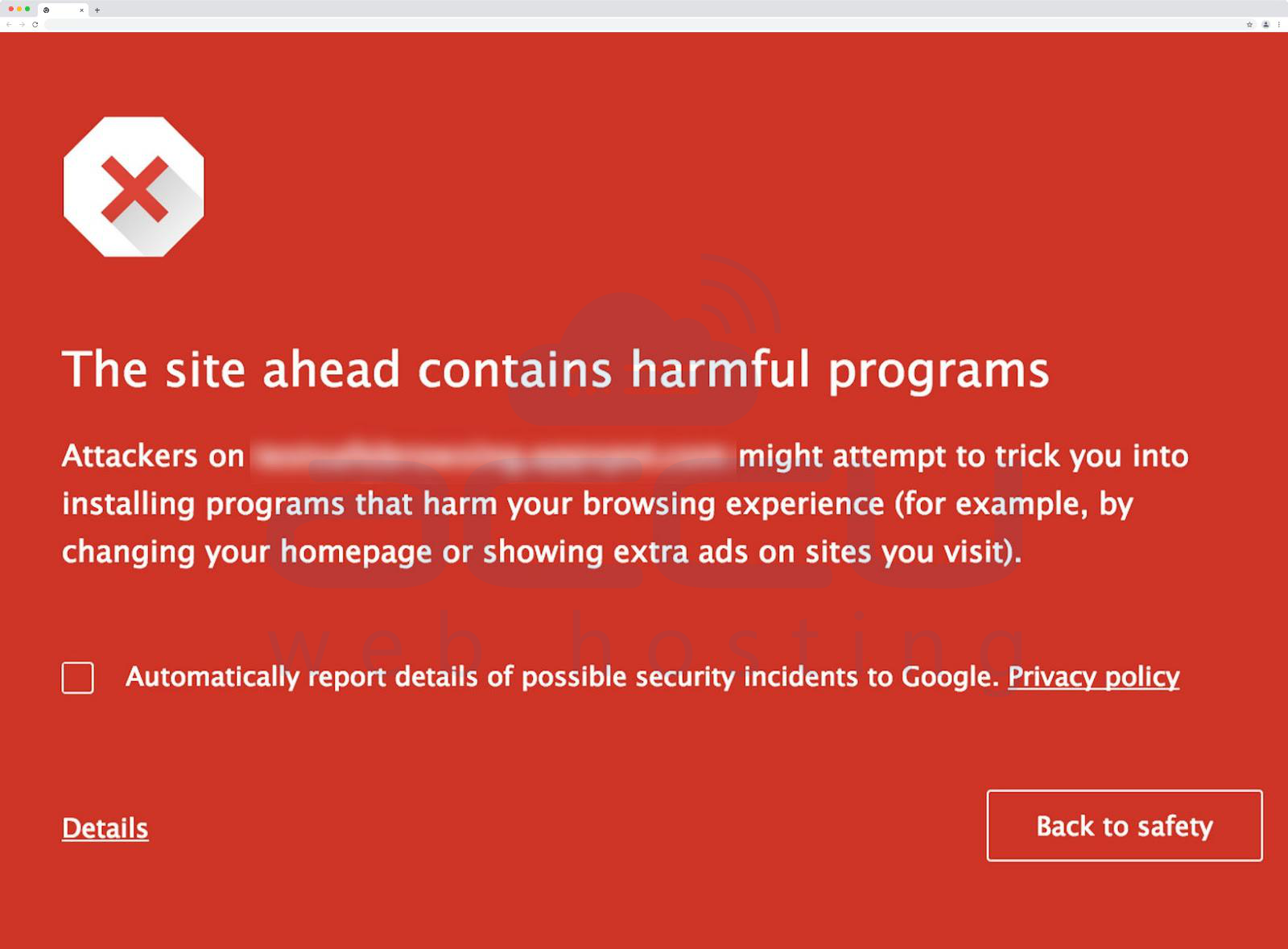
Malvertising involves the delivery of malicious software through online ads. A browser scan can identify and block harmful ads that might contain exploit kits, leading to malware infections when clicked.
8. Ensuring Compliance with Security Standards:
In a business or enterprise setting, browser scans ensure that employees are following the correct security practices, such as accessing only approved websites or using strong password protection. This helps mitigate the risk of data breaches and cyberattacks.
9. Automated Threat Detection:
A browser scan often provides real-time, automated detection of threats, which is especially important for preventing advanced persistent threats (APTs) and zero-day vulnerabilities that could otherwise go undetected until it’s too late.
Tools and Techniques for Browser Scanning
1. Browser Extensions:
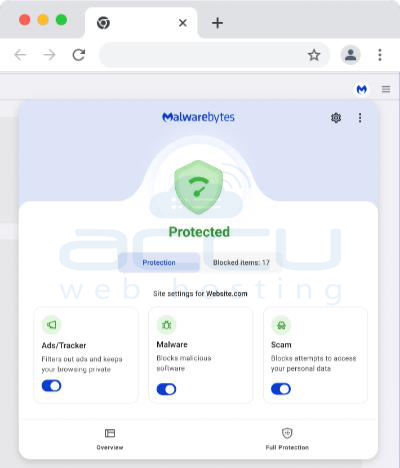
There are several browser extensions available, such as Web of Trust (WOT) or Malwarebytes Browser Guard, that scan web pages in real-time for potential threats, malware, and phishing attempts.
2. Anti-virus Software:
Many anti-virus programs have integrated browser scanning features that alert users when they are about to visit a harmful website.
3. Security Settings and Features in Browsers:
Modern browsers like Google Chrome, Mozilla Firefox, and Microsoft Edge have built-in security features, such as blocking malicious websites, preventing mixed content (HTTP and HTTPS), and warning against unsafe downloads.
4. Security Suites:
Security suites like Norton, Kaspersky, and Bitdefender offer comprehensive browser scanning as part of their overall cyber protection services. These can monitor browsing activity, block threats, and ensure safe web interactions.
Steps to enable browser security features
Enabling browser security features, such as malware and phishing protection, varies depending on the browser you're using. Below are the steps for Google Chrome, Mozilla Firefox, and Microsoft Edge to enable the built-in security features like phishing and malware protection, along with options for additional browser scanning through extensions.
1. Google Chrome
Google Chrome has built-in protection against phishing, malware, and unsafe websites. To enable or ensure it's active:
Enable Safe Browsing in Chrome:
1. Open Google Chrome.
2. In the top-right corner, click on the three-dot menu (More).
3. Go to Settings.
4. Scroll down and click on Privacy and security.
5. Select Security.
6. Under the Safe Browsing section, ensure that Enhanced protection is selected. This provides a higher level of protection by predicting and blocking dangerous events before they happen.
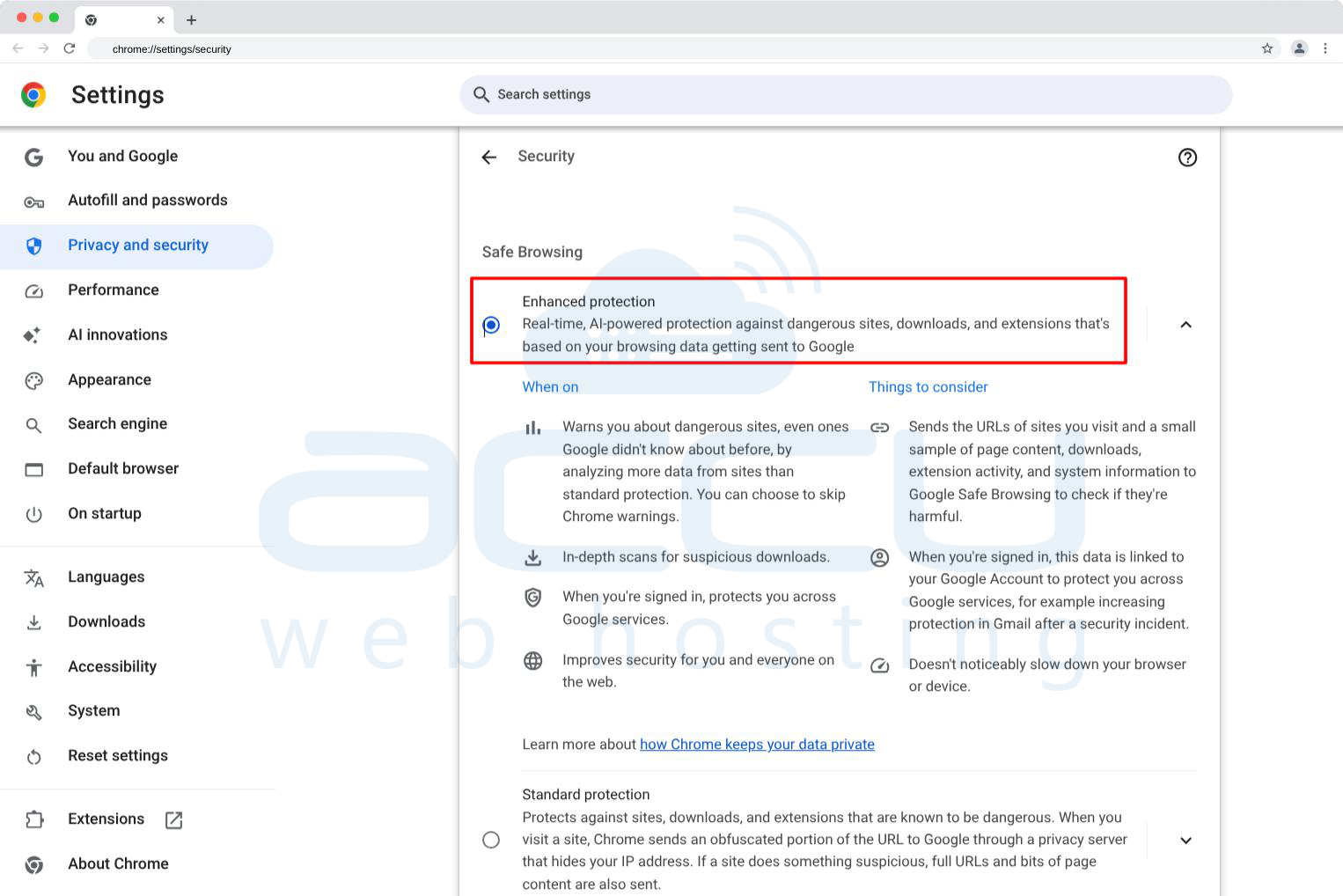
If Standard protection is selected, you will still have protection, but it is less proactive.

Enable Extensions for Extra Protection:
You can install security-focused extensions like Malwarebytes Browser Guard or Web of Trust (WOT) for additional malware, phishing, and scam protection.
1. Visit the Chrome Web Store.
2. Search for extensions like Malwarebytes Browser Guard or WOT.
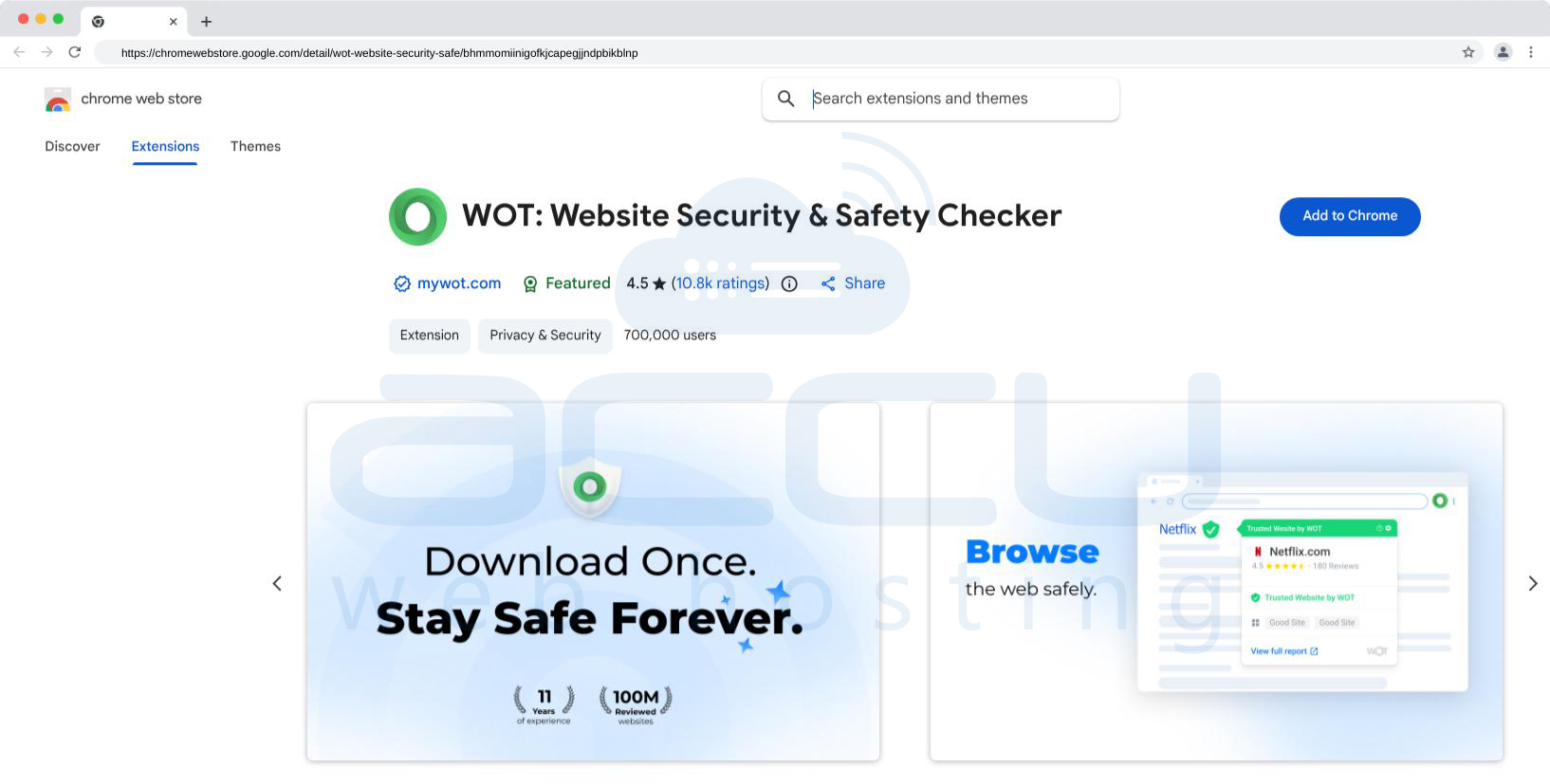
3. Click on Add to Chrome to install the extension.
4. Once installed, these extensions will provide real-time alerts and protection while browsing.
2. Mozilla Firefox
Firefox has built-in protection against phishing and malware, and it also offers options for further protection through extensions.
Enable Protection Against Phishing and Malware:
1. Open Mozilla Firefox.
2. In the top-right corner, click the three horizontal lines (menu) and select Settings.
3. Scroll down to the Privacy & Security section.
4. Under Enhanced Tracking Protection, choose Strict (or at least Standard). This helps prevent third-party tracking and some harmful scripts from loading.

5. Scroll down to Security.
6. Ensure that Block dangerous and deceptive content is checked. This will enable phishing and malware protection in Firefox.

Enable Malware and Phishing Protection (DNS over HTTPS):
1. In the Privacy & Security settings, scroll down to Network Settings.
2. Click on Settings next to Enable DNS over HTTPS.
3. Check the box for Enable DNS over HTTPS (DOH), and select a trusted provider, such as Cloudflare or NextDNS.
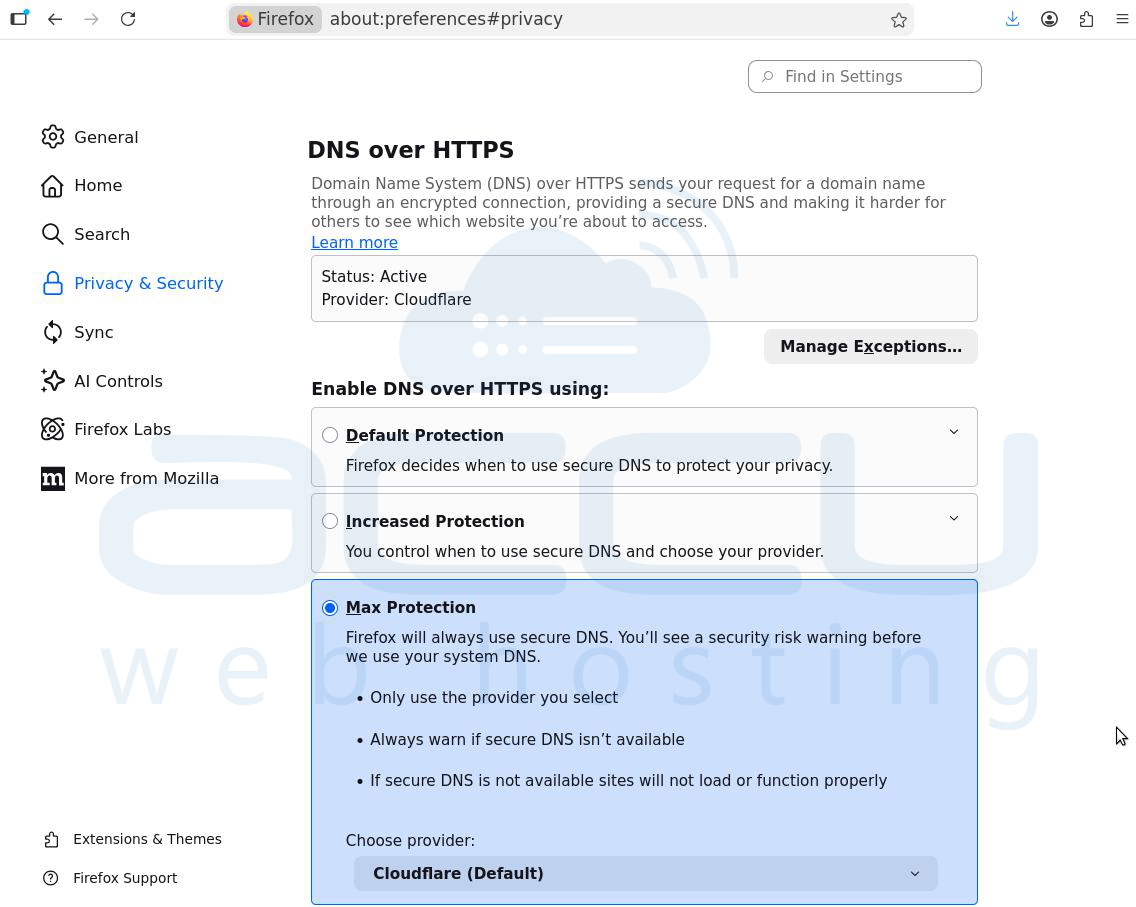
4. This will ensure that your DNS queries are encrypted, adding an extra layer of security when browsing.
Install Extensions for Extra Protection:
1. Visit the Firefox Add-ons website.
2. Search for security-focused extensions like Malwarebytes Browser Guard or WOT.
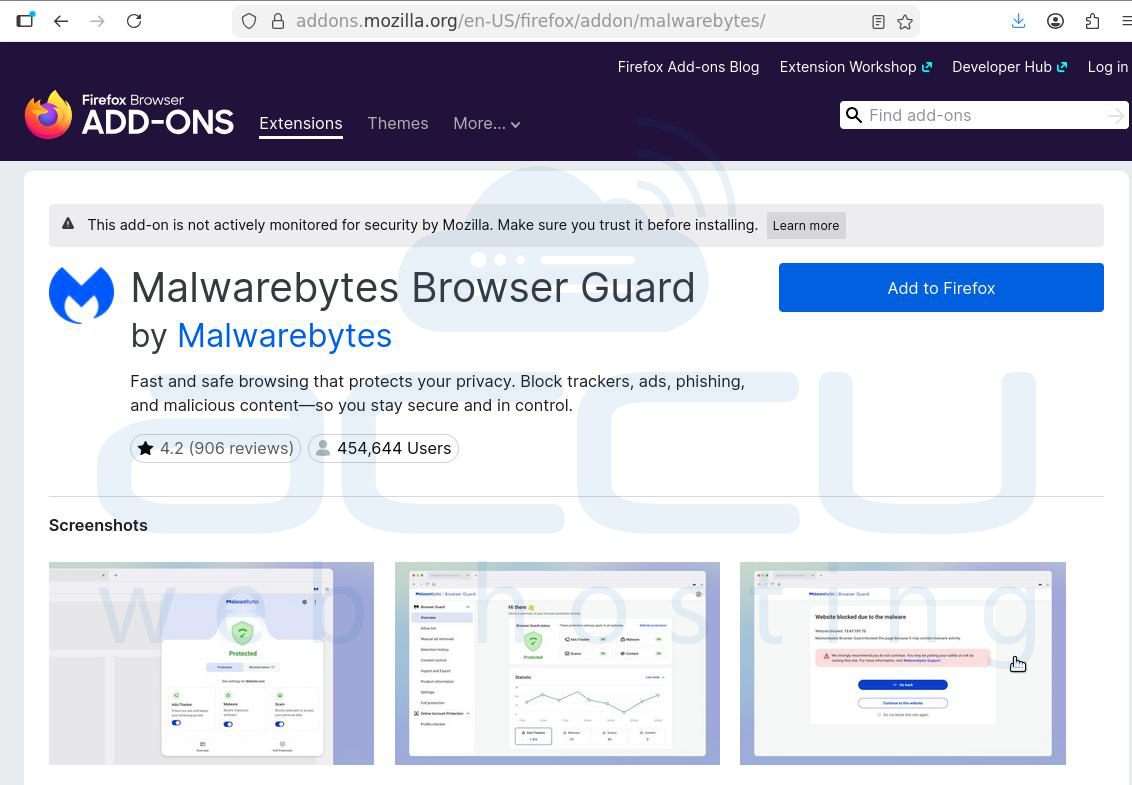
3. Click Add to Firefox to install the extension.
4. Once installed, these will provide additional alerts and protection against unsafe sites.
3. Microsoft Edge
Microsoft Edge, like Chrome, has built-in security features powered by Microsoft Defender SmartScreen to protect against phishing, malware, and unsafe sites.
Enable SmartScreen Protection:
1. Open Microsoft Edge.
2. Click on the three-dot menu in the top-right corner and select Settings.
3. Scroll down and click on Privacy, search, and services.
4. Under Security, make sure that Microsoft Defender SmartScreen is turned on.

This will block dangerous websites, downloads, and prevent phishing attempts.
Enable Additional Protection:
Still under Privacy, search, and services, scroll down to Security and enable Enhanced security (if available in your version). This option provides more aggressive phishing and malware protection.
Install Extensions for Extra Protection:
1. Open the Microsoft Edge Add-ons Store.
2. Search for Malwarebytes Browser Guard or WOT.

3. Click Get to install the extension.
4. These extensions will offer additional protection, including real-time scanning of websites for threats.
Conclusion
Browser scans play a critical role in cybersecurity by safeguarding users against a wide range of online threats, such as malware, phishing attacks, data breaches, and privacy violations. All modern browsers come with some built-in security features for protecting you from phishing, malware, and unsafe websites. In addition to built-in features, using browser extensions like Malwarebytes, WOT, or Adblock can add an extra layer of protection. Always make sure your browser and extensions are up-to-date to keep security features functioning properly.
