
Introduction
Hosting a primary domain from a subfolder in a Linux environment can seem counter-intuitive at first. Typically, a primary domain points directly to the public_html or www directory. However, there are various scenarios where you might want your main website to serve content from a subdirectory – perhaps you're managing multiple sites under one cPanel account, experimenting with a new version, or simply prefer a more organized file structure. This article will explore several effective methods to achieve this, making your primary domain display content from a subfolder while maintaining a clean URL.
Method 1: Using .htaccess (Recommended for Shared Hosting)
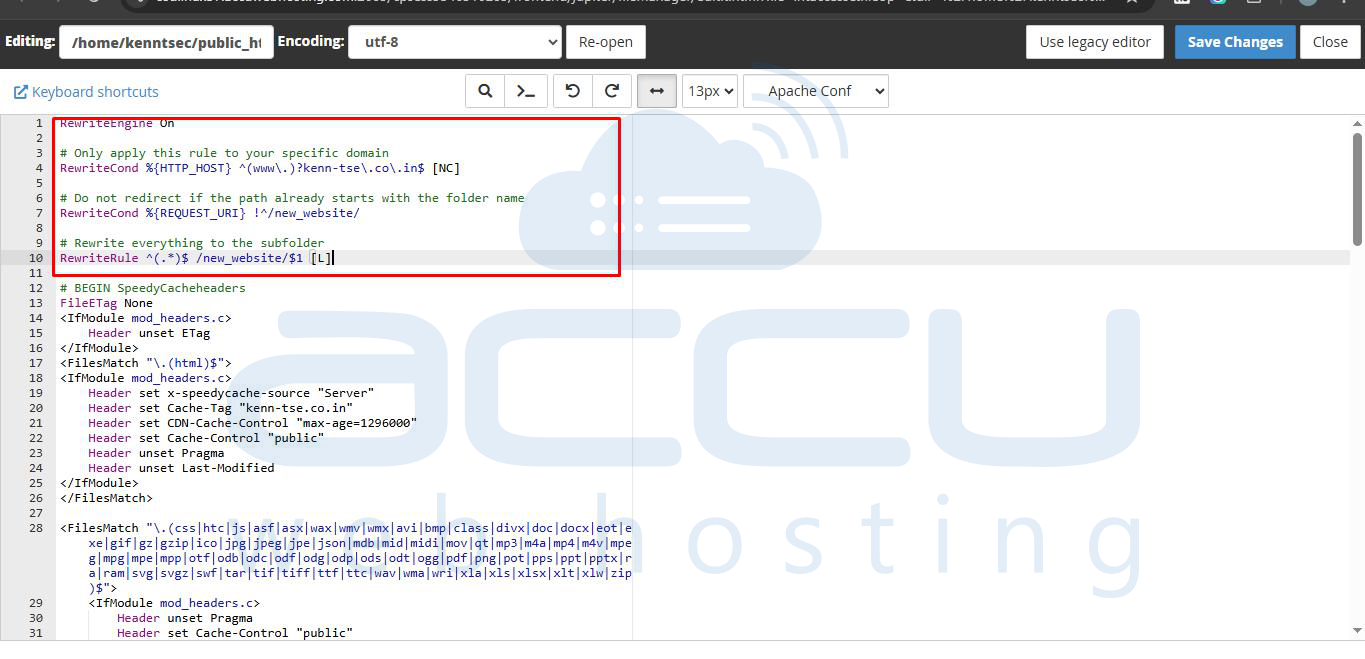
The .htaccess file is a powerful configuration file for Apache web servers. This is the simplest method for users on shared hosting who cannot change global server settings.
Steps:
1. Create your subfolder: For example, create a directory named public_html/mywebsite.
2. Place your website files inside public_html/mywebsite.
3. Create or edit the .htaccess file in your public_html directory (the root).
The Code:
Apache
# .htaccess in public_html
RewriteEngine On
# 1. Target the specific domain
RewriteCond %{HTTP_HOST} ^(www\.)?yourdomain\.com$ [NC]
# 2. Check if the request isn't already targeting the subfolder
RewriteCond %{REQUEST_URI} !^/mywebsitefolder
# 3. Rewrite the request to the subfolder internally
RewriteRule ^(.*)$ /mywebsitefolder/$1 [L]
Explanation of the .htaccess rules:
- RewriteEngine On: Activates the Apache rewrite module.
- RewriteCond %{HTTP_HOST}...: Ensures this rule only triggers for yourdomain.com. (Replace with your actual domain).
- RewriteCond %{REQUEST_URI} !^/mywebsite/: A safety condition. It says, "If the user isn't already looking at the subfolder, proceed." This prevents an infinite loop.
- RewriteRule ^(.*)$ /mywebsitefolder/$1 [L]: This is the "mask." It maps yourdomain.com/page to yourdomain.com/mywebsite/page behind the scenes. The visitor never sees the /mywebsite/ part in their browser address bar.
Pros: No root server access required; works on almost all Linux shared hosting.
Cons: Can be slightly slower than direct server configuration; requires careful syntax to avoid 500 Internal Server errors.
Method 2: Symbolic Link (Symlink)
A symbolic link (symlink) is a special type of file that points to another file or directory. It's essentially a shortcut that the operating system treats as if it were the actual file or directory it points to. This method is elegant and efficient.
How it Works: You create a symlink in your public_html directory that points to your actual website's subfolder. When the web server looks for content in public_html, it follows the symlink to the subfolder.
Steps:
1. Create your subfolder: For example, /home/yourusername/public_html/actual_site_content.
2. Place your website files inside /home/yourusername/public_html/actual_site_content.
3. Delete the default public_html directory (if it's empty or contains only default files you don't need). Be very careful with this step!
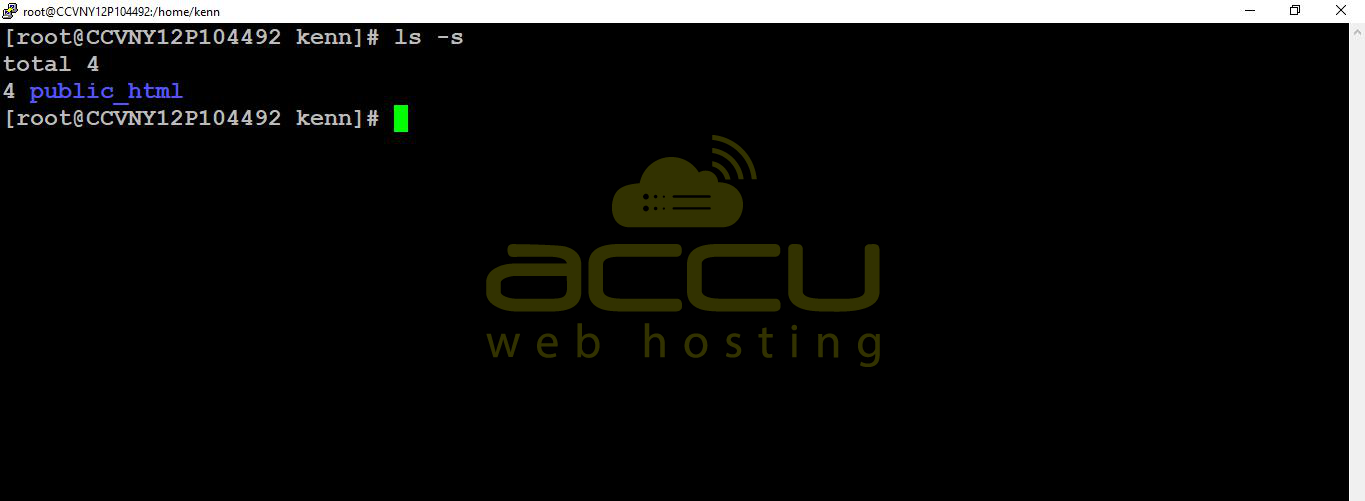
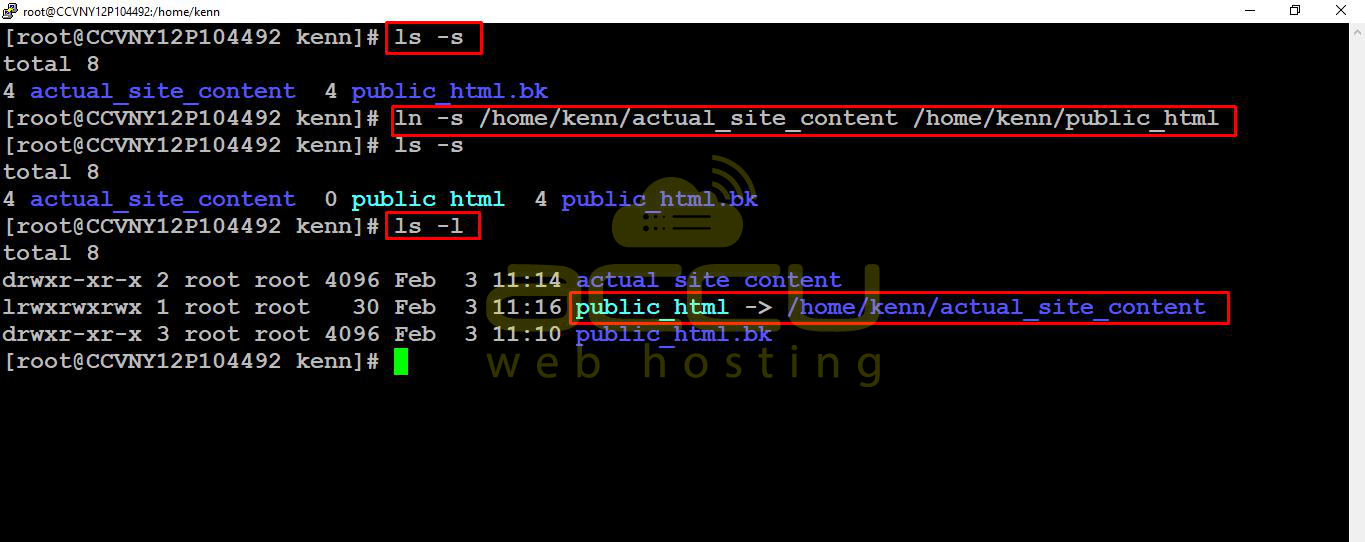
4. Create the symlink: You'll typically need SSH access for this. inside /home/yourusername/public_html/actual_site_content.
ln -s public_html/actual_site_content public_html
Explanation of the Symlink command:
- ln -s: This is the command to create a symbolic link.
- public_html/actual_site_content: This is the target (where the link points to).
- public_html: This is the link name (the name of the shortcut).
Important Considerations for Symlinks:
- FollowSymLinks: Your Apache configuration must have Options +FollowSymLinks enabled for the public_html directory. This is usually the default but can be an issue on some shared hosts.
- Security: Some shared hosting providers disable FollowSymLinks for security reasons to prevent users from linking to sensitive areas outside their home directory. You might need to contact your host to enable it.
Pros: Very efficient, server treats it as a direct directory, clean solution.
Cons: Requires SSH access, potential security restrictions on shared hosting.

Method 3: Virtual Host Configuration (For VPS/Dedicated Servers)
If you have a Virtual Private Server (VPS) or a dedicated server, you have full control over your Apache (or Nginx) configuration files. This is the most robust and performant method.
How it Works: You directly tell your web server that for yourdomain.com, the DocumentRoot (the directory from which files are served) is your chosen subfolder.
Steps (Apache Example):
1. Create your subfolder: For example, /var/www/yourdomain.com/public_html.
2. Place your website files inside /var/www/yourdomain.com/public_html.
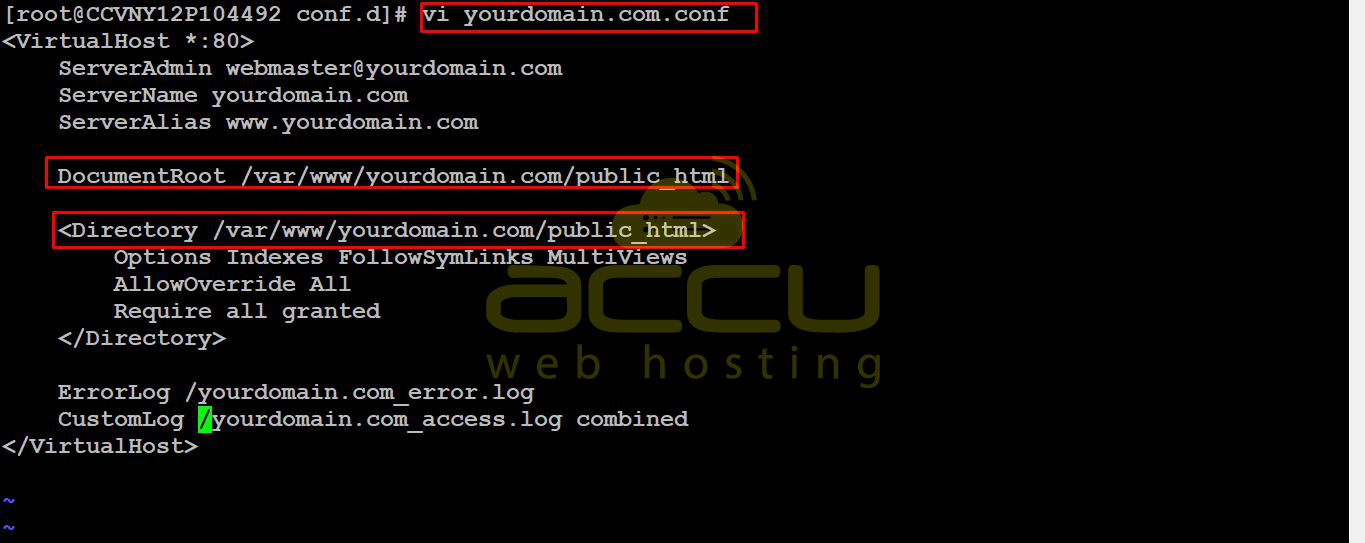
Create or edit your virtual host configuration file. This is typically found in /etc/apache2/sites-available/ (Debian/Ubuntu) or /etc/httpd/conf.d/ (CentOS/RHEL). Let's assume yourdomain.com.conf.
<VirtualHost *:80>
ServerAdmin [email protected]
ServerName yourdomain.com
ServerAlias www.yourdomain.com
DocumentRoot /var/www/yourdomain.com/public_html
<Directory /var/www/yourdomain.com/public_html>
Options Indexes FollowSymLinks MultiViews
AllowOverride All
Require all granted
</Directory>
ErrorLog ${APACHE_LOG_DIR}/yourdomain.com_error.log
CustomLog ${APACHE_LOG_DIR}/yourdomain.com_access.log combined
</VirtualHost>
Enable the virtual host (on Debian/Ubuntu):sudo a2ensite yourdomain.com.conf
sudo systemctl reload apache2
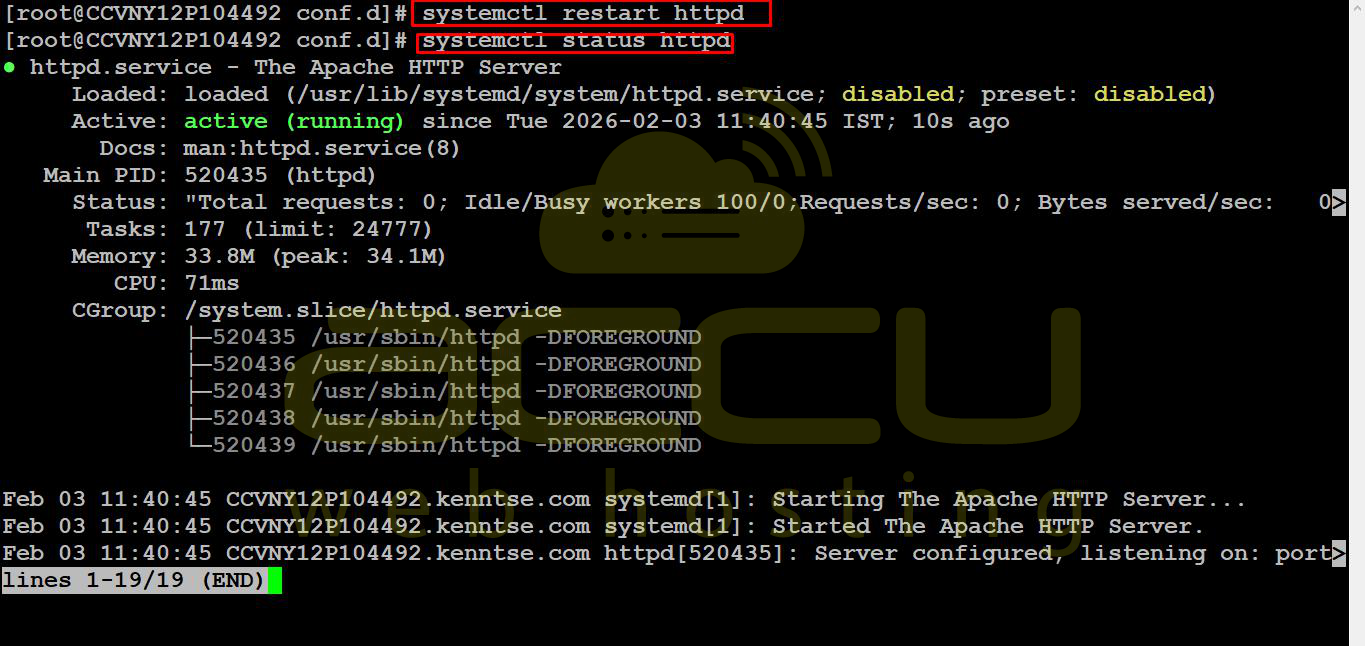
(On CentOS/RHEL, simply ensure the .conf file is in the correct directory and restart Apache: sudo systemctl restart httpd)
Explanation of Virtual Host directives:
- ServerName: Specifies the primary domain name.
- DocumentRoot: This is the crucial directive that points to your subfolder.
- <Directory>: Sets specific configurations for that directory, like allowing .htaccess (AllowOverride All) and enabling symlinks (FollowSymLinks).
Pros: Best performance, complete control, clear separation of websites.
Cons: Requires root/sudo access and knowledge of server configuration.
Conclusion
Hosting a primary domain from a subfolder in Linux hosting is a versatile solution for better organization, version control, or managing multiple sites under a single account. The method you choose will largely depend on your hosting environment and level of access. For shared hosting, the .htaccess method is generally the most accessible. If you have SSH access and your host permits it, symbolic links offer a clean and efficient alternative. Finally, for those with VPS or dedicated servers, direct virtual host configuration provides the ultimate control and performance. By following these guidelines, you can effectively configure your Linux hosting to serve your main website from a subfolder without compromising user experience or URL structure.


