
How to monitor incoming spam through our MagicSpam feature?
MagicSpam is a server-level spam filtering software designed to work at the SMTP transaction layer for incoming mail. Instead of filtering emails after they are received, MagicSpam blocks unwanted mail during the mail delivery process, saving server resources and protecting end users proactively. We have installed MagicSpam in our Linux Shared hosting servers.
Key features include:
-
Lightweight integration with WHM/cPanel
-
SMTP-level spam prevention
-
Real-time Blackhole List (RBL) support
-
Logging and analytics
-
Quarantine and spam score visibility
Steps to monitor incoming spam through our MagicSpam feature from WHM
To track incoming spam using MagicSpam on a Linux shared hosting server with WHM and cPanel, follow these steps:
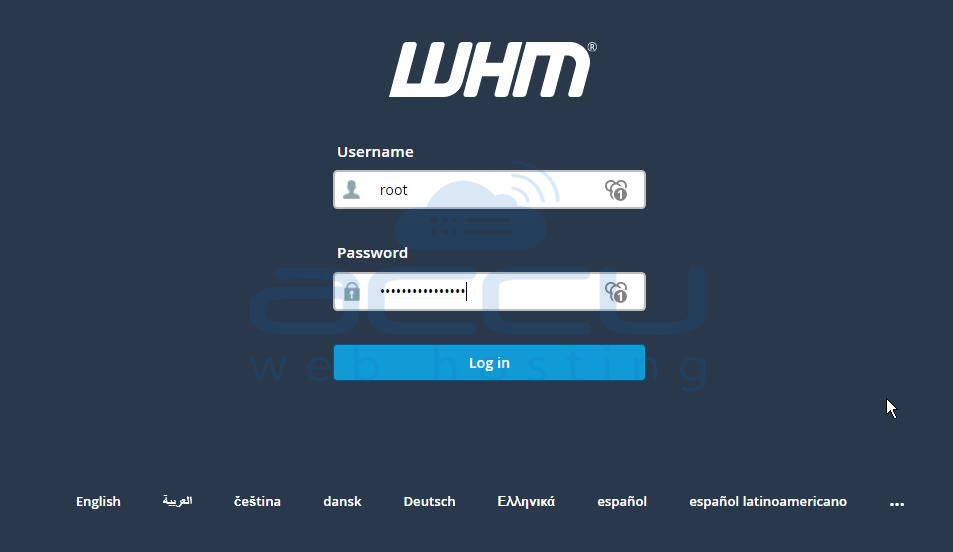
Step 1: Login to WHM as the root user (https://your-server-ip:2087).
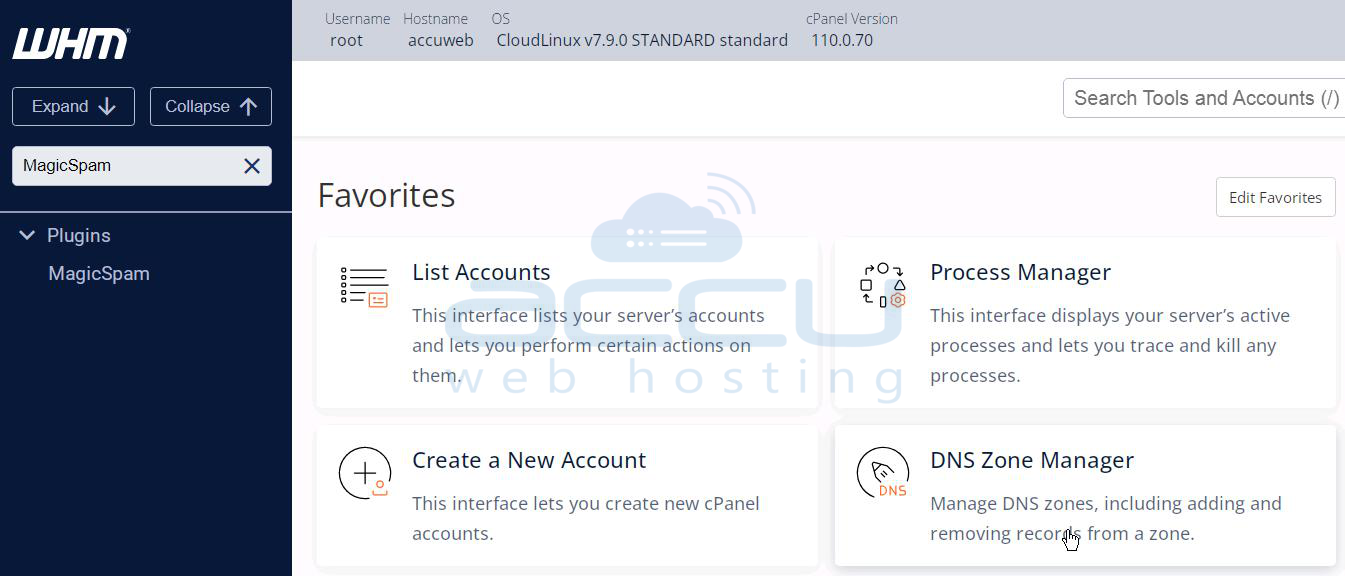
Step 2: In the WHM search bar, type "MagicSpam".
Step 3: Click on MagicSpam under the Plugins section.
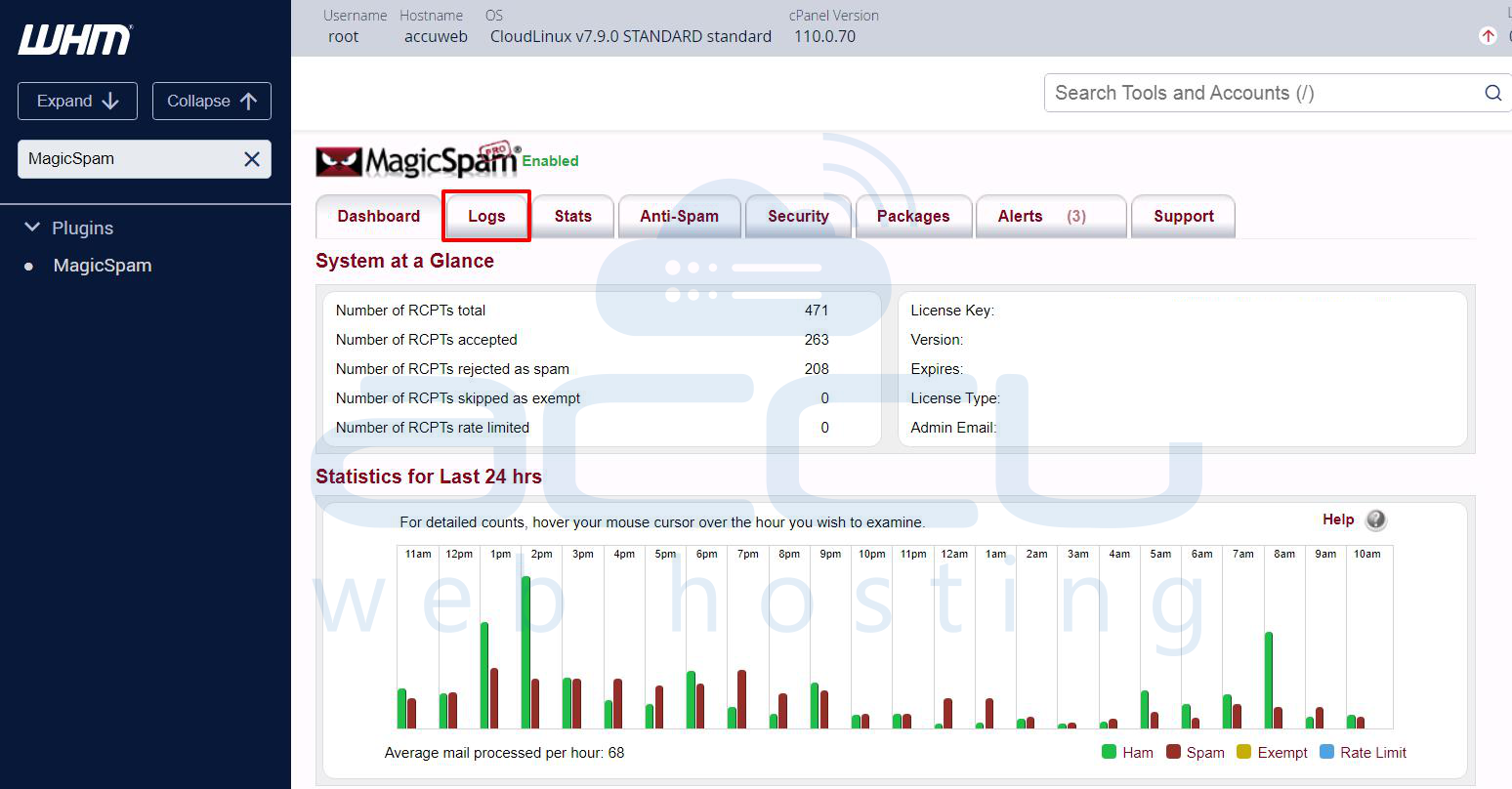
Step 4: Once inside the MagicSpam interface, go to Logs -> Log Search.
Step 5: Here, you can filter and view incoming and outgoing email logs, including spam rejections.
Field Explanations:
-
Session UUID: Unique ID for the entire email session.
-
Transaction UUID: Unique ID for one specific email transaction.
-
Helo: The domain name provided during the SMTP HELO/EHLO command. Example: mail.example.com
-
Sender: The email address of the sender. Example: [email protected]
-
Recipient: The email address that received the email. Example: [email protected]
-
Auth User: The authenticated email user who sent the message.
-
IP Address: IP address of the machine that sent the email.
-
Port: Port used for sending the email (defaults to all if not specified). Common ports: 25, 465, 587.
-
Hostname: The domain name that resolves to the IP address.
-
Country: Country of origin for the IP address (selectable).
-
Subject: Subject line of the email.
-
From Header: Email address shown in the "From" field of the message.
-
Date Range: Specify the time window for the search (from/to dates).
-
Filter by: Choose a category to filter by.
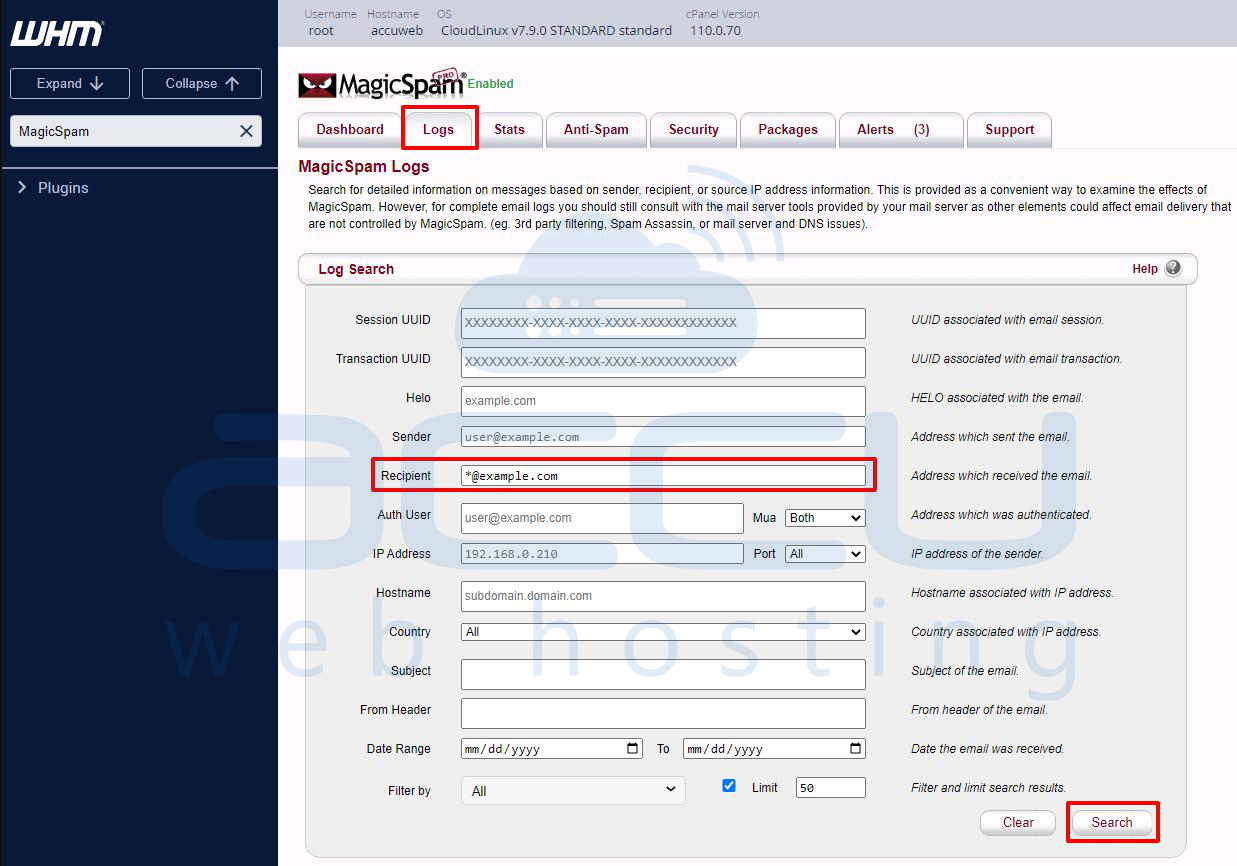
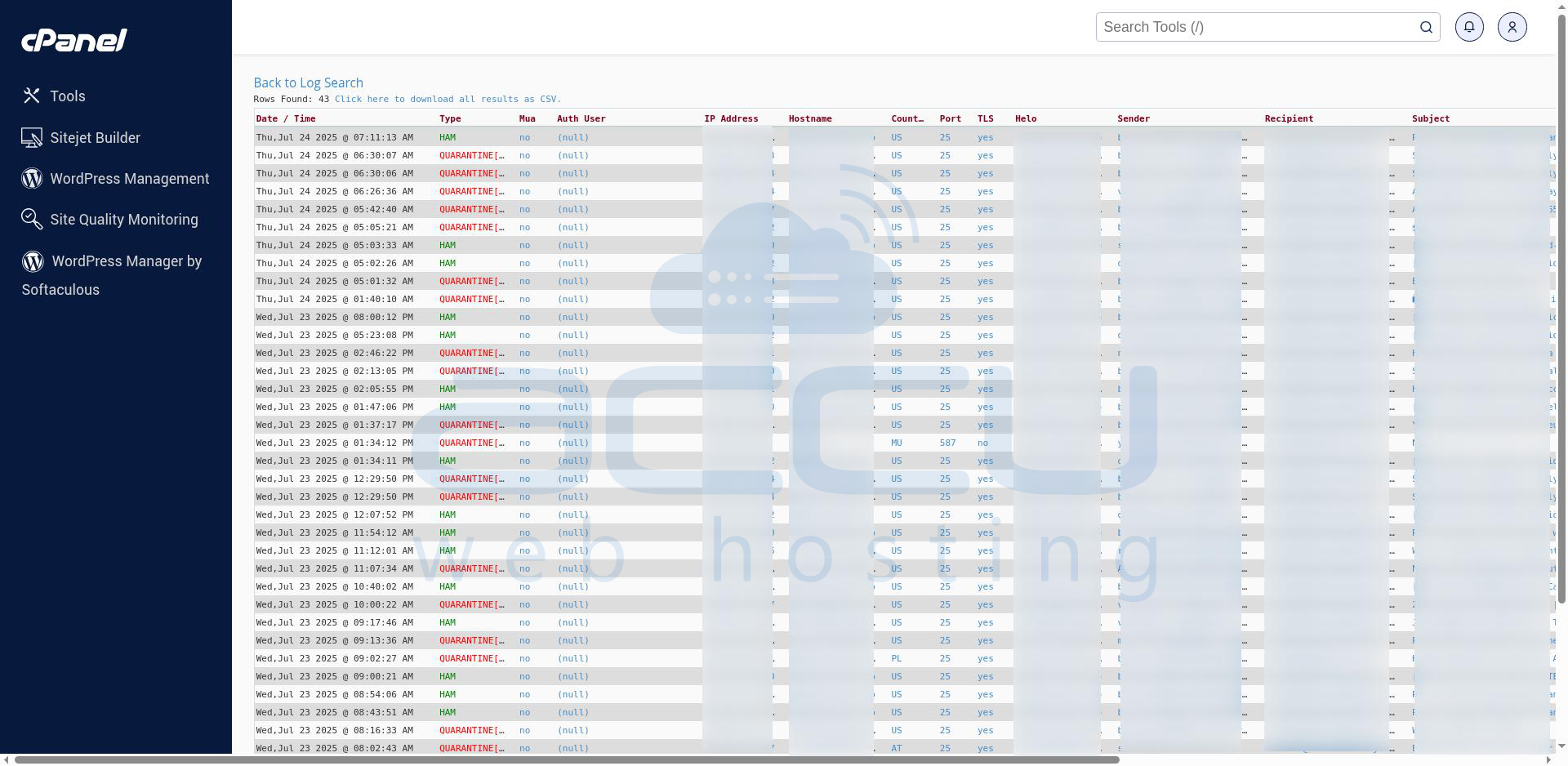
Step 6: Click on the Search button. You will be redirected to a new window and shown logs.
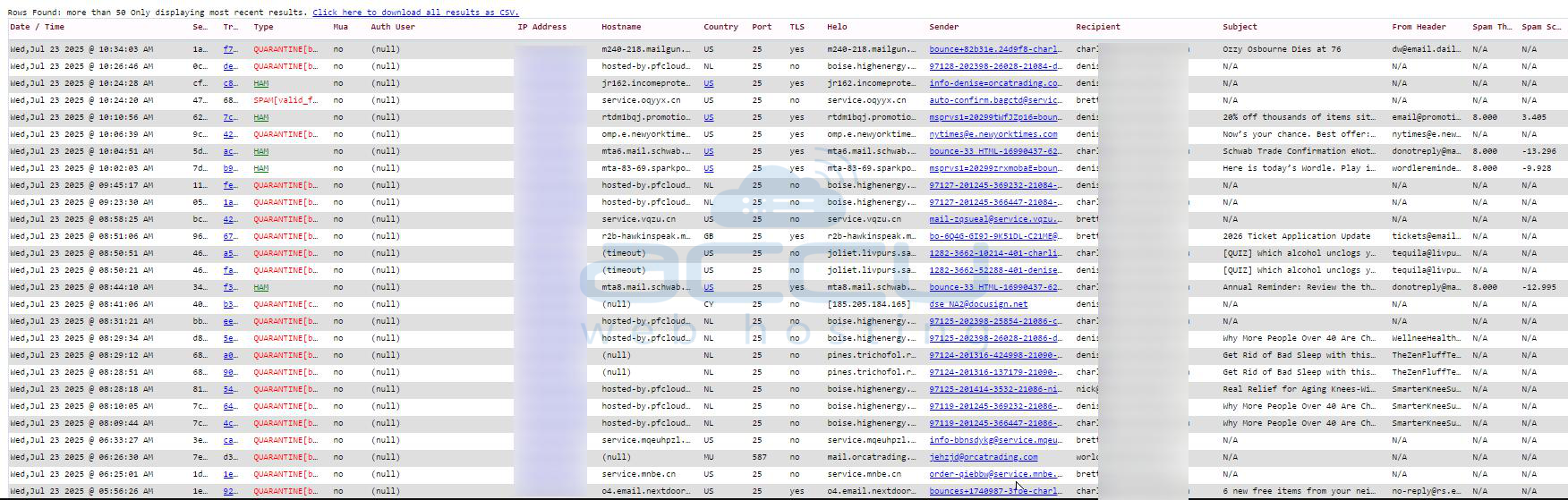
Step 7: Now, analyze the results. You'll see a list of messages that were quarantined, spam, or ham.
MagicSpam Email Types
|
Label |
Meaning |
Details |
|
QUARANTINE |
The email was identified as spam and quarantined by MagicSpam. |
It was not delivered to the recipient’s inbox. You can review or release it manually. |
|
HAM |
The email was identified as legitimate (not spam) and allowed. |
It passed spam checks and was delivered. |
|
SPAM |
The email was marked as spam (but not always quarantined). |
This may depend on server policy; some SPAM-labeled mail might be delivered with a tag. |
Steps to monitor incoming spam through our MagicSpam feature from cPanel
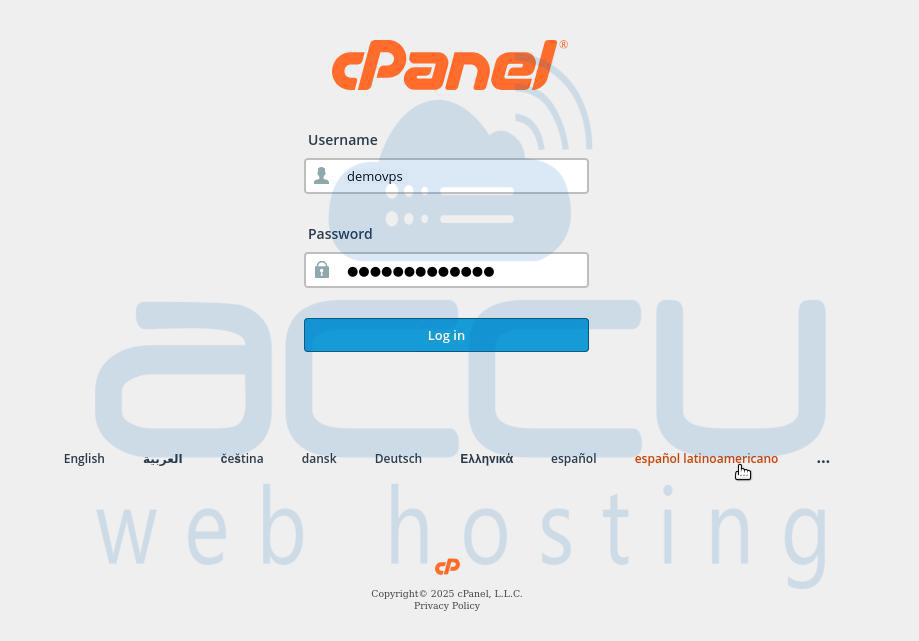
Step 1: Log in to cPanel. Enter your username and password to log in.
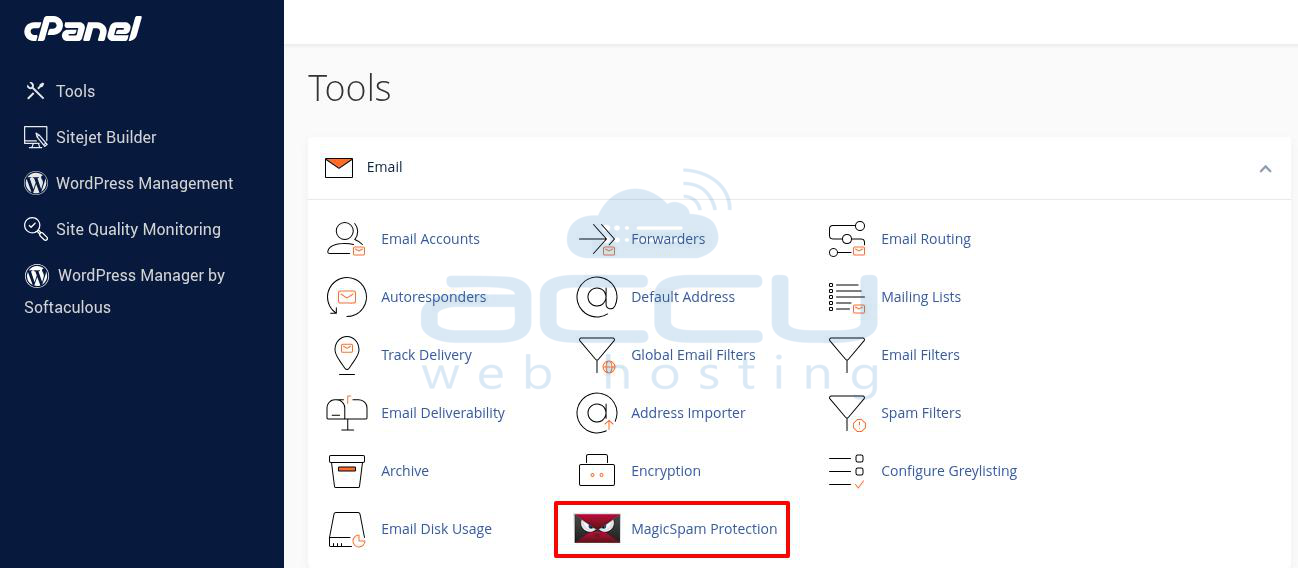
Step 2: Access the MagicSpam Interface from Email section. Click on the MagicSpam Protection icon. Depending on your server configuration, it may simply be labeled "MagicSpam."
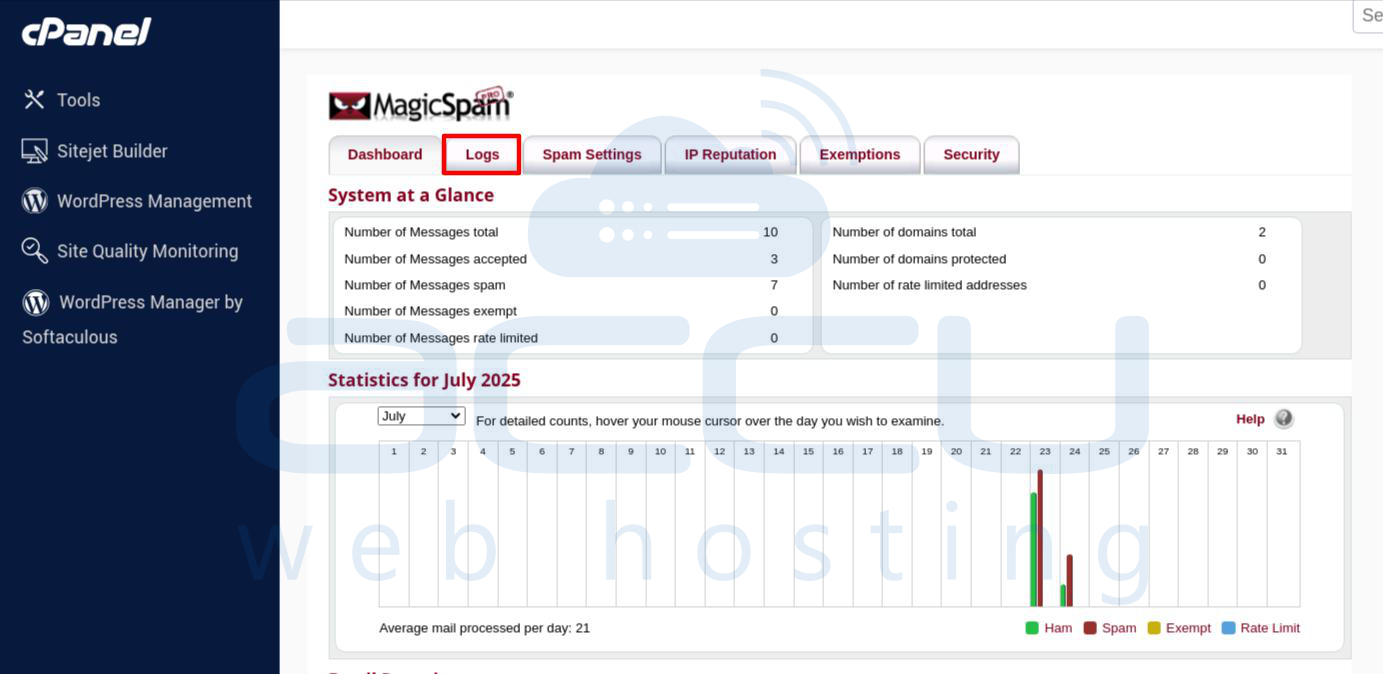
Step 3: Inside the MagicSpam dashboard, locate and click on the Logs tab.
Step 4: Here, you can filter and view incoming and outgoing email logs, including spam rejections. Enter the data that you have to filter logs.
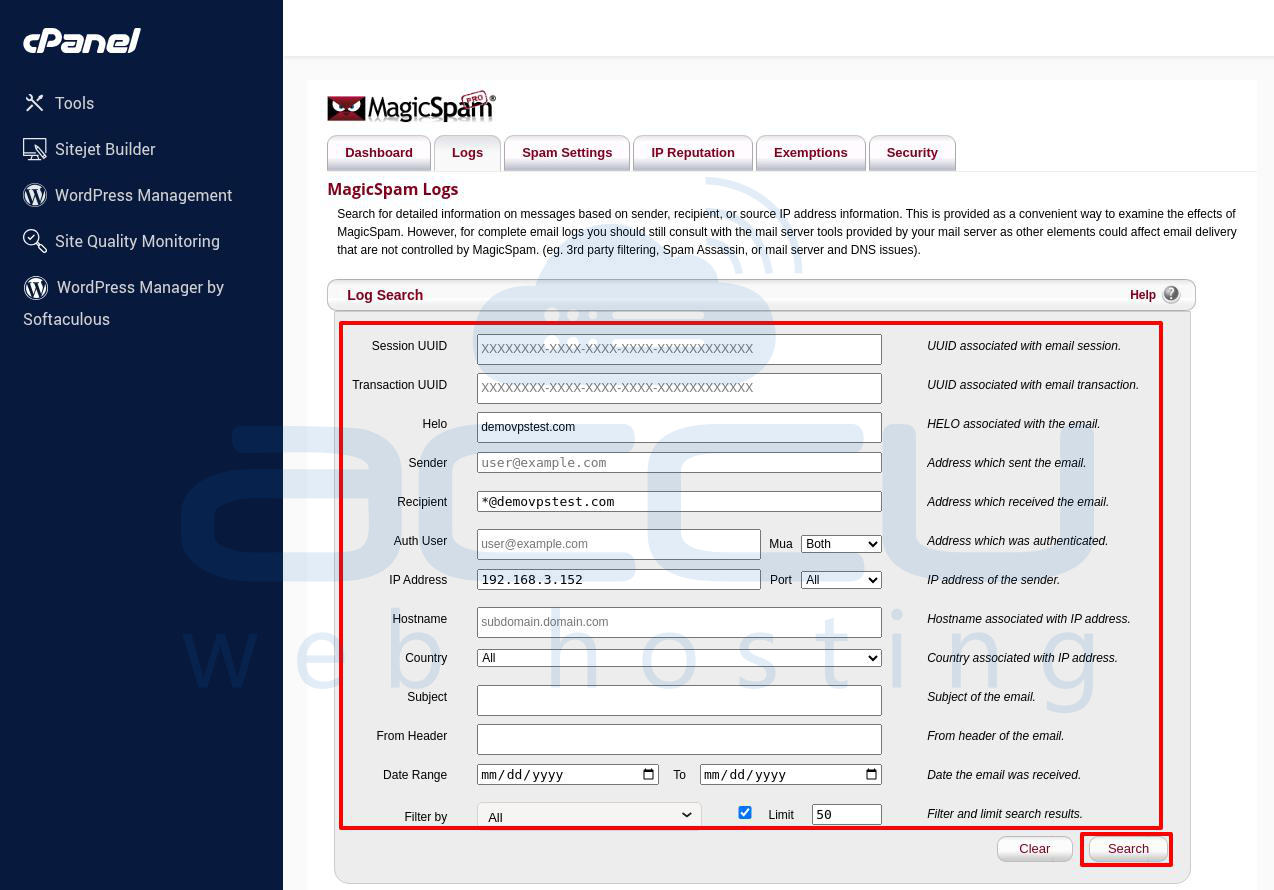
Step 5: Click on the Search button. You will be redirected to new window and show records.
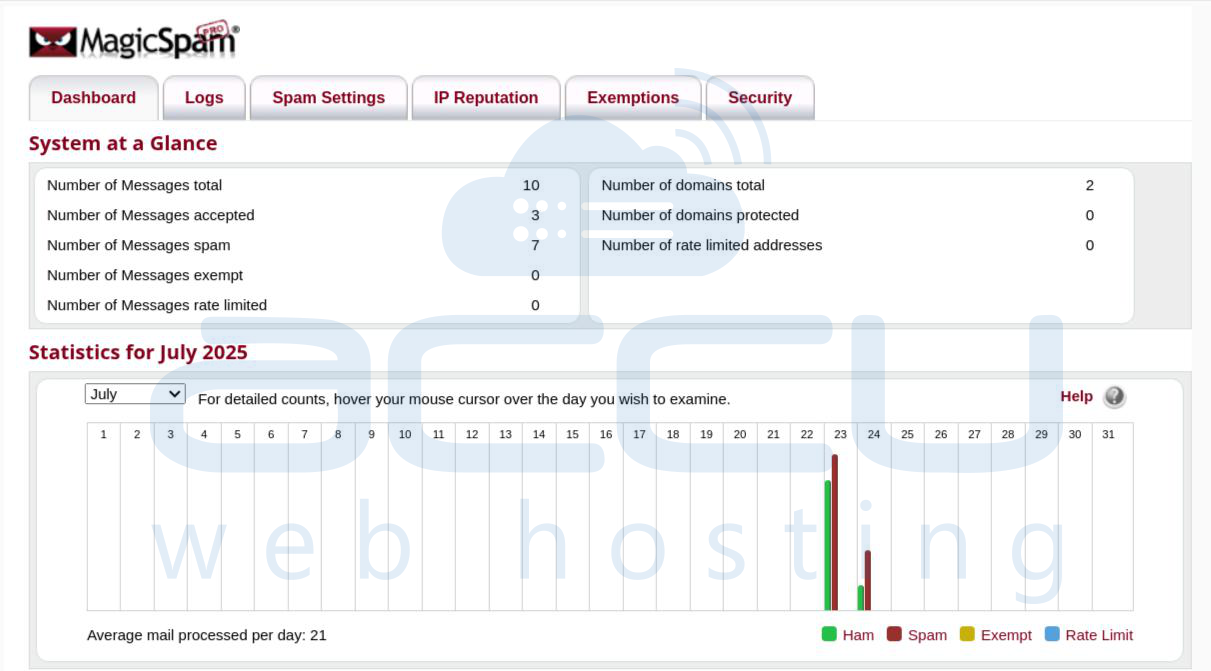
MagicSpam includes a Dashboard section. View overall statistics of total blocked, accepted, and flagged messages. It is useful for high-level analysis of spam trends over time.
Conclusion
Monitoring incoming spam through the MagicSpam feature in WHM and cPanel is an essential part of maintaining email security and server efficiency. MagicSpam operates at the SMTP level, blocking spam before it reaches users' inboxes, which not only enhances security but also conserves server resources. By following the detailed steps outlined above, whether through WHM or directly via cPanel, you can: View and analyze incoming and outgoing email traffic, Identify patterns in spam attacks, Understand why specific messages were blocked or accepted, Take corrective actions like whitelisting or adjusting filtering policies.
MagicSpam’s simple interface, real-time filtering, and robust logging capabilities make it a powerful tool to manage email security on Linux shared hosting environments.


