
MagicSpam is a powerful anti-spam plugin used with various control panels, including cPanel, to help reduce spam at the SMTP level. It offers domain-level control, allowing users or administrators to enable or disable its protection for specific domains hosted on the server. MagicSpam is included as a feature with AccuWeb Hosting's Linux Shared Hosting plans. If you're managing a website through cPanel and you want to enable or disable MagicSpam for a particular domain, follow this guide.
Steps to enable or disable a Domain in MagicSpam
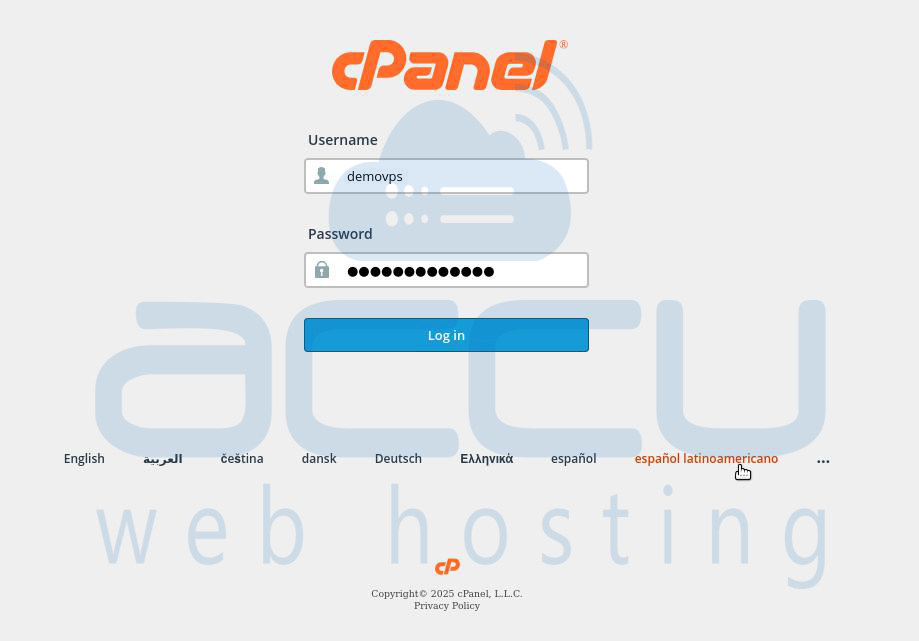
Step 1: Log in to cPanel. Log in using your cPanel username and password.
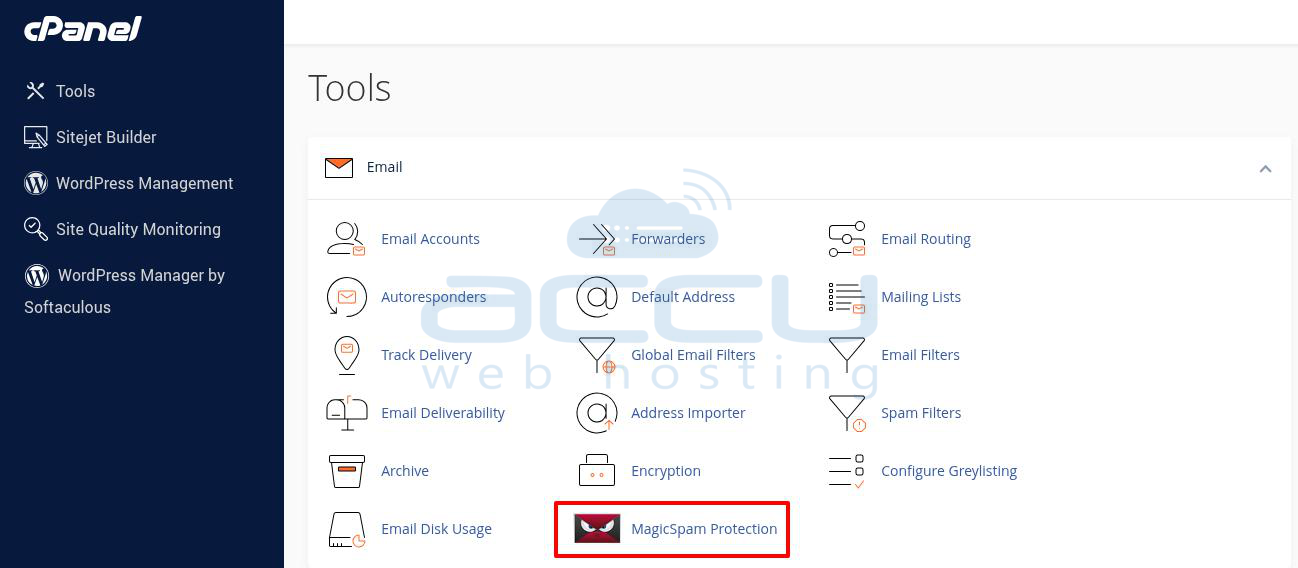
Step 2: Locate MagicSpam in cPanel under the Email Section.
Step 3: Click on the MagicSpam Protection icon to open the interface.
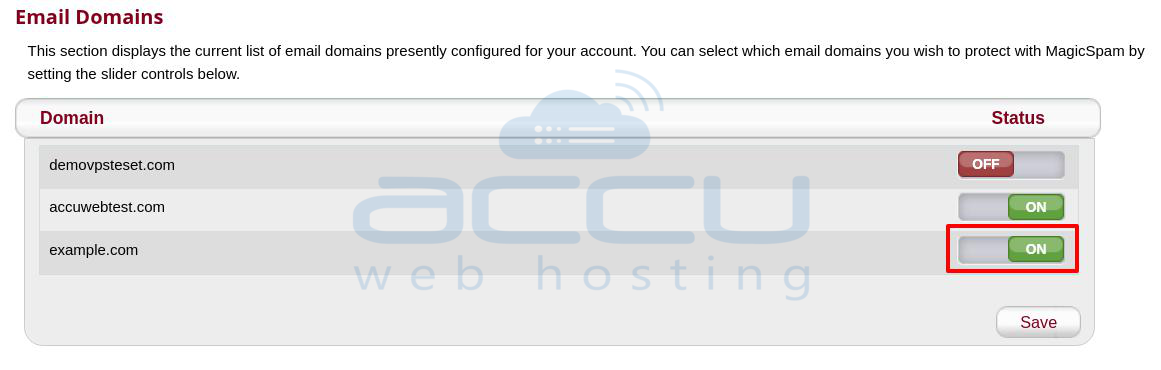
Step 4: In the MagicSpam interface, look for Email Domains. You’ll see a list of domains hosted on the server.
Each domain will have a toggle switch under the Status column. The toggle indicates whether MagicSpam is currently ON (enabled) or OFF (disabled).
Step 5: To control MagicSpam for a domain, locate the domain in the list (e.g., example.com).
Click the toggle to change the setting:
Green and ON = MagicSpam is enabled for that domain.
Red and OFF = MagicSpam is disabled for that domain.
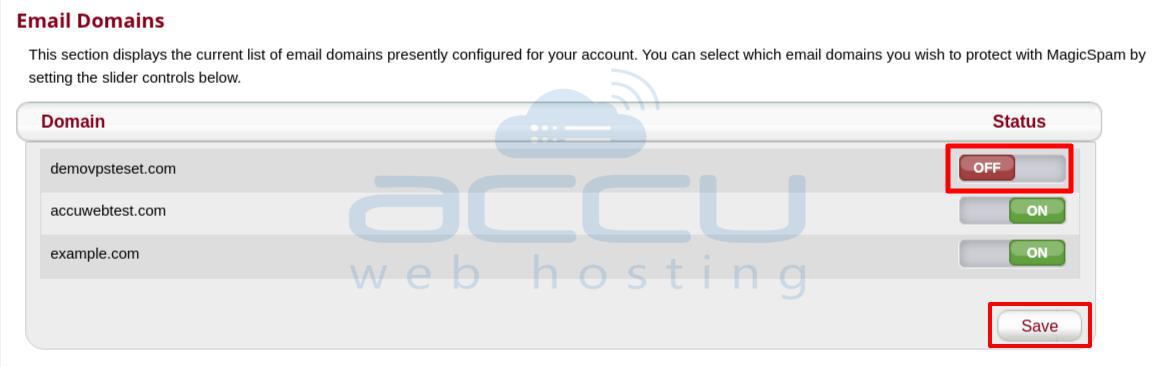
You can change multiple domains at once.
Step 6: After making your selections, scroll down and click the Save button. You receive a confirmation message stating the changes were successfully saved.
Only disable MagicSpam for a domain if you are troubleshooting or using an alternative spam filtering system. Keep MagicSpam enabled for most domains to protect your account from spam and unwanted email threats.
Conclusion
Enabling or disabling a domain in MagicSpam via cPanel is handled within the cPanel user interface. By following the steps outlined above, you can easily control which domains on your server use MagicSpam protection. Always use this capability responsibly, as disabling spam protection can increase vulnerability to spam and email-based attacks.


