
Is your WordPress site filled with strange links you never added? You might be dealing with spam link injection, a common hack that can hurt your SEO and damage your site’s reputation.
In this guide, we’ll show you how to find and remove spam links from your WordPress site, step by step—no technical skills needed.
What is Spam Link Injection?
Spam link injection is a type of hack where attackers gain unauthorized access and insert unauthorized links into your WordPress site without your knowledge. These links usually promote spammy or malicious websites and can be hidden in your posts, pages, footer, or even inside your site’s code.
Hackers sometimes generate fake pages within your site that redirect visitors to other sites. Some are even more extreme, inserting the spam links straight into your WordPress database, rendering them more difficult to locate and eliminate.
Hackers use these injected links to boost their own websites' SEO at your expense. Many of these links are invisible to regular visitors but are still detected by search engines like Google.
This can hurt your search rankings, meaning less traffic and fewer customers. In some cases, Google may even blacklist your site, costing businesses thousands in lost revenue.
How to Find and Remove Spam Link Injection in WordPress?
Step 1: Finding Spam Links
Option 1: Using Google Search Console
Google Search Console is a free tool from Google that helps you monitor your website’s performance in search results. It also has great features to detect spam links and other security issues.
- Log in to Google Search Console and select your website.
- Go to the ‘Security & Manual Actions’ section in the left menu.
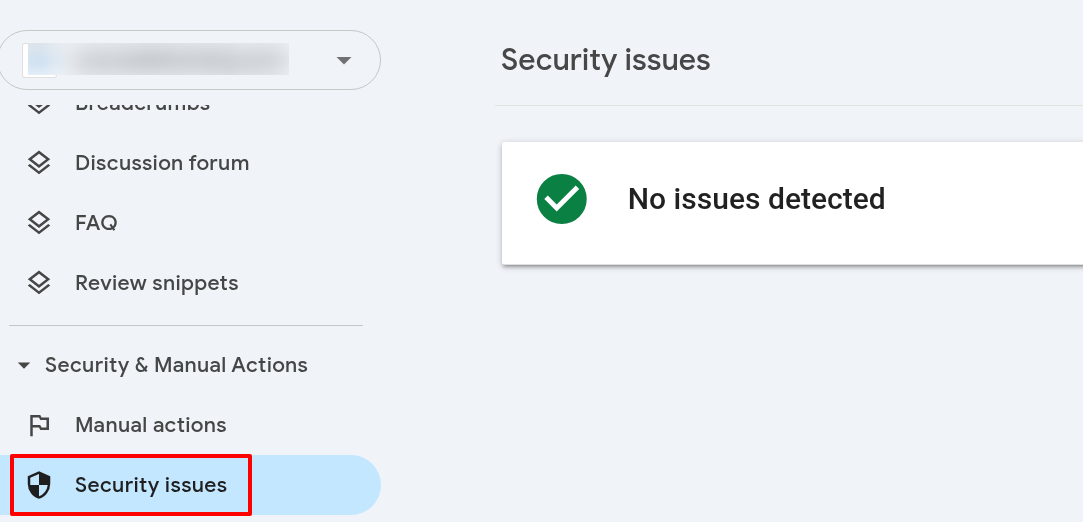
Check for warnings about “unnatural links” or “spam content.”.
Remember that if you see ‘No issues detected,’ it doesn’t mean your website is clean. You may still have spam links that Google hasn’t flagged yet.
- Next, you must check the ‘Links’ report to identify any suspicious patterns.
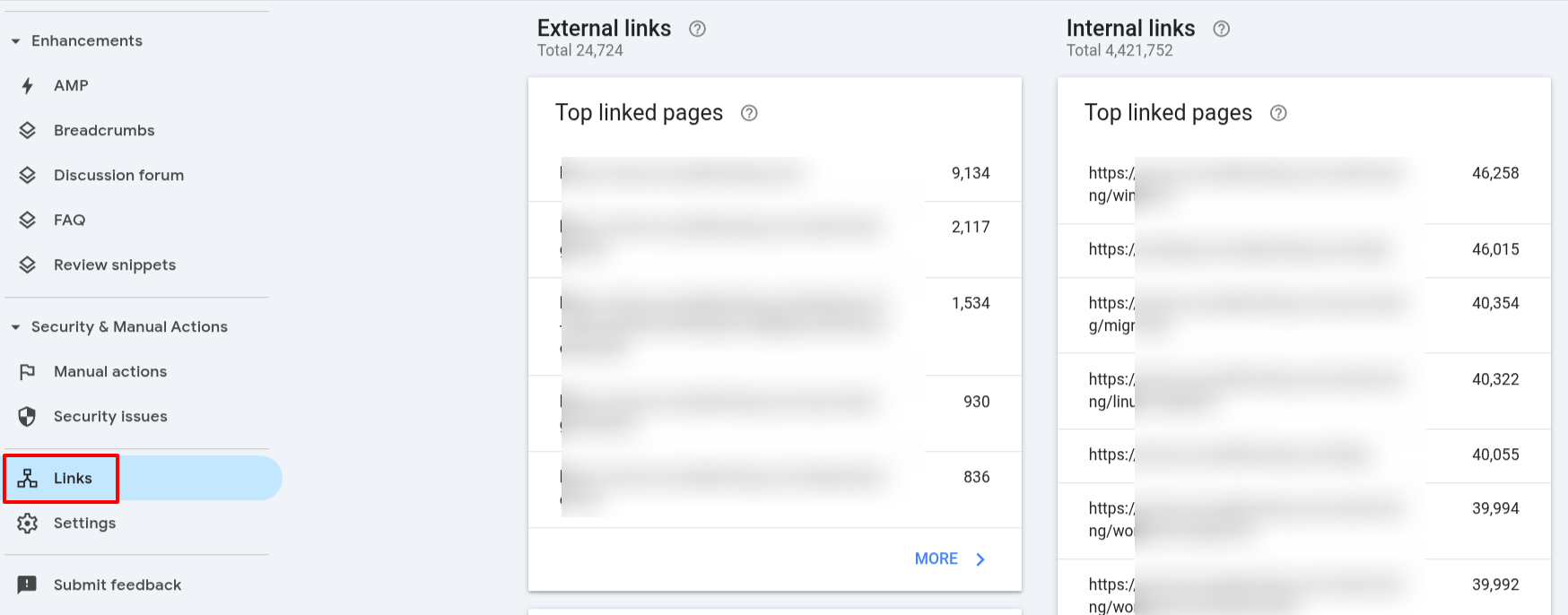
You will want to look for any suspicious link text appearing in these reports—anything that contains a domain/link that you don’t recognize and can’t verify as credible.
For example, internal links of a page on your website that you don't recognize. You may see a URL like this in Google Console: https://yourwebsite.com/random-123-character. When you open such pages, they redirect to another spammy domain. Hackers use this technique to trick search engines and users into clicking malicious links.
You can only find such pages when you pay attention to all links.
Option 2: Manually Checking for Spam Links
Hackers hide spam links on your site; sometimes, they use invisible text that only appears when you select the entire page.
Common hiding spots include:
- Footers
- Old blog posts
- Widgets
- Template files
To check this,
1. Using Page Source
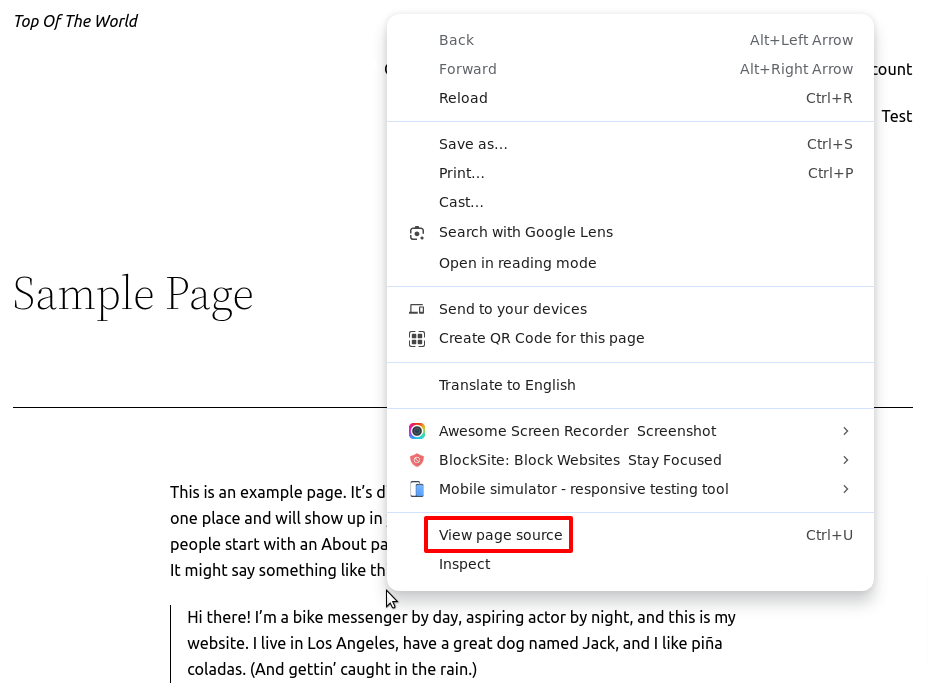
- Right-click on your page and select ‘View Page Source’ to scan for hidden links. If you see jumbled or encoded text, that’s also a spam link (code).
2. Check Your Indexed Pages
Another method is searching for your site in Google Search to check for spammy pages.
If you spot:
- Weird meta descriptions
- Pharmaceutical keywords
- Foreign language text
that means your site has been infected.
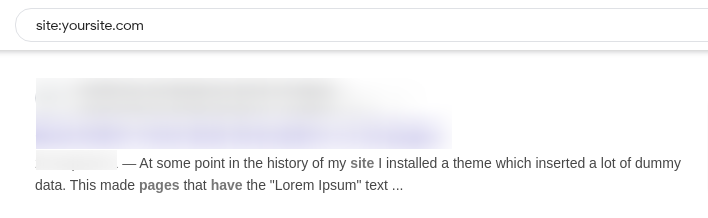
Remember to replace yoursite.com with your real website name.
Option 3: Use Security Scanners
Security plugins like Sucuri or Wordfence can automatically scan your site and detect hidden threats.
These tools check for:
- Modified core files
- Suspicious code
- Malware signatures
- Unauthorized file changes
To scan your site:
1. Log into your WordPress dashboard.
2. Navigate to the Wordfence > Scan.
3. Click on ‘Start New Scan.’
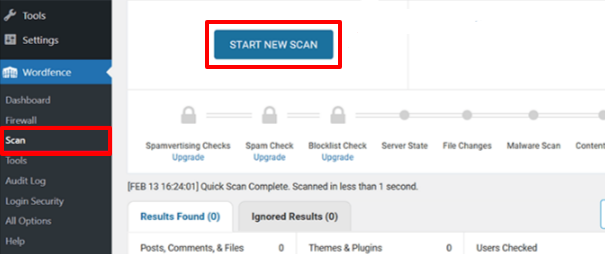
These plugins detect file changes and identify suspicious or malicious code.
Also, they provide recommended steps to help you fix the issue.
Step 2: Removing Spam Links from WordPress
If you’re using a WordPress security plugin, it may suggest ways to delete the spam links automatically.
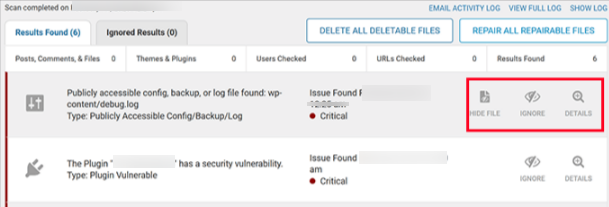
But in some cases, even deleting the files might not solve the problem entirely, and spam links might continue to appear.
To clean your site completely, you may have to use different tools and methods, depending on where and how the malicious code is hidden.
Step 3: Database Cleaning Using Plugin
Now that we know the website has spam links, it's time to remove them. We'll use Search & Replace Everything, a powerful WordPress plugin that scans your entire database to find and replace unwanted text or links.
1. Log into your WordPress dashboard.
2. Navigate to Plugins > Add New Plugin.
3. Search for the Search & Replace Everything plugin.
4. Click on Install Now and then activate it.
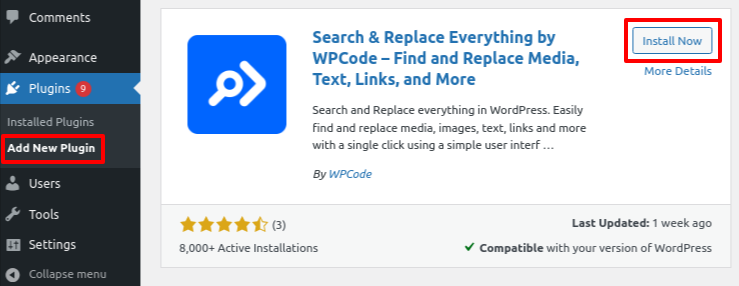
5. Next, go to Tools » WP Search & Replace page.
6. Enter the suspicious link or text in the ‘Search for’ field, then select the database tables you want to check.
7. Click ‘Preview Search & Replace’ to scan your WordPress database.
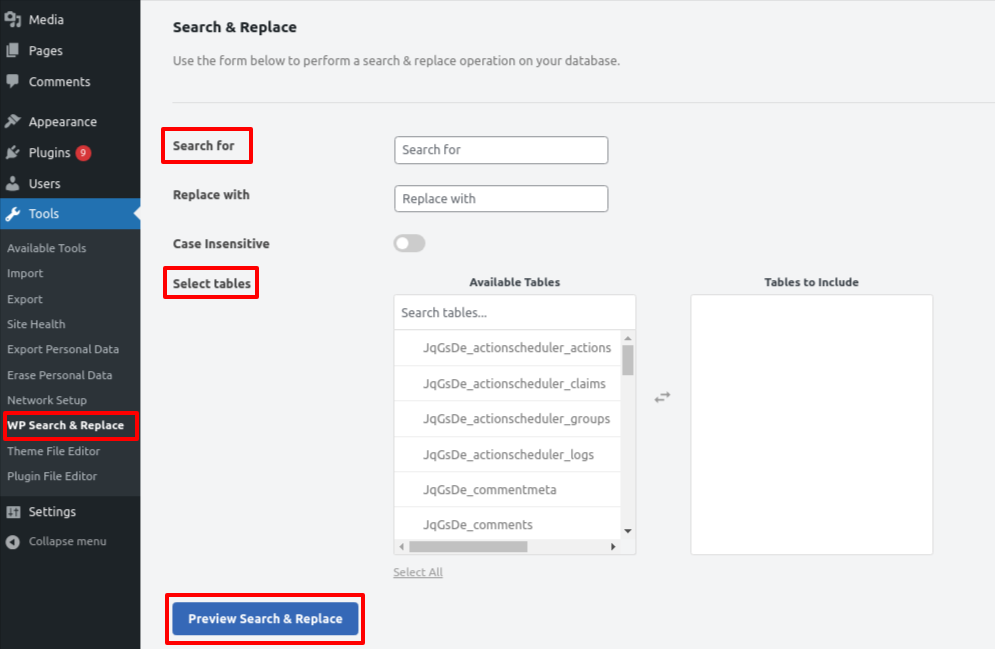
The plugin will show where the spam links appear, whether in posts, pages, comments, or other areas.
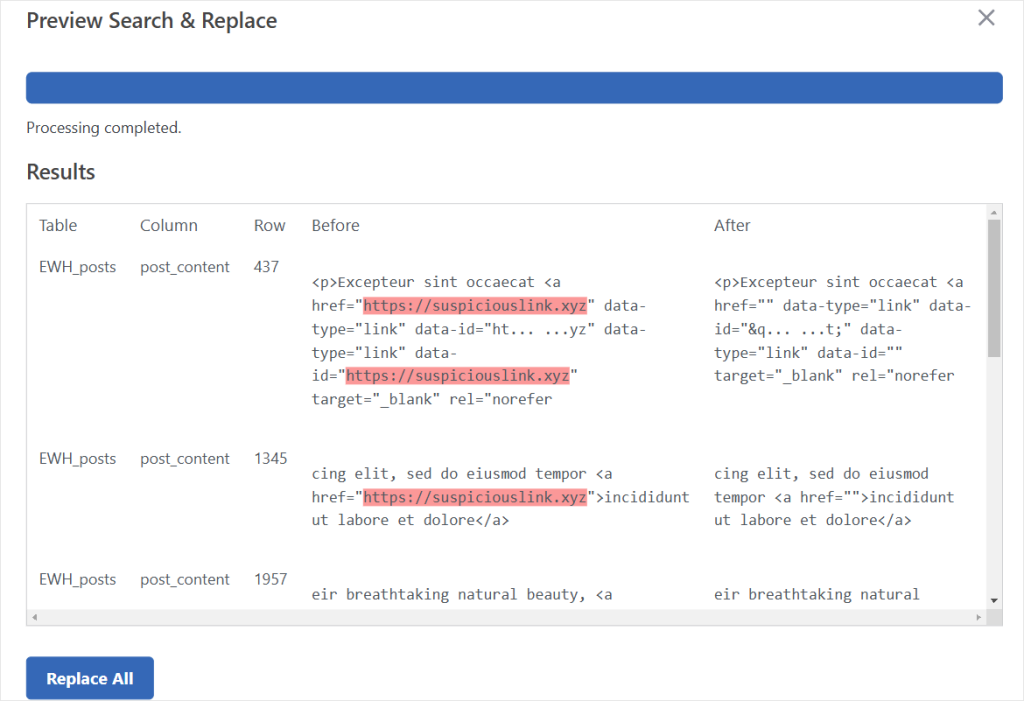
To remove them, replace the exact text with a blank string.
Step 4: Removing Spam Links from Theme and Plugin Files
Spam links might be hidden in your theme or plugin files.
If you only use a few plugins, the easiest solution is to delete and reinstall them.
- Log into your WordPRess dashboard.
- Go to Plugins > Installed Plugins.
- Select all, choose ‘Delete’ from the bulk actions dropdown, and click ‘Apply’.
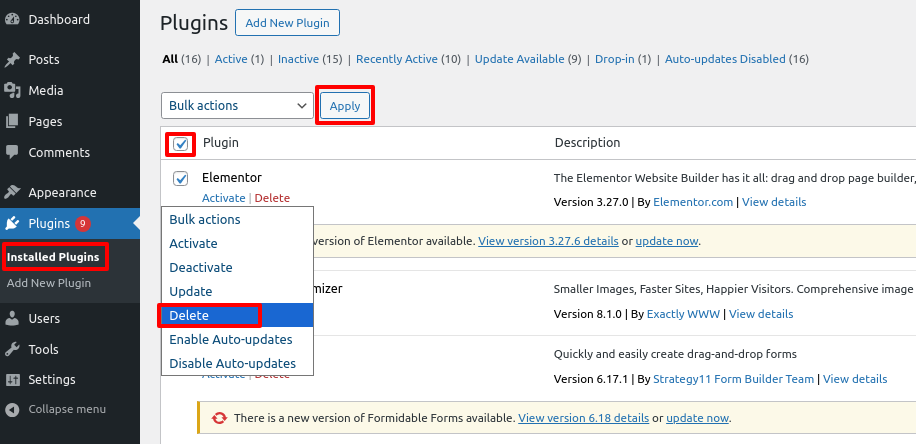
Warning: If a plugin is crucial for your website, then deleting it may break your site. In this case, it’s best to seek professional WordPress security help.
Once deleted, download fresh copies of the plugins and reinstall them.
Next, we will do the same for your WordPress theme. Keep in mind that deleting your current theme may reset your theme settings, so proceed carefully.
- Log into your WordPress dashboard.
- Go to the Appearance > Themes.
- Next, install a default WordPress theme. If you already have one installed, don’t use it—install a fresh copy.
- Activate the new default theme.
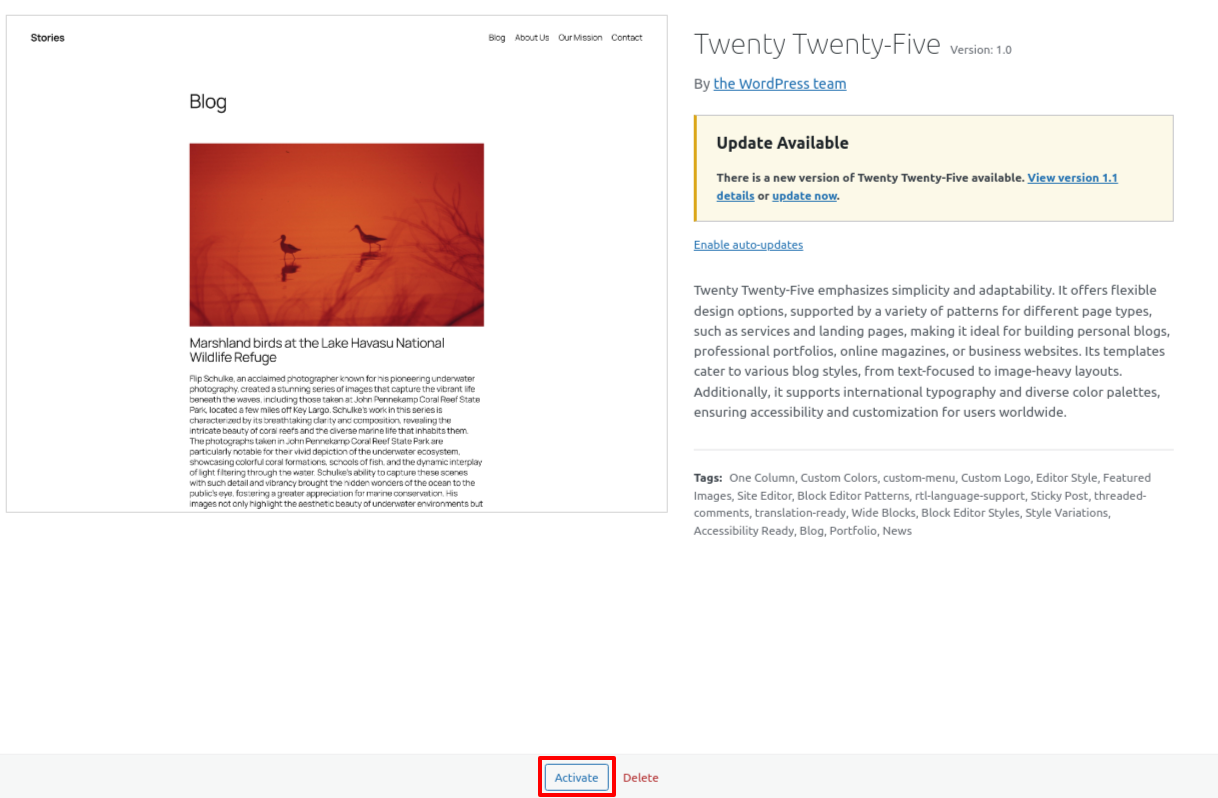
- Once activated, WordPress will allow you to delete the old theme from your site.
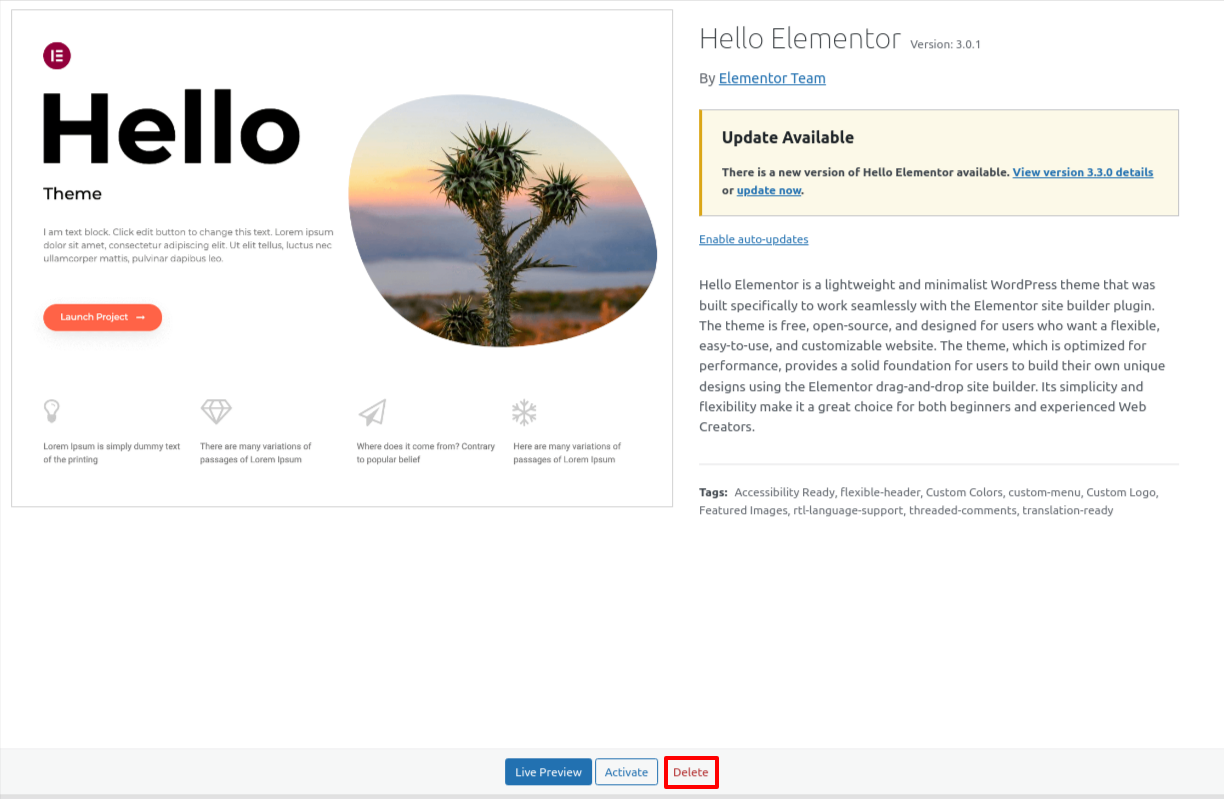
- Download and install a fresh copy of your original theme from its source.
Replacing your theme and plugin files with clean versions ensures your site is free from injected spam links and malicious code.
Step 5: Clean Up Important Files
The .htaccess file is a common target for hackers, which can be used for redirect hacks.
But no need not to worry about it, WordPress can automatically generate a new one.
To fix this,
- Log into your cPanel or FTP.
- Locate the .htaccess file in the root folder and delete it.
Another key file that hackers target is wp-config.php, which stores important site settings.
To clean it up:
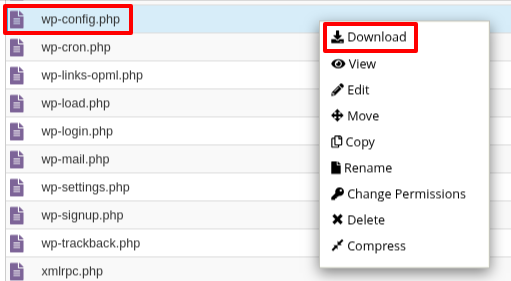
- Back up your existing wp-config.php file by downloading it to your computer.
- Next, download the latest (new version) WordPress from WordPress.org and extract it.
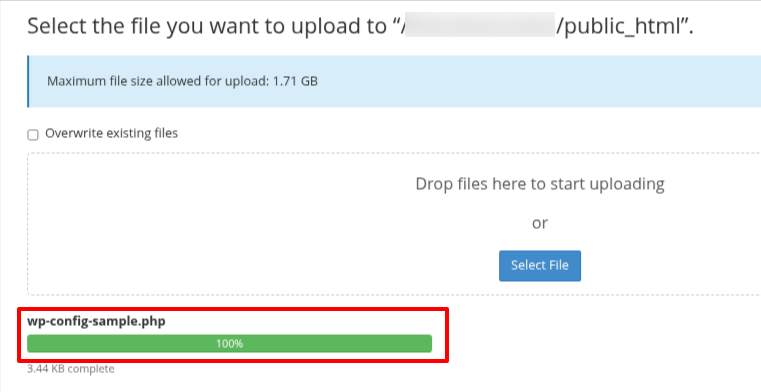
- Inside the extracted folder, find the wp-config-sample.php file.
- Upload this file to your website using cPanel or FTP and rename it to wp-config.php.
- Copy your database details (name, username, password, host, and table prefix) from the old wp-config.php and add them to the new file.
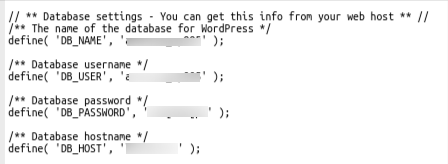
You can retrieve this information from the backup of your old wp-config file.
- Save and upload the updated wp-config.php file.
After cleaning the spam links, update all passwords, including WordPress admin, cPanelFTP, database, hosting control panel, and any linked email accounts.
