
tcpdump is a command-line packet analyzer that allows you to capture network traffic in real time and display it in a human-readable format. It’s one of the most popular tools for network diagnostics, enabling users to inspect the raw data being transferred over a network. It supports a wide range of network protocols and can be used on Unix-based operating systems like Linux, BSD, and macOS, as well as on some Windows platforms via Cygwin or Windows Subsystem for Linux (WSL).
How Does tcpdump Work?
Tcpdump operates by capturing packets directly from a network interface in promiscuous mode, which allows it to intercept and log all packets passing through the interface, not just those meant for the device on which tcpdump is running.
Tcpdump can be configured with different options to focus on specific traffic patterns or types, allowing for efficient and targeted analysis.
Steps to install tcpdump on Linux
To install tcpdump on Linux, follow the steps based on your distribution:
1. For Debian/Ubuntu:
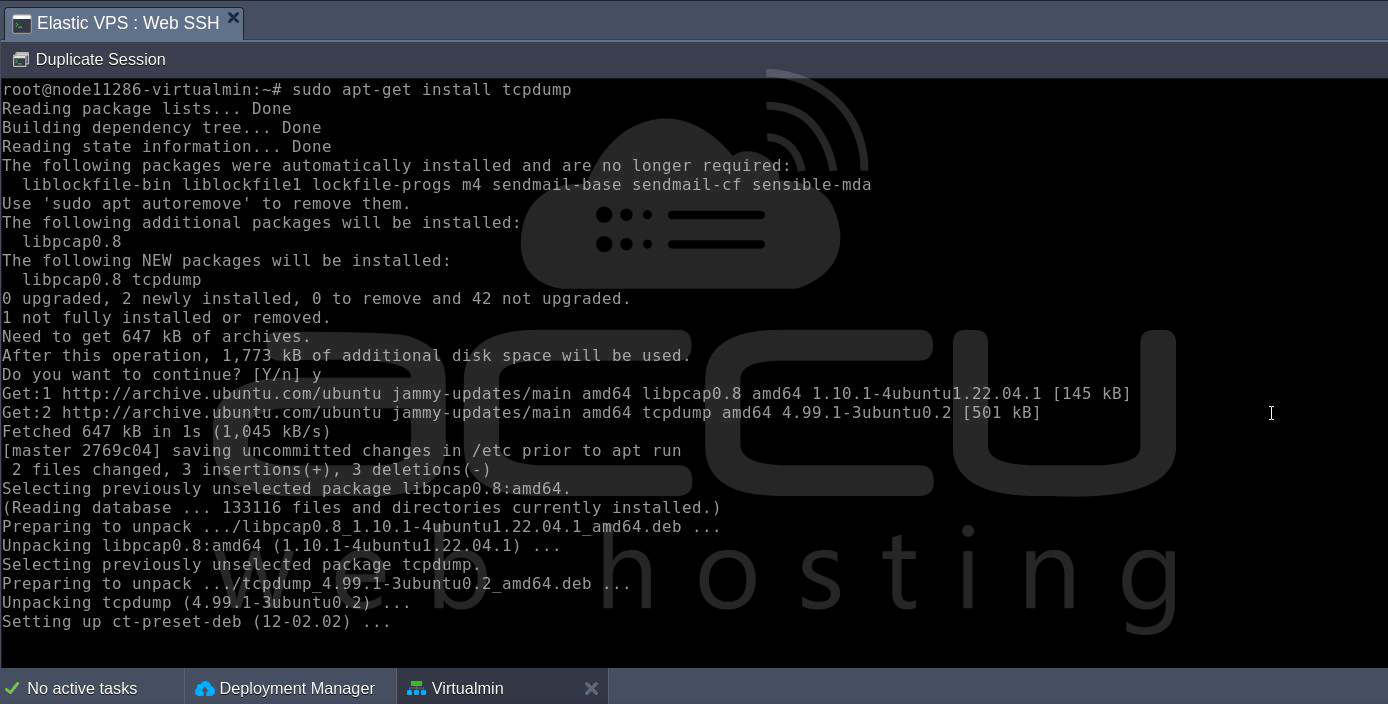
2. For CentOS/RHEL 7 and earlier:
3. For CentOS/RHEL 8 and Fedora:
4. For Arch Linux/Manjaro:
5. For openSUSE:
6. For Alpine Linux:
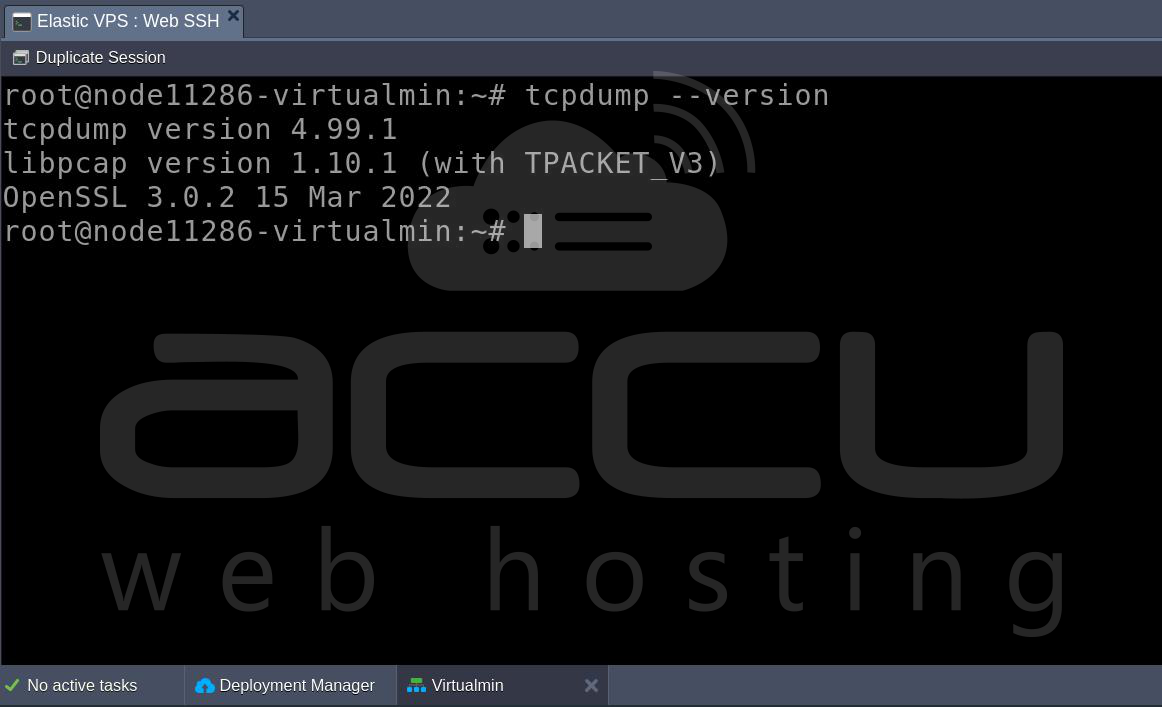
After installation, verify with:
tcpdump --version
How to Use tcpdump for Network Traffic Analysis
1. Basic Packet Capture:
To start capturing network traffic, you can run tcpdump on a specific network interface. The basic syntax is:
tcpdump -i [interface]
For example, to capture traffic on the eth0 interface, you would use:
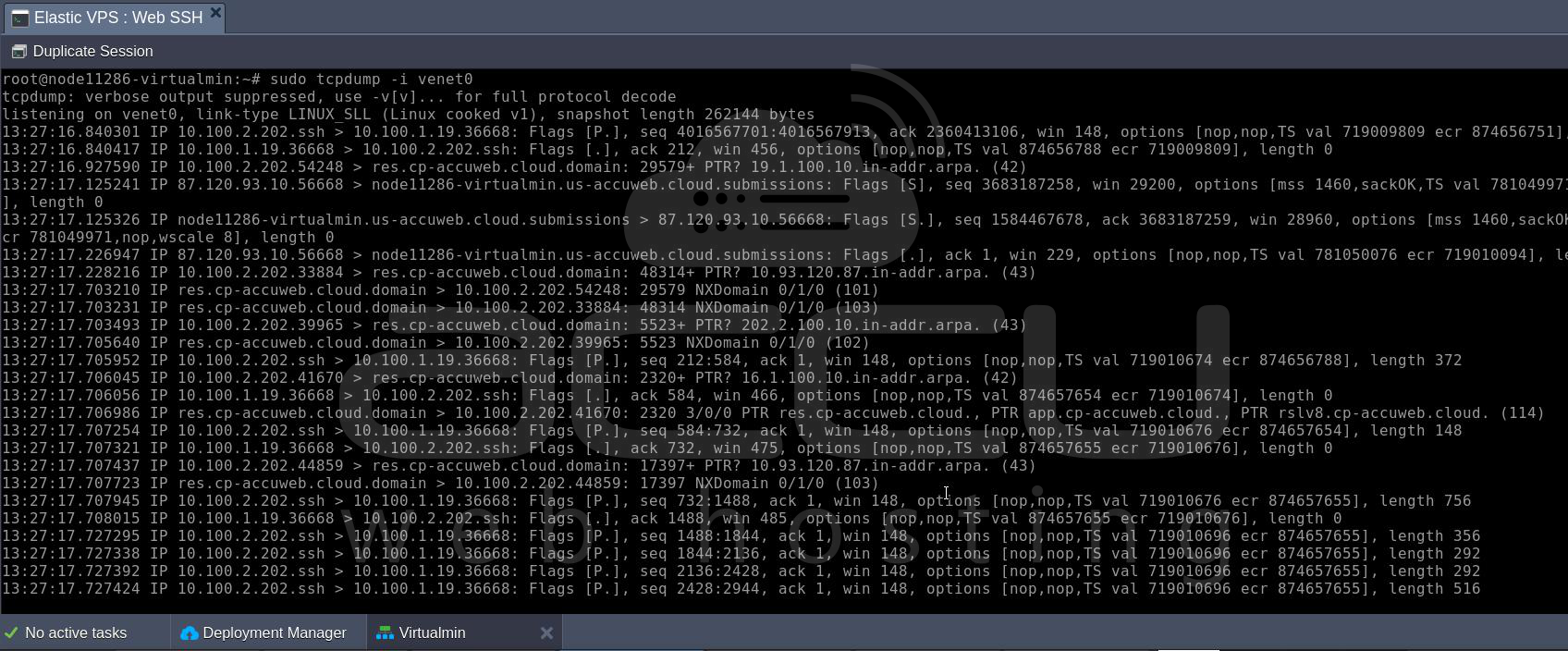
By default, tcpdump will display the captured packet summaries on the terminal. To stop the capture, simply press Ctrl+C.
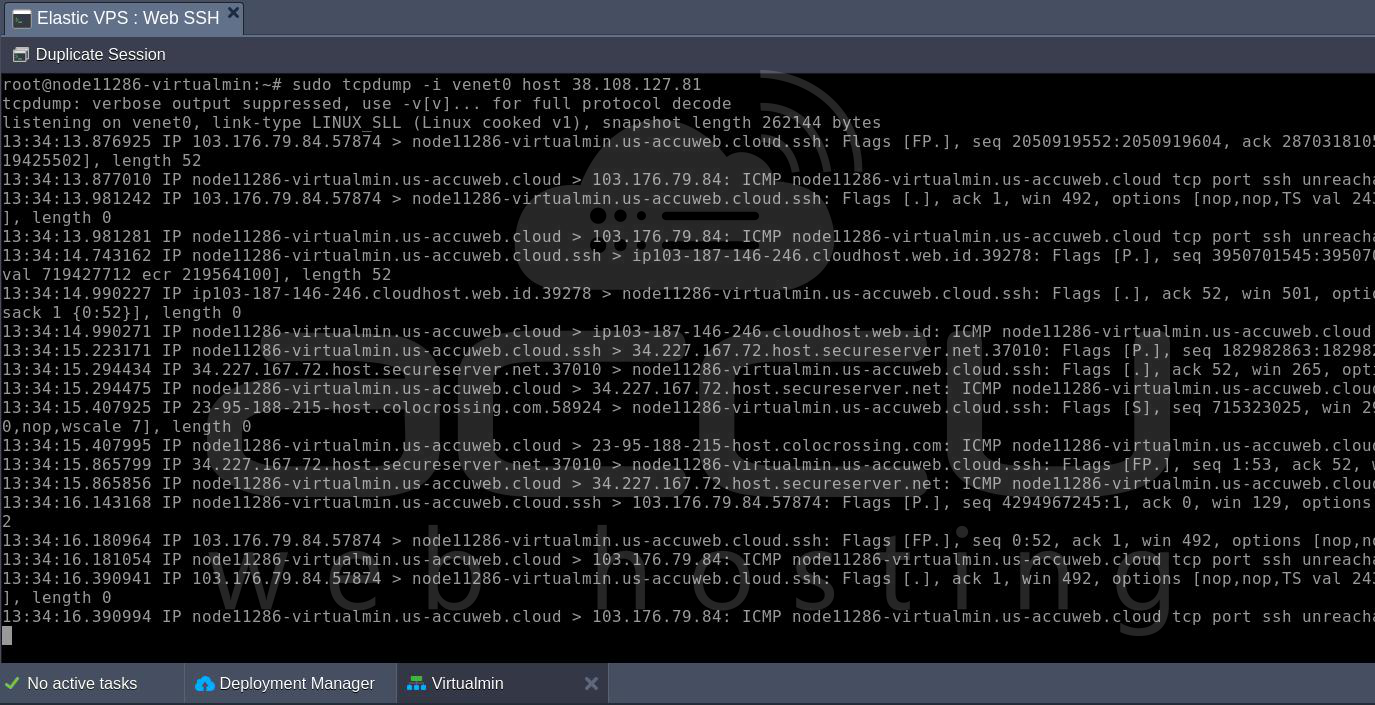
2. Filtering Network Traffic:
One of tcpdump’s most powerful features is its ability to filter traffic. By using filter expressions, you can capture only the traffic that matches certain criteria, which makes analyzing network activity much easier. Here are some common filtering options:
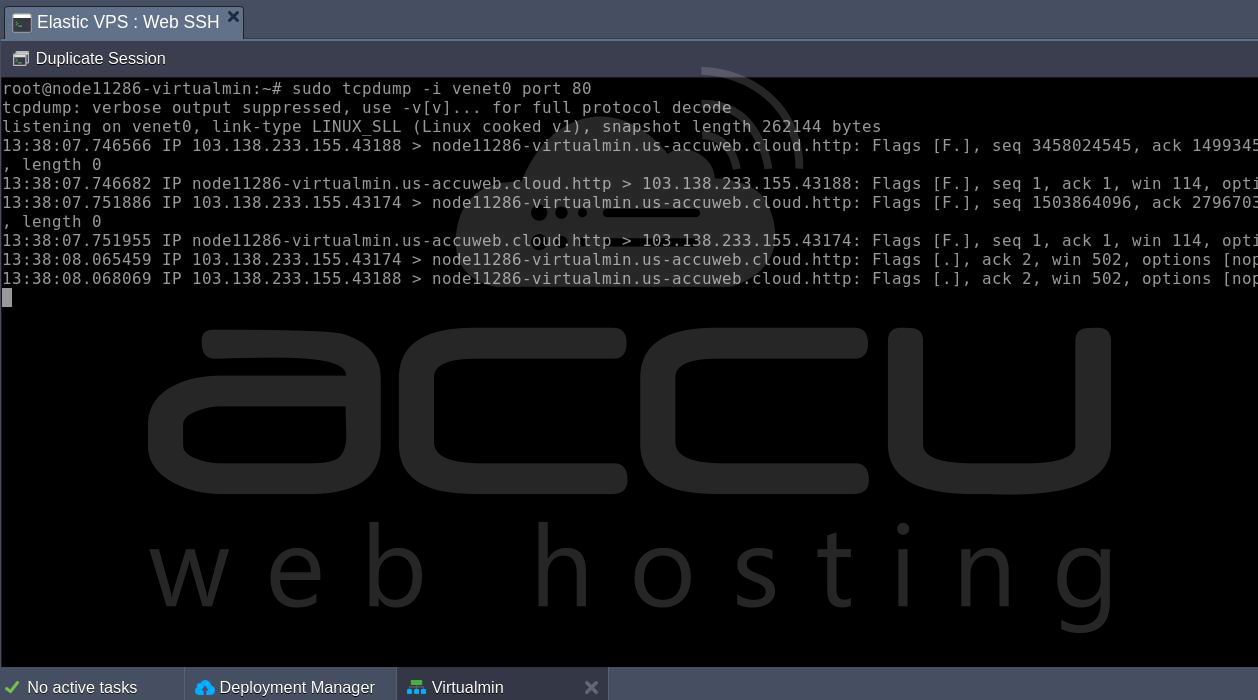

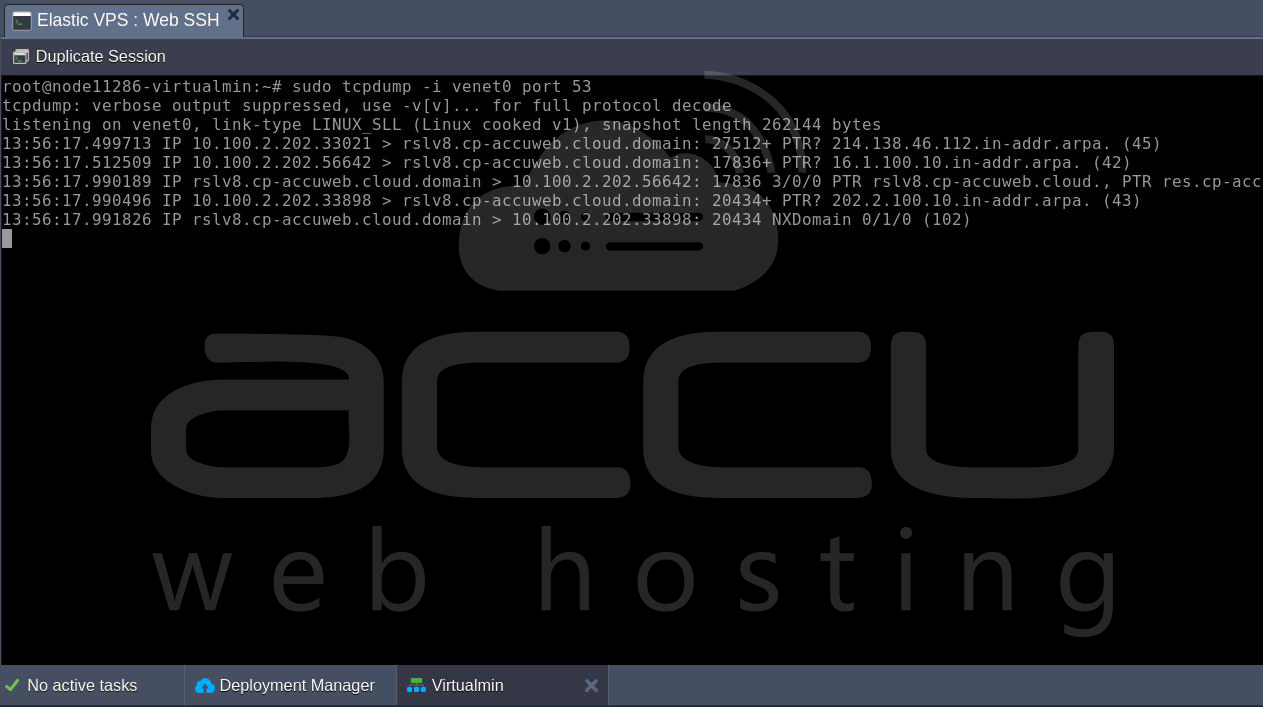
3. Saving Output to a File:
To save the captured data for later analysis, use the -w flag followed by the filename:
This will save the captured packets in the .pcap format, which can later be opened using other packet analysis tools such as Wireshark.
4. Analyzing Captured Data:
You can analyze the data in real time or after saving it to a file. tcpdump provides detailed information about each packet, including:
- Timestamp: When the packet was captured.
- Source IP and Port: The origin of the packet.
- Destination IP and Port: The target of the packet.
- Protocol Information: What protocol the packet is using (TCP, UDP, ICMP, etc.)?
- Flags and Sequence Numbers: For TCP packets, you’ll see flags like SYN, ACK, FIN, etc., and sequence numbers.
Example output from tcpdump:
This indicates a TCP packet from 192.168.1.10 (source) to 192.168.1.20 (destination) using port 80 (HTTP), with a payload length of 105 bytes.
Conclusion
Tcpdump is an invaluable tool for anyone working in network administration or cybersecurity. Its ability to capture and analyze network packets gives users deep insights into network behavior, security vulnerabilities, and performance bottlenecks. Whether you're troubleshooting a network issue, securing a system, or analyzing traffic patterns, tcpdump provides the necessary functionality to get the job done effectively.


