
Configuring the CSF (ConfigServer Security & Firewall) to block or allow traffic based on country codes is an essential part of securing your server against unwanted or malicious traffic. This guide will show you how to configure country blocking and filtering in CSF via WHM (WebHost Manager), specifically focusing on how to block or allow entire countries to use their Country Codes (ISO 3166 1 alpha 2).
What is CSF?
CSF (ConfigServer Security & Firewall) is a powerful and configurable firewall plugin used for securing servers. It is popular with cPanel and WHM (WebHost Manager) installations and offers a user-friendly interface to manage server firewall rules.
Blocking countries in CSF can significantly enhance your server's security by reducing the attack surface. Many attacks on web servers, such as Distributed Denial of Service (DDoS) attacks, brute force login attempts, and even spam, can often be traced back to specific countries or regions. By blocking or limiting access from these countries, you can:
- Reduce the risk of attacks: Prevent access from countries that are known for high volumes of malicious traffic.
- Stop spam and bot attacks: Many spammers or automated bots originate from specific countries. Blocking these regions can stop spam emails and fake sign-ups.
- Compliance with local laws: Certain businesses may need to comply with local data protection or government regulations that require blocking access from countries with a high risk of data theft.
Setting Up CSF in WHM
Before you can begin blocking or allowing countries to use CSF in WHM, you need to ensure that CSF is installed and configured properly. This section covers the installation and basic configuration steps.
Installing CSF
CSF is typically installed via the WHM interface for easy management, but it can also be installed directly via SSH. Here's how you can install CSF:
Step 1. Log in to WHM via `https://yourdomain.com:2087`. Enter your root credentials to access the administrative panel.
Step 2. In WHM, navigate to Server Configuration => Terminal. Run the following command to install the CSF.
wget https://download.configserver.com/csf.tgz
tar -xvzf csf.tgz
cd csf
sh install.sh
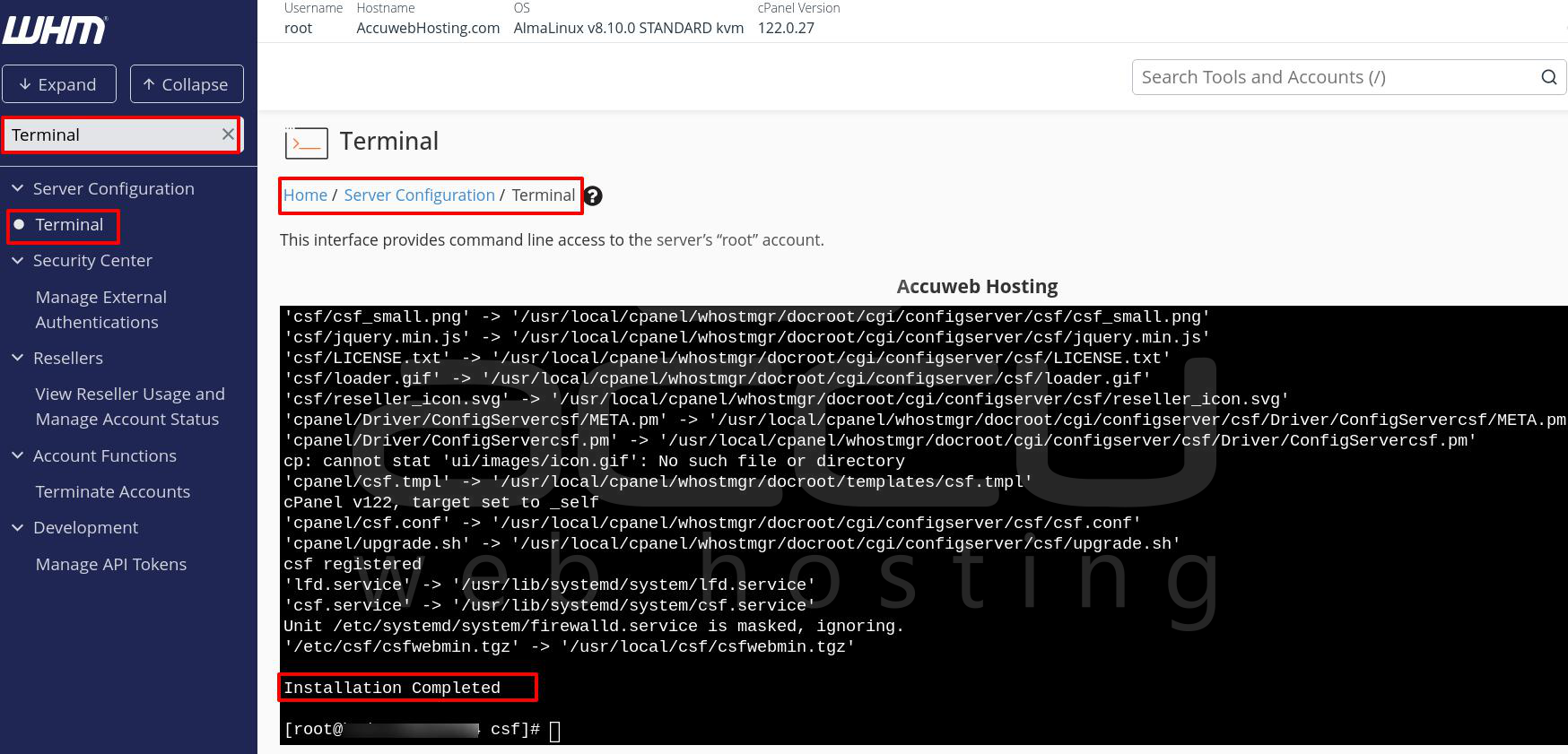
Step 3. Once CSF is installed, you can access its configuration by gonna Security Center > ConfigServer Security & Firewall in WHM.
Basic CSF Configuration
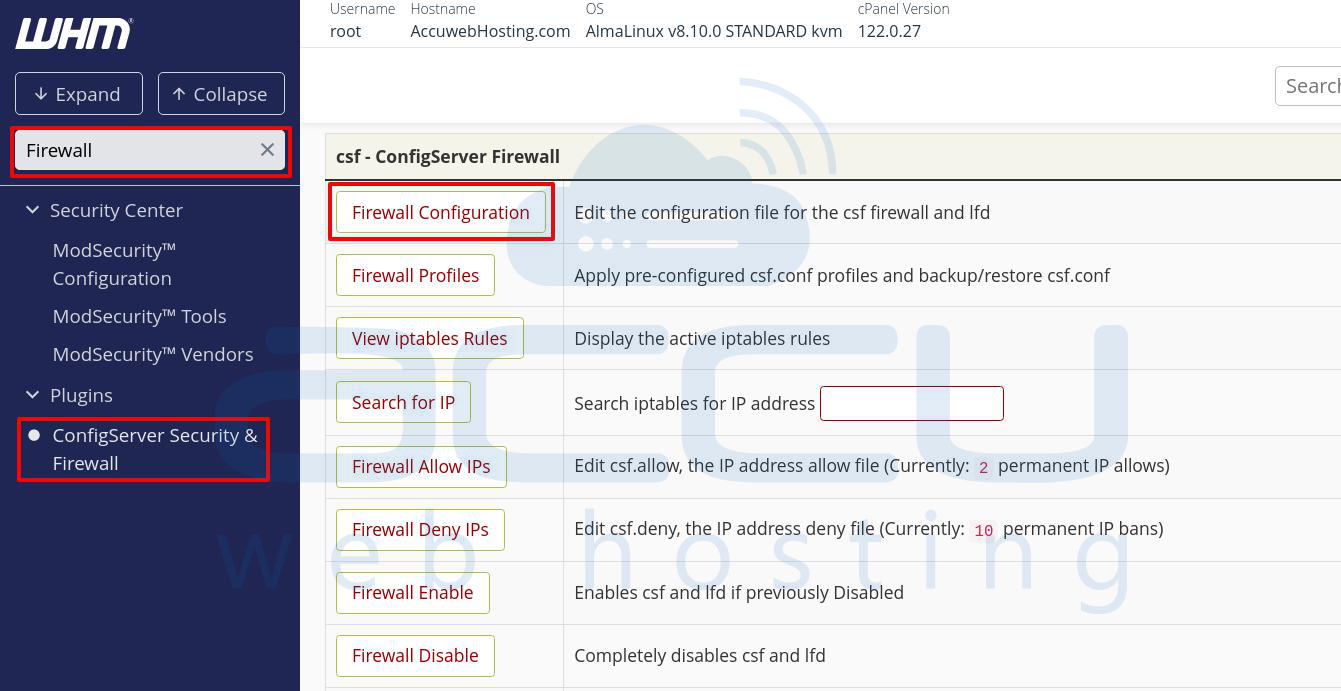
Step 1. CSF has a default configuration, but it is a good idea to review and adjust some basic settings for better security. The configuration file is located at `/etc/csf/csf.conf`. You can modify it via the WHM interface by clicking on Firewall Configuration.
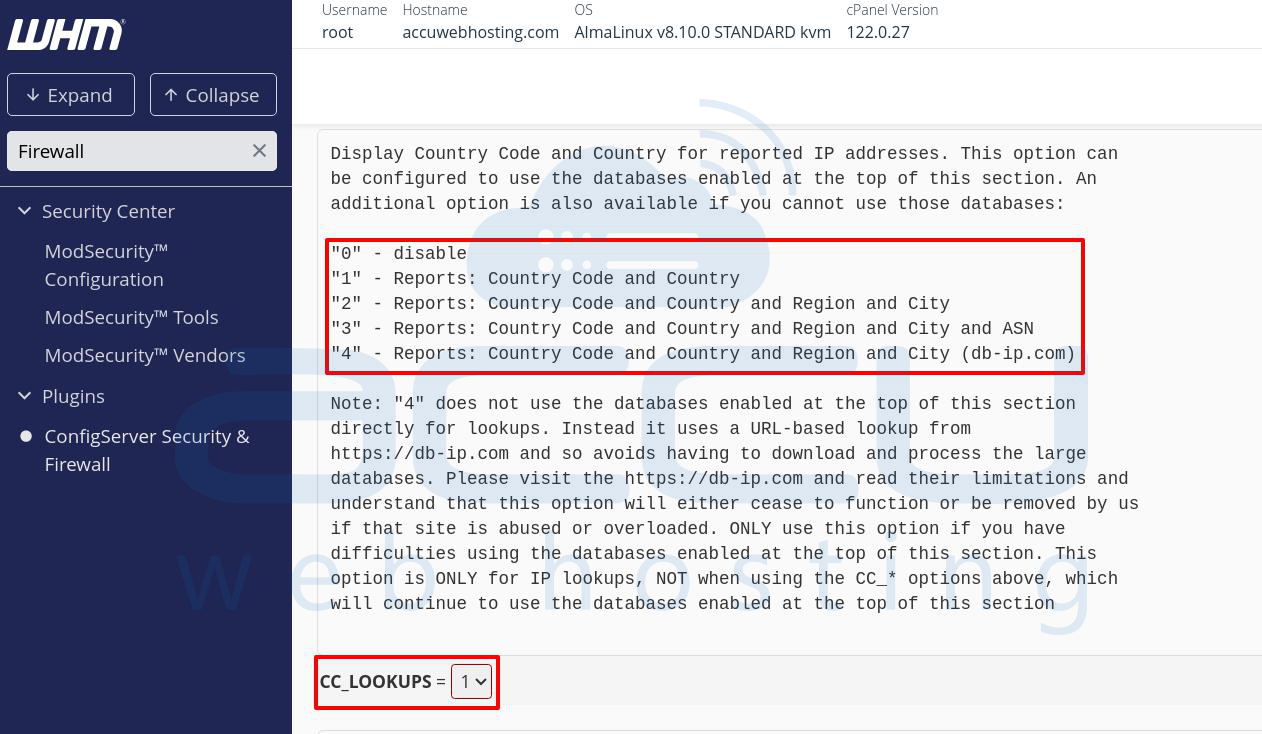
Step 2. For country-based blocking to work, ensure that `CC_LOOKUPS` is enabled in the CSF configuration.
Choosing the Right Source for Country IP Database
CSF uses country IP databases to map country codes to CIDR blocks. These databases provide the necessary data to block or allow traffic from specific countries.
MaxMind: MaxMind provides the GeoLite2 databases, which are free and widely used for country IP lookups. However, to access these databases, you need to sign up for a free account and generate an API key. Once you have the key you can use it within CSF to block or allow countries.
To configure MaxMind in CSF:
Step 1. Sign up at MaxMind and get your GeoLite2 database and license key.
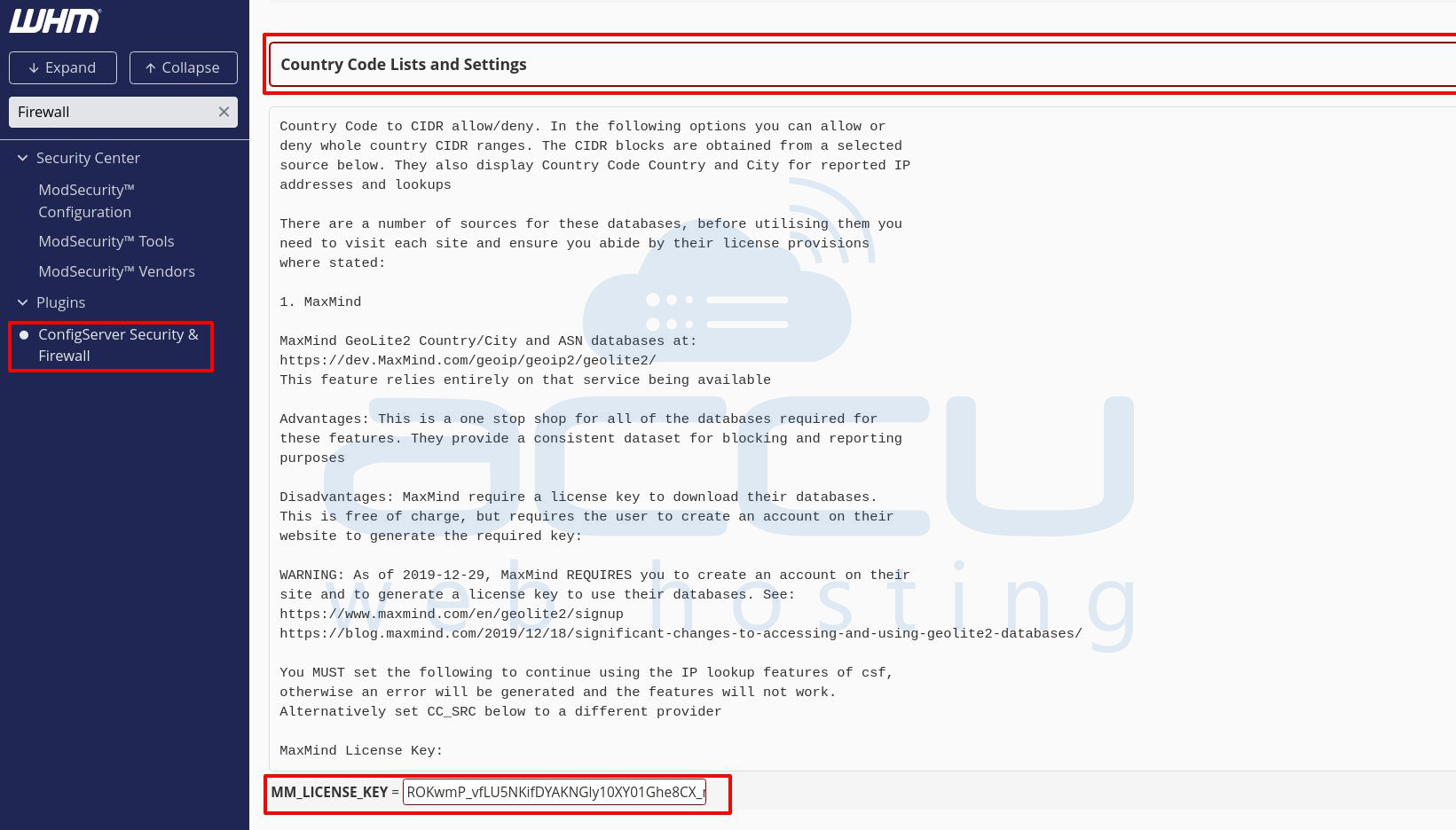
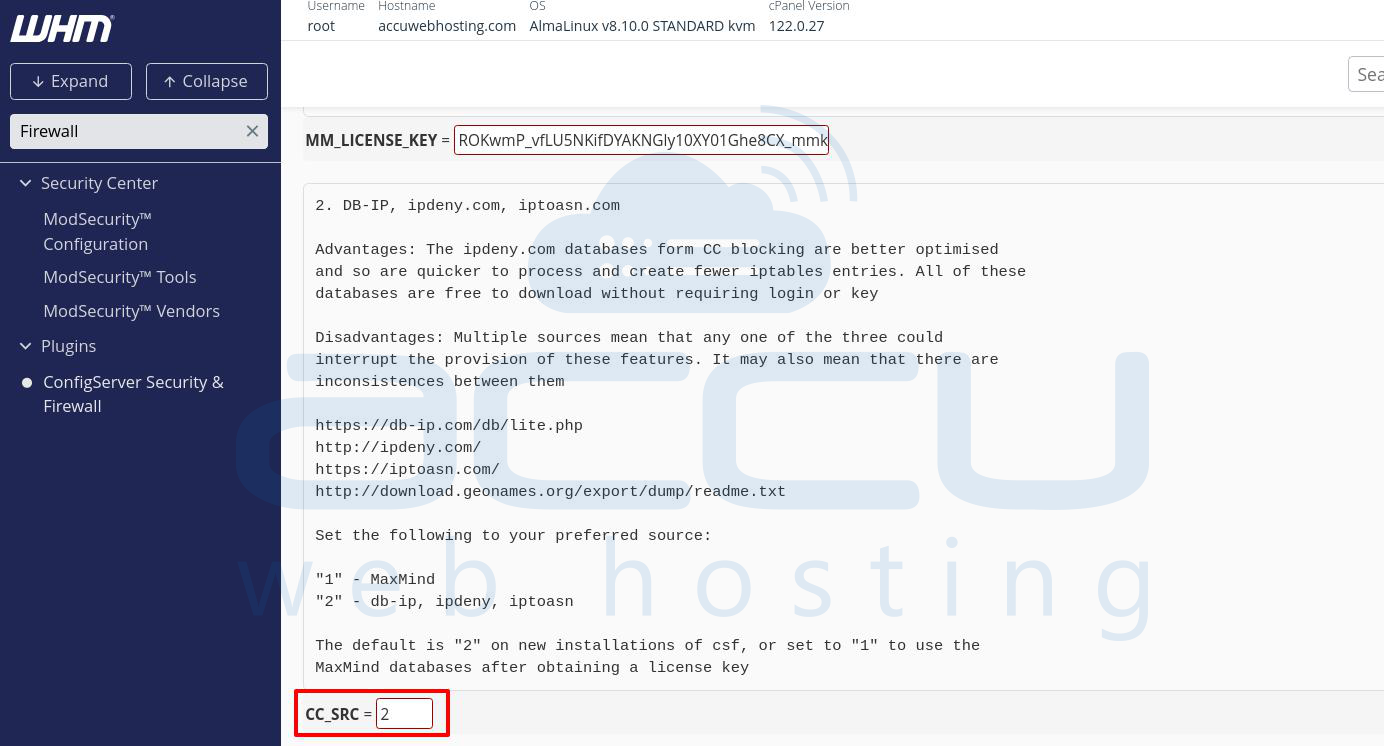
Step 2. In CSF, navigate to Firewall Configuration and find the `MM_LICENSE_KEY` setting.
Step 3. Paste your license key into the field.
DB IP, ipdeny.com and iptoasn.com
These are free alternatives to MaxMind and don’t require an API key. However, they may be slower to update and can sometimes offer less accuracy.
To use these in CSF: Set `CC_SRC = 2` in the CSF configuration to use these databases.
Configuring Country Code Block and Allow Rules in CSF
Once you’ve chosen your IP database provider, the next step is to configure the CC_DENY and CC_ALLOW rules in the CSF configuration to block or allow traffic based on country codes.
CC_DENY: Denying Access from Specific Countries
To block access from specific countries, add their two-letter ISO country codes to the `CC_DENY` list.
Example: CC_DENY = "CN,IN,RU" Deny access from China, India, and Russia
CC_ALLOW: Allowing Access from Specific Countries
To allow access from specific countries while blocking others use the `CC_ALLOW` field.
Example: CC_ALLOW = "US,CA,GB" Allow access from the US, Canada, and the UK

CC_ALLOW_FILTER: Filtering
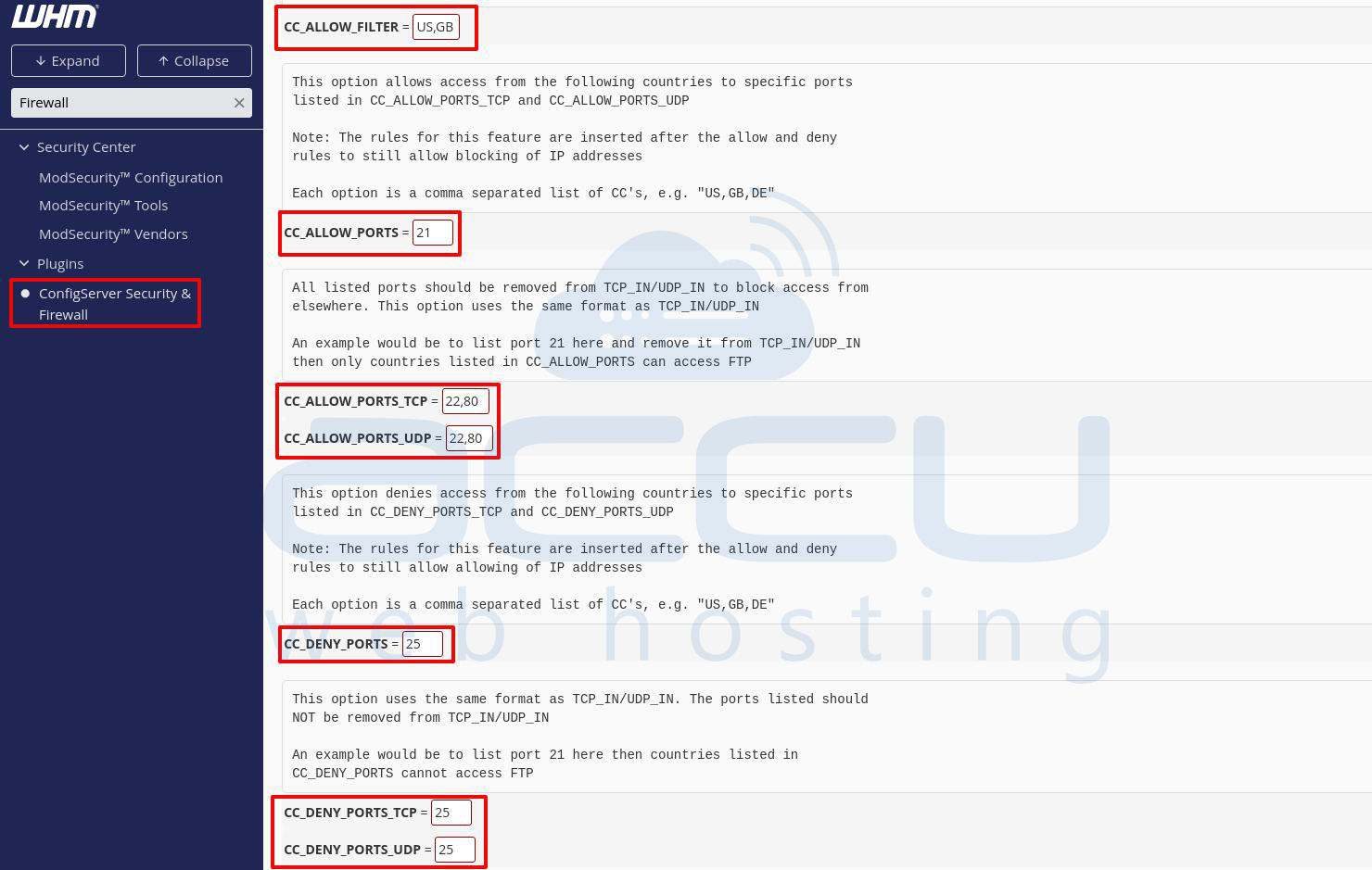
You can restrict access to specific ports from specific countries using CC_ALLOW_FILTER. This is useful when you want to allow access to certain services (like FTP or SSH) only from specific countries.
Example:
CC_ALLOW_FILTER = "US,GB" Allow access only from the US and UK
CC_ALLOW_PORTS_TCP = "21" Allow FTP from US and UK only
CC_DENY_PORTS_TCP/UDP: Blocking Specific Ports by Country
You can block specific ports from certain countries using CC_DENY_PORTS_TCP or CC_DENY_PORTS_UDP.
Example: CC_DENY_PORTS_TCP = "25" Deny access to SMTP (port 25) from countries listed in CC_DENY
CC_ALLOW_PORTS_TCP/UDP: Allowing Specific Ports by Country
Similarly, you can allow specific ports for certain countries using CC_ALLOW_PORTS_TCP and CC_ALLOW_PORTS_UDP.
Example: CC_ALLOW_PORTS_TCP = "22,80" Allow SSH and HTTP access from the countries in CC_ALLOW
Advanced Configuration for SMTP Authentication and Country Restrictions
CC_ALLOW_SMTPAUTH: Restricting SMTP Access by Country
To prevent SMTP authentication brute force attacks, you can limit access to the SMTP authentication service (port 25) to specific countries.
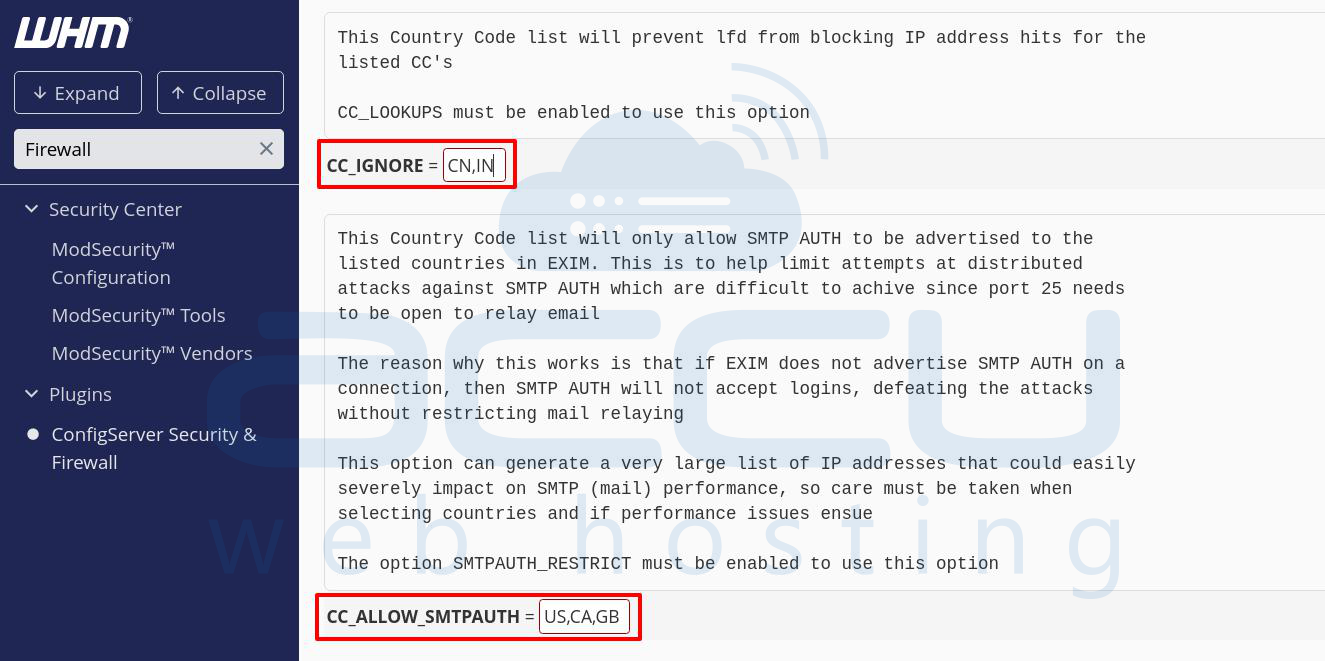
Example: CC_ALLOW_SMTPAUTH = "US,CA,GB" Allow SMTP AUTH only from these countries
CC_IGNORE: Ignoring Countries for Blocked IP Checks
If you want CSF to ignore specific countries when blocking IP addresses use the CC_IGNORE option.
Example: CC_IGNORE = "CN,IN" Ignore China and India for blocking purposes
Save Changes and Apply
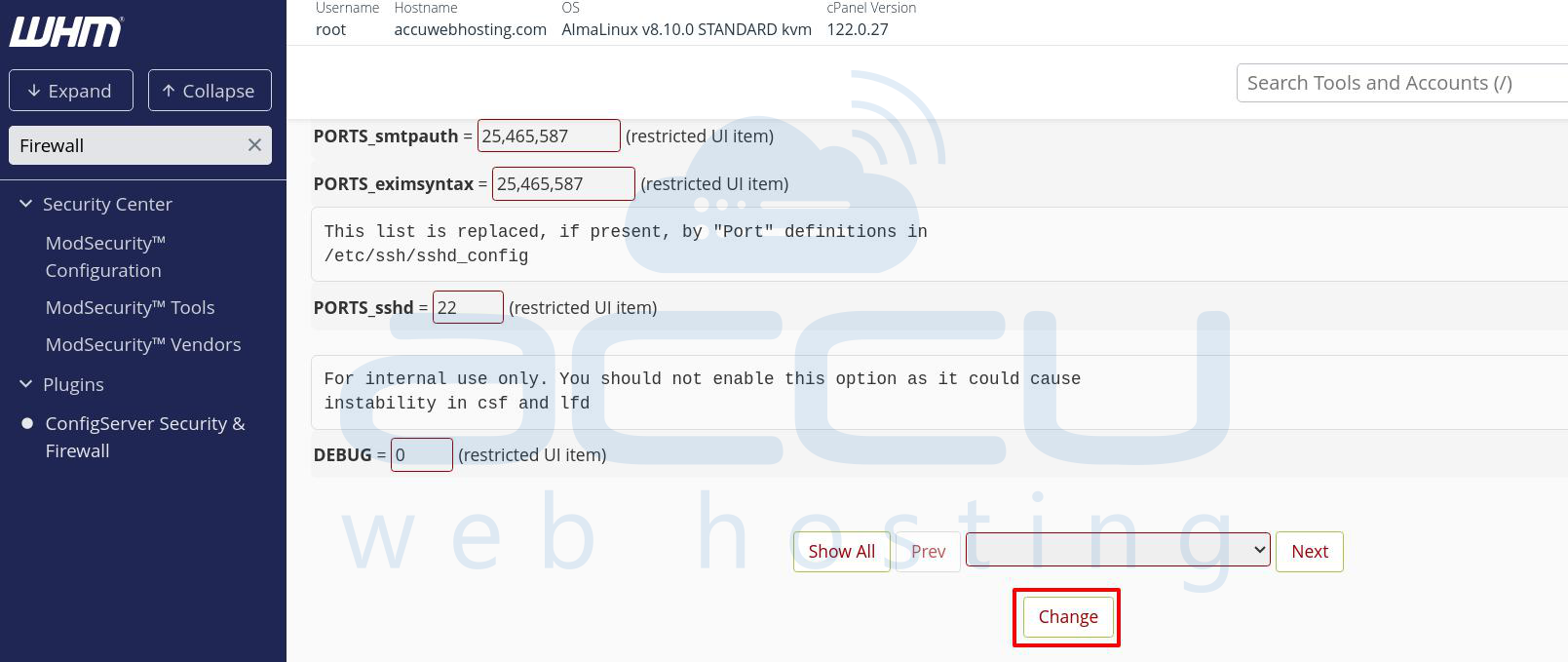
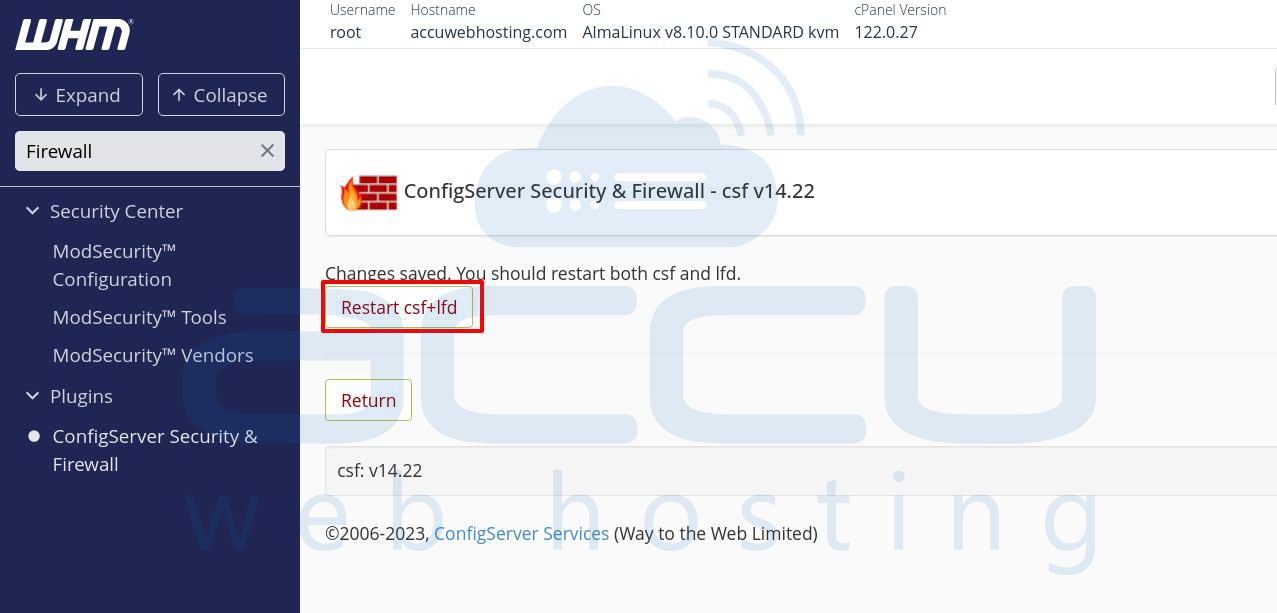
After configuring the country codes and firewall settings in CSF, Save the Configuration. Scroll to the bottom and click "Change" to save your changes.
After saving, restart CSF to apply the changes. You can do this from within WHM. Navigate back to the CSF Configuration page. Click "Restart csf+lfd" to apply the settings.
Conclusion
Using CSF in WHM to block or allow countries is a powerful way to enhance server security. It helps prevent malicious traffic from regions with high volumes of cybercrime improves performance by blocking unnecessary traffic, and provides better control over which countries can access your server. However, be mindful of the potential performance overhead and always test your configuration before fully implementing it.


