
Cron is a Linux tool that schedules tasks to run automatically at set times on Unix-like systems. This helps users automate repetitive jobs like backups, updates, and data processing so they don’t have to do them manually.
Where are cron logs saved?
By default, cron logs are saved in the main system log. On Ubuntu and Debian, this log is located at /var/log/syslog, while CentOS is at /var/log/cron.
To view only the cron logs in the system log, you can use the grep command:
# cat /var/log/syslog | grep cron

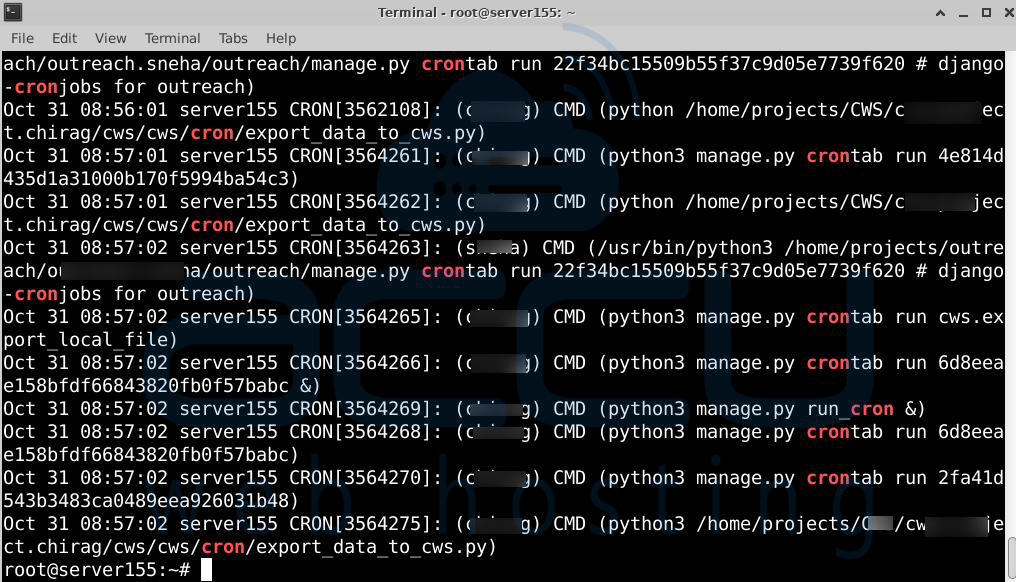
This command works for Ubuntu and Debian. For CentOS, change the log path to /var/log/cron. Once you run the command, you will see the output below. The path where the logs are stored will be listed in the result.
How to set up a separate cron log file?
You can create a separate file just for cron logs.
Step 1: Open the cron logging configuration file with this command:
# nano /etc/rsyslog.d/50-default.conf
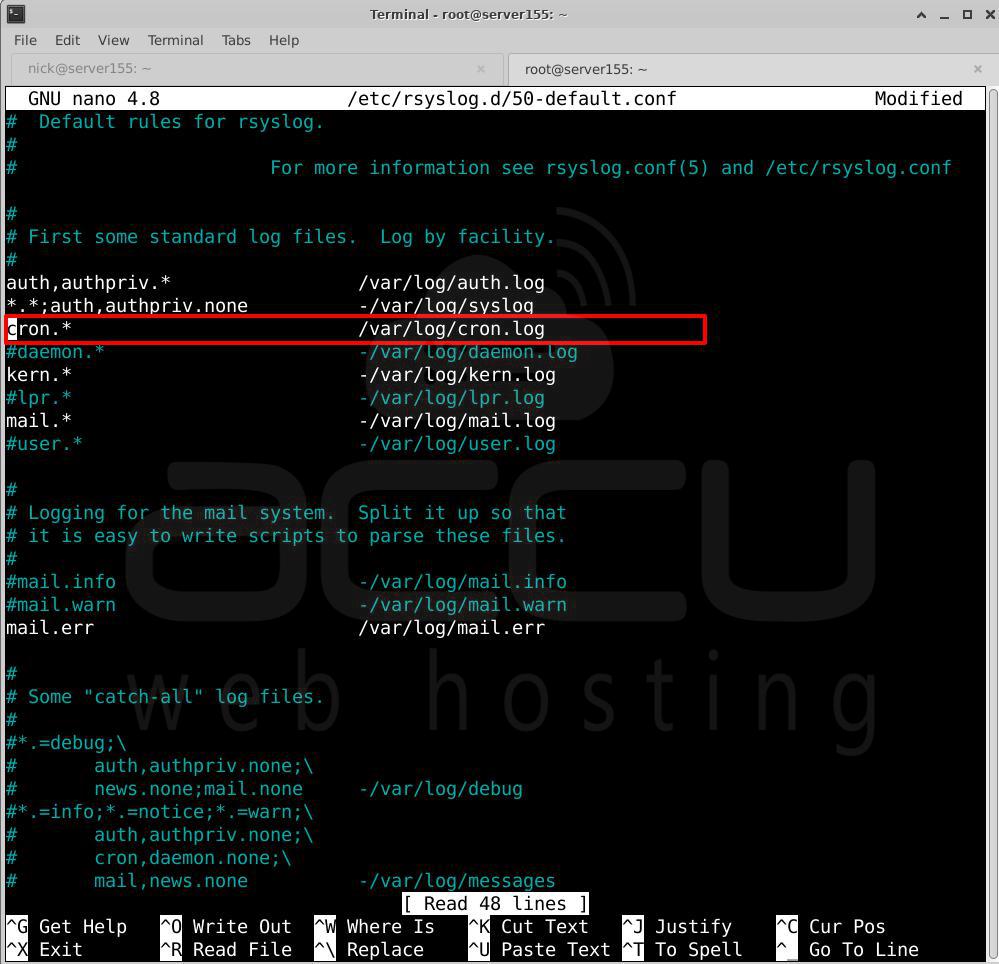
Step 2: In this file, find the line that logs cron messages and remove the # at the start of the line. This will send cron logs to /var/log/cron.log.
Step 3: Next, create the log file by running:
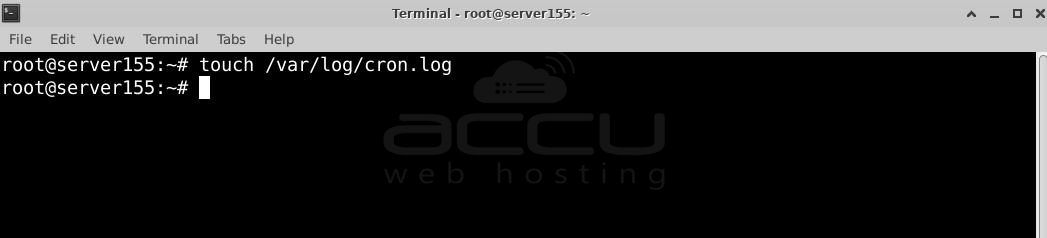
# touch /var/log/cron.log
Step 4: Finally, restart the rsyslog service to apply the changes:
# systemctl restart rsyslog

Now, all cron logs will go to /var/log/cron.log.
How to view cron logs in real time?
To see cron logs updating live, follow these steps:
Step 1: Create a file called watch-cron by running:
# nano watchcron

Step 2: Add this line to the file, then save and exit:
watch -n 10 tail -n 15 /var/log/cron.log
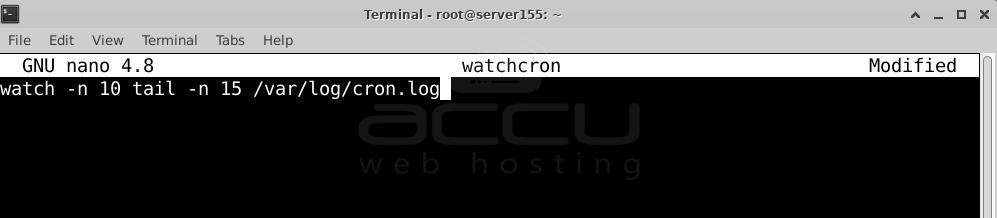
This will show the last 15 log entries and refresh every 10 seconds.
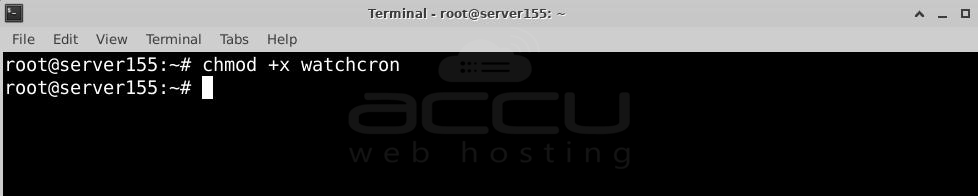
Step 3: Make the watchcron file executable:
# chmod +x watchcron
Step 4: Move the file to /usr/sbin so you can run it from anywhere:
# cp watchcron /usr/sbin

Now, to watch cron logs in real-time, just type watchcron in the terminal and press Enter:
# watchcron

Conclusion:
The best way to check cron jobs in the server log is to look at the system log files where cron saves its logs, such as /var/log/syslog on Ubuntu/Debian or /var/log/cron on CentOS. You can filter these logs with grep cron to see only cron-related entries.
For easier tracking, you can set up a dedicated cron log file or create a real-time viewer with a custom script, which helps monitor job statuses and quickly fix issues.


