
AutoSSL is a free alternative to paying for SSL certificates. Domains that meet the requirements automatically get a free SSL certificate that proves ownership. Your SSL certificate stays current and renews automatically.
AutoSSL automatically installs these certificates for services like Apache, Dovecot, Exim, Web Disk, and cPanel for users’ domains.
AccuWeb Hosting offers Let's Encrypt SSL Certificate as a free SSL Certificate with Linux Shared hosting and WordPress Hosting.
The following are the possible reasons why auto SSL fails to install an SSL Certificate on your domain name in cPanel.
1. Domain Resolution Issues
- Incorrect DNS Settings: The domain might not be directed to the correct IP address.
- No A Record: The domain lacks an A record in its DNS settings.
- Propagation Delay: Recent changes to DNS settings may not yet be fully updated.
2. Nameserver Problems
- Wrong Nameservers: The domain's nameservers might not be set correctly according to the hosting provider.
- Nameservers Not Responding: The nameservers may be down or not working.
3. HTTP Redirections
Redirection Issues: The domain may redirect to another domain, causing problems with the validation process.
4. Web Server Configuration
- Misconfigured Web Server: Problems with the web server setup may prevent it from responding properly to validation requests.
- Firewall Settings: Firewalls might block important ports or services, stopping the validation process from finishing.
5. Certificate Authority (CA) Issues
- CA Availability: The certificate authority (like Sectigo) might be temporarily unavailable or having issues.
- Provider Configuration: The AutoSSL provider might not be set up correctly in WHM.
Error Message and its solution:
1. Local HTTP DCV error (domain.com):
Local HTTP DCV error (domain.com): The system queried for a temporary file at “...”, but the web server responded with the following error: 404 (Not Found). A DNS (Domain Name System) or web server misconfiguration may exist.
The system tried to find a temporary file but got a 404 (Not Found) error. This could be due to a DNS or web server misconfiguration.
This error usually happens with new subdomains or addon domains that have just been added.
Fix:
- Ensure the domain is added correctly and linked to the correct root folder.
- If you recently changed the nameservers, wait for them to update (this may take some time).
- Select the account and try rerunning the SSL installation.
2. Local HTTP DCV error (domainname.com):
Local HTTP DCV error (domainname.com): “domainname.com” does not resolve to any IP addresses on the internet.
The system couldn’t find an IP address for "domainname.com".
This usually happens if the nameservers are incorrectly set or the domain lacks an A record.
Fix:
- Check the nameservers and make sure the DNS settings have the correct A record for the domain.
3. Local DNS DCV error (domainname.com):
Local DNS DCV error (domainname.com): The DNS query to “...” for the DCV challenge returned no “TXT” record that matches the value “...”.
The system couldn't find the required “TXT” record for domain validation.
This usually happens if the nameservers are not set up correctly or the domain/IP address isn’t pointing to the correct server.
Fix:
Check and update the nameservers and DNS settings to point to the correct server.
4. Local HTTP DCV error (domainname.com):
Local HTTP DCV error (domainname.com): “cPanel (powered by Sectigo)” forbids DCV HTTP redirections.
cPanel (powered by Sectigo) does not allow HTTP redirections for domain validation.
This error happens because the domain is redirecting to another domain.
Fix:
Remove the redirection and try rerunning the SSL.
5. Local HTTP DCV error (domainname.com):
Local HTTP DCV error (domainname.com): The system queried for a temporary file at “...”, but the web server responded with the following error: 404 (Not Found). A DNS (Domain Name System) or web server misconfiguration may exist. The domain “domainname.com” resolved to an IP address “...” that does not exist on this server.
The system tried to find a temporary file but got a 404 (Not Found) error. This could be due to a DNS or web server misconfiguration. The domain “domainname.com” points to an IP address that is not on this server.
5.1 Local HTTP DCV error (domainname.com):
Local HTTP DCV error (domainname.com): The system failed to fetch the DCV (Domain Control Validation) file at “...” because of an error: The system was unable to send an HTTP (Hypertext Transfer Protocol) “GET” request to “...” because of an error: Timed out while waiting for the socket to become ready for reading. The domain “domainname.com” resolved to an IP address “...” that does not exist on this server."
The system couldn’t retrieve the DCV (Domain Control Validation) file because it timed out while trying to connect. The domain “domainname.com” points to an IP address not on this server.
5.2 Local HTTP DCV error (domain.com):
Local HTTP DCV error (domain.com): The content “...” of the DCV (Domain Control Validation) file, as accessed at “...”, did not match the expected value. The domain “...” resolved to an IP address “...” that does not exist on this server."
The content of the DCV file didn’t match expectations. The domain points to an IP address that is not on this server.
These errors mean the domain isn’t pointing to the correct IP address, so you cannot use our free AutoSSL, even if it uses WHC’s nameservers.
How do you manually renew an AutoSSL Certificate for one user in WHM/cPanel?
Below are the steps to renew the autossl Certificate for a single user from WHM/cPanel.
Step 1: Log in to your WHM panel.
Step 2: Find the search box in the top left corner of the screen.
Step 3: Type "SSL TLS" in the search box and click on Manage AutoSSL.
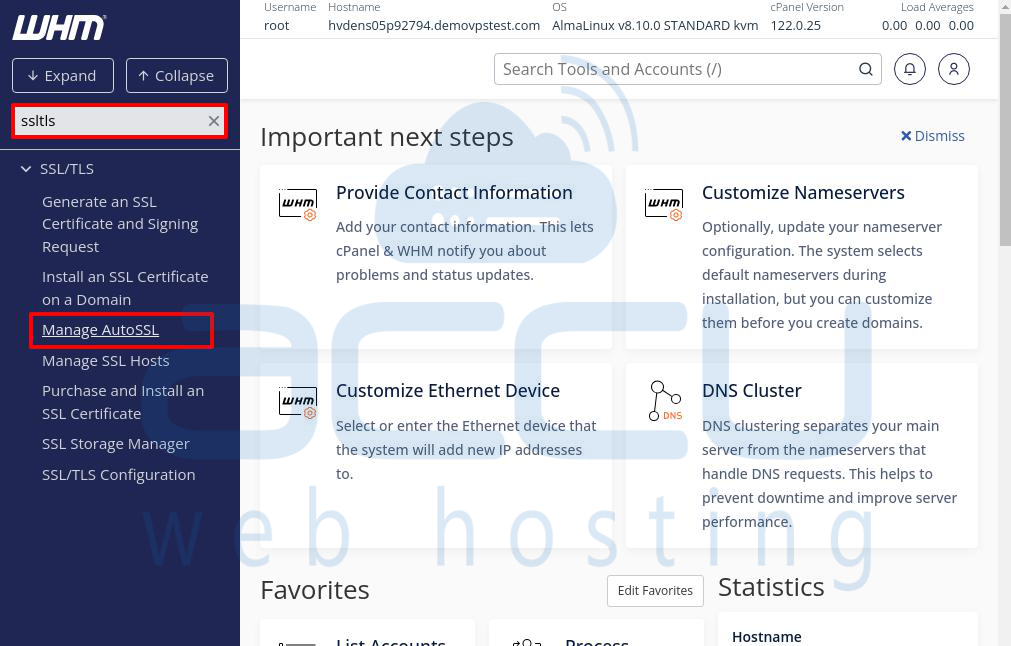
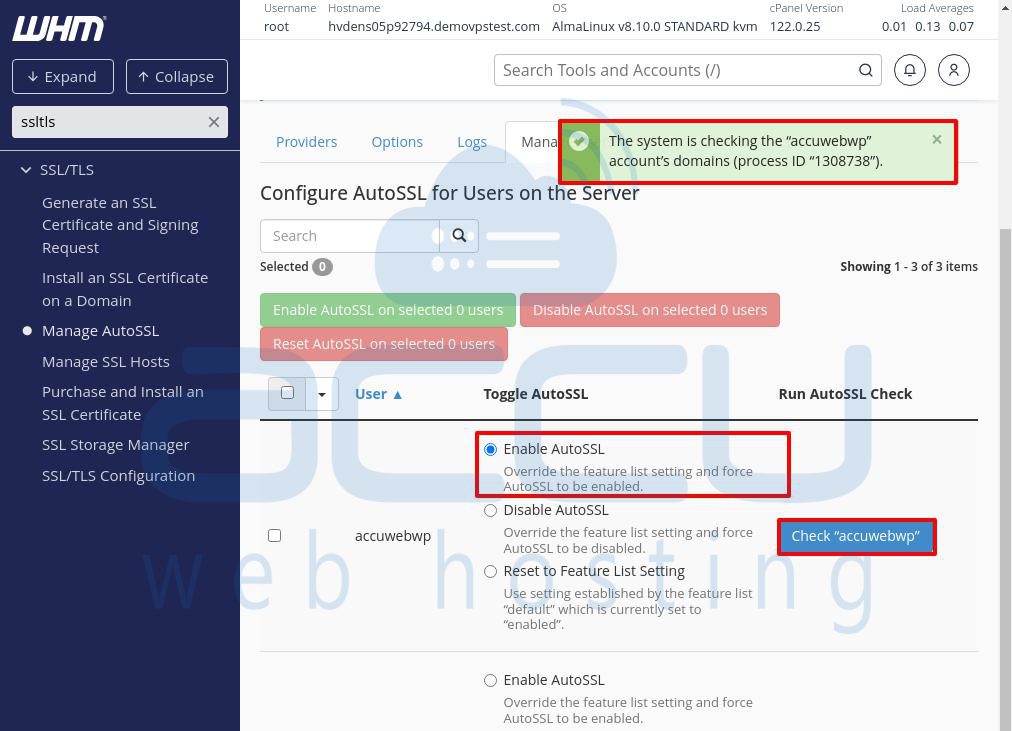
Step 4: In the Manage AutoSSL window, click on the Manage Users tab. Search for the username of the cPanel account for which you want to renew the SSL.

You can also pick the username from the list and click on Enable AutoSSL to activate the SSL certificate for that account.
Then, click the Check Username button to enable the SSL certificate for the specified domain.
How do you check the SSL Certificate Error Log in WHM/cPanel?
Below are the steps for checking the autossl Certificate error log for a single user from WHM/cPanel.
Step 1: Log in to your WHM panel.
Step 2: Find the search box in the top left corner of the screen.
Step 3: Type "SSL TLS" in the search box, then click on Manage AutoSSL.
Step 4: In the Manage AutoSSL window, click on the Logs tab.
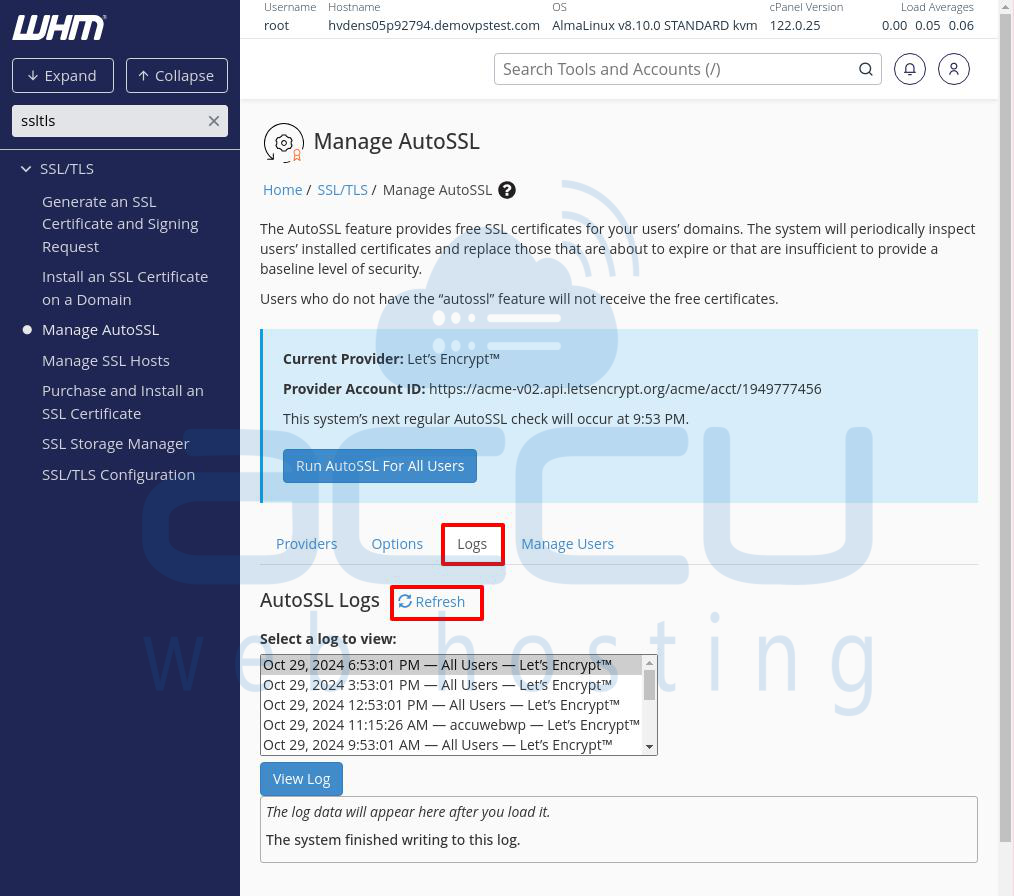
Step 5: Click the Refresh button to update the server logs.
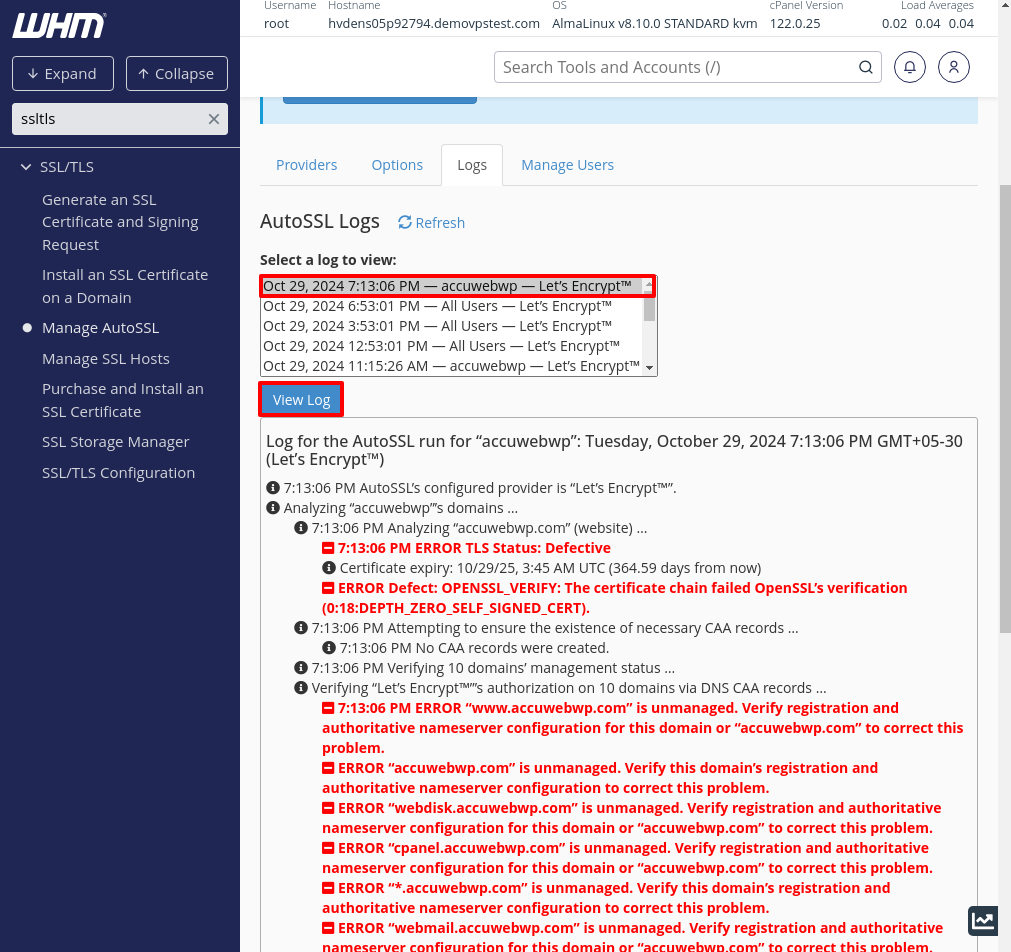
Step 6: In the "Select a log to view" field, choose the log you want to check and click on View Log to see the details below the button.
Conclusion:
Renewing an AutoSSL certificate for one user in WHM/cPanel is simple. Log into the WHM panel, go to the Manage AutoSSL section, and choose the user account you want to update. Ensure the account is set up correctly and has the right permissions to simplify the renewal process. This will ensure the user’s domain stays secure with a current SSL certificate.


