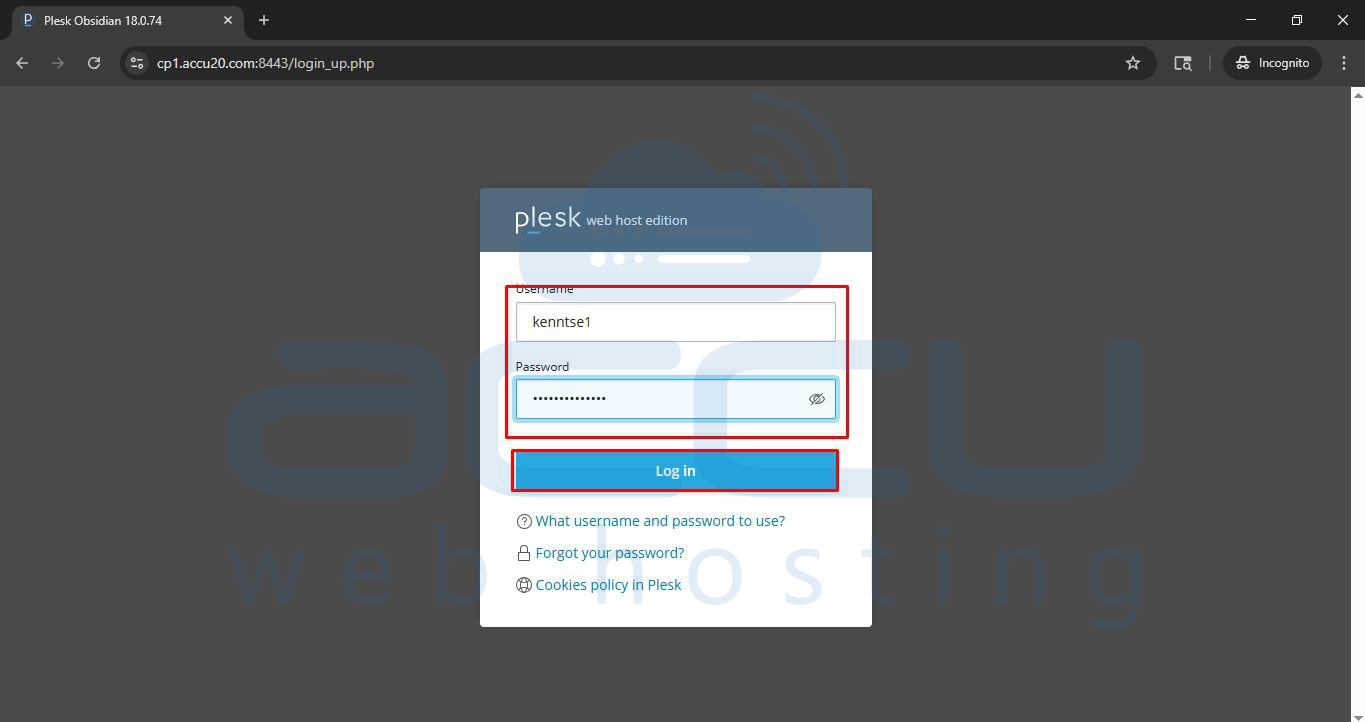
1. Log in to the Plesk account.
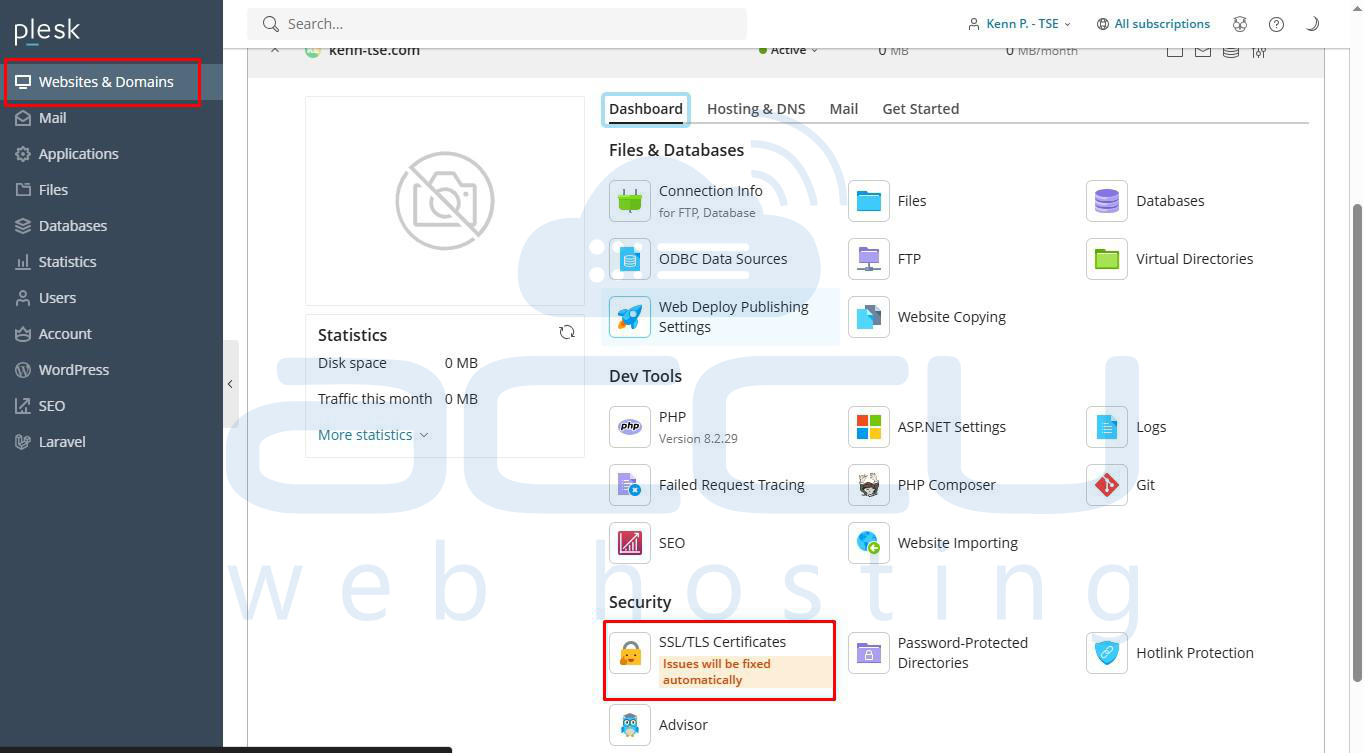
2. Go to Websites & Domains and click on SSL/TLS Certificates.
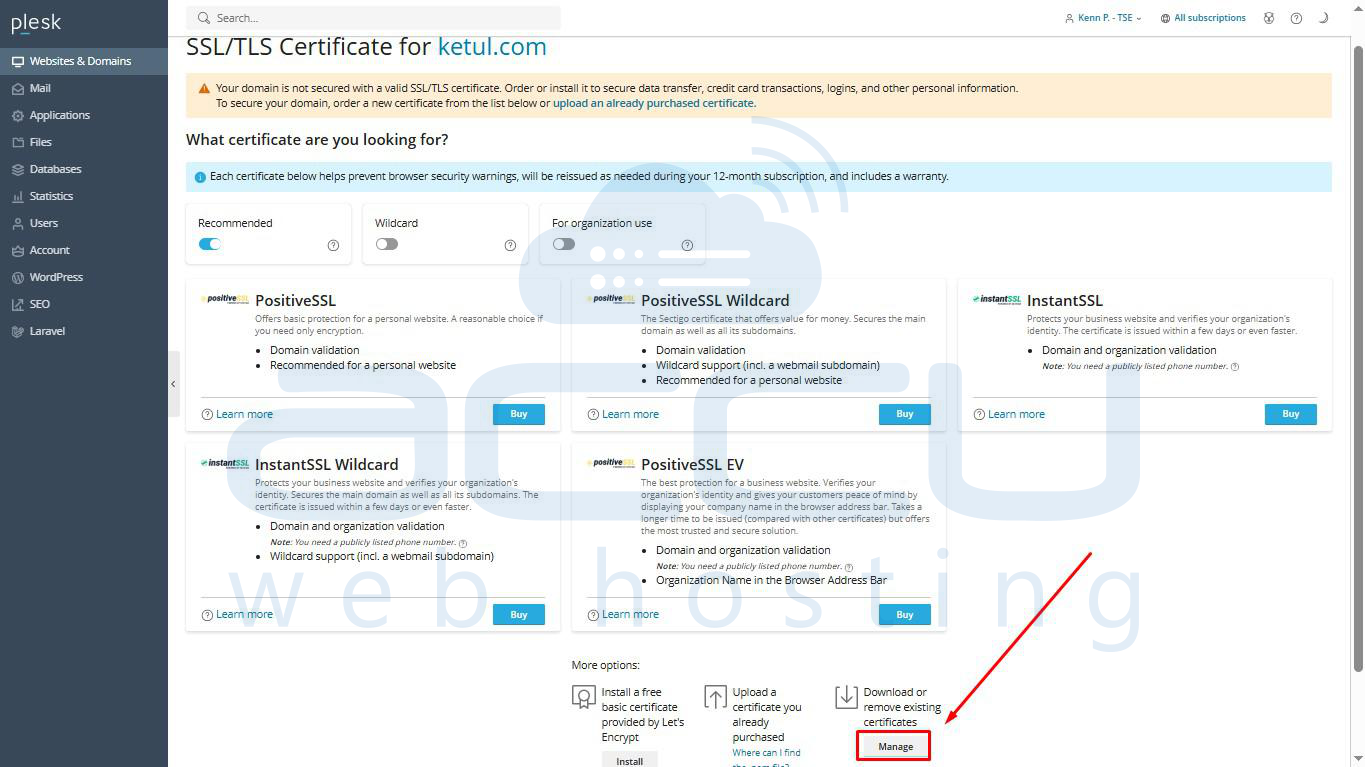
3. Scroll down and click on “Manage” below Download or remove existing certificates
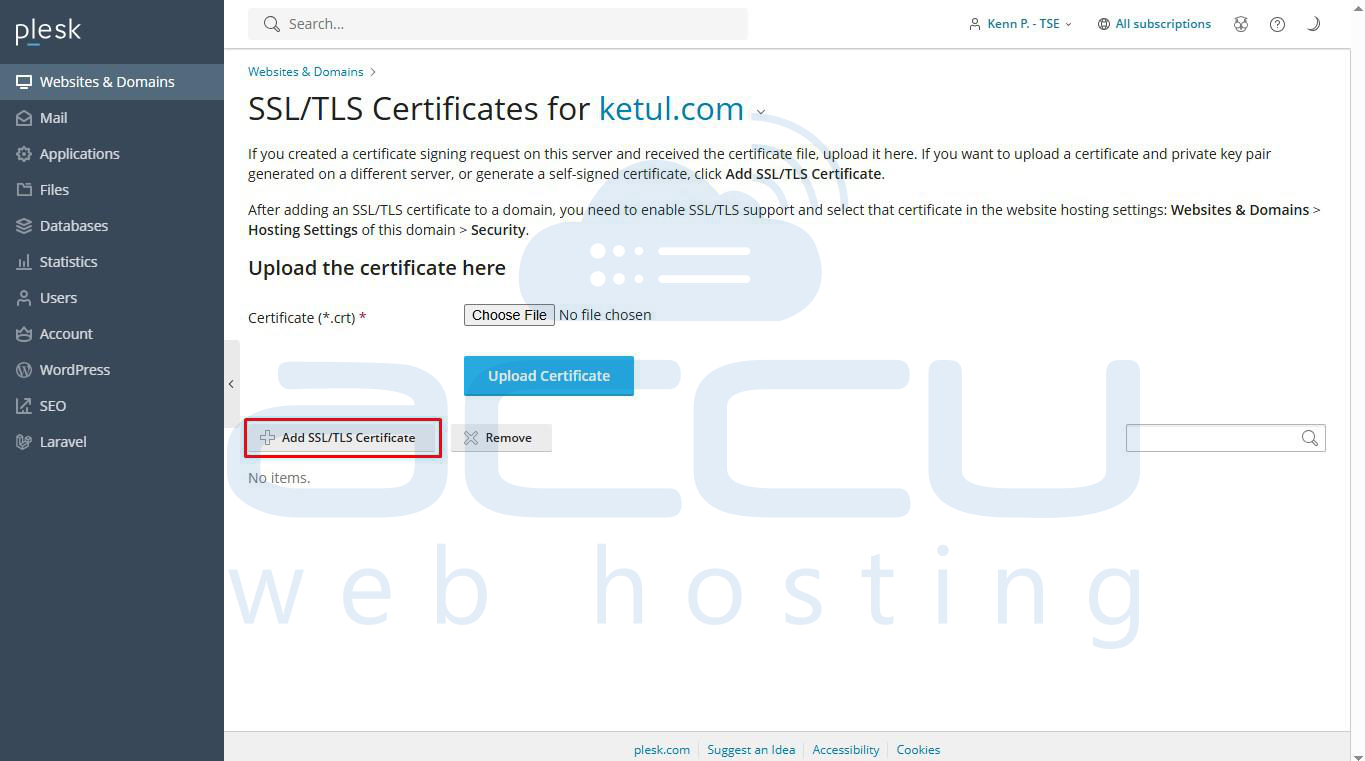
4. Proceed by clicking on Add SSL/TLS Certificate.
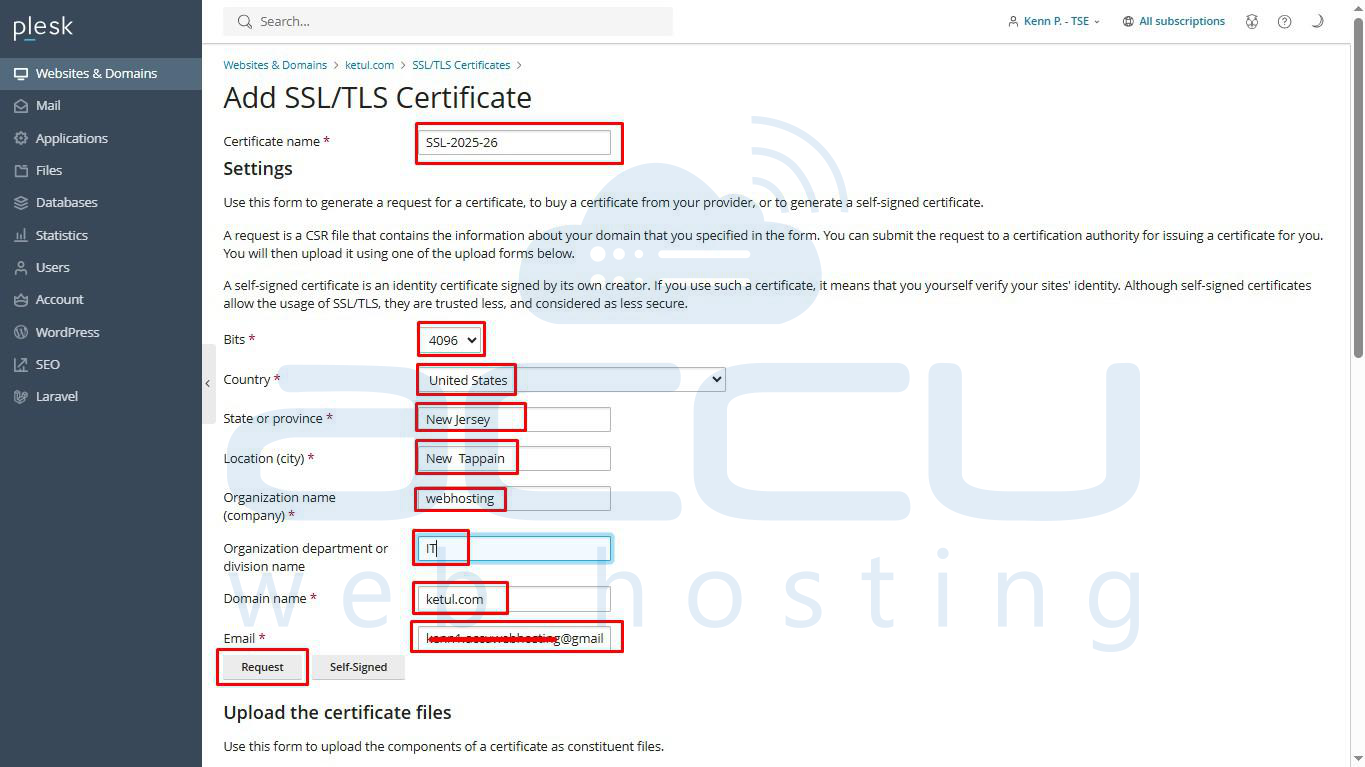
5. Specify the certificate parameters and click on Request:
-
Certificate name: This will help you identify this certificate in the repository.
-
Bits: Choose the encryption level of your SSL certificate. In Plesk Onyx, 2048, 3072, and 4096 bits are available.
-
Country, State or province, location (city), organization name (company): The values you enter should not exceed the length of 64 symbols.
-
Domain name: The domain name for which you want to purchase an SSL certificate. This should be a fully qualified domain name. Example: example.com.
-
Email: The website administrator's email address
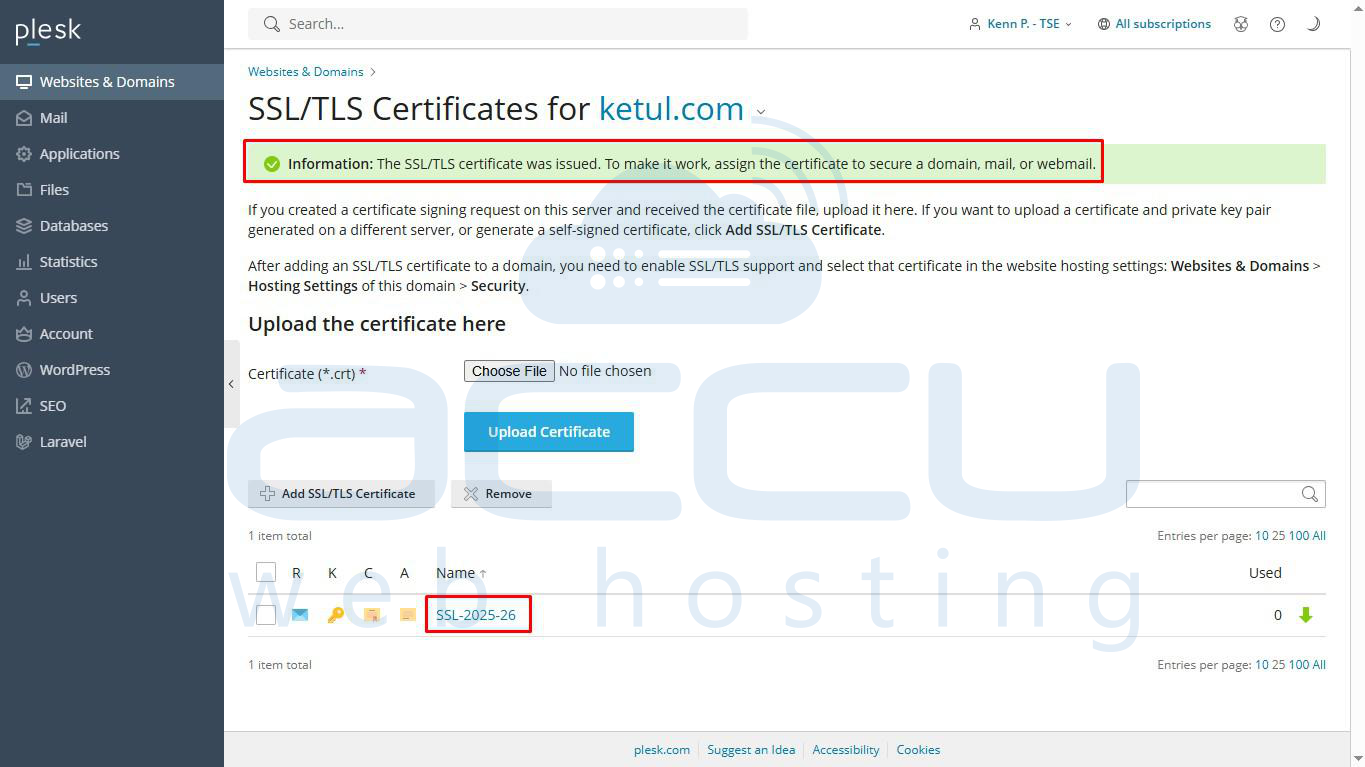
6. Plesk will generate your private key and certificate signing request (CSR) and add them to your certificate repository (Domains > SSL/TLS Certificates). Click on the Name to view CSR and Private key (*.key)