
Did you try to open a website in Chrome and see the error "This site can’t be reached" with an ERR_CONNECTION_CLOSED message?
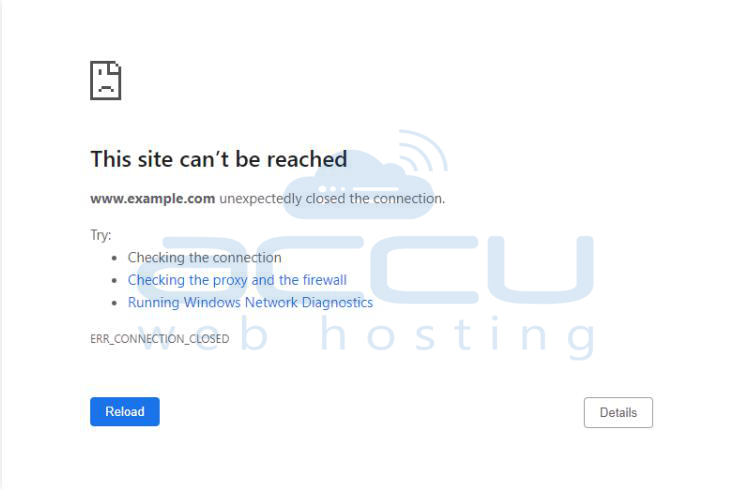
This error means there's a problem with the connection between your computer and the website, not the website itself. Sometimes, it's just a temporary issue that goes away if you reload the page. But other times, you may need to troubleshoot your computer to fix it.
In this article, we’ll explain what the ERR_CONNECTION_CLOSED error means and guide you through 13 steps to fix it.
What Does “ERR_CONNECTION_CLOSED” Mean?
To explain this message, let's first look at what happens in Chrome when you try to visit a website.
When you click a link or type a website's address, Chrome needs to connect to the website’s server. Once it connects, it requests the files it needs to display the page, like code and images.
The ERR_CONNECTION_CLOSED message means that Chrome tried to make the connection, but something went wrong with your computer or internet, stopping Chrome from connecting to the website’s server.
To fix this error, you need to find out what is blocking Chrome from connecting to the website.
How To Fix the “ERR_CONNECTION_CLOSED” Error?
The ERR_CONNECTION_CLOSED error can be caused by issues with either the visitor's device or the website's server. The solution depends on where the problem comes from.
1. Check Your Internet Connection
Before trying more complicated fixes, ensure your internet connection works properly. Sometimes, the error is caused by network issues. Try accessing the website on a different network to see if the problem is with your current connection.
For example, try switching to mobile data if you're using Wi-Fi. If the issue only happens on your current network, consider contacting your internet service provider (ISP).
2. Check Firewall or Antivirus Settings
Sometimes, your firewall or antivirus software may be blocking the website, causing the ERR_CONNECTION_CLOSED error.
To see if this is the problem, try temporarily turning off your firewall or antivirus. If the error goes away, you can reset the firewall settings to fix any issues or switch to another antivirus tool.
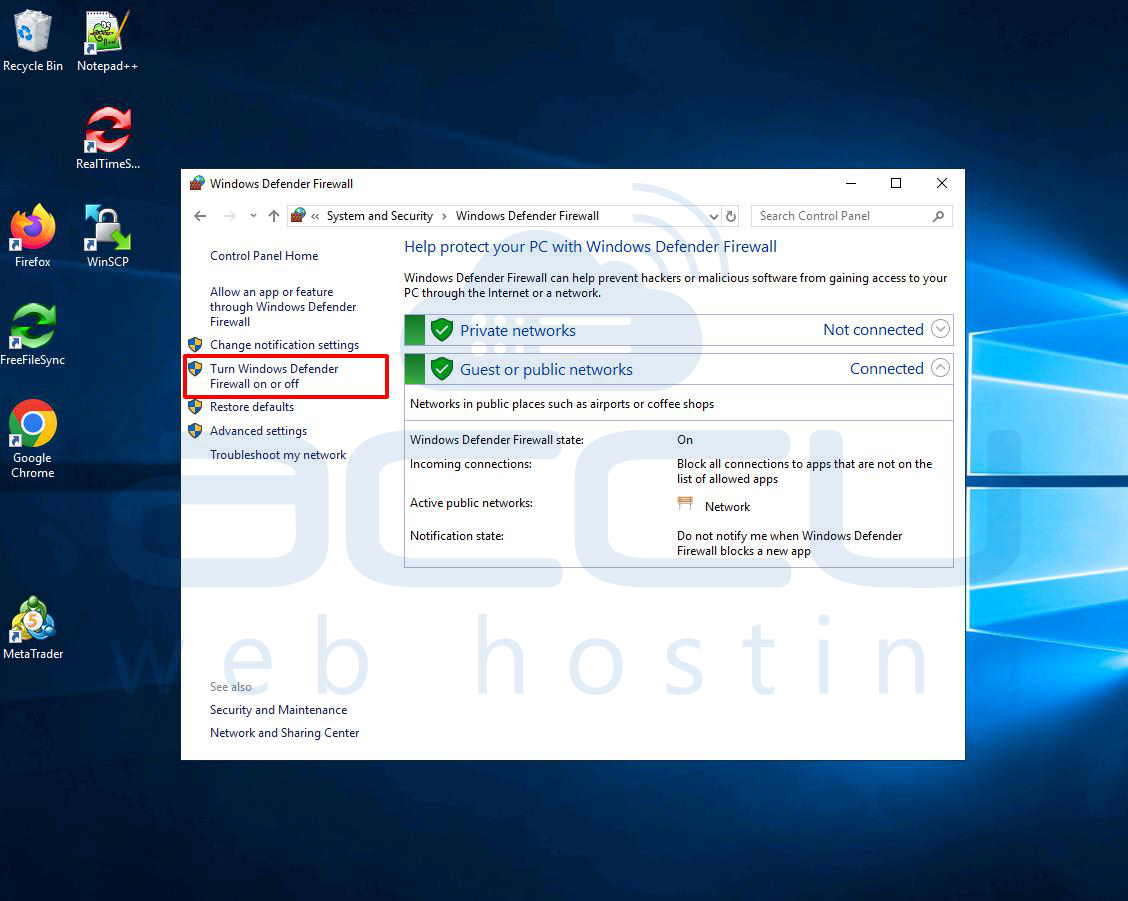
Here’s how to turn off the built-in firewall on Windows:
Go to Control Panel > System and Security > Windows Defender Firewall > Turn Windows Defender Firewall on or off.
3. Use a Virtual Private Network (VPN)
If you only get the ERR_CONNECTION_CLOSED error when visiting a specific website, your internet provider might be blocking that site.
You can bypass this by using a VPN service like ProtonVPN. A VPN encrypts your connection, helping you get around any blocks set by your internet provider.
4. Reset Your Network Settings
Even if your internet is working, there may be a problem with your device’s network settings causing the ERR_CONNECTION_CLOSED error. Resetting these settings can help.
On Windows, you can reset your network settings by opening Command Prompt as an Administrator (right-click on Command Prompt and select "Run as administrator"). Then, run these commands:
To reset TCP/IP settings, type:
netsh int ip reset
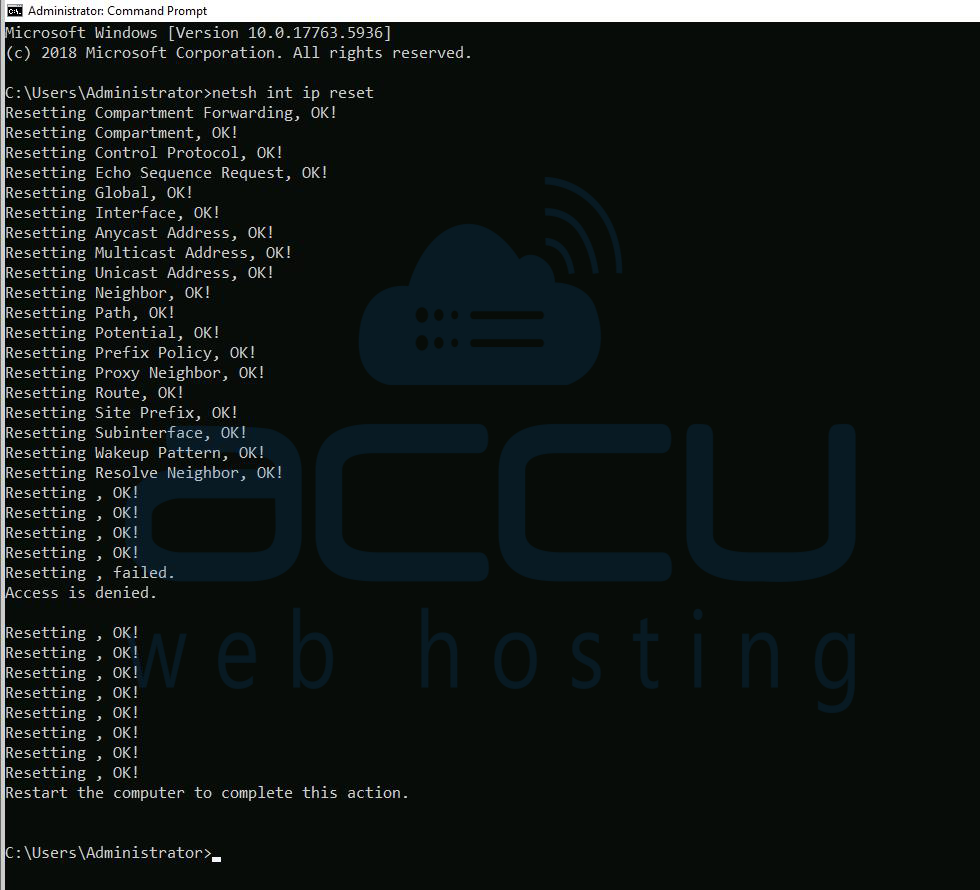
and press Enter.
To reset Windows Sockets (Winsock), type:
netsh winsock reset
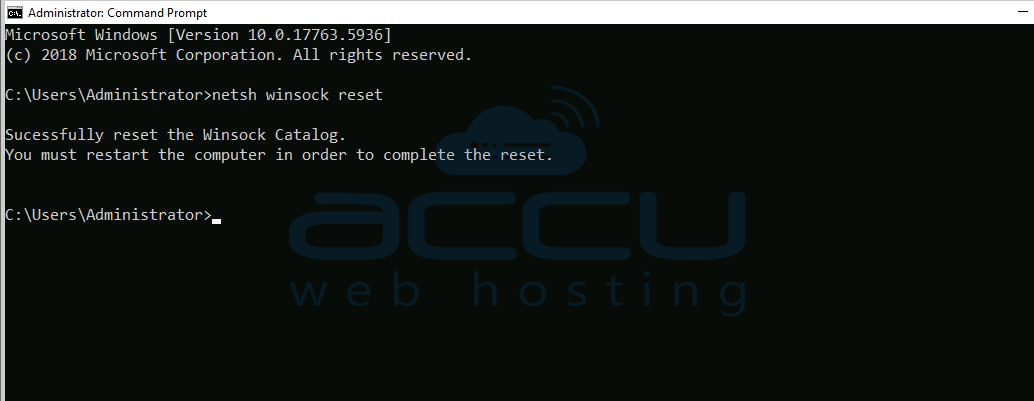
and press Enter.
Finally, restart your computer to apply the changes.
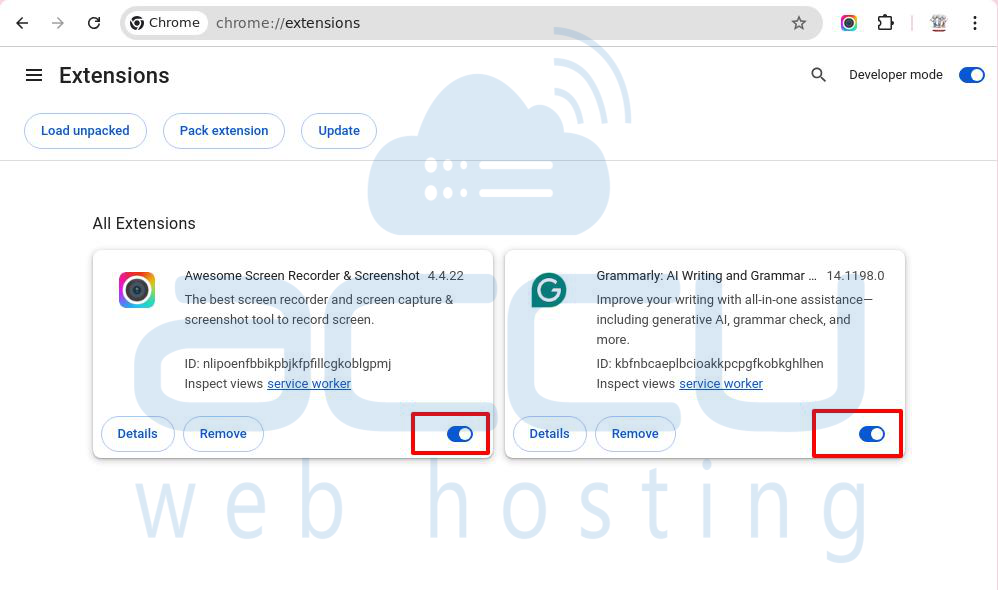
5. Deactivate Chrome Extensions
Some Chrome extensions might accidentally cause the ERR_CONNECTION_CLOSED error by messing with your connection.
To check if this is the issue, try turning off all your Chrome extensions. If the error goes away, one of the extensions is causing the problem. You can turn them back on one by one to find out which one it is.
To manage your Chrome extensions, go to Settings > Extensions or type this in the Chrome address bar:
chrome://extensions/
6. Flush DNS Cache
When you visit a website, your computer uses the Domain Name System (DNS) to find the IP address of the server for that site. To make things faster, your computer stores these addresses in a local DNS cache. However, if the data in this cache is wrong, it can cause the ERR_CONNECTION_CLOSED error.
To fix this, you can flush (clear) your DNS cache to force your computer to get the correct IP address.
After clearing your computer’s DNS cache, you should also clear Chrome’s DNS cache. In Chrome, type the following into the address bar:
chrome://net-internals/#dns
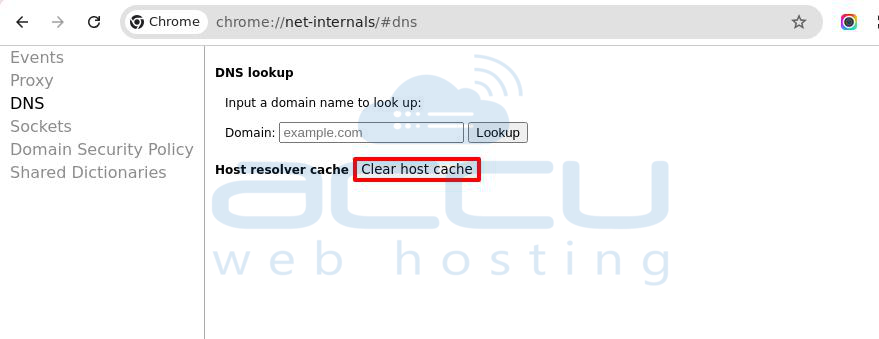
Then, click the "Clear host cache" button.
7. Clear Your Chrome Browser Cache
In addition to clearing the DNS cache, it’s a good idea to clear Chrome’s browser cache. Chrome saves files from websites in a local cache to speed up browsing. If something in this cache is corrupted, it can cause errors like the ERR_CONNECTION_CLOSED message.
To clear the cache, type the following into Chrome’s address bar:
chrome://settings/privacy
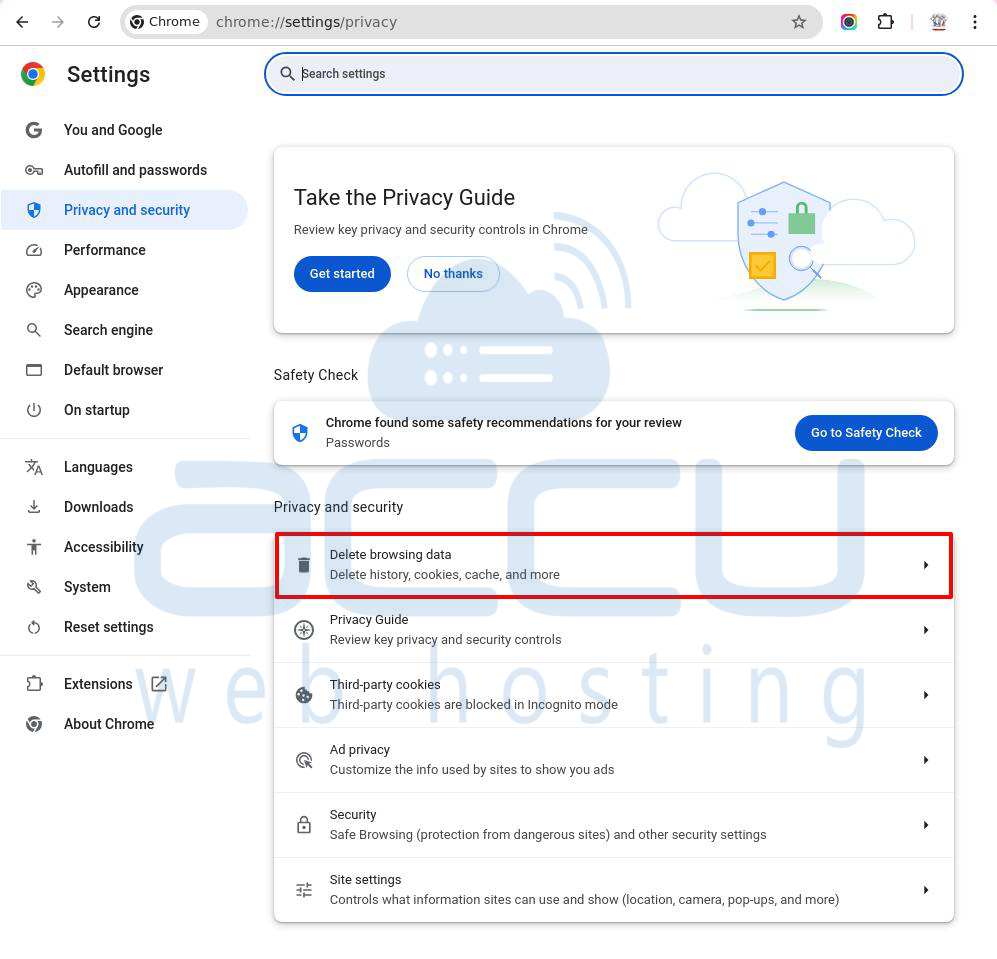
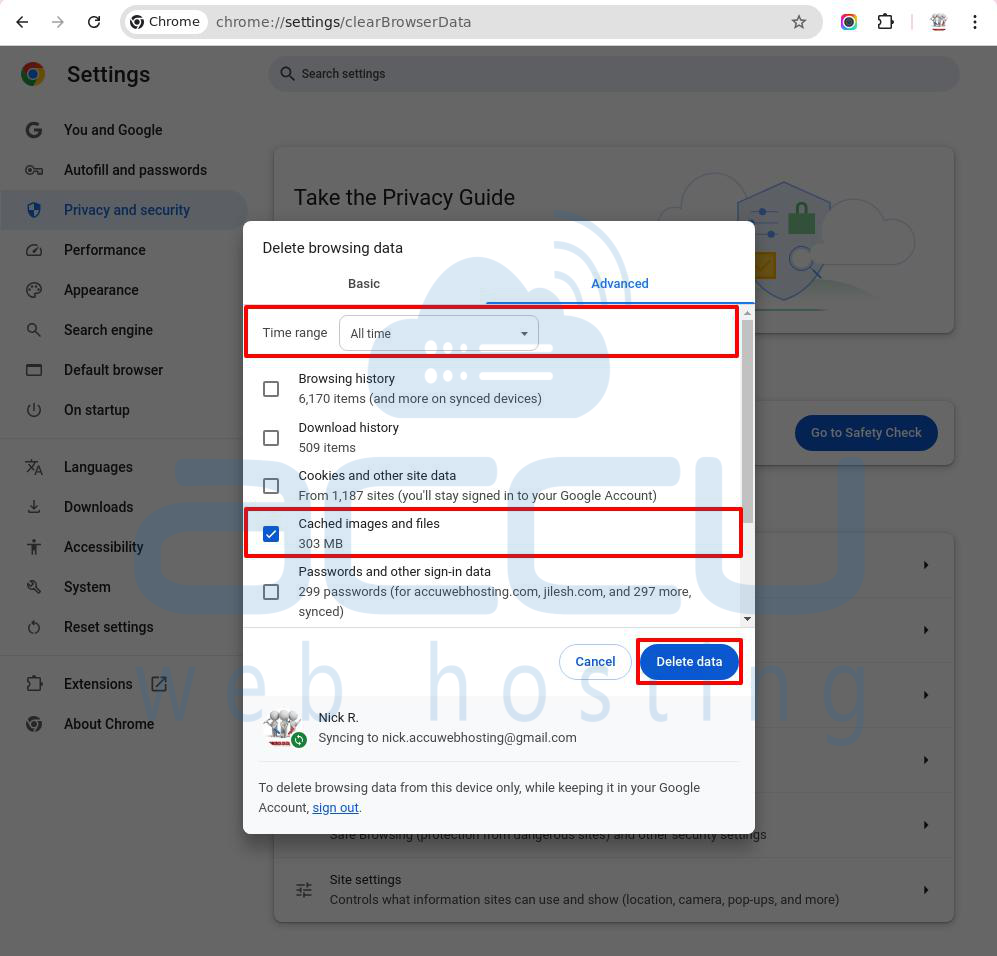
Click the "Delete browsing data" option, then:
- Set the time range to All time.
- Check Cached images and files.
- Click Clear data.
8. Disable VPN or Proxy Server
If you’re using a VPN or proxy server, they can sometimes cause the ERR_CONNECTION_CLOSED error if they aren’t working correctly. While a VPN can solve some issues, it can also create problems if it malfunctions.
To see if this is the issue, try turning off your VPN or proxy server. If Chrome starts working again, you’ve found the problem.
To disable a VPN, either close the software or disable it. If you’re using a VPN Chrome extension, you can turn it off by going to Chrome’s Settings > Extensions.
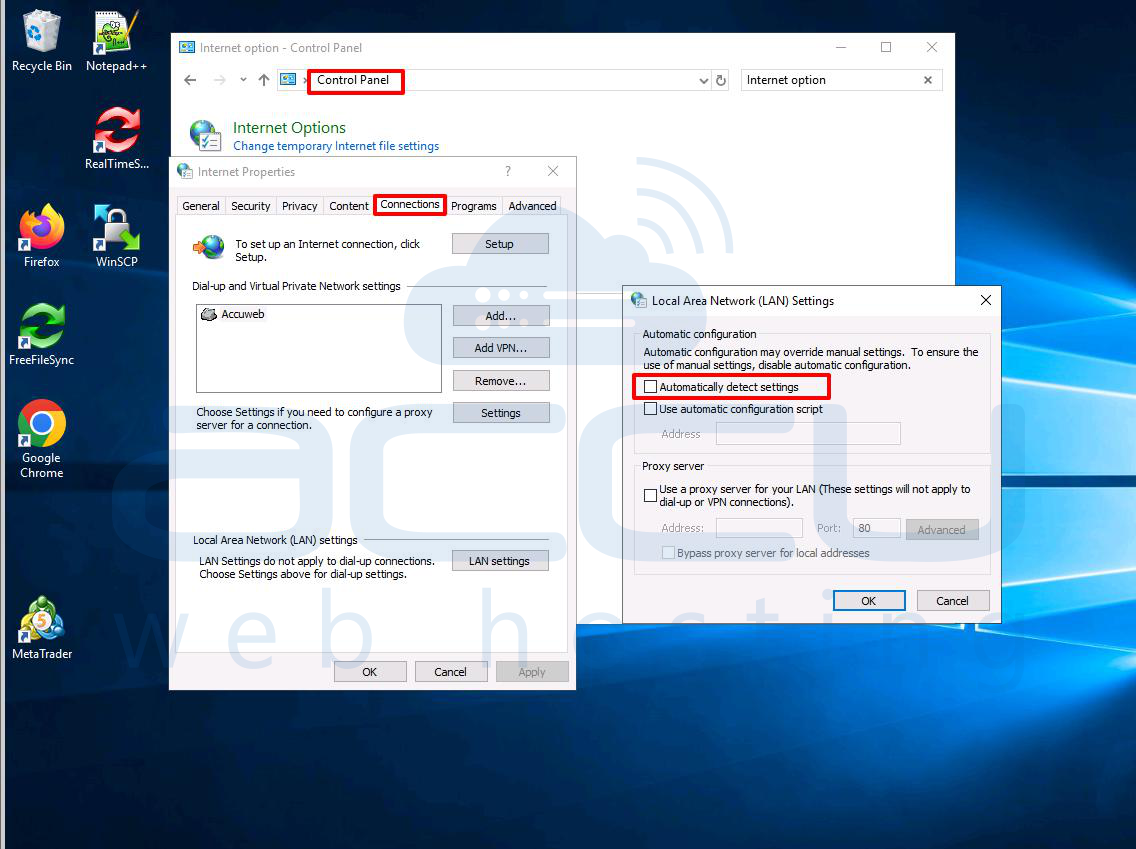
To turn off a proxy server on Windows:
Step 1: Open the Control Panel and search for “Internet options.”
Step 2: Click on the result to open the Internet Properties window.
Step 3: Go to the Connections tab.
Step 4: Click on LAN settings.
Step 5: Uncheck Automatically detect settings and Use a proxy server for your LAN.
9. Update or Reinstall Chrome
If you're using an older version of Chrome, it might be causing the ERR_CONNECTION_CLOSED error due to compatibility or configuration issues.
To avoid this, make sure you have the latest version of Chrome. You can also completely reinstall Chrome to get a fresh copy.
To check for updates, type this into the address bar:
chrome://settings/help
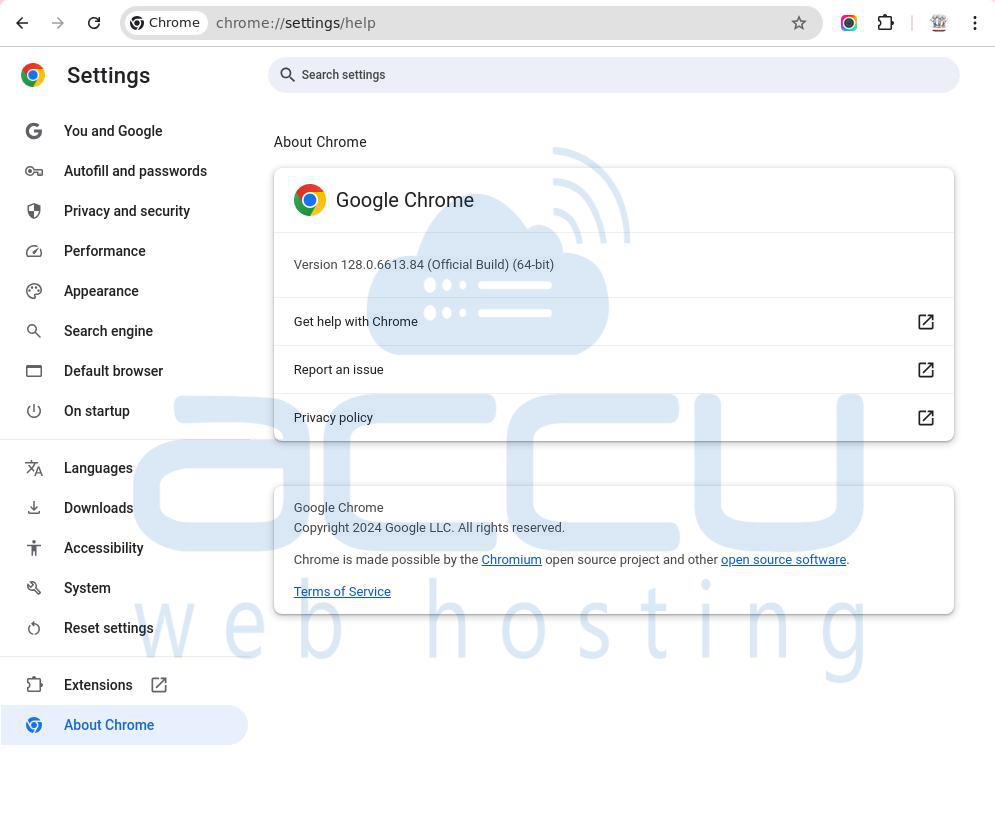
Chrome will automatically look for updates and install them if there are any. After that, you'll need to restart the browser by clicking the Relaunch button.
If you're having the issue on an Android or iOS device, you can update the Chrome app through the app store or your device’s settings.
10. Reset Chrome Settings
To fix other possible issues with Chrome, you can reset it to its default settings.
Chrome has a built-in tool for this. To access it, type this into the address bar:
chrome://settings/privacy
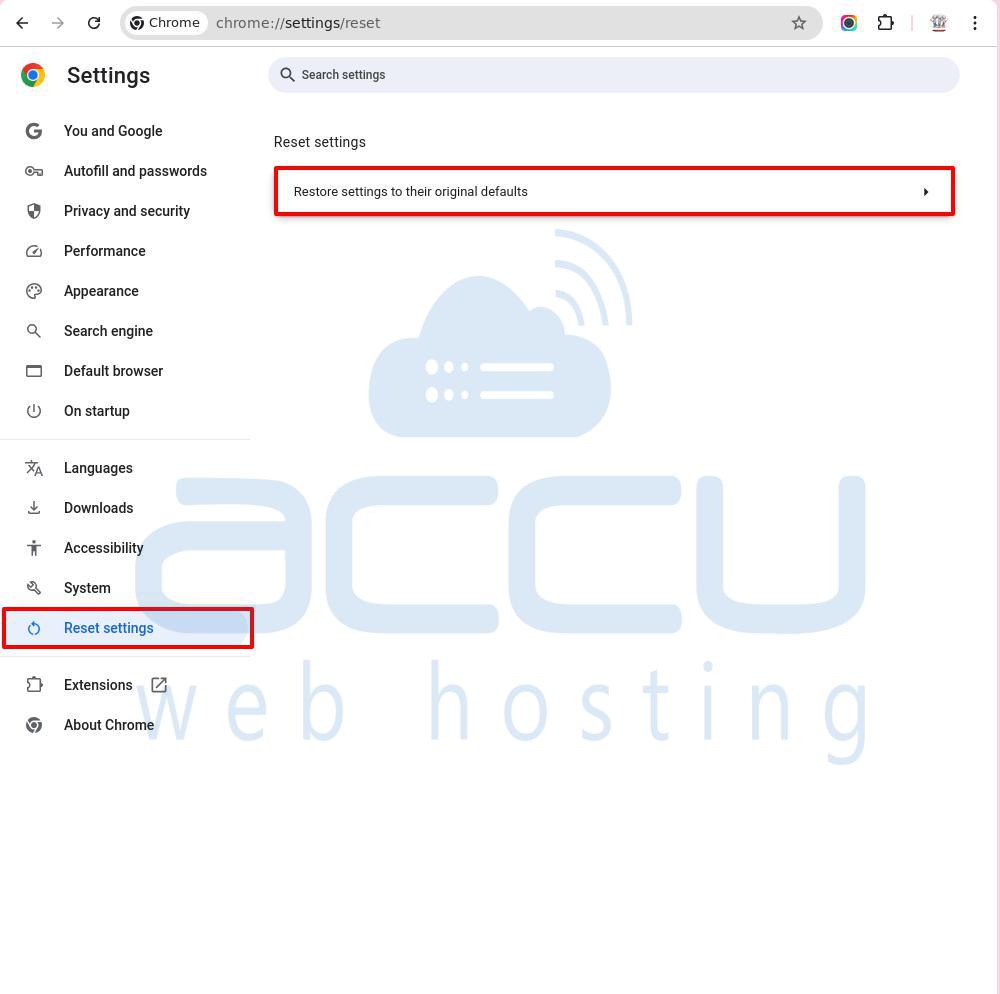
Scroll to the bottom and click on Reset Settings to see more settings. In the Reset Settings window, you'll find an option to Restore settings to their original defaults.
Important: This will erase your saved preferences, like bookmarks, passwords, and browsing history, so make sure to back these up if you want to keep them.
11. Use the Chrome Cleanup Tool
Chrome has a built-in tool called the Chrome Cleanup Tool to help find problems that might be affecting the browser. This tool scans your computer for harmful software that could be interfering with Chrome and causing errors like ERR_CONNECTION_CLOSED.
To use this tool, type this address in your Chrome browser:
chrome://settings/cleanup
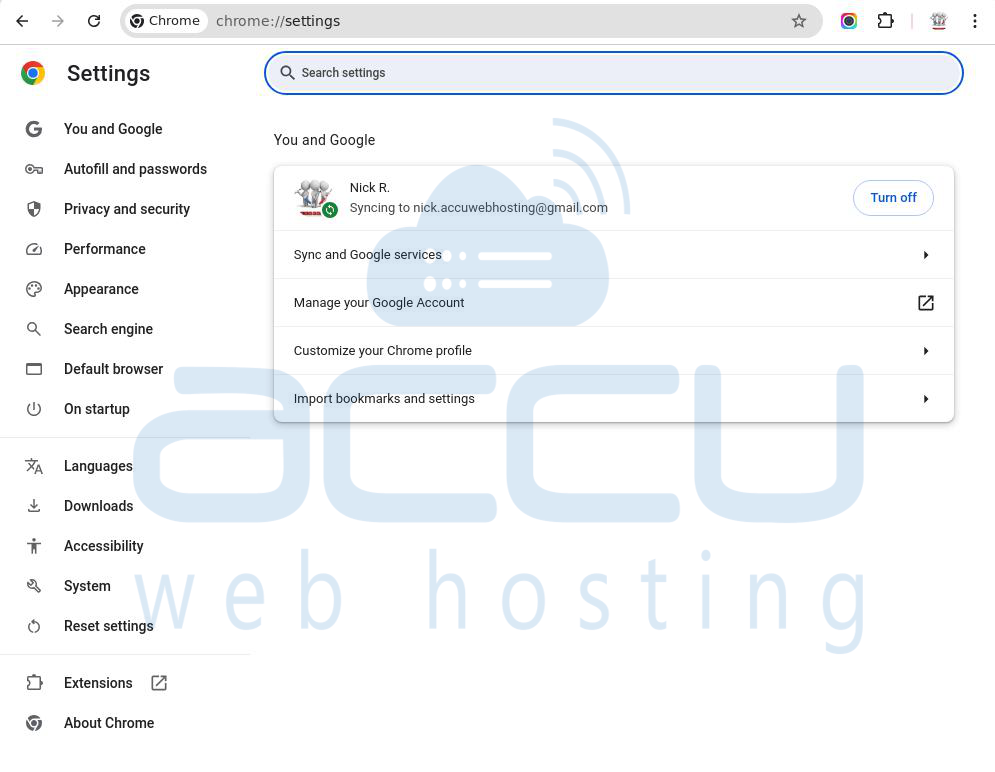
Then click the Find button to start the scan.
12. Scan Your Computer for Malware
Another possible reason for the ERR_CONNECTION_CLOSED error could be malware or viruses on your computer. This malicious software might be disrupting your connection and causing this error.
If you ran the Chrome Cleanup Tool, it might have found some issues. However, for a more thorough check, you should run a full malware scan on your device using a program like Malwarebytes.
Conclusion
The ERR_CONNECTION_CLOSED message appears in Chrome when your device’s connection is damaged and cannot connect to the website’s server.
You’ll need to find out what’s blocking the connection to fix this issue. By following the 12 solutions listed above, you should be able to resolve the problem and get back to browsing quickly.


