
In VPS/ Dedicated server, the maximum file size can be sent is 50 MB. This is the default limit of Exim. You can change this default limit from the WHM panel.
How to check the default email size on the exim mail server?
You can follow the below steps to check out the exim default email size limit by command line.
Step 1: Login into the server using the root user.
#ssh your_username@host_ip_address -p port_number
Step 2: Run the following command in the server.
# exim -bP | grep message_size_limit
The above command will show you the current setting of the email size limit.
Ex. message_size_limit = 50M
Steps to change Message Size Limit from WHM panel:
Step 1: Login into the WHM panel.
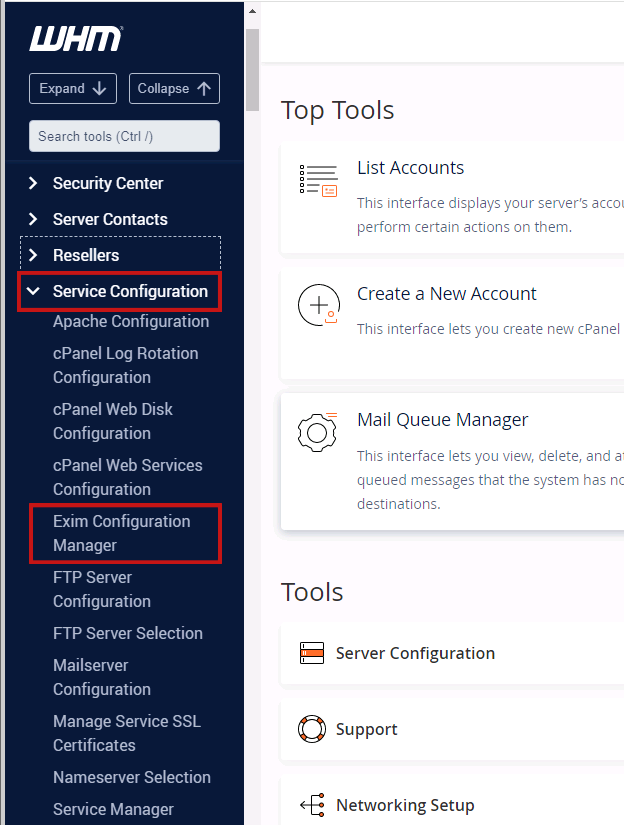
Step 2: In the WHM panel, go to Home -> Service Configuration »Exim Configuration Manager.
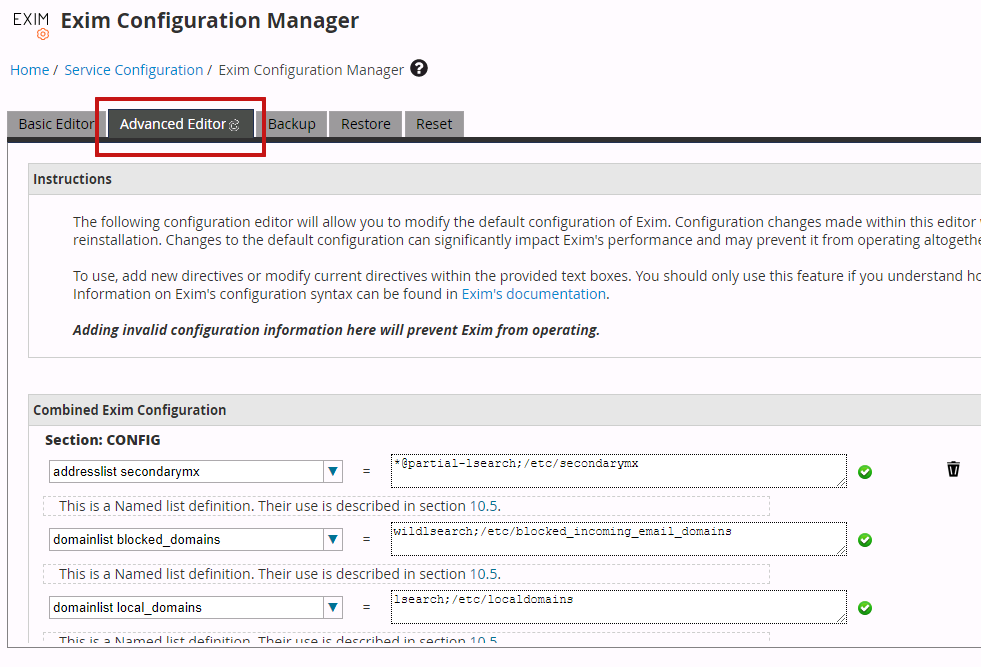
Step 3: Now, you will have to click on the "Advanced Editor" tab under Exim Configuration Manager.
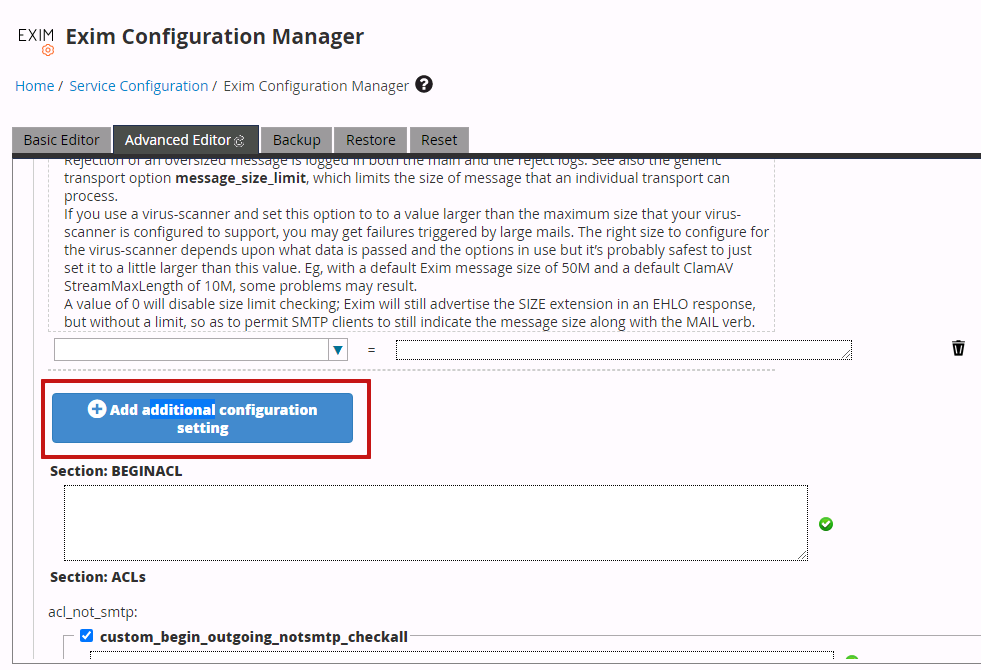
Step 4: Next, scroll down the window and find the “Add additional configuration setting” button and then click that button.
Step 5: Find and select "message_size_limit" in the first text box.
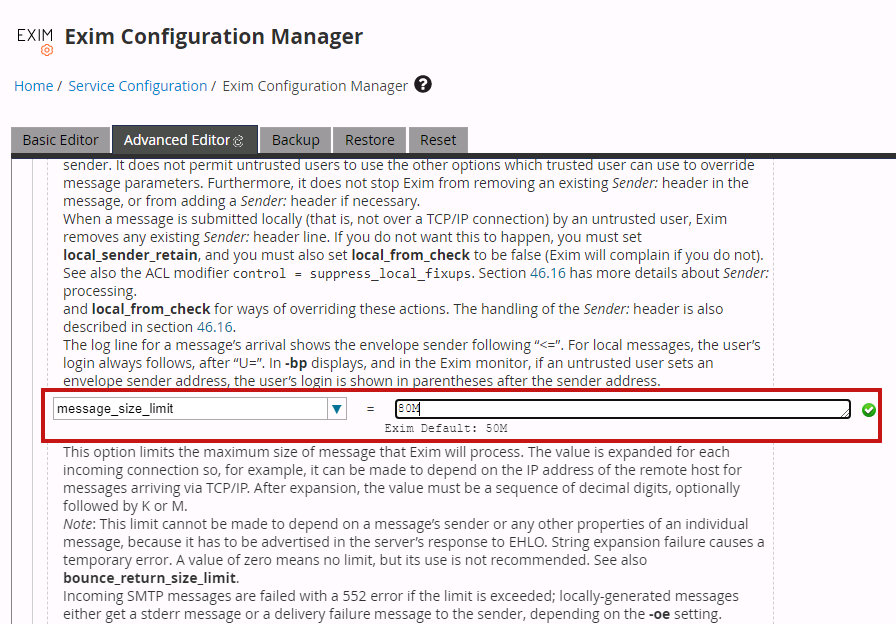
Step 6: Now, enter your desired value in the field on the right. As an example, if you intended to increase the limit to 80MB, you would use the value "80M".
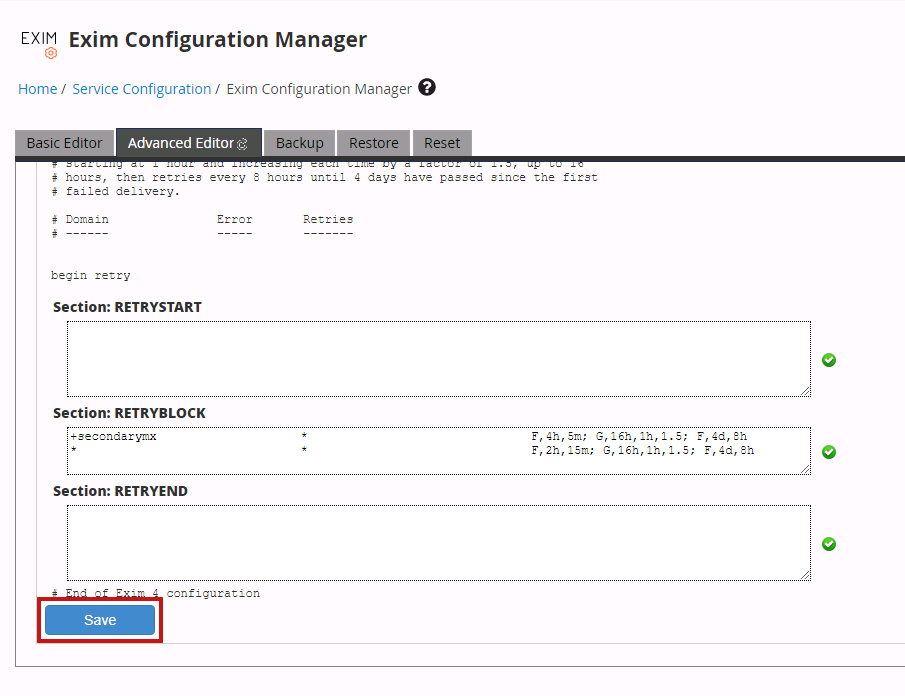
Step 7: Scroll to the bottom of the interface and click "Save". After that system will then successfully apply the message size limit.
Note :
It is impossible to set the email size for the particular domain or email id.
That's it.


