
With the help of IP address restriction, you can provide limited access for the Administrator user only. This IP-based restriction will not be applied to any other Plesk users.
You can restrict a particular IP address or the whole IP address range.
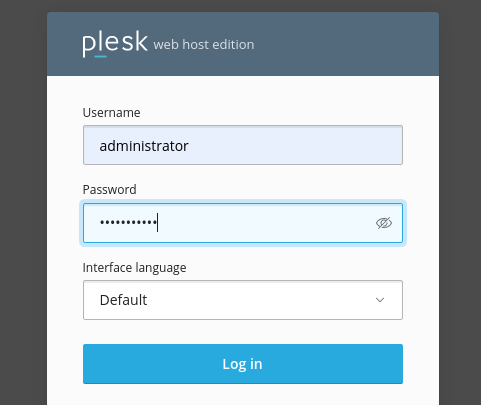
Log in to the Plesk panel with the Administrator user.
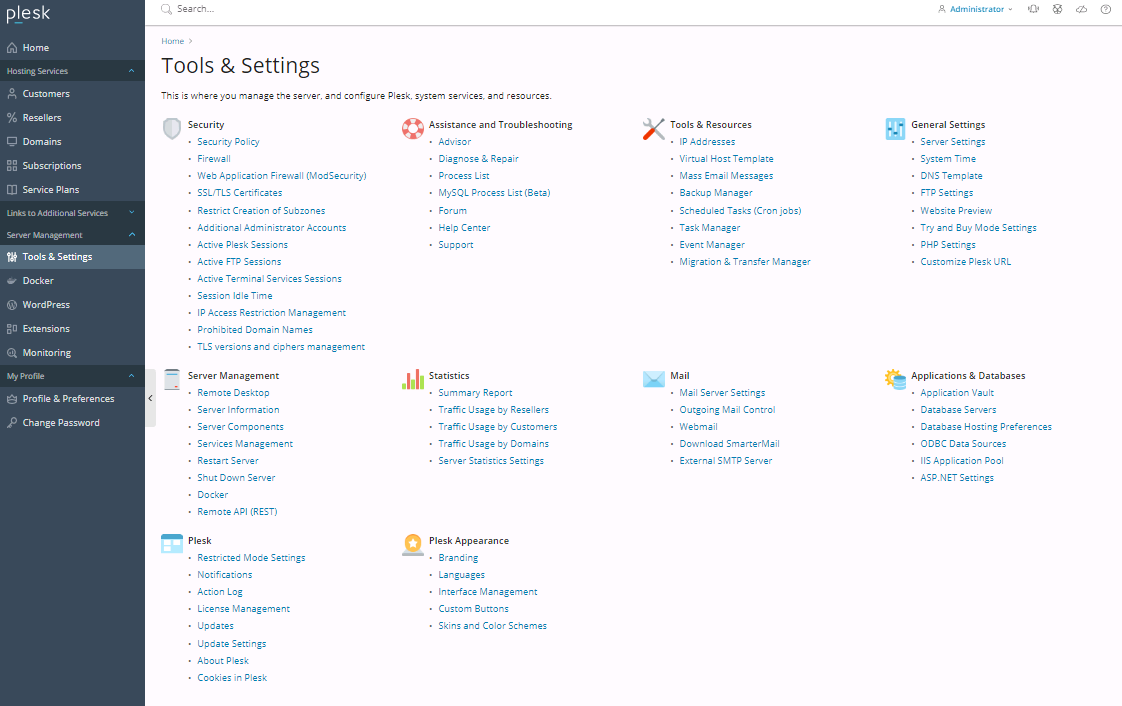
Go to the Tools & Settings option from the side menu.
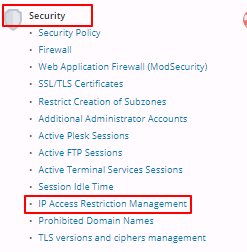
Click on IP Access Restriction Management under the Security section.
Click on the Settings button.
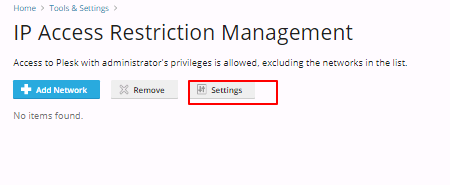
Now, you will see Access to Plesk with administrator's privileges with two options.
i. Allowed, excluding the networks in the list.
Whose IP address is added to the list will not be able to log in with the Administrator user to Plesk.
ii. Denied from the networks that are not listed.
Whose IP address is added to the list will be able to log in with the Administrator user to Plesk.
Select the option Denied from the networks that are not listed.

Click on the OK button.
Click on Add Network to add a new IP address restriction entry.

Assign the IP address or IP Range to the box.
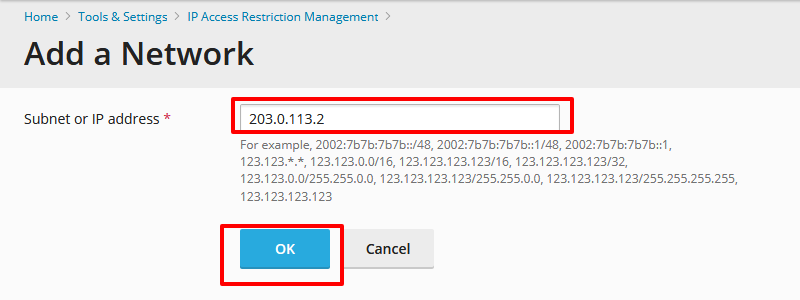
Click on OK to save the changes.


