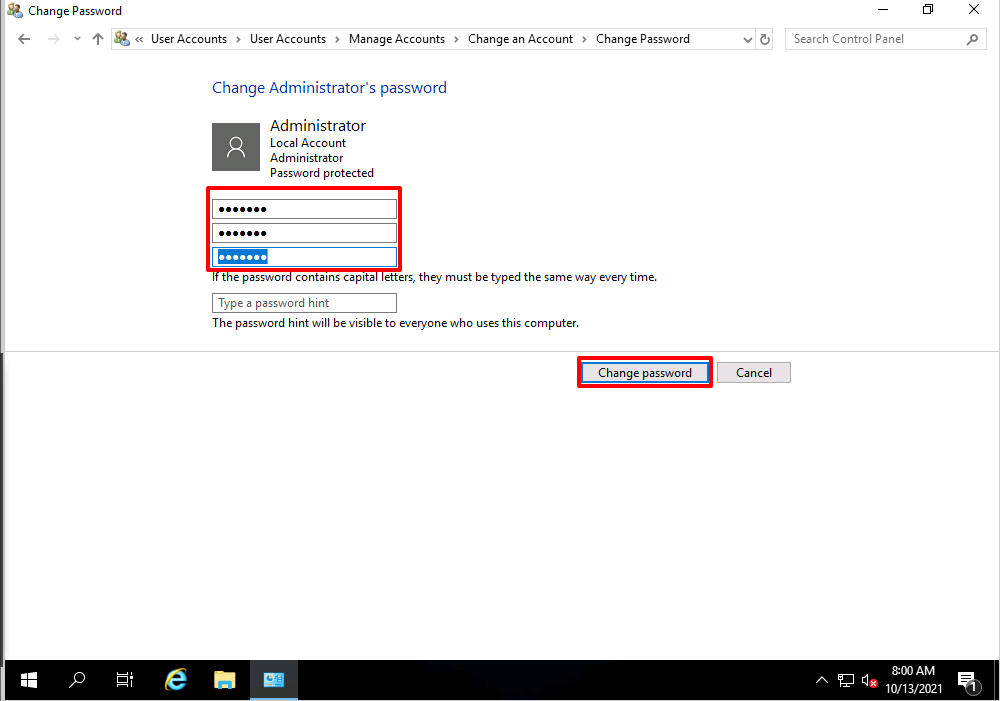
Today, we will guide you on how to change the administrator user Password for Windows Server 2019. Below are the steps to change the administrator user password on Windows Server 2019.
Step 1: Log in to your Windows machine:
Step 2: Once you log in to the server, search “control panel” in the search bar and open the control panel.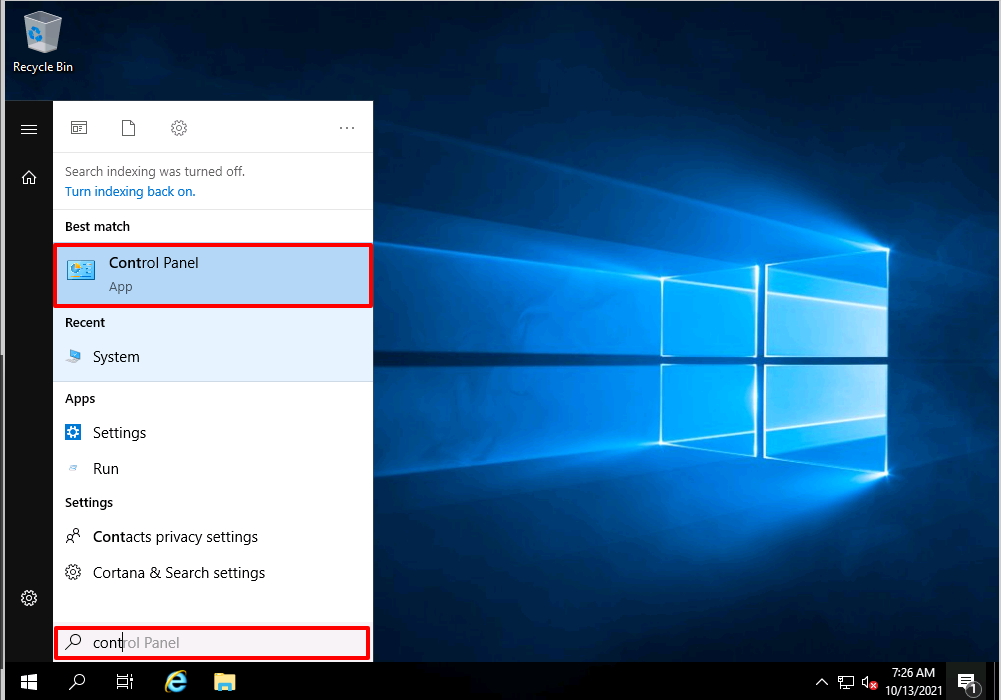
Step 3: Once you click on the “Control panel,” you will see the screen below, then click on “Change Account Type.”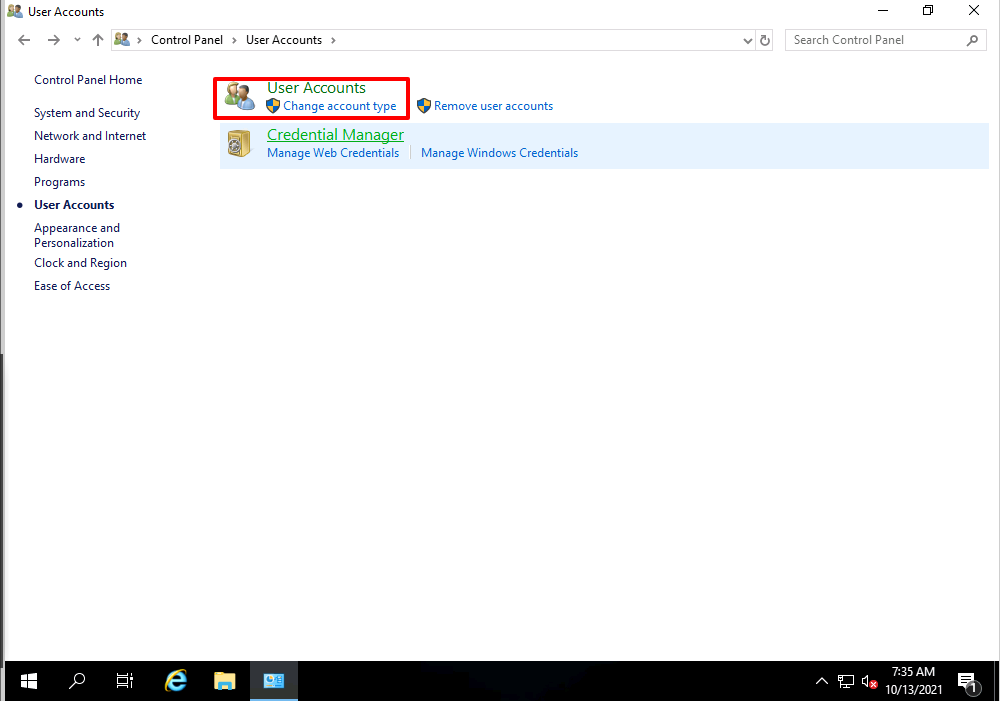
Step 4: Once you click on the “Change Account Type,” you will see the link below. Here, you will have to click on the “Administrator.”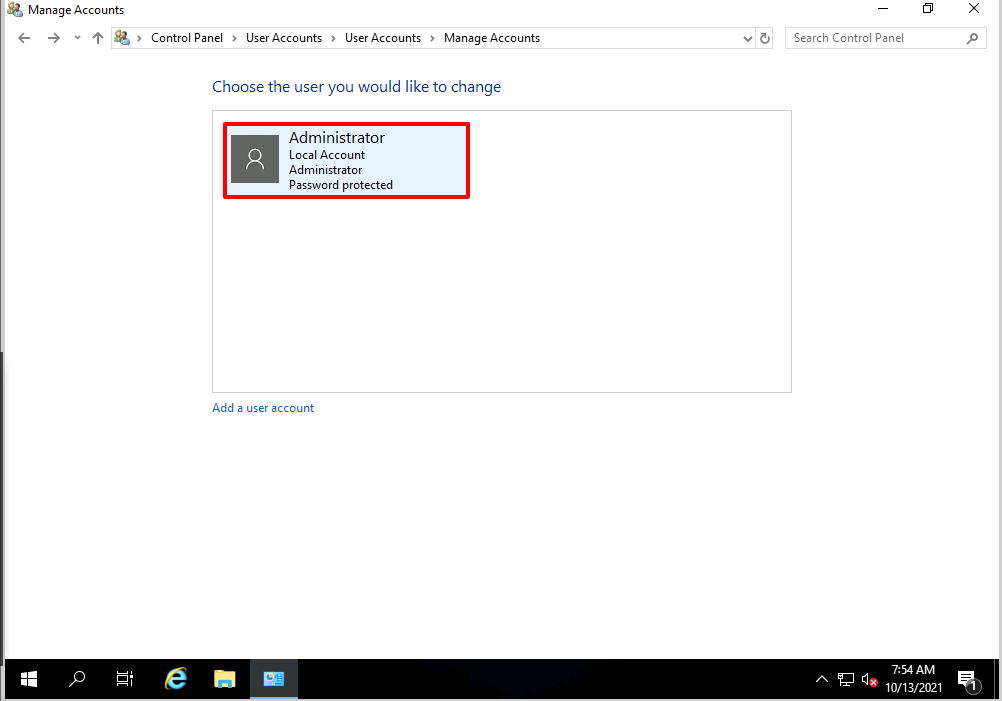
Step 5: Click on “Change the Password” as shown in the screen capture below.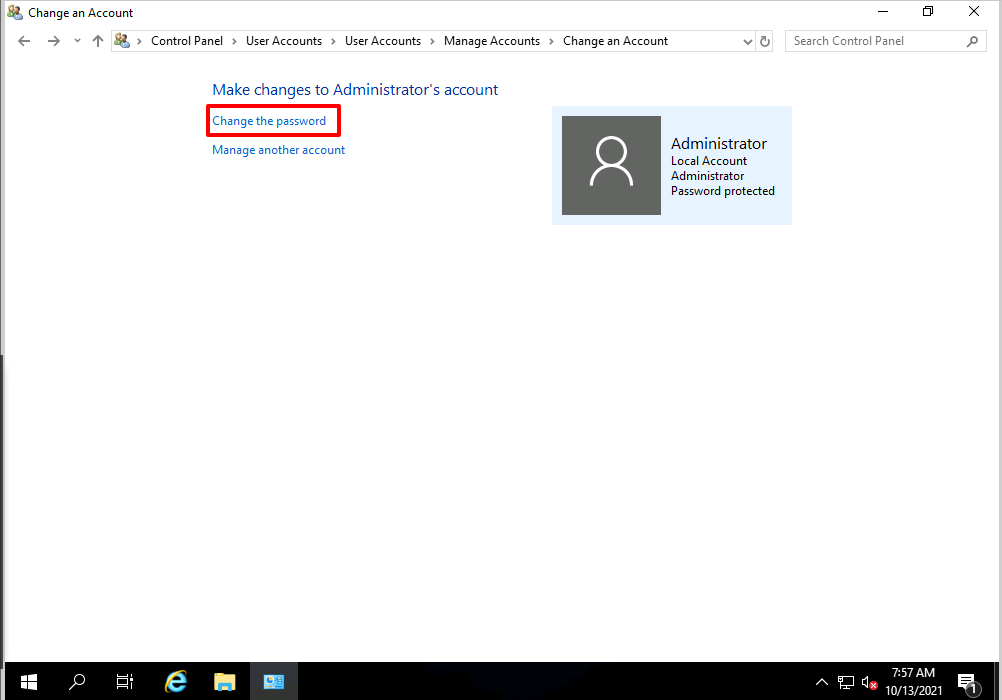
Step 6: Here, you will have to enter the details below and click on the Change Password button shown in the screen capture.