
While you add a website from IIS Manager, you’ll get an option to select the application pool. In case you want to change the application pool later, you can modify the website properties and change the application pool from IIS.
Please note that if you've chosen WebsitePanel to be installed in your VM, it is recommended that you change the application pool only from WebsitePanel.
Follow the steps below to change the application from IIS.
Step 1: Log in to your VPS via Remote Desktop. Please refer to how to log in to VPS using RDP for more details.
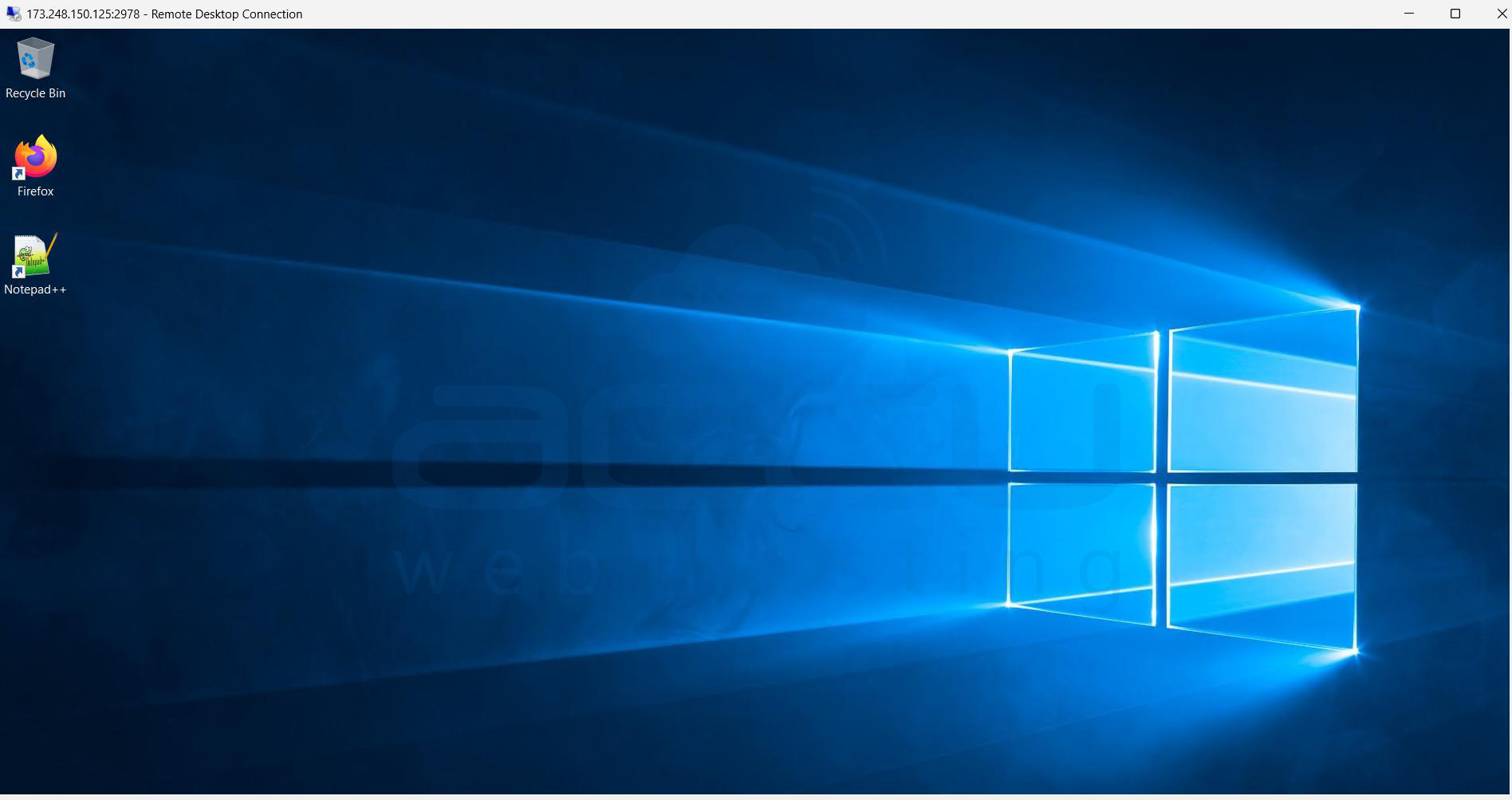
Step 2: Open IIS Manager (Start > Run > Type inetmgr and hit enter).
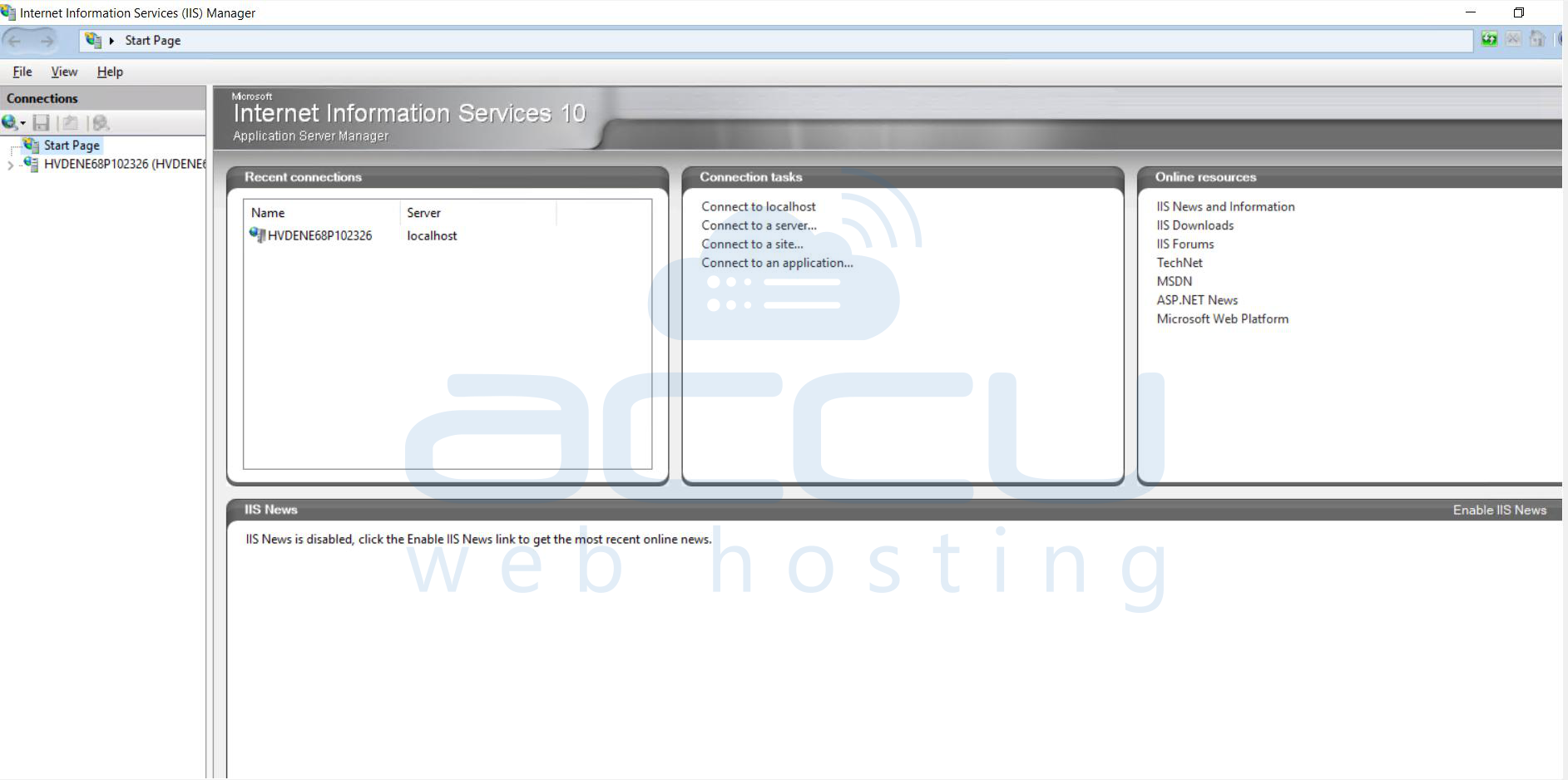
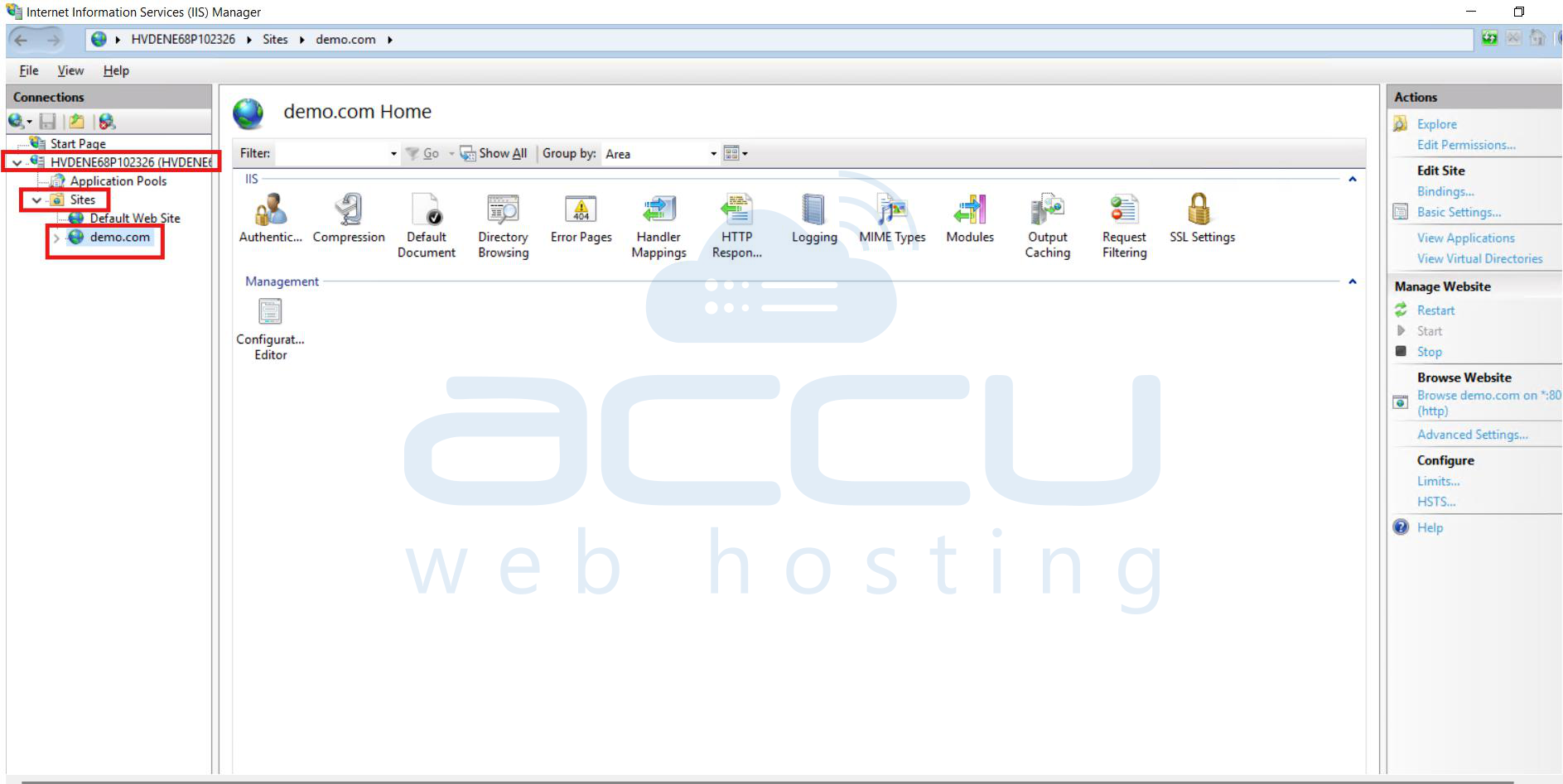
Step 3: Under the Connections Pane, expand the VM hostname.
Expand Sites and select the website for which application pool you wish to change.
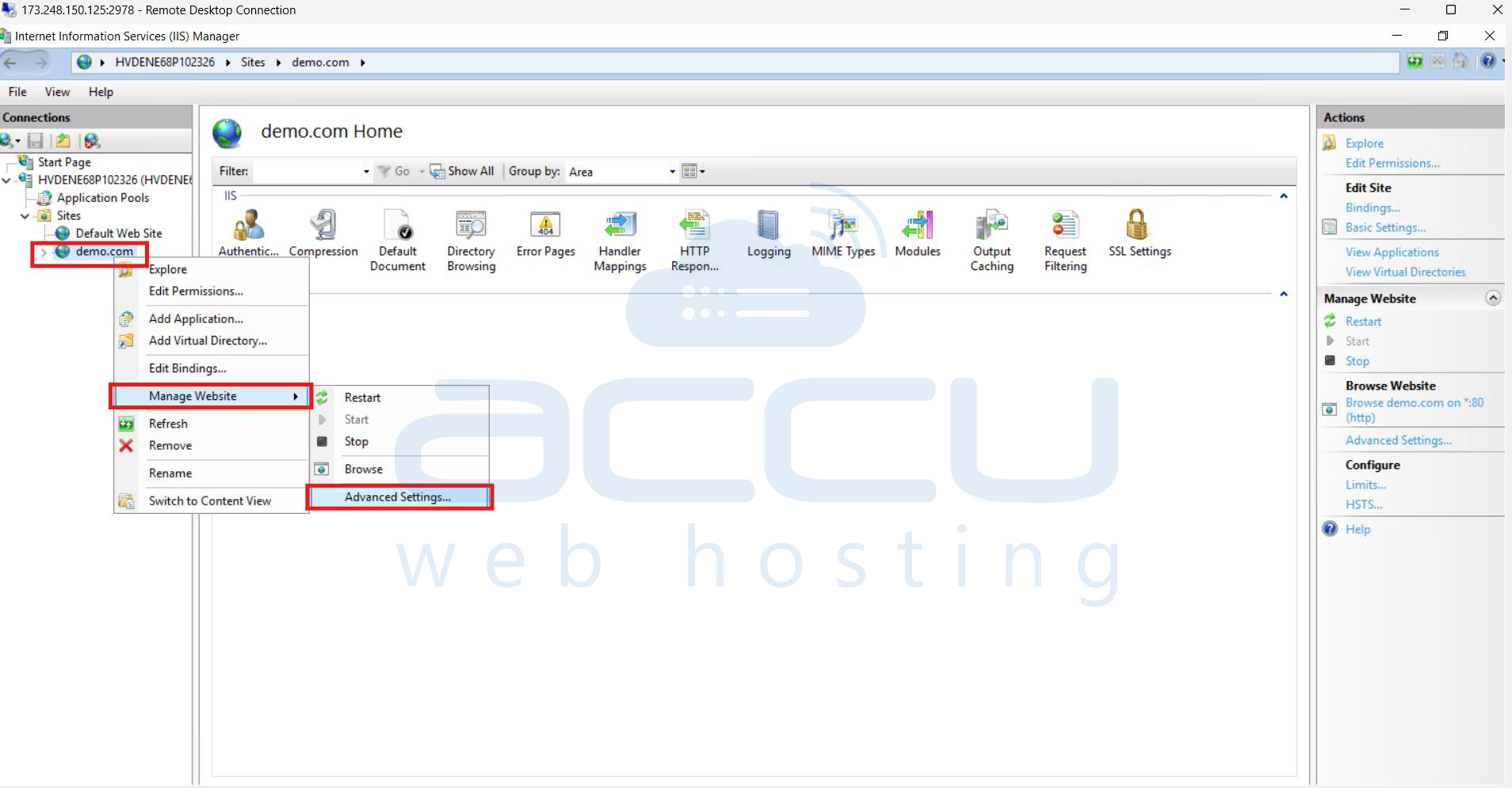
Step 4: Under the domain name, right-click, under manage website, click on Advanced Settings.
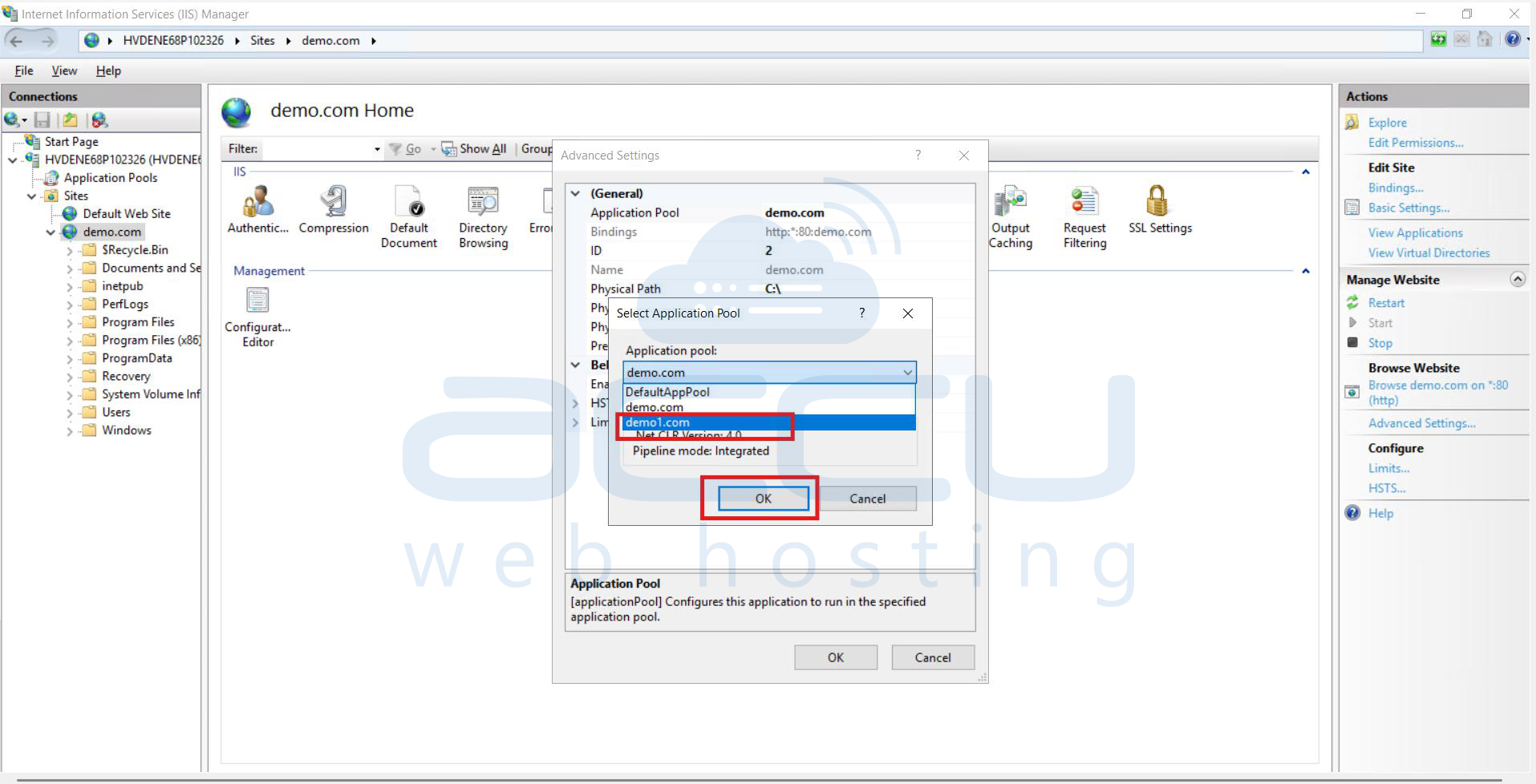
Step 5: Select the Application pool option and click the Browse button.

Step 6: Select the Application pool from the dropdown menu and click OK.
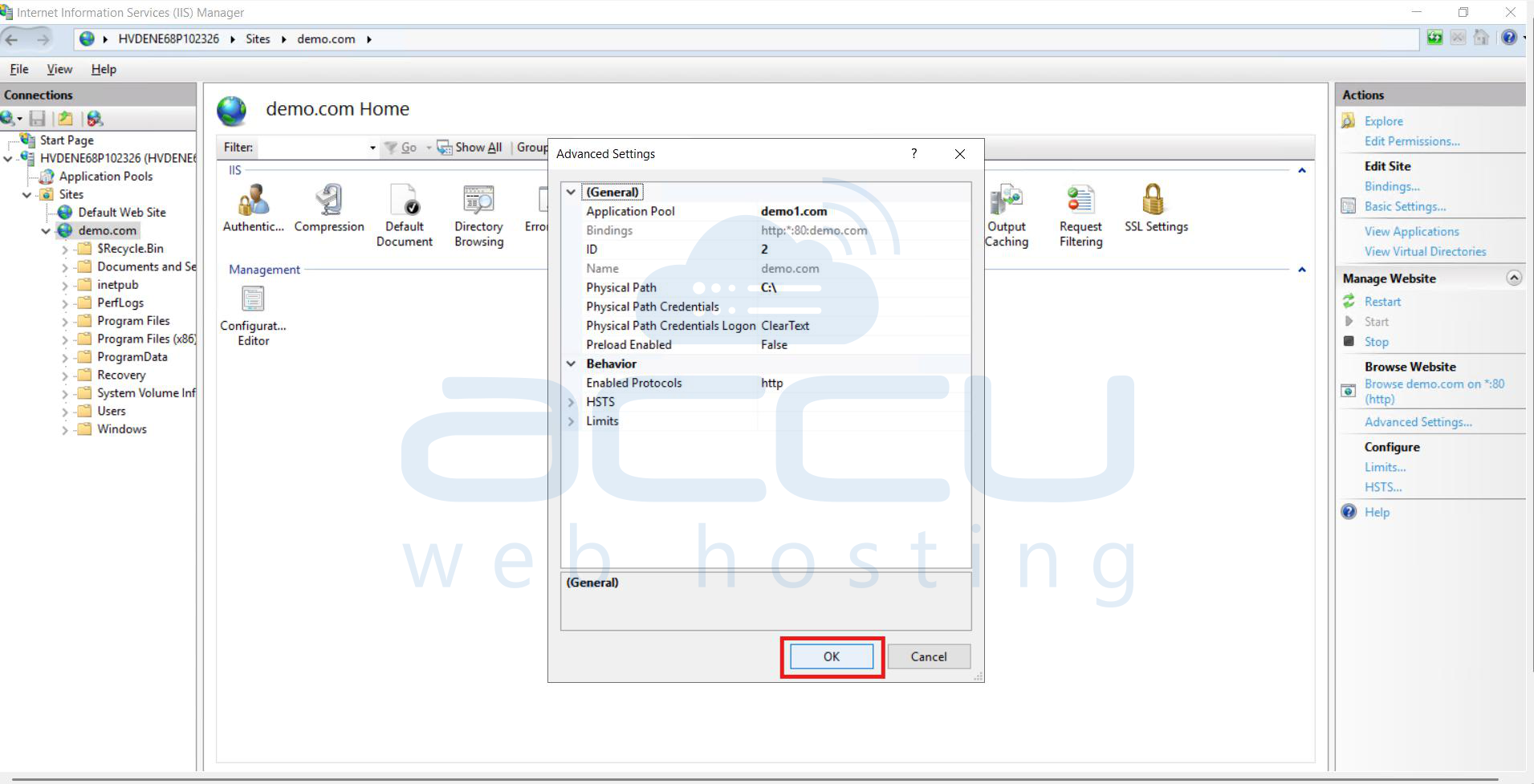
Step 7: Click OK again to close the window.
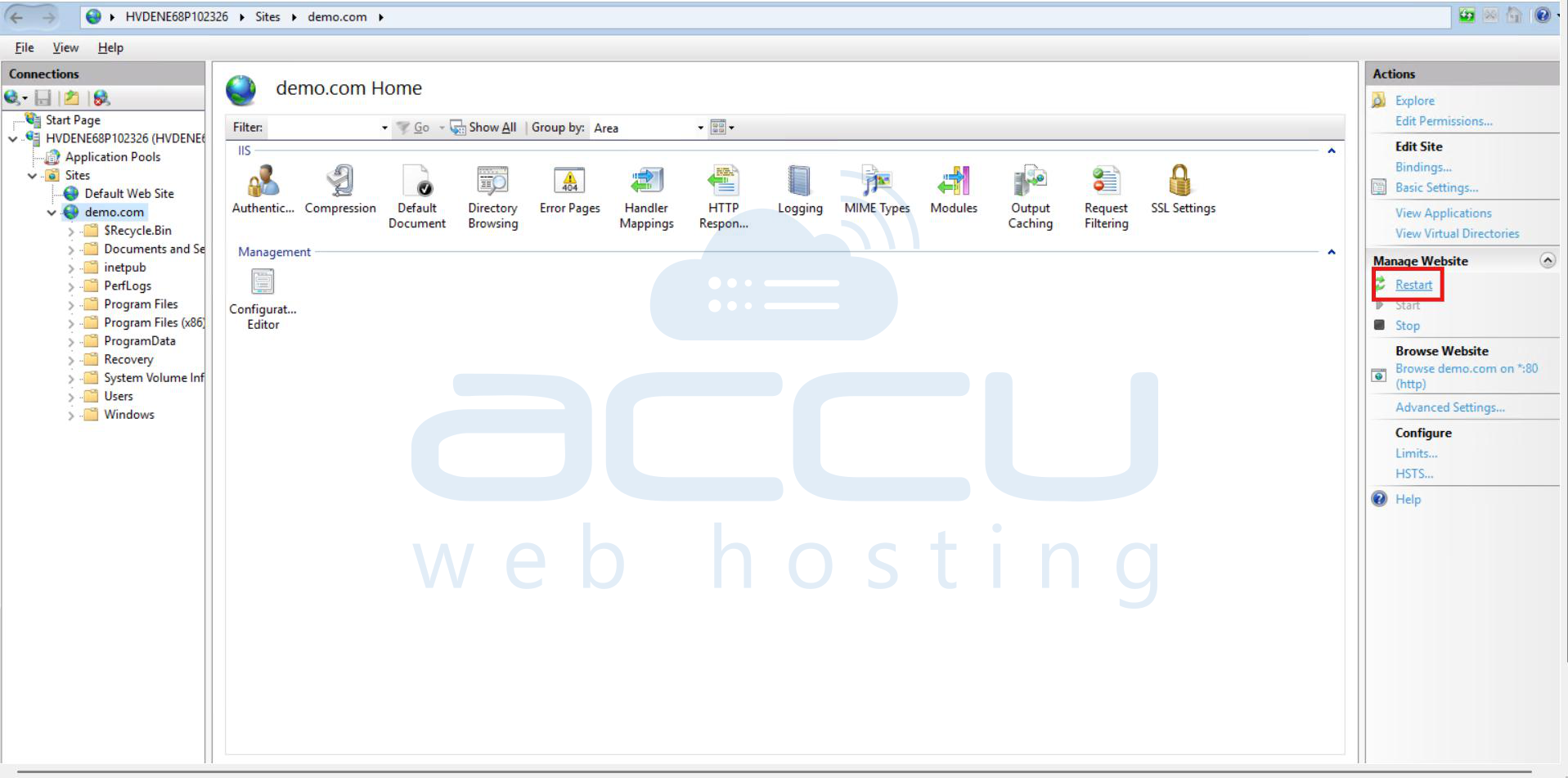
Step 8: Click on restart
Conclusion:
In summary, while IIS allows you to modify the application pool of a website directly from the IIS Manager, it’s important to follow the recommended practice of using WebsitePanel if it’s installed on your VM. This ensures consistent configuration and prevents potential conflicts. Always ensure to verify changes and test your website after modifying the application pool to ensure everything functions as expected.


