
You can migrate the whole cPanel account, including emails, using the cPanel transfer tool. Click on this link to get the steps to migrate the entire account. However, in such cases where you find difficulties migrating the Emails from one cPanel to another, you can migrate them separately.
Before proceeding with the email migration, you will need to make sure that you change the MX Record to your new cPanel, or the email will still be received by an older account. Also, emails will be received at the older account until the DNS propagation is complete.
The following are the steps to migrate the Emails from cPanel to cPanel.
Step 1: Log in to your source cPanel account.
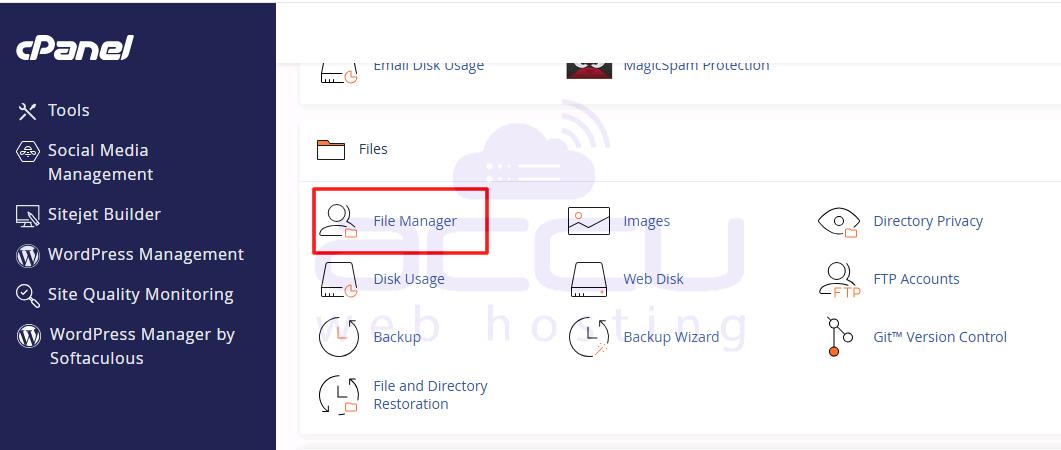
Step 2: Click on the File Manager Icon.
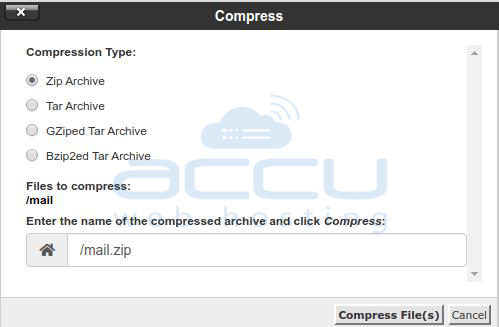
Step 3: Here, you will find all the files/folders. Right-click on the Mail Folder and compress it. 
Step 4: Download the zip folder of the list that you have created. 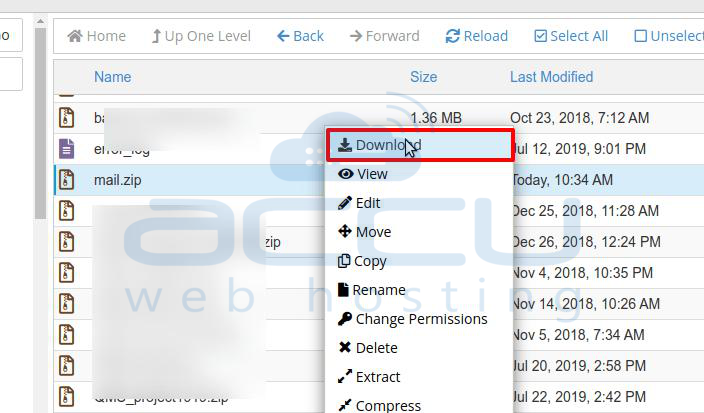
Now, go to the Destination cPanel account and perform the steps below to restore your Emails.
Step 1: Log in to your Destination cPanel account.
Step 2: Create all the email accounts at Destination cPanel as it was on the source cPanel. You can use this article to create email accounts.
Step 3: Now, Click on the File Manager Icon.

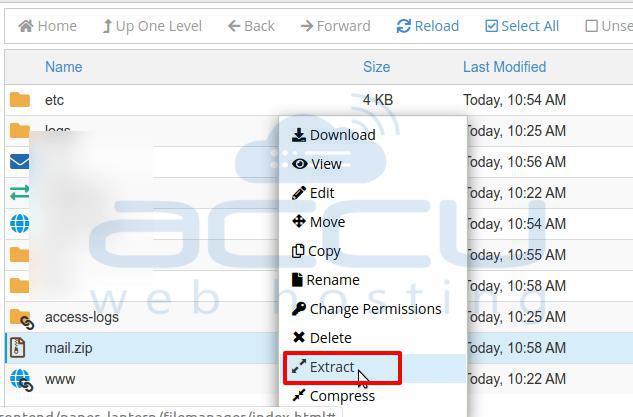
Step 4: Upload the mail zip file we created earlier and extract it in the /home directory. 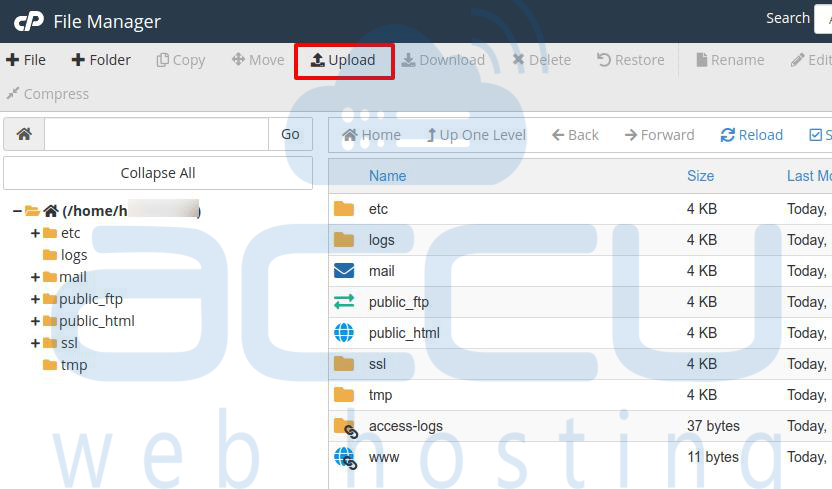
Step 5: Now, go to the webmail and verify all the emails inside the email accounts.


