To filter out unwanted messages/spam, you can activate the Spam Filters anti-spam tool from cPanel.
Step 1: Log in to cPanel.
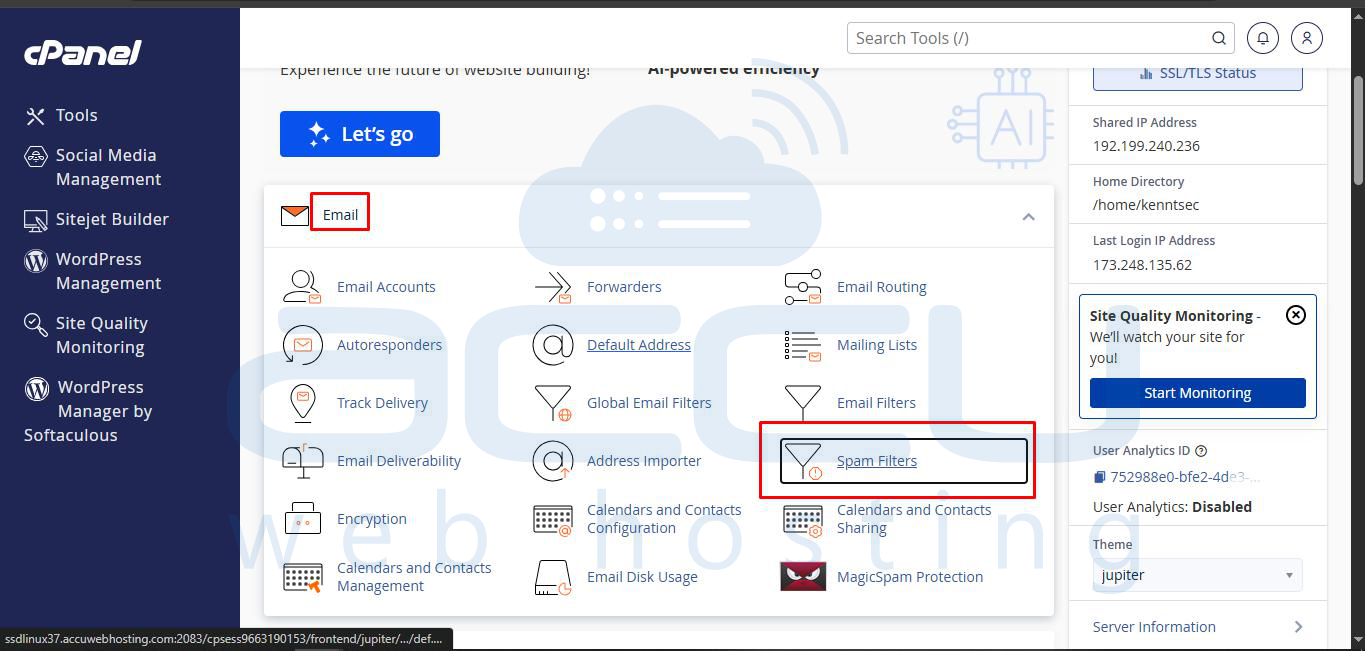
Step 2: Under the Email Section, Click on Spam Filters. This will open the Spam Filters interface, where you can configure the settings to process incoming emails. By default, Spam Filters are disabled, so you will need to enable them to start filtering spam.
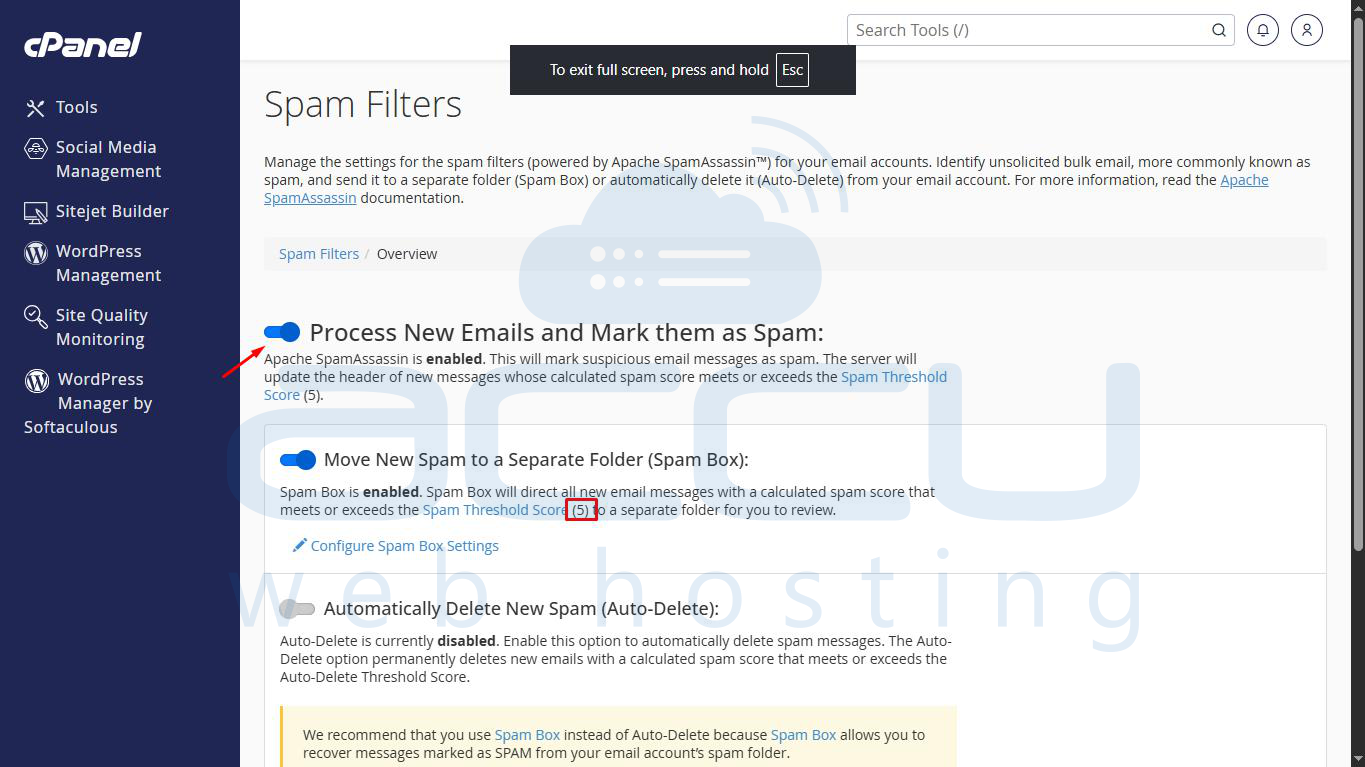
Step 3: Spam Filters will be disabled by default, so you will need to enable them. To do so, enable Process New Emails and Mark them as Spam option.
In the Spam Filters interface, toggle the option “Process New Emails and Mark them as Spam” to enable spam filtering. This ensures that all incoming emails are analyzed, and those identified as spam are marked accordingly. You can also configure the Spam Threshold Score, which determines what score qualifies an email as spam. The recommended default value is 5.
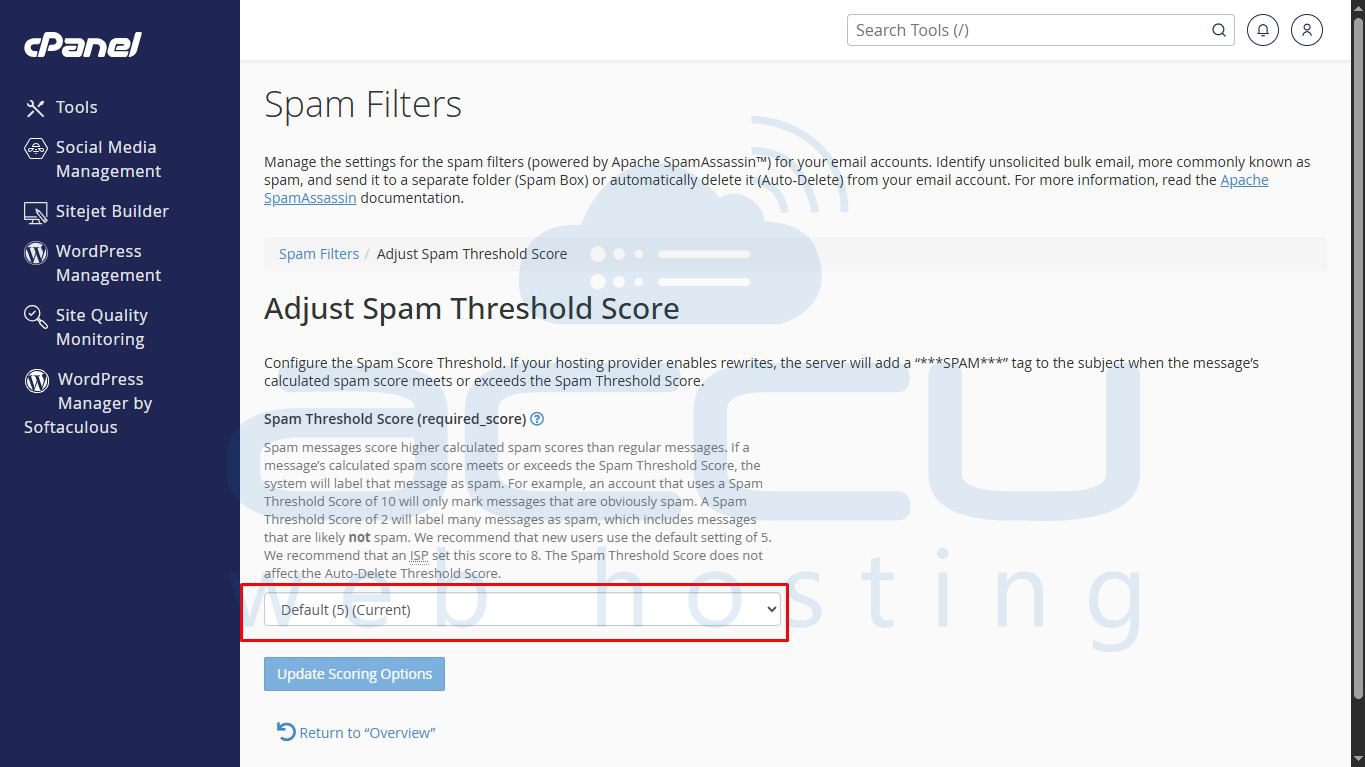
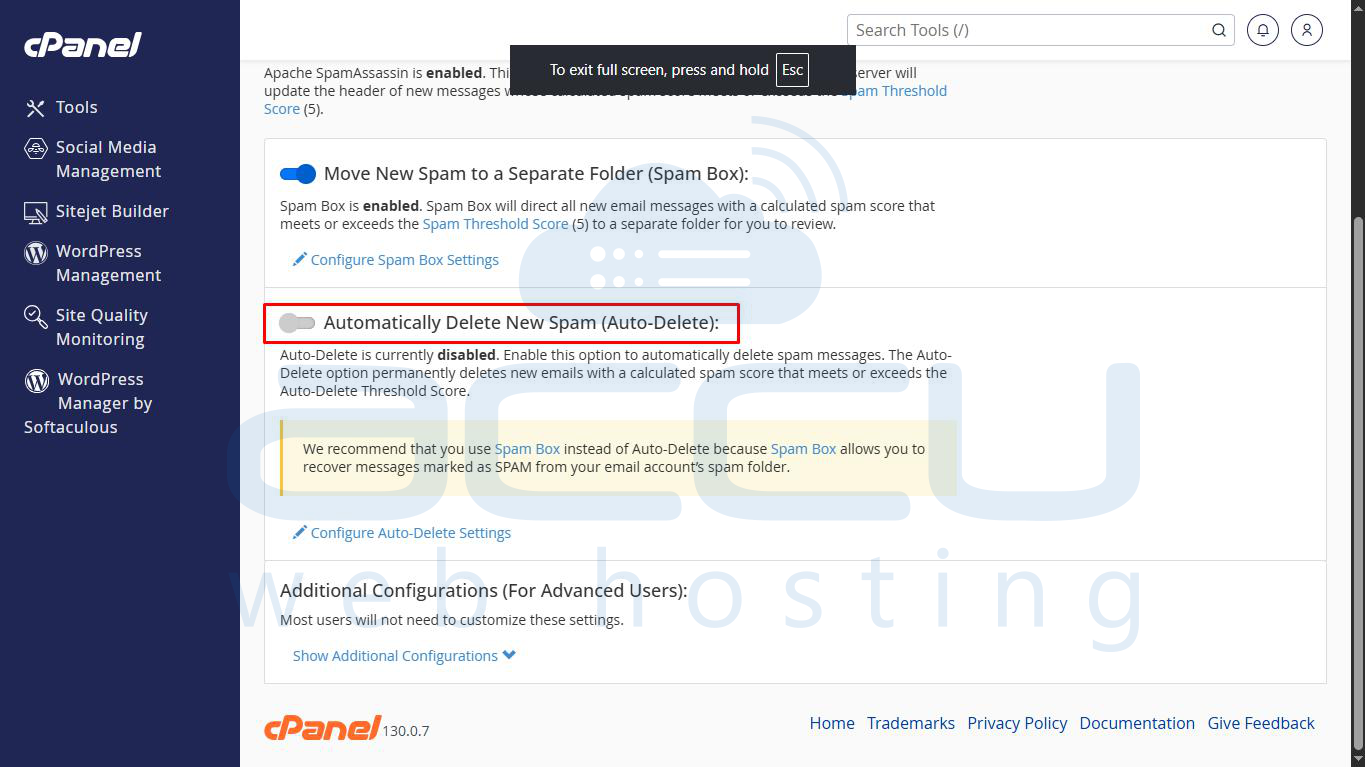
Step 4: Under the Filters section, you will see the Auto-Delete Spam option. By enabling this, emails that are marked as spam based on the Spam Threshold Score will be automatically deleted, helping to keep your inbox clean without manual intervention. Adjust the threshold score if needed to make the filter stricter or more lenient.
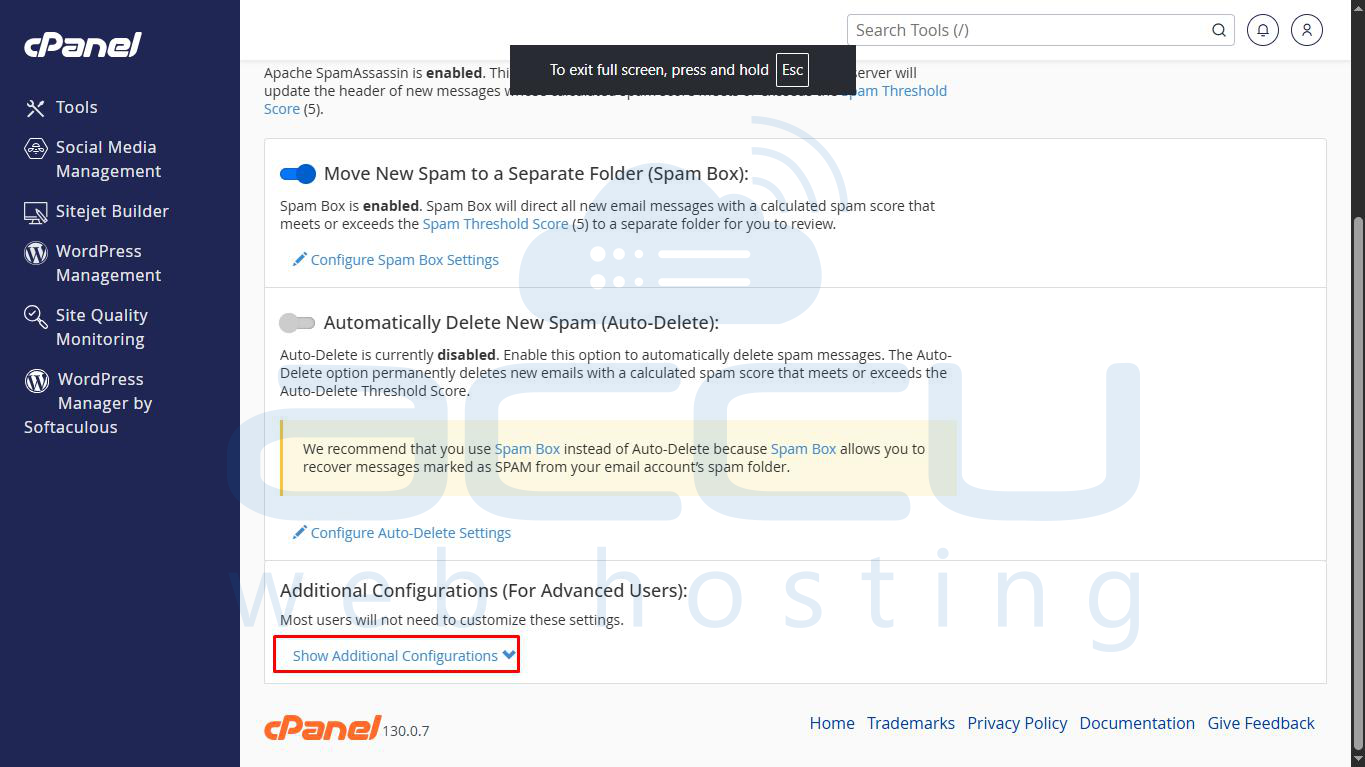
Step 5: For more control, click on Show Additional Configurations. This allows you to manage the Whitelist/Blacklist and Calculated Spam Score Settings of email accounts or domains. Whitelisting ensures that emails from trusted senders are never marked as spam, while blacklisting blocks unwanted emails from specific addresses or domains.
Step 6: To whitelist an email account, click on Edit Spam Whitelist Settings and select Add a new whitelist_from item. In the whitelist_from field, enter the email address you want to whitelist, for example, user@yourdomain.com, or use *@yourdomain.com to whitelist all accounts from a particular domain. Once the entries are added, click Update Whitelist to save the settings.
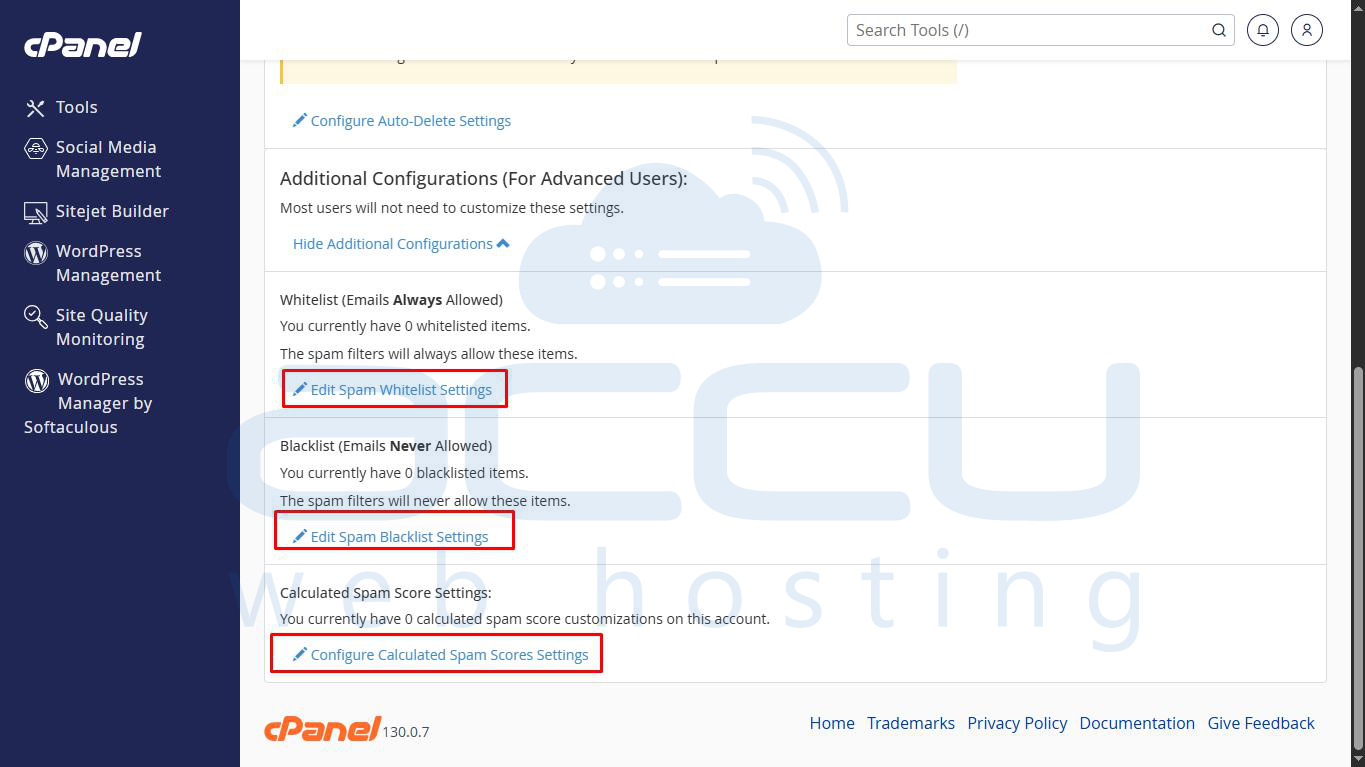
Whitelist an Email account in cPanel using Spam Filter.
- Click on Edit Spam Whitelist Setting and select Add a new whitelist_from item.
- Inside whitelist_from, you can do as mentioned below.
- user@yourdomain.com -- If you want to whitelist an email account.
- *@yourdomain.com -- If you want to whitelist all the email accounts of any domain.
Click on Update whitelist to save the settings.
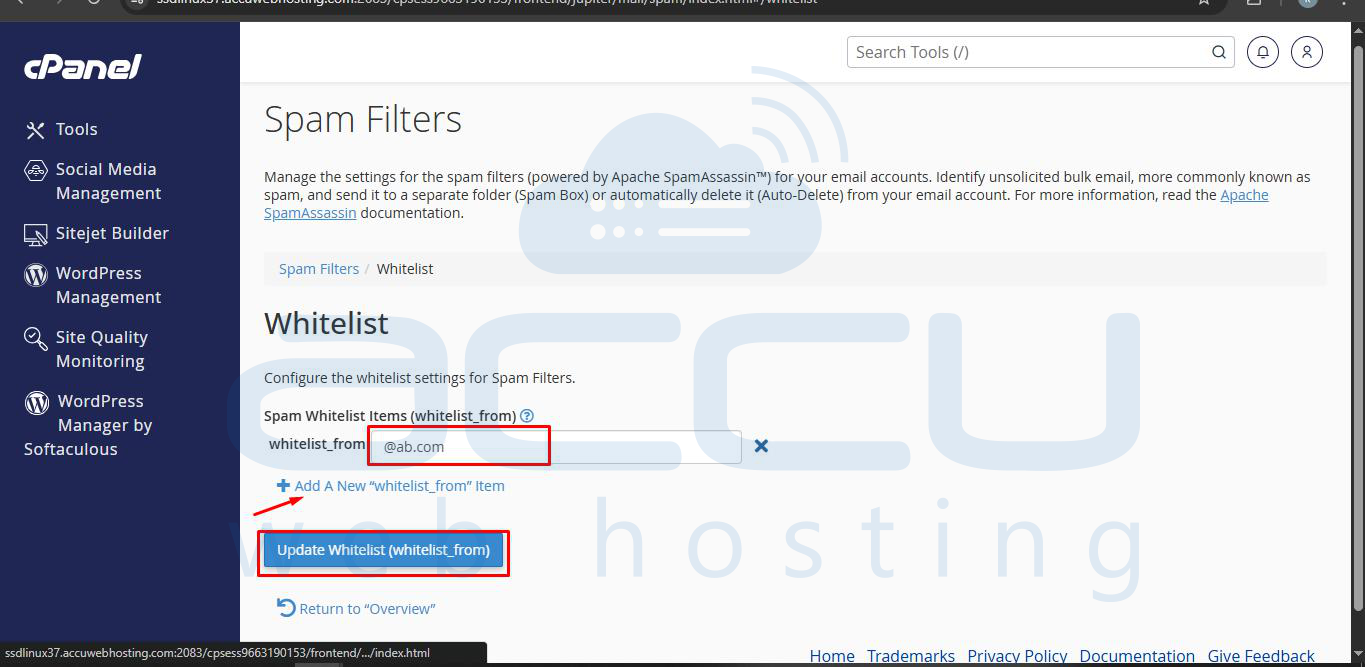
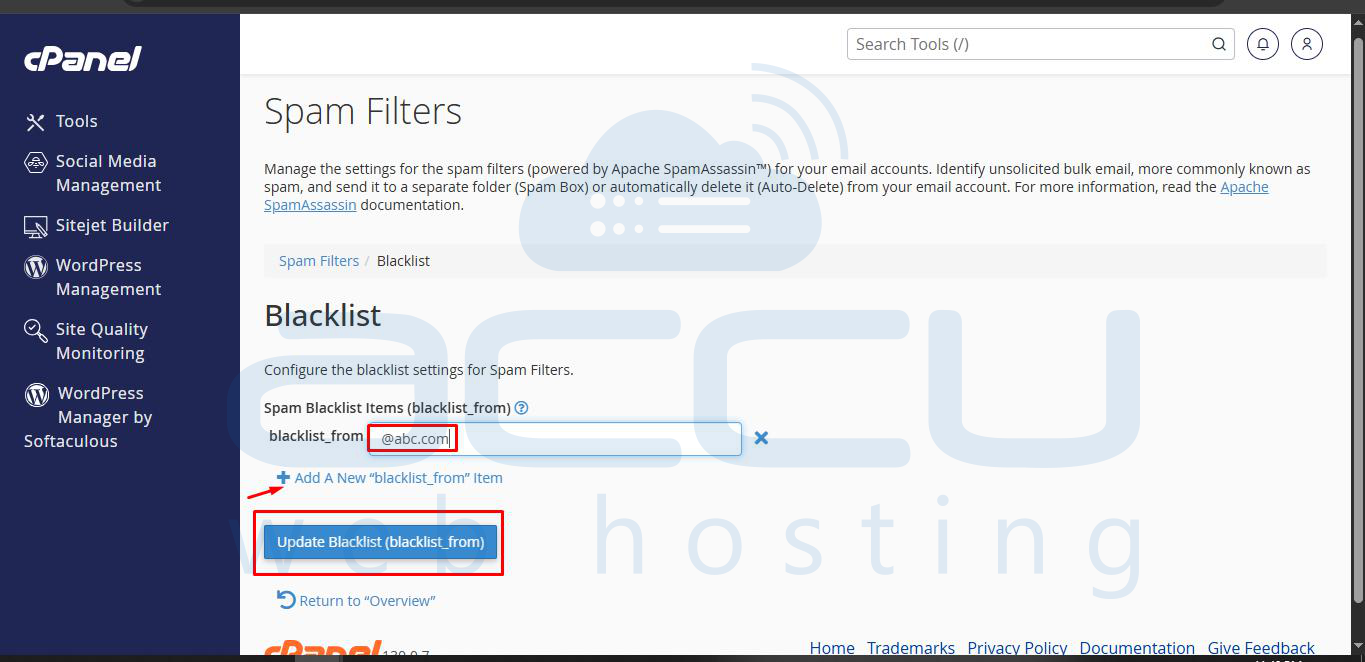
Step 7: To blacklist an email account, click on Edit Spam Blacklist Settings and select Add a new blacklist_from item. Enter the specific email address in the blacklist_from field, for example, user@yourdomain.com, or use *@yourdomain.com to block all email accounts from a domain. After adding the entries, click Update Blacklist to save the changes.
Blacklist an Email account in cPanel using Spam Filter.
- Click on Edit Spam Blacklist Setting and select Add a new blacklist_from item.
- Inside blacklist_from, you can do as mentioned below.
- user@yourdomain.com -- If you want to Blacklist an email account.
- *@yourdomain.com -- If you want to Blacklist all the email accounts of any domain.
Click on Update Blacklist to save the settings.