
We deliver Linux VPS with the default Timezone, i.e., MDT – Mountain Daylight Time. You may need to change the default time zone to your home time zone.
It’s pretty easy when you choose the WHM control panel to be installed on your server. This article will explain the steps to change the timezone of your server via WHM.
Note that you will need root access to change the timezone.
Step 1: Log in to WHM as root.
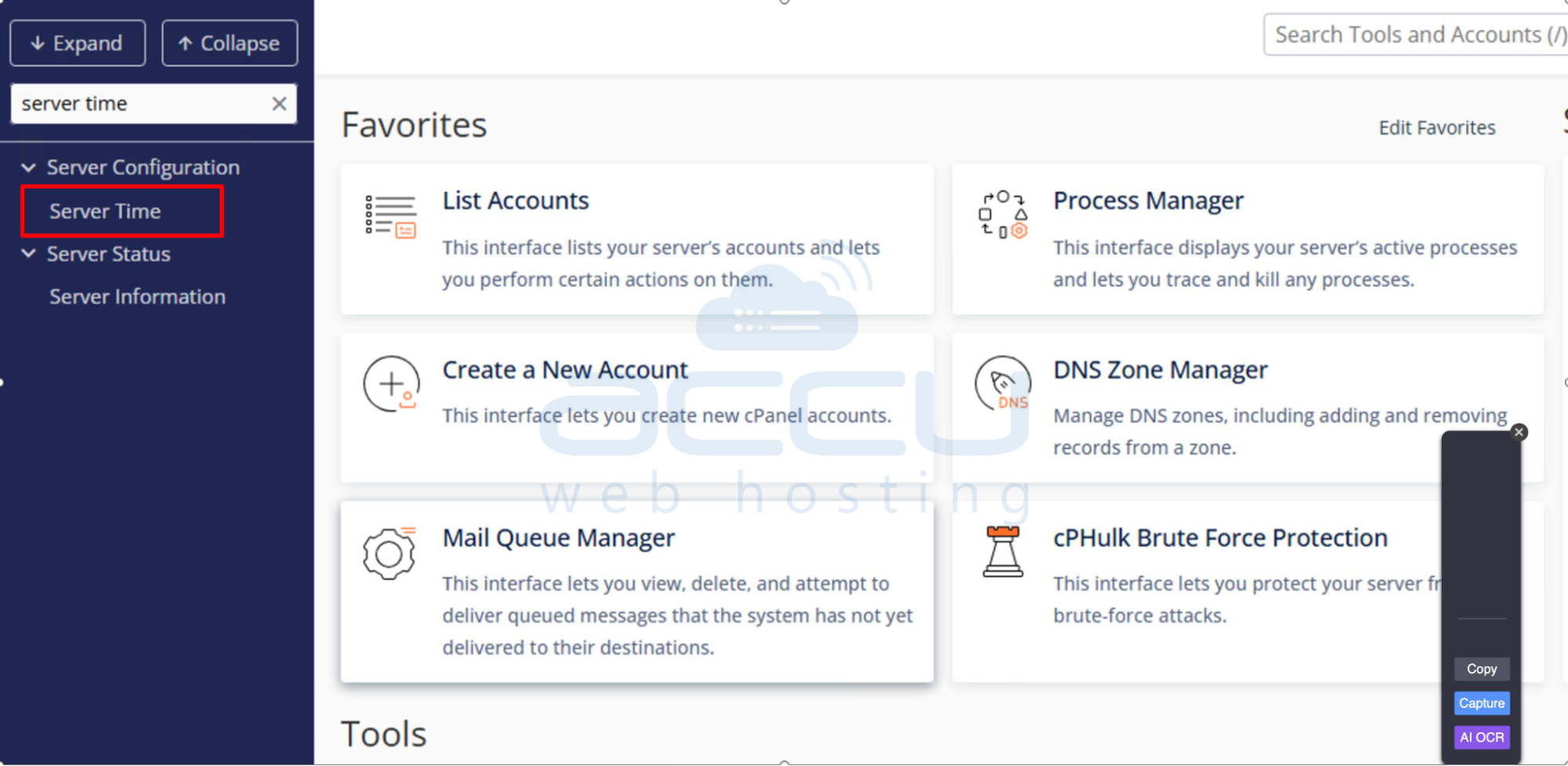
Step 2: From the WHM Home screen, click on Server Configuration. Select Server Time from the list of options.
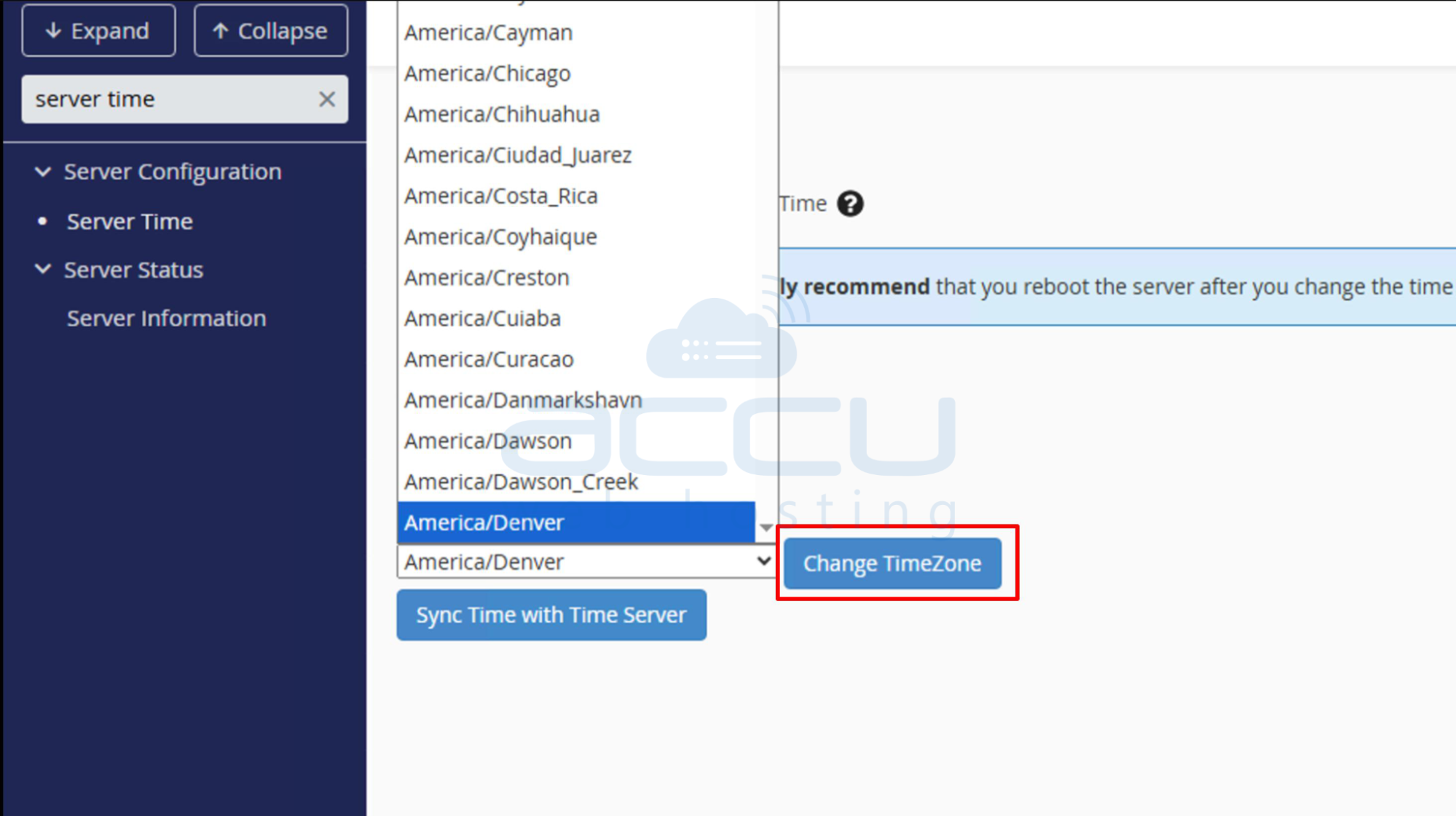
Step 3: In the Time Zone dropdown menu, select your preferred time zone.
Step 4: In the same screen, you would see the current time displayed in the current time box. If you notice your server time is out of sync, you can resynchronize it by clicking the Sync Time with Time Server button. This will synchronize your server's time with the correct time of the selected timezone.
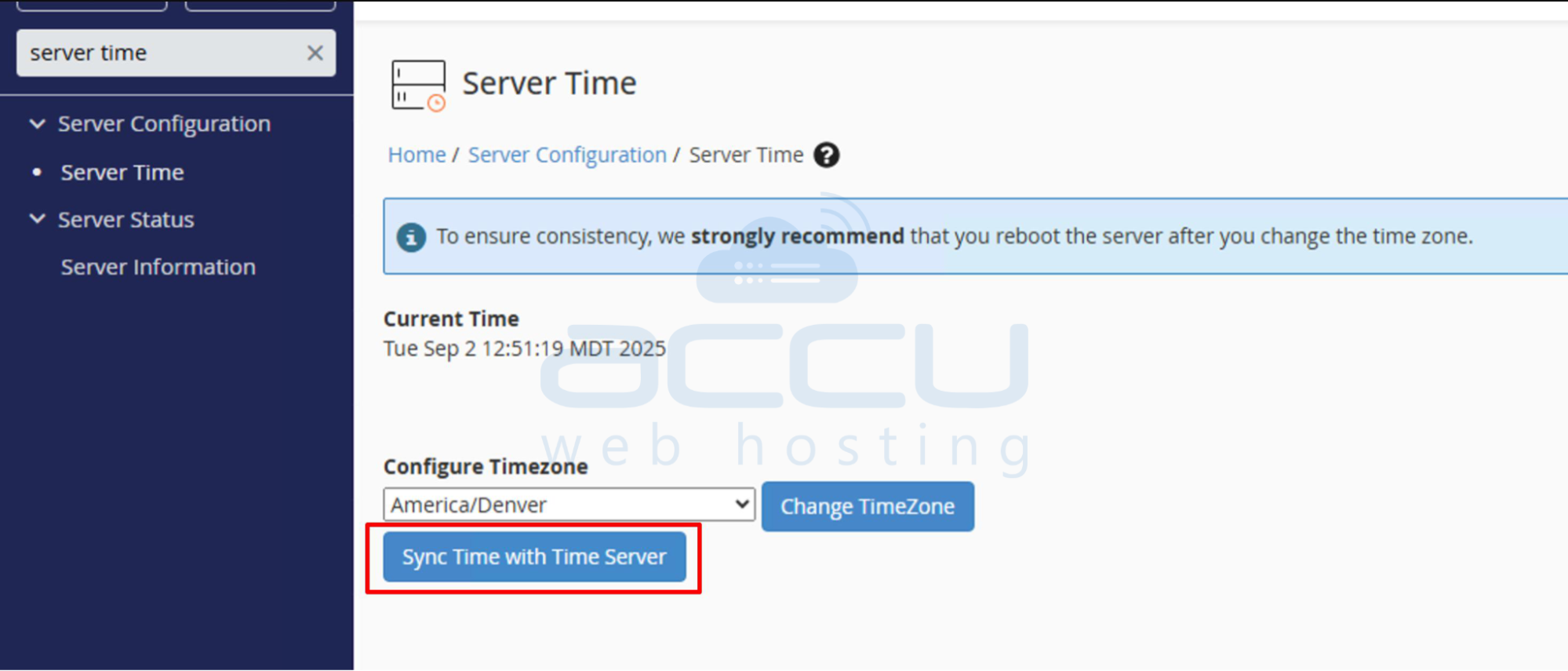
This will synchronize your server’s time with the selected timezone.
Conclusion:
Changing the server timezone in WHM ensures that logs, cron jobs, and applications run on the correct local time. If required, you can also sync your server time with a reliable time server directly from the WHM interface.


