
A '403 Forbidden Error' on Linux Shared Hosting occurs when your web server (Apache) denies access to your website files or directories. The most common reason is incorrect file or folder permissions, but it can also happen due to a missing default page, a misconfigured .htaccess file, or restricted access rules.
Step 1 – Check File and Folder Permissions
Each file and folder in your Linux hosting account has its own permission settings that control who can read, write, or execute it. Incorrect permissions often cause the 403 error.
Use the following permission settings:
- The public_html folder should have permission 750.
- All subfolders inside it should have permission 755.
- All files, such as .php, .html, .css, .js, and image files, should have permission 644.
- Executable scripts, such as CGI or Perl, should have permission 755.
- Files you want to make read-only can be set to 444.
- Avoid using permission 777 as it gives full access to everyone and creates a security risk.
- Read
- Write
- Execute
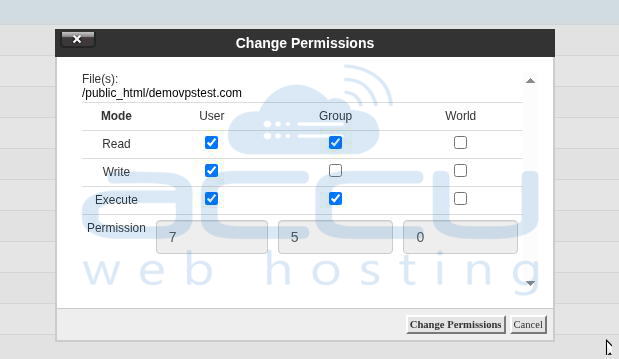
File permissions can be determined and set through the FTP client or cPanel. In the cPanel, where you would see file permissions in the form of numbers, as depicted below:
7 => Read + Write + Execute
6 => Read + Write
5 => Read + Execute
4 => Read Only
3 => Write + Execute
2 => Write Only
1 => Execute Only
0 => Access Denied
Permissions Explanation
777 (Not Recommended)
- Owner :: READ(4) + WRITE(2) + EXECUTE(1) ==>7
- Group :: READ(4) + WRITE(2) + EXECUTE(1) ==>7
- World :: READ(4) + WRITE(2) + EXECUTE(1) ==>7
755 (Subfolders)
- Owner :: READ(4) + WRITE(2) + EXECUTE(1) ==>7
- Group :: READ(4) + EXECUTE(1) ==>5
- World :: READ(4) + EXECUTE(1) ==>5
750 (Public_html)
- Owner :: READ(4) + WRITE(2) + EXECUTE(1) ==>7
- Group :: READ(4) + EXECUTE(1) ==>5
- World :: 0
644 (All files)
- Owner :: READ(4) + WRITE(2)==>6
- Group :: READ(4)==>4
- World :: READ(4)==>4
444 (Read Only)
- Owner :: READ(4)==>4
- Group :: READ(4)==>4
- World :: READ(4)==>4
Step 2 – Change Permissions Using cPanel
- Log in to your cPanel account.
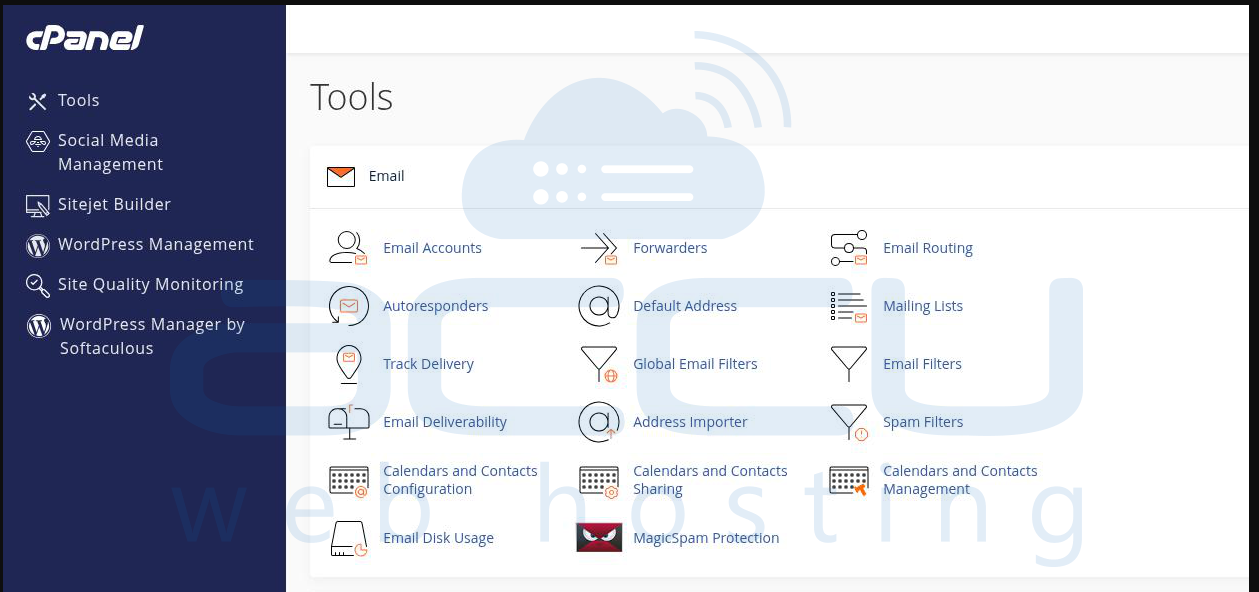
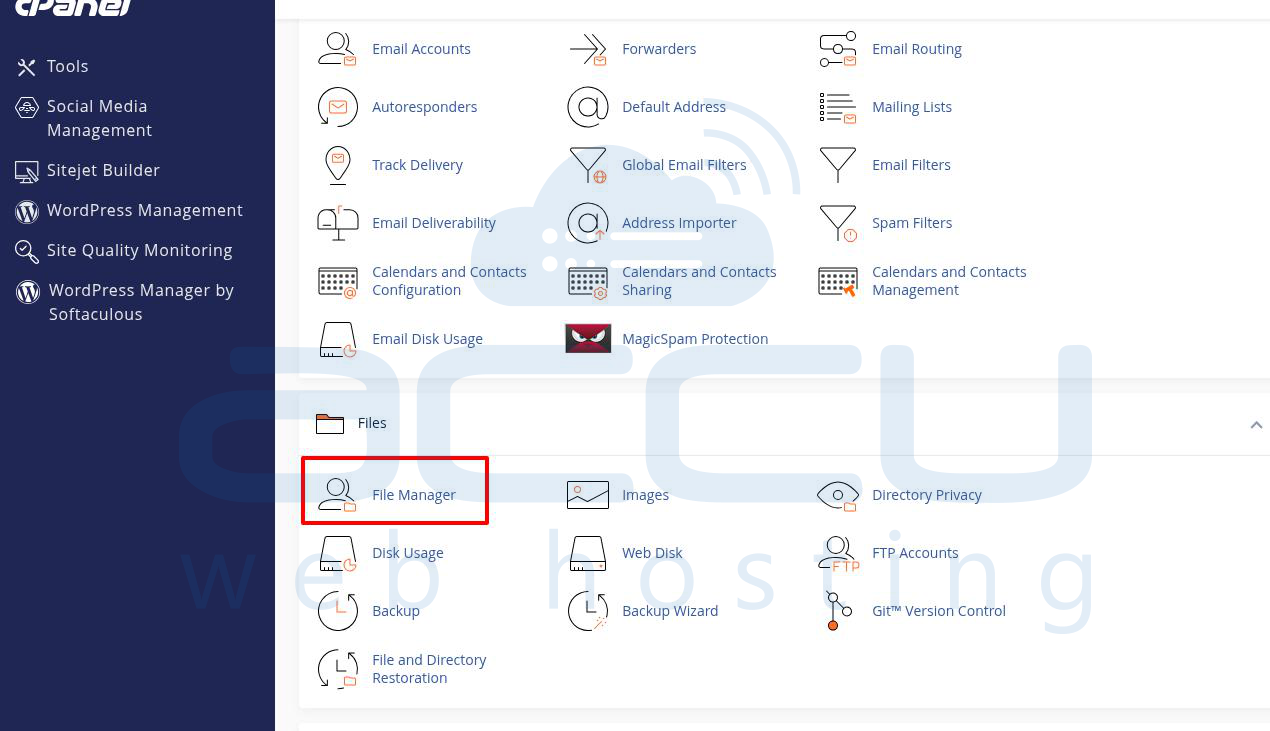
- Go to the File Manager section.
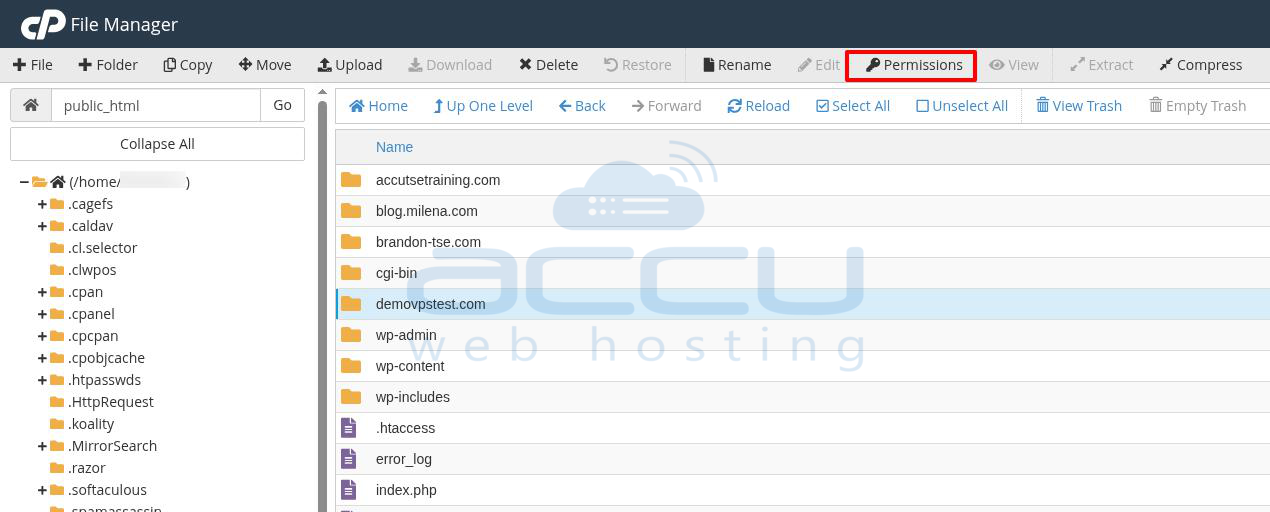
- Open the public_html folder or the directory that shows a 403 error. Select the file/directory, and you can click directly on the Permission button from the options above.
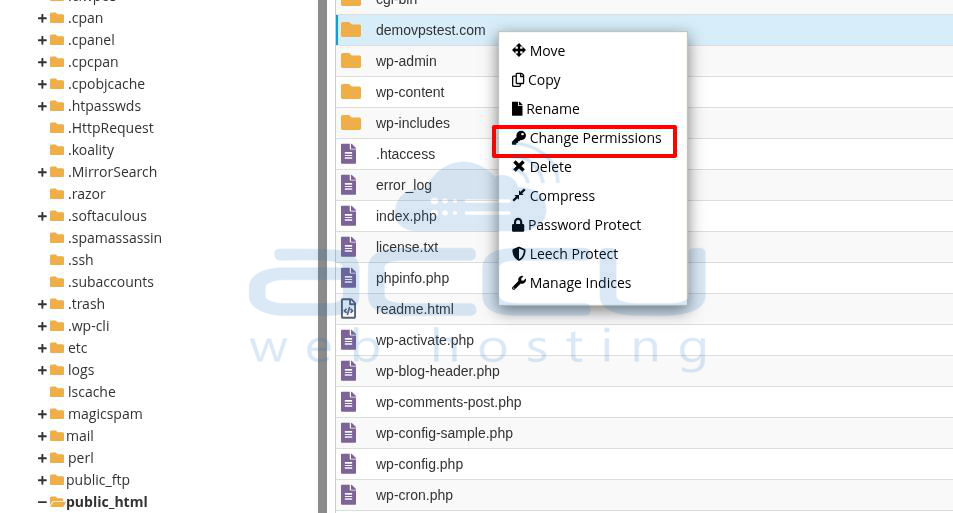
- Alternatively, you can right-click the file or folder and select 'Change Permissions'.
- Update the permission values as per your requirement and click Change Permissions to apply them.
Step 3 – Check the Default Document
If all permissions are set, and your website shows a 403 Forbidden Error, the default page is probably not set for your website.
When you browse any website, a web server (Apache or IIS) searches for the default documents like index.php or index.html inside the public_html directory. If no such file exists and directory listing is disabled, the server shows a 403 Forbidden Error.
If the web server cannot find any match and a directory listing is enabled, then it displays the list of files/folders. If the directory listing is disabled, the web server will return an HTTP Error 403 - Forbidden message to the browser.
With Linux Hosting, you can set the default document for your website via the .htaccess file. You can specify more than one default document for a website.
You can set the default page order in your .htaccess file by adding this line:
- DirectoryIndex index.php index.html default.html
With Windows Hosting, you can configure the default document for the website or a virtual directory from the Plesk Panel.


