
Managing user access on your Windows VPS is essential for maintaining server security and performance. If you’ve granted Remote Desktop access to users who no longer need it, it’s best practice to remove their accounts.
This article will walk you through the process of identifying and removing Remote Desktop users from your Windows VPS to ensure that only authorized individuals can log in and manage your server resources.
Important: Once you remove the user from your VPS or Dedicated server, you will not be able to log in using that user account again.
Step 1: Log in to your Windows VPS through Remote Desktop.
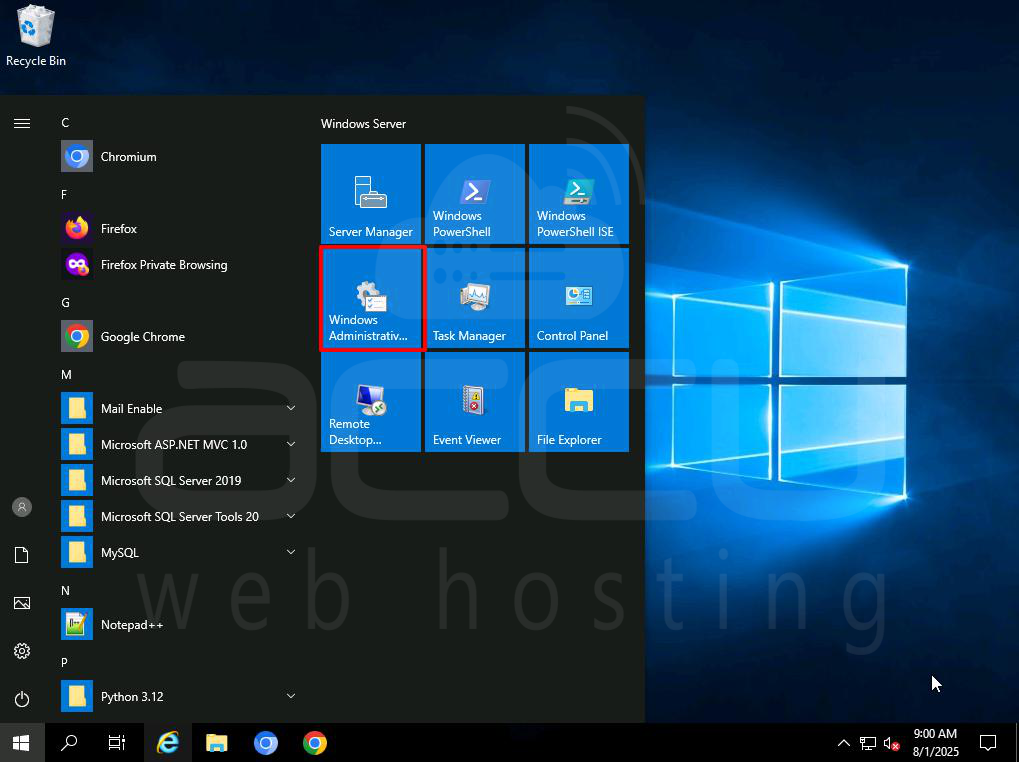
Step 2: Double-click on Windows Administrator tools.
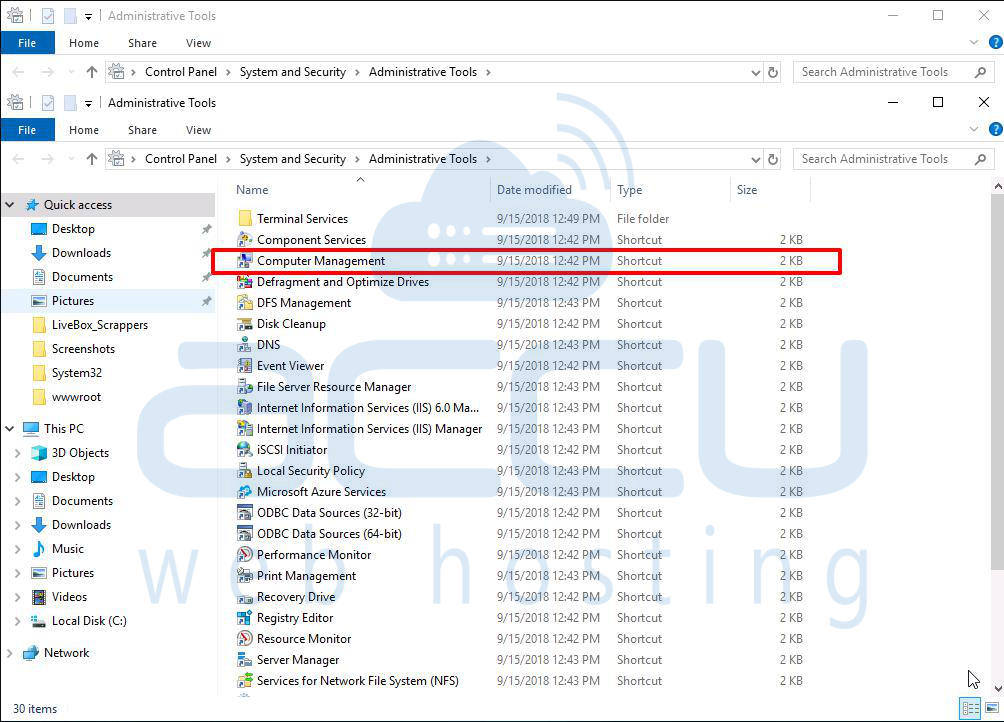
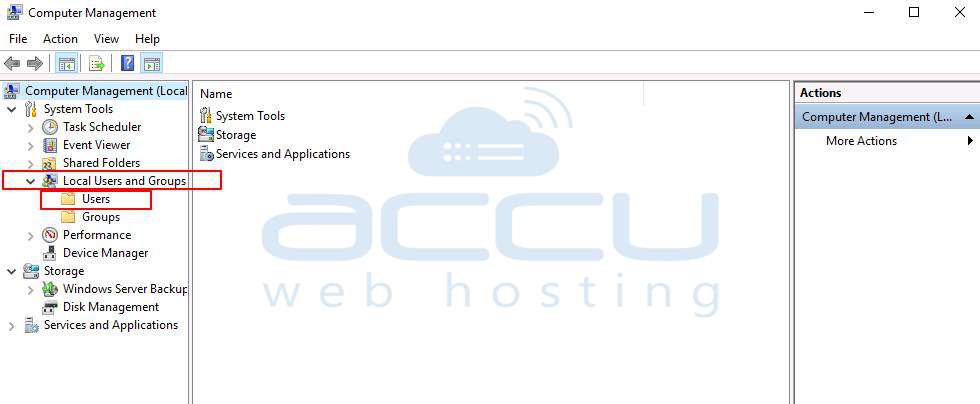
Step 3: Click on Computer Management, Expand Local Users and Groups. Under Local Users and Groups, select the Users option; here, you will see the list of all users.
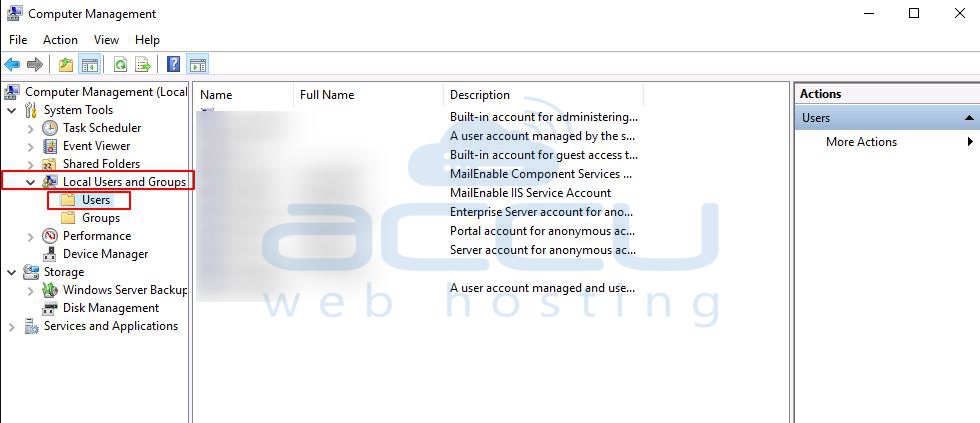
Step 4: By default, we deliver Windows VPS with 2 remote Desktop users, viz. Administrator and tech_support.
That means if you have not created any additional RDP users, only these 2 users can access your Windows VPS through RDP. If you have created any additional RDP users and they are known to you, just right-click on the user name and select the Delete option.
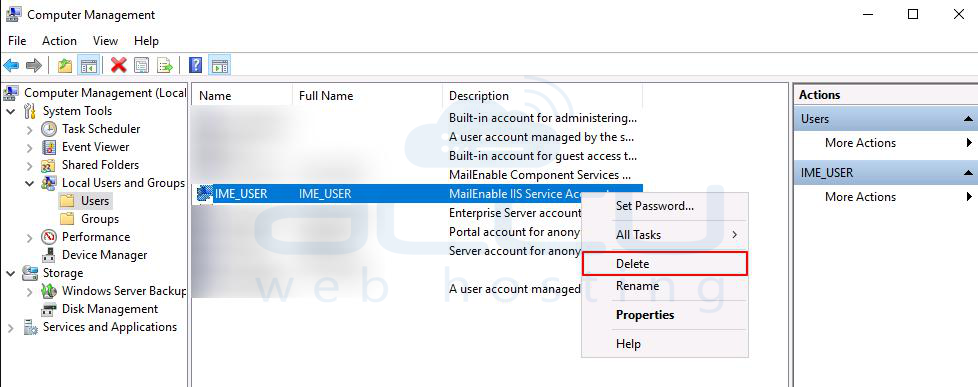
Step 5: Click the Yes button when you are asked for the User Delete confirmation. This will delete the Remote Desktop user from Windows VPS.

If you see additional users in the list but you are not sure which users can access your VPS through Remote Desktop, first, you will need to determine which users can connect to your VPS via Remote Desktop.
By default, Windows users who are members of the Administrators group can access your Windows VPS through Remote Desktop.
Additionally, Windows users who are members of the RDP Users group can also connect to Windows machines via Remote Desktop. To determine whether the listed users are members of these user groups or not, follow the steps below.
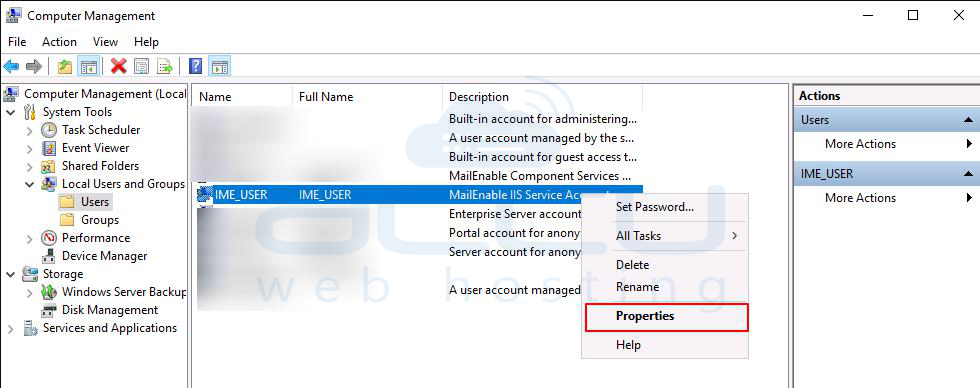
Step 1: Right-click on Username. Click on Properties.
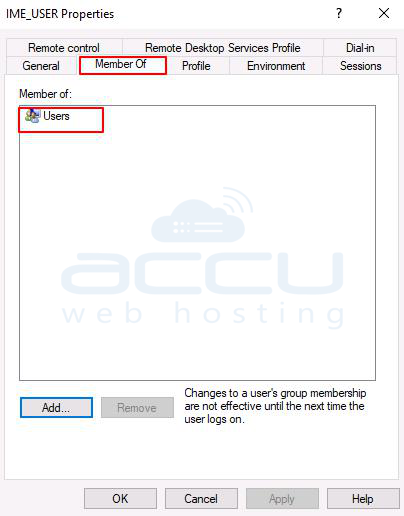
Step 2: Select the Member of tab from the second row. Under the Member Of box, you will see a list of all user groups to which the selected user belongs.
Conclusion:
By following the steps above, you can effectively manage and remove unnecessary Remote Desktop users from your Windows VPS. This helps maintain security and prevents unauthorized access. Always ensure that you double-check user roles and group memberships before deletion, especially if you're unsure about a specific user's access level. If you're ever uncertain, consult with your hosting provider or IT administrator for assistance.
