
Request Filtering is a built-in security feature of IIS. Using the Request Filtering feature, one can assign maximum URL length, Query String size, content request length, and many other restrictions server-wide as well as website-wide. Deny URL Sequences element of Request Filtering helps deny access for URL sequence patterns that an attacker might try to exploit. Follow these steps to deny the URL sequence from IIS.
Step 1: Log in to your VPS. Please refer to how to connect your VPS using RDP.
Step 2: Open IIS Manager. Under the Connections pane, click on VPS Name.
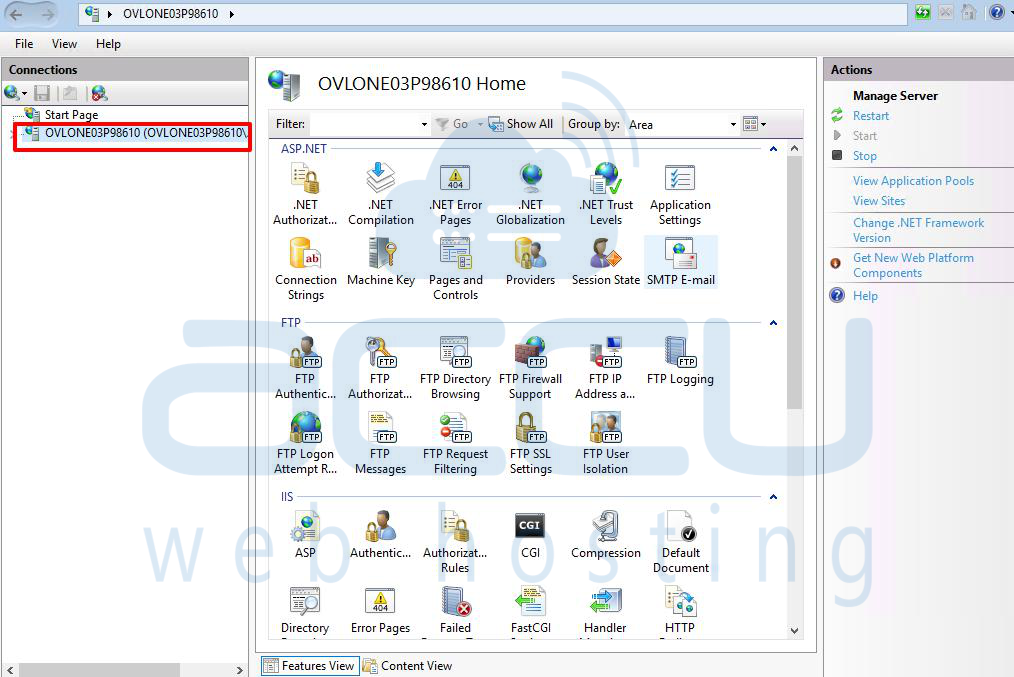
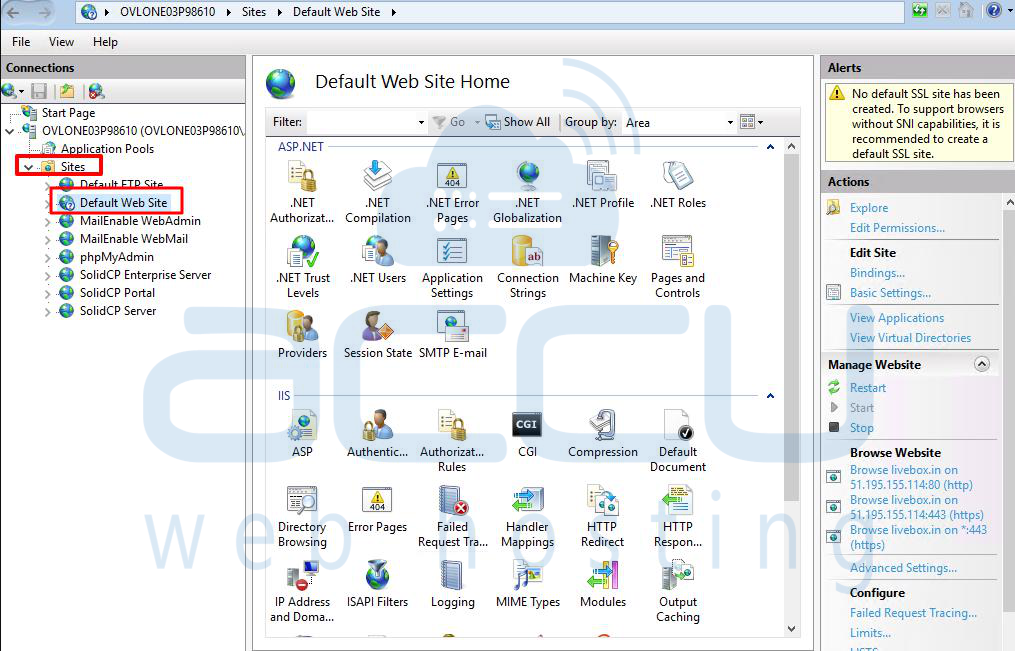
Step 3: Select Your Website. In the left panel, expand the server node. Click on the website where you want to apply the restriction.
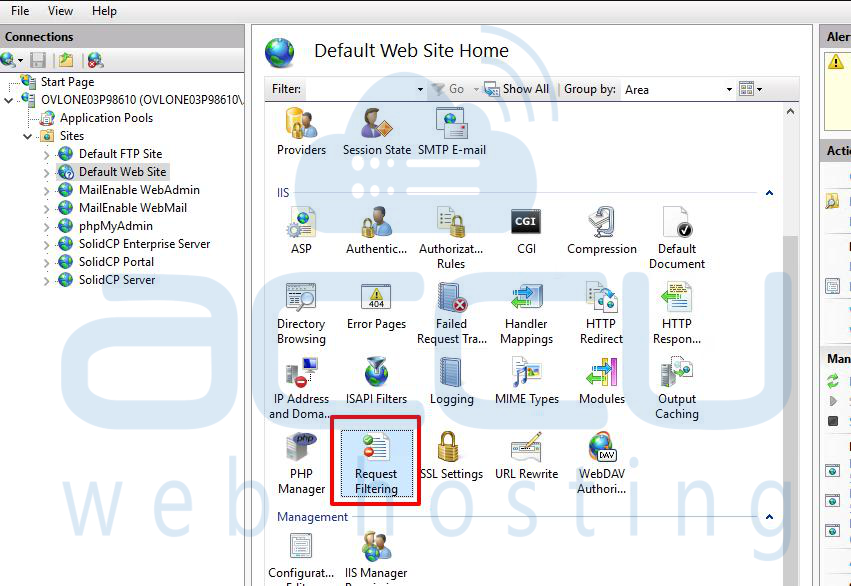
Step 4: Open Request Filtering as shown in the image below.
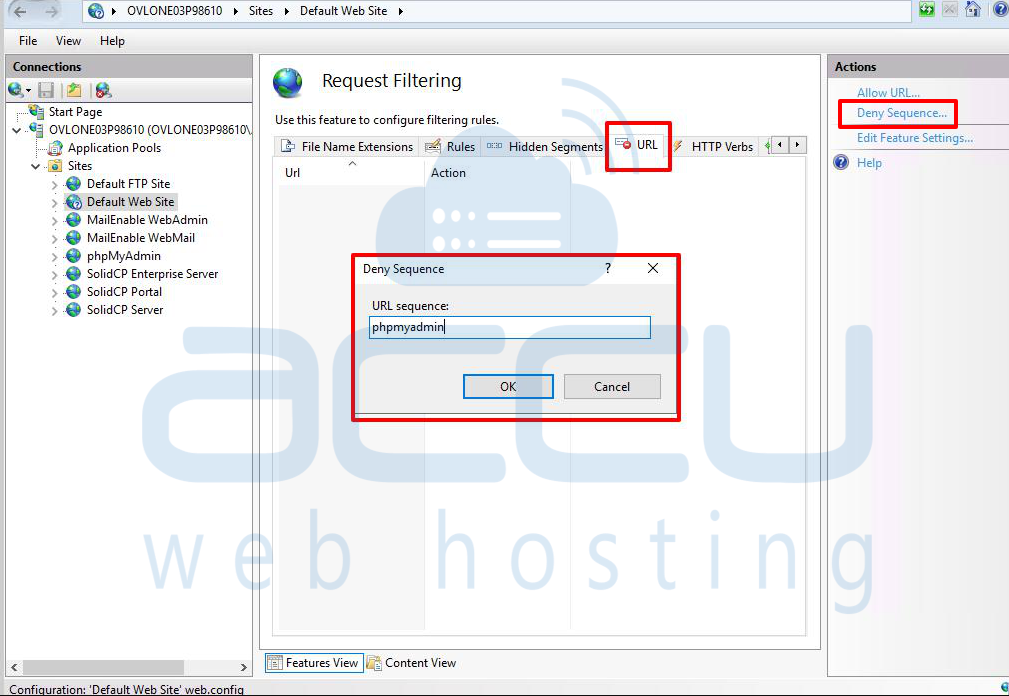
Step 5: Move to the URL tab and click on Deny Sequence. An Add Deny Sequence dialog box will appear; enter the URL sequence you wish to block. For Example, if you want to block the common SQL Injection term 'varchar', enter the 'varchar' character sequence in the Deny Sequence box. In the pop-up, enter the URL sequence you want to block (e.g., admin, wp-login, phpmyadmin, etc.).
Click OK. Now, when anyone tries to enter any of the mentioned terms into your URL Sequence, they will receive the HTTP Error 404.5 – URL Sequence denied error message.
Conclusion:
By denying specific URL sequences in IIS, administrators can strengthen security and reduce the risk of unauthorized access attempts. The Request Filtering feature is a powerful way to stop automated scans and prevent exposure of sensitive directories. When properly configured, this ensures only safe and intended requests reach the web application, while suspicious or malicious ones are blocked automatically.


