When you receive any Email on the server, you may need to discard some emails (i.e., spam mails), redirect emails to a specific email address, or deliver an email to a program.
In such a scenario, the User and Account Level Filtering are useful. cPanel provides the facility to manage this type of filter for all emails of your domain, as well as for specific email accounts.
These types of filters are useful for discarding spam, redirecting mail, or piping messages to your program.
Steps to create User Level Filtering:
Step 1: Log in to cPanel.
Step 2: Go to the Email Filters section.
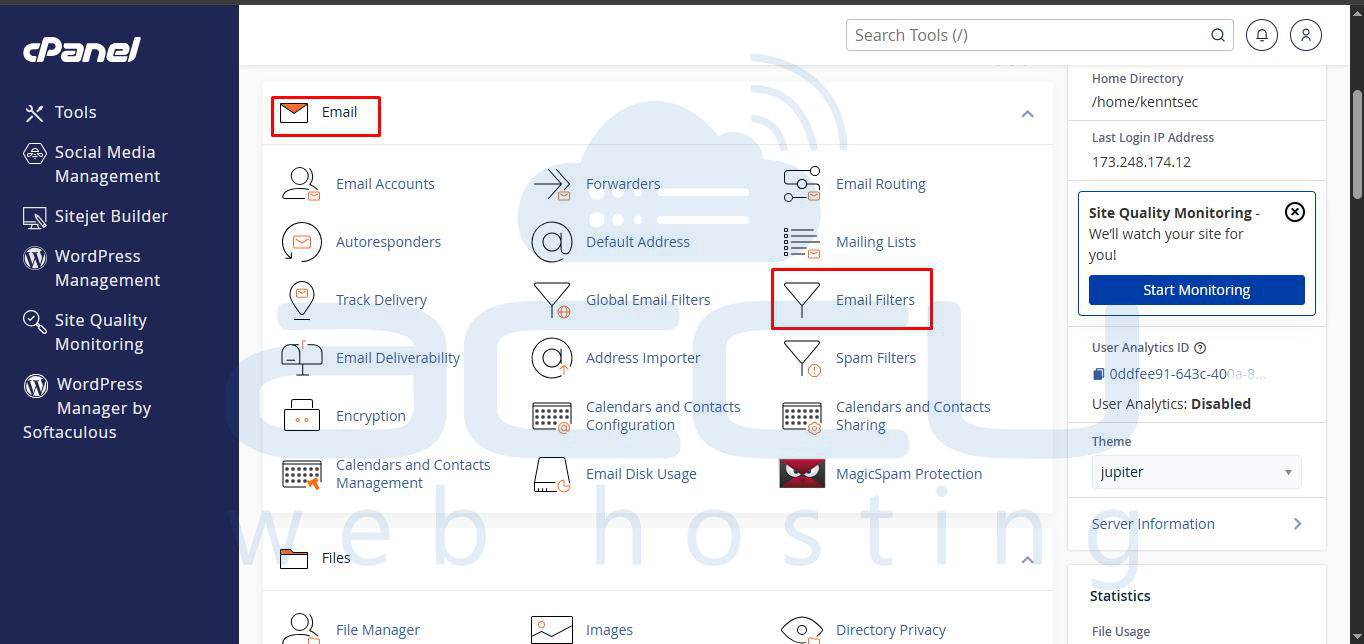
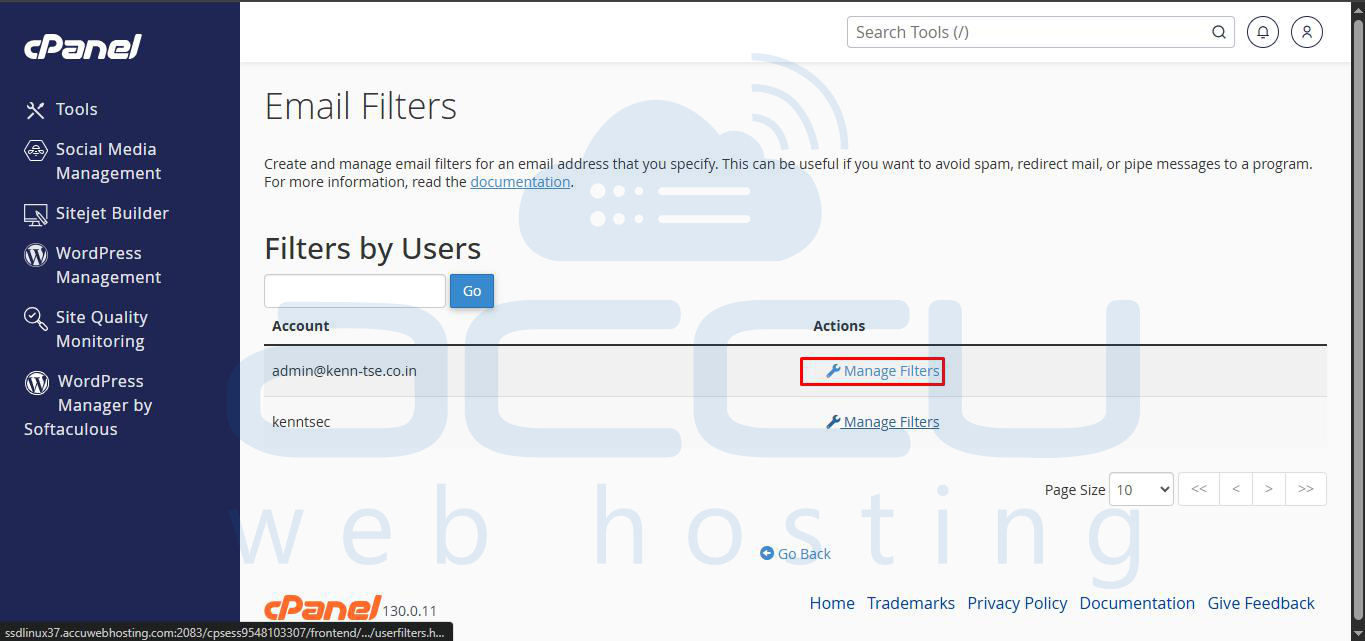
Step 3: Click Manage Filters next to the desired email account.
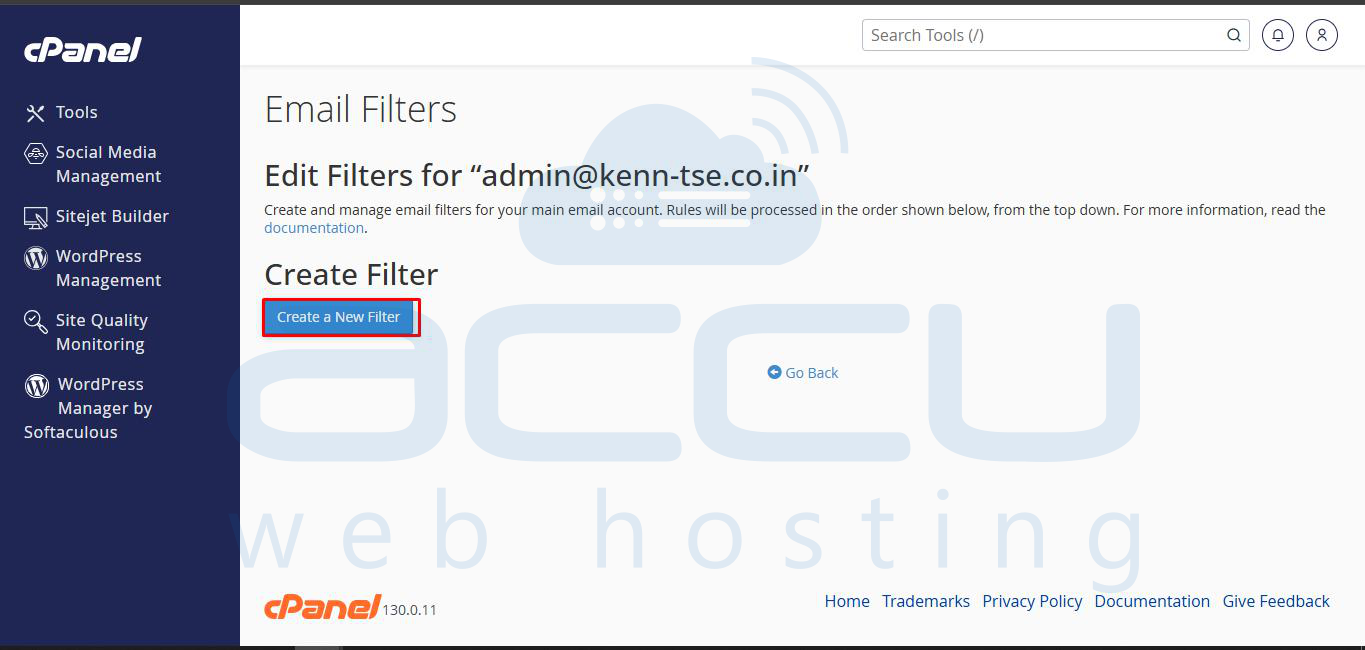
Step 4: Click Create a New Filter.
Step 5: Enter the Filter Name, define Rules, and select the desired Actions.
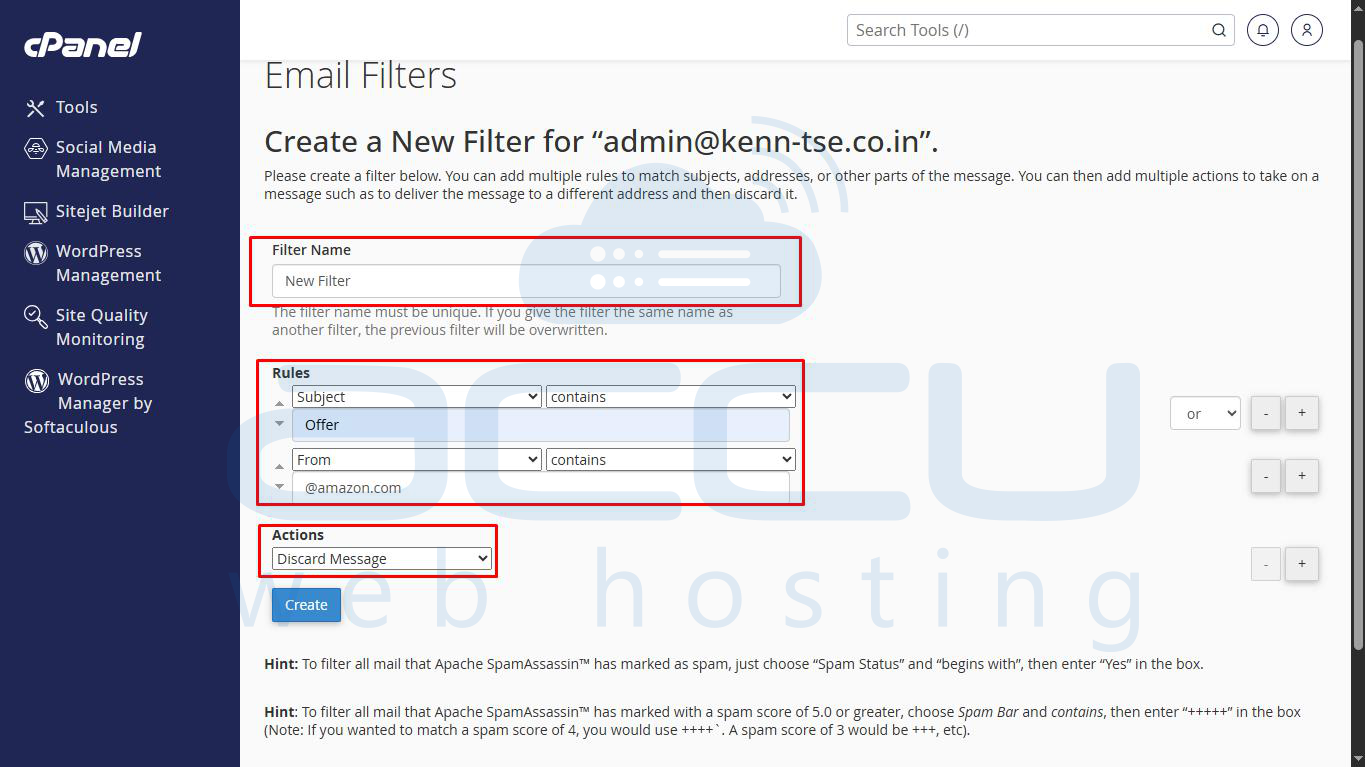
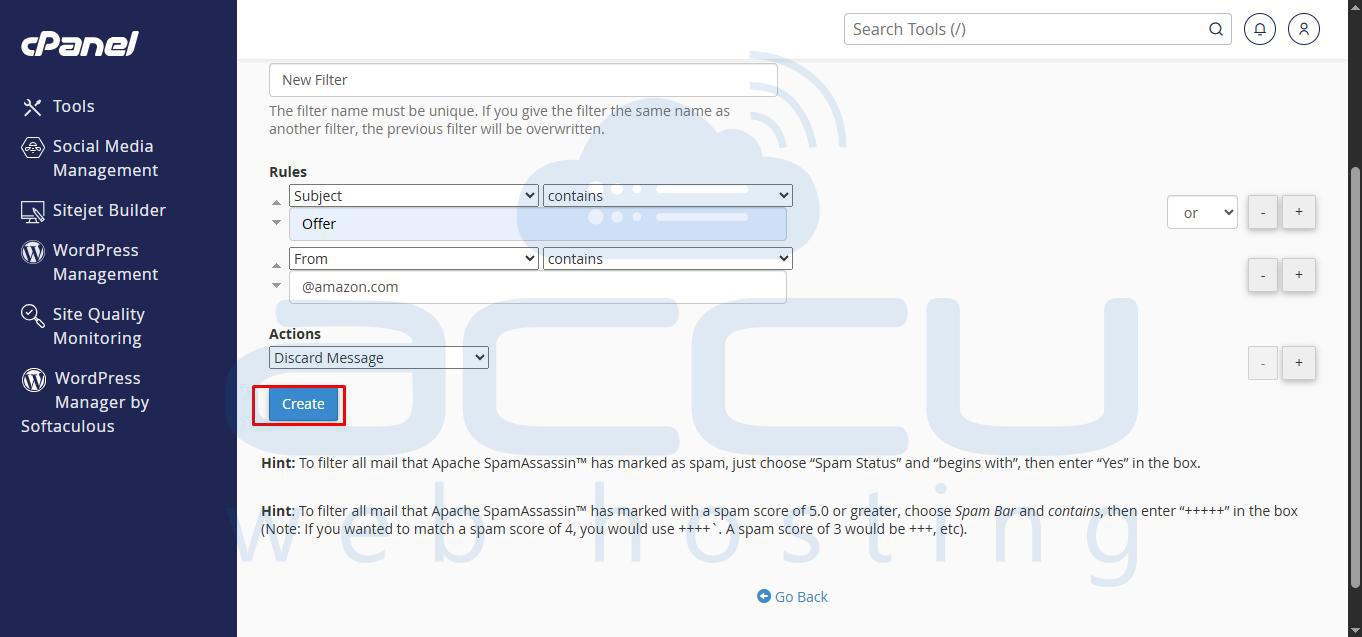
Step 6: Click Create to enable the filter.
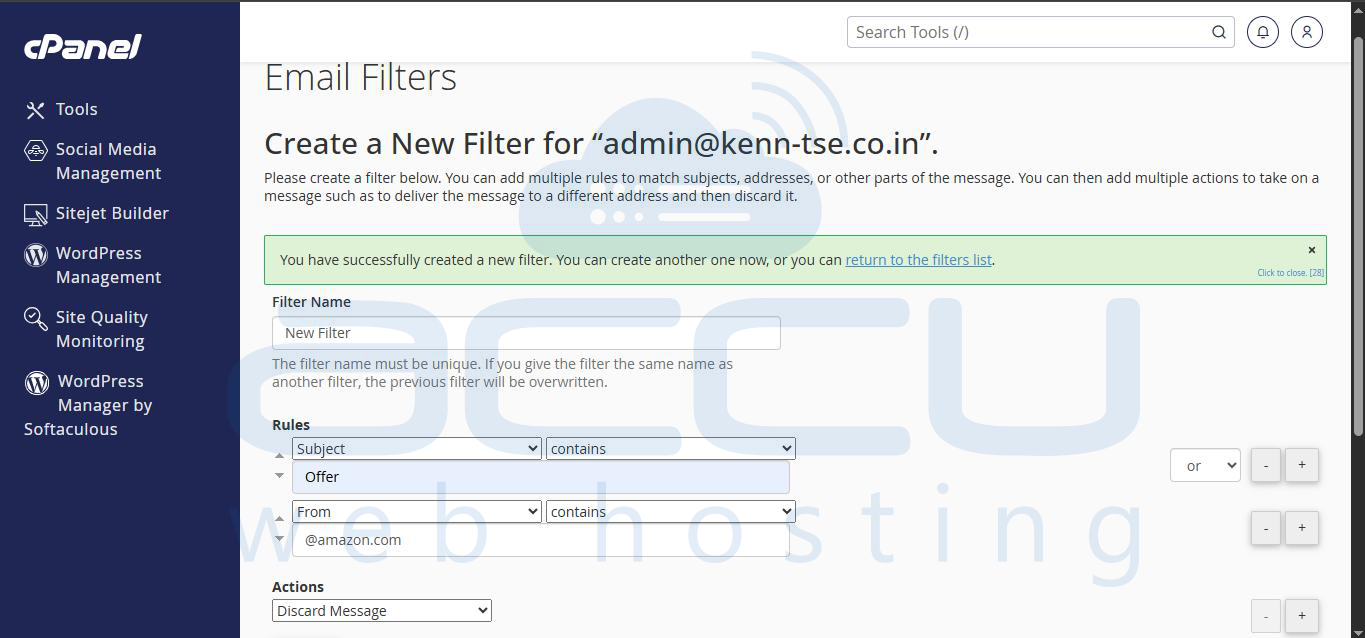
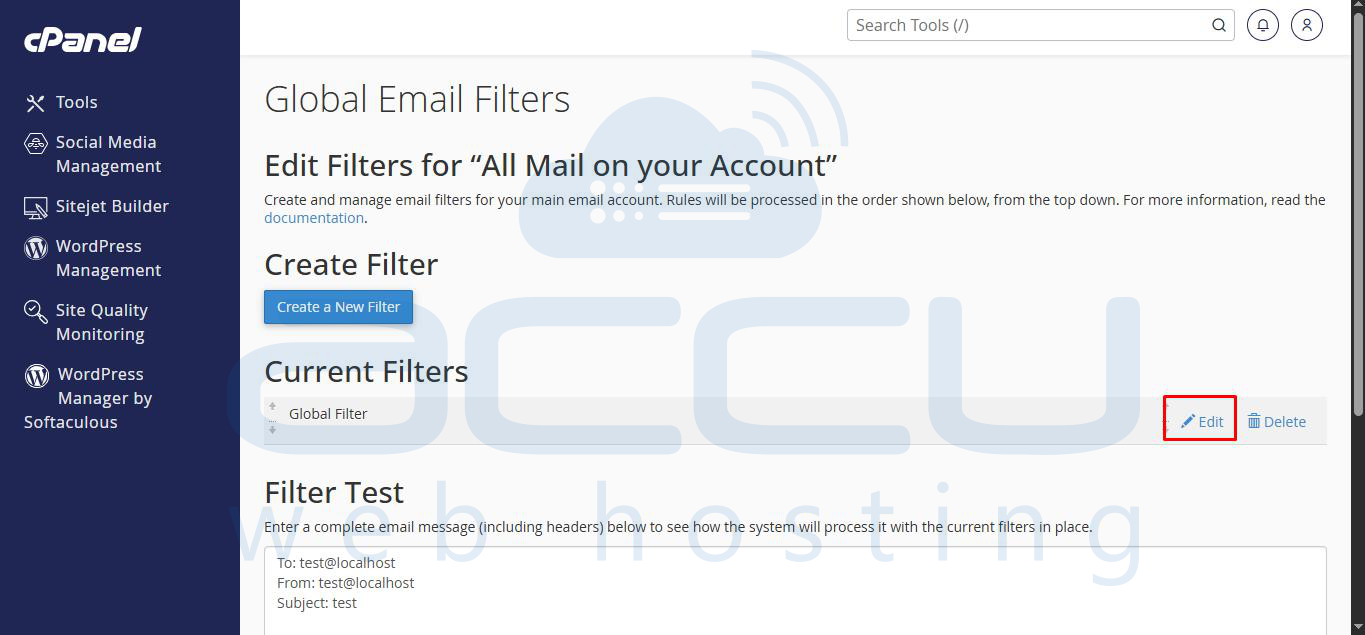
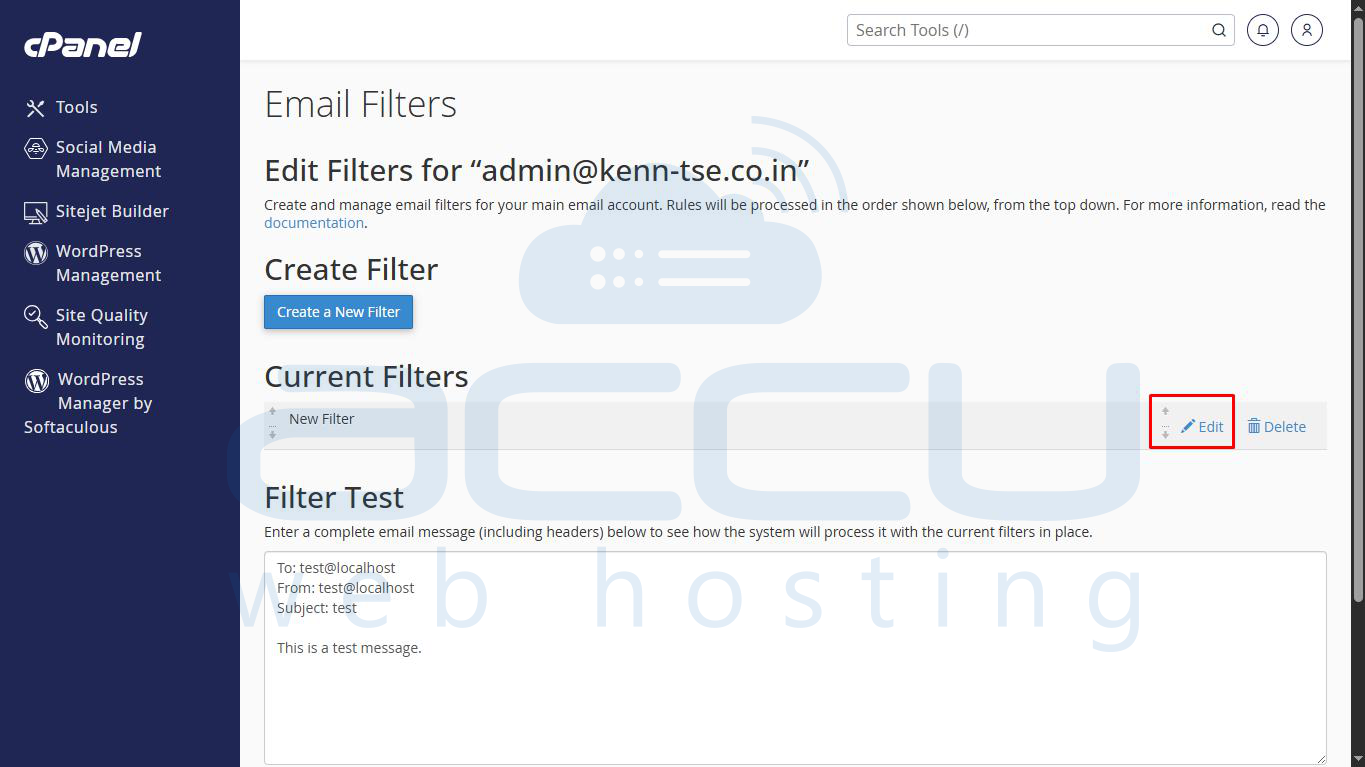
Step 7: To edit or remove a filter, return to Email Filters and select the relevant filter.
Steps to Create Account-Level Filtering(Global Email Filters):
Step 1: Log in to cPanel.
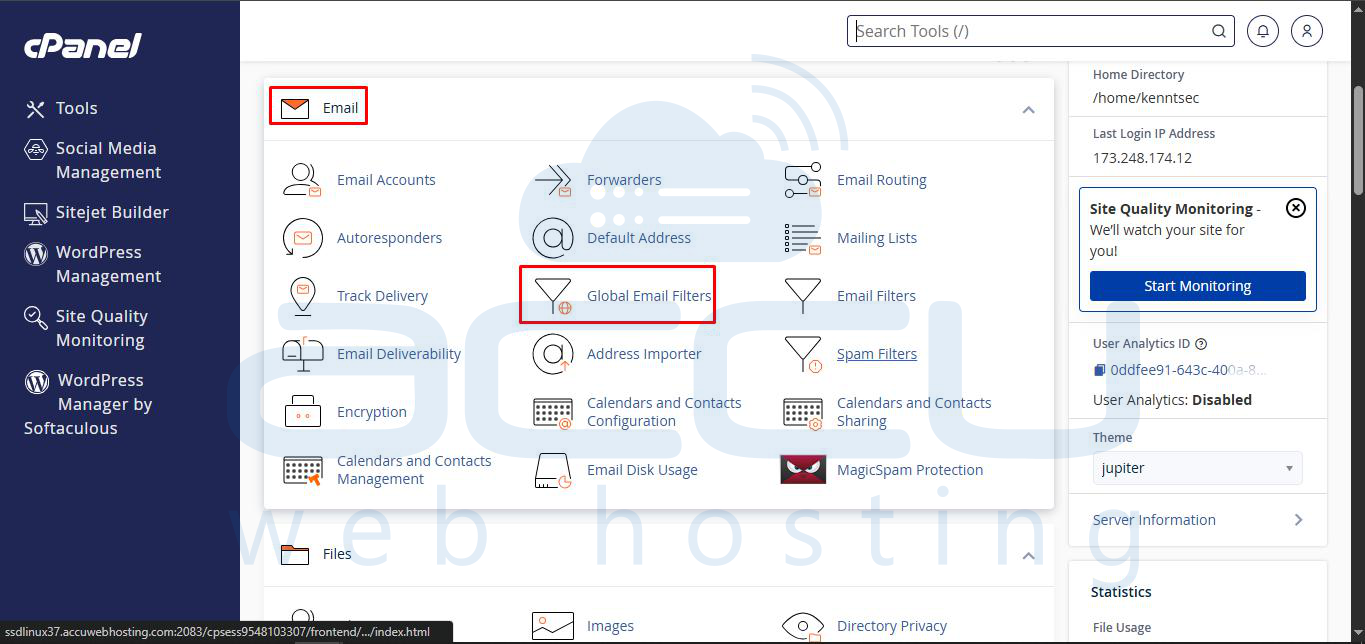
Step 2: Go to Global Email Filters.
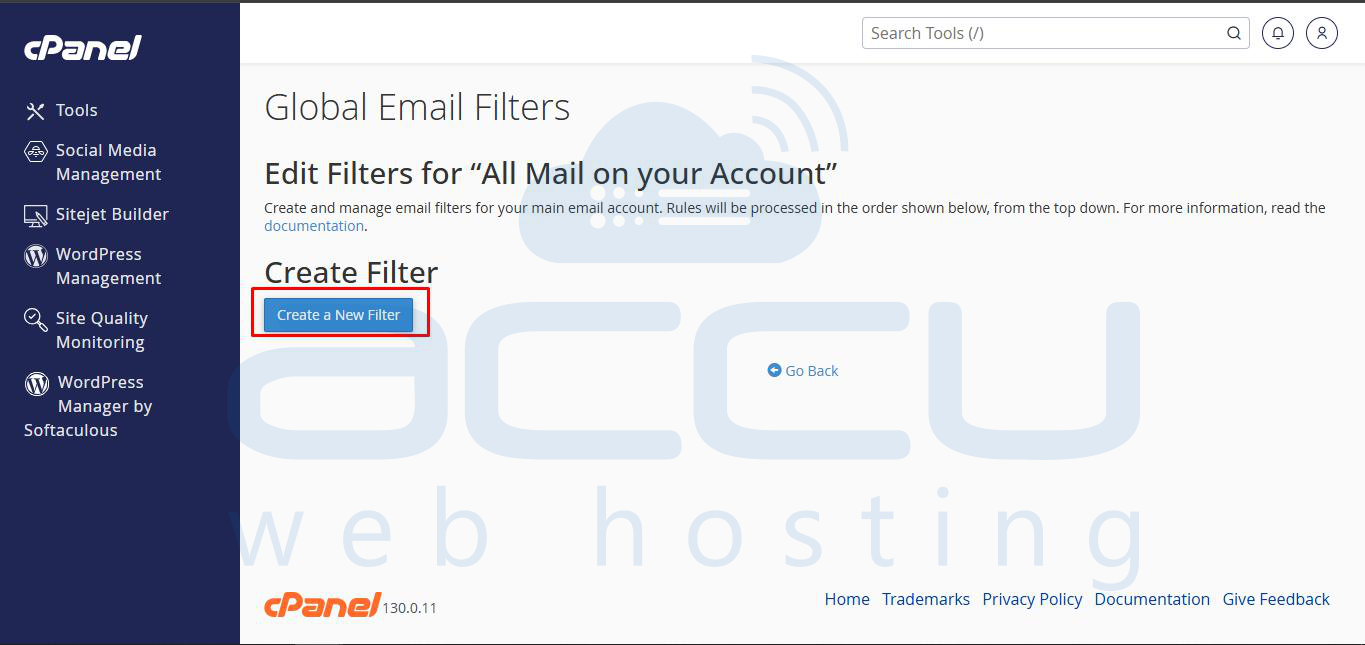
Step 3: Click Create a New Filter.
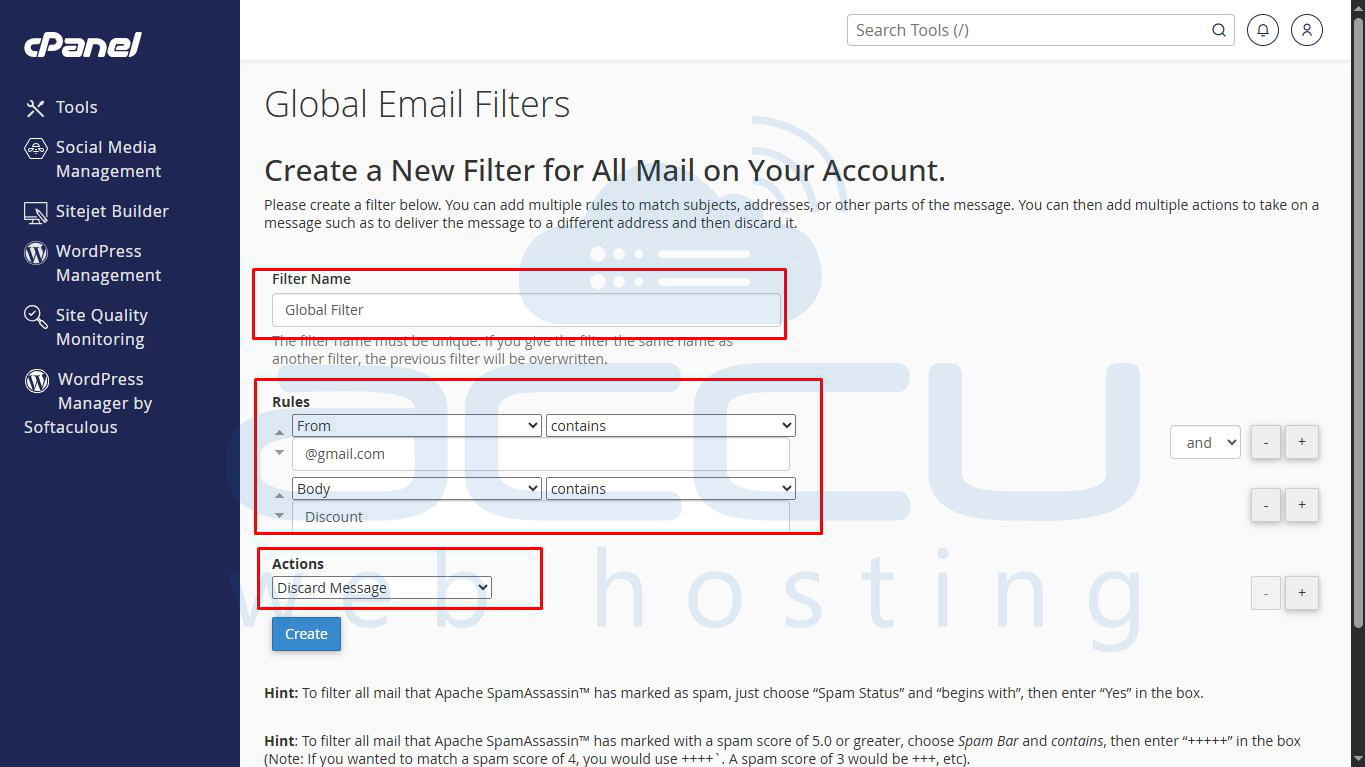
Step 4: Enter the Filter Name, define Rules, and select the desired Actions.
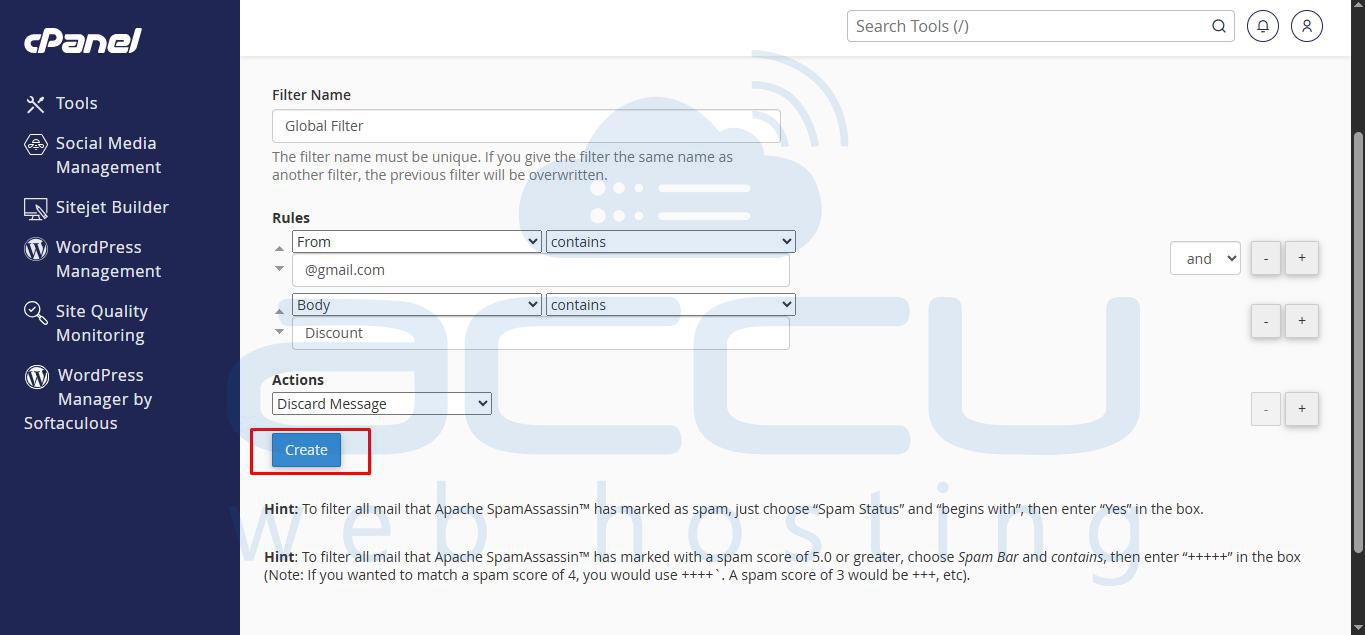
Step 5: Click Create to enable the filter.
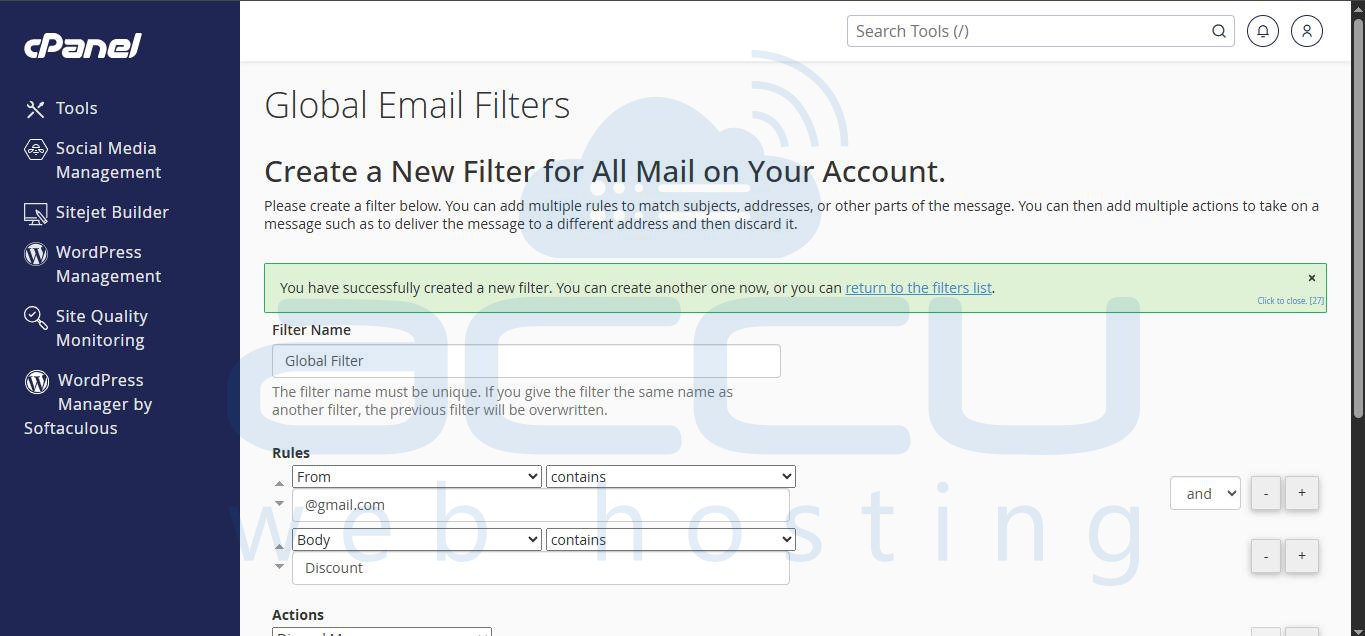
Step 6: To edit or remove a filter, return to Global Email Filters and select the relevant filter.