
Accessing your website remotely using IIS Manager is a convenient way to manage websites hosted on a Windows server, especially for administrators who need to configure settings, monitor performance, or deploy apps without direct server access.
To do this, you’ll use IIS Remote Management, which allows you to connect to the IIS service on your server securely using your FTP login credentials. This is ideal for remote administration, especially in hosted environments or when you're managing multiple sites.
Follow the steps below to connect to your website using IIS Manager from a remote system.
Step 1: You need to download and install the IIS Manager software from the following URL:
http://www.iis.net/expand/IISManager
Step 2: Go to the Start menu and open the IIS Manager.
Step 3: From the File menu select Connect to a Site.
Step 4: At the server name, enter your server IP Address and website name. 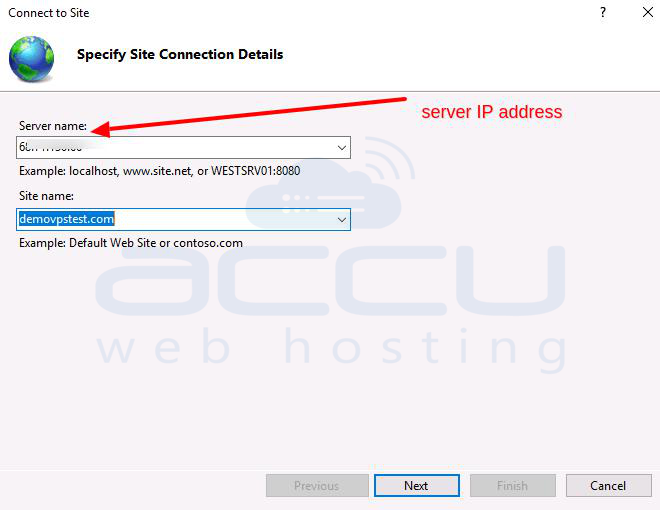
Step 5: Enter your domain name (without www) as the Site name.
Step 6: Use your FTP login details for the Username and Password and click Next.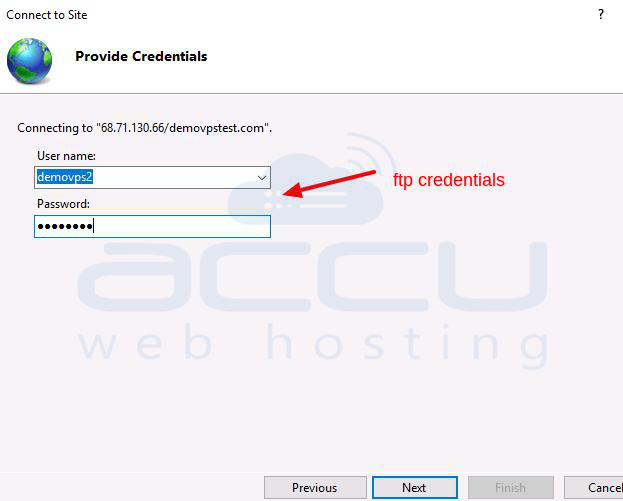
Step 7: You may receive the "This certificate was issued to a different server" alert message. Click Connect to proceed.
Step 8: Click Finish to complete the setup.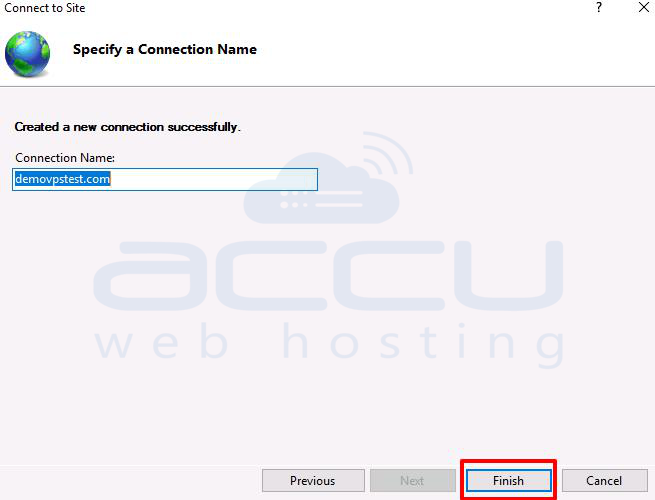
Step 9: You will see the website listed once the connection is established.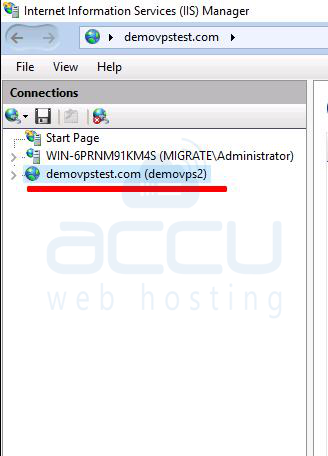
Conclusion:
Managing your website remotely through IIS Manager is a secure and efficient way to maintain control over site configurations without needing direct server access. Once connected, you can manage features like bindings, SSL, logging, app pools, and more, just like you would locally.
If you're running multiple sites or managing servers for clients, remote IIS access streamlines your workflow and ensures you stay in control wherever you are.


