
This guide explains how to change the password of the MySQL user in Webuzo.
1) Navigate to the Webuzo Admin Panel Home > Database Services > Change MySQL User Password
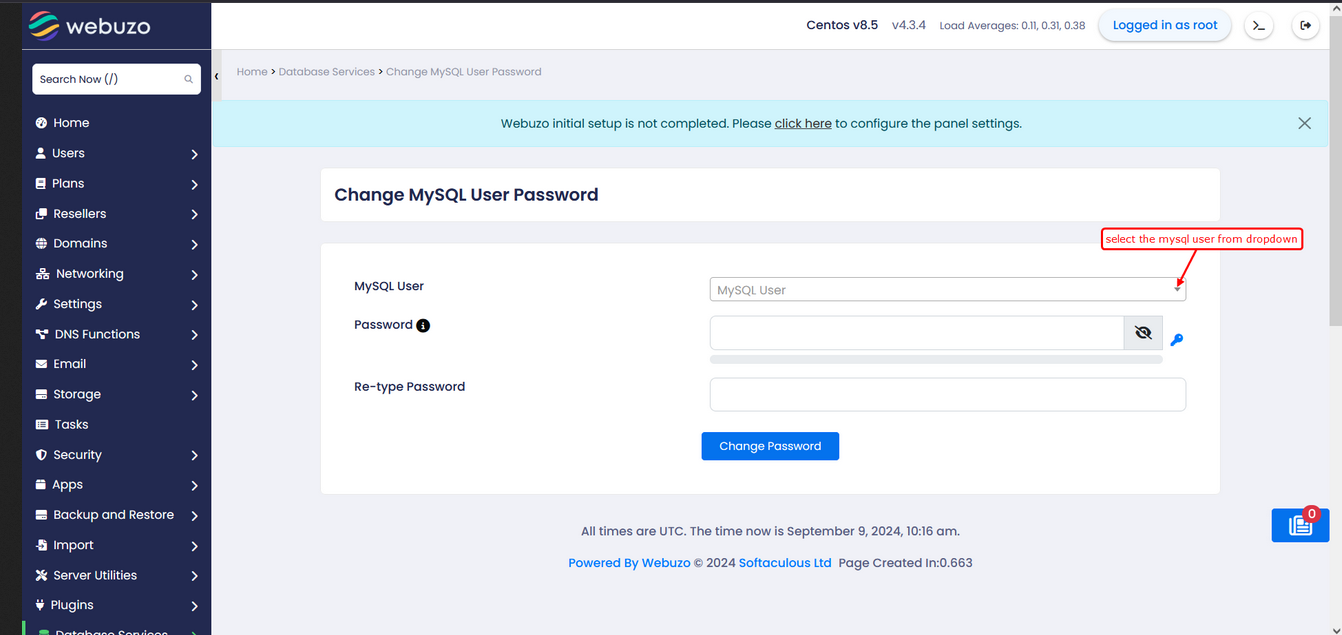
2) Populate the fields
Select MySQL user
Password
Re-type Password
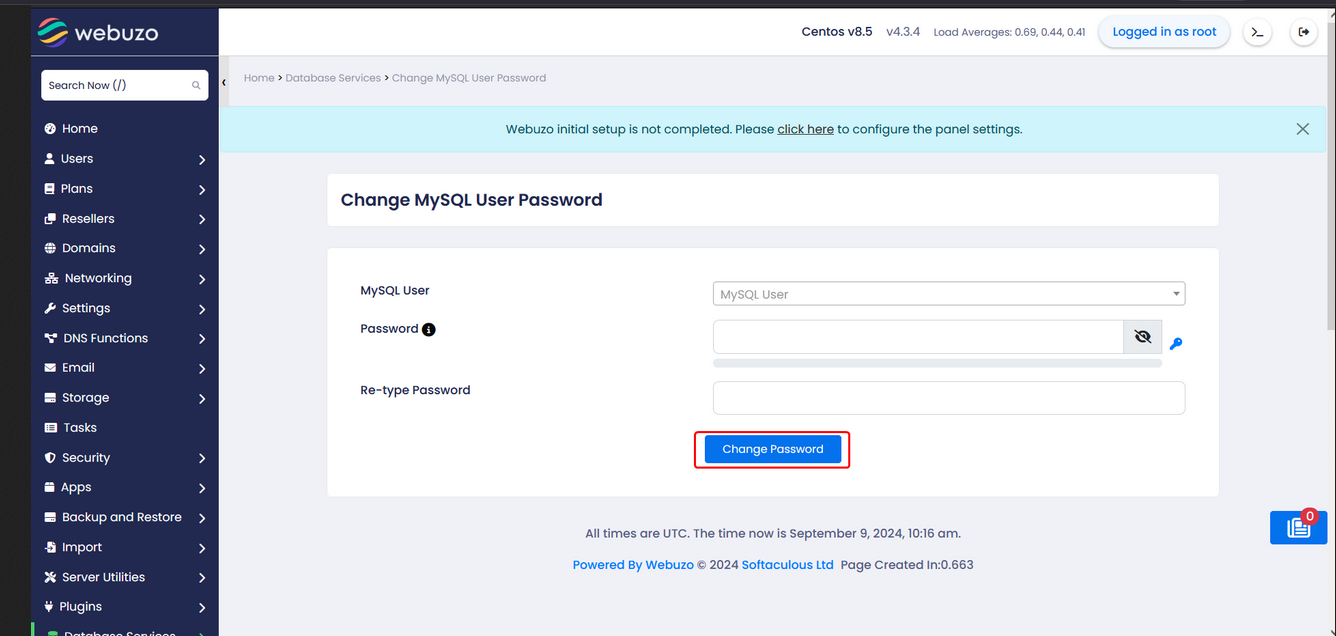
3) Click the Change Password button to apply the changes
Required Inputs
Password - Enter the Password you wish to be set.
Re-type Password - Confirm the password you wish to set.
Conclusion:
Changing your MySQL user password in Webuzo is a quick but critical step to keep your database secure and your applications running smoothly. With just a few clicks inside the Webuzo Admin Panel, you can update credentials, reduce security risks, and maintain full control over your database access—no technical deep dive required.
If you're managing websites, apps, or client environments, this is one of those small actions that delivers big protection. Weak or outdated passwords? That’s an open invite for trouble. Staying proactive here is just smart ops.
Take control now — log in to your Webuzo dashboard and update your MySQL user password in minutes. Your data (and your uptime) will thank you.