
TigerVNC is a high-performance, open-source implementation of Virtual Network Computing (VNC) that allows you to access a Linux desktop environment remotely over a network. It is commonly used on Linux VPS servers when you need a graphical desktop (GUI) instead of working only through SSH.
TigerVNC provides:
-
Remote desktop access to your Linux server
-
Encrypted connections (when configured with SSH tunneling)
-
Multi-user support
-
Lightweight performance suitable for VPS environments
-
Compatibility with most VNC viewer applications on Windows, Linux, and macOS
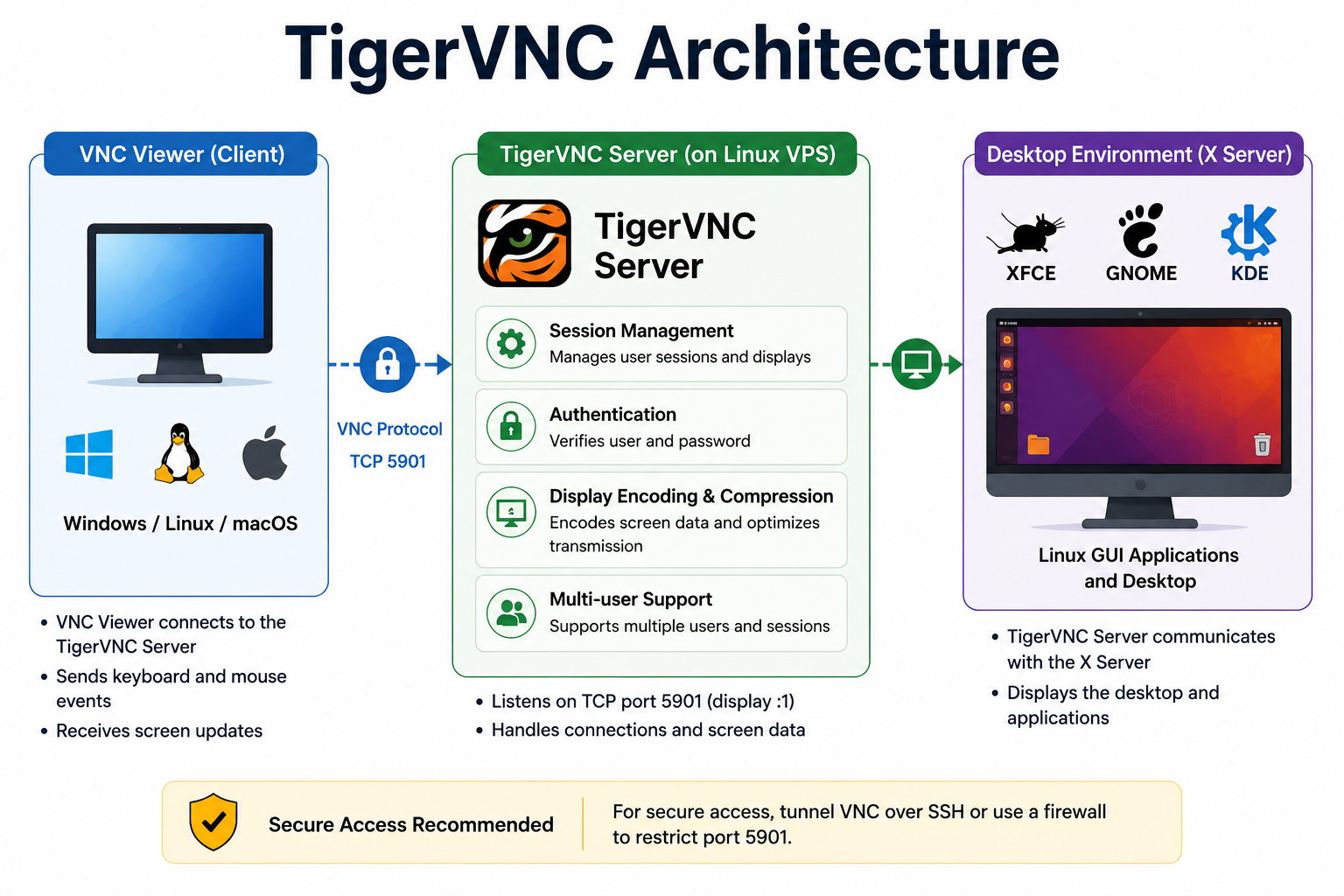
In this guide, we will walk you through the complete process of installing and configuring TigerVNC on Ubuntu 24.04 LTS.
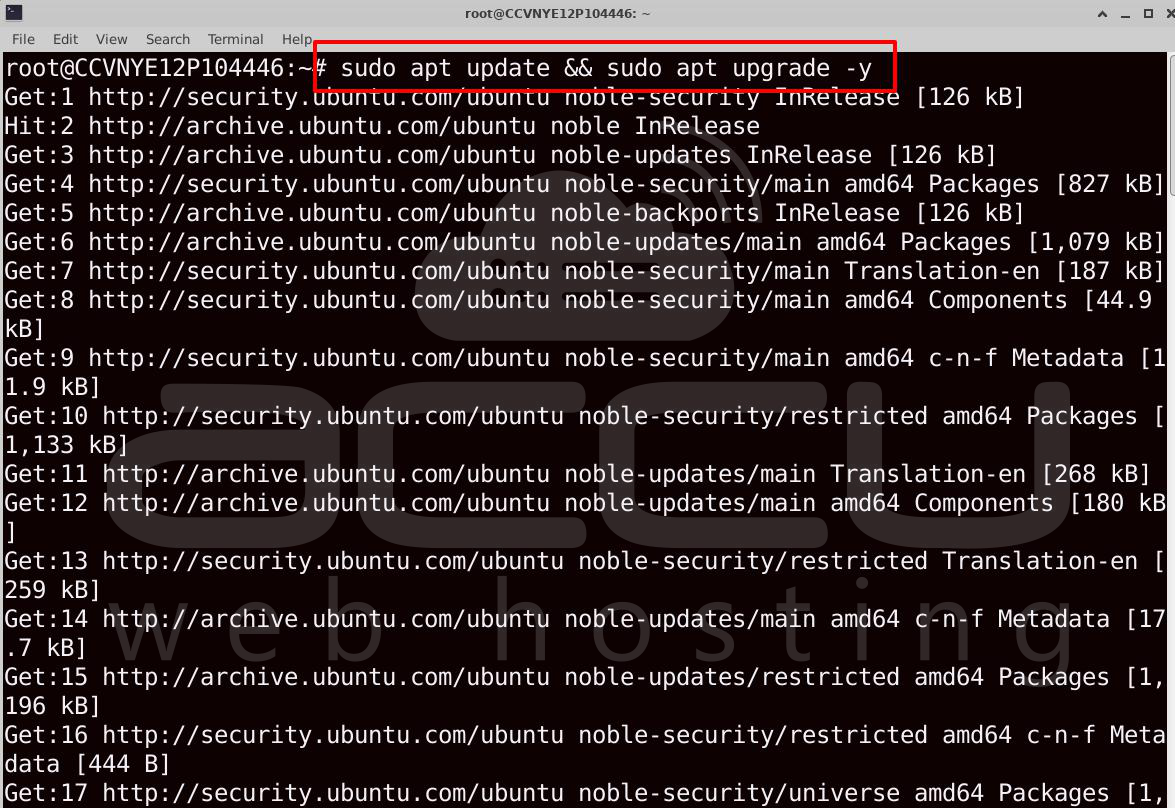
Step 1: Update the VPS
Connect to your server using SSH and update the packages.
sudo apt update && sudo apt upgrade -y
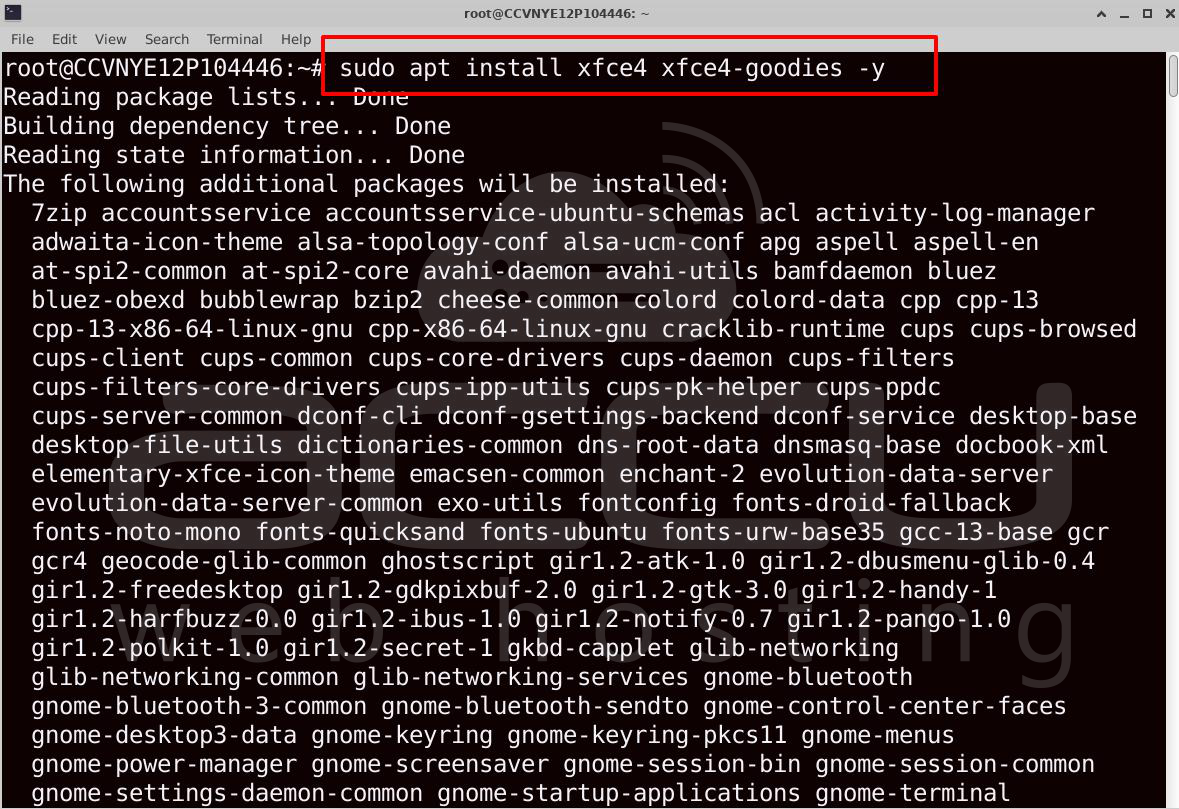
Step 2: Install a Desktop Environment
For a VPS, XFCE is recommended because it uses fewer resources.
sudo apt install xfce4 xfce4-goodies -y
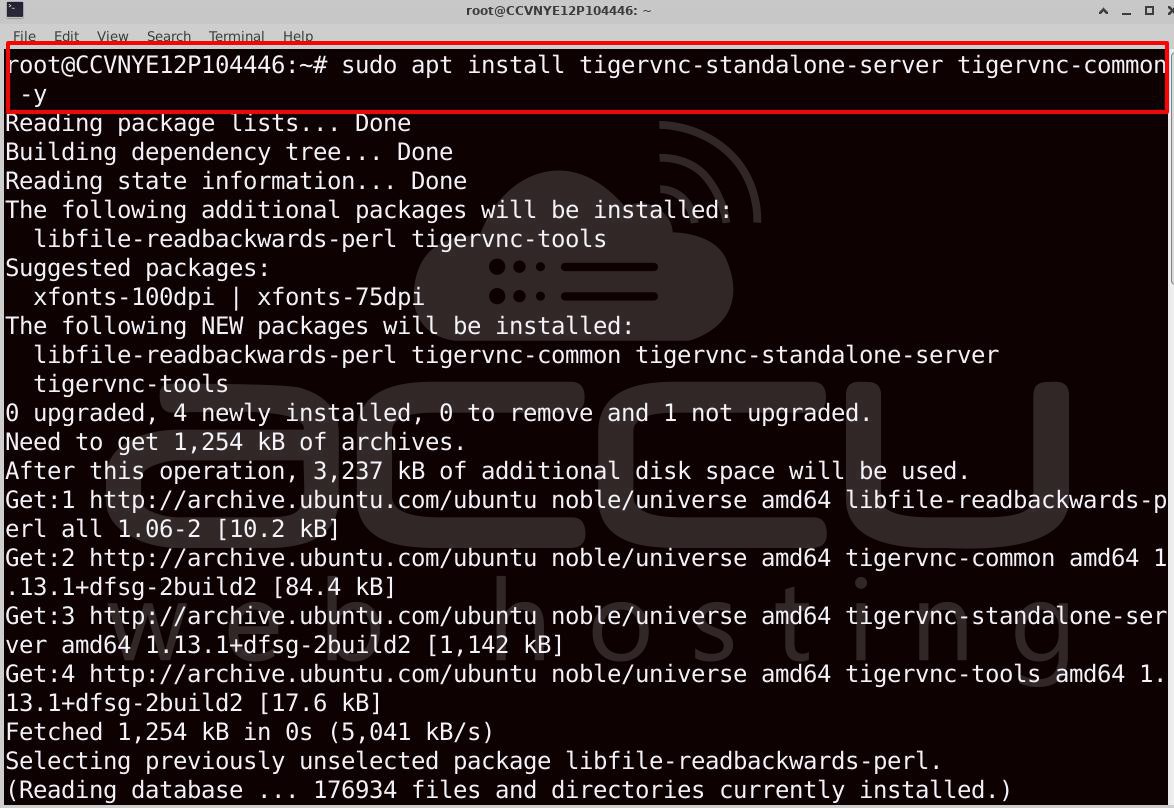
Step 3: Install TigerVNC
sudo apt install tigervnc-standalone-server tigervnc-common -y
Step 4: Set a VNC Password
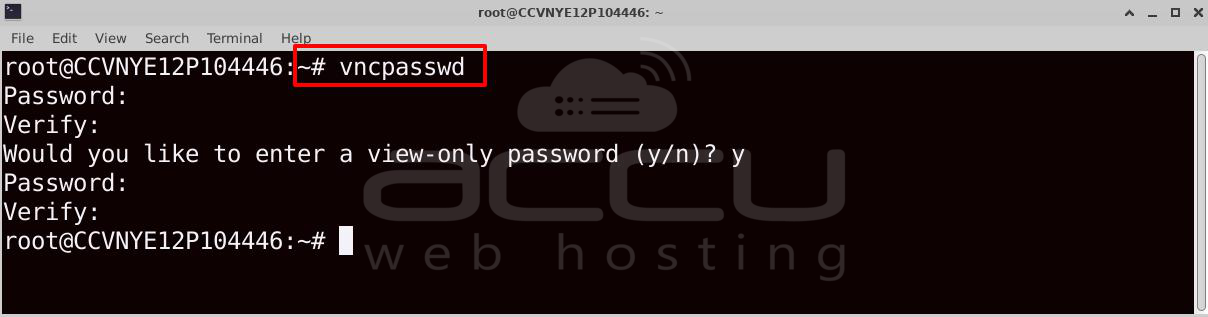
Run the following command as the user who will use the desktop:
# vncpasswd
During the initial startup, you will be prompted to create a password for VNC access.
Password:
Verify:
Would you like to enter a view-only password (y/n)?
Choose whether you want to configure a view-only password.
After the password is created, the VNC server starts and creates the required configuration files.
Step 5: Configure the Desktop Session
5.1 Create the VNC Configuration Directory
If the .vnc directory does not already exist, create it using:
# mkdir -p ~/.vnc
The -p option ensures the directory is created only if it doesn't already exist.

5.2 Create the xstartup File
Open the xstartup file with a text editor:
vi ~/.vnc/xstartup

5.3 Configure the Desktop Environment
Add the following content to the file if you are using XFCE:
#!/bin/bash
unset SESSION_MANAGER
unset DBUS_SESSION_BUS_ADDRESS
xrdb $HOME/.Xresources
startxfce4 &
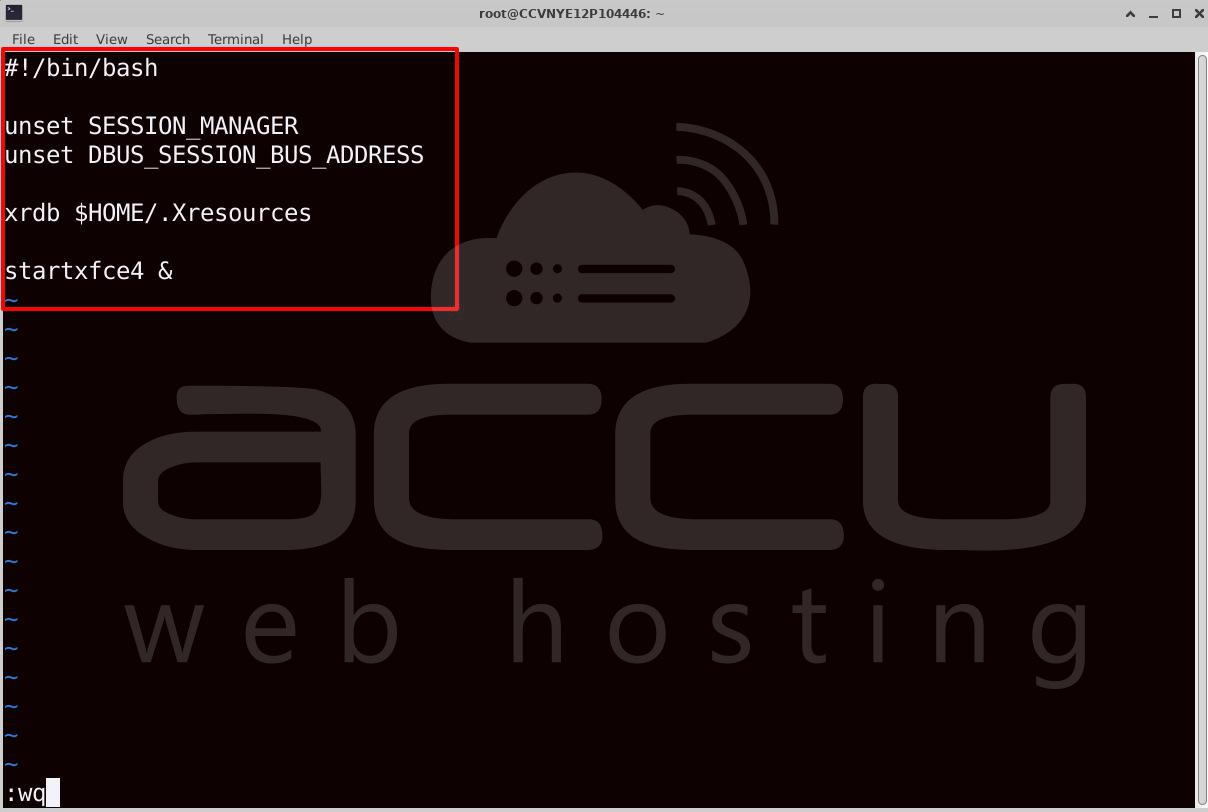
Save the file and make it executable:
chmod +x ~/.vnc/xstartup

Step 6: Start the TigerVNC Server
Start display :1 (which uses TCP port 5901):
# vncserver :1
You should see output similar to:
New 'your-hostname:1 (username)' desktop is your-hostname:1
Starting applications specified in /home/username/.vnc/xstartup
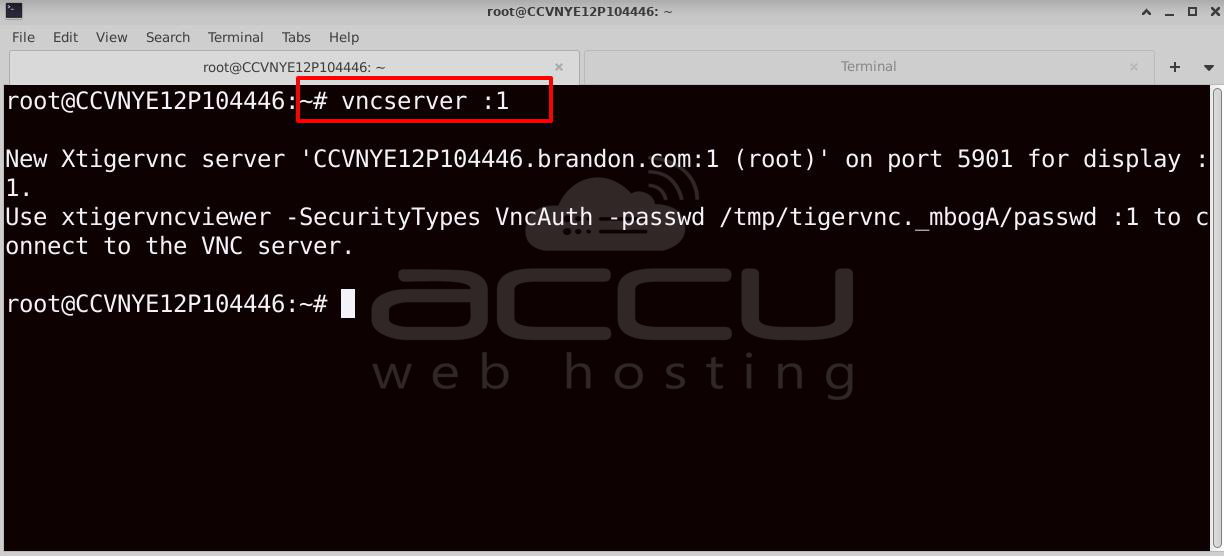
The graphical desktop is now available on display :1, which uses port 5901.
Step 7: Open the Firewall Port
If you're using Ubuntu or Debian, you can install UFW:
apt install ufw -y
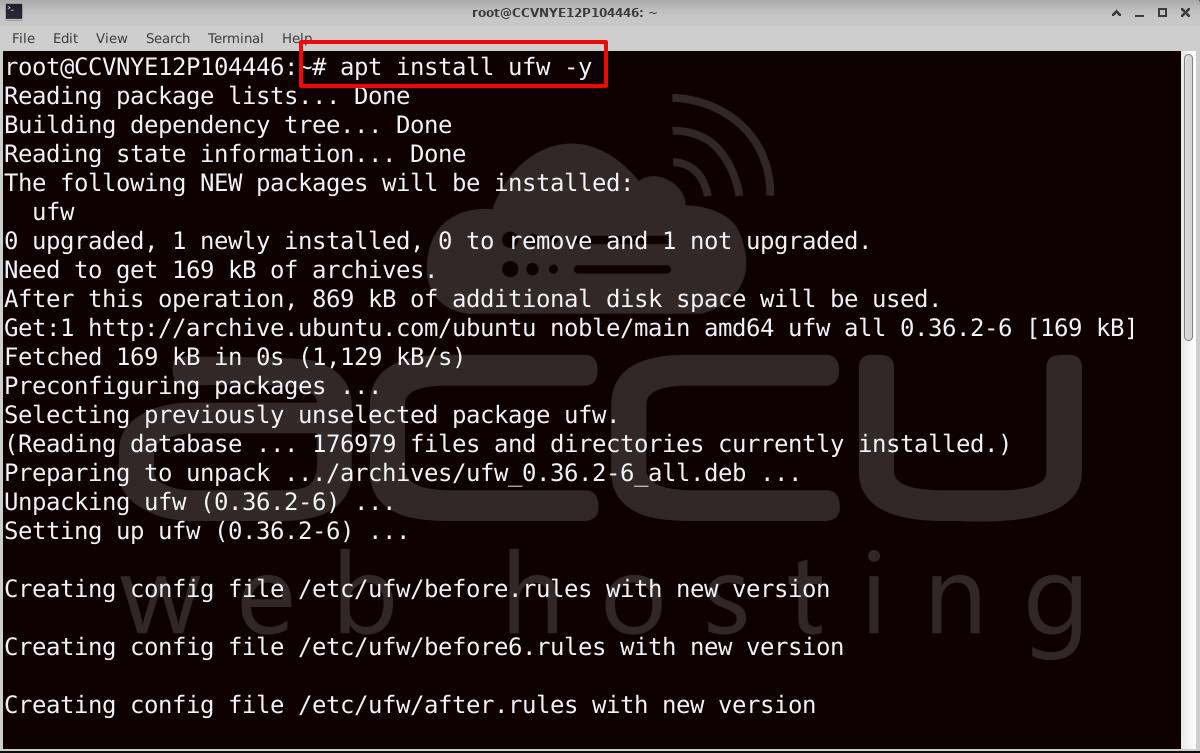
If the Ubuntu firewall (UFW) is enabled, allow incoming connections to the VNC port.
# sudo ufw allow 5901/tcp
Verify the firewall rules.
sudo ufw status

Step 8: Connect from Your Local Computer
Install any VNC viewer, such as:
-
TigerVNC Viewer
-
RealVNC Viewer
-
TightVNC Viewer
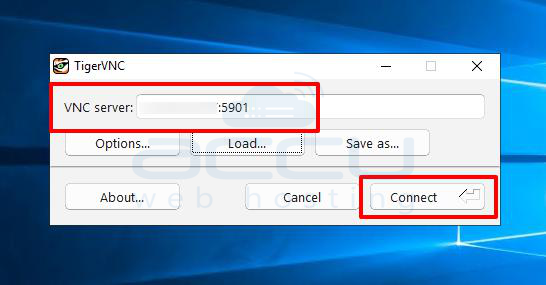
Open the VNC viewer and connect using the following format:
SERVER_IP:5901
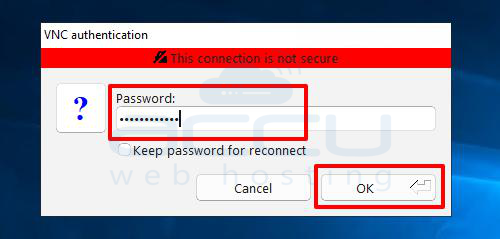
When prompted, enter the VNC password you created earlier.
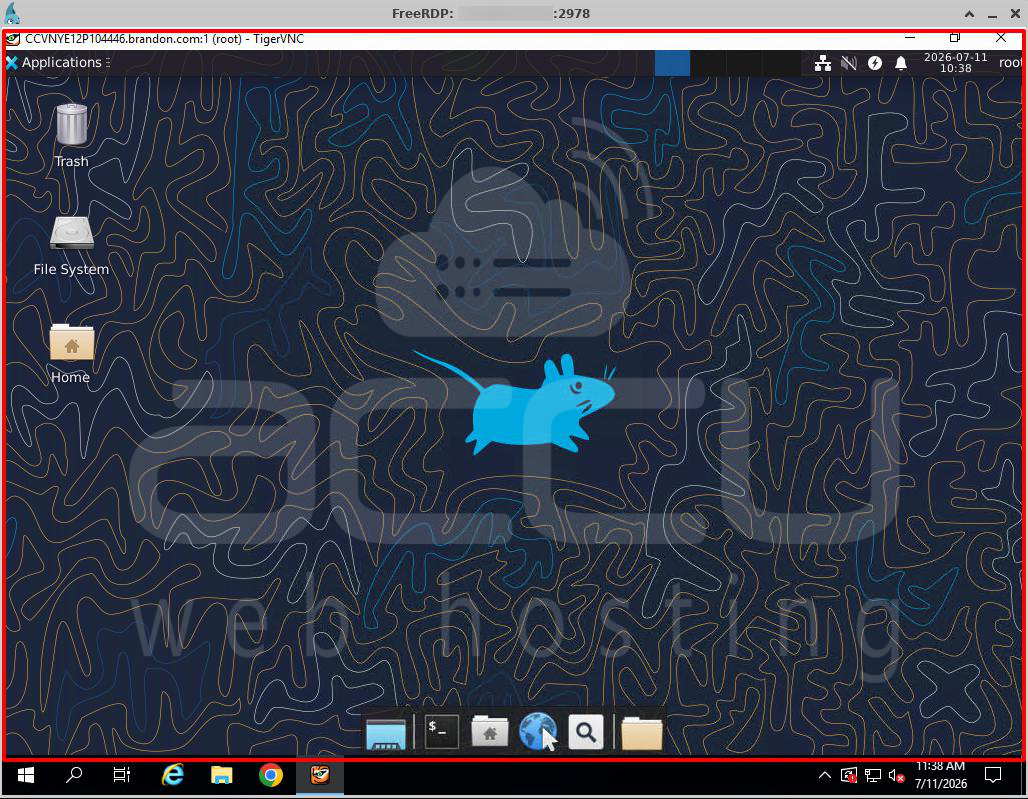
After successful authentication, the XFCE desktop environment will be displayed, allowing you to remotely manage your Ubuntu VPS through a graphical interface.
Useful Management Commands
Start the VNC server:
# vncserver :1
Stop the VNC server:
# vncserver -kill :1
List active VNC sessions:
# vncserver -list
Restart the VNC server:
# vncserver -kill :1
# vncserver :1
Check the listening VNC port:
# ss -tulpn | grep 5901
Recommended Security (Important)
For production VPS servers, instead of exposing port 5901 directly to the internet, use SSH tunneling:
On your local machine, create an SSH tunnel using Windows PowerShell
# ssh -L 5901:localhost:5901 user@SERVER_IP
Then connect the VNC viewer to localhost:5901.
This keeps the VNC traffic encrypted through SSH.
Conclusion
TigerVNC is a reliable and lightweight remote desktop solution that enables secure graphical access to a Linux VPS from Windows, Linux, or macOS. By installing a desktop environment such as XFCE, configuring the xstartup script, setting a VNC password, and starting the TigerVNC server, you can easily manage your server through a graphical interface instead of relying solely on the command line.
For improved security, it is recommended to keep the VNC server accessible only from the local interface and connect using an SSH tunnel rather than exposing port 5901 directly to the internet. This approach encrypts all VNC traffic and helps protect your server from unauthorized access.
With TigerVNC properly configured, your Linux VPS becomes a fully functional remote desktop environment, making it easier to perform system administration, run GUI-based applications, manage files, and troubleshoot your server efficiently from anywhere.