
Tailscale is a modern mesh VPN solution that enables secure remote access between devices without requiring complex network configurations. It uses the WireGuard protocol to create encrypted connections between computers, servers, and other devices connected to your private network.
With Tailscale, you can securely access files, applications, Remote Desktop sessions, SSH services, and internal resources from anywhere while maintaining strong security and simplified management.
This article explains how to install and configure Tailscale VPN on both Linux and Windows operating systems.
Prerequisites
Before proceeding, ensure that:
- You have a Tailscale account.
- Your system has an active internet connection.
- You have administrative or root privileges on the system.
- Firewall rules allow outbound HTTPS traffic.
Installing Tailscale on Linux
Step 1: Update the System
Before installing any software, update the system packages.
For Ubuntu and Debian-based distributions:
sudo apt update && sudo apt upgrade -y
For AlmaLinux, Rocky Linux, and CentOS:
sudo dnf update -y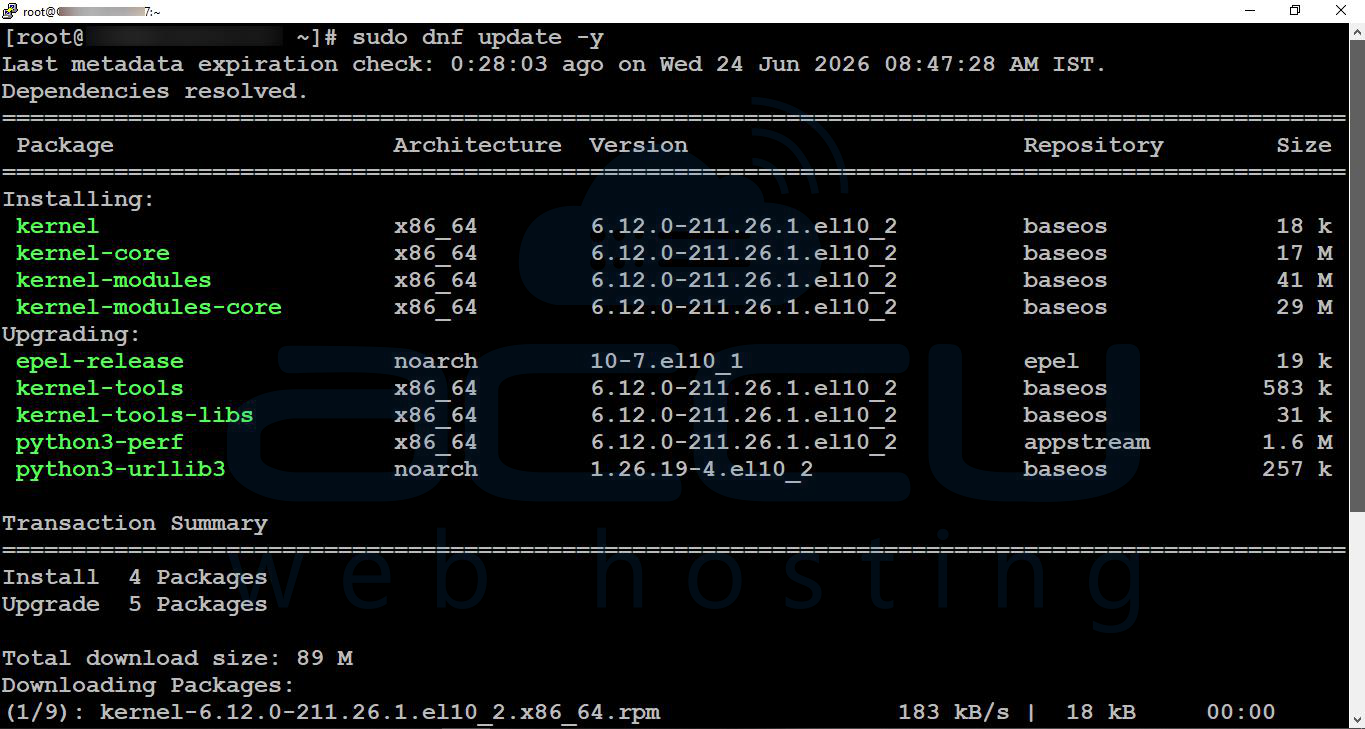
Step 2: Install Tailscale
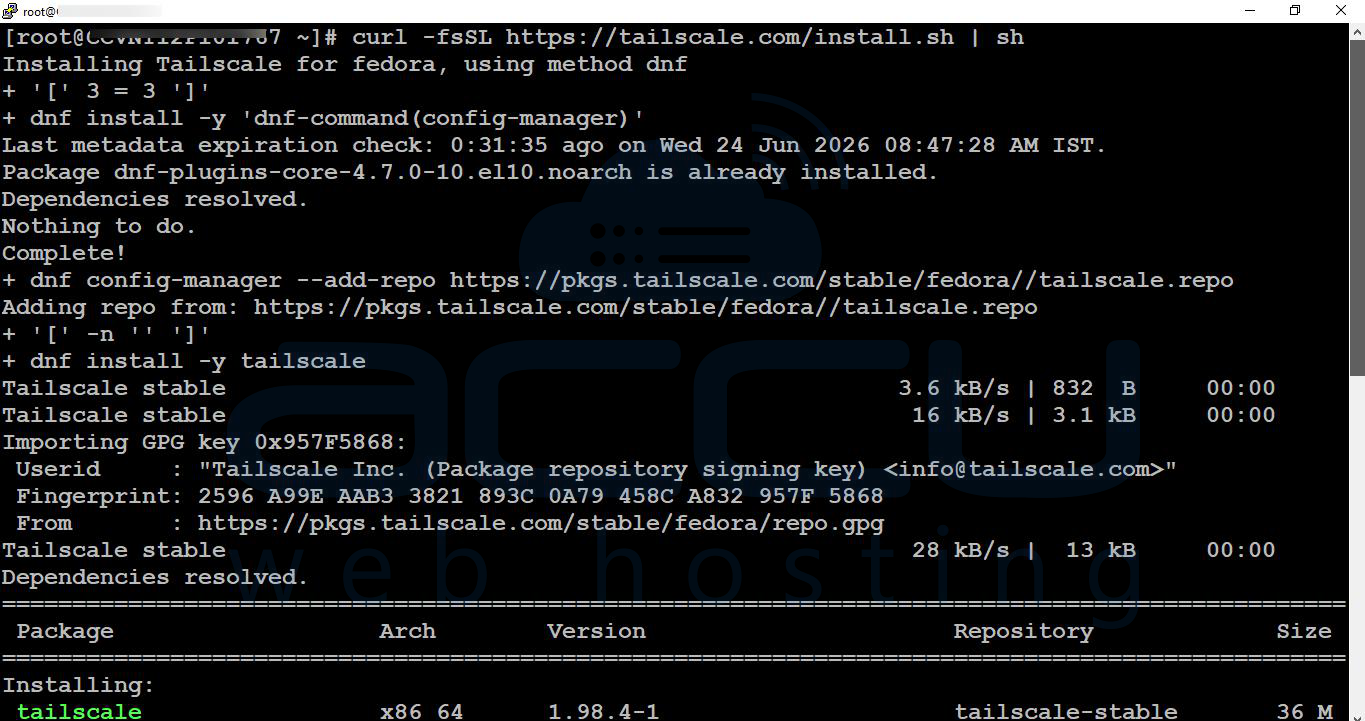
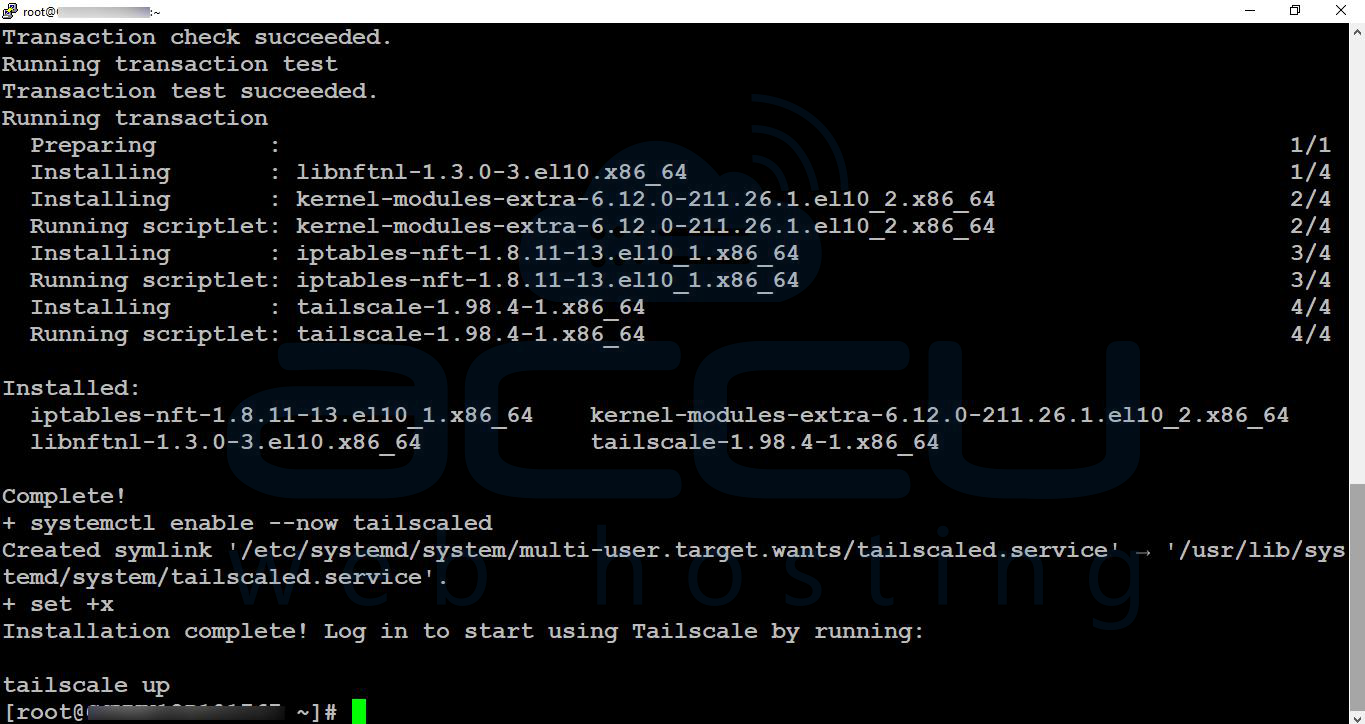
Run the official installation script:
curl -fsSL https://tailscale.com/install.sh | sh
The script automatically detects your Linux distribution and installs the appropriate package.
Step 3: Start and Enable the Tailscale Service
Enable the Tailscale service to start automatically during boot.
sudo systemctl enable --now tailscaled
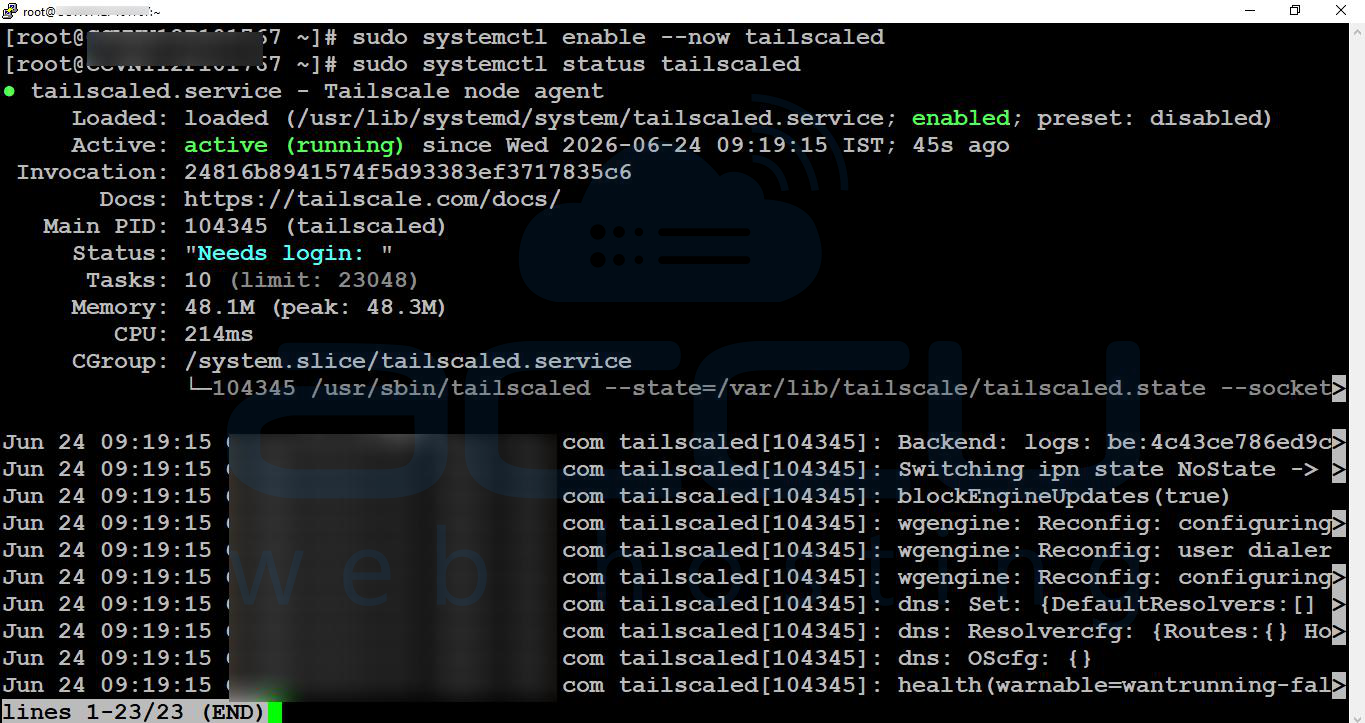
Verify the service status:
sudo systemctl status tailscaled
You should see the service in an active (running) state.
Step 4: Authenticate the Device
Run:
sudo tailscale up

The command generates a URL.
Example:
To authenticate, visit:
https://login.tailscale.com/...
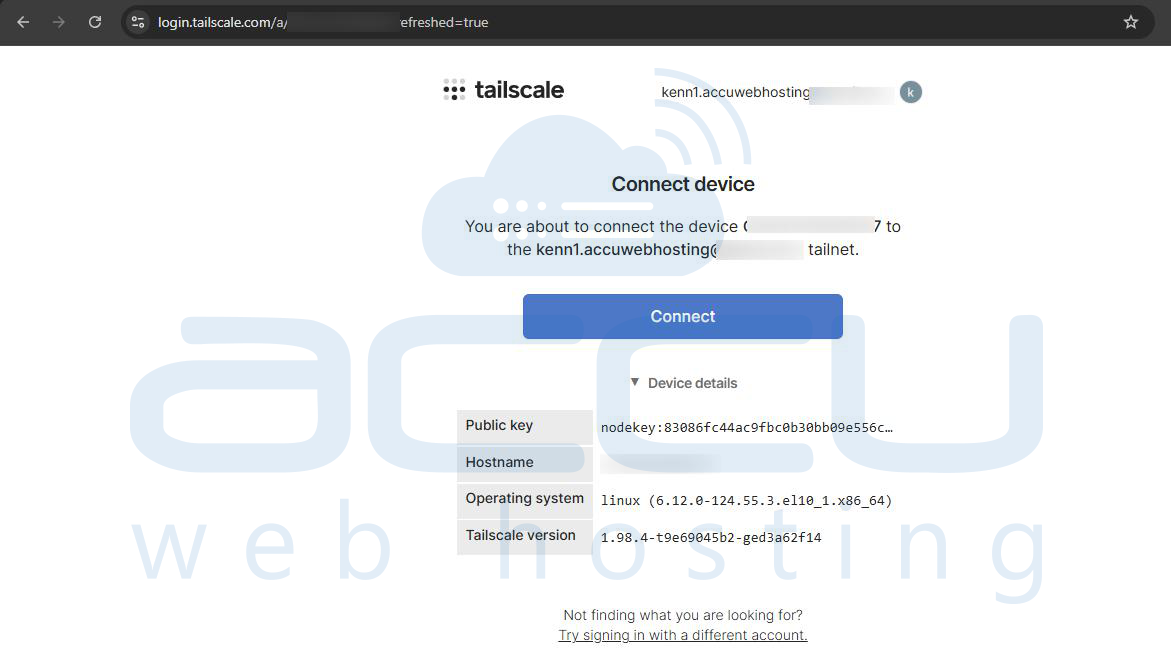
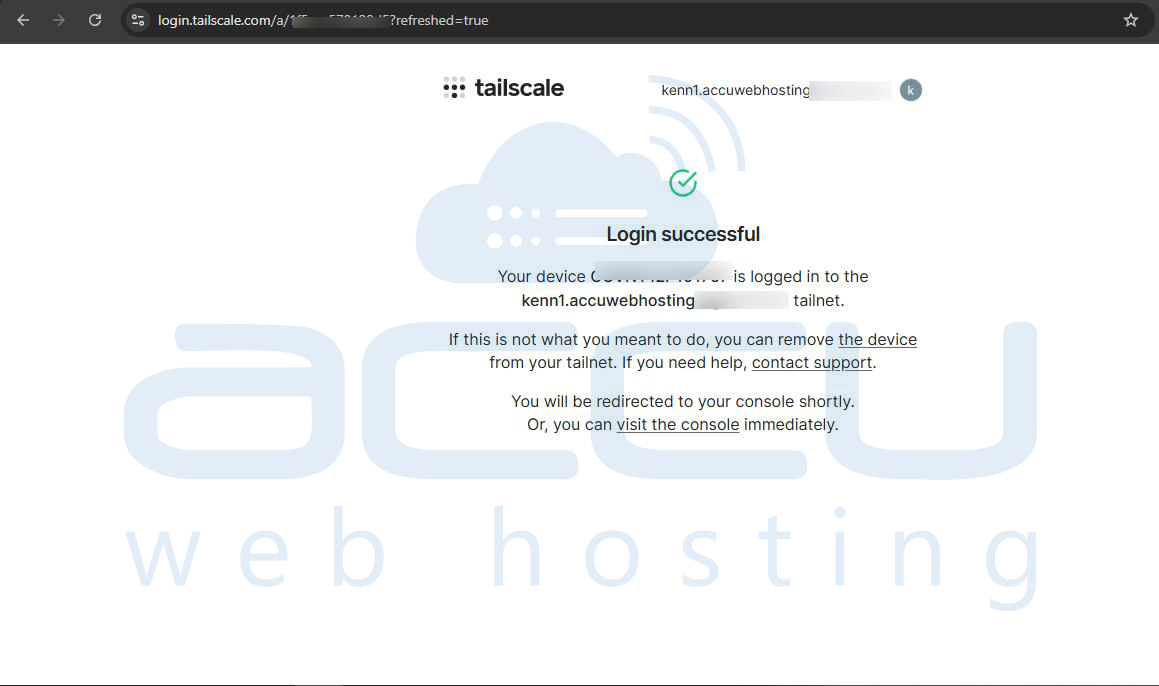
Open the provided URL in your browser and sign in to your Tailscale account.
Approve the device when prompted.
Step 5: Verify the Connection
Check the assigned Tailscale IP address:
tailscale ip

View connected devices:
tailscale status
The device should now appear in your Tailscale admin console.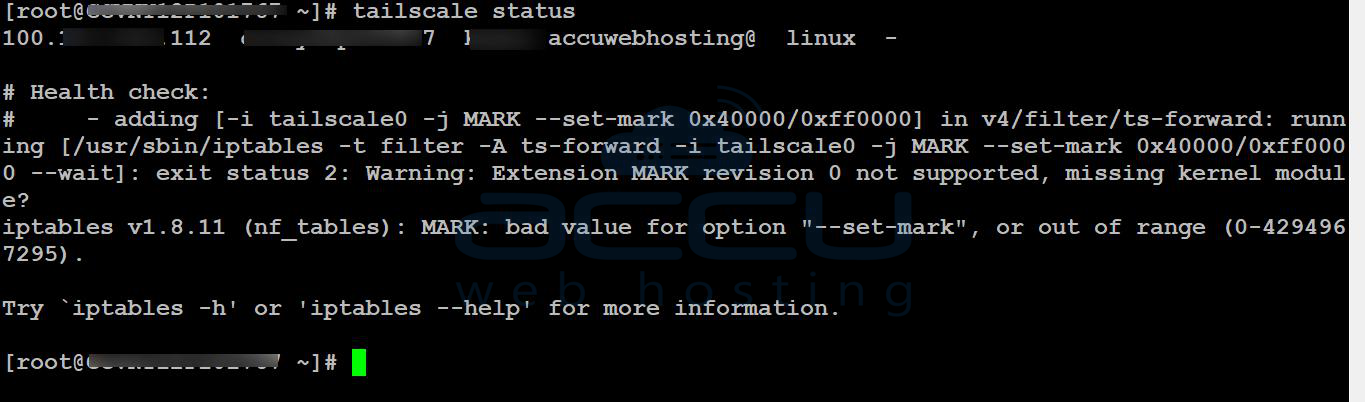
Installing Tailscale on Windows
Step 1: Download the Tailscale Installer
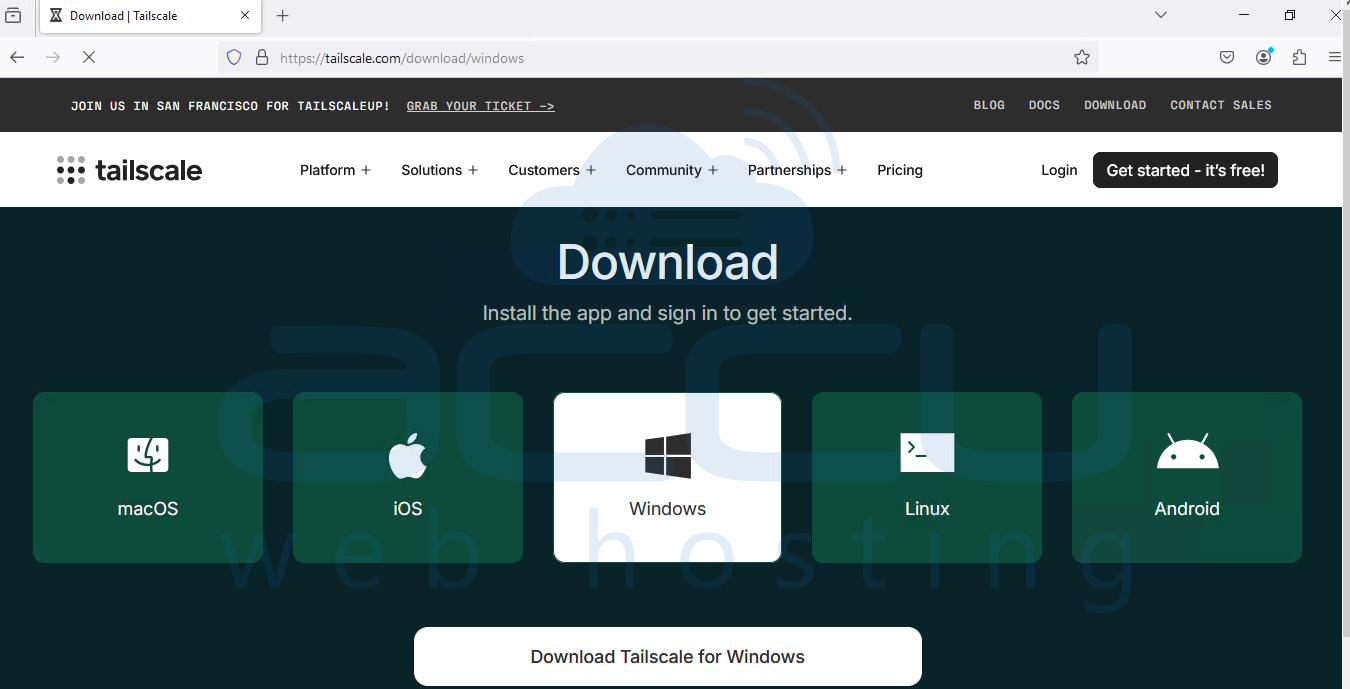
Visit the official Tailscale download page and download the Windows installer.
Screenshot Hint: Capture the Tailscale download page.
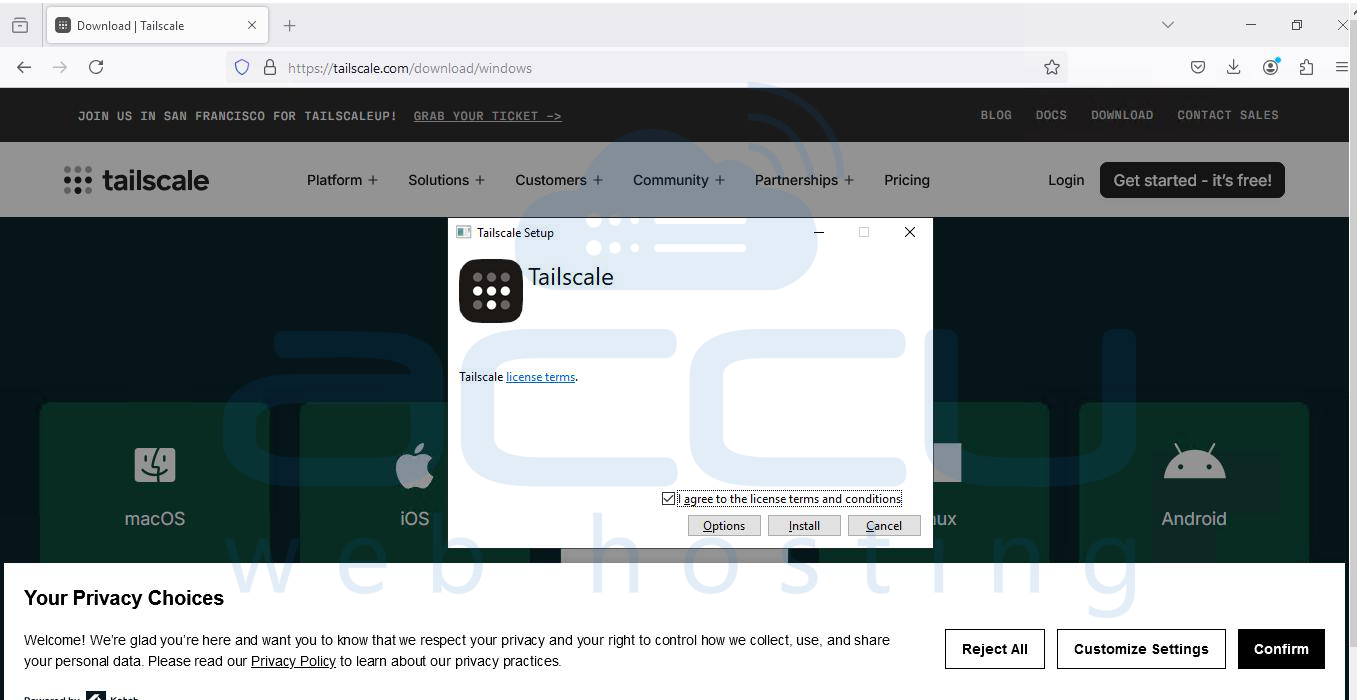
Step 2: Install Tailscale
-
Run the downloaded installer.
-
Follow the installation wizard.
-
Click Install.
-
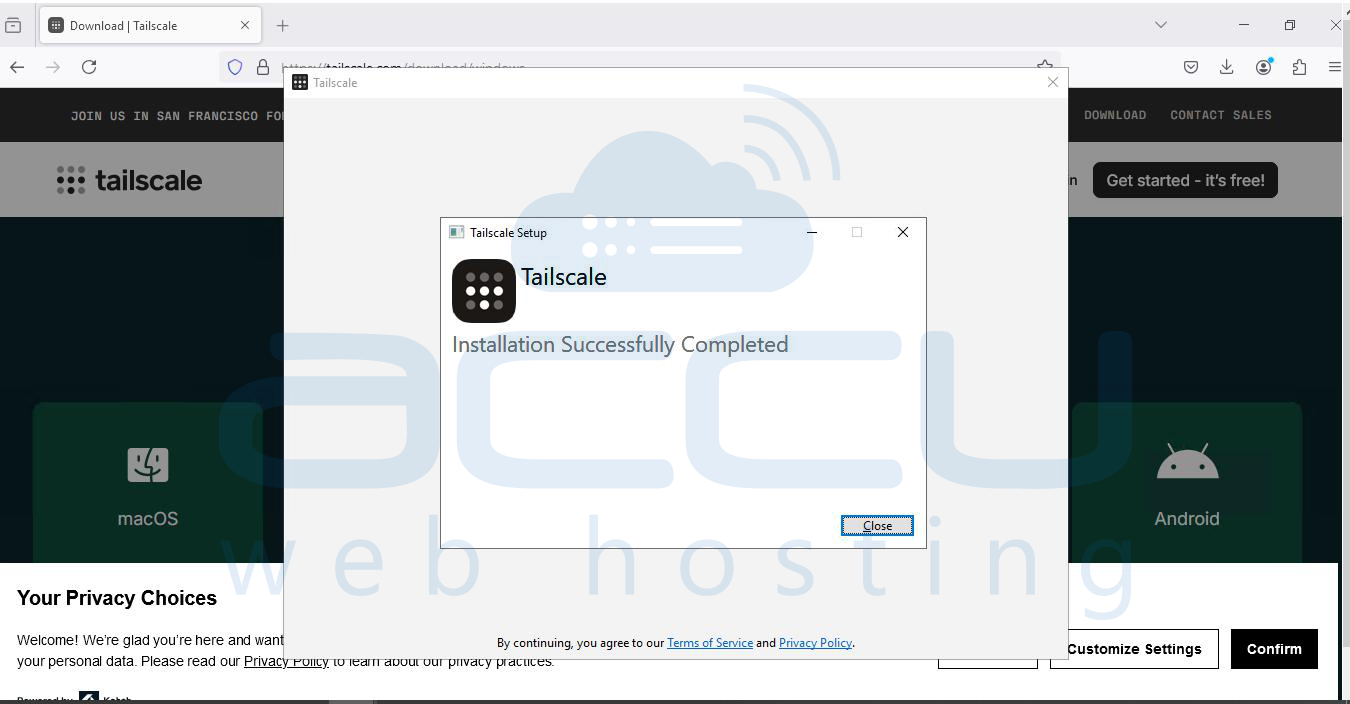
Allow Windows to complete the installation.
Once installed, Tailscale launches automatically.
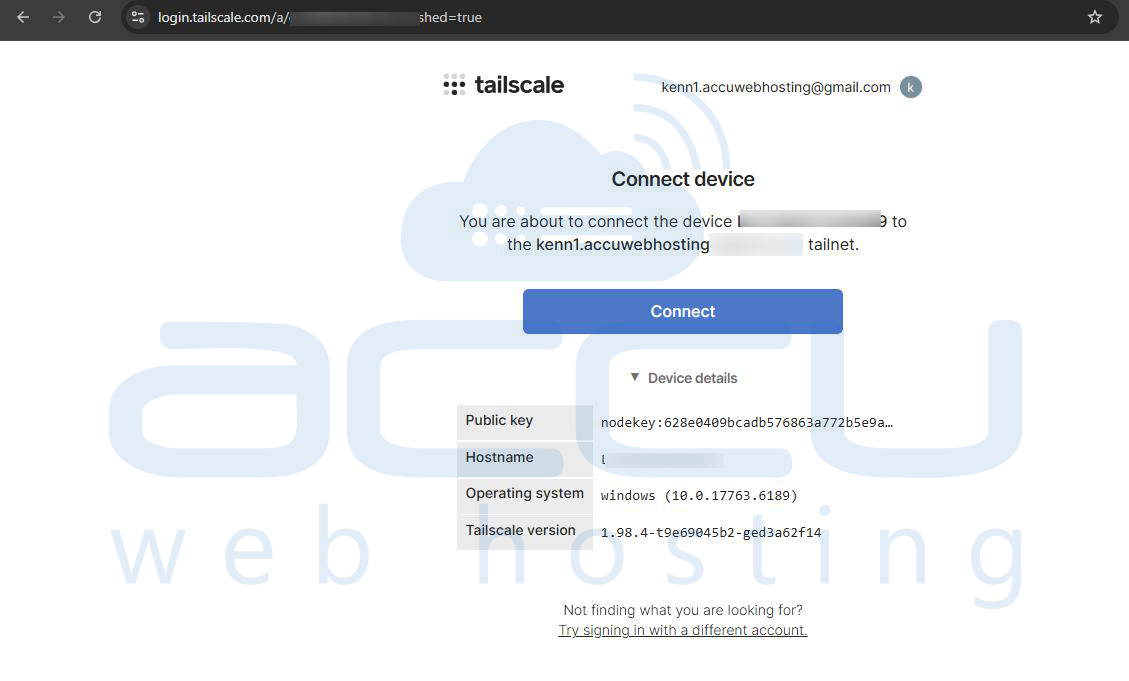
Step 3: Sign In to Tailscale
-
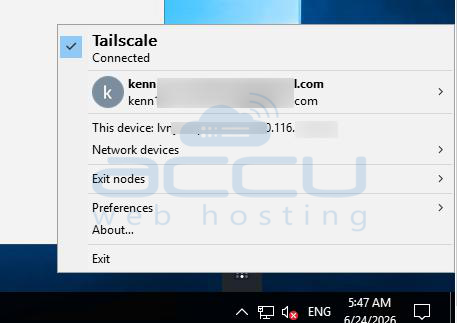
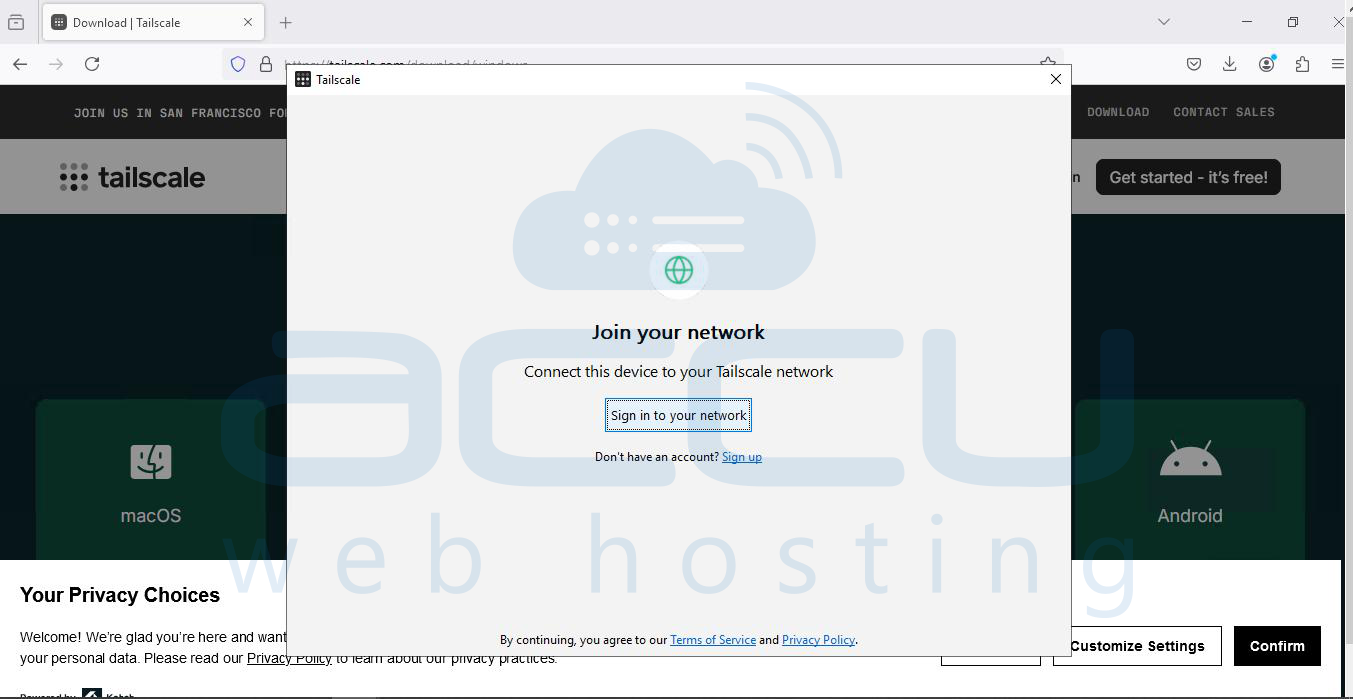
Click the Tailscale icon from the system tray.
-
Select Log In.
-
Your default browser will open.
-
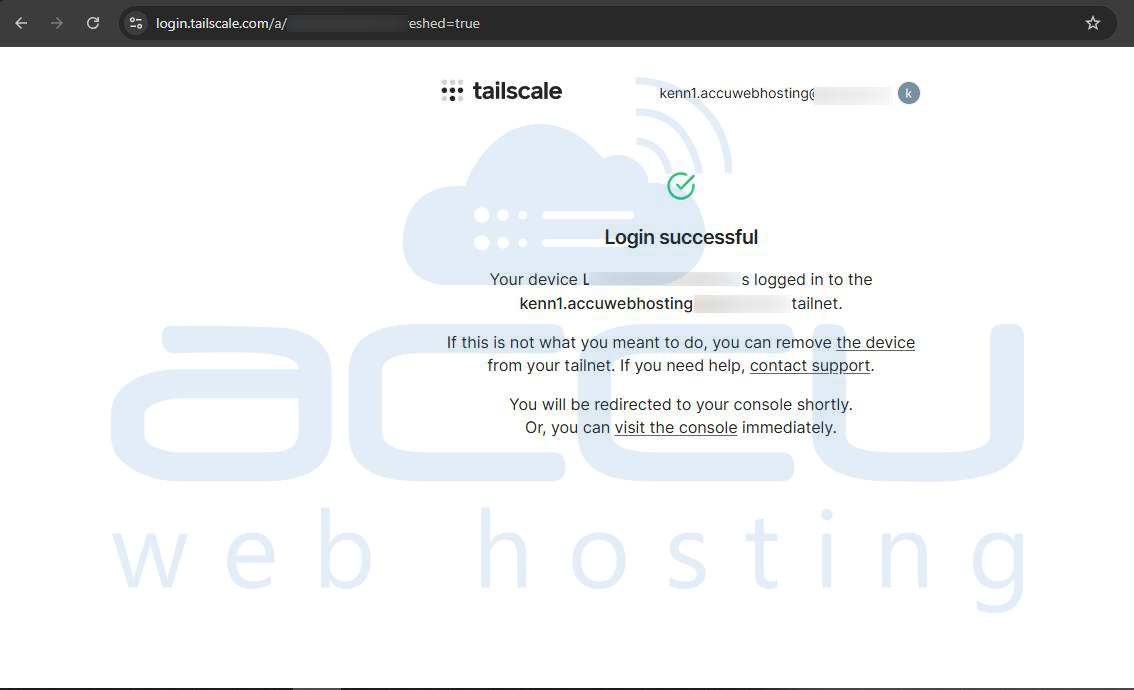
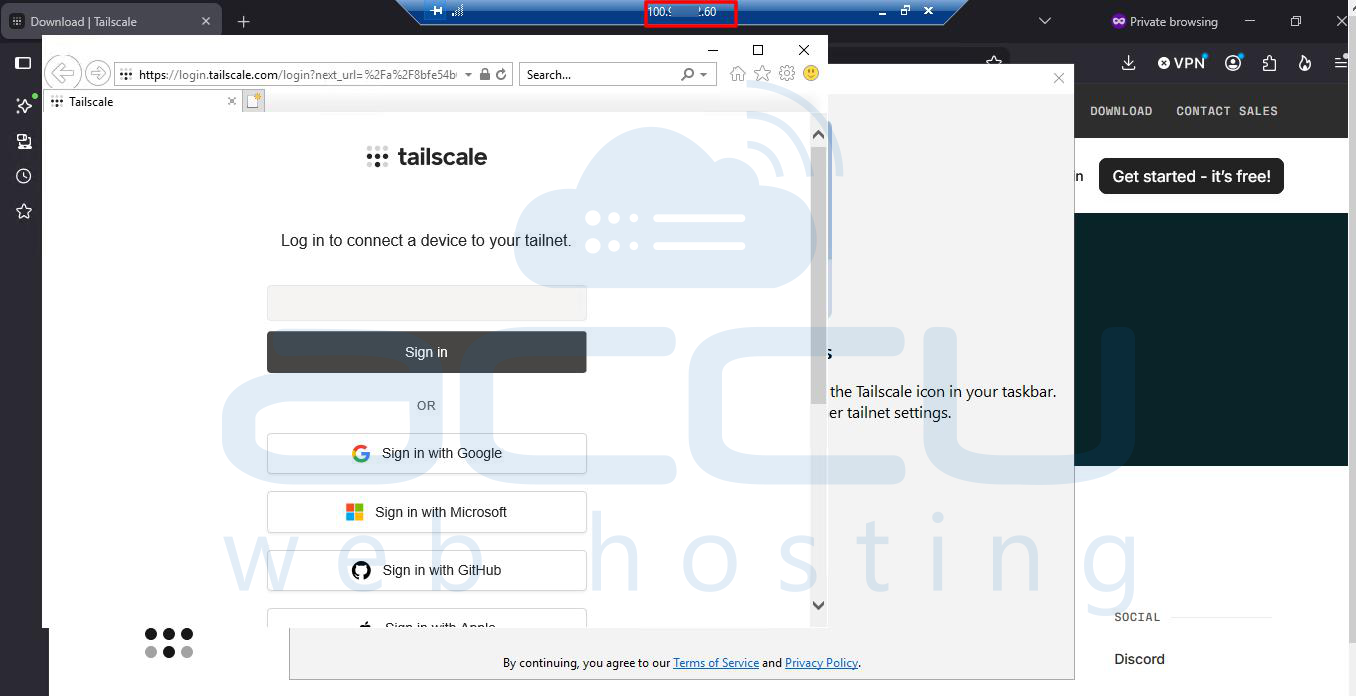
Sign in using your Tailscale account.
After successful authentication, the device joins your private network.
Step 4: Verify Connectivity
-
Open the Tailscale application.
-
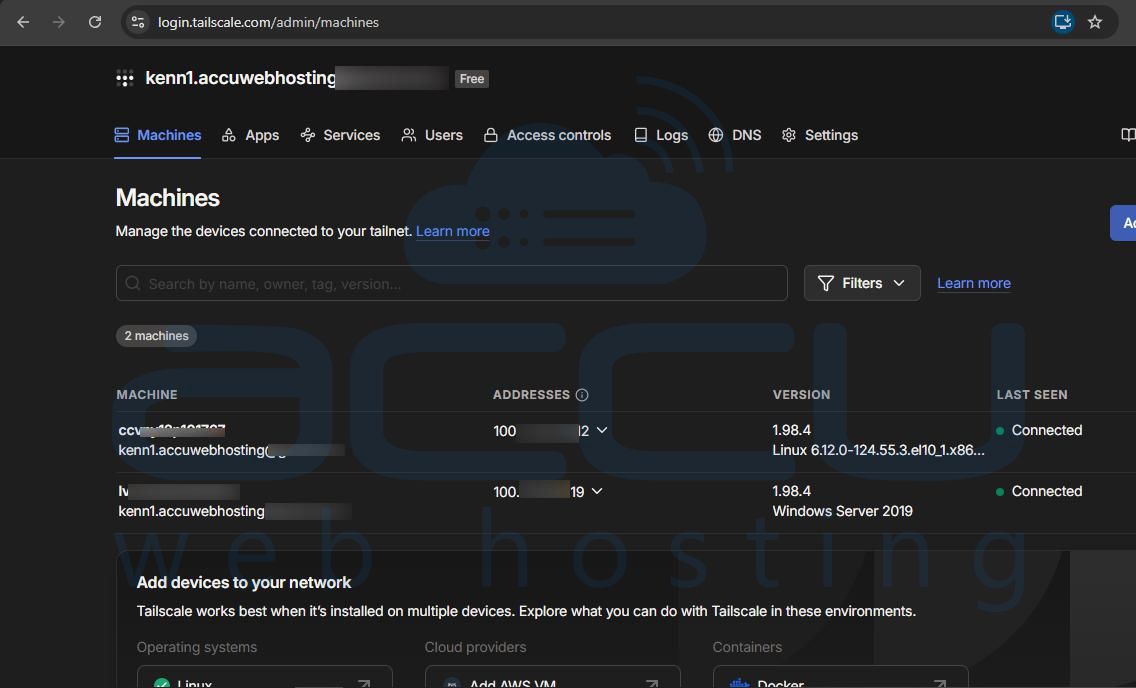
Navigate to the device list.
-
Confirm that your Windows machine appears online.
You can also verify connectivity using Command Prompt:
tailscale ip
To view connected devices:
tailscale status
Accessing Devices Through Tailscale
Once multiple devices are connected to the same Tailscale network:
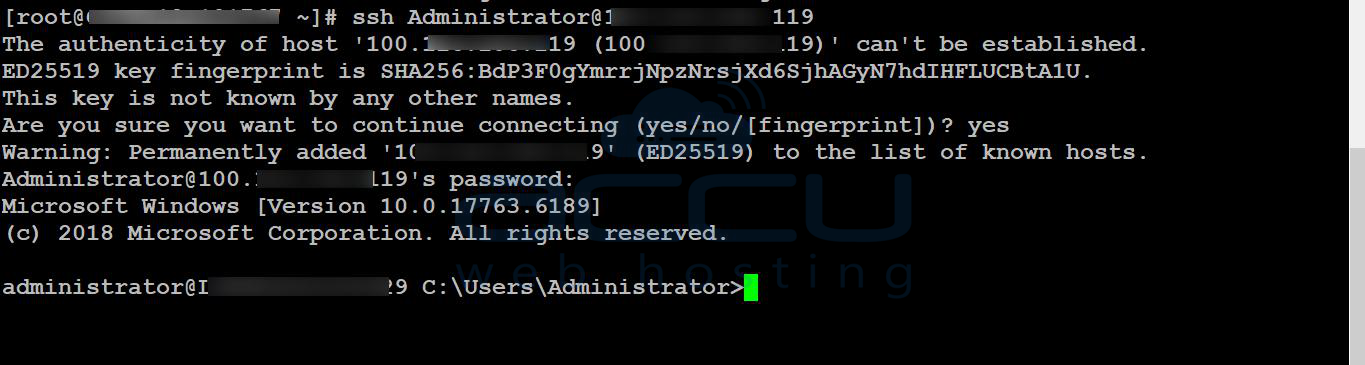
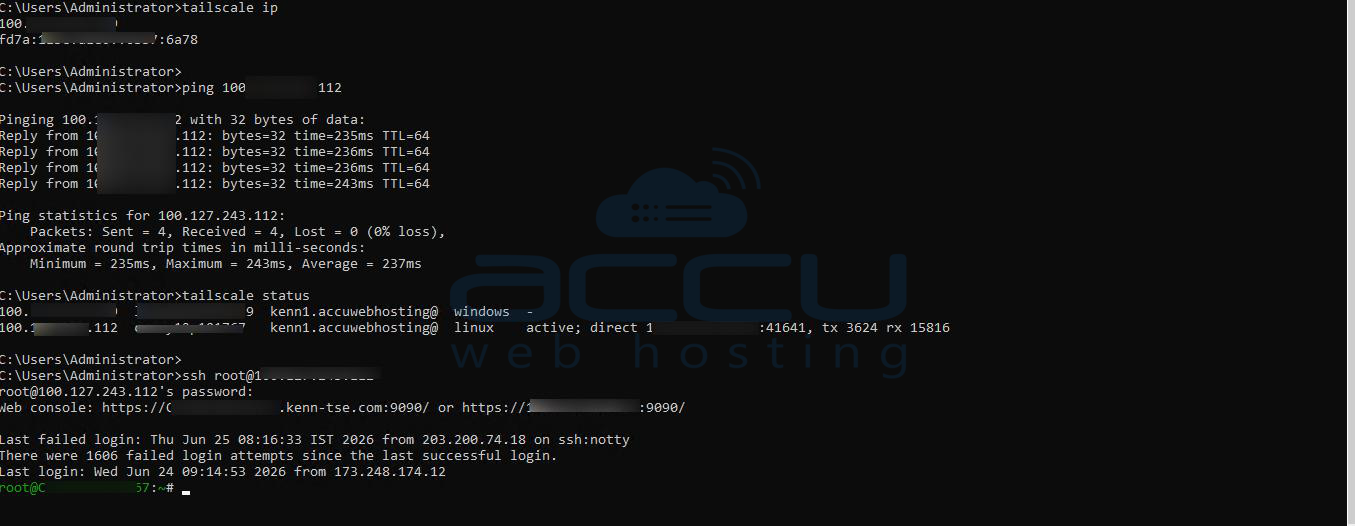
Connect via SSH
Use the Tailscale IP address:
Connect via Remote Desktop
For Windows systems:
-
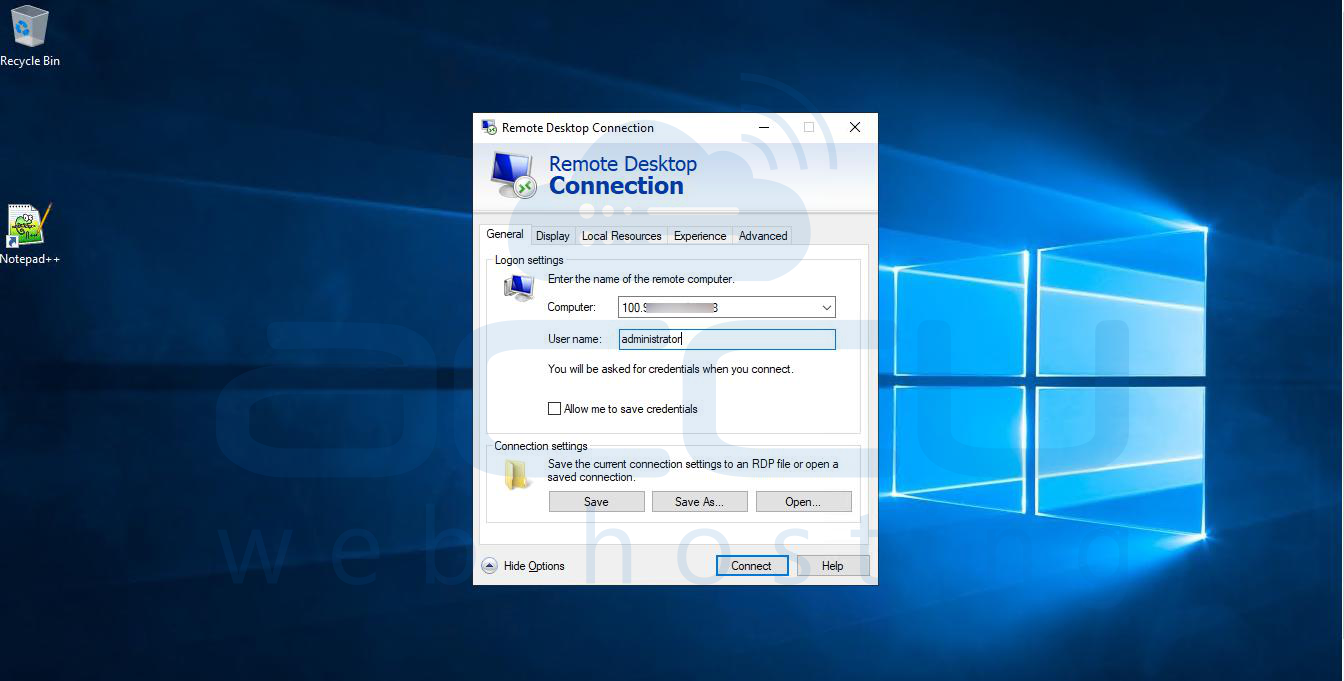
Open Remote Desktop Connection.
-
Enter the Tailscale IP address of the target machine.
-
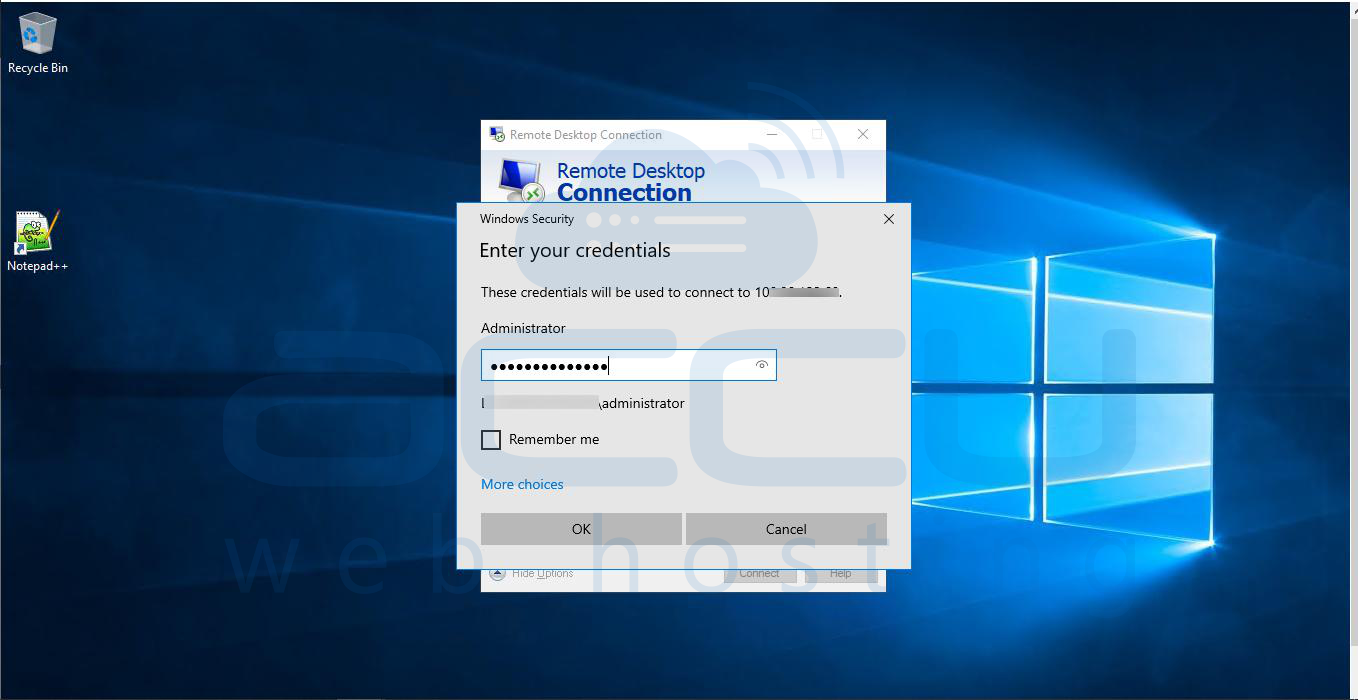
Connect normally.
Access Internal Applications
Use the Tailscale IP address or MagicDNS hostname to securely access web applications, databases, or other services running on your private network.
Common Tailscale Commands
View Device Status
tailscale status
Display Assigned IP Address
tailscale ip
Disconnect from Tailscale
sudo tailscale down
Windows:
tailscale down
Reconnect to Tailscale
sudo tailscale up
Windows:
tailscale up
Tailscale Service Is Not Running
Check the service status:
sudo systemctl status tailscaled
Restart the service:
sudo systemctl restart tailscaled
Device Does Not Appear in the Dashboard
-
Verify internet connectivity.
-
Confirm successful authentication.
-
Re-run:
sudo tailscale up
-
Check the Tailscale admin console for device approval requirements.
Unable to Connect to Another Device
-
Verify both devices are online.
-
Confirm firewall rules permit the desired service.
-
Test connectivity using:
ping <tailscale-ip
Conclusion
Tailscale simplifies VPN deployment by creating secure, encrypted connections between devices without requiring manual firewall or port-forwarding configurations. Whether installed on Linux servers or Windows workstations, Tailscale provides a fast and secure method for remote access, private networking, and resource sharing. By following the steps outlined in this guide, you can quickly deploy Tailscale and securely connect your devices from virtually anywhere.