
Introduction:
When using noVNC (the web-based VNC console) in Virtualizor to access a VPS from your browser, you may sometimes see the following error:
Failed to connect to the server
This message means that the noVNC web client was unable to establish a connection with the VNC server of the selected VPS.
In this guide, we will walk you through simple, step-by-step troubleshooting methods to help resolve this issue.
What is noVNC?
noVNC is a browser-based VNC client that uses HTML5 Canvas and WebSockets. It allows you to open a graphical console for your VPS directly from the Virtualizor panel — without installing any external VNC software on your computer.
It is a convenient way to access your VPS console through a web browser.
Step-by-Step Troubleshooting Guide:
1. Restart the VPS
If VNC support was enabled after the VPS was created, the noVNC service may not have been properly initialized.
What You Should Do:
1. Stop the VPS from the Virtualizor panel.
2. Start the VPS again.

3. Once it is fully running, try connecting via NoVNC.
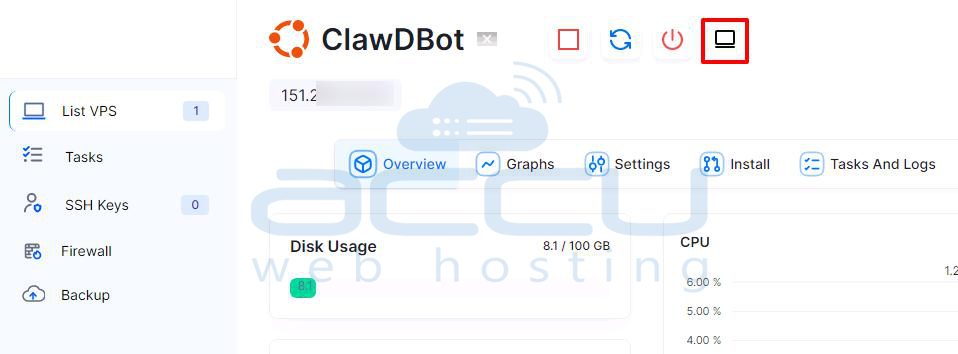
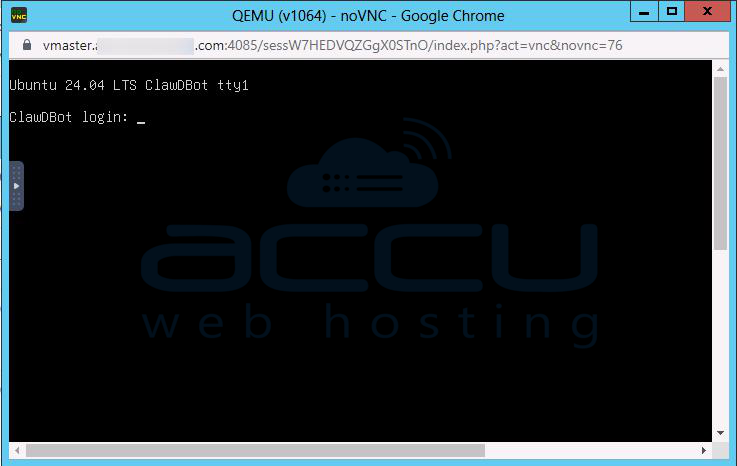
In many cases, a simple restart refreshes the VNC configuration and resolves the issue.
2. Check Firewall Rules
NoVNC and VNC require certain TCP ports to be open.
Default Ports Used
| Purpose | Default Ports |
| noVNC WebSocket (Non-SSL) | 4081–4084 |
| noVNC WebSocket (SSL) | 4083 & 4085 |
| VNC Session (Per VPS) | 5900+ (varies per VPS) |
If your firewall blocks these ports, the noVNC client will not be able to connect.
How to Fix:
- Allow ports 4081–4085.
- Allow the required VNC session ports (5900+).
- If using iptables or firewalld, add rules to open these ports.
- On some Linux systems, these ports are closed by default.
After updating firewall rules, try reconnecting.
3. Verify that noVNC is Enabled in Virtualizor
Sometimes, noVNC may not be enabled in the panel settings.
Steps to Check:
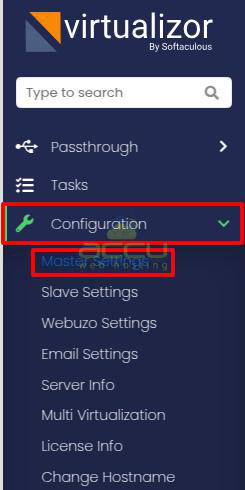
1. Log in to the Virtualizor Admin Panel.
2. Go to Configuration → Master Settings.
3. Locate the noVNC Settings section under the Networking tab.
4. Ensure Enable noVNC is turned ON.
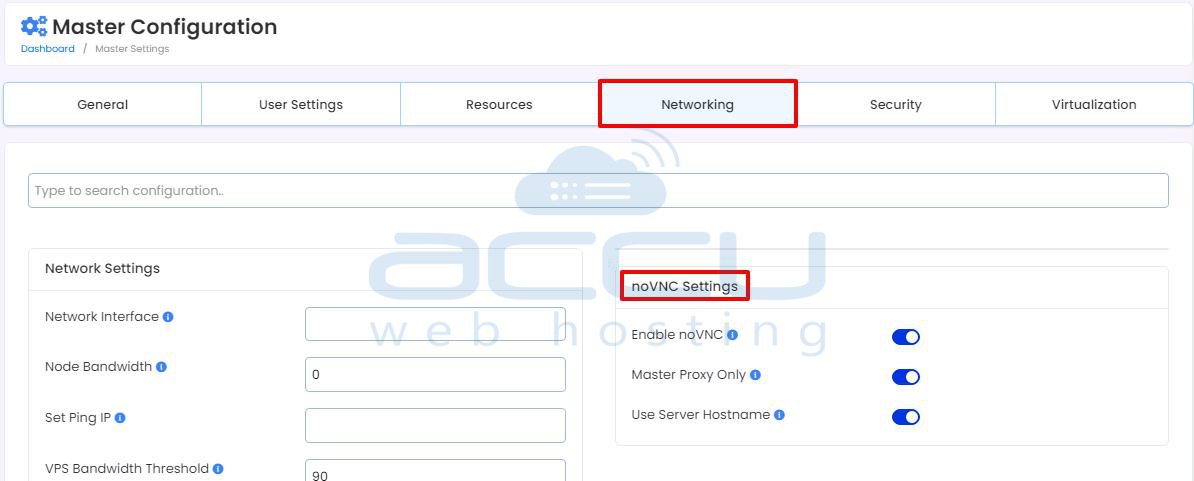
5. Save the settings.
Saving the configuration often refreshes the noVNC setup and resolves connectivity issues.
4. Check Master & Slave Settings (Cluster Setup)
If you are running Virtualizor in a cluster environment (with master and slave servers), WebSocket routing may cause connection issues.
Common Issue:
If you access noVNC via HTTPS and the slave server has a different hostname or SSL certificate, the browser may block the WebSocket connection.
Possible Solutions:
- Enable Master Proxy Only (routes all noVNC traffic through the master server).
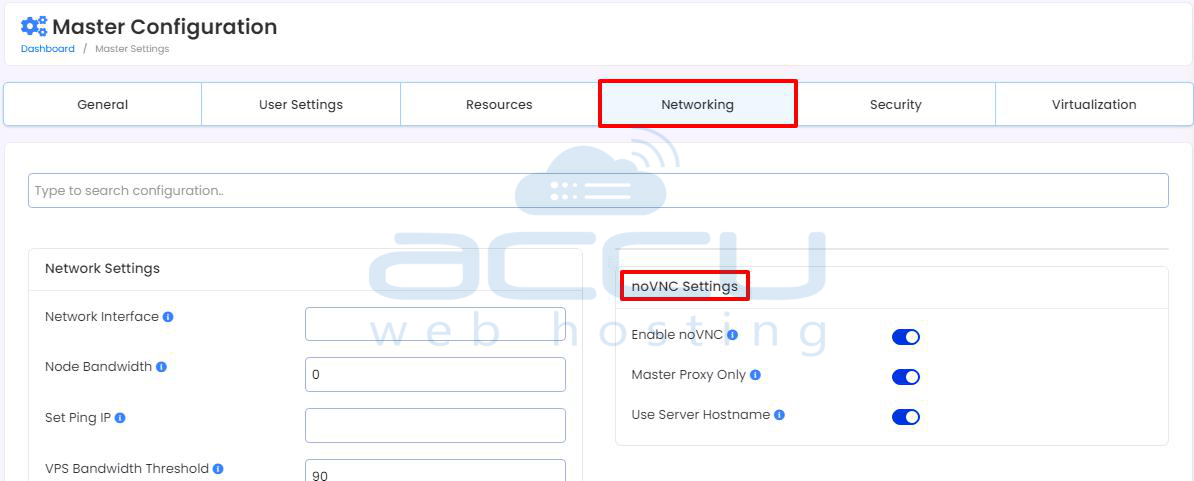
- On slave settings, enable Use Server Hostname and ensure a valid SSL certificate is installed.
These options help ensure the browser trusts the server handling the noVNC connection.
5. Check WebSocket Proxy (websockify)
noVNC requires a WebSocket proxy (usually websockify) to bridge browser traffic to the VNC session.
If this service is not running, noVNC cannot connect.
To Check:
Run the following command on the server:
ps aux | grep websoc
If no WebSocket process appears:
- Ensure required packages (such as socat) are installed.
- Restart Virtualizor services.
- Reinstall missing components if necessary.
Restarting services often resolves this issue.
6. Check for SSL & Mixed Content Issues
If your Virtualizor panel is accessed via HTTPS, WebSockets must also use secure connections (wss://).
Modern browsers block insecure WebSocket (ws://) connections when the panel runs on HTTPS.
To Avoid This Problem:
- Use SSL for both the Virtualizor panel and noVNC ports.
- Ensure SSL certificates are valid and match the hostname.
- If using a self-signed certificate, you may need to manually trust it in your browser (advanced users only).
Proper SSL configuration prevents browsers from blocking the connection.
7. Use Browser Developer Tools for Debugging
If the issue still persists, you can check browser logs for more details.
Steps:
1. Press F12 to open Developer Tools.
2. Go to the Console or Network tab.
3. Look for:
- WebSocket errors
- SSL certificate warnings
- Blocked connection messages
These messages often help identify whether the problem is related to networking, certificates, or routing.
Summary of Common Fixes:
| Problem | Suggested Fix |
| VNC fails after enabling | Restart the VPS |
| Firewall blocking ports | Open required NoVNC/VNC ports |
| noVNC not responding | Enable noVNC in Master Settings |
| SSL connection blocked | Use valid SSL & wss:// |
| Cluster routing issue | Configure Master Proxy or correct hostnames |
| WebSocket proxy missing | Install socat / ensure websockify is running |
Conclusion:
In most cases, restarting the VPS and verifying firewall or SSL settings resolves the issue quickly.
Always remember:
- Restart the VPS after enabling VNC.
- Restart Virtualizor services after making configuration changes.
- Use valid SSL certificates when accessing Virtualizor over HTTPS.


